
Seeing "No Service" or a single bar in the corner of your iPhone 17 Pro is a real headache. It cuts you off from calls, texts, and mobile data right when you need them most. This usually isn't a permanent hardware failure, but a temporary glitch in how your phone connects to your carrier's network.
The fixes below start with the quickest, most common solutions. I'd recommend working through them in order.
Restart Your iPhone 17 Pro
This is always the best first step. A simple restart clears out temporary software bugs that can interfere with the cellular modem. Just hold the Side button and either volume button, then slide to power off.
Wait about 30 seconds, then press the Side button again to turn it back on. Give it a minute to reconnect to the network once it boots up.
Check for a Carrier Settings Update
Apple and your carrier periodically release small updates that fine-tune network connectivity. These are separate from iOS updates and are crucial for signal stability.
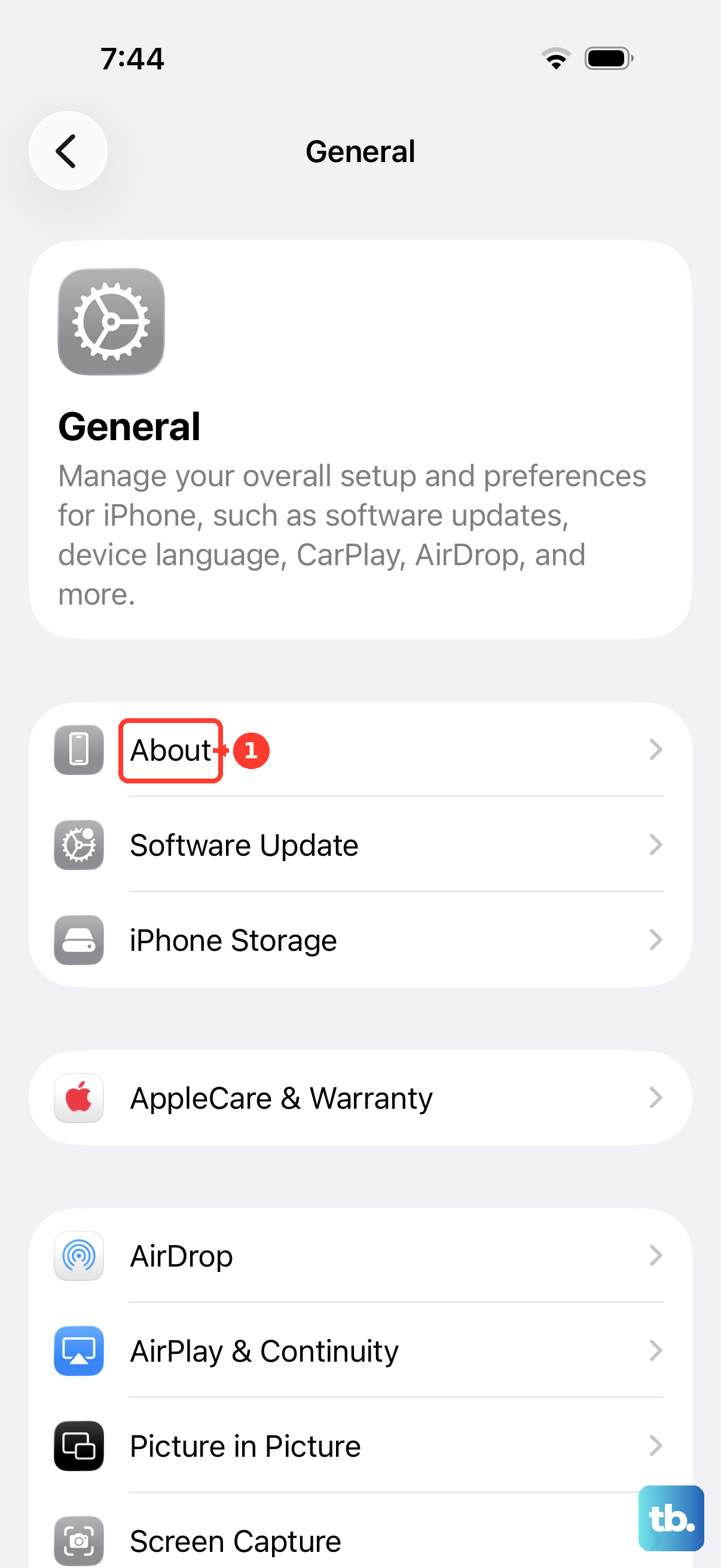
Go to Settings > General > About. If an update is available, a prompt will appear. Tap "Update" if you see one. This takes just a few seconds and doesn't require a restart.
Toggle Airplane Mode
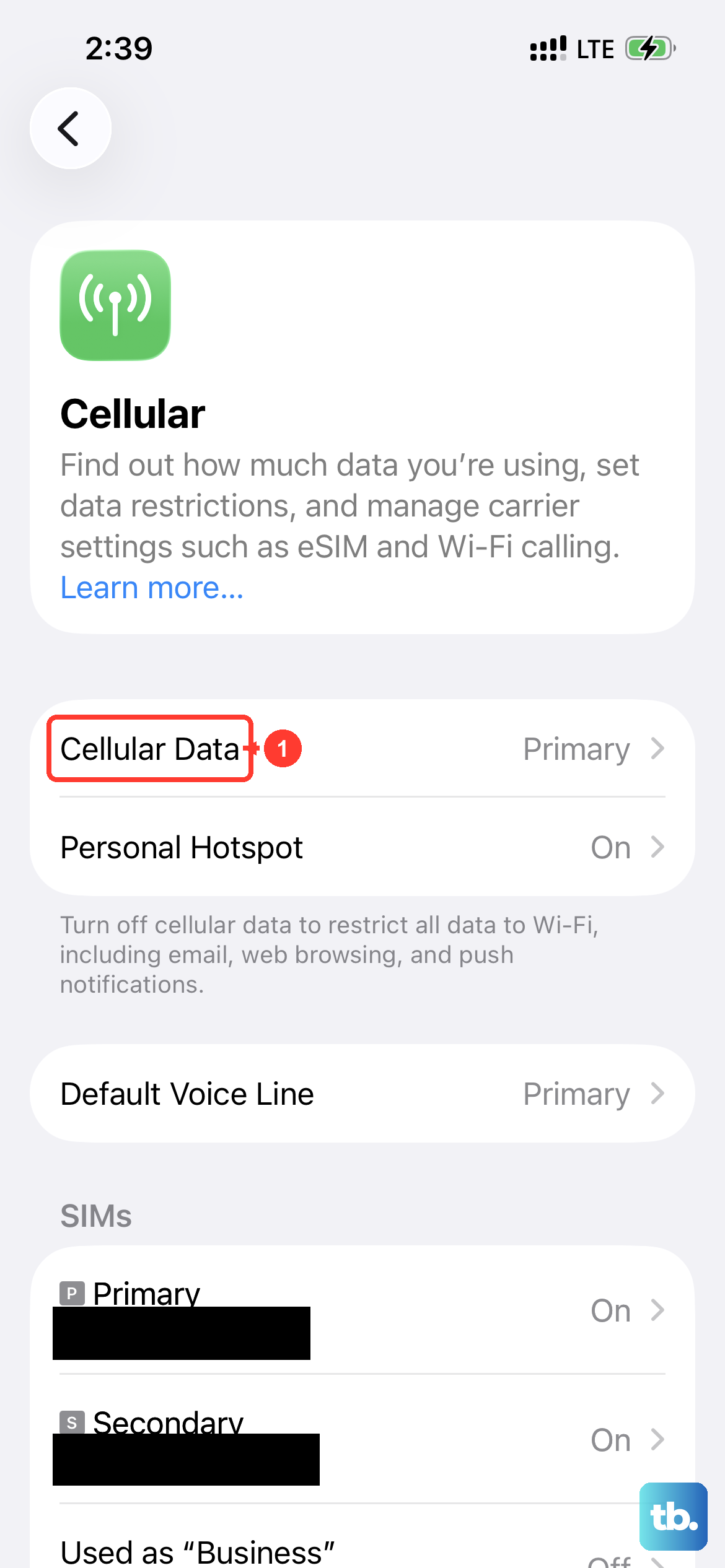
This forces your iPhone's radio to completely disconnect and then reconnect to the cellular network. It's a deeper refresh than just turning cellular data off and on.
Swipe down from the top-right corner to open Control Center and tap the airplane icon. Wait 15 seconds, then tap it again to turn Airplane Mode off. You should see "Searching..." briefly before your carrier name reappears.
Reinsert Your SIM Card or Check eSIM
A loose or dirty SIM card tray can cause intermittent "No Service" errors. Grab the SIM eject tool that came with your iPhone 17 Pro (or a small paperclip) and gently pop out the tray.
Remove the physical SIM, blow any dust out of the tray, and reseat the card firmly. If you're using an eSIM, you can try toggling it off and on in Settings > Cellular.
Update iOS to the Latest Version
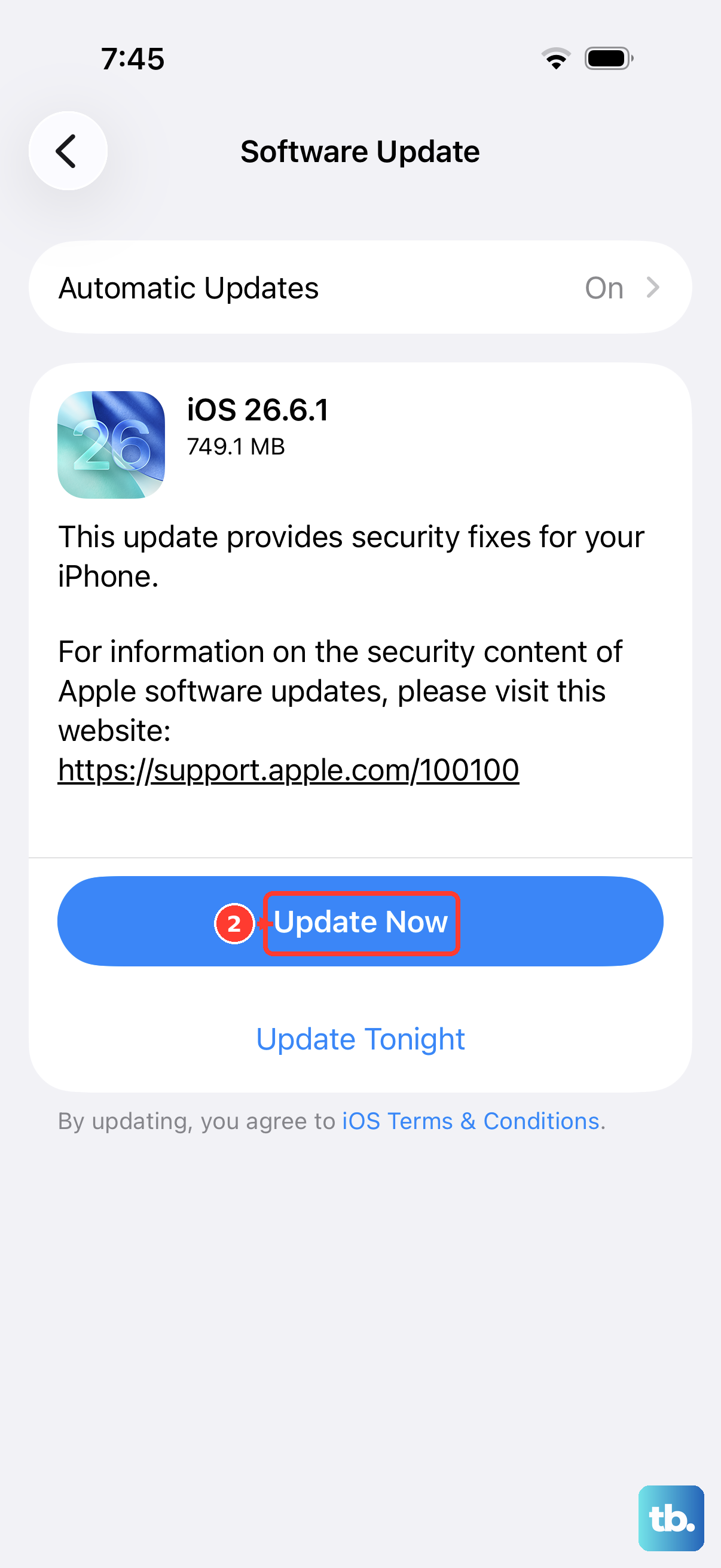
iOS 26 updates often include critical bug fixes for cellular connectivity. An outdated version could be the root of your signal problems.
Head to Settings > General > Software Update. Download and install any available update. Make sure your phone is connected to Wi-Fi and has at least 50% battery or is plugged into your charger first.
Reset Your Network Settings
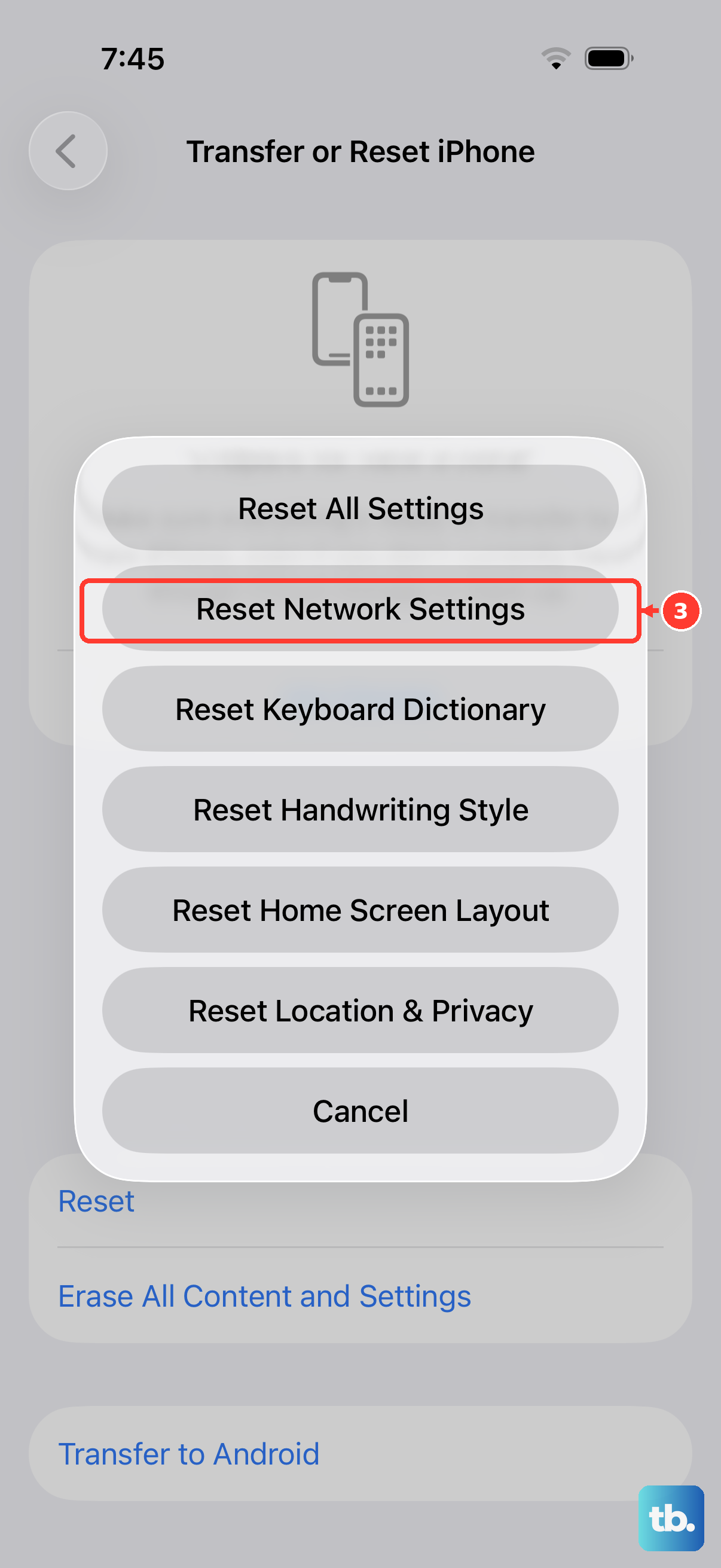
This clears all network-related data on your phone, including saved Wi-Fi passwords, Bluetooth pairings, and VPN configurations. It often resolves persistent cellular issues.
Go to Settings > General > Transfer or Reset iPhone > Reset. Then, tap "Reset Network Settings." You'll need to enter your passcode and confirm. Your phone will restart, and you'll have to reconnect to Wi-Fi networks afterward.
Manually Select Your Network Carrier
Sometimes your iPhone gets stuck trying to connect to a weak or incorrect tower. Manually choosing your carrier can force a proper connection.
Navigate to Settings > Cellular > Network Selection. Turn off "Automatic." After a moment, a list of available networks will appear. Select your carrier's name from the list.
Perform a Force Restart
A force restart is more thorough than a standard shutdown. It can clear deeper system caches that might be affecting the cellular radio. For the iPhone 17 Pro, quickly press and release the Volume Up button, then quickly press and release the Volume Down button.
Immediately after, press and hold the Side button. Keep holding it until you see the Apple logo appear, then release. This won't delete any data.
Check for a Service Outage
The problem might not be with your phone at all. Widespread carrier outages do happen. Before trying more complex fixes, check your carrier's status page on their website or a service like Downdetector.
You can also try calling a friend on the same network. If they're also having issues, you'll know to just wait it out.
Contact Your Carrier for Support
If you've tried everything here, the next step is to call your carrier. They can run diagnostics on your line, check if your account is provisioned correctly, and see if there's an issue with your specific SIM or eSIM profile.
They may suggest getting a new physical SIM card, which is often a free fix. In rare cases, they might need to reprovision your eSIM from their end, which they can usually do while you're on the phone with them.