
Screen flickering on your iPhone 17 Pro Max is incredibly distracting, turning that beautiful ProMotion display into a frustrating mess. You might see the screen flash, blink, or show horizontal lines that come and go. This can be caused by a temporary software hiccup, a misbehaving display setting, or, less commonly, a hardware issue. Let's get it sorted.
A browser based online monitor test cycles solid colors and gradients across the whole screen, which helps you confirm whether the panel itself shows the fault.
Force Restart Your iPhone 17 Pro Max
This is the first thing I'd try. A force restart clears out temporary glitches in memory that can affect the display. On your iPhone 17 Pro Max, quickly press and release the Volume Up button, then quickly press and release the Volume Down button. Immediately after, press and hold the Side button until you see the Apple logo appear, then let go. This takes about 15 seconds and often fixes a flicker that just started.
Turn Off Auto-Brightness
The ambient light sensor on your phone can sometimes get confused, especially in environments with mixed lighting. When it tries to adjust the brightness too rapidly, it can cause a flickering effect. Head to Settings > Accessibility > Display & Text Size and toggle off Auto-Brightness. After that, you can manually set your preferred brightness level in Settings > Display & Brightness.
Disable True Tone and ProMotion
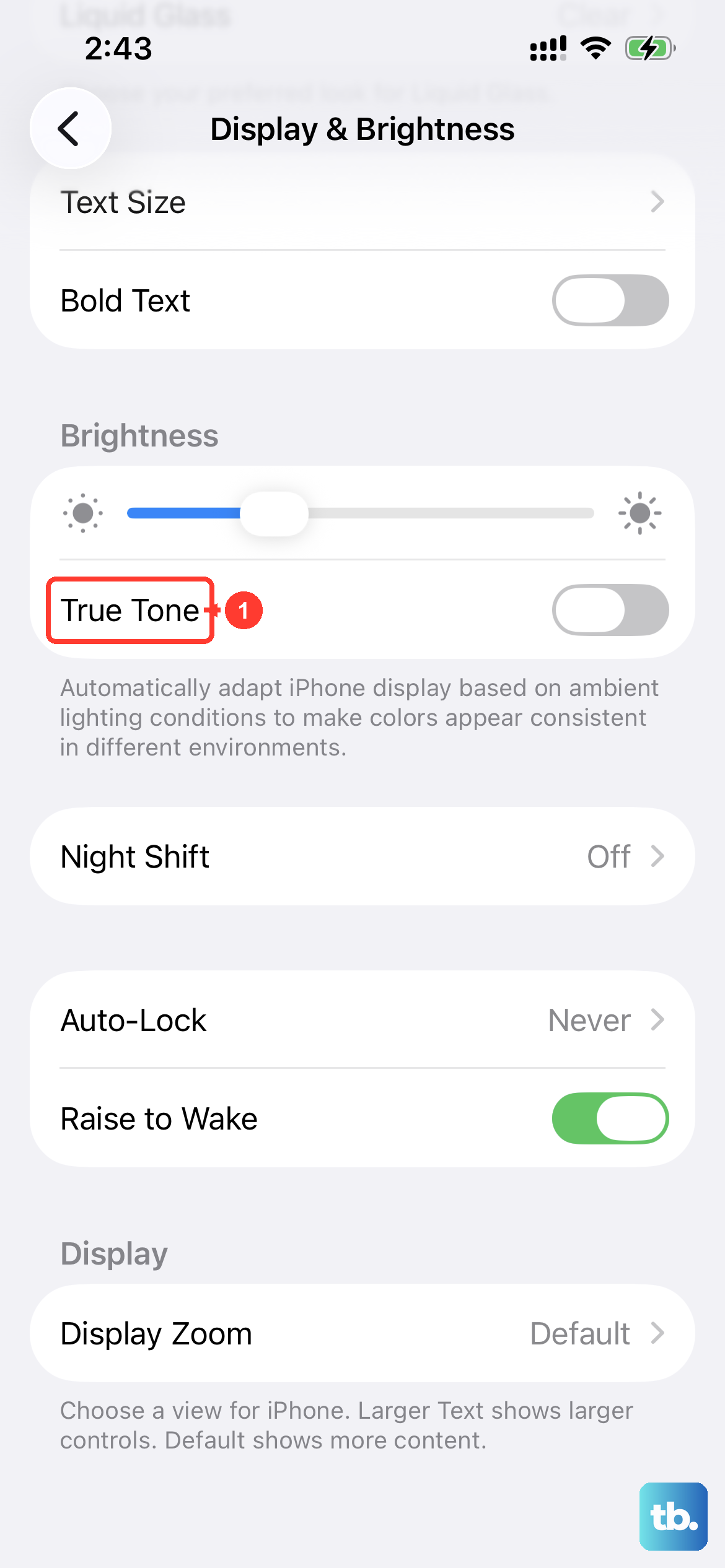
True Tone adjusts the color temperature, and ProMotion dynamically changes the refresh rate up to 120Hz. While these are great features, a software bug can make them interact poorly. Go to Settings > Display & Brightness and toggle off True Tone. Also, try switching the Refresh Rate setting to a fixed 60Hz to see if the dynamic switching is the culprit.
Update to the Latest iOS 26 Version
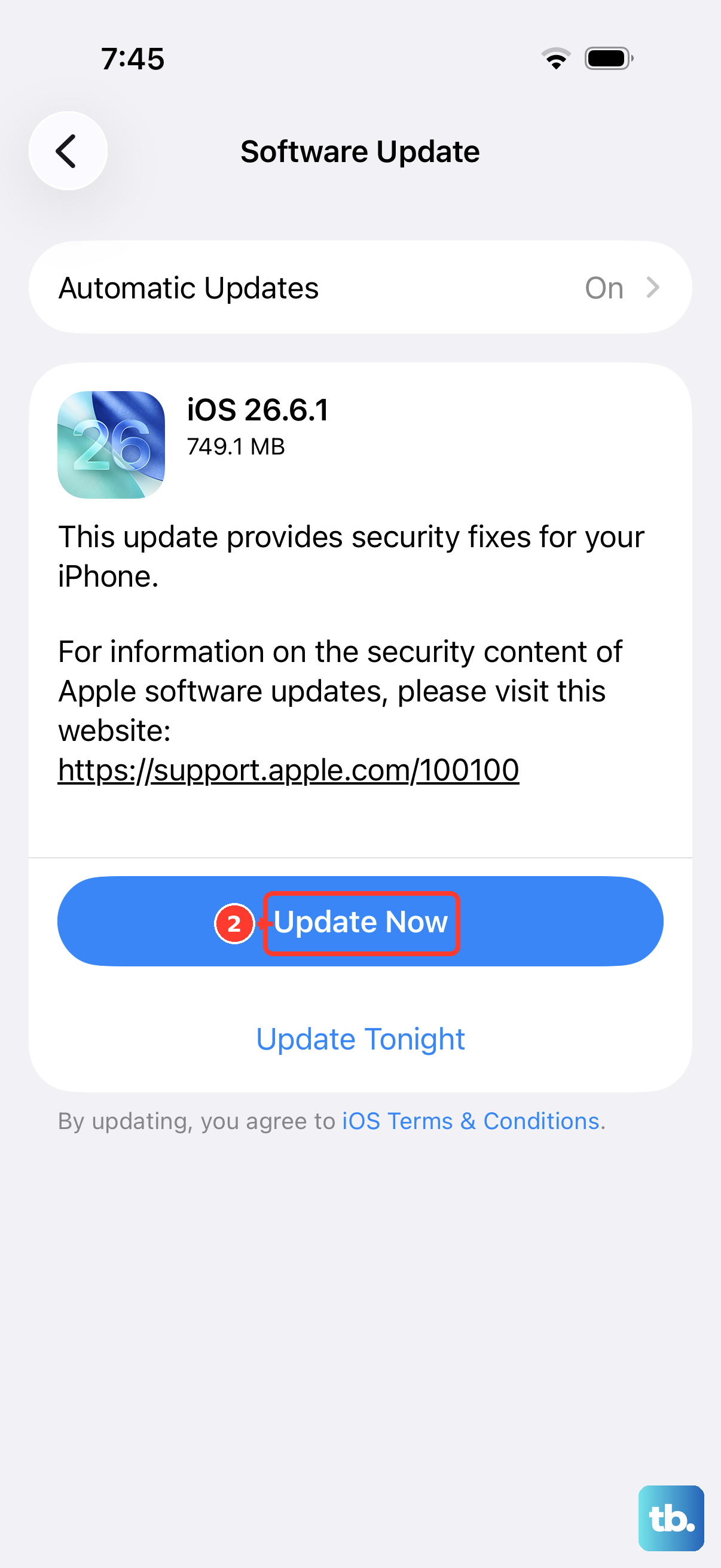
Apple is constantly squashing bugs, and display issues are a common target for patches. Navigate to Settings > General > Software Update and install any available update. I've seen specific iOS updates in the past that directly addressed flickering problems on Pro Max OLED screens, so this is a crucial step.
Check for a Problematic App
A third-party app with a memory leak or a bug in its graphics rendering can cause screen artifacts. Swipe up from the bottom of the screen and pause in the middle to bring up the app switcher. Swipe up on every app preview to close them all. Open the apps you use most frequently one by one, using each for a minute to see if the flickering returns with a specific one.
Reset All Settings
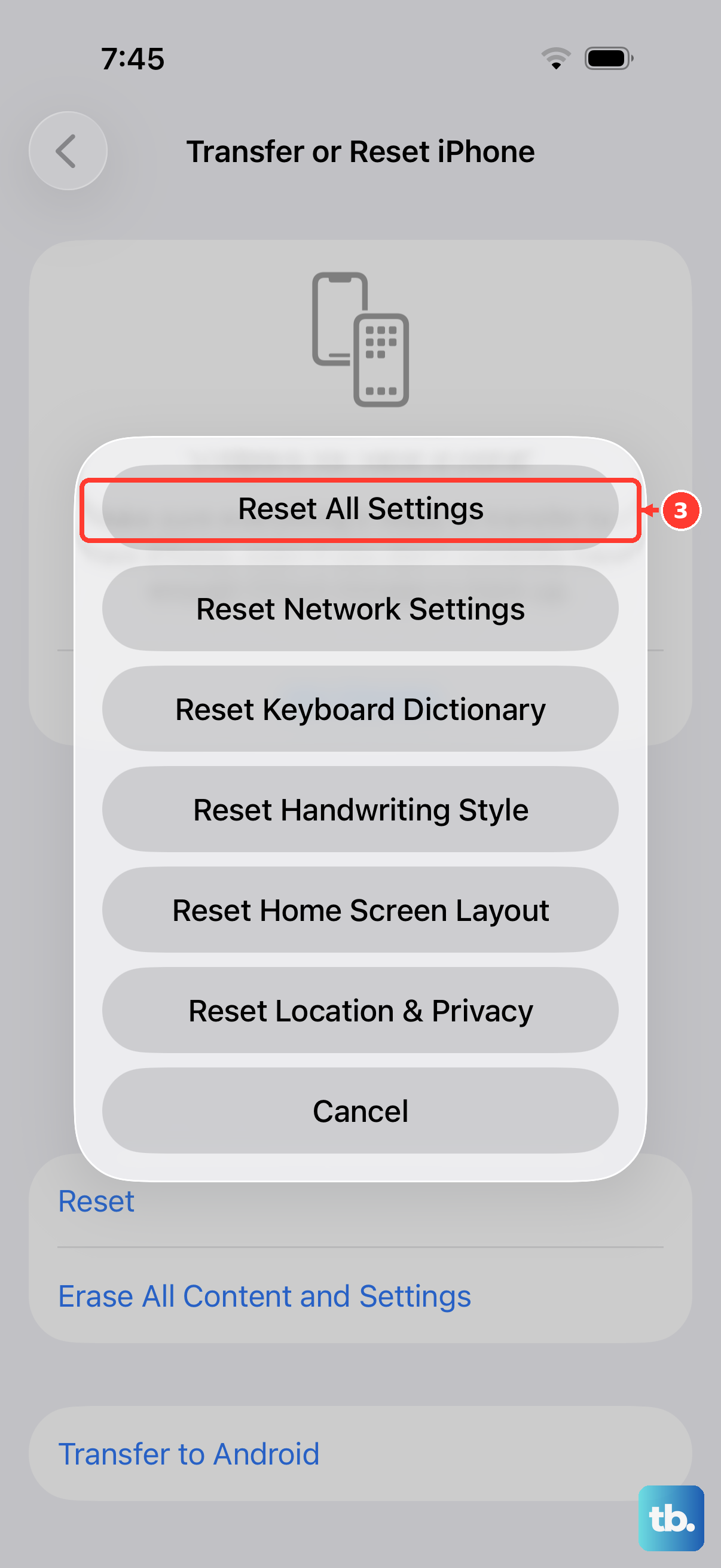
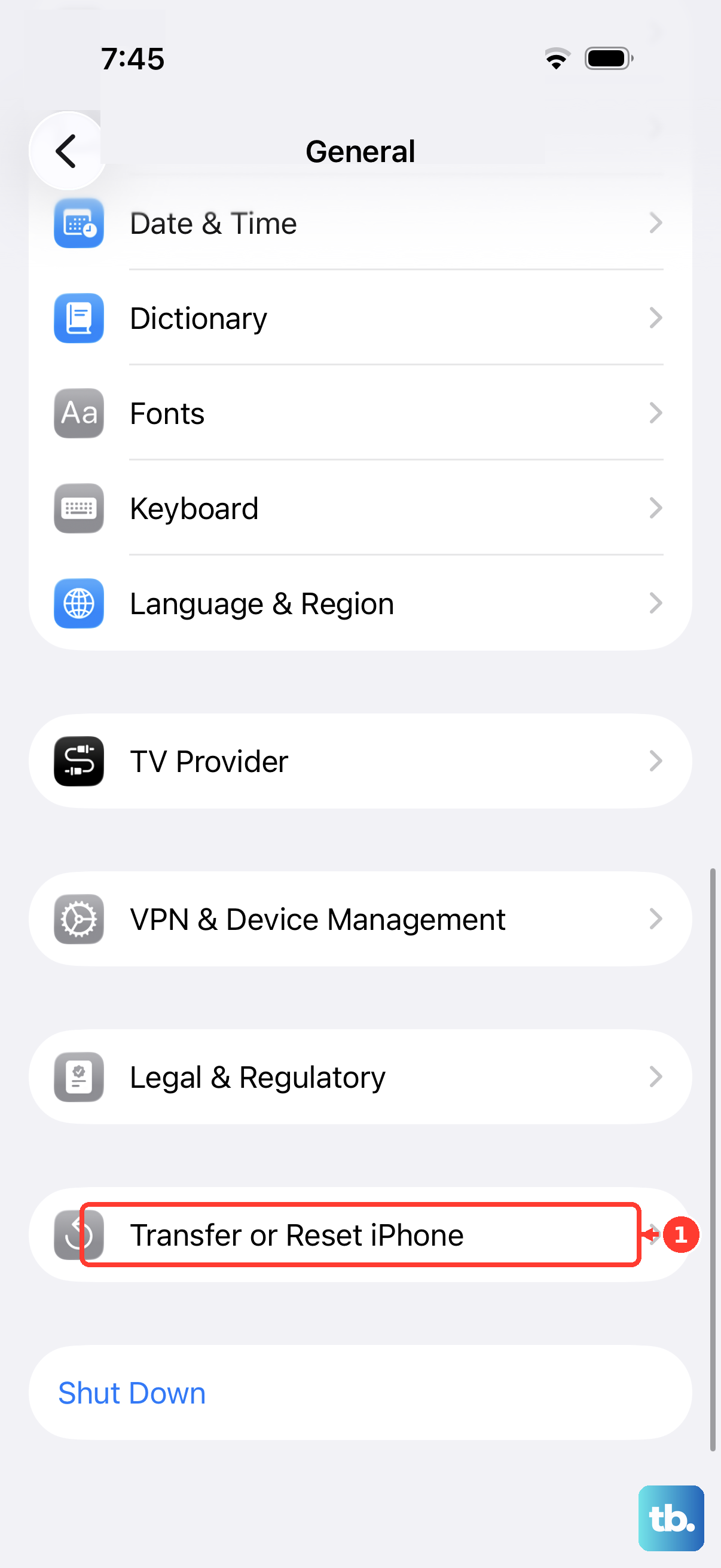
This is a deeper fix than a restart. It resets every system setting on your iPhone 17 Pro Max, your network connections, wallpaper, display preferences, and privacy settings, back to factory defaults without touching your personal data or apps. Go to Settings > General > Transfer or Reset iPhone > Reset > Reset All Settings. You'll need to re-enter Wi-Fi passwords and reconfigure things like Face ID, but it can resolve stubborn configuration conflicts.
Look for Signs of Physical Damage
If the flickering began after you dropped the phone or it was subjected to pressure, the internal display cable might have come slightly loose or the screen itself could be damaged. Inspect the screen closely for any new hairline cracks, spots where the display doesn't respond to touch, or areas with permanent discoloration. Any physical damage will require a professional repair.
Perform a Full Restore
If the flickering persists through all the software fixes, it's time for a clean slate. First, ensure you have a recent backup in iCloud or on your computer. Connect your iPhone 17 Pro Max to a Mac or PC, open Finder or iTunes, select your device, and choose Restore iPhone. This erases the device and installs a fresh copy of iOS 26. If the screen is perfect after the restore, it was a deep software issue. If the flickering remains on a clean install, the problem is almost certainly hardware-related.