
When your iPhone 17 Pro Max's GPS stops locking on or gives you a spinning blue dot, it can throw a real wrench in your plans. This is usually a quick software hiccup, but I've found a few specific steps that almost always get things back on track.
Start by toggling your Location Services off and back on. Swipe down from the top-right corner to open Control Center, then tap the location arrow icon. Wait a few seconds and tap it again to re-enable it. This simple refresh clears up a lot of temporary glitches.
Restart Your iPhone 17 Pro Max
A force restart is often the most effective first step. It clears the device's memory and resets all the radios, including the GPS module. On the iPhone 17 Pro Max, you do this by pressing and quickly releasing the Volume Up button, then quickly pressing and releasing the Volume Down button.
Finally, press and hold the Side button. Keep holding it until you see the Apple logo appear, then let go. This is different from older models and is the correct sequence for your device.
Check Your Location Services Settings
Head into Settings > Privacy & Security > Location Services. First, make sure the main Location Services toggle at the top is green and on. Scroll down to find the app you're having trouble with, like Maps or Google Maps.
Tap on the app name and ensure its permission is set to "While Using the App" or "Always." If it's set to "Never," that's your problem. Also, check that "Precise Location" is enabled for the most accurate GPS lock.
Toggle Airplane Mode
This is a great trick to reset all the wireless antennas at once. Open Control Center again and tap the airplane icon to turn on Airplane Mode. Wait about 15 seconds for all connections to fully drop.
Then, tap the airplane icon again to turn it off. Your iPhone will reconnect to cellular, Wi-Fi, and Bluetooth, and this fresh start often helps the GPS receiver get a clean signal.
Update Your Apps and iOS
An outdated version of Maps or your navigation app can have bugs that break location services. Open the App Store, tap your profile icon, and see if any updates are pending for your mapping apps.
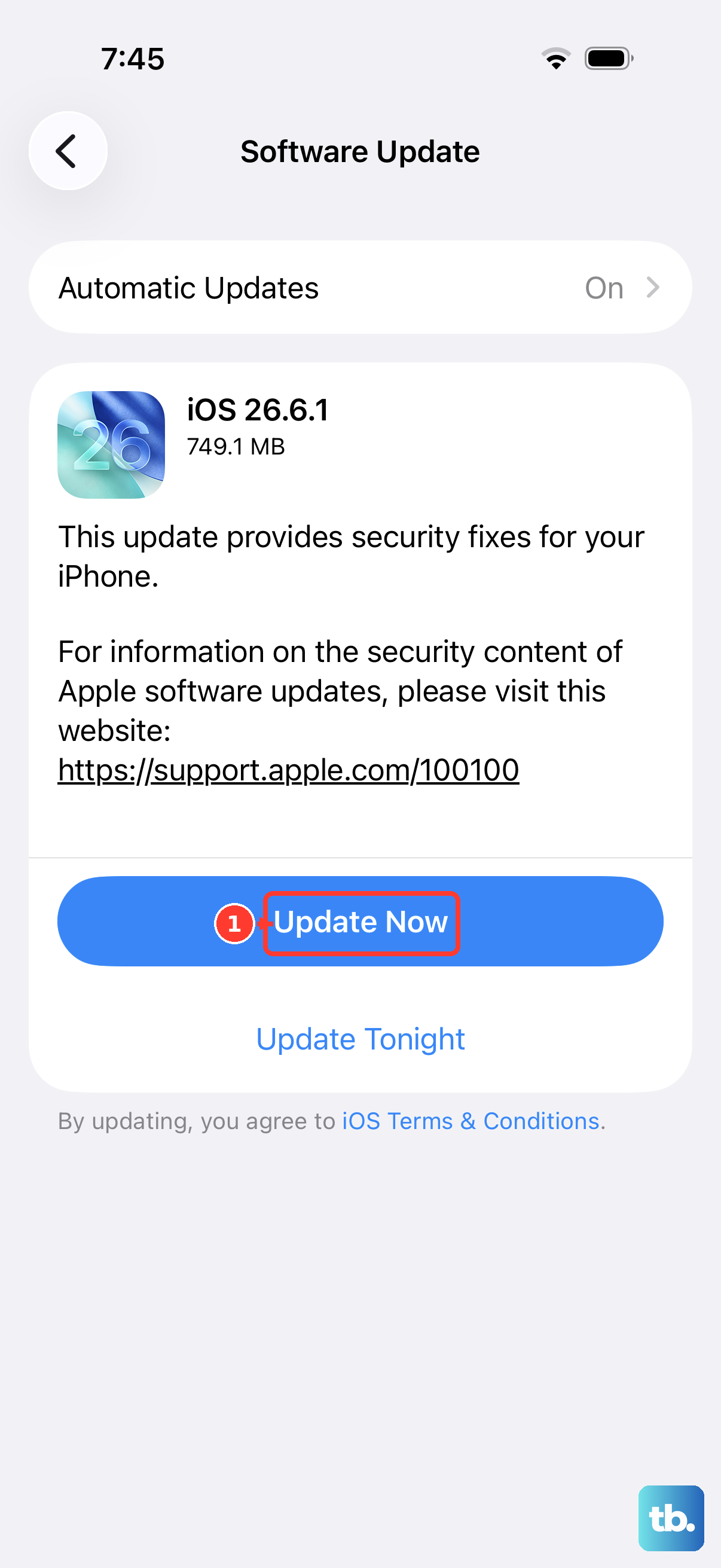
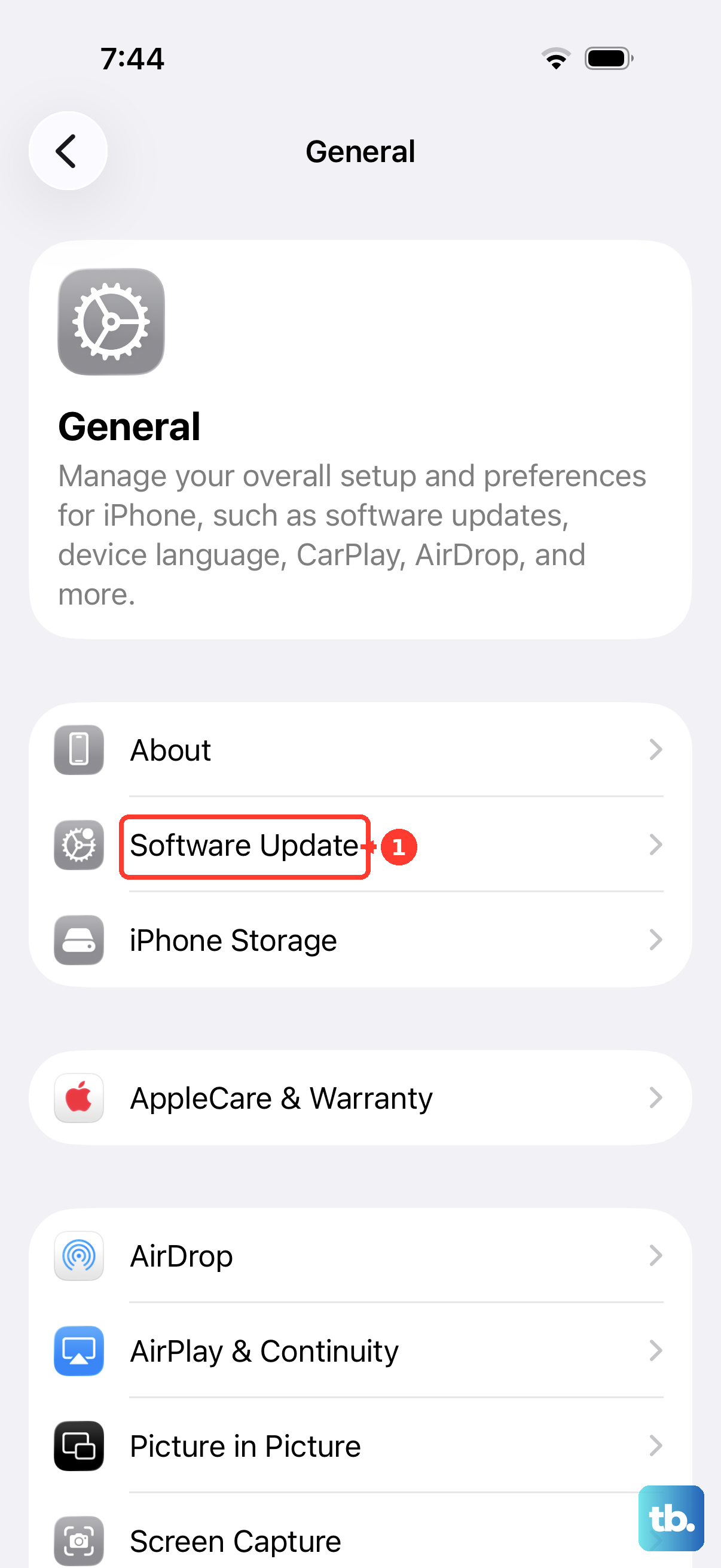
More importantly, check for a system update. Go to Settings > General > Software Update. Apple frequently releases iOS updates that include fixes for connectivity and GPS performance, so installing the latest iOS 26 update is crucial.
Reset Your Network Settings
This is a stronger step that can fix deeper software conflicts affecting location data. It will erase all your saved Wi-Fi networks, Bluetooth pairings, and VPN settings, so you'll need to reconnect to them afterward.
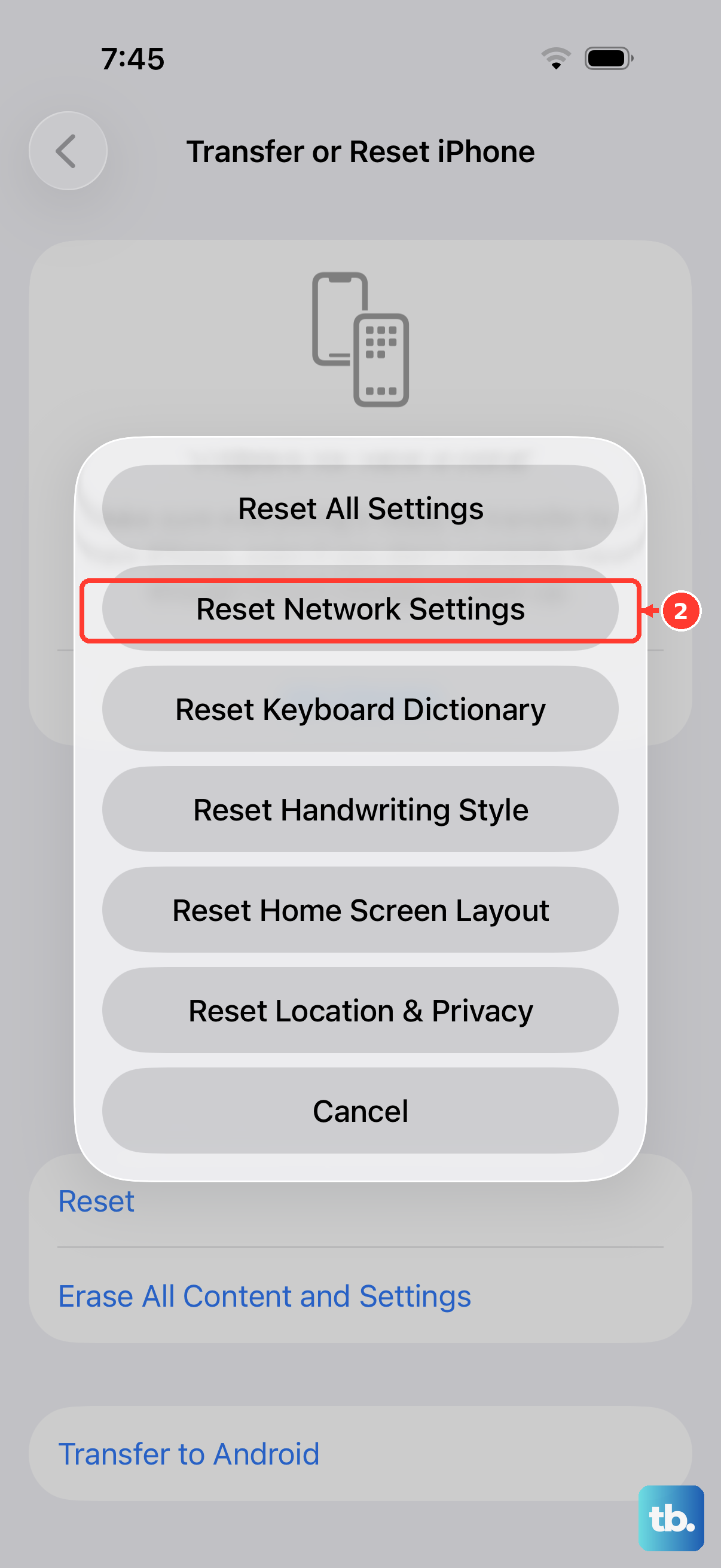
Go to Settings > General > Transfer or Reset iPhone. Tap Reset, then choose Reset Network Settings. Enter your passcode and confirm. Your iPhone will restart, and you can test the GPS again once it's back up.
Check for Physical Signal Blockage
The iPhone 17 Pro Max has antenna bands around its frame. A very thick or metal case can sometimes interfere with the GPS signal. Try removing your case temporarily and see if your location accuracy improves.
GPS signals also struggle indoors, in dense urban areas with tall buildings, or under heavy tree cover. For the best test, try getting a lock while you're outside with a relatively clear view of the sky.
Review Significant Locations and System Services
Deep within the Location Services menu, there are system-level functions that aid GPS. Go back to Settings > Privacy & Security > Location Services and scroll all the way to the bottom. Tap System Services.
Here, make sure "Networking & Wireless" is turned on, as this helps with location accuracy. You can also try toggling "Significant Locations" off, waiting a moment, and then turning it back on to reset that data.
Test with a Different App
To rule out an issue with one specific app, try using a different service. If Apple Maps isn't working, open Google Maps or Waze. If all apps show the same problem, like a failure to lock or wildly inaccurate positioning, then the issue is with your iPhone's system or hardware.
If only one app has trouble, then the fix is specific to that app. Try force-closing it and reopening, or deleting and reinstalling it from the App Store.
Check Date & Time Settings
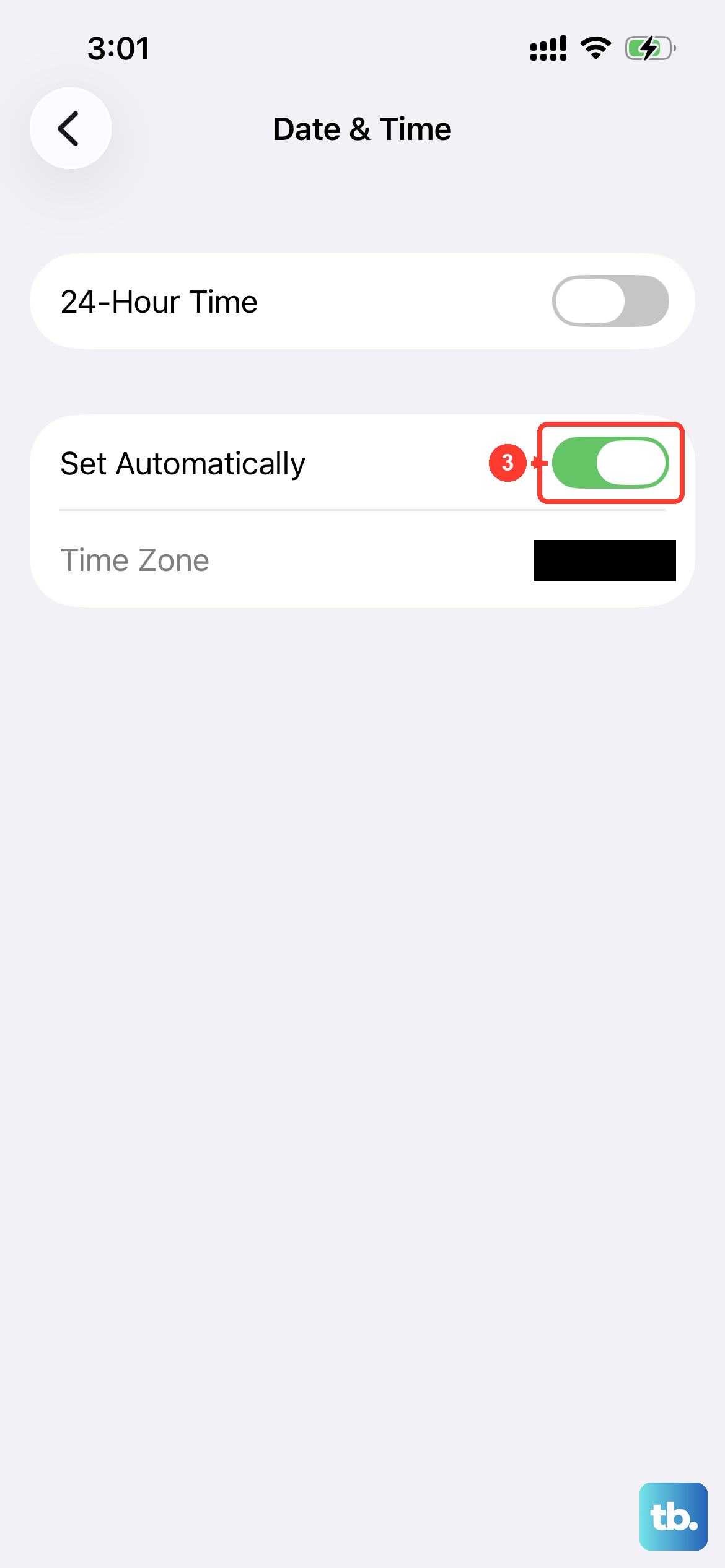
This is a less obvious one, but GPS relies on precise timing. If your phone's date and time are wrong, it can confuse the system. Go to Settings > General > Date & Time.
Make sure "Set Automatically" is turned on. This allows your iPhone to set the time based on your network location, which keeps everything in sync for proper GPS function.
Consider Your Surroundings and Recent Changes
Think about where and when the problem started. Did you recently update iOS or a key app? Have you started using a new phone case? Were you in a new area when the GPS first failed?
Sometimes, the issue is environmental and will resolve itself when you move to a different location. Other times, it points directly to a software change that needs addressing through an update or setting reset.