
If your iPhone 17 Pro camera won't open, shows a black screen, or freezes, the quickest thing to try is a force restart. This clears the phone's memory and can fix temporary software glitches that lock up the camera app. Press and quickly release the Volume Up button, then press and quickly release the Volume Down button, and finally press and hold the Side button until you see the Apple logo appear.
To know whether you are fixing hardware or software, try a webcam test in the browser. A working preview narrows the problem down to the app you were using.
Key Points
- Force Restart Your iPhone: This is the fastest way to clear a temporary camera app freeze.
- Check for iOS and App Updates: Bugs in iOS 26 or the Camera app itself can cause crashes.
- Free Up iPhone Storage: A completely full storage can prevent the camera from saving new photos or videos.
- Check Camera Permissions and Restrictions: The app might be blocked by Screen Time or lack permission to access the camera.
- Reset All Settings: This can fix deeper software conflicts without erasing your personal data.
- Clean the Camera Lenses: Smudges on the advanced lenses can cause blurry photos or focus issues.
- Close Other Apps Using the Camera: Apps like FaceTime or Instagram might be holding onto camera access.
- Check for Physical Damage or Obstructions: A cracked lens or a case blocking the camera array will cause problems.
- Restore Your iPhone: A last-resort software fix via a computer can resolve deep-seated system corruption.
Give your phone a moment to reboot, then try opening the Camera app again from your Home Screen.
If the camera app opens but immediately crashes or shows an error, check for a software update. Apple frequently releases patches for iOS 26 that address camera performance and stability. Go to Settings > General > Software Update to see if anything is available.
Install any update and restart your iPhone 17 Pro afterward. Also, make sure the Camera app itself is updated. Open the App Store, tap your profile icon, and scroll down to see if a Camera app update is pending.
Free Up iPhone Storage
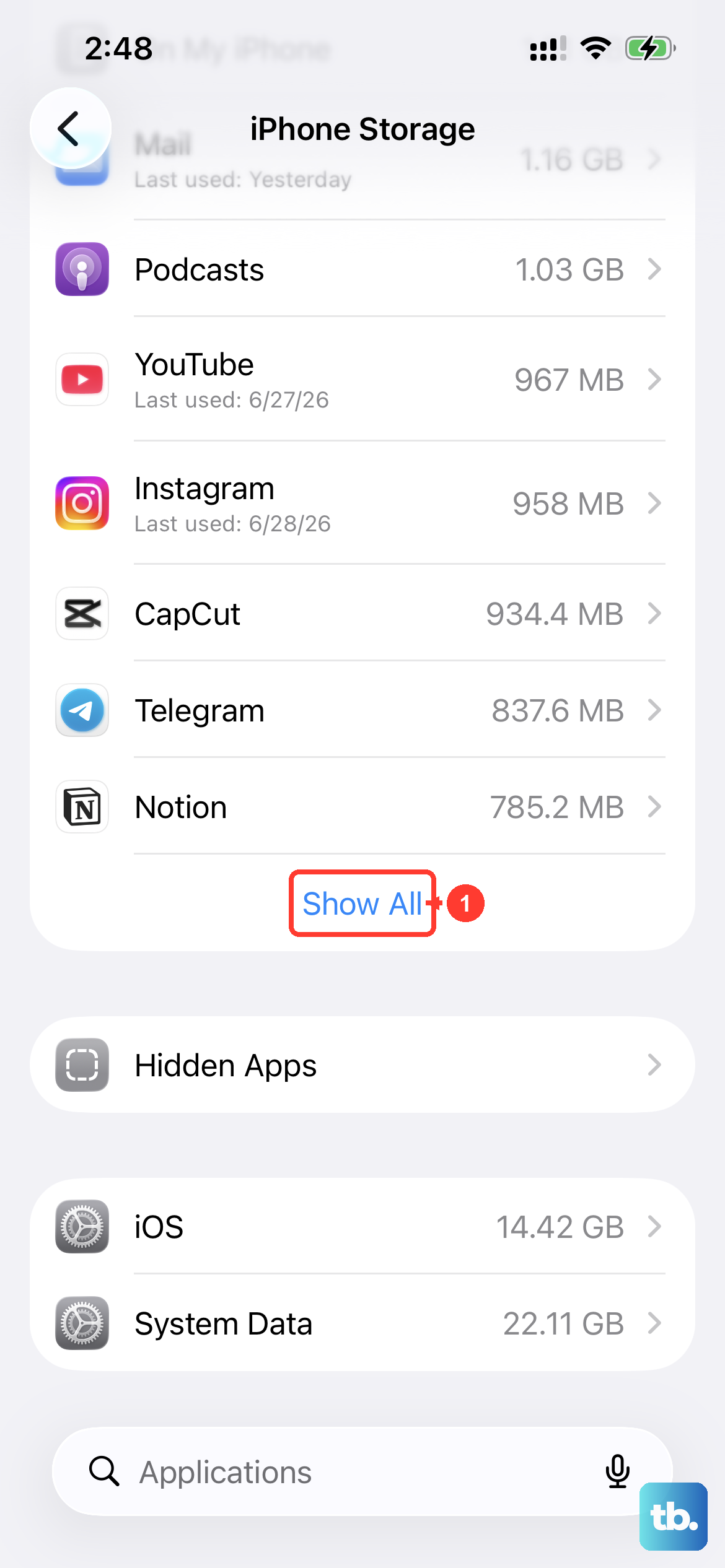
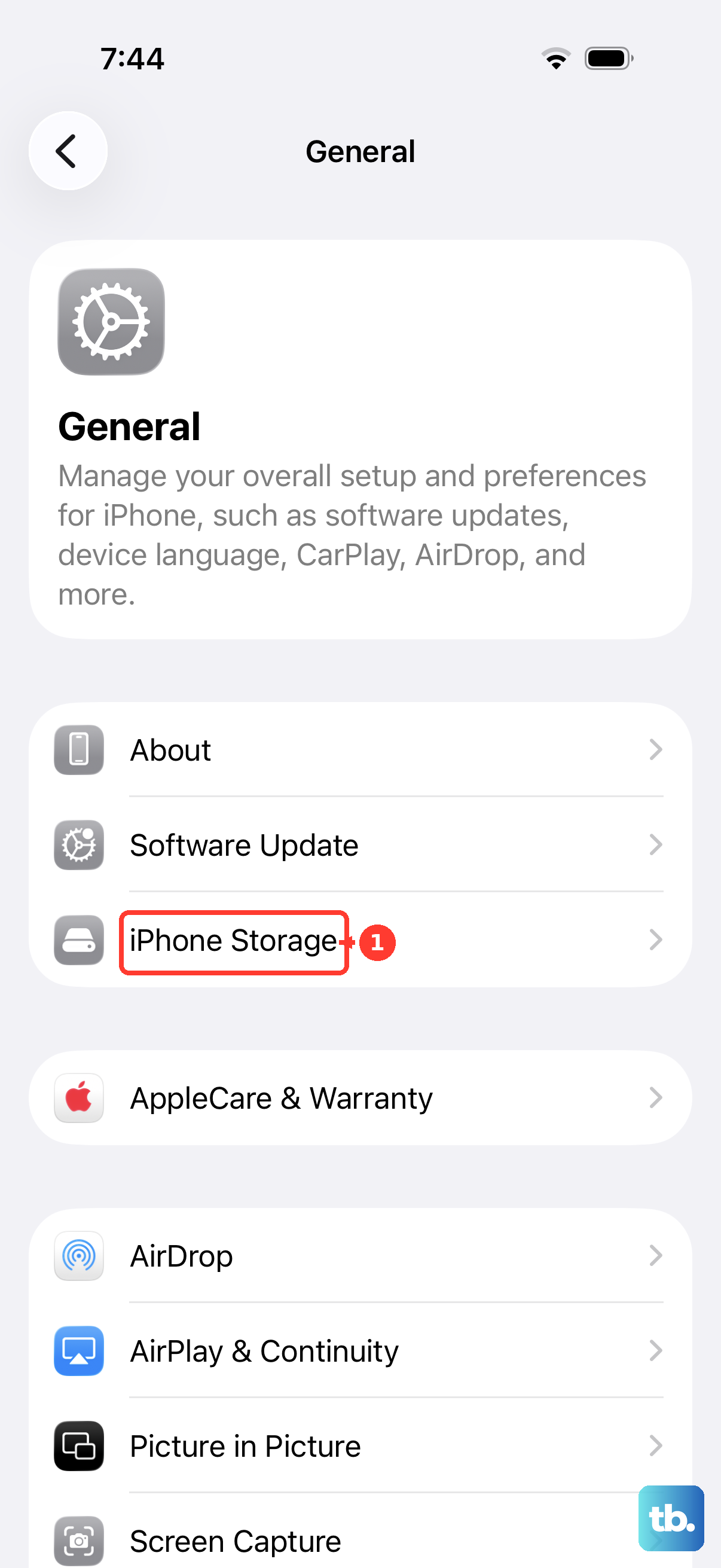
Your camera needs free space to process and save photos, especially with the high-resolution files from the iPhone 17 Pro. If your storage is completely full, the camera may fail to open or save pictures. Go to Settings > General > iPhone Storage to see your available space.
If you're critically low, you can quickly offload some space by deleting old videos or using the "Review Large Attachments" feature in Messages. I'd aim to clear at least a few gigabytes. Once you have some free space, try the camera again.
Check Camera Permissions and Restrictions
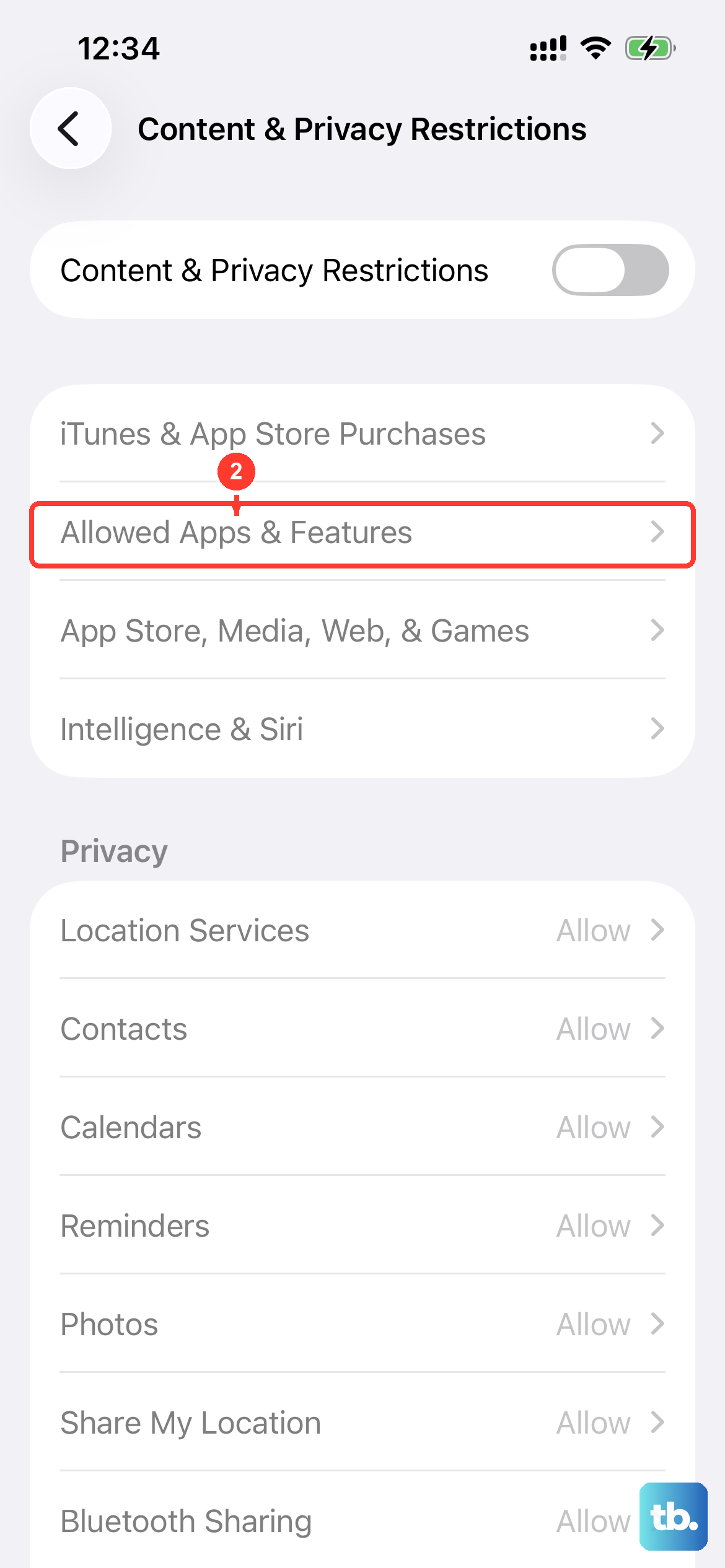
It sounds simple, but sometimes Screen Time restrictions get enabled accidentally. Go to Settings > Screen Time > Content & Privacy Restrictions. Tap "Allowed Apps" and make sure "Camera" is toggled on (green).
Also, verify the Camera app has permission to access your photos. Go to Settings > Privacy & Security > Photos. Find "Camera" in the list and make sure it's set to "Read and Write" or "Add Photos Only."
Reset All Settings
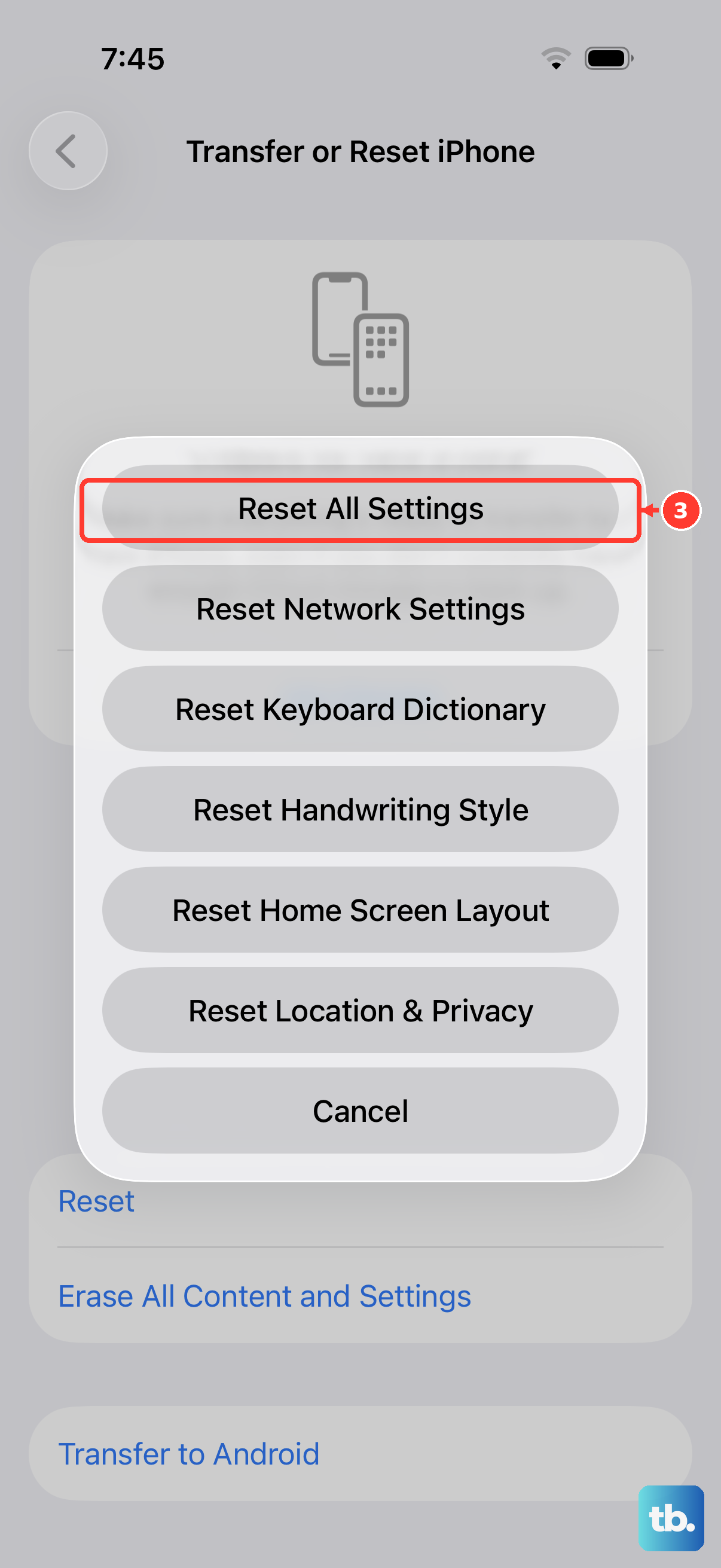
This is a stronger step that won't delete your photos, messages, or apps, but it will reset all your preferences. Your Wi-Fi passwords, wallpaper, and display settings will revert to default, which can clear up conflicts causing the camera to fail. Go to Settings > General > Transfer or Reset iPhone.
Tap "Reset" and then choose "Reset All Settings." You'll need to enter your passcode to confirm. After the phone restarts, you'll need to reconnect to Wi-Fi and adjust settings like brightness again, but your camera should be checked immediately.
Clean the Camera Lenses
The iPhone 17 Pro's camera system is incredibly sensitive to fingerprints and smudges. A dirty lens will result in consistently blurry, hazy, or foggy photos. Use a clean, dry microfiber cloth, like the kind for cleaning glasses, to gently wipe the entire camera bump on the back.
Pay special attention to each individual lens. Avoid using any liquids or abrasive materials. Sometimes what seems like a software issue is just a greasy smudge right over the main sensor.
Close Other Apps Using the Camera
Only one app can control the camera hardware at a time. If you were just on a FaceTime call or using an app like Snapchat, that app might not have properly released the camera. Swipe up from the bottom of the screen (or use the App Switcher gesture) to see all your open apps.
Swipe up on any apps that use the camera, FaceTime, Zoom, Instagram, TikTok, to fully close them. Then go back to your Home Screen and try opening the native Camera app again. This clears the hardware lock.
Check for Physical Damage or Obstructions
Take a close look at the camera module on the back. Is there any visible cracking over the lenses? Even a small hairline crack can distort images. Also, check if your phone case is perfectly aligned.
Some third-party cases, especially thicker ones, can have a lip that slightly encroaches on the camera bump, potentially blocking a sensor or the flash. Try removing the case completely and test the camera to rule this out.
Restore Your iPhone
If none of the above software steps work, the issue might be deeper system corruption. The most thorough fix is to restore your iPhone 17 Pro using a Mac or PC. First, make sure you have a recent iCloud or computer backup.
Connect your iPhone to the computer, open Finder (on Mac) or iTunes (on Windows PC), select your device, and choose "Restore iPhone." This will install a clean, fresh copy of iOS 26. After it completes, you can set up as new to test the camera, or restore from your backup.