
If your iPhone 17 feels unusually warm, especially while charging or running certain apps, there are a few straightforward things you can check. Overheating can trigger a temperature warning and temporarily limit features, but you can usually fix it quickly. Start by taking the phone out of its case and moving it somewhere cooler.
It's normal for the iPhone 17 to get warm during intensive tasks like gaming, video recording or fast charging, but it shouldn't feel uncomfortably hot during everyday use. When the inside of the phone gets too hot, charging can slow or stop with a Charging On Hold message, the screen can dim, and camera features and app performance can be limited until it cools down.
Remove the Case and Check Your Environment
Thick or insulating cases can trap heat against your iPhone 17. Take the case off for a while and see if the temperature starts to drop. This is often the quickest fix, especially right after heavy use.
Also think about where you use and charge the phone. Apple says iPhone is designed to work between 0°C and 35°C (32°F to 95°F), so don't leave it in direct sunlight, in a parked car or on top of other electronics that give off heat. If the phone is very hot, turn it off, move it to a cool, shaded spot and give it time to cool down on its own.
Close Background Apps and Restart
Sometimes an app gets stuck or misbehaves, which keeps the processor working hard and generates extra heat. Swipe up from the bottom of the screen and pause in the middle to see your open apps, then swipe the misbehaving app up and off the screen to close it.
After that, give your iPhone 17 a fresh start. A simple restart can clear temporary software glitches that cause overheating. Press and hold the Side button and either volume button until the power-off slider appears, then drag the slider. Wait about 30 seconds, then press and hold the Side button until you see the Apple logo.
Update to the Latest iOS
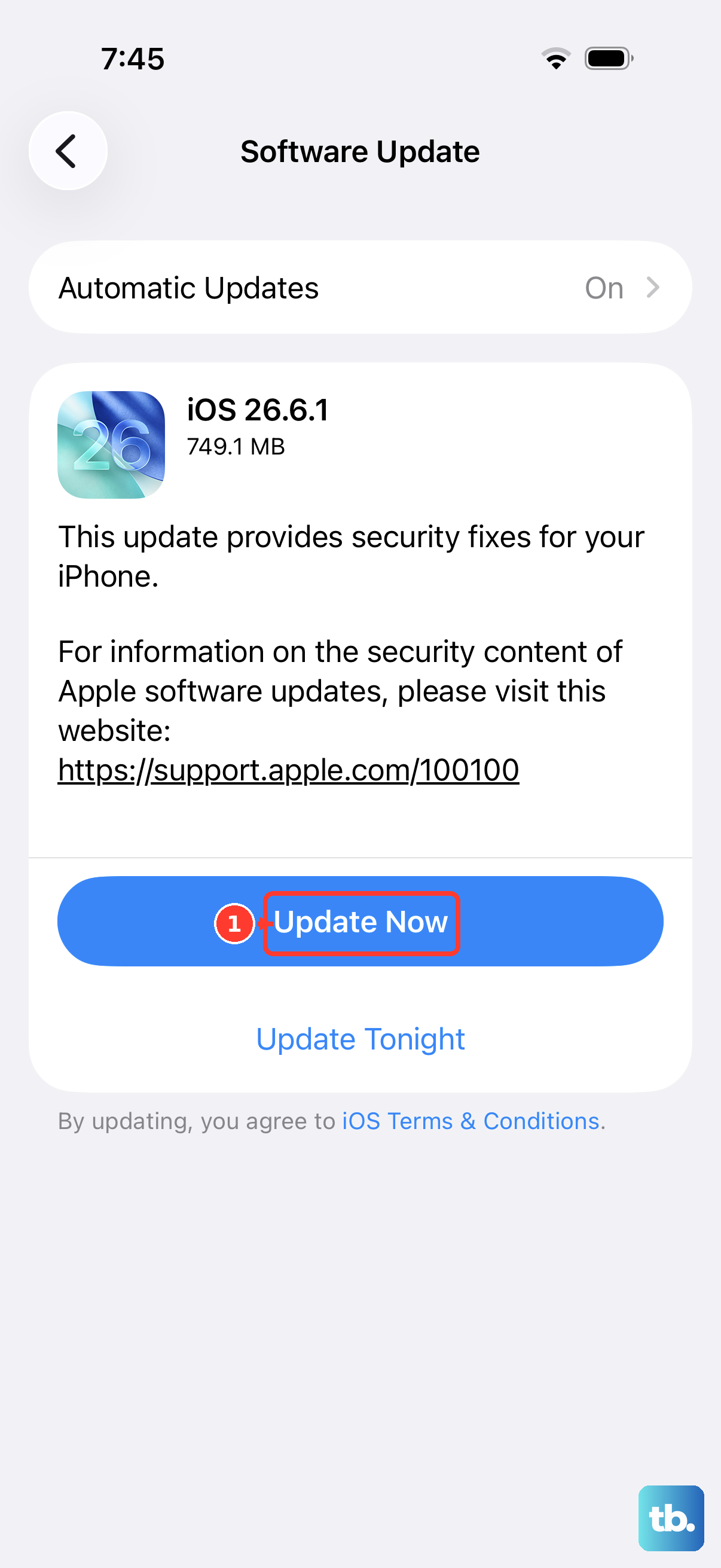
Apple regularly releases iOS updates with bug fixes and performance improvements. iOS 27 is now available for the iPhone 17, and iOS 27.0.1 is the latest version. Go to Settings > General > Software Update to see which version you have and whether an update is waiting.
If an update is available, tap Download and Install and follow the onscreen instructions. Back up your iPhone first, connect to Wi-Fi and keep the phone plugged in. Your iPhone may feel warm during and right after a software update, and that should pass once the update finishes.
Check Your Charging Setup
Fast charging generates more heat than slower charging. The iPhone 17 can reach 50% in about 20 minutes with a 40W or higher USB-C adapter, and it supports MagSafe and Qi2 wireless charging at up to 25W. If the phone gets hot while plugged in, try a lower-wattage adapter such as a 20W USB-C adapter, which charges more slowly and with less heat.
Also check your USB-C cable and port. Use an Apple or MFi-certified cable, and look inside the phone's USB-C port for lint or debris. You can gently clean it with a dry, soft-bristled brush, since a dirty port can cause a poor connection that leads to extra heat.
Disable Background App Refresh
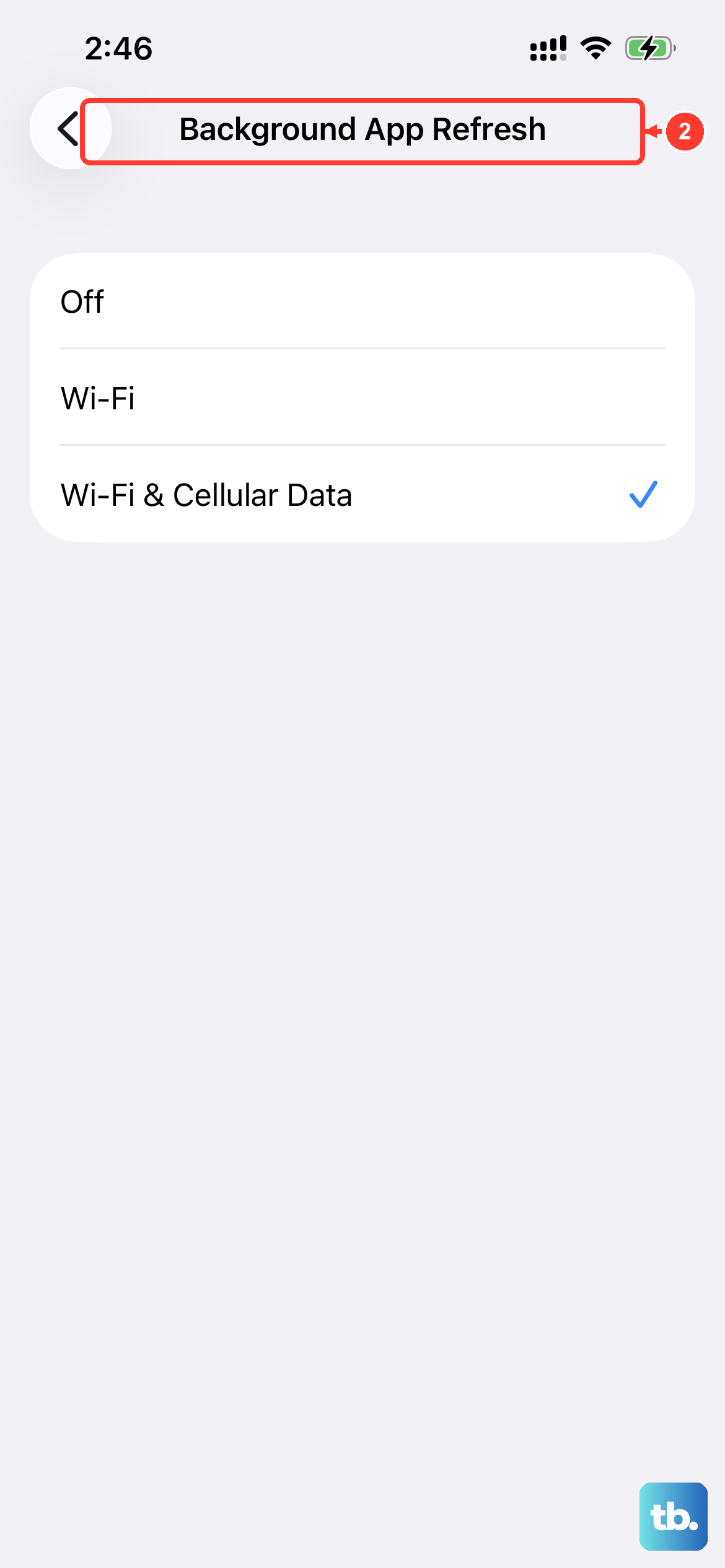
Background App Refresh lets apps update their content even when you're not using them, which uses processor power and data. You can turn it off for every app or only for non-essential ones. Go to Settings > General > Background App Refresh.
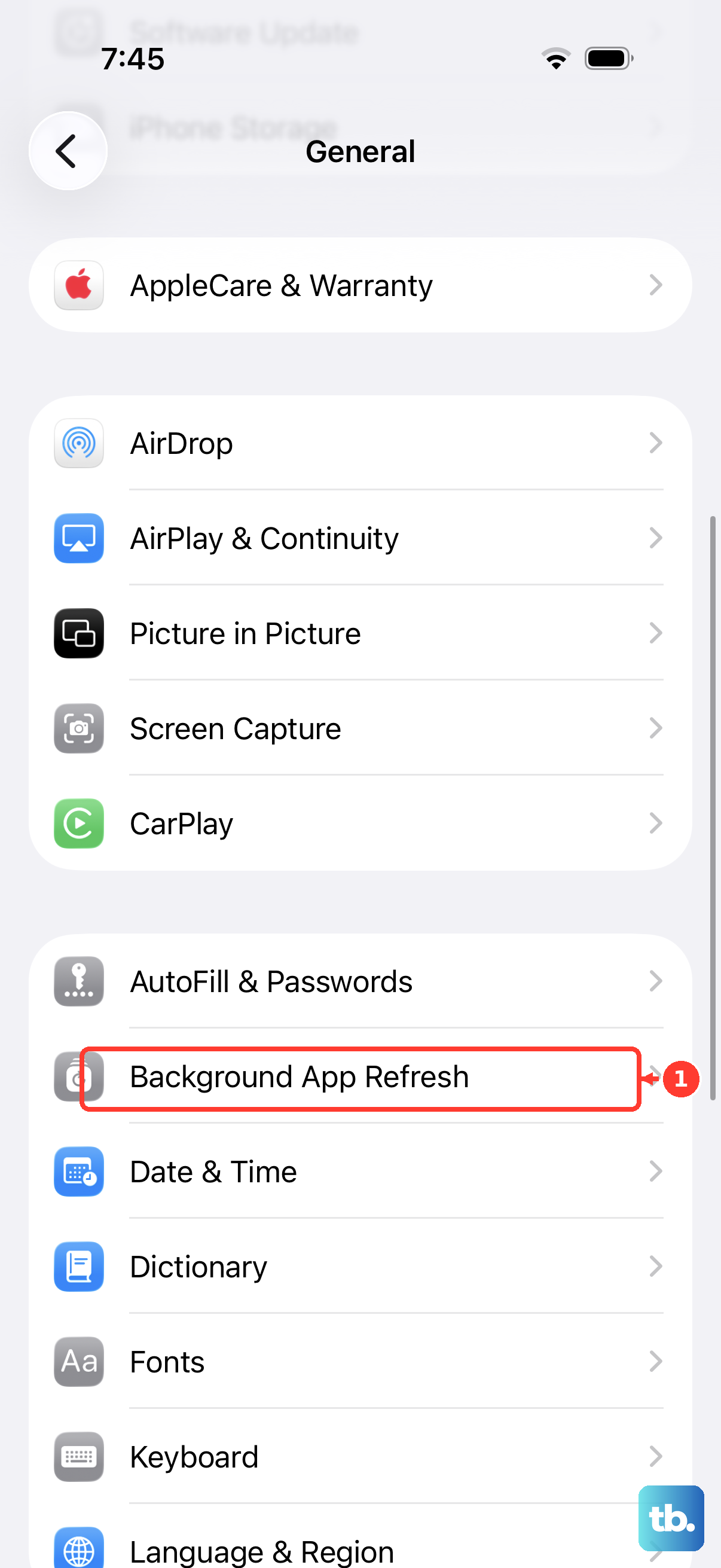
Tap Background App Refresh at the top to turn it off completely or set it to Wi-Fi only instead of Wi-Fi & Cellular Data. A good balance is to leave it on for messaging and email apps and turn it off for social media and games. This cuts background activity and the heat that comes with it.
Adjust Display and Location Settings
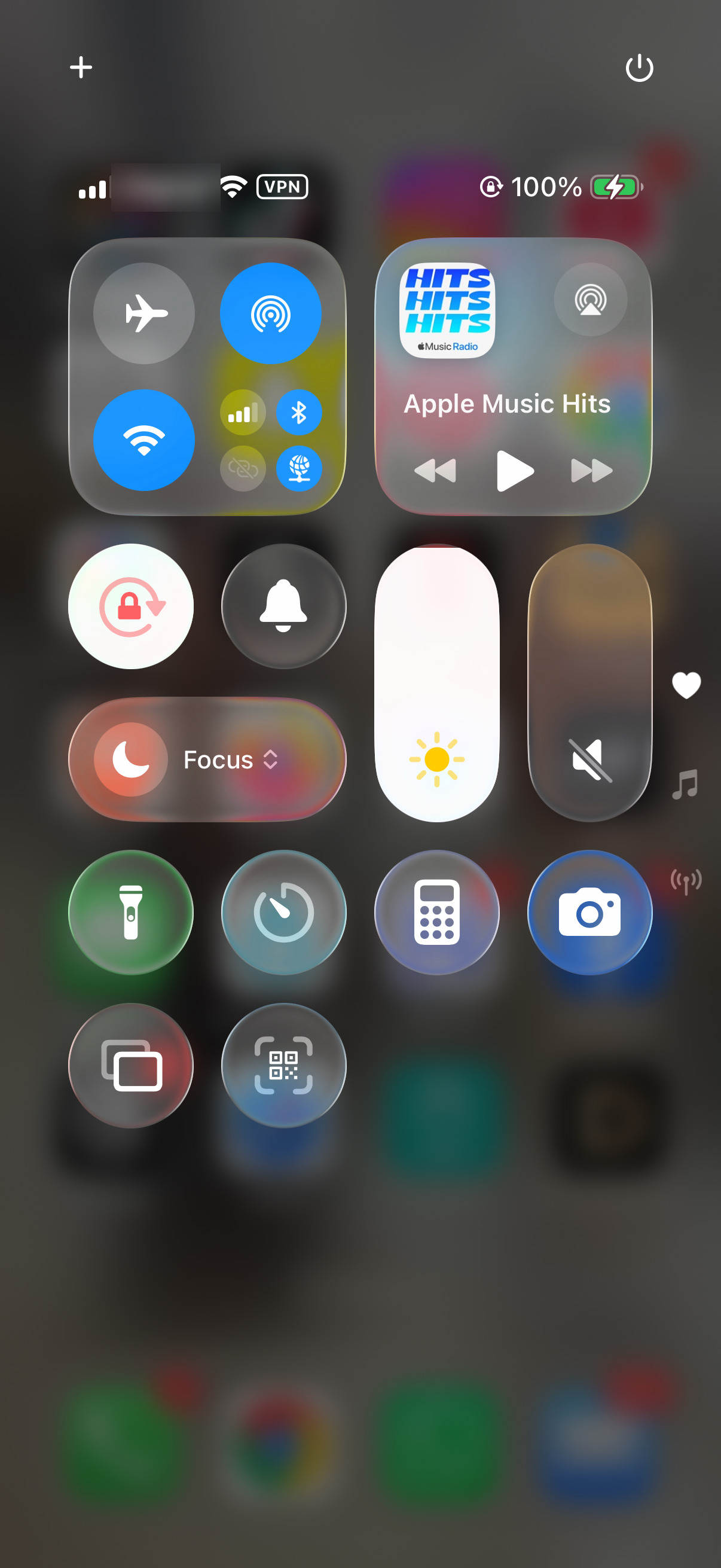
A very bright screen is a major source of battery drain and heat. Lower the brightness in Control Center, or make sure Auto-Brightness is on in Settings > Accessibility > Display & Text Size. Setting Auto-Lock to 30 seconds or 1 minute also helps if the screen is often left on.
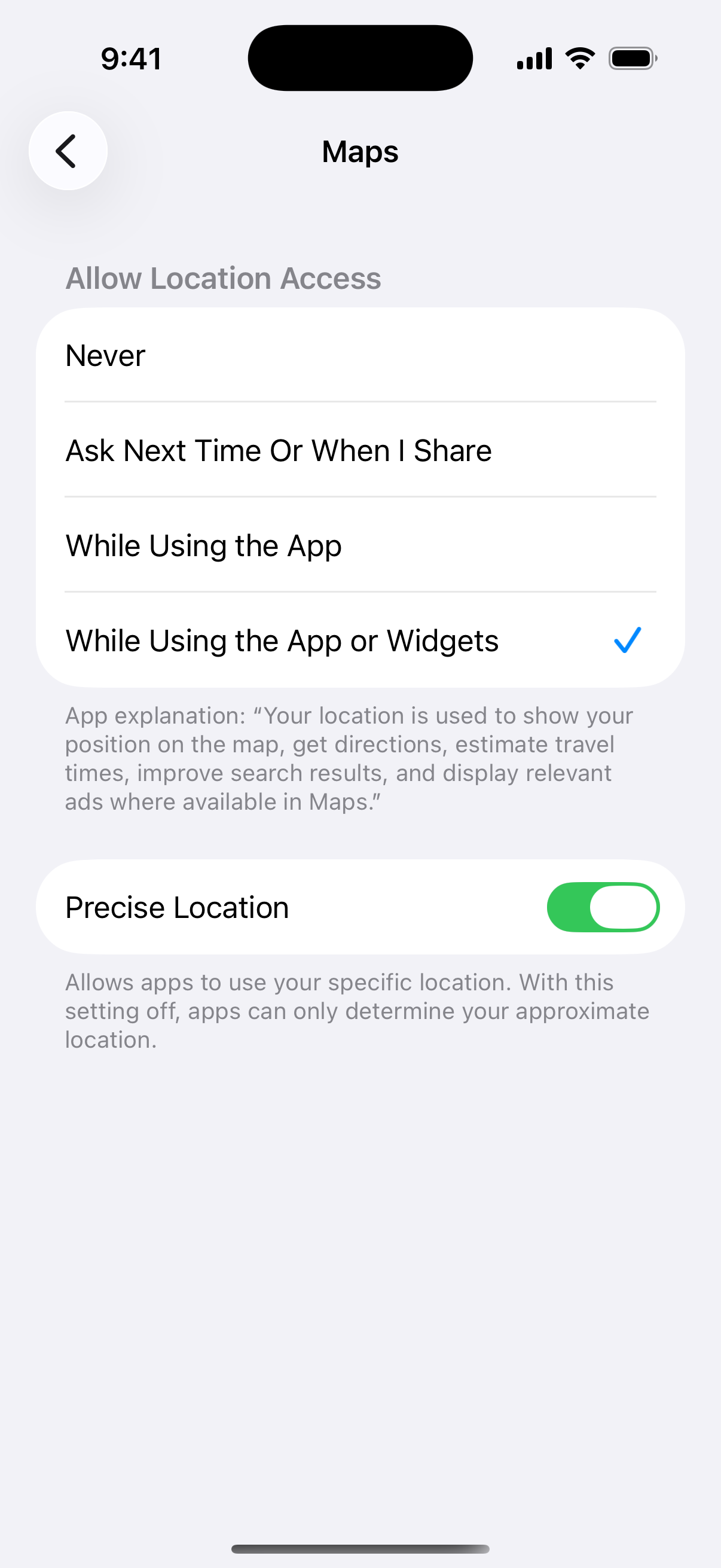
Location Services are another common cause. Go to Settings > Privacy & Security > Location Services, review which apps use your location Always, and switch them to While Using the App or Never if they don't need it. You can also turn off location-based features you don't use under System Services.
Perform a Force Restart
If the phone is hot and becoming unresponsive, a force restart can help. On the iPhone 17, press and quickly release the Volume Up button, then press and quickly release the Volume Down button. Then press and hold the Side button until the Apple logo appears, and let go. This can take longer than 10 seconds.
A force restart won't erase any data. It's a good step to try if the overheating started suddenly and the phone feels sluggish or isn't responding to touch correctly.
Identify Problematic Apps
If the overheating happens only in a specific app, like a particular game or social media app, that app may be poorly optimized. Check the App Store for updates to it, since developers often release fixes for performance problems.
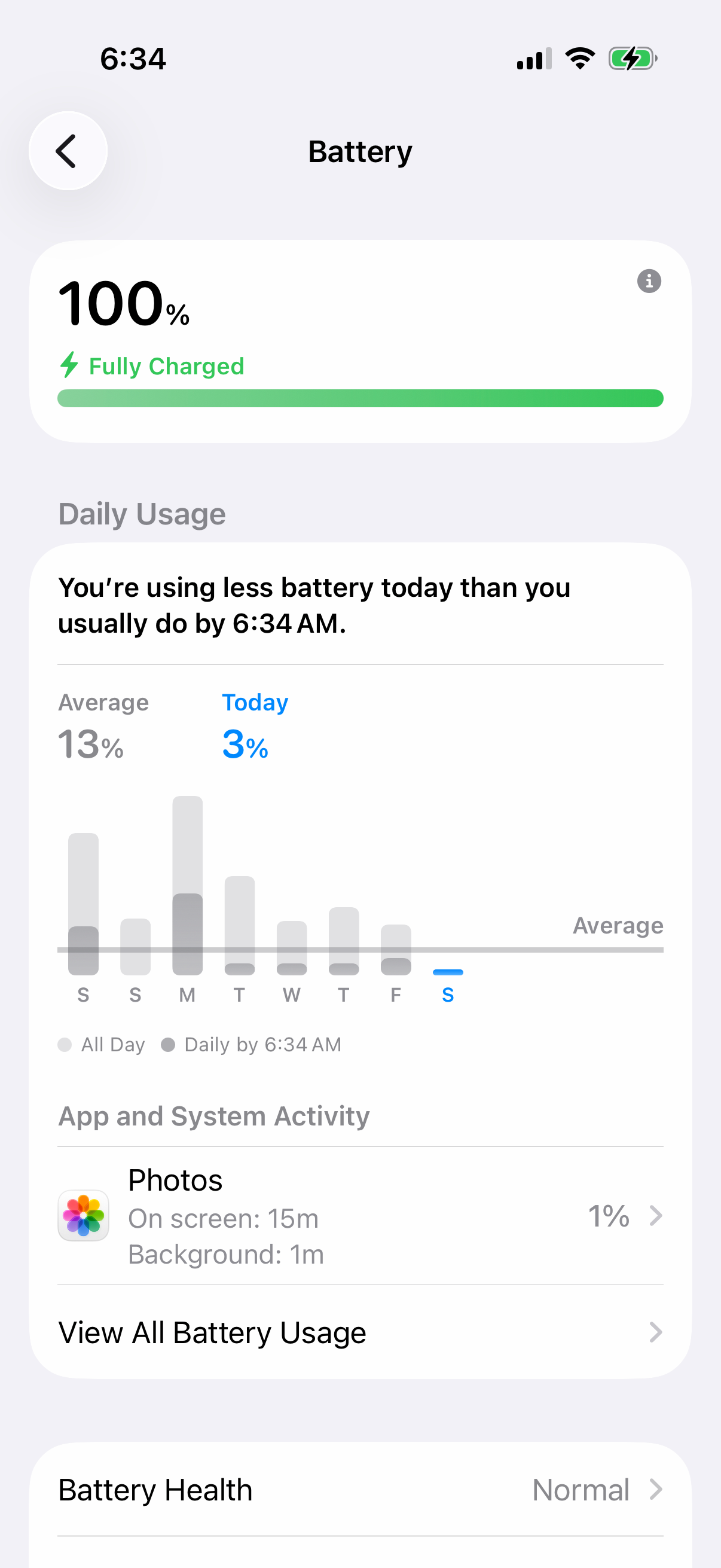
You can also check whether an app is using a disproportionate amount of power, which usually goes hand in hand with heat. Go to Settings > Battery to see app activity. If one app is consistently at the top of the list, try deleting and reinstalling it.
Reset All Settings
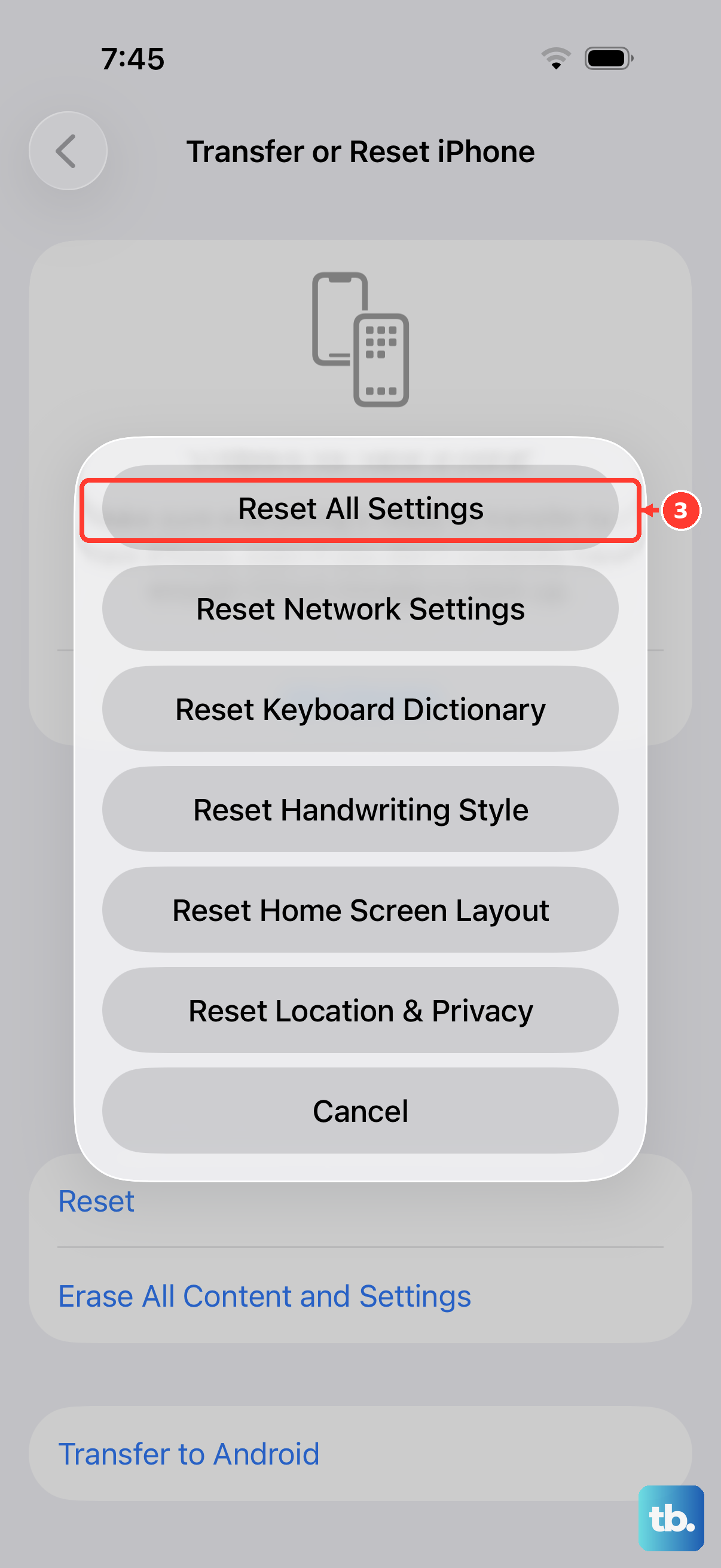
As a last resort before treating this as a hardware problem, reset all your settings. This returns preferences like Wi-Fi passwords, wallpaper and privacy settings to their defaults without deleting your photos, apps or media. Go to Settings > General > Transfer or Reset iPhone > Reset > Reset All Settings.
After the reset, you'll need to reconnect to Wi-Fi networks and set your preferences again, but it often clears persistent software glitches that other steps miss. If your iPhone 17 still overheats during light use, start a request on the Apple iPhone repair page to arrange a check or repair.