
If your iPhone 17 is taking forever to charge, you're likely missing out on its 40W fast charging capability. The right setup should get you from zero to around 50% in about 20 minutes. When it doesn't, the culprit is usually a simple setting, an incompatible accessory, or a bit of pocket lint.
Start with the Right Charger and Cable
For the iPhone 17's fastest wired charging, you need a specific combination. The adapter must be a USB-C Power Delivery (PD) charger rated for 40W or higher. While a 20W adapter will work, it won't hit the phone's maximum speed. The cable is just as important. It must be a USB-C to USB-C cable, and an Apple-certified one gives the most reliable performance.
Some third-party cables, even if they physically fit, aren't recognized properly by the phone's power management system. This can limit you to a slow trickle charge. If you're unsure, try the cable that came in the box with a known-good 40W+ adapter.
Check Your Charging Settings
Head to Settings > Battery > Charging. Here, you might find a charge limit enabled, which is a feature designed for battery longevity. It can stop charging at 80%, which might be what you're experiencing. You can temporarily disable this if you need a full charge quickly.
Also in this menu is Optimized Battery Charging. This feature learns your routine and will slow down charging past 80% if it thinks you won't need a full battery soon. It's great for battery health, but it can be mistaken. Toggling it off for a day can tell you if it's the cause of your slow charging.
Inspect and Clean the USB-C Port
The USB-C port can easily accumulate lint from your pockets, creating a barrier between the cable and the phone's contacts. Even a small amount can prevent a solid connection needed for high-wattage fast charging.
Power off your phone first. Then, with a bright light, look into the port. Use a soft, dry brush to gently dislodge any debris. Avoid using metal, like a paperclip, as it can damage the delicate pins inside. A clean port often solves the problem immediately.
Let Your Phone Cool Down
Heat is the enemy of fast charging. If your iPhone 17 is warm from use or in a hot environment, it will automatically throttle the charging speed to protect the battery. Using the phone intensively while charging, like gaming or video calling, will generate heat and slow things down.
For the fastest charge, place it on a cool, hard surface like a table or nightstand. Remove any thick case, as cases can trap heat.
Restart Your iPhone 17
A simple restart can clear out minor software glitches that might be interfering with the power management system. To force restart your iPhone 17, quickly press and release the Volume Up button, then quickly press and release the Volume Down button. Finally, press and hold the Side button until you see the Apple logo appear on the screen.
Align MagSafe Chargers Properly
For wireless fast charging up to 25W, MagSafe or Qi2 chargers need perfect alignment. If your charger isn't magnetically snapping into place centered on the back of the phone, the charge will be slower and less efficient. Thick cases, especially those with metal plates or magnets not designed for MagSafe, can prevent proper alignment.
Try charging without a case to see if speed improves. Also, MagSafe charging at up to 25W needs a 30W or higher power adapter, so a weaker adapter will hold back even a perfect wireless connection.
Update to the Latest iOS
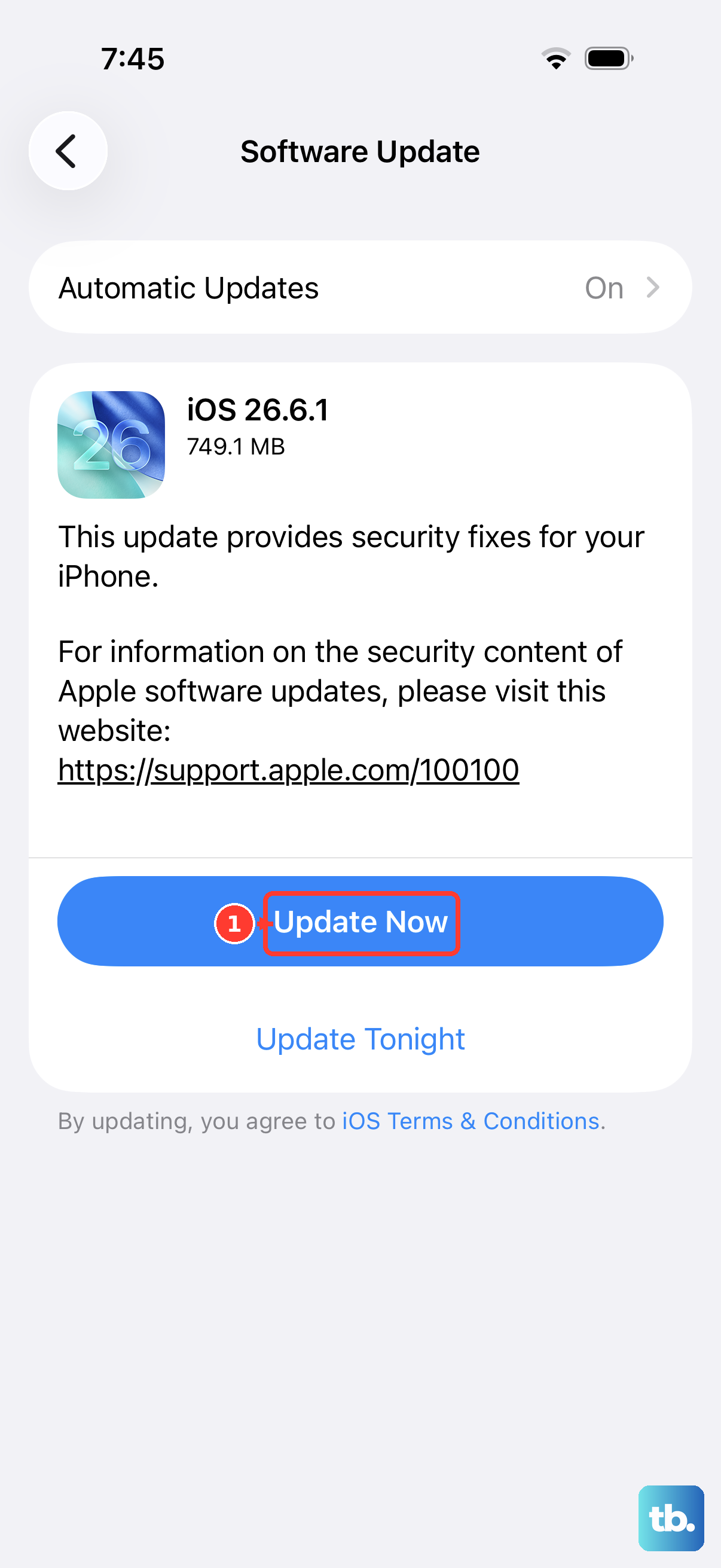
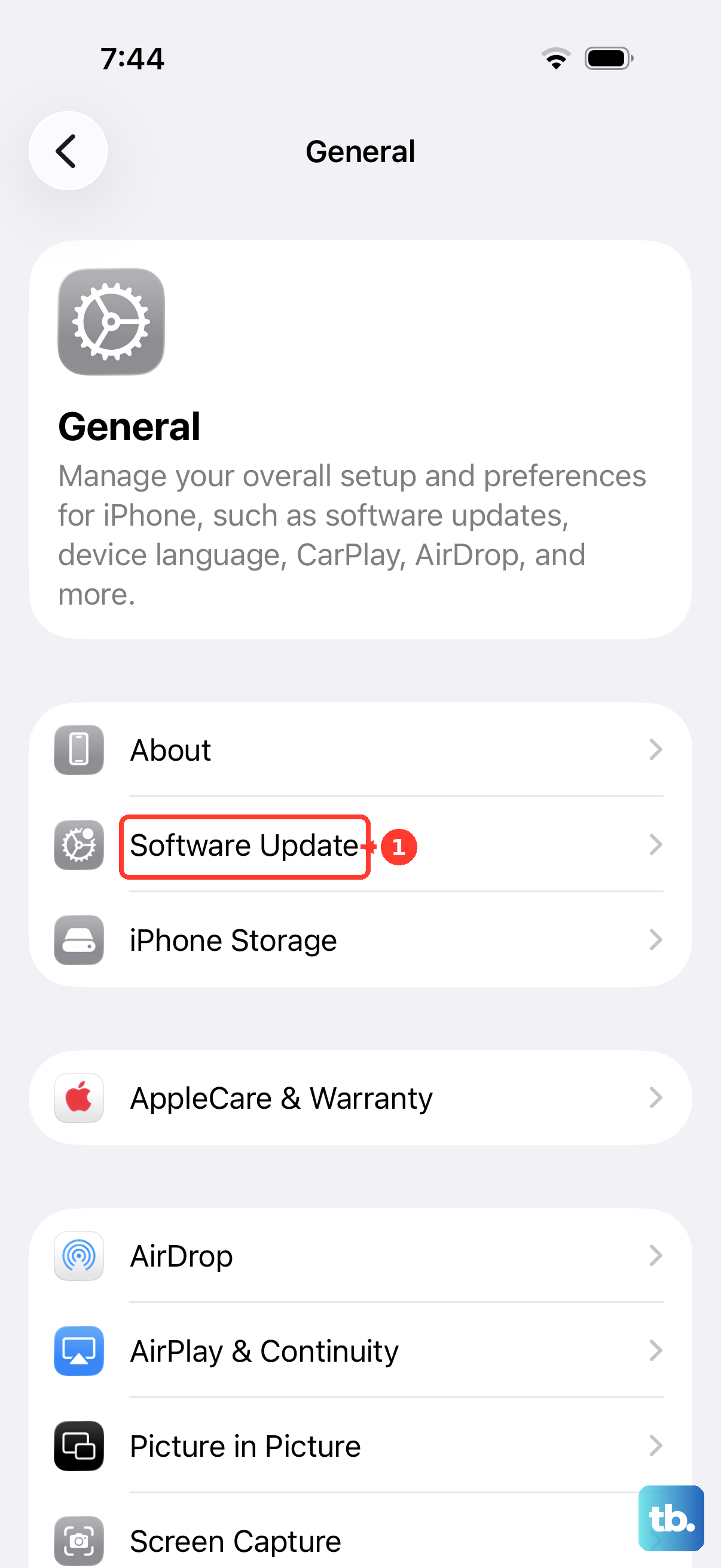
Go to Settings > General > Software Update. Apple has been known to release updates that refine charging behavior and compatibility. Installing the latest version brings any fixes that could affect how your phone negotiates power with your charger.
Test with Different Accessories
If you've tried everything else, systematically test your gear. Try your iPhone 17 cable and adapter with another device that supports fast charging, if possible. Then, try a different, known-good 40W USB-C PD adapter and certified cable with your phone.
This process will isolate the problem. If your phone charges fast with the new accessories, your original cable or adapter is likely failing. Cables wear out, especially at the connectors, and can look fine but not deliver full power.