
If your iPhone 17's Bluetooth is acting up, it can feel like you're suddenly cut off from your wireless world. Whether your AirPods won't connect, your car stereo is silent, or your smartwatch is offline, these connection glitches are frustrating but usually fixable. Start with the basics and work through these steps.
Check the Simple Things First
Before you dive deep, run through this quick checklist. Make sure Bluetooth is turned on in Settings > Bluetooth. Ensure the device you're trying to connect to is charged and in pairing mode, which often involves holding a button until a light flashes.
Keep your iPhone and the accessory close together, without major obstructions between them. It's also a good idea to test your iPhone 17 with a different Bluetooth device, or test the problematic device with another phone. This tells you right away where the issue lies.
Toggle Bluetooth and Restart
The oldest trick in the book is often the most effective. Go to Settings > Bluetooth and turn Bluetooth off (the Bluetooth button in Control Center only disconnects accessories and does not turn the radio off), wait a full 10 seconds, then turn it back on. Try reconnecting immediately after.
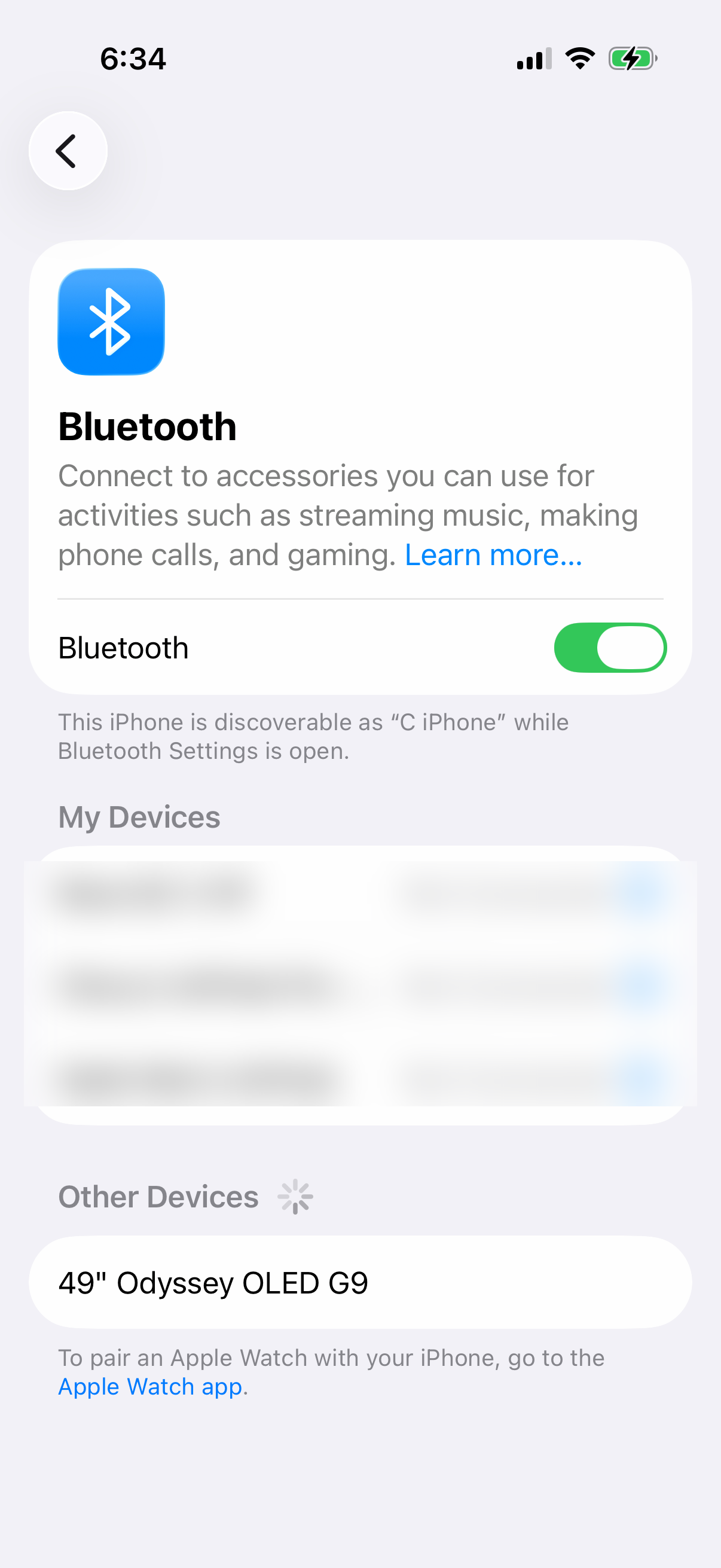
If that doesn't stick, give both devices a fresh start. Perform a standard restart on your iPhone 17. Then, power the Bluetooth accessory completely off and back on. This clears out any temporary software hiccups that might be blocking the handshake between devices.
Forget and Re-Pair the Device
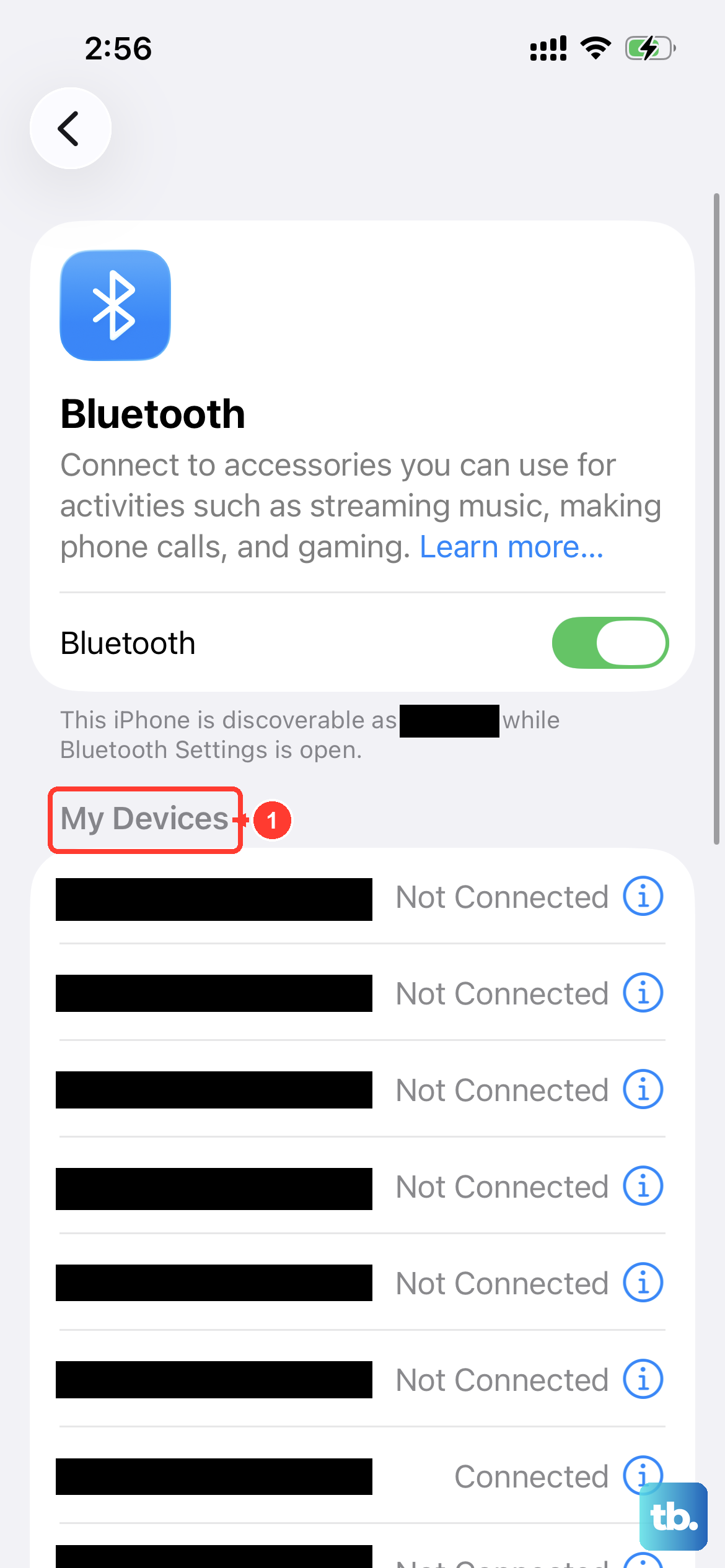
Sometimes the pairing information itself gets corrupted. The fix is to remove the device from your iPhone's memory and start over. Go to Settings > Bluetooth, find the troublesome device in your list, tap the info (i) icon next to it, and select Forget This Device.
Once it's forgotten, put the accessory back into pairing mode. With your iPhone's Bluetooth on, it should appear in the "Other Devices" list. Tap its name to initiate a fresh pairing. This resolves a huge number of persistent connection problems.
Update iOS and Accessory Firmware
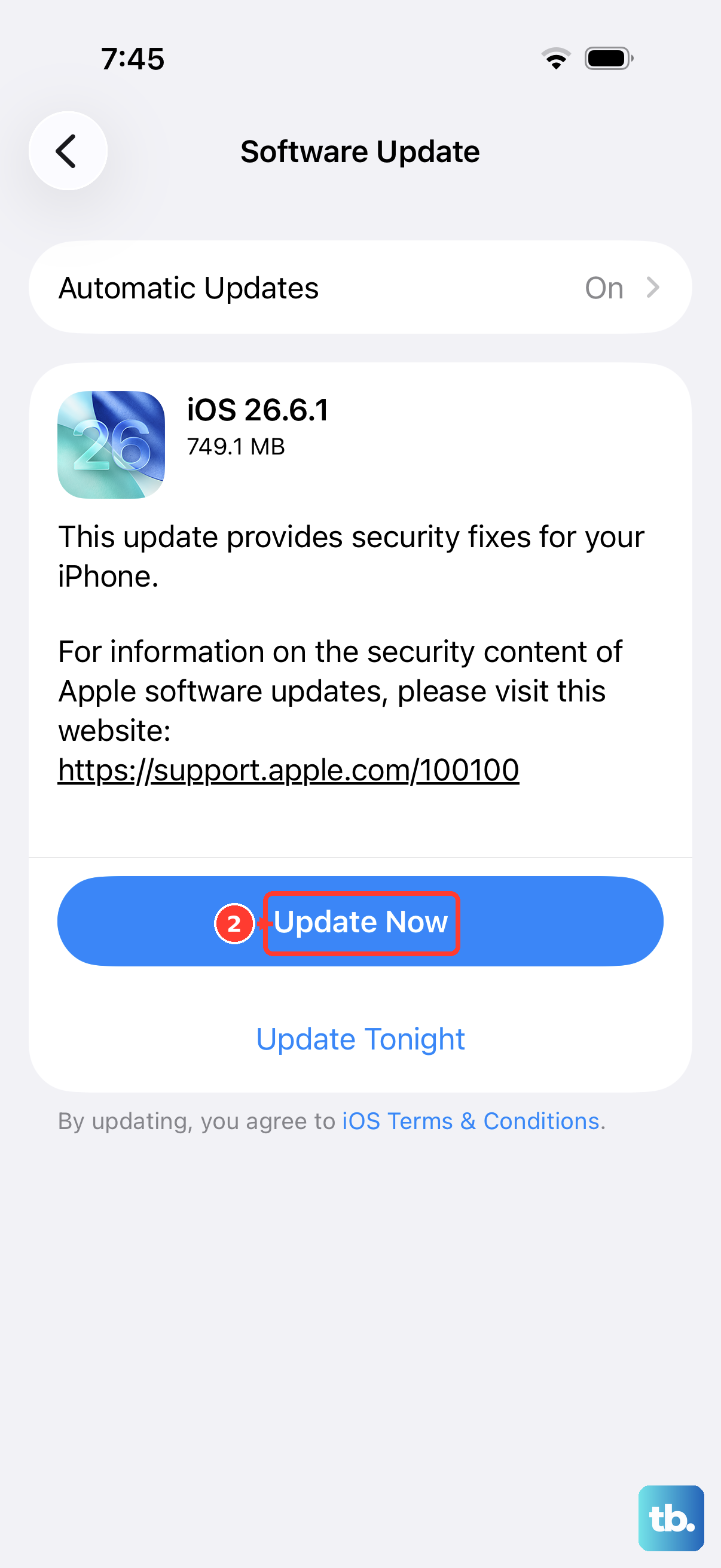
Running outdated software is a common culprit for Bluetooth woes, especially after a new iOS update. Go to Settings > General > Software Update to see if an update is available for your iPhone 17. Install any updates over Wi-Fi.
Don't forget the accessory itself. Check the companion app for your headphones, speaker, or car stereo (like the Tesla or Ford app) for any available firmware updates. Compatibility improves with updates on both ends of the connection.
Reset Network Settings
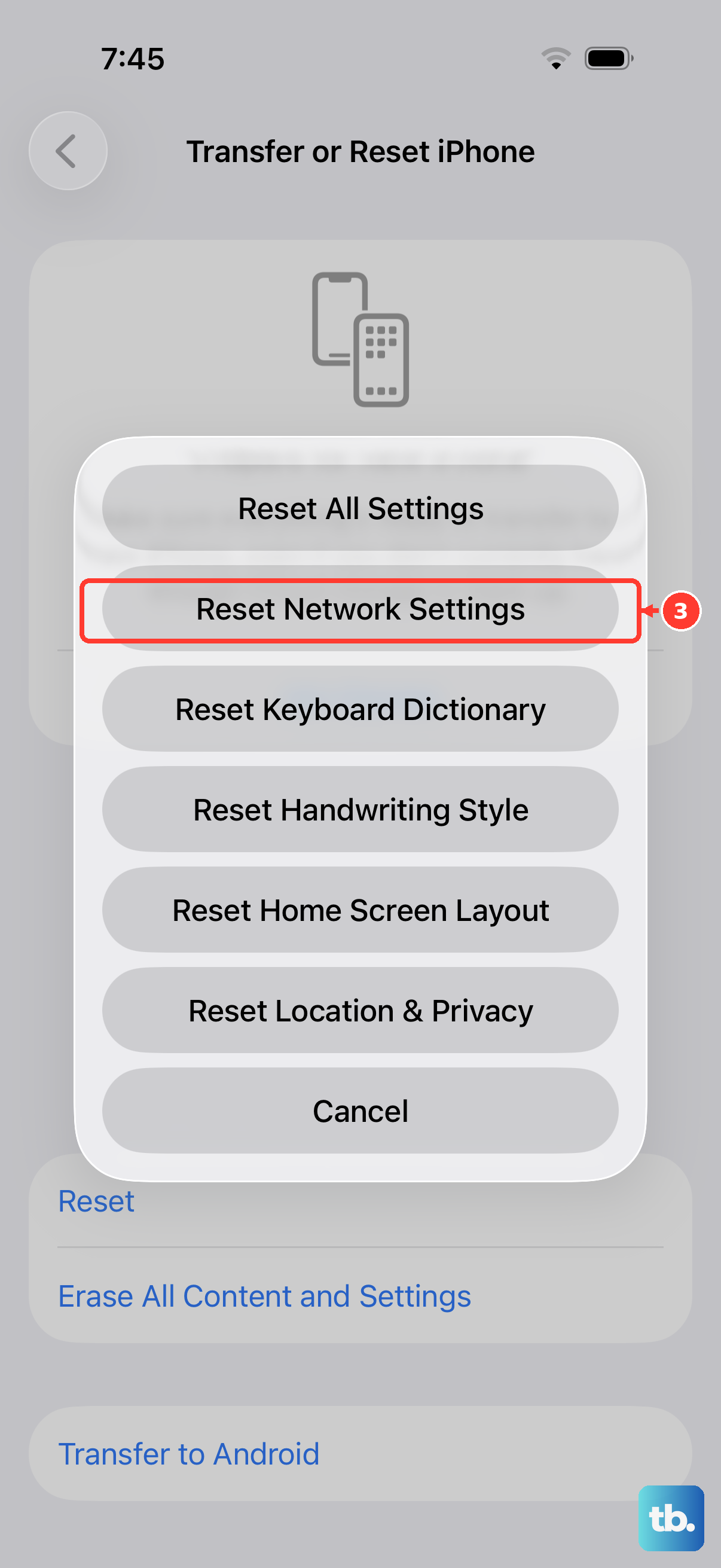
This is a more thorough step that resets all network-related configurations back to factory defaults. It will erase your Wi-Fi networks and passwords, cellular settings, and VPN and APN settings, so be prepared to re-enter them.
To do this, navigate to Settings > General > Transfer or Reset iPhone. Tap Reset, and then choose Reset Network Settings. Enter your passcode if prompted and confirm. Your iPhone will restart, and you can attempt to pair your Bluetooth devices anew.
Check for Software Conflicts
A recently installed app could be interfering with Bluetooth. Think about any new apps you added around the time the problems started, especially those related to audio, car functions, or device utilities.
Try uninstalling the most suspicious app, restart your iPhone, and test Bluetooth again. If you're unsure which app it might be, remove recently installed apps one at a time and test after each, since iOS has no Safe Mode for running without third-party apps.
Review Bluetooth Permissions and Settings
Some accessories need specific permissions to work correctly. Go to Settings > Apps and find the app for your Bluetooth device (like your car's app). Tap it and ensure all relevant permissions like Bluetooth, Local Network, and Notifications are enabled.
Also, check for any device-specific settings. For example, with AirPods selected in your Bluetooth list, you can tap the info icon to manage features like Automatic Ear Detection or microphone preferences, which can sometimes affect stability.
Force Restart Your iPhone 17
A force restart is different from a standard shutdown and can clear more stubborn glitches. It won't delete any data. On the iPhone 17, quickly press and release the Volume Up button, then quickly press and release the Volume Down button.
Immediately after, press and hold the Side button. Keep holding it until you see the Apple logo appear on the screen, then release. Once it boots up, check if Bluetooth is behaving.
Reset All Settings
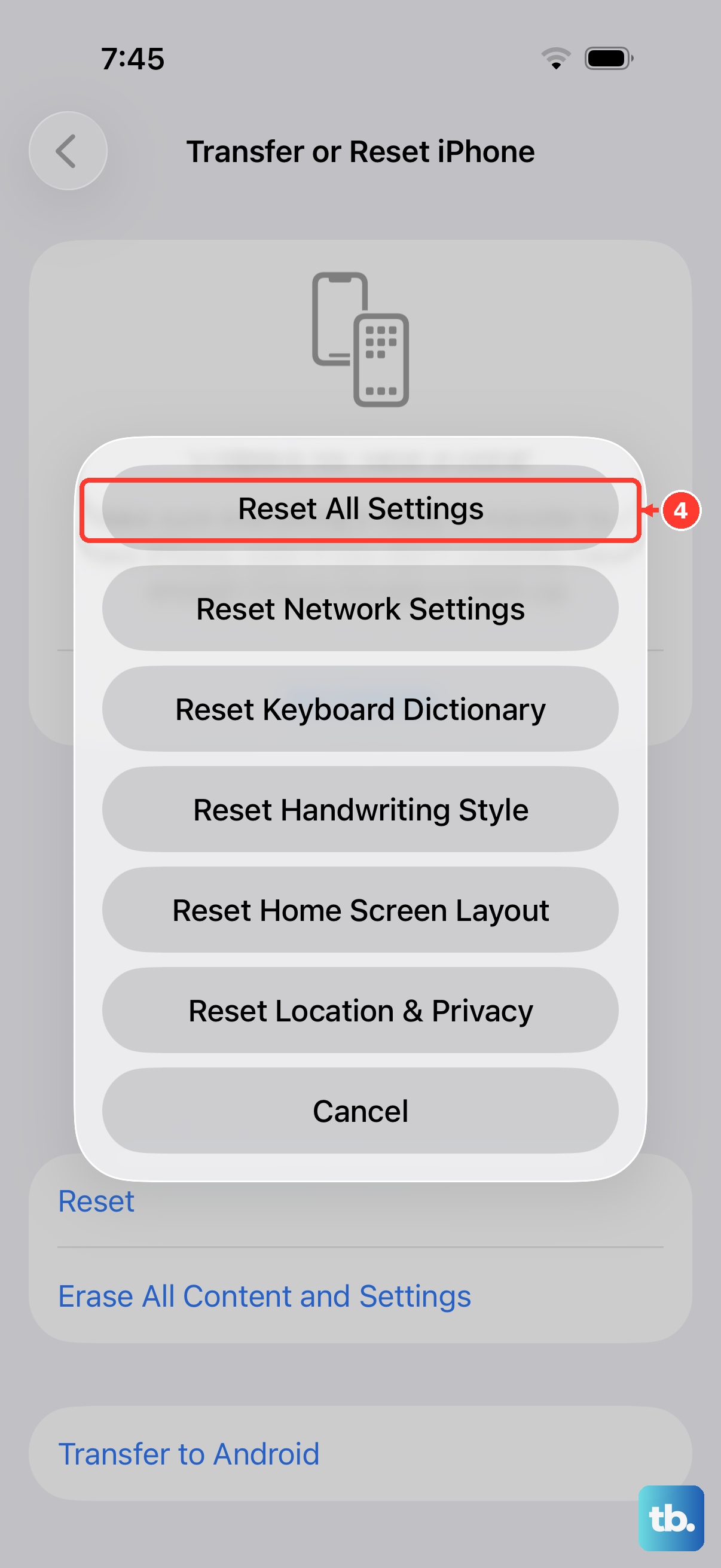
This is a significant step short of a full factory reset. It will revert all your preferences, like wallpaper, privacy permissions, and keyboard dictionaries, back to default without erasing your personal data or media.
Go to Settings > General > Transfer or Reset iPhone. Tap Reset, and this time select Reset All Settings. You'll need to enter your passcode. After the phone restarts, you'll have to reconfigure your preferences, but it can eliminate a deep-seated software conflict.
Check for Physical or Hardware Issues
If you've tried every software fix and the problem only happens with one specific accessory, that accessory might be faulty. Try pairing it with another phone to confirm. If your iPhone 17 won't connect to *any* Bluetooth device, there's a chance of a hardware issue.
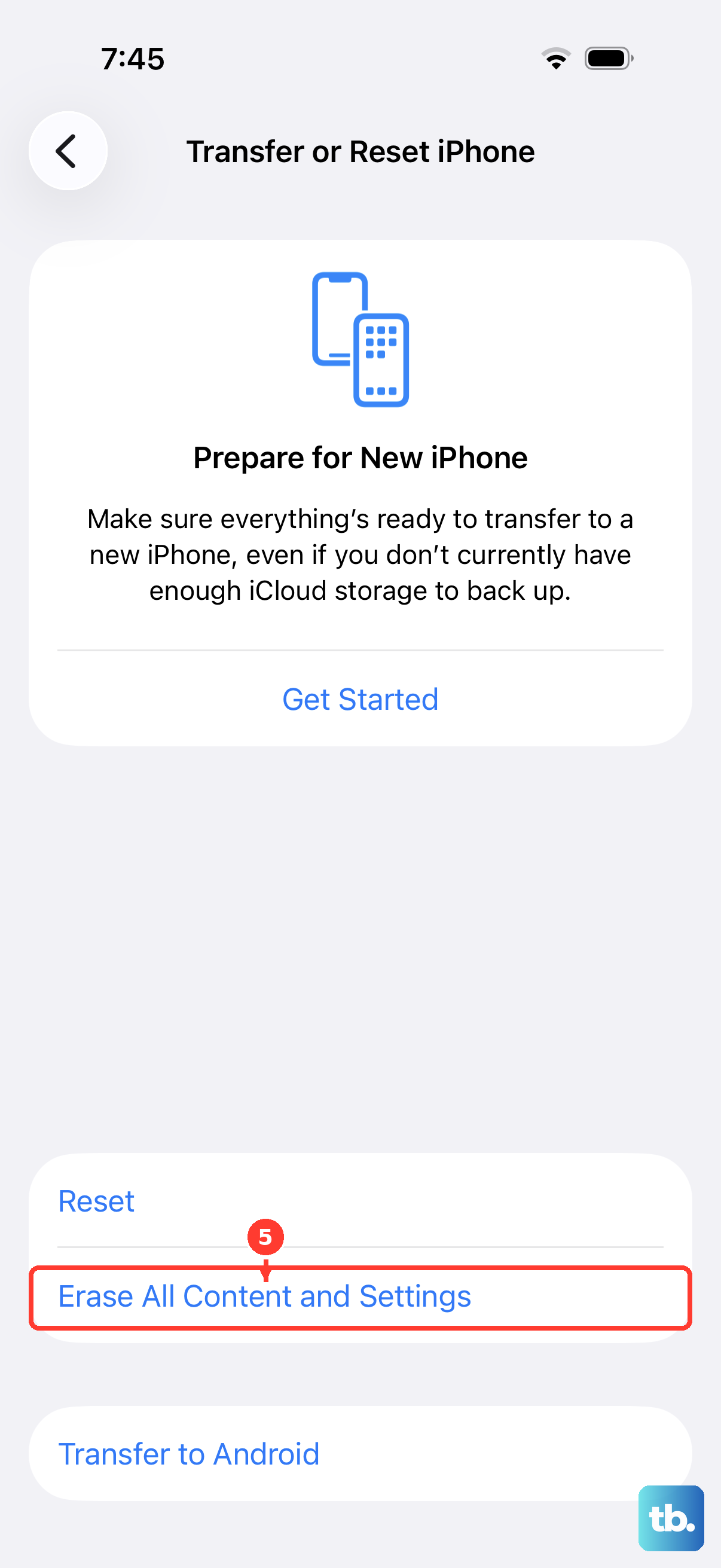
Look for any recent damage or exposure to liquids. As a last resort, you can back up your iPhone and perform a full factory reset through Settings. If Bluetooth still fails after a clean install of iOS, it would be time to contact Apple Support, especially if your iPhone 17 is still under warranty.