
If your iPhone 17 battery is draining faster than it should, first check the battery health. Head to Settings > Battery > Battery Health. This screen shows your battery's maximum capacity as a percentage.
A lower maximum capacity means the battery holds less charge than when it was new. Check the status under Peak Performance Capability as well as the capacity percentage. If the screen recommends service, arrange a battery assessment. Battery health is a useful starting point, but apps and daily usage also affect how long a charge lasts.
Check for Battery-Hungry Apps
While you're in the Battery settings, check the Daily Usage chart and App and System Activity Usage section. Tap View All Battery Usage to see the last eight days and select a day for its detailed breakdown. It's common to find a single app, often a social media or gaming app, is responsible for a huge chunk of the drain.
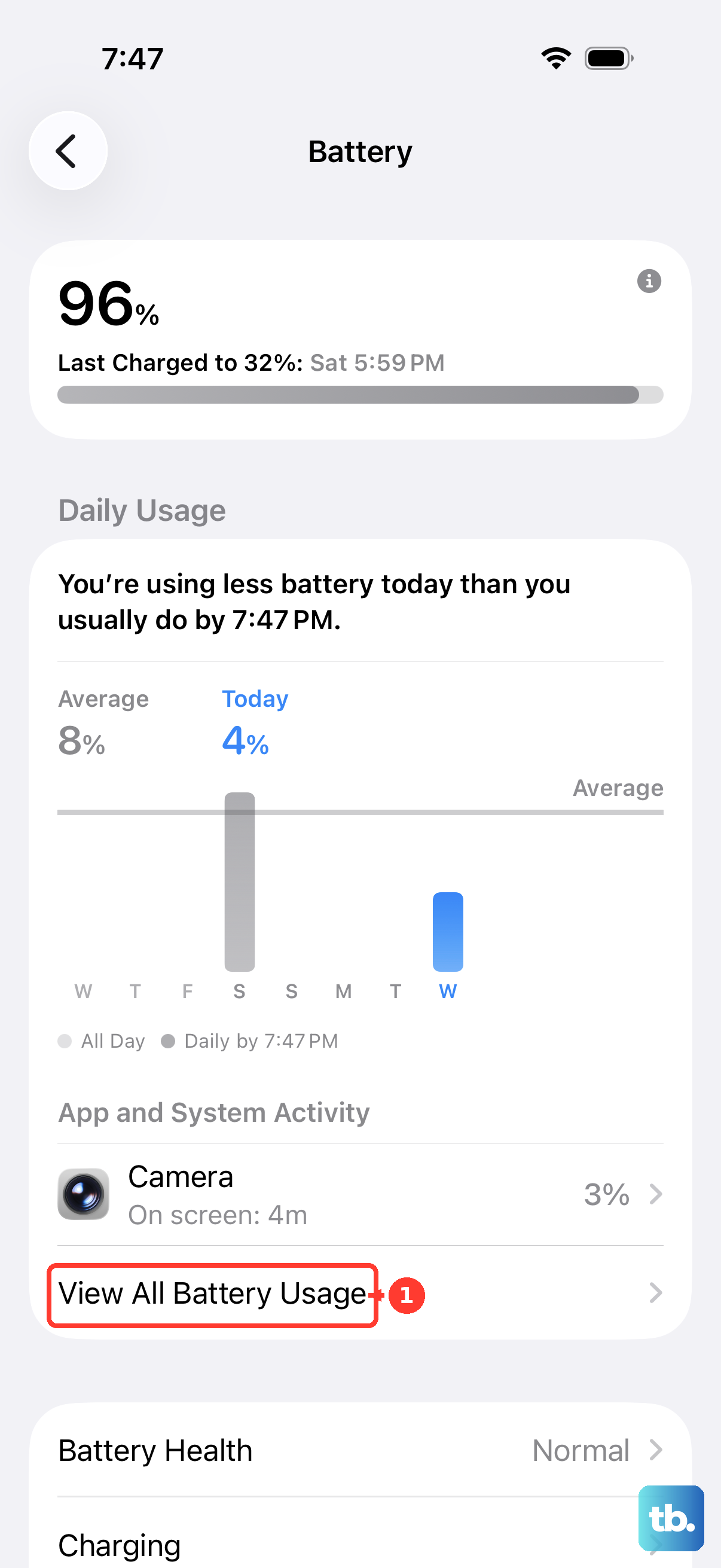
Tap an app to check its battery usage and look for Background Activity, such as playing music or tracking location. If it uses a lot of power, try reducing your use of it or limiting its background activity. If Notifications appear in its usage details, adjust its notifications so they wake the screen less often.
Update Your iPhone 17 to the Latest iOS
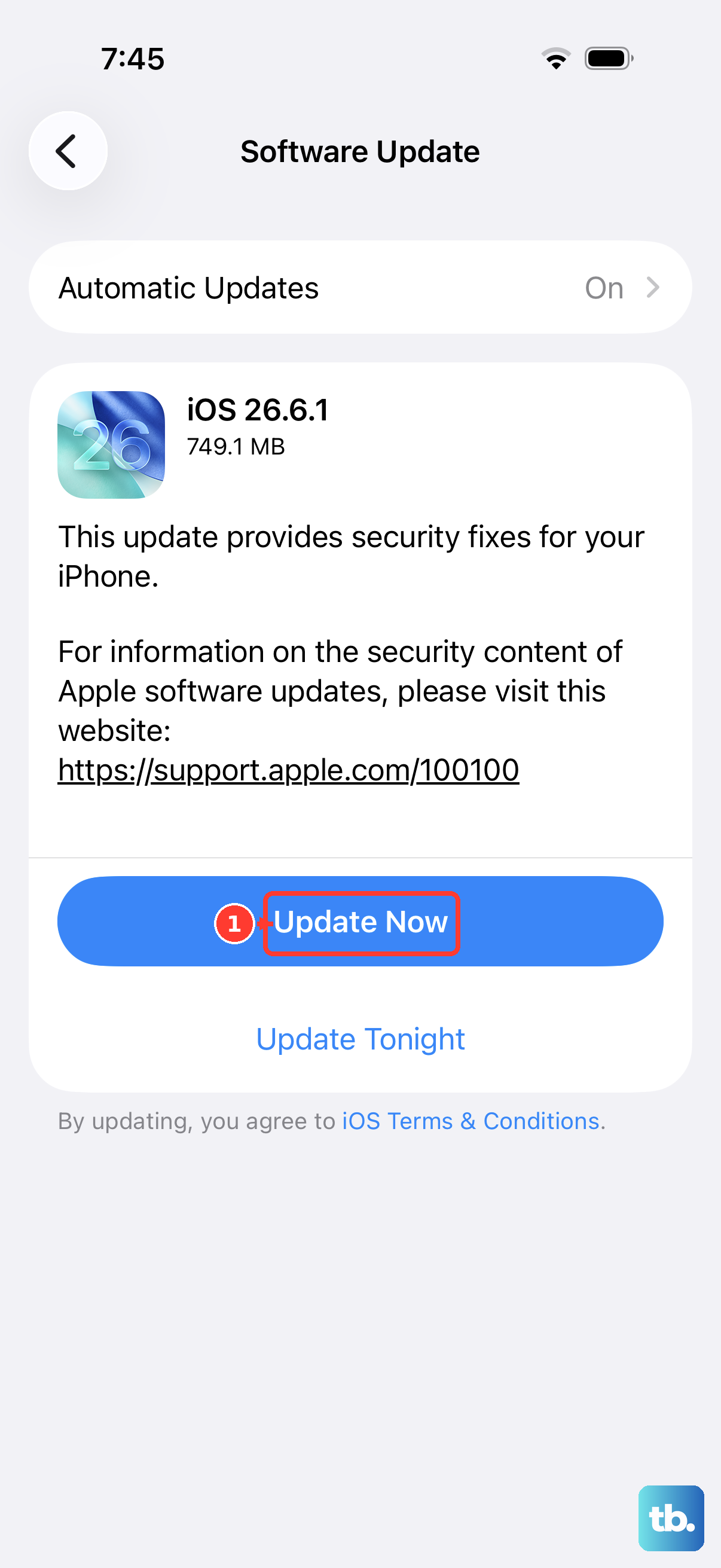
It sounds basic, but it's often the fix. Software bugs can cause abnormal battery drain, and Apple frequently releases updates to patch them. Go to Settings > General > Software Update and install any available update.
After an iOS update, tasks can continue in the background and temporarily affect battery life. Open Settings > Battery and look for the Ongoing iOS Update Insight. If the drain started right after an update, wait a few days and check again before digging deeper into other settings.
Manage Background App Refresh and Location Services
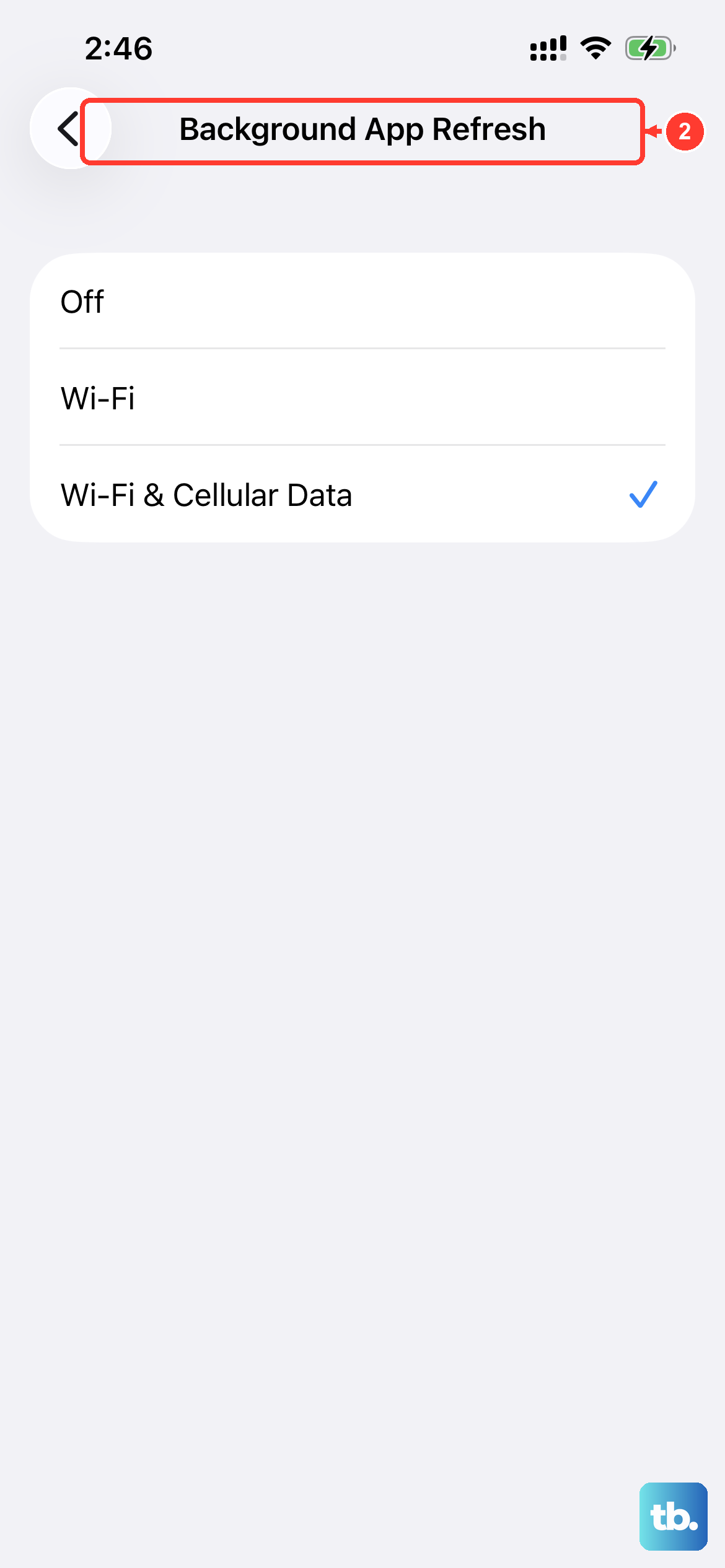
These two features can contribute to background battery use. For Background App Refresh, go to Settings > General > Background App Refresh. You can turn it off entirely or, more selectively, choose "Wi-Fi" only or disable it for specific apps you don't need updating in the background.
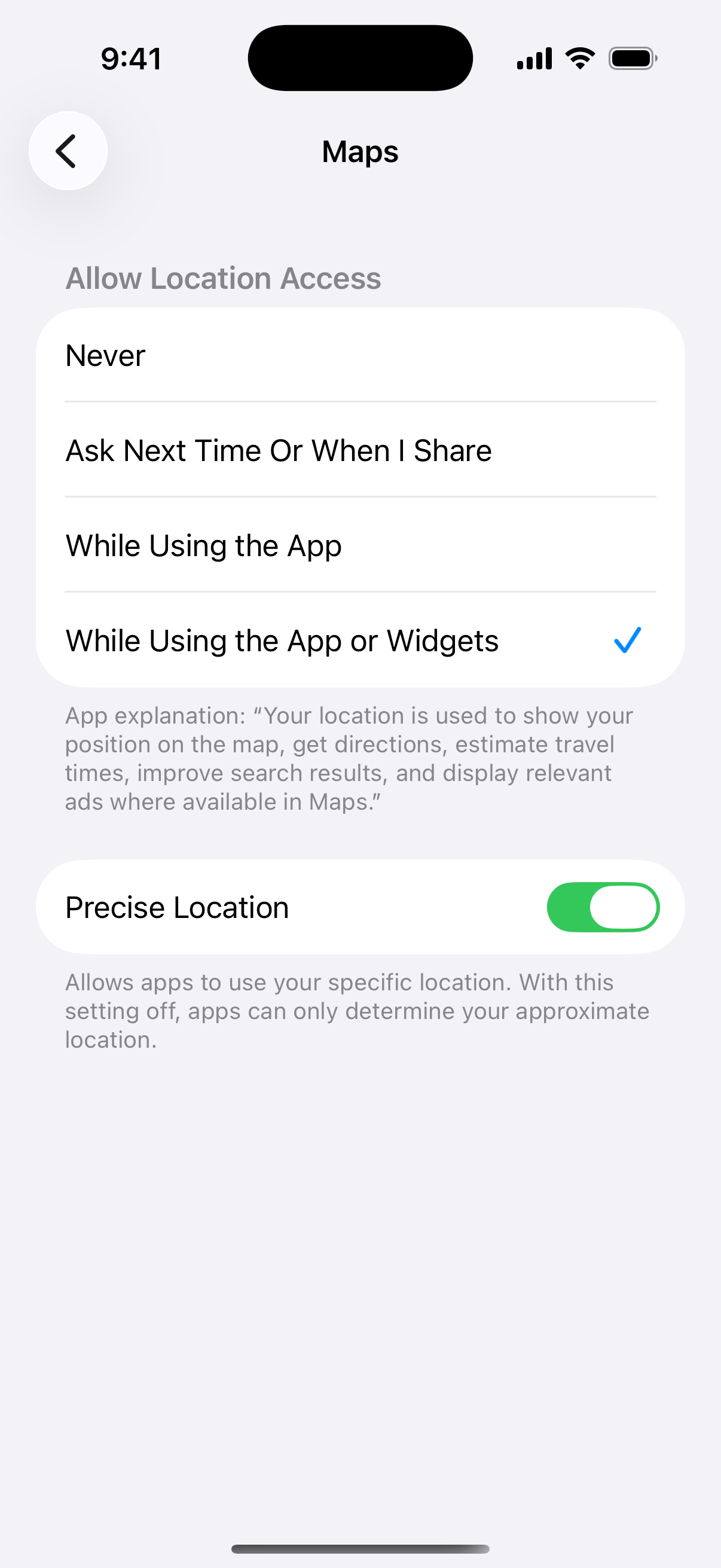
Apps tracking your location in the background can also use battery power. Navigate to Settings > Privacy & Security > Location Services. Here, you can review each app's permission. For most apps, "While Using the App" is the best balance of utility and battery life. Avoid "Always" unless absolutely necessary, and turn location access off completely for apps that don't genuinely need it.
Optimize Display and Motion Settings
The iPhone 17's display is brilliant but power-hungry. First, consider enabling Dark Mode full-time via Settings > Display & Brightness. On its OLED screen, black pixels use less power.
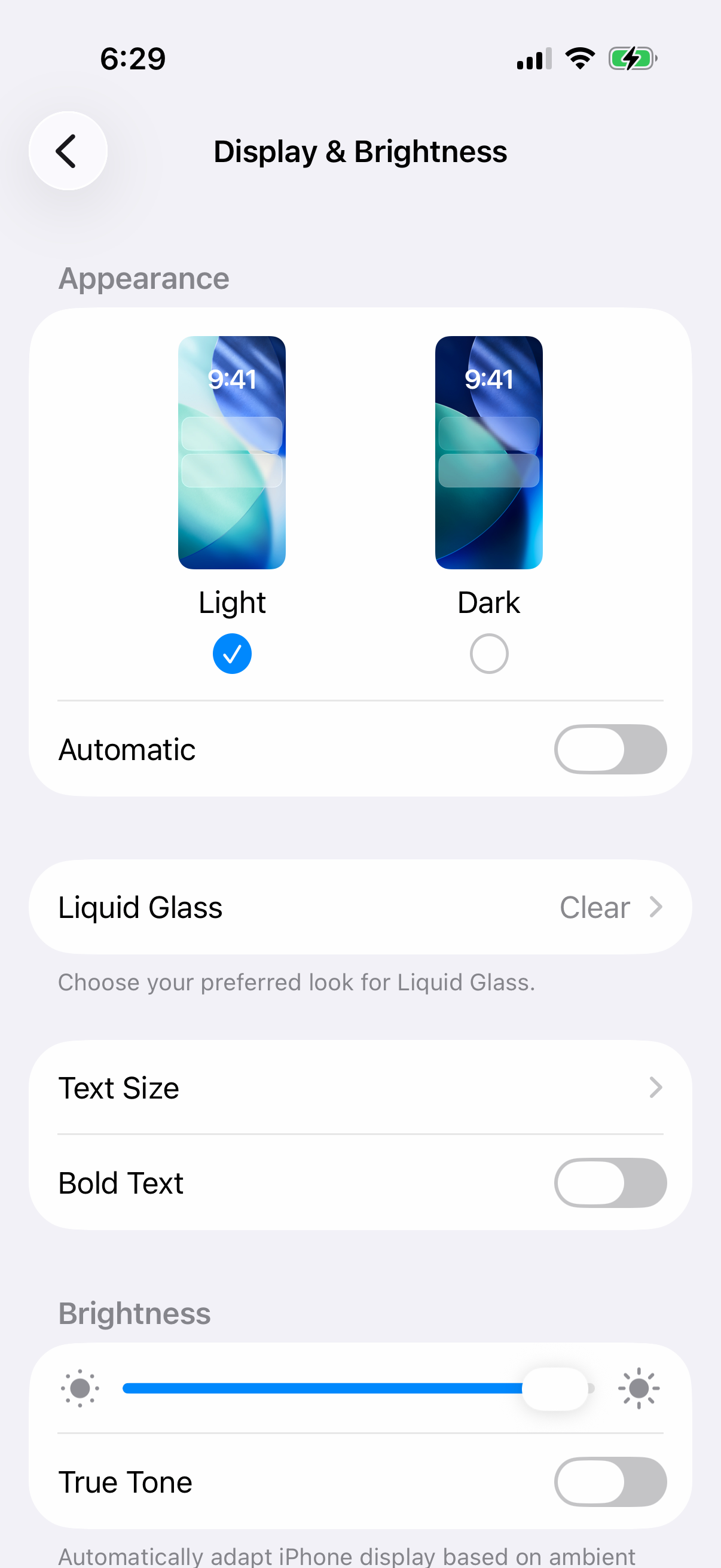
Also in Display settings, reduce your Auto-Lock time to 30 seconds and consider turning off features like "Raise to Wake" if you find your screen lighting up unintentionally. In Settings > Accessibility > Motion, enabling "Reduce Motion" tones down the parallax effects and animations, which can also give you a bit more battery life.
Review Your Charging Habits and Settings
How you charge your iPhone 17 can impact long-term battery health, which affects daily drain. In Settings > Battery > Charging, you'll find the charging optimization options. "Optimized Battery Charging" is available when the charge limit is 100% and learns your routine to delay charging past 80% until you need it, which helps battery longevity.
If charging stops at 80%, check your charge limit before changing anything else. You can choose 80%, 85%, 90%, 95%, or 100% in Settings > Battery > Charging. If you need a full charge every morning, choose 100%. With Optimized Battery Charging enabled, charging past 80% may still be delayed based on your routine.
Disable Non-Essential Features
Take a tour through your settings and turn off features you don't actively use. In Settings > Siri, review your voice activation settings and turn voice activation off if you don't use it. This stops Siri from listening for its activation phrase.
Check Settings > Accessibility for features like Sound Recognition, which constantly analyzes audio, and consider if you need them. Also, go to Settings > Apps > Mail, tap Fetch New Data, and switch from "Push" to "Fetch" with a longer interval, like hourly, for your email accounts. If you don't see Fetch New Data there, look under Mail Accounts.
Reset All Settings
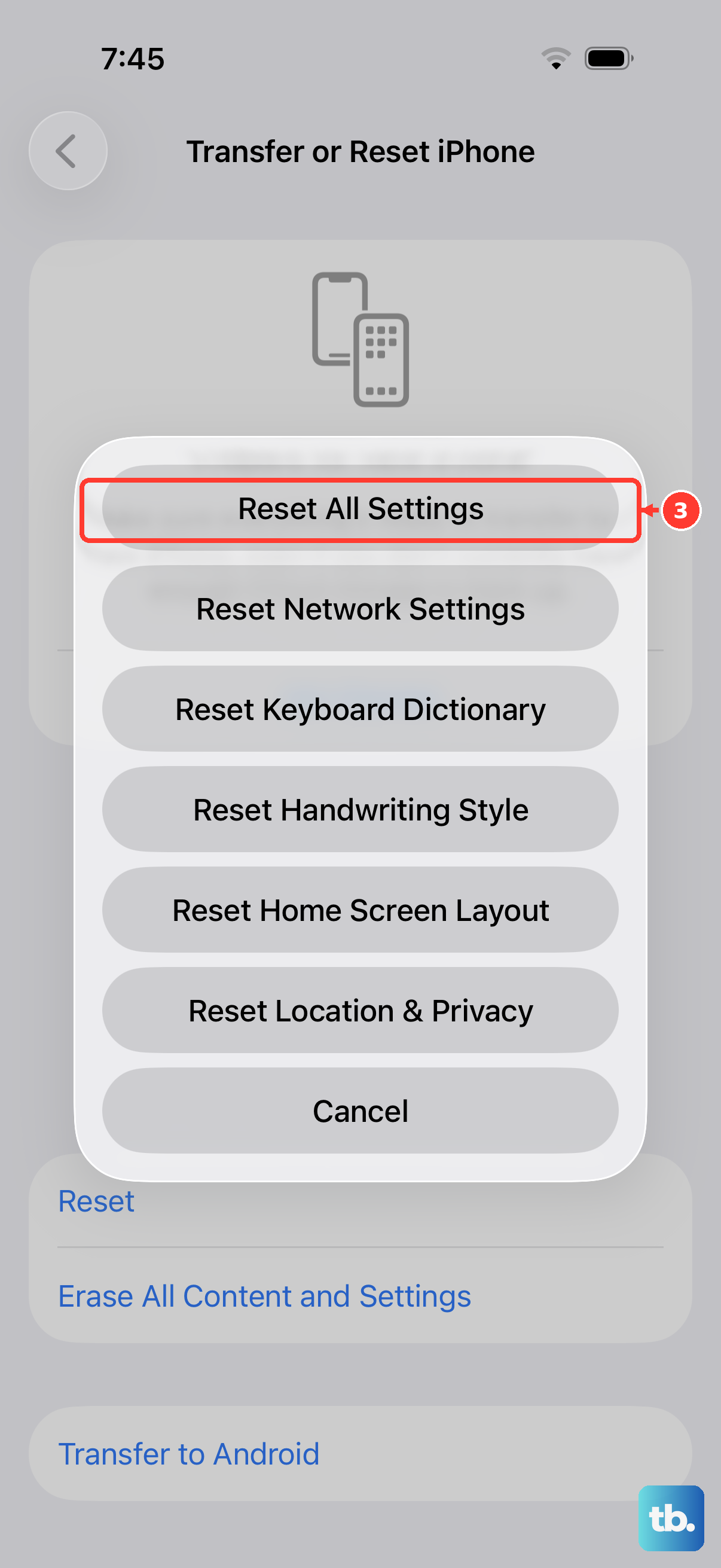
If the simpler checks haven't helped and the battery drain is still a mystery, you can try returning settings to their defaults. This won't delete your photos, messages, or apps. Go to Settings > General > Transfer or Reset iPhone > Reset and tap "Reset All Settings."
After the reset, you'll need to rejoin Wi-Fi networks, re-pair Bluetooth devices and your Apple Watch, and set up Face ID again. You'll also need to reconfigure preferences like display brightness and notifications and add your Apple Pay cards again.
Perform a Force Restart
Sometimes, a simple software hiccup is to blame. A force restart can clear this without affecting your data. On the iPhone 17, quickly press and release the Volume Up button, then quickly press and release the Volume Down button. Finally, press and hold the Side button until you see the Apple logo appear, then release.
This is different from a normal restart and can resolve temporary system freezes. It's a good step to try before moving on to more involved solutions like a settings reset.