
Screen flickering on a brand new iPhone Air is frustrating, especially when you’re expecting flawless performance. The display might flash, show horizontal lines, or dim and brighten erratically. Start with non-destructive software and settings checks, then arrange Apple screen service if the flickering continues or follows visible damage.
Force Restart the Phone
Start with a force restart. This clears any stuck processes without erasing data. On iPhone Air, quickly press and release the Volume Up button, then the Volume Down button, then press and hold the Side button until you see the Apple logo. Wait for the phone to reboot and check if the flickering stops.
Turn Off Auto-Brightness
Auto-Brightness uses the built-in ambient light sensor to adjust screen brightness. To rule out rapid brightness changes, go to Settings > Accessibility > Display & Text Size and toggle off Auto-Brightness. Then set your preferred brightness manually in Settings > Display & Brightness. Apple notes that turning off Auto-Brightness may increase power consumption.
Disable True Tone and Night Shift
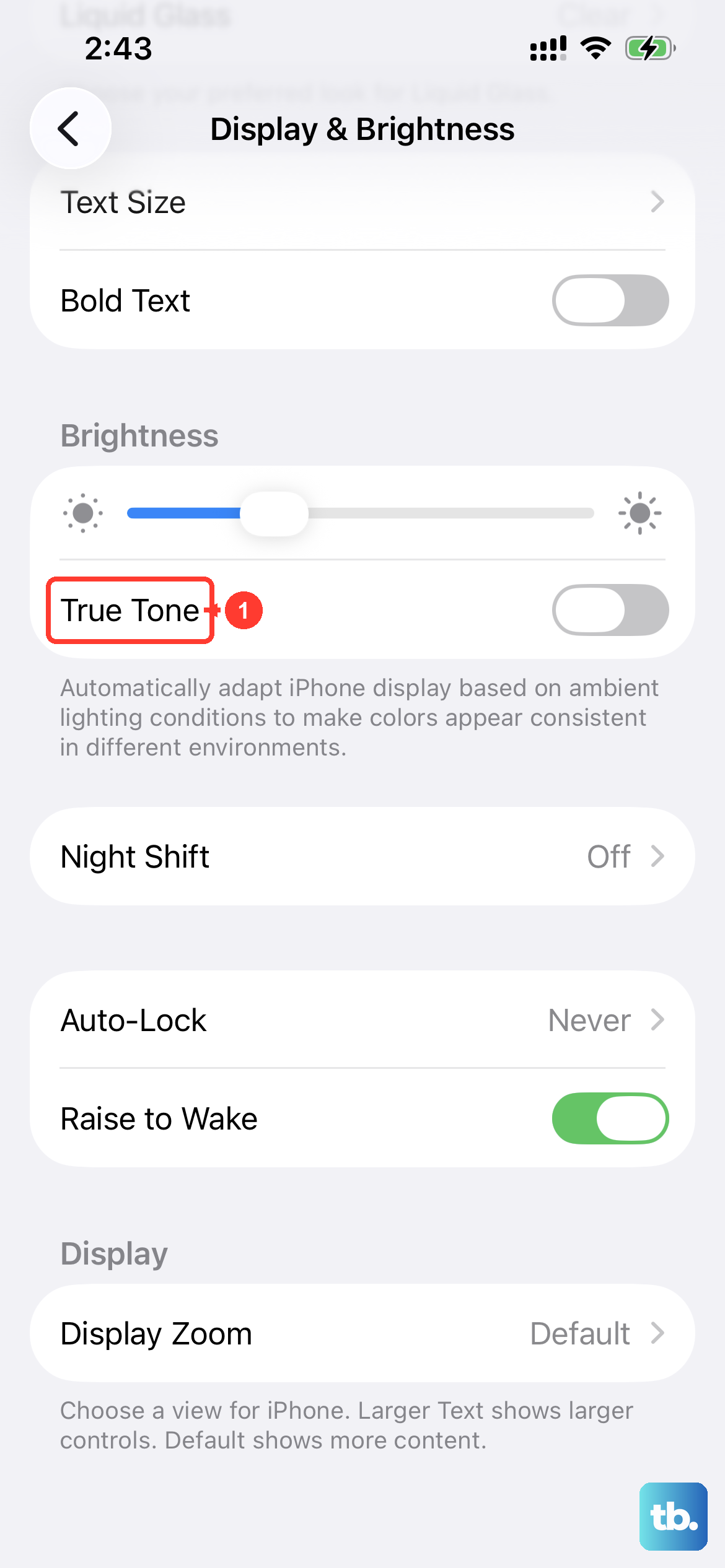
True Tone automatically adapts the color and intensity of the display to match the light in your environment, and Night Shift shifts display colors warmer at night or on a schedule. Head to Settings > Display & Brightness and turn off True Tone. Then open Night Shift and turn off its schedule temporarily while you test.
Update iOS to the Latest Version
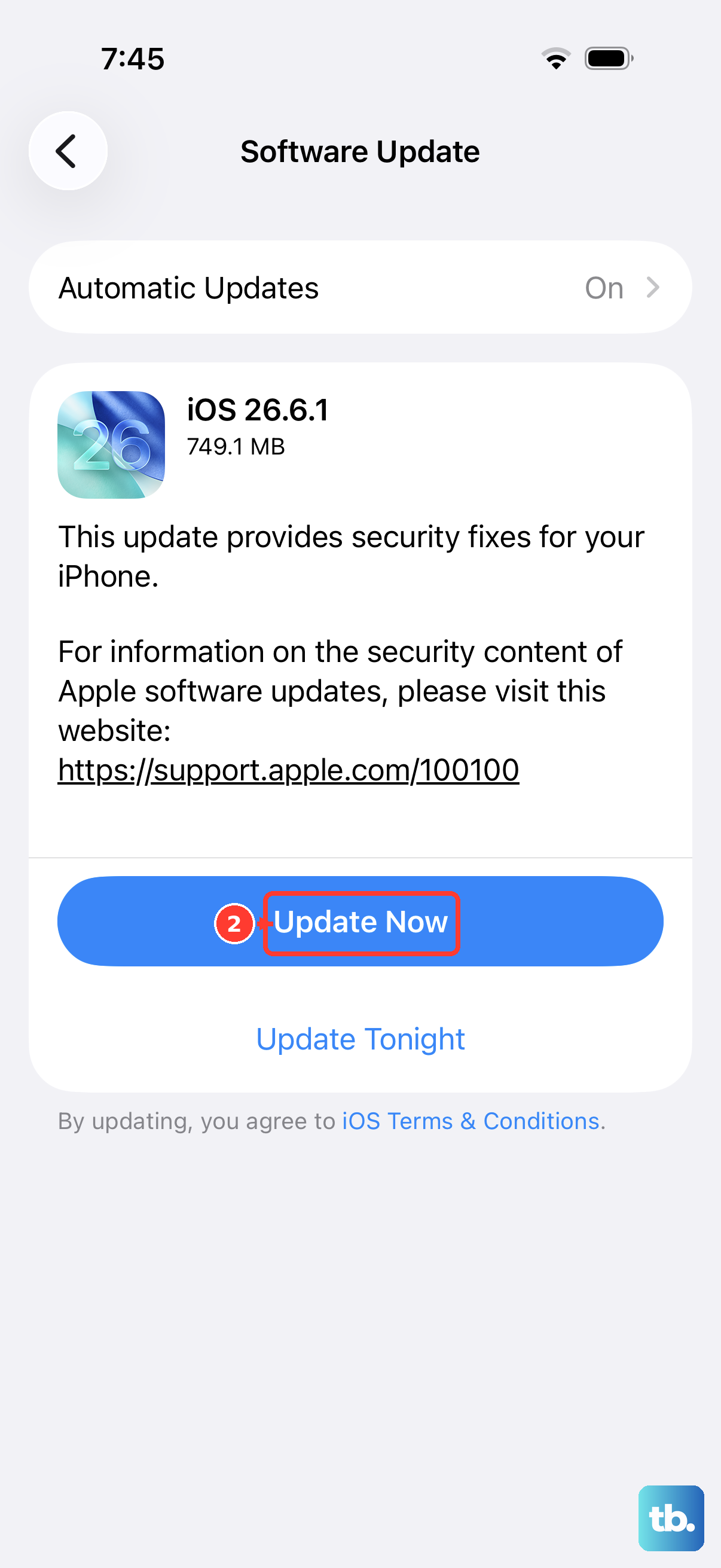
Apple iOS updates include bug fixes and security updates, and Apple lists the current iOS release on its security updates page. Go to Settings > General > Software Update and install any available update. Restart the phone afterward.
Check for Problematic Background Apps
If the flicker appears only while one app is open, quit and reopen that app to test it. From the Home Screen, swipe up from the bottom and pause in the middle to open the App Switcher, swipe to the app, then swipe up on its preview. Apple says you should close an app only if it is unresponsive or seems frozen, so avoid force-closing every app as a routine fix.
Reset All Settings
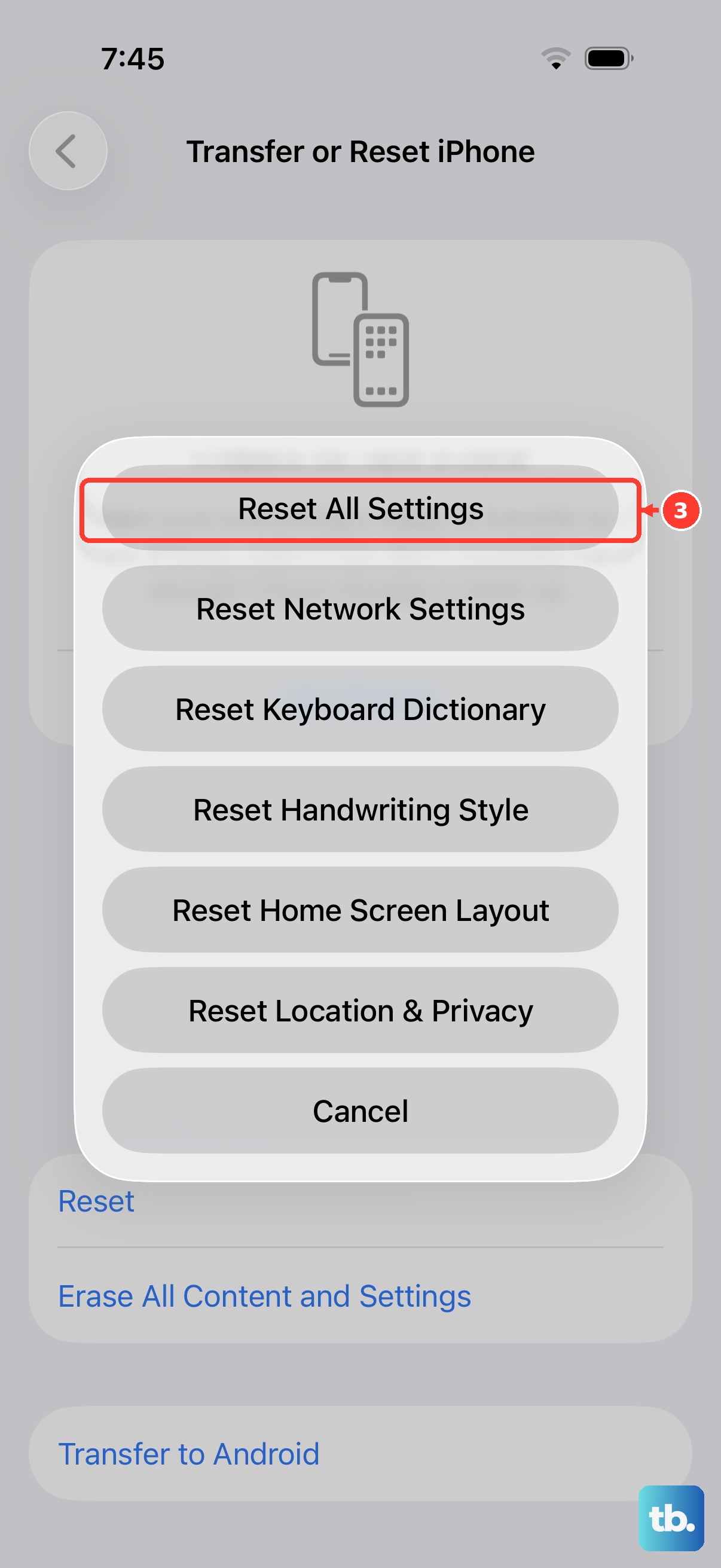
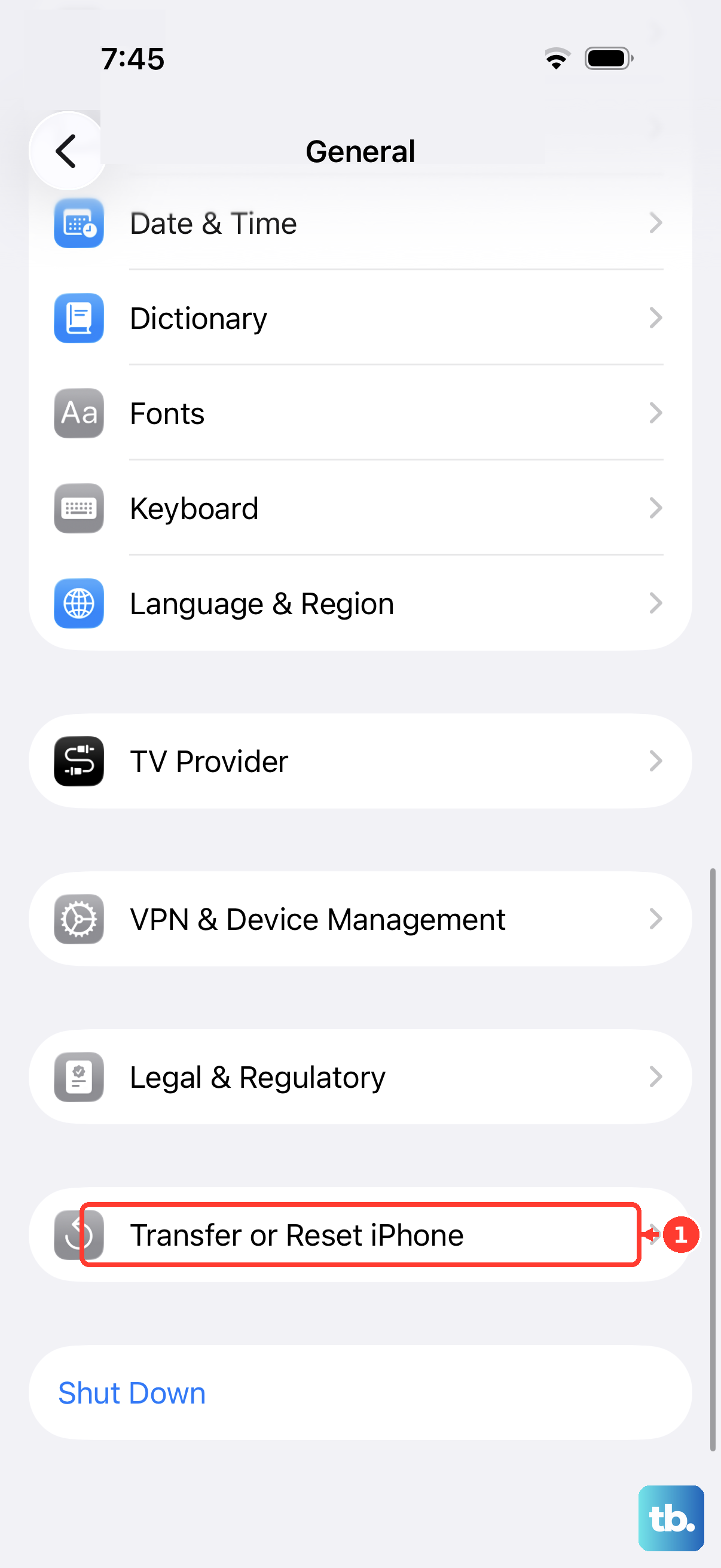
Reset All Settings does not erase your photos, messages, apps, or media, but it resets all settings, including network settings, the keyboard dictionary, location settings, privacy settings, and Apple Pay cards. Go to Settings > General > Transfer or Reset iPhone > Reset > Reset All Settings. Your phone will restart, and you’ll need to reconnect to Wi-Fi and set brightness preferences again. Use this only after easier display checks because it resets more than display preferences.
Turn On Display Pulse Smoothing
On iPhone Air, Apple provides Display Pulse Smoothing (PWM) for flicker that some people notice when the display is dim. Go to Settings > Accessibility > Display & Text Size and turn on Display Pulse Smoothing (PWM). Apple notes that this can affect low-brightness display performance under some conditions.
Inspect for Physical Damage
If the flickering started after dropping the phone, pressing on the screen, or visible damage, stop troubleshooting software and arrange screen service. Look for cracks, discolored spots, or a slight bulge. Apple lists iPhone screen service through Apple Stores, Apple Authorized Service Providers, and mail-in repair.
Restore the iPhone as New
If none of the above work, back up your data to iCloud or a computer, then do a full restore. Connect iPhone Air to a computer and open Finder on Mac or the Apple Devices app on Windows; use iTunes instead only if the PC does not have Apple Devices or the Mac is running macOS Mojave or earlier. Select your phone and click Restore iPhone. This erases information and settings and installs the latest iOS version available for the device. If the flickering continues immediately on a clean install, arrange Apple screen service.