
When the flashlight on your iPhone Air goes gray, it's a pain. The button in Control Center is dimmed, or tapping it does nothing. Let's get it working again.
Close the Camera App
The flashlight and camera share the same LED hardware on the iPhone Air. If the Camera app is open in the background, the flashlight button will be grayed out. Swipe up from the bottom and swipe the Camera card away. The flashlight should become available right away.
Force Restart the iPhone Air
A force restart clears the system state that controls the LED and can fix a non-responsive flashlight. This is especially useful if your phone has been through a battery drain or charging glitch. Press and quickly release Volume Up, then press and quickly release Volume Down, then hold the Side button until you see the Apple logo. Don't let go early.
Check Low Power Mode
Low Power Mode doesn't disable the flashlight, but some users on iOS 26 have reported it being less reliable when active. Go to Settings > Battery and turn Low Power Mode off. Try the flashlight again. If it works, you can re-enable it later.
Let the Phone Cool Down
If your iPhone Air gets hot, iOS locks out certain features, including the flashlight. The phone can overheat during fast charging (up to 40W) or wireless charging. If the phone feels warm, move it to a cooler spot and wait 10-15 minutes. The flashlight will work again once the temperature drops.
Adjust the Flashlight Brightness
Press and hold the flashlight button in Control Center instead of tapping it. A brightness slider shows up. If the slider was set to the lowest level, the light might be too dim to notice. Drag it all the way up and try tapping the button normally after that.
Recover After a Complete Battery Drain
The iPhone Air has a known issue where it becomes unresponsive after the battery is fully depleted. If that happened, the phone may not respond to cable charging right away. Attach a magnetic battery pack (Qi2 or MagSafe) to the back of the phone to wake it up. Once the screen turns on, plug in a certified USB-C cable and let it charge for a few minutes. Then do a force restart. The flashlight should come back after that.
Reset All Settings
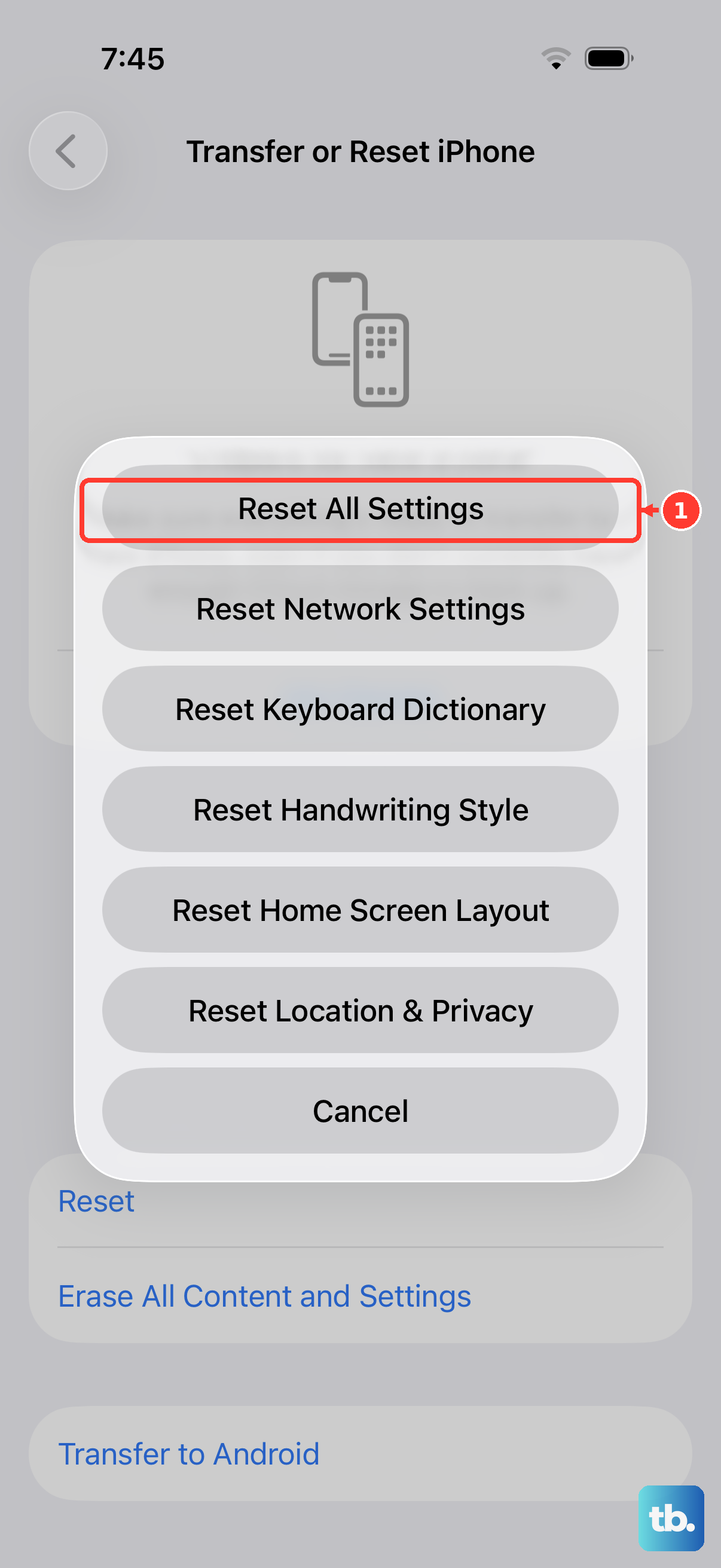
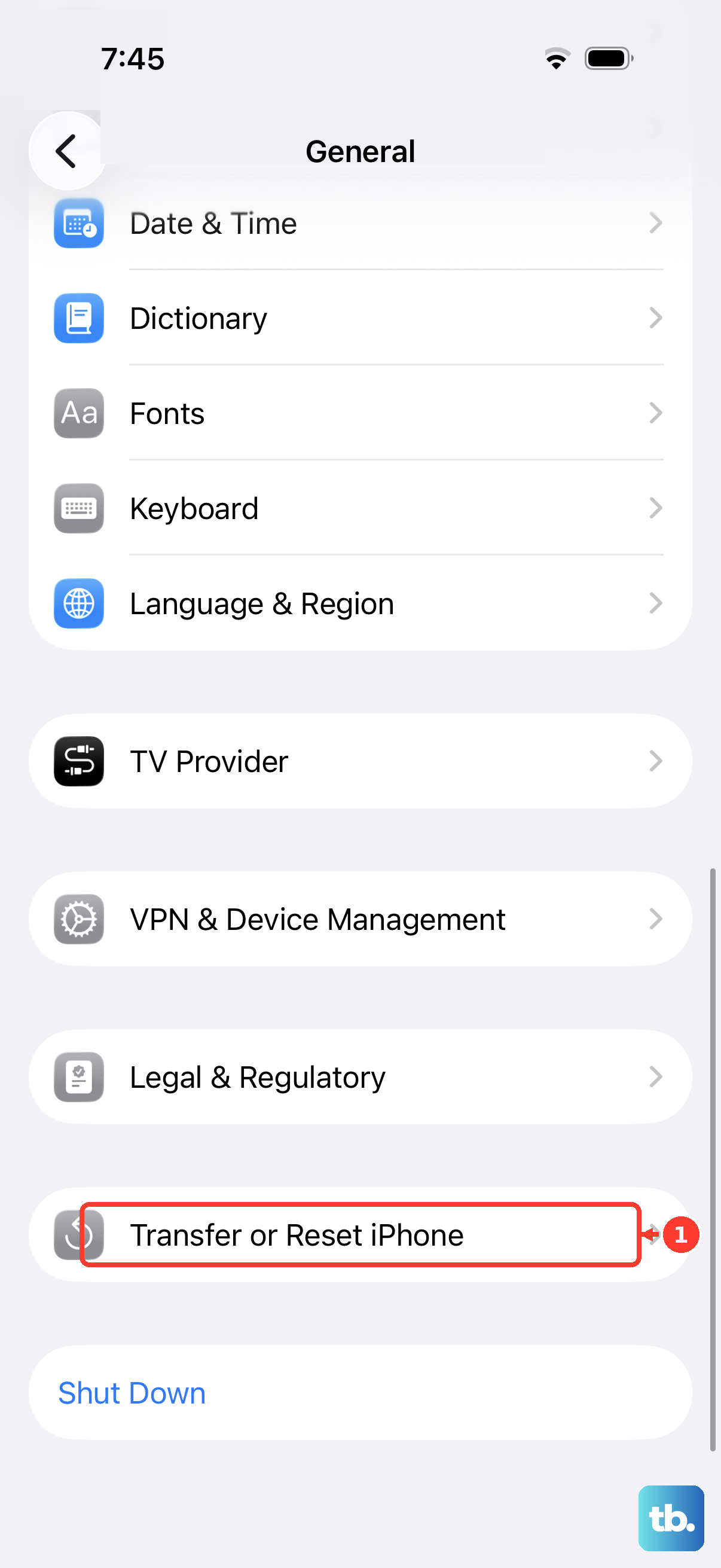
If the flashlight button remains grayed out, a settings reset can clear system-level glitches without deleting your data. Go to Settings > General > Transfer or Reset iPhone > Reset > Reset All Settings. Your wallpaper, Wi-Fi networks, and Control Center layout will go back to default, but photos and apps stay. Try the flashlight after your phone restarts.
Update to the Latest iOS
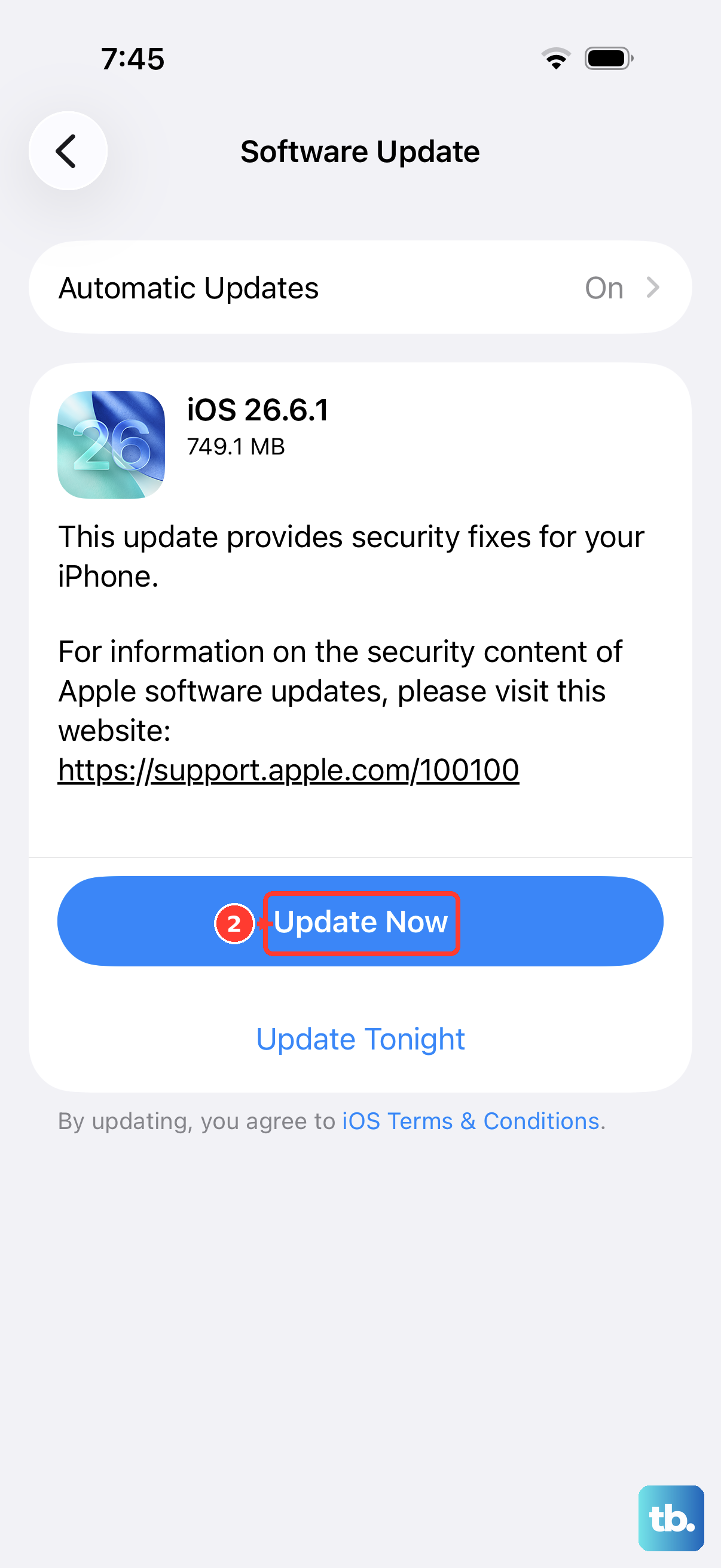
iOS 26.4.2 had a reported firmware issue that could cause intermittent charging and hardware control problems. Apple may have released a patch since then. Go to Settings > General > Software Update and install any available update. Newer versions often fix bugs that make the flashlight inaccessible.
Check for Hardware Damage
If none of the above works, the LED itself might be damaged. Open the Camera app and try taking a photo with the flash enabled. If the flash doesn't fire, the hardware is likely broken. Visit an Apple Store or an authorized service center to get the LED inspected and repaired.