
When your iPhone Air microphone stops picking up sound, it can throw off phone calls, FaceTime conversations, voice memos, and even dictation. The good news is that most microphone problems are software-related and take just a few minutes to fix. Let's work through the likely culprits in order.
If you are not sure whether the mic is dead or just misconfigured, open a mic test first. A moving level meter means the hardware is healthy, which rules out the worst case before you touch any settings.
First, a quick test helps pinpoint which microphone is the issue. The iPhone Air has three microphones: one at the bottom near the USB-C port, one on the front near the top speaker, and one on the back near the camera module. Open the Voice Memos app and record yourself speaking normally. Play it back. If the audio is muffled or silent, the bottom mic may be blocked. Then switch to the Camera app, record a short video in selfie mode, and play it back. If the front mic sounds fine but the bottom mic doesn't, you've narrowed it down.
If Siri also doesn't respond when you hold the Side button and ask a question, that points to the front-facing microphone. Knowing which mic is acting up helps you focus the cleaning or troubleshooting.
Check the obvious blockages first
Dust, lint, and pocket debris are the most common reasons a microphone stops working. Take a close look at the tiny mesh grille at the bottom of your iPhone Air, right next to the USB-C port. Also inspect the small pinhole on the top of the phone near the rear camera and the narrow slit above the front-facing camera. A bright flashlight helps spot any gunk.
If you see anything, gently clean it with a dry, soft-bristled toothbrush or a clean paintbrush. Avoid poking anything sharp into the openings. You can also use a piece of masking tape pressed lightly over the grille and then peeled off to lift out loose dust. Some cases or screen protectors can also block the microphones, so remove your case and test again.
Restart or force restart the phone
A standard restart clears temporary glitches that can affect audio routing. Press and hold the Side button with either volume button until the power-off slider appears, then drag it to shut down. Wait about 30 seconds, then press and hold the Side button until the Apple logo shows up.
If that doesn't help, try a force restart. This is different from a regular reboot and can shake loose stubborn software hangs. On the iPhone Air, quickly press and release the Volume Up button, then quickly press and release the Volume Down button, then press and hold the Side button until the Apple logo appears. Let go and let the phone start fresh.
Disconnect Bluetooth audio devices
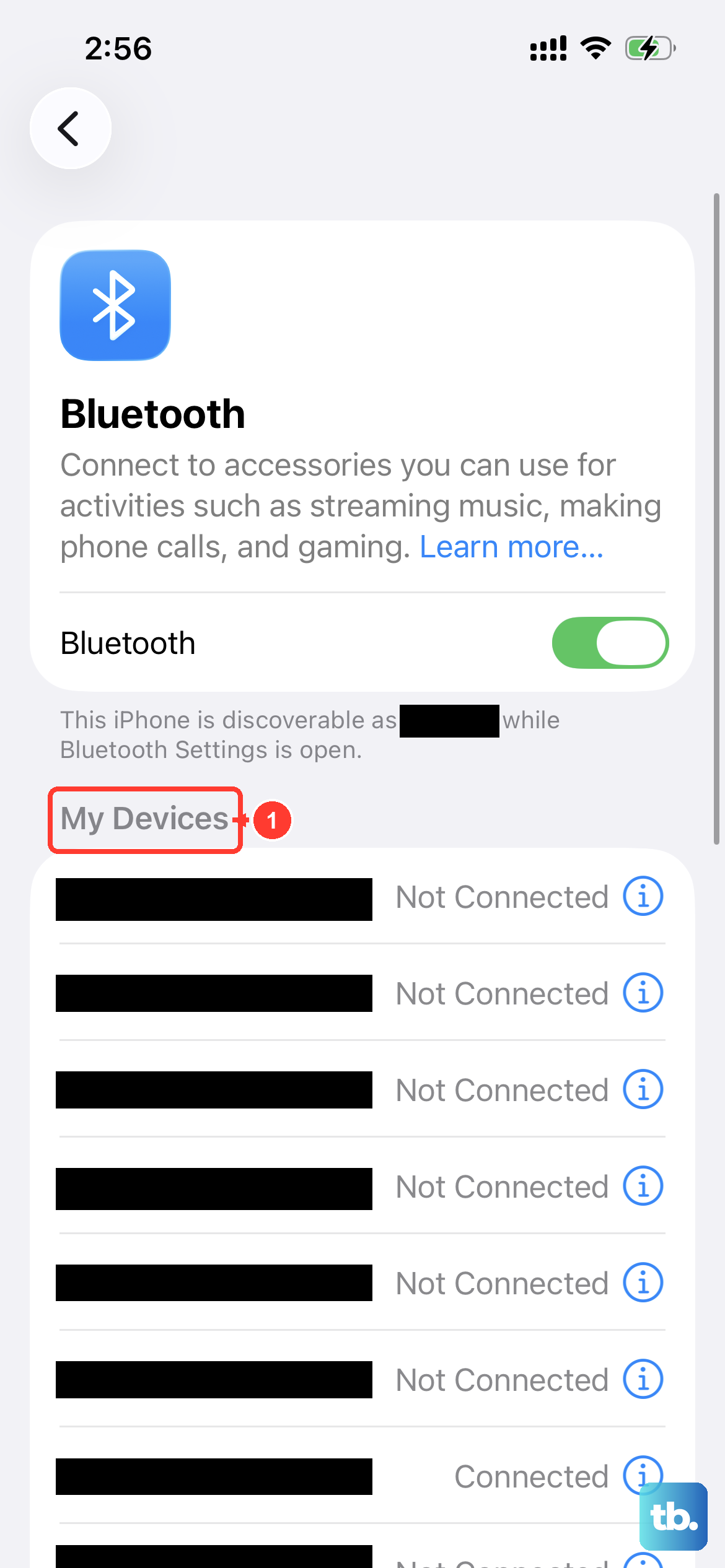
If you have AirPods, headphones, or a car audio system paired, your iPhone might be sending audio to them instead of the built-in microphone. Swipe down from the top-right corner to open Control Center and tap the Bluetooth icon to turn it off completely. Then test the microphone again. If it works now, the issue is just the phone routing audio to the wrong output.
You can also go to Settings > Bluetooth and tap the info icon next to connected devices, then choose "Forget This Device" for any you don't want auto-connecting.
Check microphone permissions in iOS 26
If the microphone only fails in specific apps like WhatsApp, Zoom, or a voice recorder, the app might not have permission. Open Settings > Privacy & Security > Microphone and make sure the toggle is green for each app you're using. You can toggle a few off and back on to refresh the permission. After that, force close the troublesome app and reopen it.
Force closing is simple: swipe up from the bottom and pause until the app cards appear, then swipe up on the app to dismiss it.
Update to the latest iOS 26 version
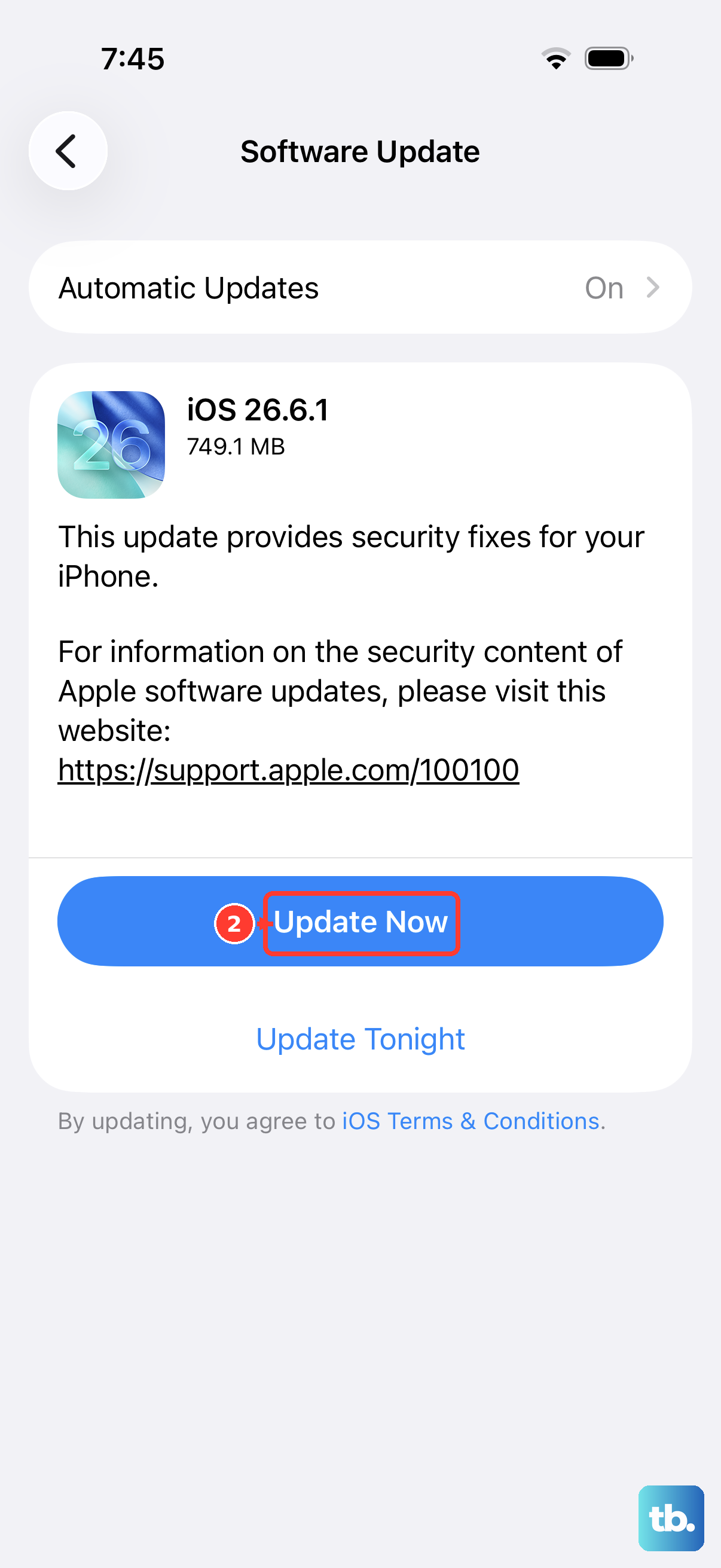
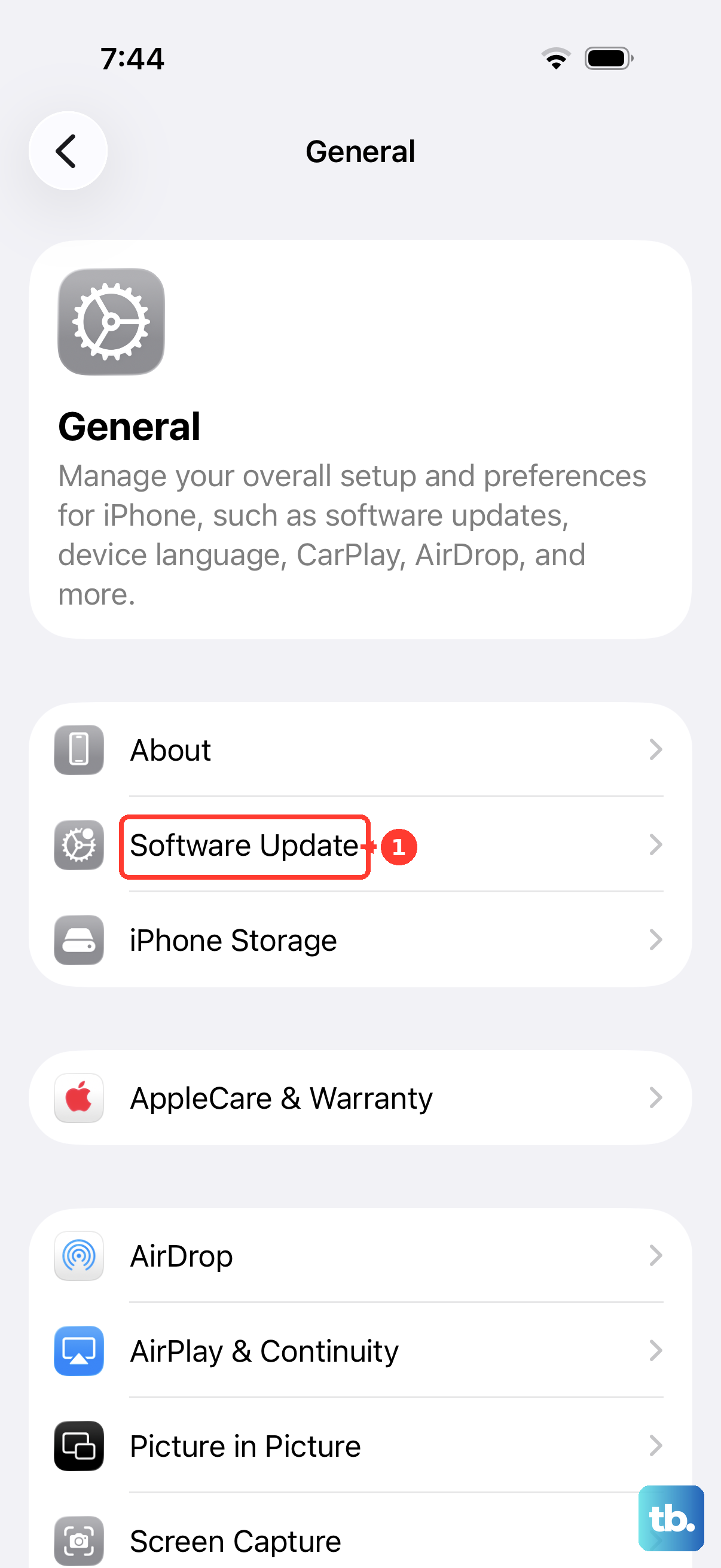
Apple regularly pushes bug fixes for audio issues in iOS updates. Go to Settings > General > Software Update and see if any updates are pending. iOS 26.4.2 had some charging-related fixes, but newer builds may also address microphone bugs. If an update is available, install it and then test the microphone again.
Reset all settings
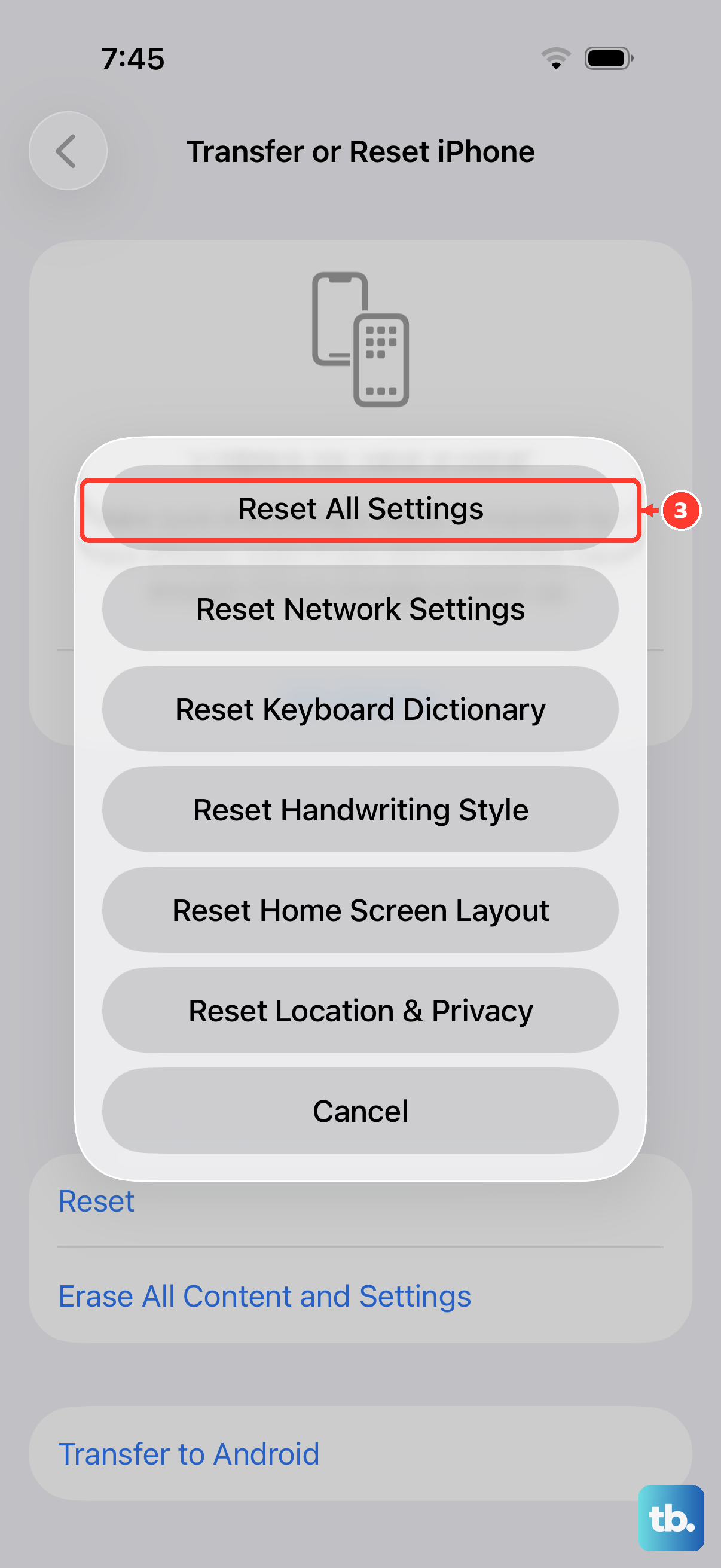
If the microphone still won't cooperate, a settings reset can clear corrupted configurations without deleting your photos or apps. Go to Settings > General > Transfer or Reset iPhone > Reset > Reset All Settings. This will revert your Wi-Fi passwords, wallpapers, and other preferences, but your data stays put. After the phone restarts, test the microphone again.
This is a good middle ground before going full factory reset.
Restore via computer as a last resort
When all else fails, restoring the iPhone Air from a computer can fix deeper software problems. Connect the phone to a Mac with Finder or a PC with iTunes (if you still have it). Put the phone in recovery mode first: connect to the computer, force restart (Volume Up, Volume Down, hold Side until recovery mode screen appears), then choose Update or Restore in Finder/iTunes.
If you choose Restore, the phone will be wiped clean and reinstalled with the latest iOS. Make sure you have a backup stored in iCloud or on your computer first. After the restore finishes, set up the iPhone and test the microphones with a voice memo.
By this point, if the microphones still aren't picking up sound, it's likely a hardware problem. The iPhone Air's microphones are soldered to the main board, so repair requires professional service. Make an appointment at an Apple Store or an authorized service provider to have the device examined.