
If your iPhone 16 Pro is taking forever to load a webpage or buffer a video, it can feel like you're back on dial-up. The good news is, this is almost always a software or settings issue you can fix yourself in a few minutes.
I'd start with the simplest fix first. Try toggling Airplane Mode on and off. Swipe down from the top-right corner to open Control Center and tap the airplane icon, wait about 10 seconds, then tap it again to turn it off. This forces your phone to reconnect to the cellular network from scratch, which can clear up a temporary glitch.
Check Your Cellular Data Mode
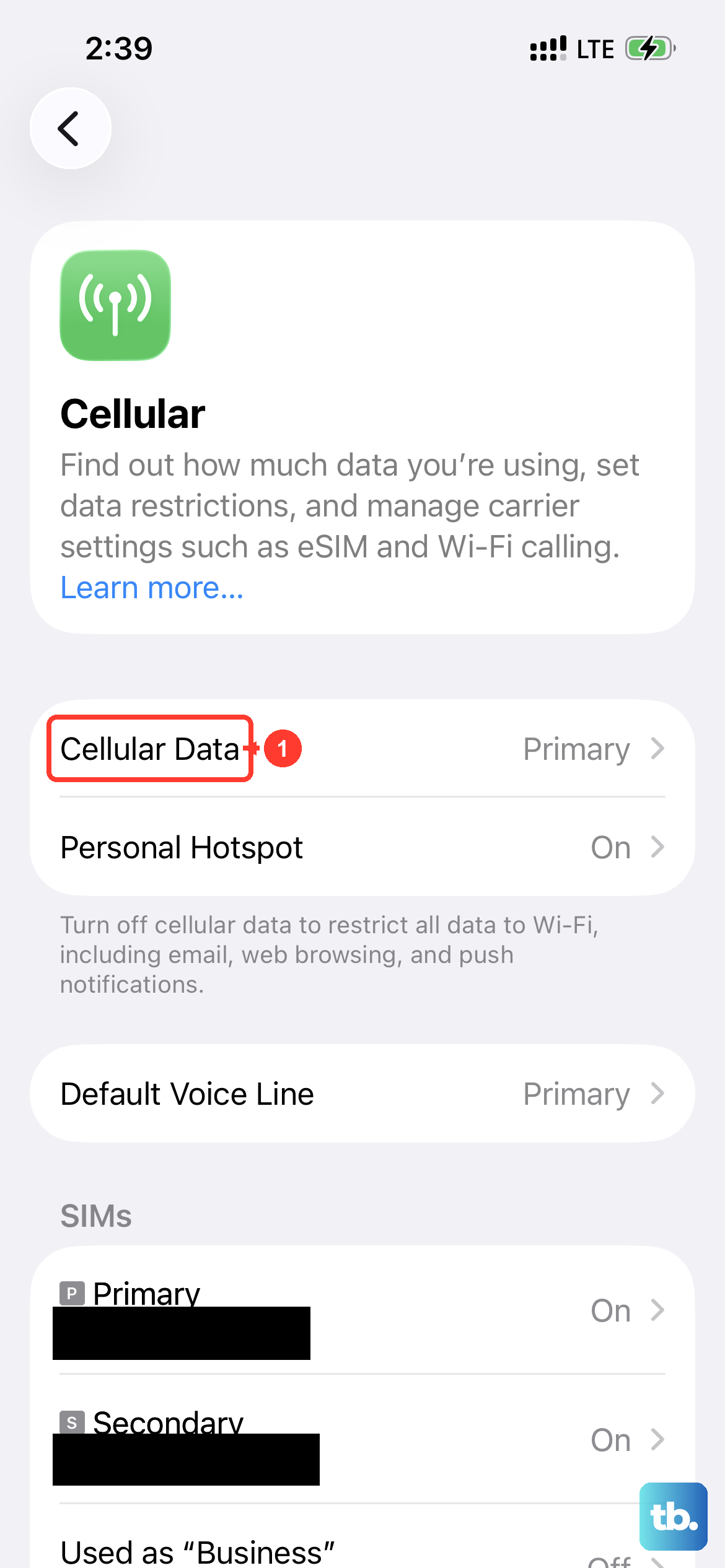
Your iPhone 16 Pro running iOS 26 has several options for cellular data. If it's set to a slower mode to save battery, that could be your culprit. Go to Settings > Cellular > Cellular Data Options > Voice & Data.
For the fastest possible speeds, make sure 5G Auto or 5G On is selected. The "Auto" setting allows the phone to use 5G only when needed to preserve battery, while "On" keeps it active all the time. If you're in an area with spotty 5G, you can also try selecting LTE for a more stable, and sometimes faster, connection.
Enable and Use WiFi Assist
This is a handy feature for when you're on a weak WiFi network. WiFi Assist automatically switches you to your cellular data if the WiFi connection becomes unusably slow. It's on by default, but it's worth checking.
Head to Settings > Cellular and scroll all the way to the bottom. You should see "Wi-Fi Assist." Make sure the toggle is switched on. This ensures you're always using the fastest available connection without having to manually disconnect from WiFi.
Manage Background App Refresh
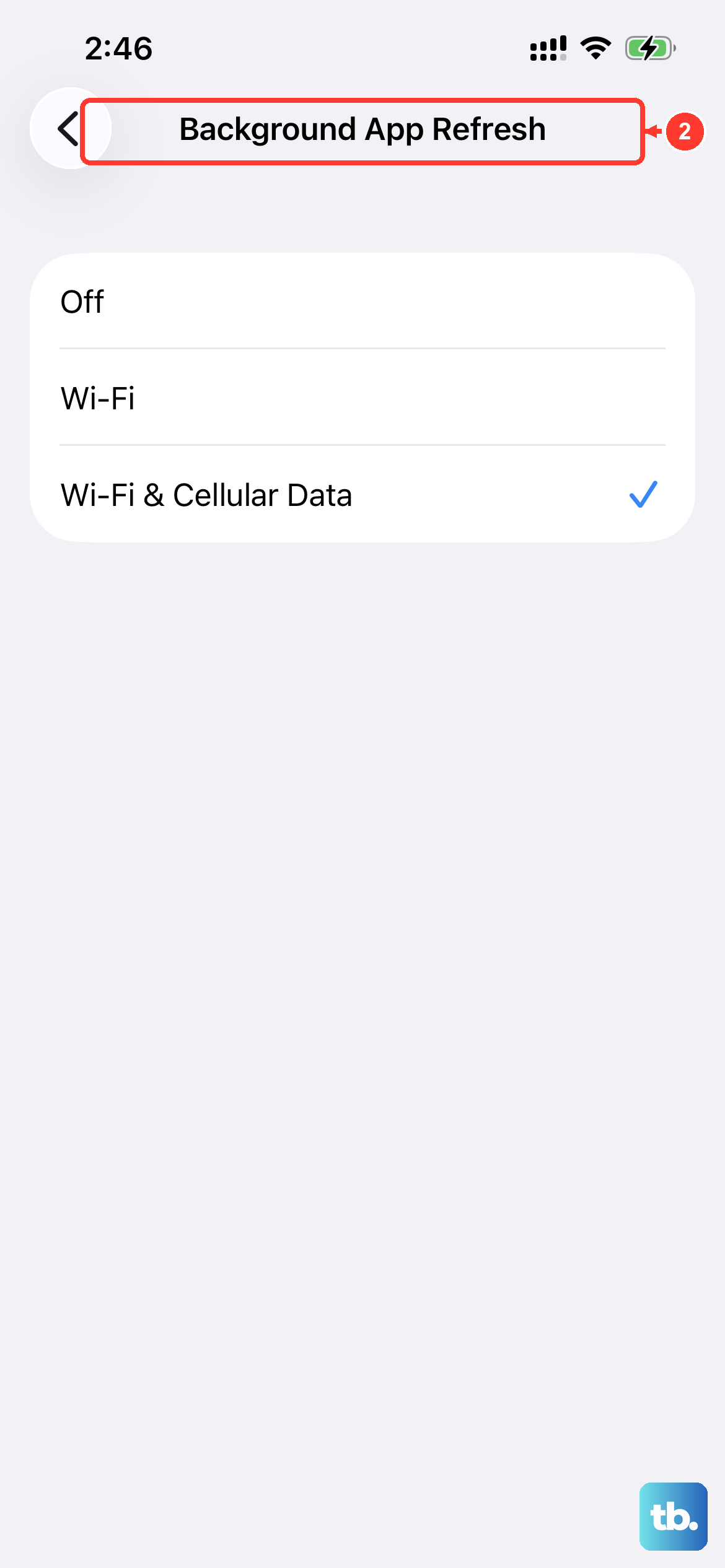
Apps refreshing content in the background can eat up bandwidth and slow down your active tasks. You can control this globally or per app. Go to Settings > General > Background App Refresh.
You can set it to "Off" entirely, or "Wi-Fi" only, which is a good middle ground. Alternatively, you can scroll through the list and turn off background refresh for specific apps you know don't need live updates, like your notes app or a streaming service you only use on WiFi.
Clear Your Safari Cache
Over months of use, your browser stores a lot of website data that can become corrupted or just plain bulky. Clearing it out can give Safari a fresh start and improve loading times. Open the Settings app and tap Safari.
Scroll down and tap Clear History and Website Data. Confirm your choice. This will log you out of websites, so you'll need to sign back in, but it often resolves persistent slow loading issues.
Review Your VPN and Security Settings
If you use a VPN, that's very likely the source of the slowdown. VPNs route your traffic through another server, which adds latency. Try temporarily disabling your VPN app to see if your speed returns to normal.
Also, check any content or ad blockers you have installed, either as Safari extensions or within other apps. Sometimes these filters can inadvertently slow down page rendering as they process web content.
Reset Your Network Settings
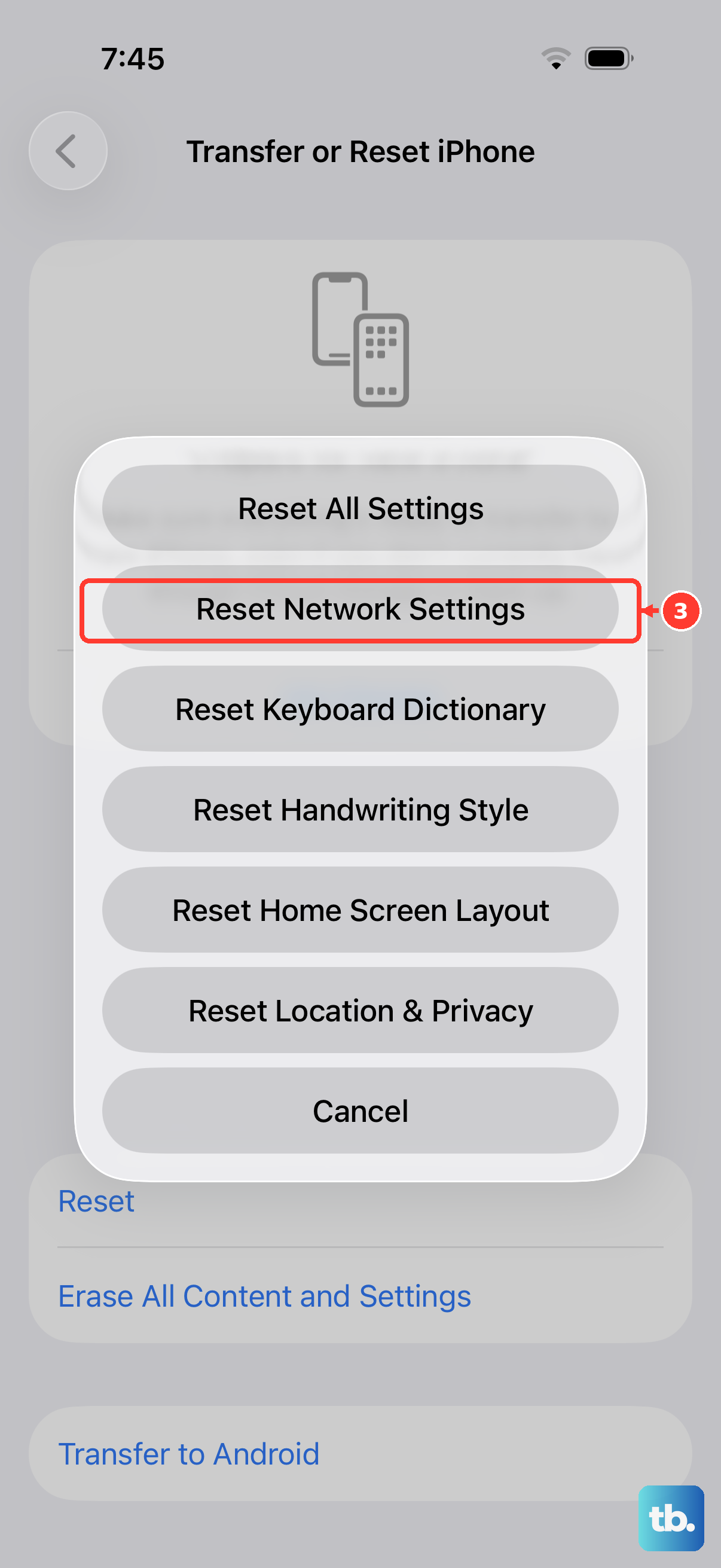
This is a more comprehensive step if the simpler fixes haven't worked. Resetting network settings will erase all your saved WiFi networks, passwords, cellular settings, and VPN configurations. You'll have to rejoin your WiFi networks afterward.
To do this, go to Settings > General > Transfer or Reset iPhone. Tap Reset and then select Reset Network Settings. Enter your passcode if prompted and confirm. Your phone will restart, and you can then test your internet speed again.
Update iOS and Carrier Settings
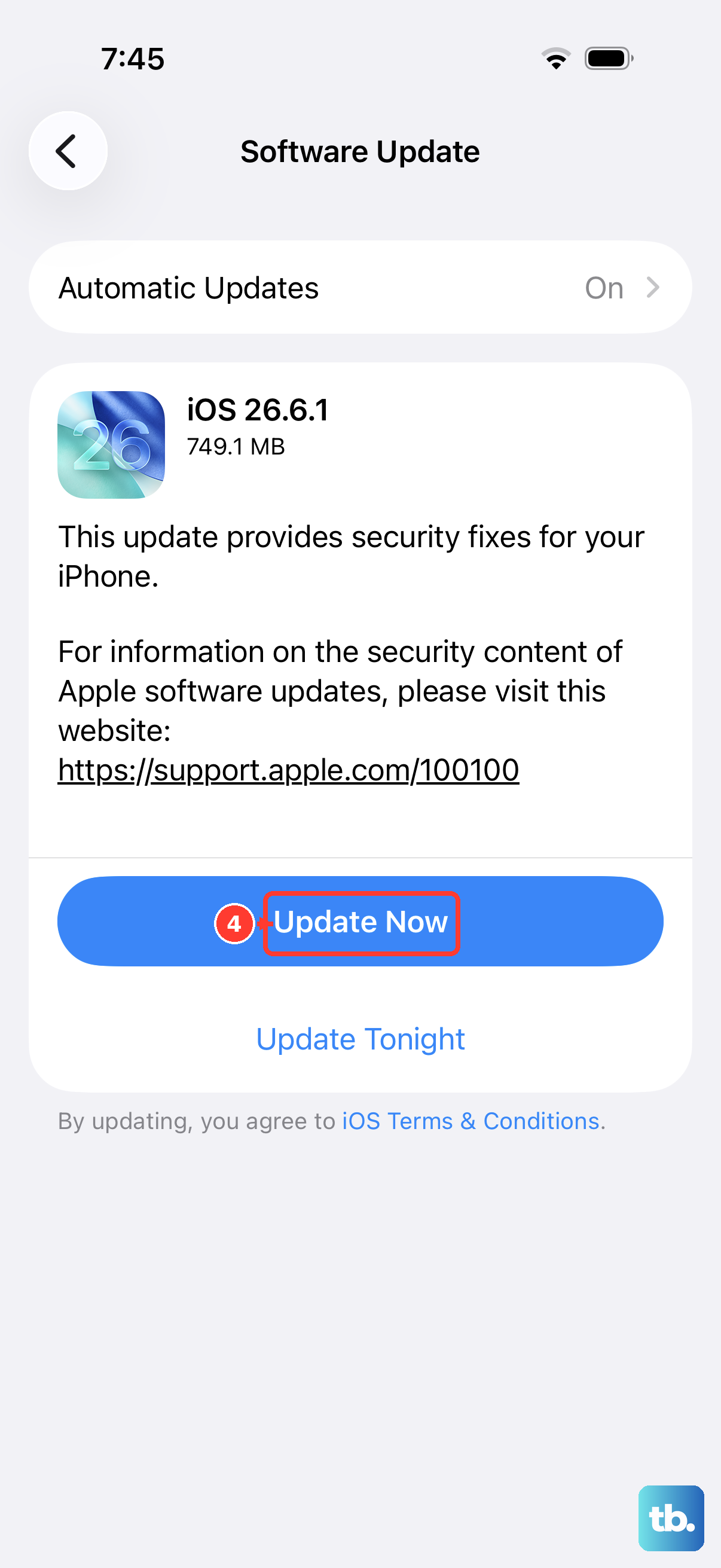
Apple frequently releases iOS updates that include performance improvements and modem firmware updates for better connectivity. Go to Settings > General > Software Update to check for and install any available updates.
Carrier settings updates are smaller files pushed by your mobile provider to optimize network performance. These usually install automatically, but you can sometimes trigger one by going to Settings > General > About. If an update is available, a prompt will appear.
Perform a Force Restart
A standard restart is good, but a force restart clears the device's memory more thoroughly. For the iPhone 16 Pro, press and quickly release the Volume Up button, then press and quickly release the Volume Down button. Finally, press and hold the Side button until you see the Apple logo appear, then release.
This doesn't delete any data, it just gives the entire system, including the cellular modem, a clean reboot. It's a useful step after trying a few other fixes to see if the problem clears up.