
If your iPhone 16 Pro's screen isn't responding to touch, the first thing to try is a force restart. This can help if a temporary software glitch is causing the unresponsiveness. Press and quickly release the Volume Up button, then press and quickly release the Volume Down button. Finally, press and hold the side button until the Apple logo appears; this might take longer than 10 seconds.
Start with a force restart if the touchscreen is frozen or unresponsive. It doesn't delete any of your data or settings, so you can try it before moving on to the other checks.
Clean Your Screen and Remove Any Screen Protector
A dirty screen or a poorly applied screen protector can easily interfere with the touch sensors. Give your iPhone 16 Pro's screen a thorough clean with a soft, lint-free cloth slightly dampened with water. Make sure there's no oil, lotion, or debris on the surface.
If you're using a screen protector, try carefully peeling it off to see if the touch response returns. Some third-party protectors, especially thick glass ones or those with alignment issues, can cause problems with the touch sensitivity.
Check for and Remove Any Case Interference
Take your iPhone completely out of its case. Certain cases, particularly those with built-in screen covers or that wrap too tightly around the edges, can press against the screen and block touch input. With the case off, test the touchscreen again to see if it works normally.
This is a quick check that rules out a simple physical obstruction. If the screen works without the case, you'll know the case was the culprit.
Ensure Your iPhone Isn't Overheating or Too Cold
The iPhone 16 Pro is designed to operate in ambient temperatures between 32° and 95° F (0° and 35° C). If the device feels very hot to the touch, move it to a cooler spot out of direct sunlight and let it cool down before trying again.
Similarly, if it's been in freezing conditions, bring it to room temperature. The touchscreen components have an optimal operating range, and performance can degrade outside of it.
Charge Your iPhone 16 Pro
If your iPhone won't turn on or the screen is black, it may need charging. Connect your phone to power using a USB-C charging cable and a power adapter. For wired fast charging, use a 20W or higher adapter.
You can also place it on a Qi2 or MagSafe charger. If it won't turn on, let it charge for one hour, then try the force restart again.
Update to the Latest Version of iOS
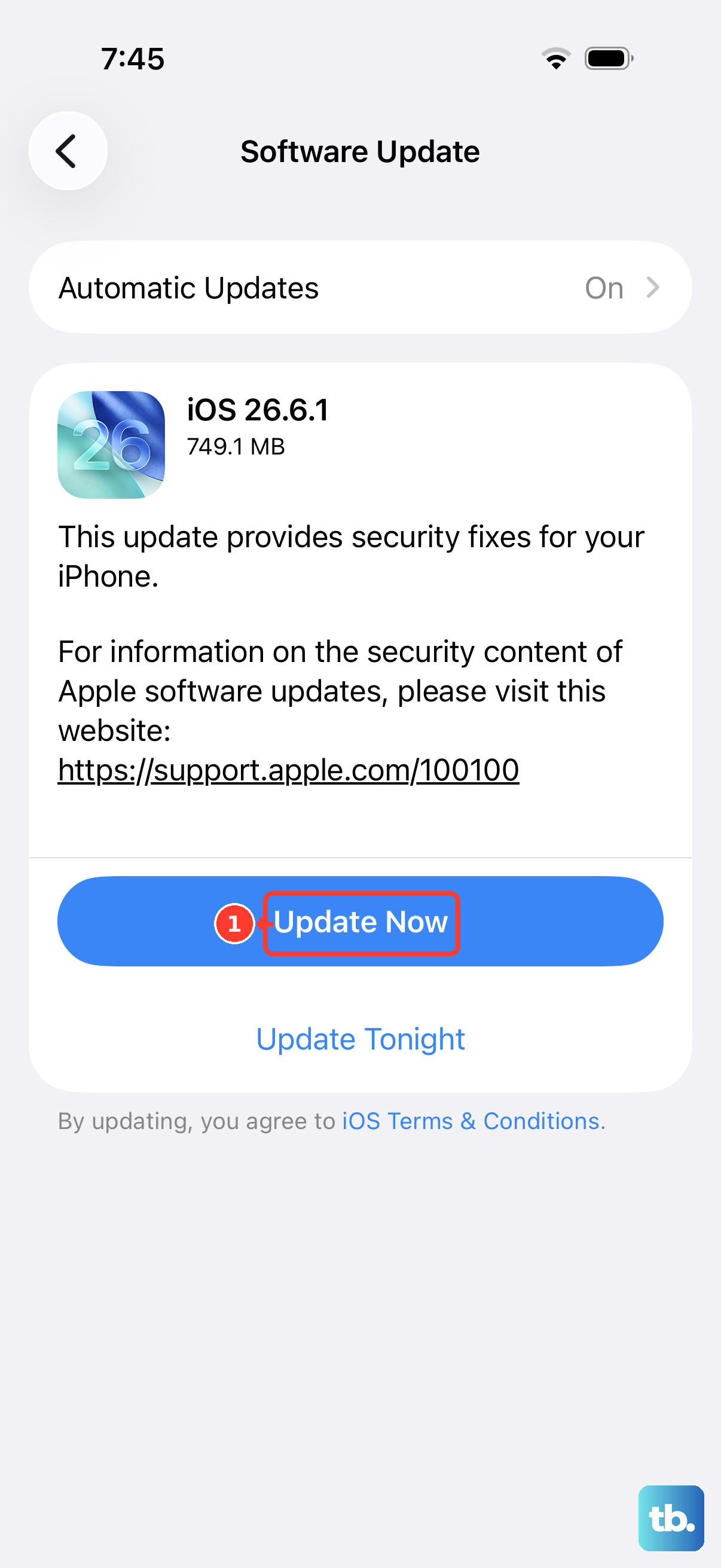
Software bugs in iOS can lead to touchscreen problems. If touch input works again, connect your iPhone to Wi-Fi and plug it into power. Go to Settings > General > Software Update. If the screen remains unresponsive, use a computer to update it.
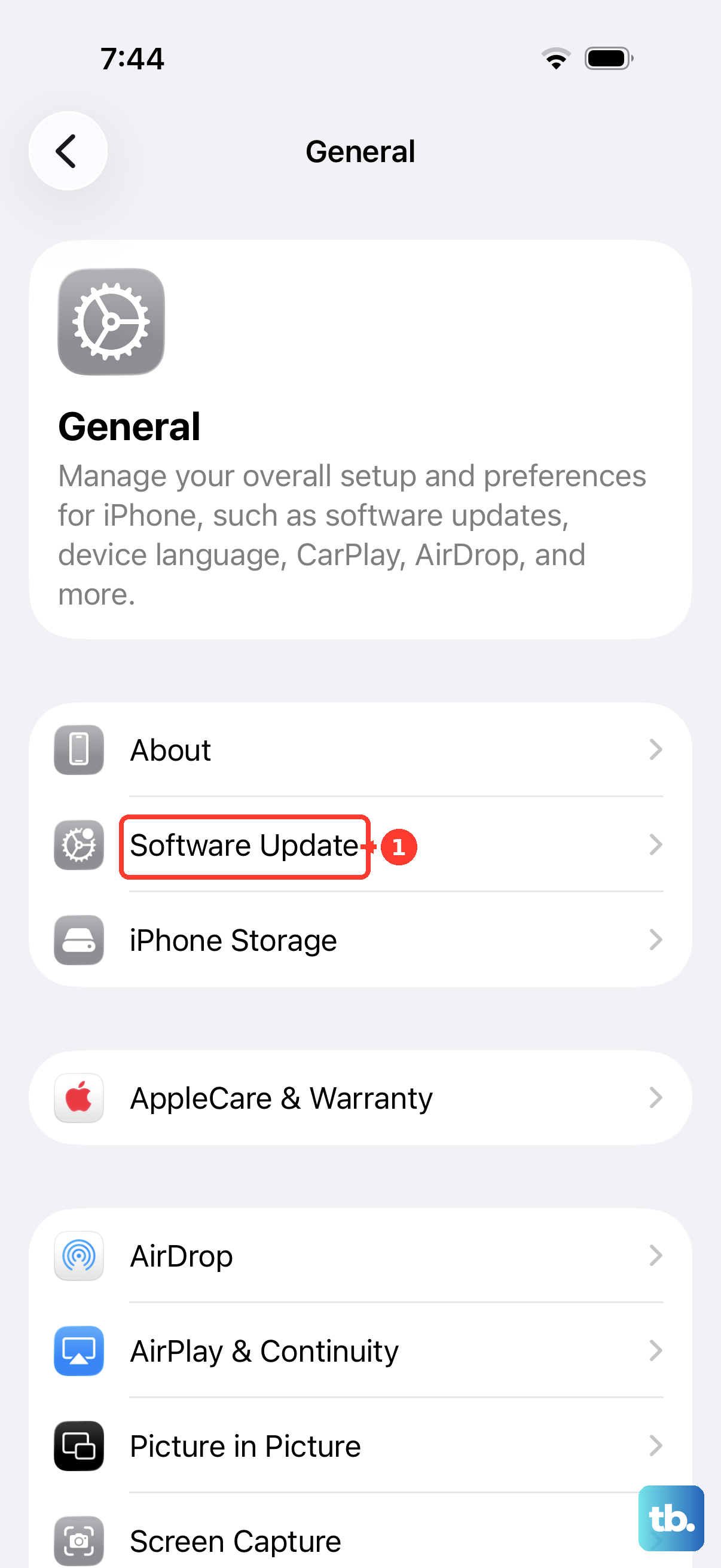
If an update is available, tap Download and Install. Keeping your iPhone 16 Pro on the latest iOS version ensures you have all the current bug fixes and performance improvements from Apple.
Put Your iPhone Into Recovery Mode and Restore
If the computer doesn't recognize your iPhone or it stays on the Apple logo for several minutes without a progress bar, try recovery mode. Update your Mac, or get the latest version of the Apple Devices app on a Windows PC. Connect your iPhone to the computer with a USB cable, then open Finder on a Mac or the Apple Devices app on a PC.
Press and quickly release the volume up button, then press and quickly release the volume down button. Hold the side button past the Apple logo until the 'Connect to computer' screen appears. On the computer, choose Update first if you haven't already tried it, to reinstall iOS without erasing your data.
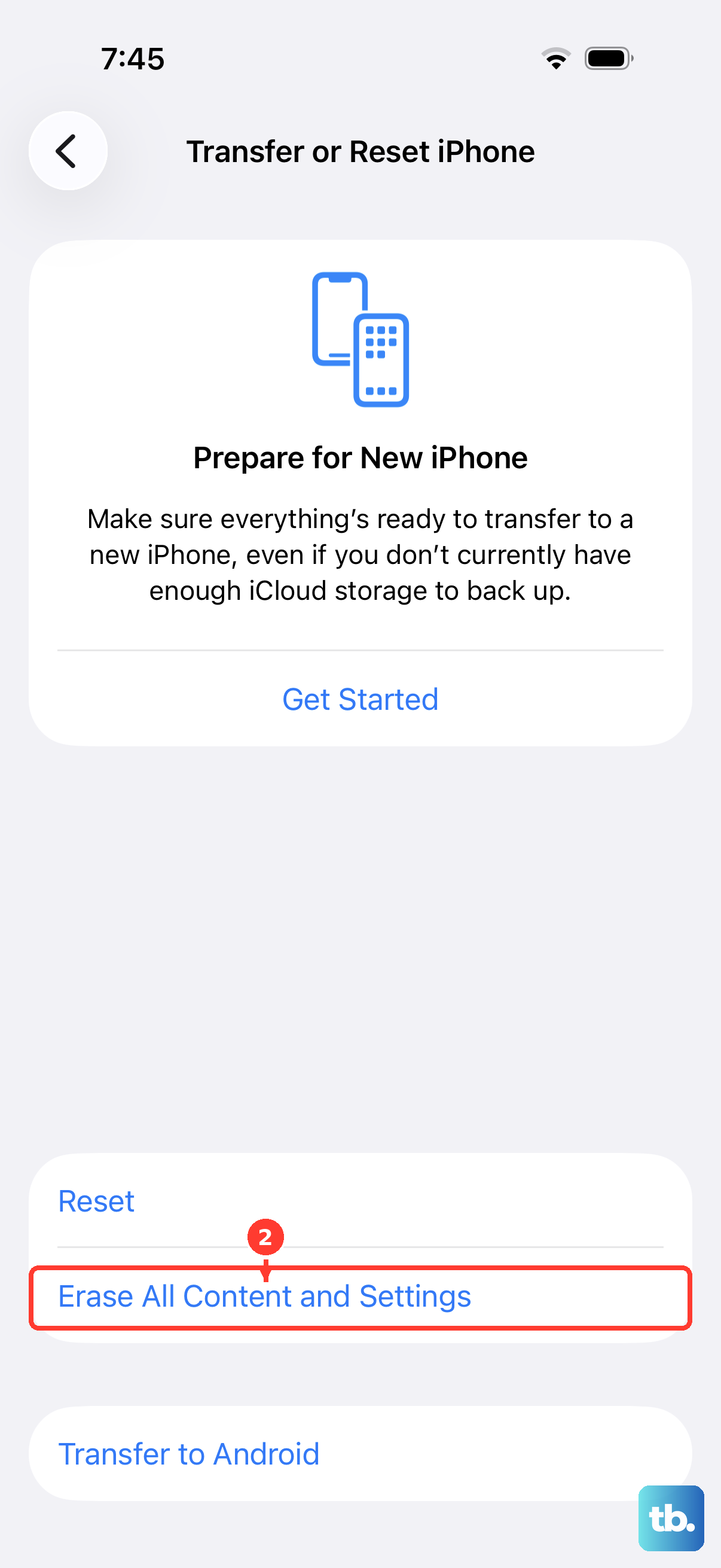
If the update doesn't work or isn't available, you may need to choose Restore. Be aware that Restore will erase all content and settings, so you should have a recent backup. If the touchscreen works well enough to use Settings, you can erase the phone there instead: go to Settings > General > Transfer or Reset iPhone and choose Erase All Content and Settings.
Check for Physical or Liquid Damage
Inspect the screen closely for any new cracks, even small ones, or spots that look different. A damaged digitizer (the touch-sensitive layer under the glass) can cause unresponsive areas. Also, look for any signs of liquid exposure around the charging port. On models that have a SIM tray, check the Liquid Contact Indicator inside the SIM slot, which turns red after contact with liquid. eSIM-only models, including those sold in the US, have no SIM tray to check.
If you suspect physical damage, the touchscreen itself may need to be replaced. Contact Apple Support or an Apple Authorized Service Provider to arrange service if the screen still isn't working.