
When your iPhone 16 Pro's predictive text stops working, it can really slow you down. You might notice it's not suggesting words at all, the suggestions are way off, or the feature seems to have vanished entirely. The good news is this is almost always a software hiccup you can fix yourself.
Toggle Predictive Text Off and On
This is the quickest fix and often the most effective. It's like giving the feature a fresh start. Open any app where you can type, like Messages or Notes, to bring up the keyboard.
Tap and hold the emoji or globe icon in the bottom-left corner of the keyboard. A small menu will pop up. From there, tap Keyboard Settings.
Scroll down until you see the Predictive Text toggle. Switch it off, wait a second, then switch it right back on. Go back to typing and see if the suggestions have returned.
Restart Your iPhone 16 Pro
If a simple toggle didn't do the trick, a full restart is your next best step. This clears out any temporary glitches in iOS 26 that might be interfering with the keyboard's learning algorithms.
For the iPhone 16 Pro, you'll press and quickly release the Volume Up button, then press and quickly release the Volume Down button. Finally, press and hold the Side button until you see the Apple logo appear on the screen.
Let the phone boot up completely, then try typing again. I've found this resolves the issue more often than not, especially if it started suddenly.
Check Your Text Replacement Settings
Sometimes, a conflict with a custom text replacement shortcut can confuse the predictive text engine. It's worth taking a quick look to make sure nothing there is causing trouble.
Head to Settings > General > Keyboard. Tap on Text Replacement. Scroll through your list.
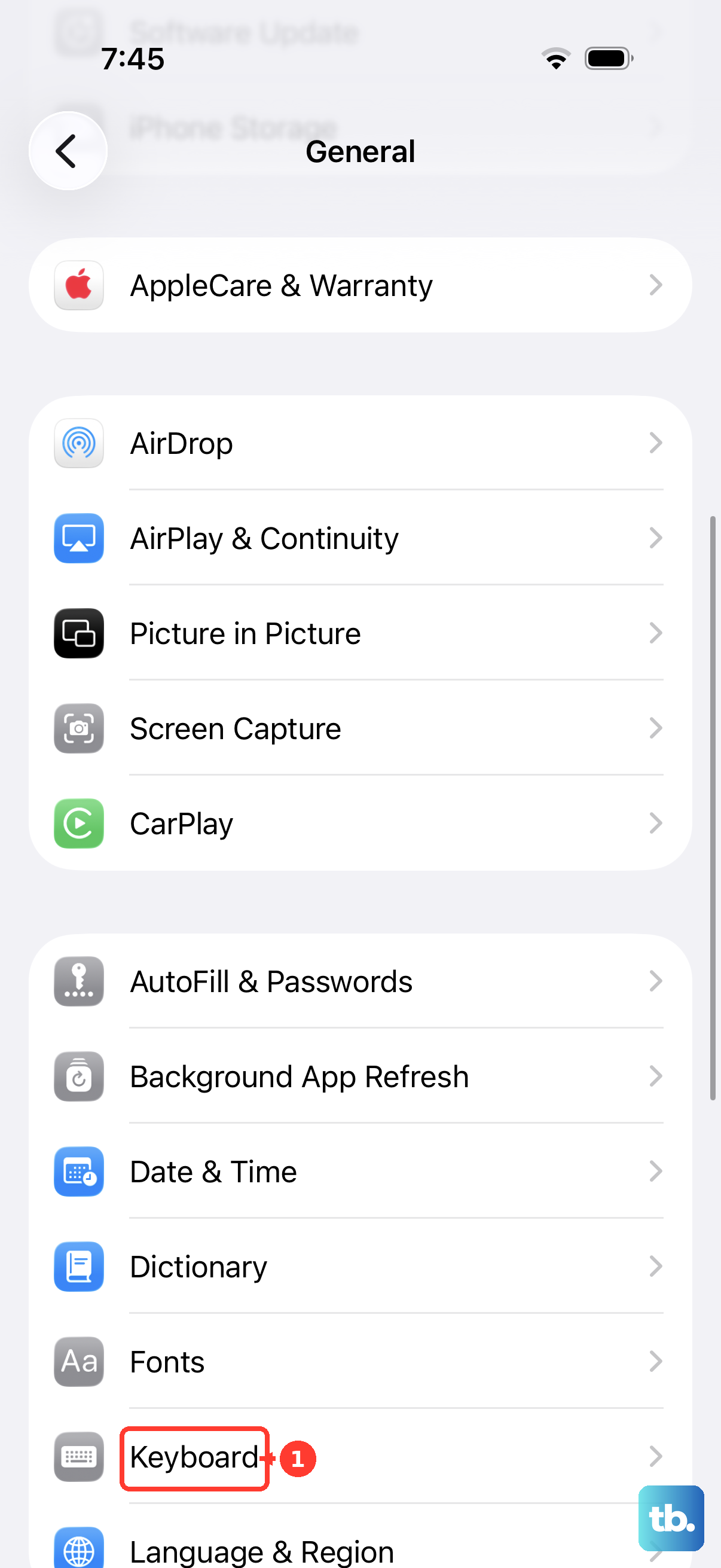
If you see any shortcuts that are very short or common letter combinations, you might consider editing or removing them. After making any changes, test the predictive text again in your messaging app.
Reset All Keyboard Dictionary Data
This is a more thorough step that wipes the slate clean. Your iPhone's predictive text learns from how you type, but that learned data can sometimes become corrupted.
Going to Settings > General > Transfer or Reset iPhone. Tap on Reset at the bottom.
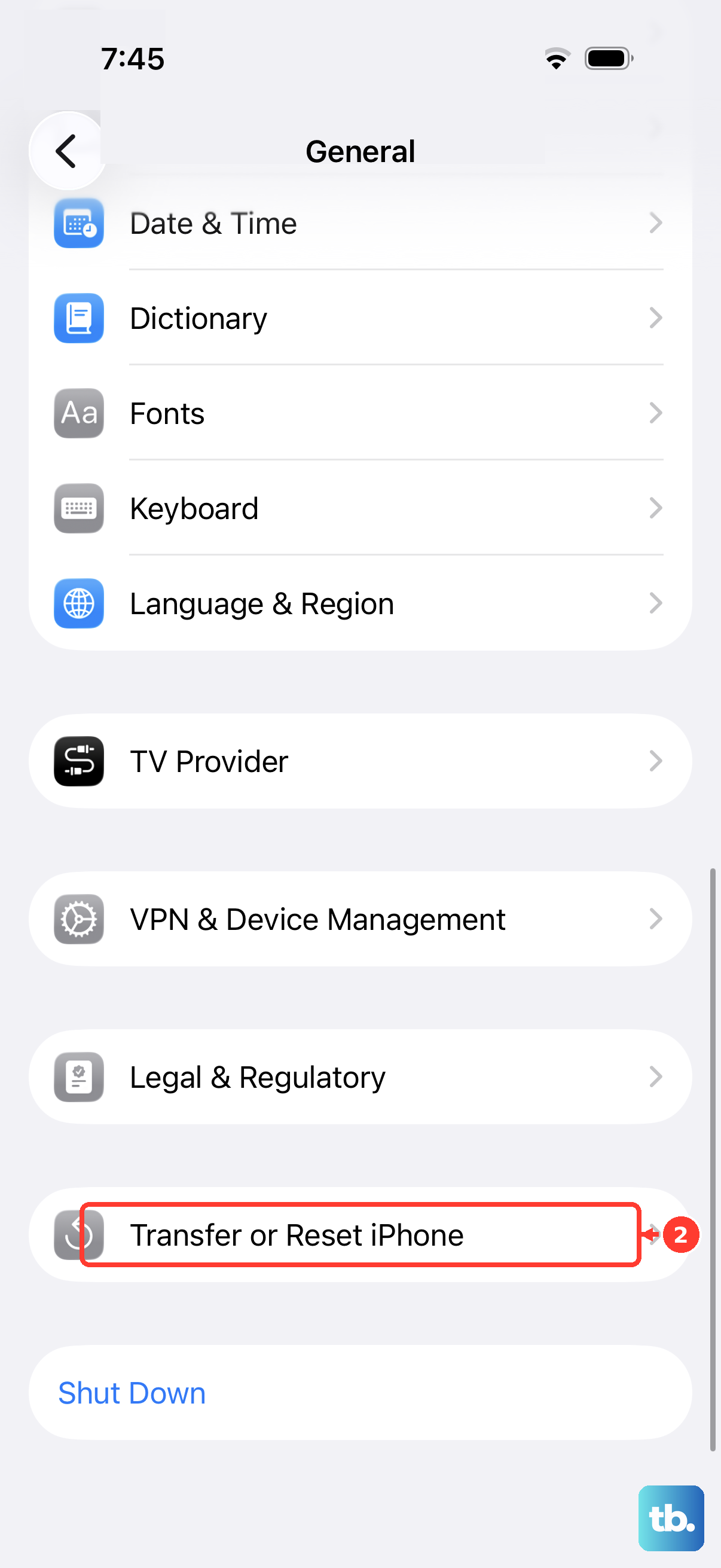
Here, you'll select Reset Keyboard Dictionary. You'll need to enter your passcode to confirm. Be aware, this will erase all the words you've added to the dictionary and the keyboard's learned patterns, so it will have to start learning your style from scratch.
Update iOS to the Latest Version
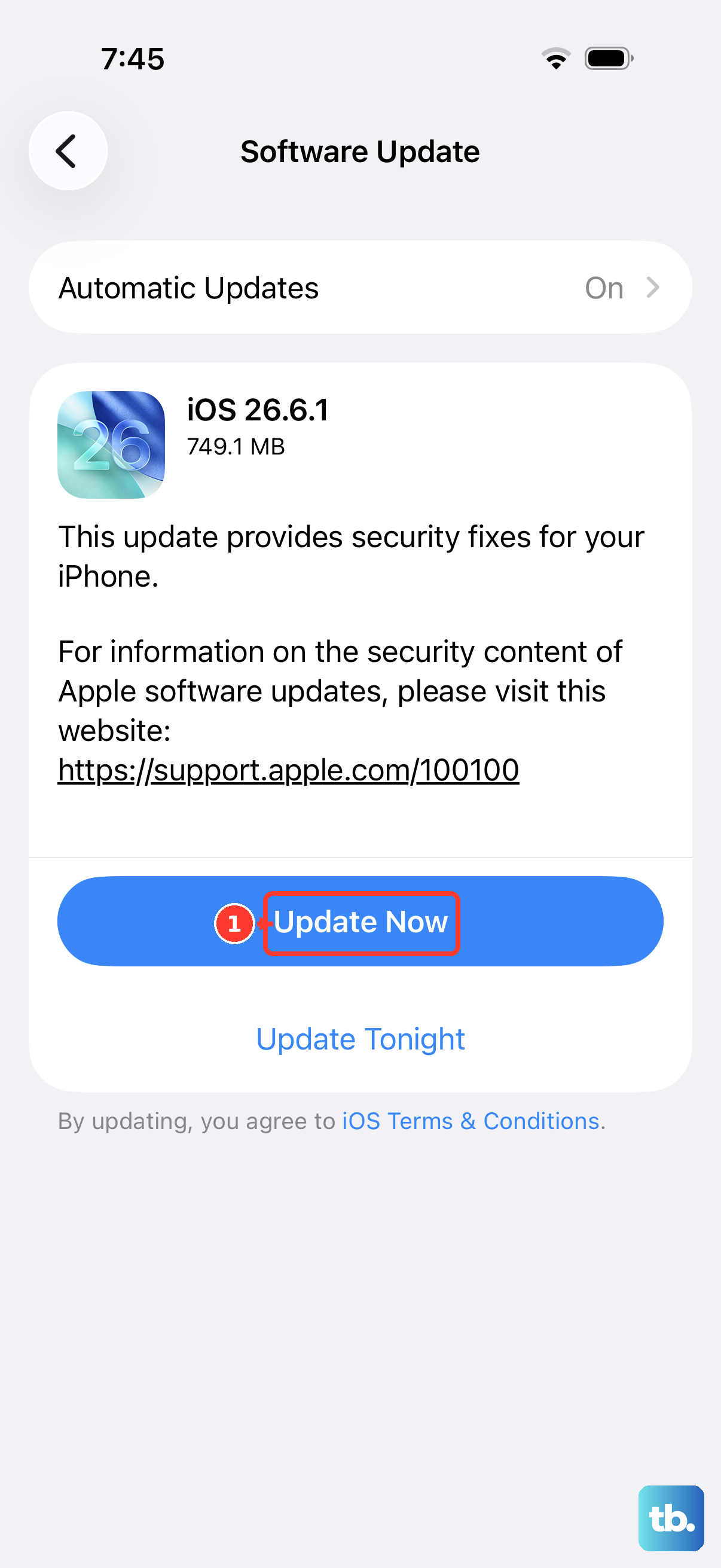
Apple frequently releases software updates that include bug fixes for system components like the keyboard. If you're running an older version of iOS 26, a known bug could be the culprit.
Open Settings and go to General > Software Update. Your iPhone 16 Pro will check for available updates.
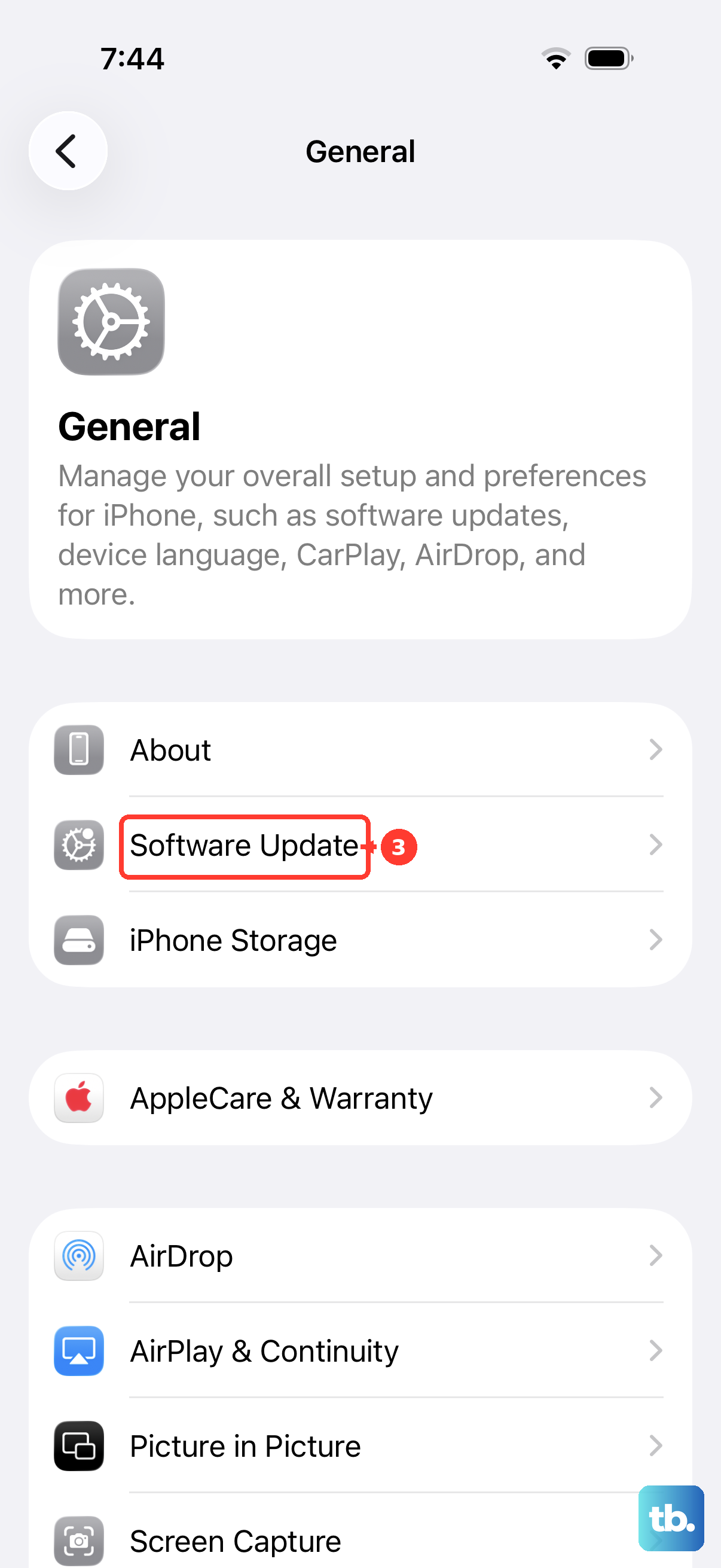
If an update is listed, I'd recommend installing it. Make sure your phone is connected to Wi-Fi and has a good charge, or better yet, is plugged into a 30W USB-C charger, before you start the update process.
Check Language & Region Settings
For predictive text to work correctly, your iPhone needs to know exactly which language and regional dialect you're using. An incorrect setting here can prevent suggestions from appearing.
Navigate to Settings > General > Language & Region. Verify that your iPhone Language is set correctly, for example, English.
Also, tap on Region and ensure it matches your location, like United States. After confirming these settings, go back to your keyboard and check if the predictive text bar is now visible above the letters.