
Your iPhone 16 Pro can feel warm during setup, a software update, wireless charging, or intensive tasks like gaming or video recording. If it happens often, a few adjustments can help. Start by checking what's running in the background.
If a temperature warning appears, turn the phone off, move it somewhere cooler and let it cool down. Otherwise, you can try a force restart for a temporary software issue. Press and quickly release the Volume Up button, then quickly press and release the Volume Down button. Finally, press and hold the Side button until you see the Apple logo appear.
This doesn't delete any of your data and may help with a temporary software issue. Once it boots back up, see if the phone feels cooler during normal use.
Check for Background App Activity
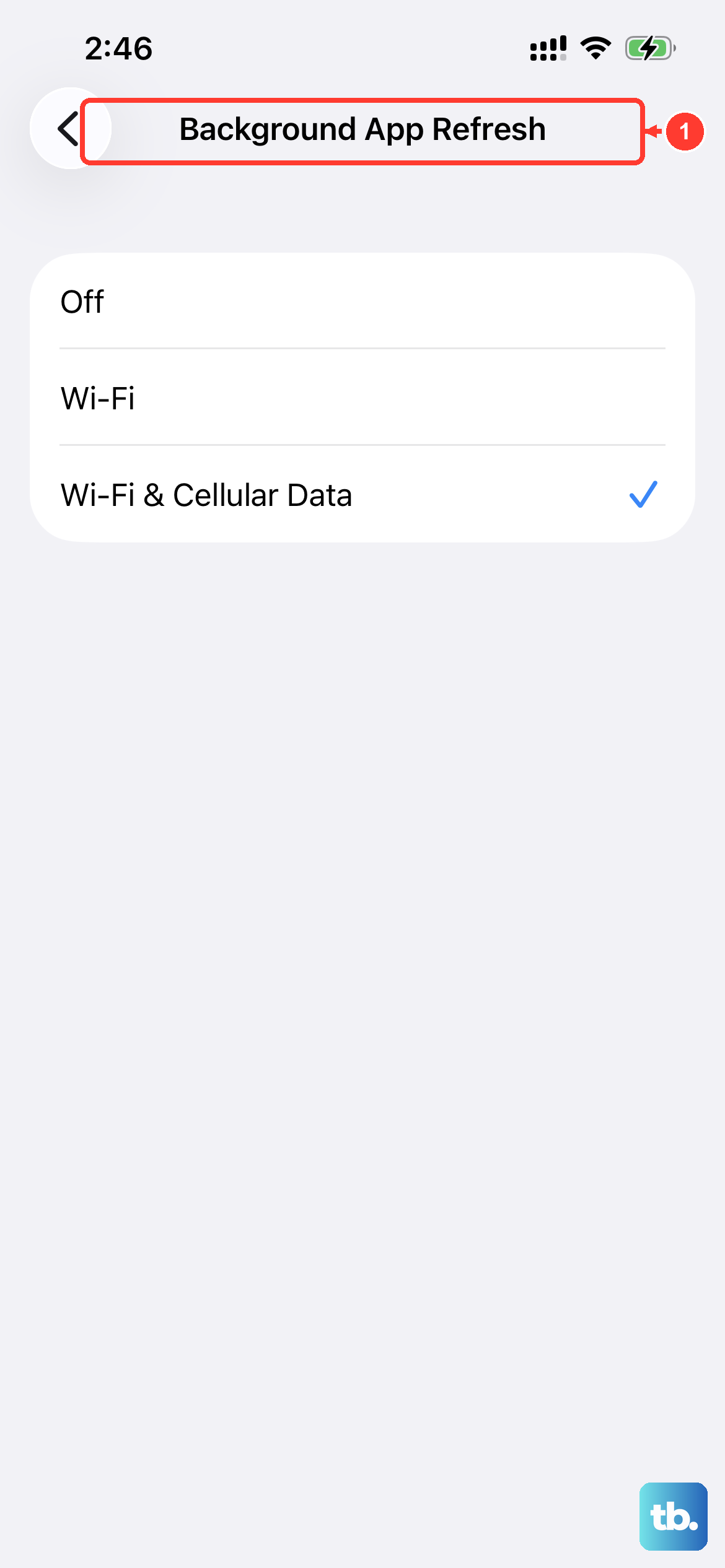
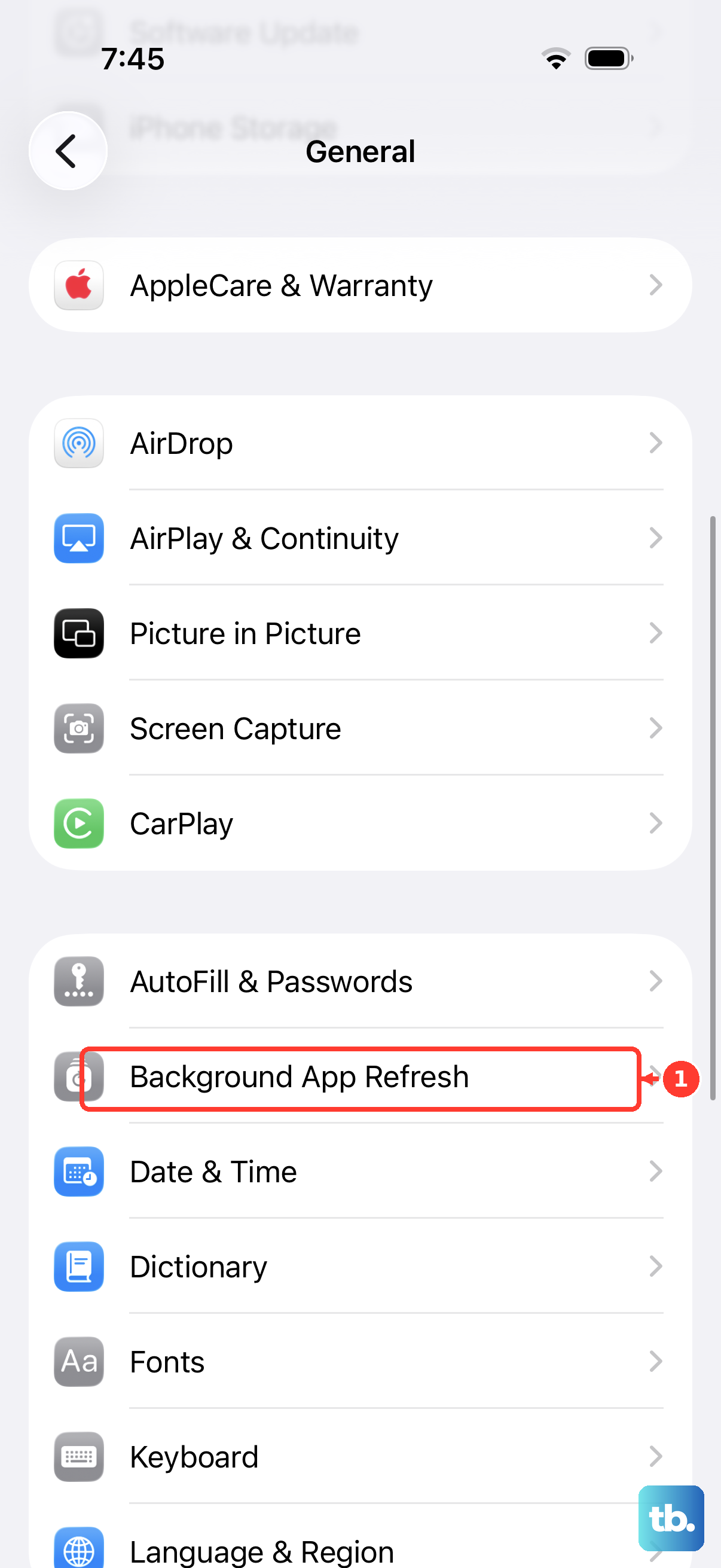
Apps refreshing in the background are a common culprit for unexpected warmth. Head to Settings > General > Background App Refresh. Tap Background App Refresh again and choose "Off" to stop background refresh, or "Wi-Fi" to allow it only on Wi-Fi.
For a more targeted approach, scroll through the list and disable refresh for apps that don't need live updates. Focus on apps you rarely use or don't need to refresh automatically. This change can reduce background activity.
Update to the Latest iOS Version
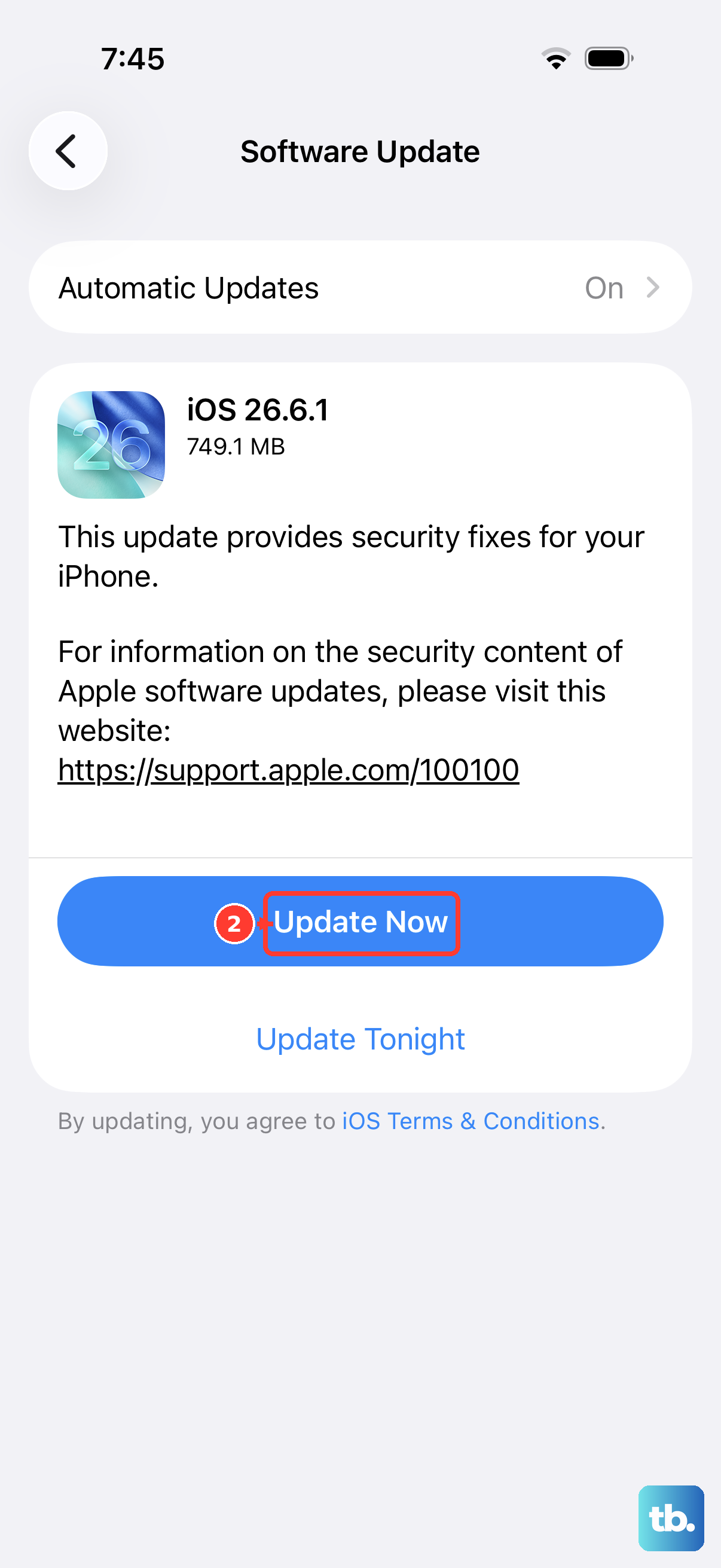
iOS updates can include performance improvements and bug fixes. Go to Settings > General > Software Update.
If an update is available, install it. It's best to do this while your phone is charging and connected to Wi-Fi. The phone may feel warmer while completing an update, particularly a major release, and should cool down when the process finishes.
Review Your Charging Setup
Wireless charging, especially at higher speeds, naturally generates more heat. If your iPhone 16 Pro is consistently hot while charging, try switching to a wired connection using a certified USB-C cable and a compatible power adapter.
Remove any thick cases while charging, as they can trap heat. Also, avoid using the phone for intensive tasks like gaming while it's plugged in or on a MagSafe charger, as this combines two heat-generating activities.
Manage Display and Connectivity Settings
A super-bright screen and constant location polling can warm things up. Consider lowering your screen brightness manually or ensuring Auto-Brightness is enabled in Settings > Accessibility > Display & Text Size.
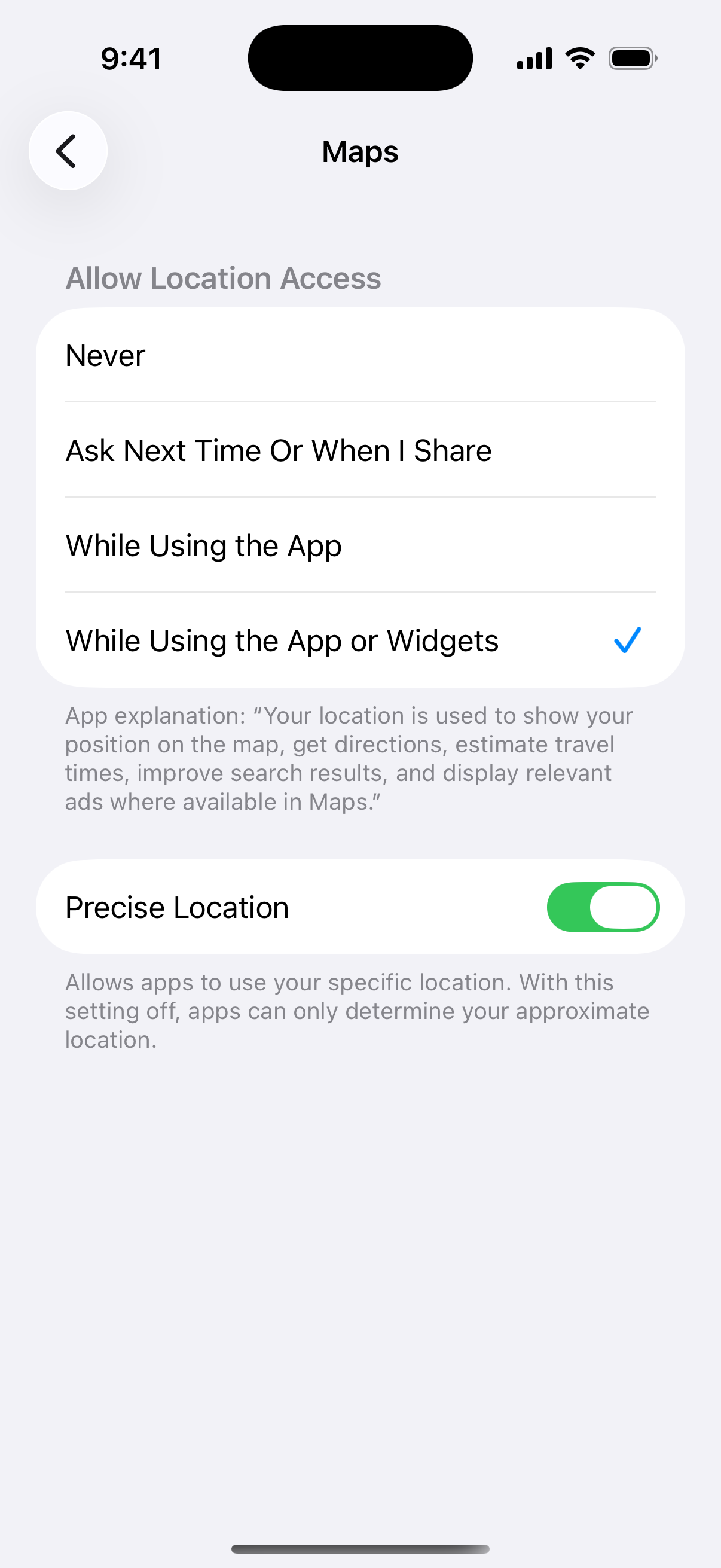
Next, check location services. Go to Settings > Privacy & Security > Location Services. Review which apps are using your location "Always" and change them to "While Using the App" or "Ask Next Time Or When I Share" where it makes sense. This reduces unnecessary background activity.
Identify Problematic Apps
Sometimes, a single app is the source of the trouble. Go to Settings > Battery. The Daily Usage chart compares today's battery use with the last seven days, and App and System Activity lists today's usage. Tap View All Battery Usage to see the last eight days.
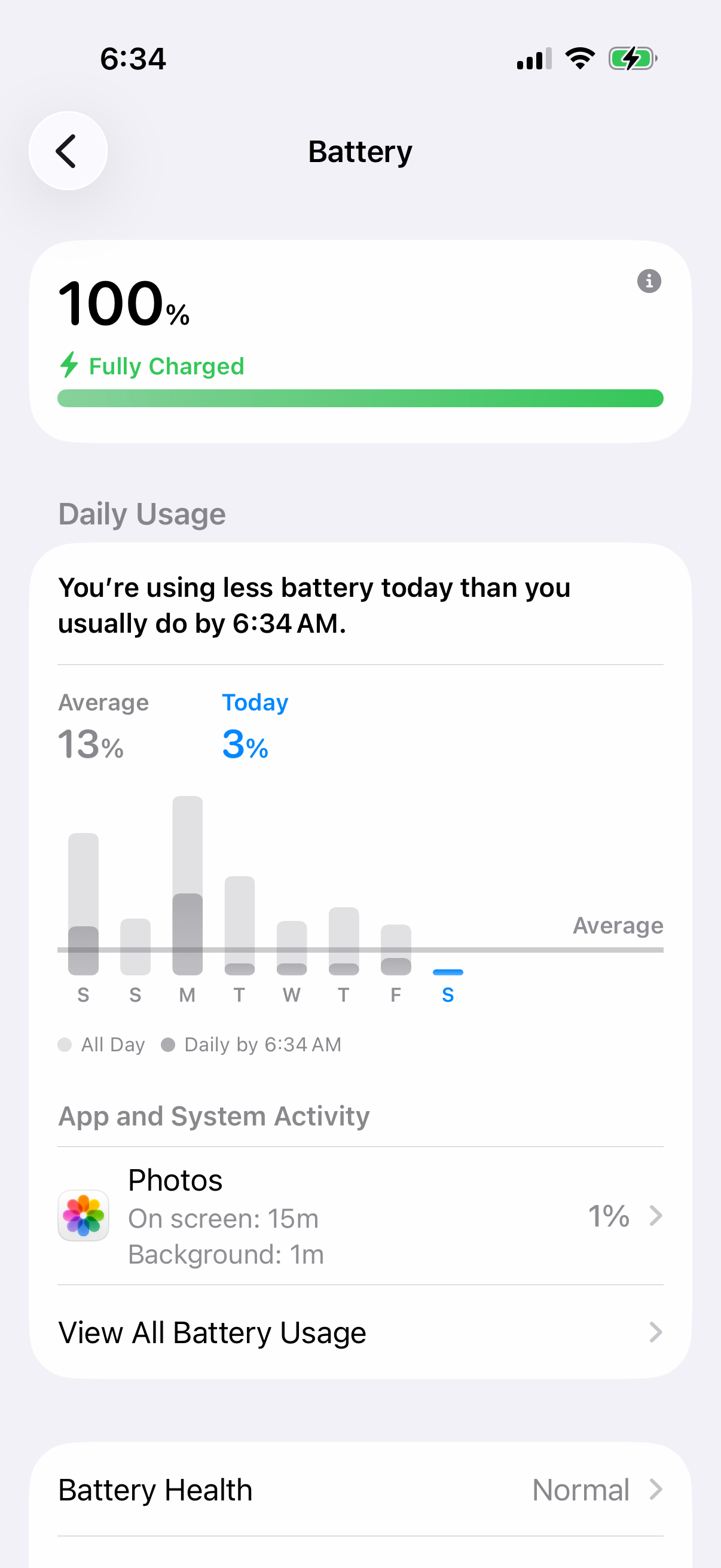
Look for any app showing a high percentage of background activity relative to its on-screen use. If you spot one, you can force quit it by swiping up from the bottom and pausing in the middle (or using the app switcher) and swiping the app's preview away. Consider updating or reinstalling a problematic app.
Reset All Settings
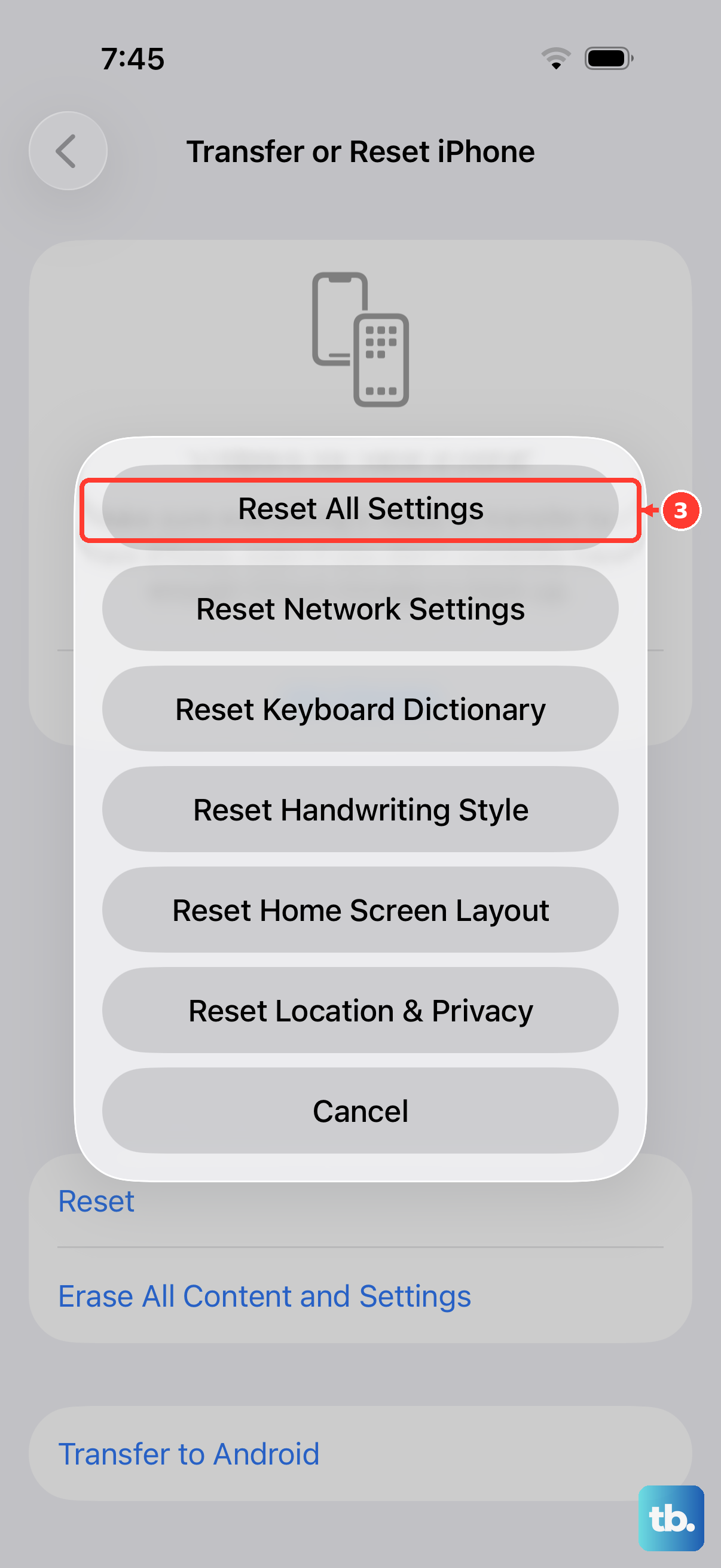
If the overheating persists and you can't pin it to a specific app, this step can help. Go to Settings > General > Transfer or Reset iPhone > Reset and choose "Reset All Settings."
This will revert all your preferences, like Wi-Fi passwords, wallpaper, and privacy settings, back to default without erasing any personal data. Afterward, rejoin Wi-Fi, re-pair Bluetooth devices and your Apple Watch, and set up Face ID again.
Check for Physical and Environmental Factors
Never leave your phone in direct sunlight, like on a car dashboard. A hot environment can trigger overheating warnings. Similarly, using a case not designed for good airflow, especially during charging or heavy use, can insulate heat.
Try using the phone without a case for a while to see if temperatures improve. Also, ensure the USB-C port is clean and free of lint.
When Overheating Warnings Appear
If your iPhone 16 Pro displays a temperature warning screen, turn it off and move it to a cooler, shaded environment away from direct sunlight.
Take it out of any case, stop charging it and allow it to cool down before resuming use. Some functions may be temporarily unavailable, though emergency calls may still work. These temperature protections help protect the phone's internal components.