
If your iPhone 16 Pro's GPS is acting up, you're not getting accurate directions, and location-based apps are failing, it's a real headache. The good news is that most GPS problems on iPhones are software-related and can be fixed without a trip to the store. Let's walk through the most effective fixes, starting with the simplest ones you should try right now.
Toggle Location Services Off and On
This is the digital equivalent of turning it off and on again, and it works surprisingly often. A quick toggle can reset the GPS radio and clear any temporary glitches that are preventing a solid lock. Just swipe down from the top-right corner to open Control Center and tap the location arrow icon to disable it. Wait about ten seconds, then tap it again to turn it back on. Open Maps or another navigation app to see if your location is now accurate.
Force Restart Your iPhone 16 Pro
A force restart is more thorough than a standard shutdown and can clear out deeper system hiccups that affect the GPS. For the iPhone 16 Pro, the sequence is quick. Press and quickly release the Volume Up button, then press and quickly release the Volume Down button. Finally, press and hold the Side button until you see the Apple logo appear, then release. This doesn't erase any data, it just gives the entire system, including the location hardware, a fresh start.
Check Your Location Privacy Settings
Sometimes the issue isn't with the GPS itself, but with the permissions you've granted. An app might be set to "Never" or "While Using" in a way that's causing confusion. Head to Settings > Privacy & Security > Location Services. First, make sure Location Services at the top is green and enabled. Then, scroll down and tap on the app that's having trouble, like Maps or Google Maps. I'd set it to "While Using the App" or "Always" if you need background updates. Also, ensure "Precise Location" is turned on for the most accurate GPS data.
Disable Low Power Mode
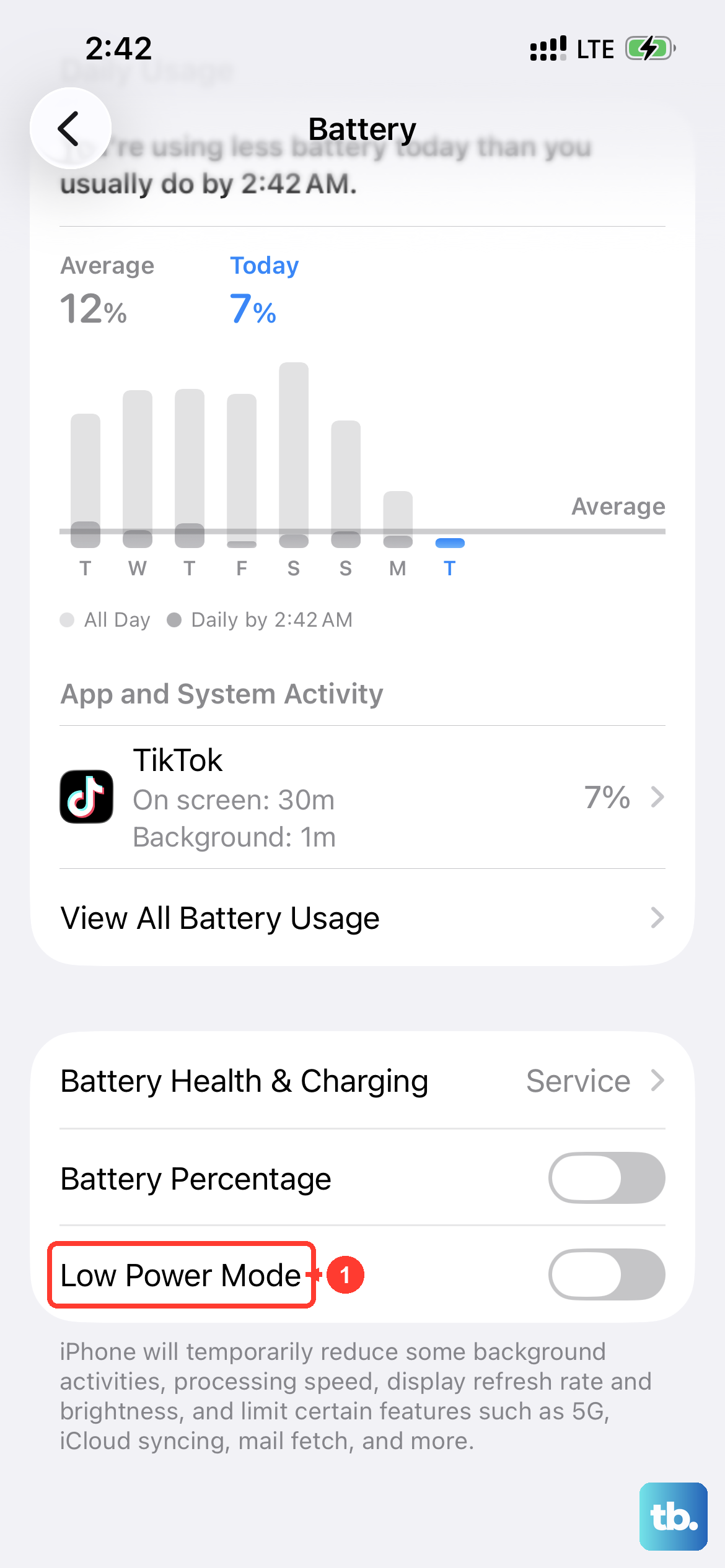
Low Power Mode is great for extending battery life, but it does so by limiting certain background processes. This can include throttling how aggressively the iPhone searches for GPS satellites. To check, go to Settings > Battery and make sure Low Power Mode is switched off. You can also check Control Center; if the battery icon is yellow, Low Power Mode is active. Turn it off and test your navigation again.
Toggle Airplane Mode Briefly
This trick resets all the wireless radios in your phone, cellular, Wi-Fi, Bluetooth, and GPS. By cycling them all off and on, you can clear any minor conflicts. Open Control Center and tap the airplane icon to enable Airplane Mode. Wait for about 15 seconds to let everything fully disconnect, then tap the icon again to disable it. Your iPhone will re-establish all connections, and this fresh handshake often resolves spotty GPS performance.
Review Your Date & Time Settings
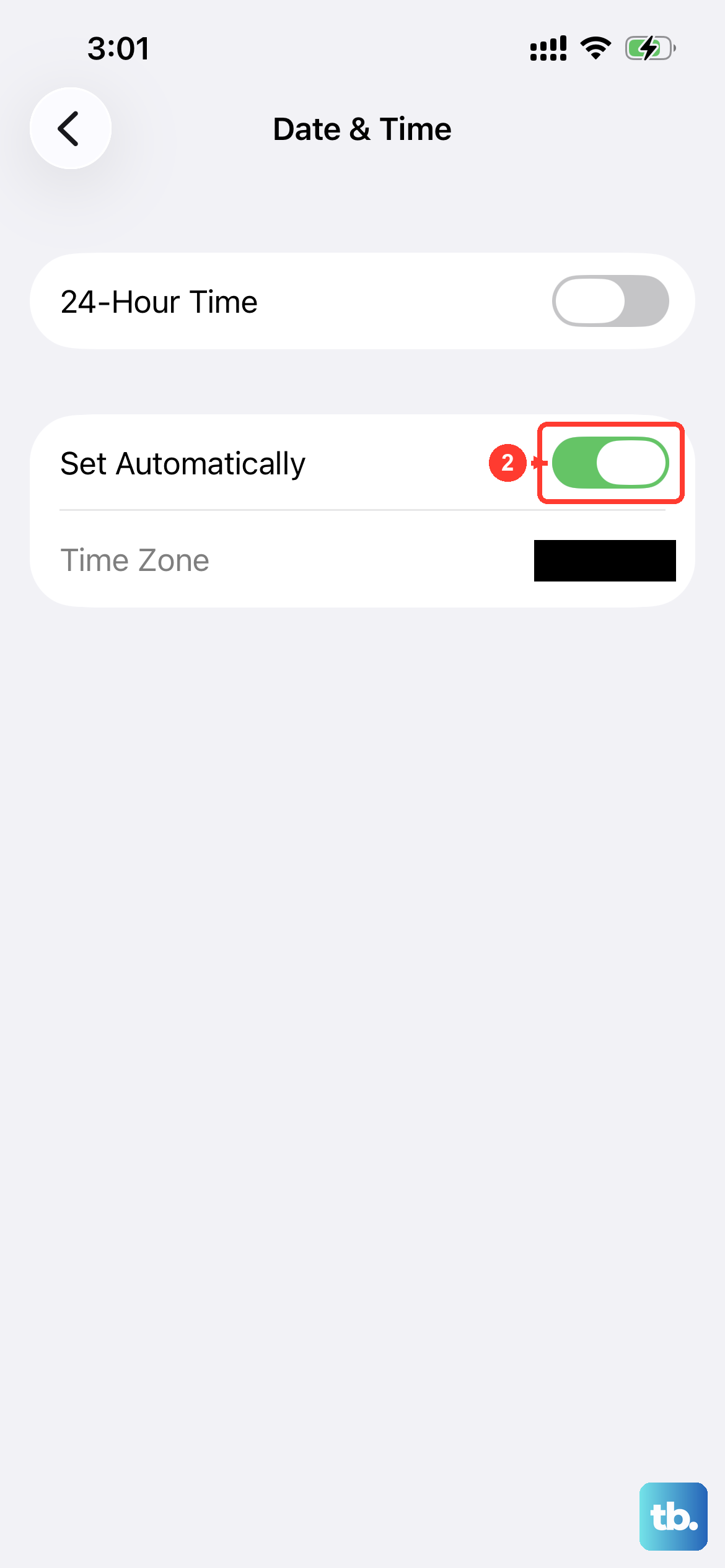
This might seem unrelated, but GPS relies on incredibly precise timing data from satellites. If your phone's internal clock is even slightly off, it can throw the whole system out of whack. Go to Settings > General > Date & Time. Make sure "Set Automatically" is enabled. This allows your iPhone to set the time based on your network and location, ensuring it's perfectly synced for GPS calculations.
Update iOS and Your Apps
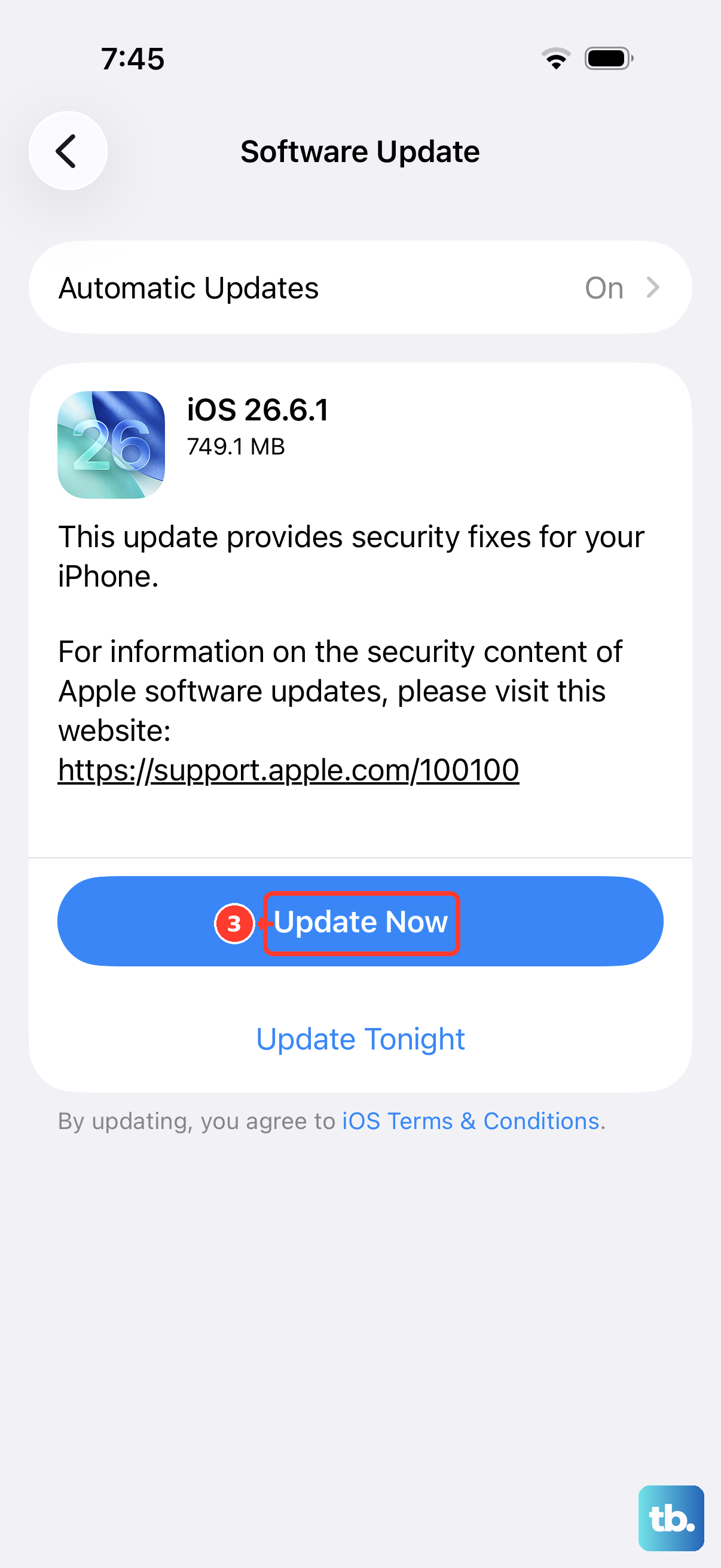
Software bugs are a common culprit for GPS issues, and Apple frequently addresses them in updates. Go to Settings > General > Software Update to see if iOS 26 (or a newer version) is available. Install it if there is. Next, open the App Store, tap your profile icon, and update all your apps, especially navigation apps like Apple Maps, Google Maps, or Waze. Developers constantly optimize for better location accuracy.
Reset Your Location & Privacy Settings
If permissions have become corrupted, resetting them can help. This won't delete your personal data, but it will revert all your location and privacy preferences back to their defaults. You'll need to re-grant permission to apps afterward. Navigate to Settings > General > Transfer or Reset iPhone. Tap "Reset" and then choose "Reset Location & Privacy." After your phone restarts, you'll get fresh permission prompts from your apps.
Check for Physical and Environmental Issues
The GPS antenna in the iPhone 16 Pro is built into the frame. A very thick or metal-heavy case can sometimes interfere with the signal. Try removing your case temporarily and see if accuracy improves. Also, GPS signals struggle indoors, underground, or in dense urban areas with tall buildings. Move to an open area with a clear view of the sky to get the best satellite connection. Apps like "GPS Status" or "GNSS View" from the App Store can show you how many satellites your phone is actually seeing.
Test in a Different App or Use Compass Calibration
To rule out a single app problem, test your location in a different application. If Apple Maps is wrong, try Google Maps or a weather app that uses your location. If you're getting a "Compass needs calibration" message, that can affect orientation. Hold your iPhone flat and move it in a slow, horizontal figure-eight motion until the calibration is complete. This helps the magnetometer work correctly with the GPS data.
Check for a Cellular Data Connection
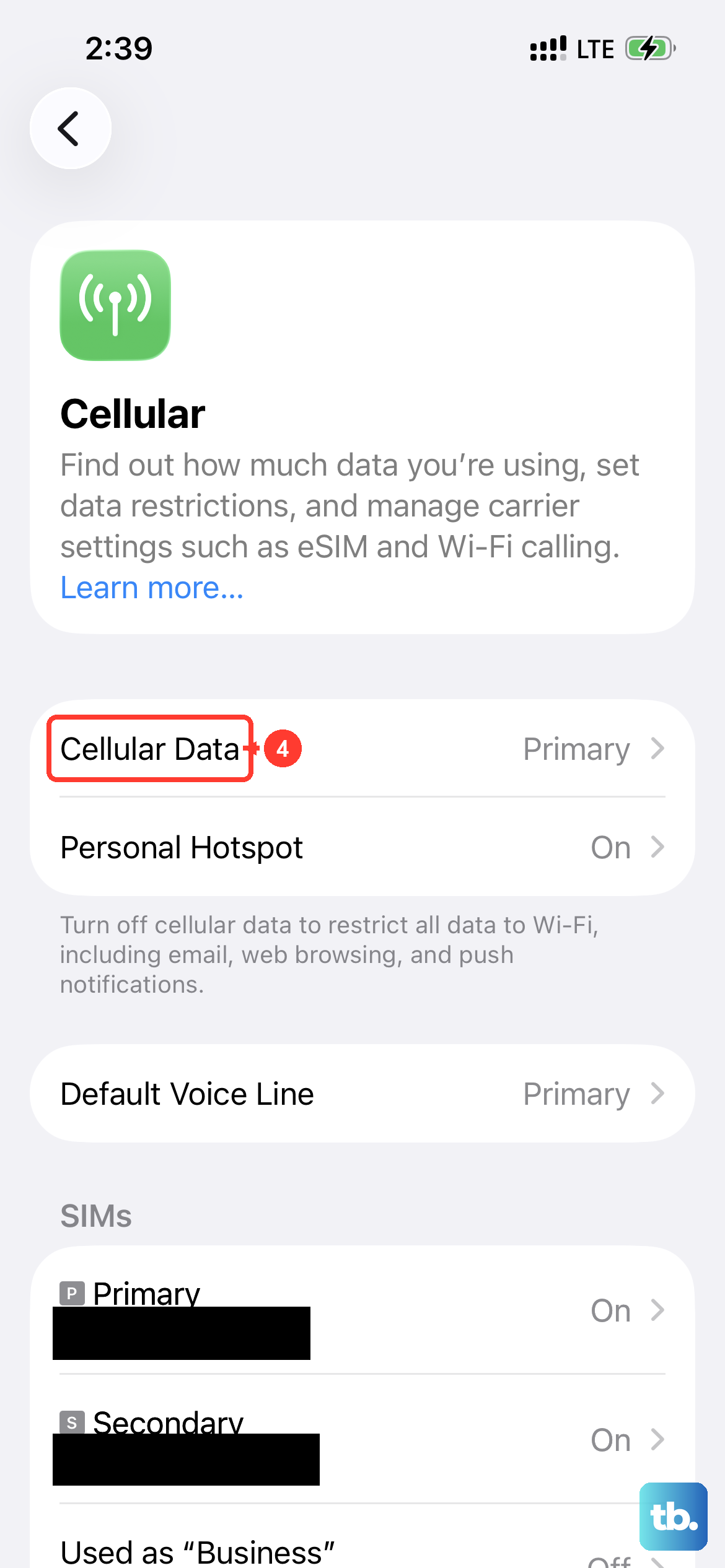
While pure GPS works without data, apps like Maps and services like Assisted GPS (A-GPS) use a cellular or Wi-Fi connection to download satellite data and maps much faster. If you're in an area with very poor or no cellular service, your initial location lock might be slow or inaccurate. Try connecting to a stable Wi-Fi network to see if that helps the app function better, even though the underlying GPS signal is separate.
If you've worked through all these steps and your iPhone 16 Pro's GPS is still completely unresponsive, showing no satellite connection in a testing app even outdoors, it could point to a rare hardware fault. Before considering that, I'd recommend backing up your phone and performing a restore via a computer using Finder or iTunes, as this installs a completely fresh copy of iOS. This final software step resolves even the most stubborn software-related GPS issues for most people.