
That grayed-out flashlight button on your iPhone 16 Pro is a real nuisance when you need it. It's usually a quick software hiccup, not a broken light. Let's get it working again.
Close the Camera App
The camera and flashlight share the same LED module. If your Camera app is open, even in the background, the system reserves the flash and grays out the Control Center button. Swipe up from the bottom to enter the app switcher and swipe the Camera app away. The flashlight icon should light up again right away.
Force Restart Your iPhone 16 Pro
A simple restart often clears the glitch. For the iPhone 16 Pro, press and quickly release the Volume Up button, then press and quickly release the Volume Down button. Finally, press and hold the Side button until you see the Apple logo appear on the screen.
Check for Overheating
iOS will disable certain features, including the flashlight, if your phone gets too hot. If your iPhone 16 Pro feels warm to the touch, set it down in a cooler spot for about ten minutes. Once the temperature drops, the flashlight should become available again.
Adjust the Brightness Slider
You might think it's off when it's just set very dim. Instead of tapping the flashlight icon, press and hold it in Control Center. A vertical slider will pop up. Slide it all the way to the top for maximum brightness and see if the light turns on.
Use Siri as a Workaround
Try asking Siri to control it. Say "Hey Siri, turn on my flashlight." If Siri can activate it but your manual button still doesn't work, it confirms a software interface problem. You can also ask Siri to turn it off, which sometimes resets the control state.
Turn Off Low Power Mode
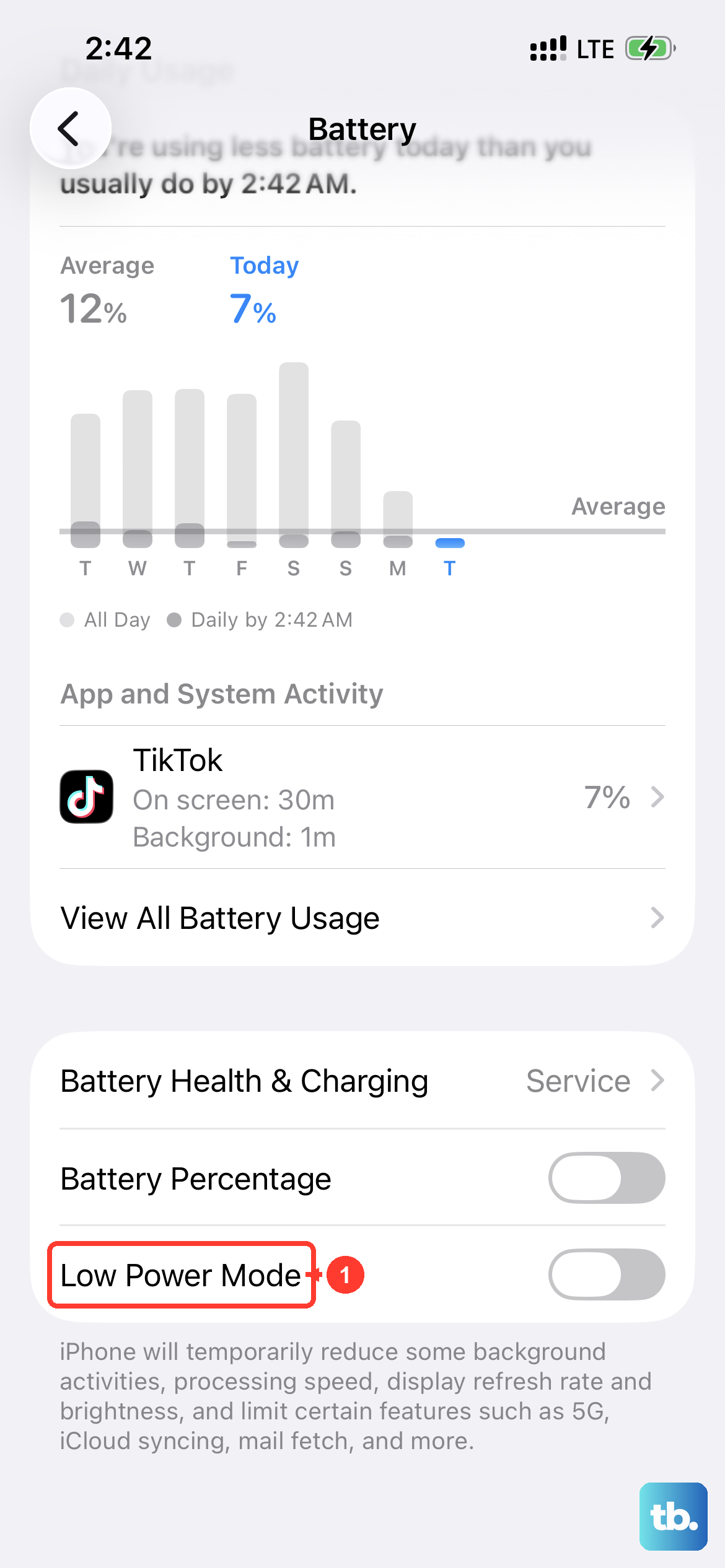
While Low Power Mode isn't supposed to disable the flashlight, it can sometimes make system controls less responsive. Head to Settings > Battery and make sure Low Power Mode is toggled off. I've seen this resolve unresponsive buttons on past models.
Update to the Latest iOS
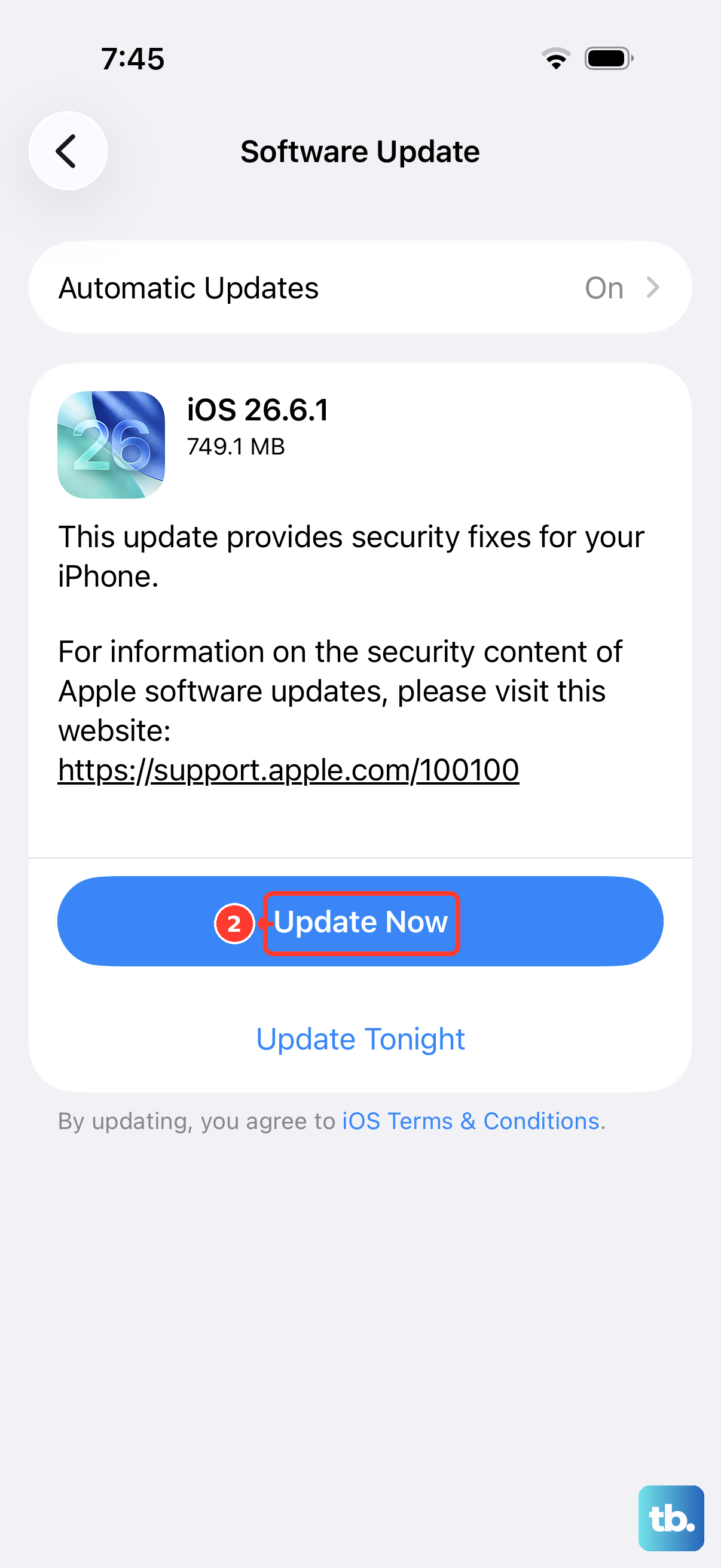
Apple frequently patches small bugs like this in point updates. Go to Settings > General > Software Update and install any available update for iOS 26. It's a good habit to keep your iPhone 16 Pro updated for stability and new features.
Reset All Settings
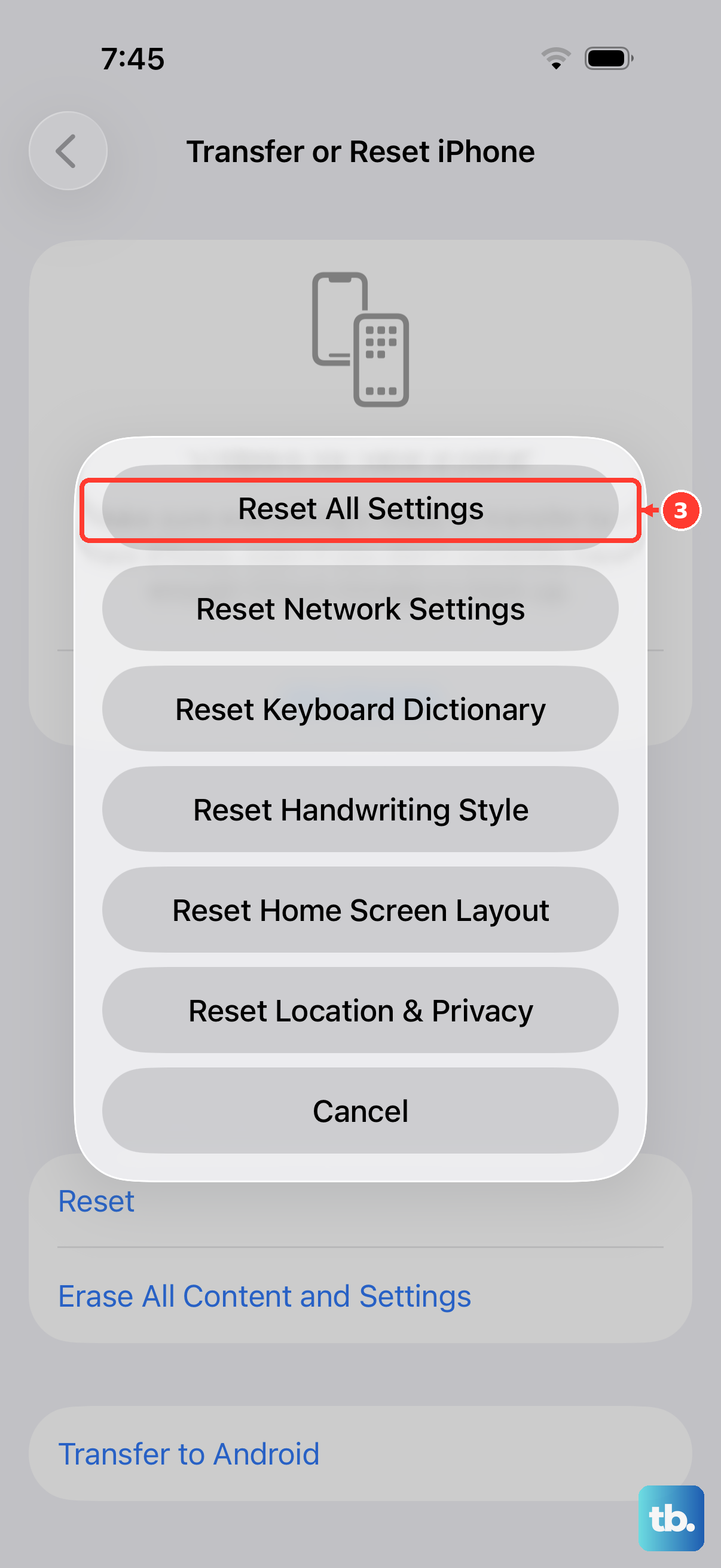
This is a stronger step for a persistent problem. Navigate to Settings > General > Transfer or Reset iPhone > Reset > Reset All Settings. This will not erase your photos or apps, but it will reset your Wi-Fi passwords, wallpaper, and preferences. It often clears deep-seated configuration errors.
Test the Camera Flash
If the light still won't turn on, you need to check the hardware. Open your Camera app and take a photo with the flash forced on. If the flash doesn't fire for photos either, the LED hardware itself may be damaged and will require service from Apple or an authorized provider.