
If your iPhone 16 Pro camera app won't open or shows a black screen, start with a force restart. Press and quickly release the Volume Up button, then press and quickly release the Volume Down button. Finally, press and hold the Side button until you see the Apple logo appear. I've found this clears up most temporary software glitches that can freeze the camera.
Start with a free webcam test to rule out a hardware fault. If a live preview appears there but not in your app, the camera is fine and the app is the problem.
Key Points
- Force Restart Your iPhone: This is the fastest way to clear a frozen camera app.
- Check for a Software Update: iOS updates often include camera stability fixes.
- Close and Reopen the Camera App: Swipe up from the bottom and swipe the camera app away.
- Check Your Storage Space: A full iPhone can prevent the camera from saving photos.
- Reset All Settings: This can fix deeper software conflicts without erasing your data.
- Clean the Camera Lenses: Smudges can cause blurry photos or confuse the autofocus.
- Check for Physical Damage or Obstructions: A cracked lens or case can block the camera.
- Test in Another App: See if the camera works in FaceTime or Instagram.
- Restore Your iPhone: A last resort to fix persistent software corruption.
Give your phone a moment to reboot completely, then try opening the Camera app again from your Lock Screen or Home Screen.
If the camera was working fine and suddenly stopped, a recently installed app might be causing a conflict. Try using the camera immediately after restarting your phone, before opening any other apps, to see if it works.
Install the Latest iOS Update
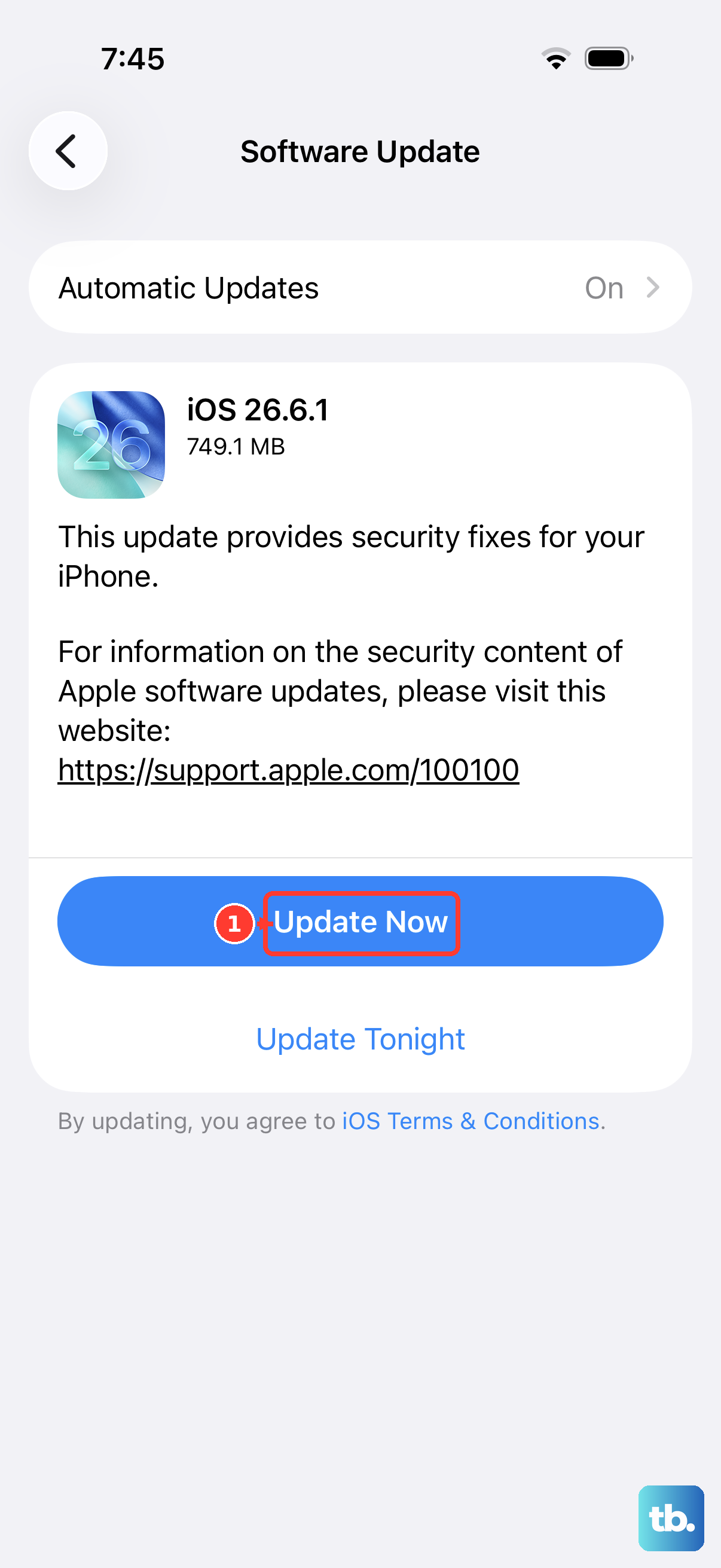
Apple frequently releases updates that fix bugs, including camera issues. Open the Settings app, then tap General and select Software Update. If an update for iOS 26 is available, tap Download and Install.
Make sure your iPhone is connected to Wi-Fi and has at least 50% battery, or is plugged into a charger. After the update installs, your phone will restart. Test the camera again to see if the problem is resolved.
Close the Camera App and Free Up RAM
Swipe up from the very bottom of your screen and pause in the middle to enter the app switcher. Find the Camera app preview and swipe it up and off the top of the screen to close it completely. Wait a few seconds, then tap the Camera icon to relaunch it.
You can also try clearing some active memory. With the app switcher open, close a few other apps you aren't using. This frees up system resources that the camera might need to function properly, especially if you were just using another resource-heavy app.
Ensure You Have Enough Storage
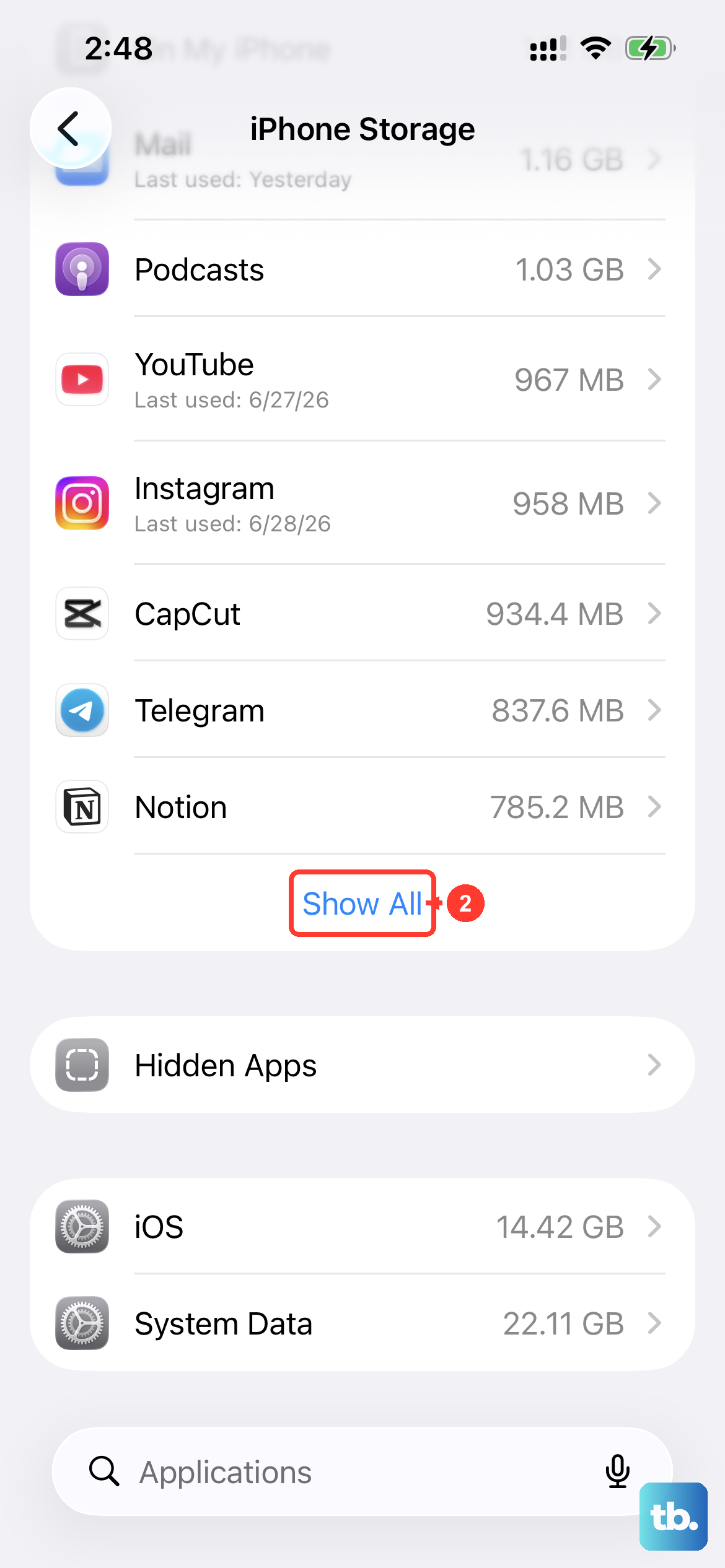
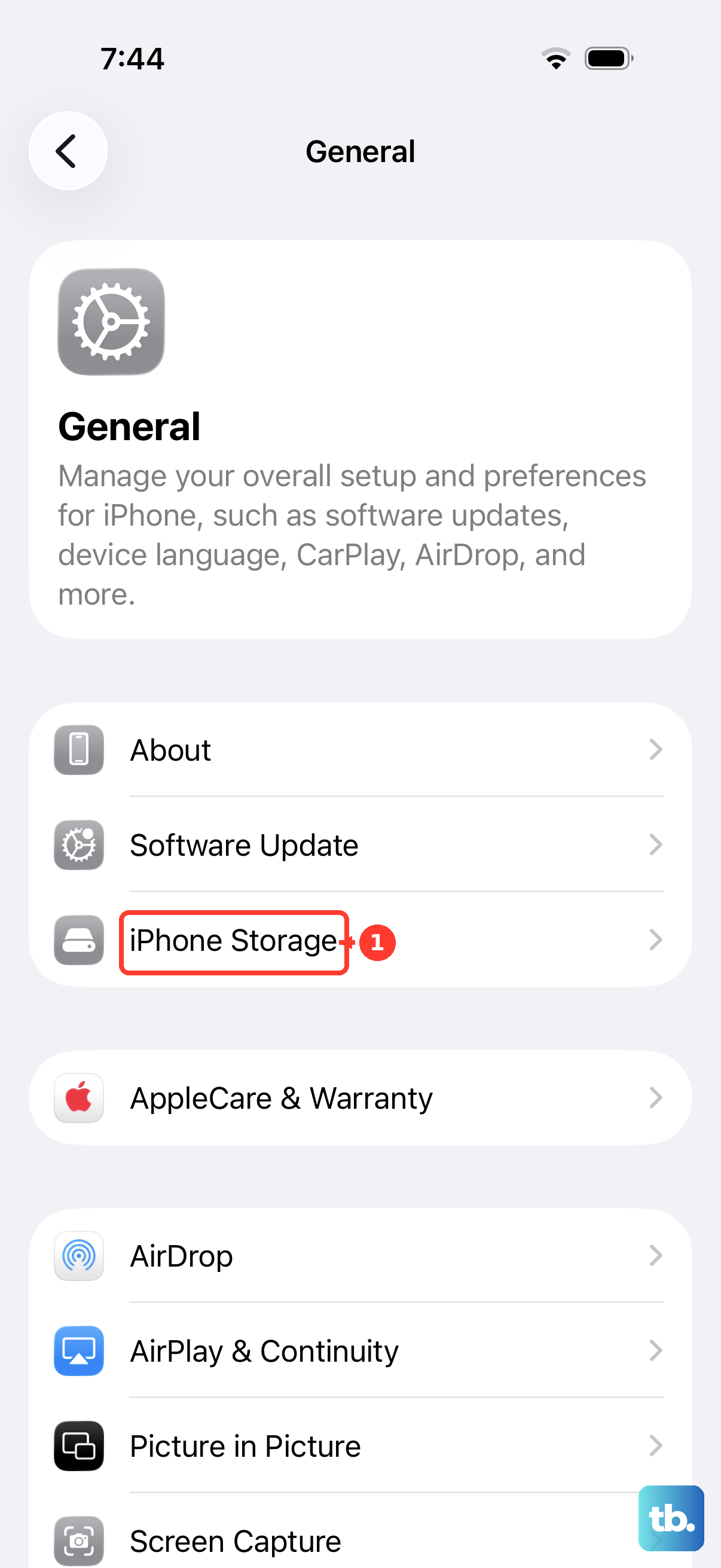
Your iPhone needs free space to process and save photos and videos. If your storage is completely full, the camera may fail to open or save pictures. Go to Settings > General > iPhone Storage to check your available space.
If you're critically low, you'll see a warning at the top of the screen. You can quickly free up space by offloading unused apps, deleting old messages, or removing videos from your Photos library. Aim for at least 1GB of free space to get the camera working again.
Reset All Settings on Your iPhone
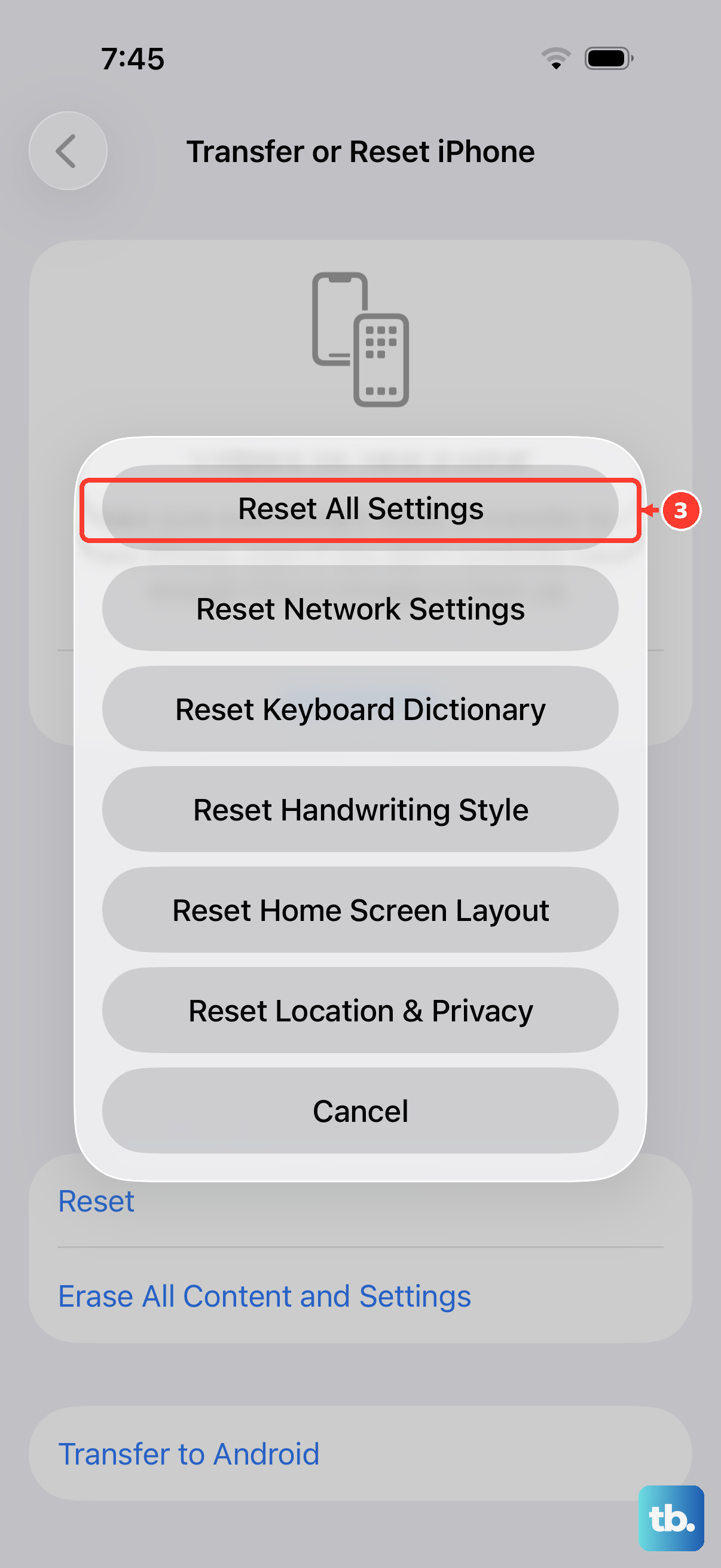
This is a stronger fix that won't delete your personal data like photos or messages, but it will reset all your preferences. You'll need to reconnect to Wi-Fi networks and re-enter some passwords. Go to Settings > General > Transfer or Reset iPhone.
Tap Reset, then choose Reset All Settings. Enter your passcode when prompted and confirm. Your iPhone will restart. Once it boots up, check if the camera is functioning. This often resolves conflicts caused by a corrupted system setting related to the camera or sensors.
Clean the Camera Lenses and Check for Obstructions
Take a close look at the camera module on the back of your iPhone 16 Pro. Use a clean, dry microfiber cloth to gently wipe each lens in a circular motion. Fingerprints, dust, or lint can significantly reduce image quality and sometimes interfere with the camera's ability to focus.
Also, check if your phone case is properly aligned. A poorly designed or damaged case can partially cover a lens, especially the ultra-wide or telephoto sensors on the Pro model. Try removing the case entirely and test the camera to rule this out.
Test the Camera in a Different App
Open another app that uses the camera, like FaceTime, Zoom, or Instagram. Try taking a photo or starting a video call within that app. If the camera works fine elsewhere, the problem is isolated to the native Camera app.
In that case, you can try offloading the Camera app itself. Go to Settings > General > iPhone Storage, find "Camera" in the app list, and tap on it. Select Offload App, then tap Reinstall App to get a fresh version from the App Store.
Look for Signs of Physical Damage
Inspect the camera lenses closely for any cracks or deep scratches. Even a small crack over a sensor can render it useless. Check the entire back glass for damage, as impacts can disconnect internal camera components even if the lens looks okay.
If you see damage, or if your phone has been recently dropped or exposed to water, the issue is likely hardware-related. The camera system in the iPhone 16 Pro is complex, with multiple lenses and sensors that can be damaged independently.
Restore Your iPhone Using a Computer
If all else fails, a full restore can fix deep software corruption. First, make sure you have a recent backup in iCloud or on your computer. Connect your iPhone 16 Pro to a Mac or PC using a certified USB-C cable.
On a Mac with macOS Catalina or later, open Finder. On a PC or older Mac, open iTunes. Select your iPhone, then choose Restore iPhone. This will erase your phone and install a clean copy of the latest iOS. After it finishes, you can set it up as new to test the camera, or restore from your backup.