
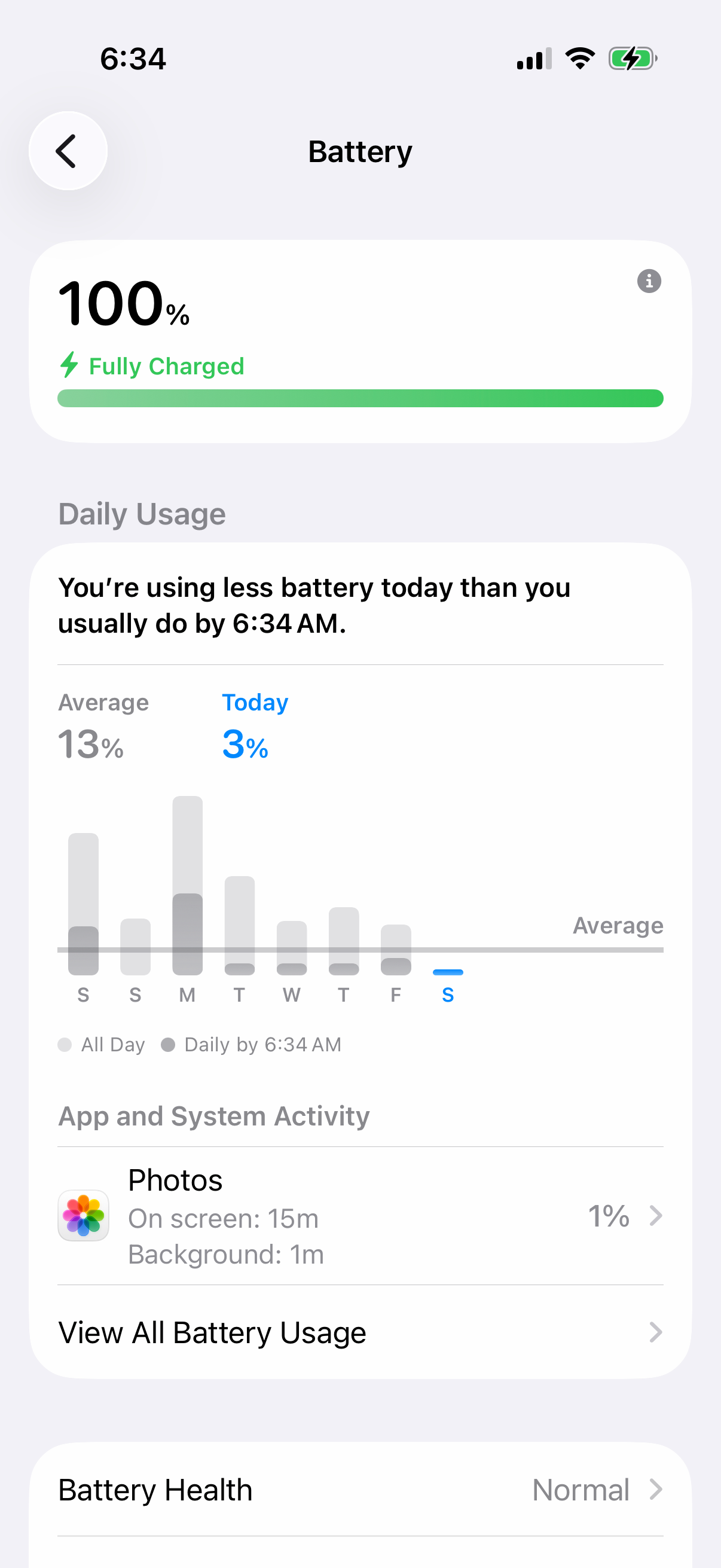
If your iPhone 16 Pro's battery life has suddenly taken a nosedive, you're not imagining it. Start with the battery health menu to check the battery's condition. Go to Settings > Battery > Battery Health.
Look at the "Maximum Capacity" percentage. As battery capacity declines, your phone may need recharging more often. This screen will also tell you if your battery is supporting normal peak performance.
More importantly, go back one screen to "Battery" and check Daily Usage and App and System Activity. Tap "View All Battery Usage" to see the last eight days, then tap a day's bar for details. Background activity, notifications or a weak signal can contribute to drain.
Update to the Latest iOS
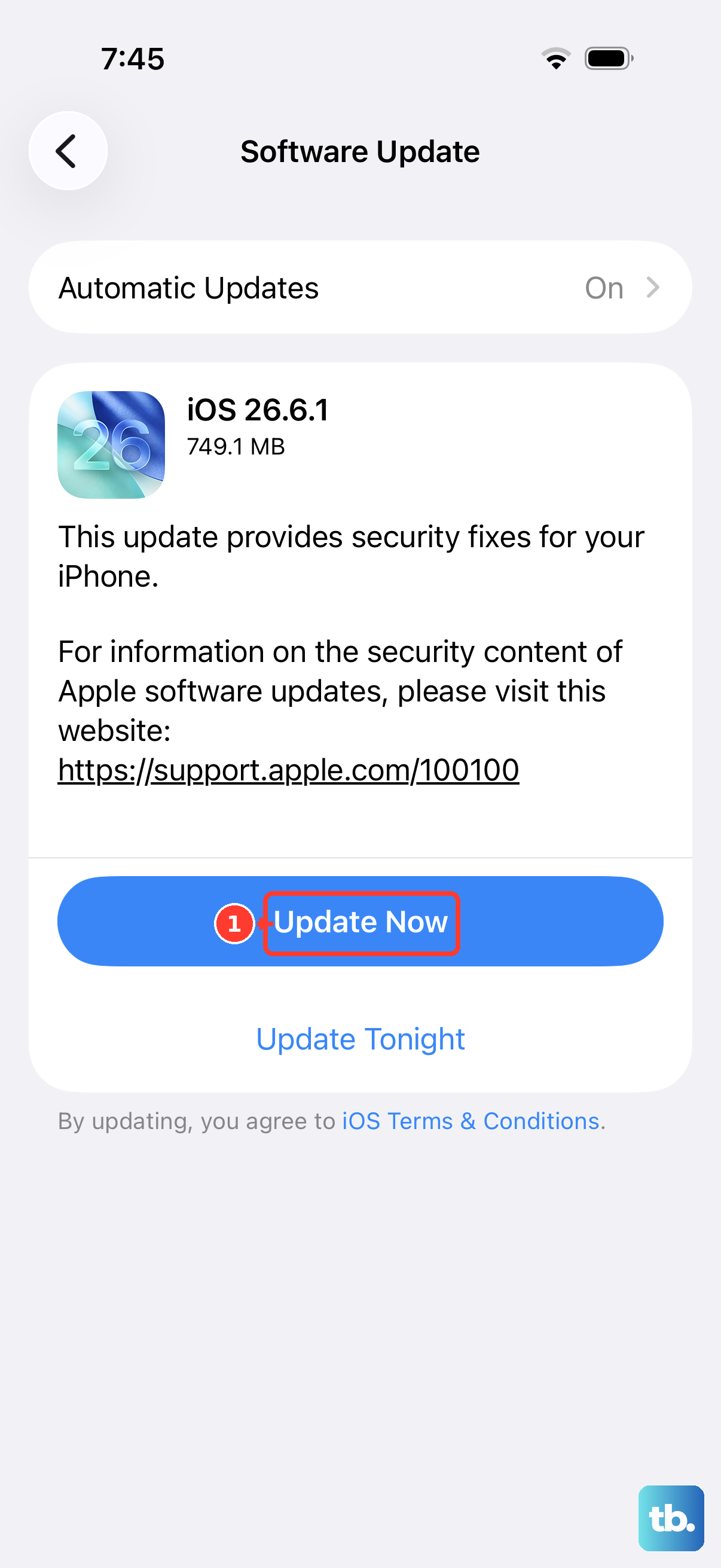
Before you start turning features off, make sure your software is current. Software updates include bug fixes, so install the latest version of iOS before troubleshooting further. Go to Settings > General > Software Update.
If an iOS update is available, tap "Download and Install." It's a good idea to back up your phone, plug it into power and connect to Wi-Fi before starting. If battery life decreases after an update, wait a few days and check again while background update tasks finish.
Manage Background App Activity
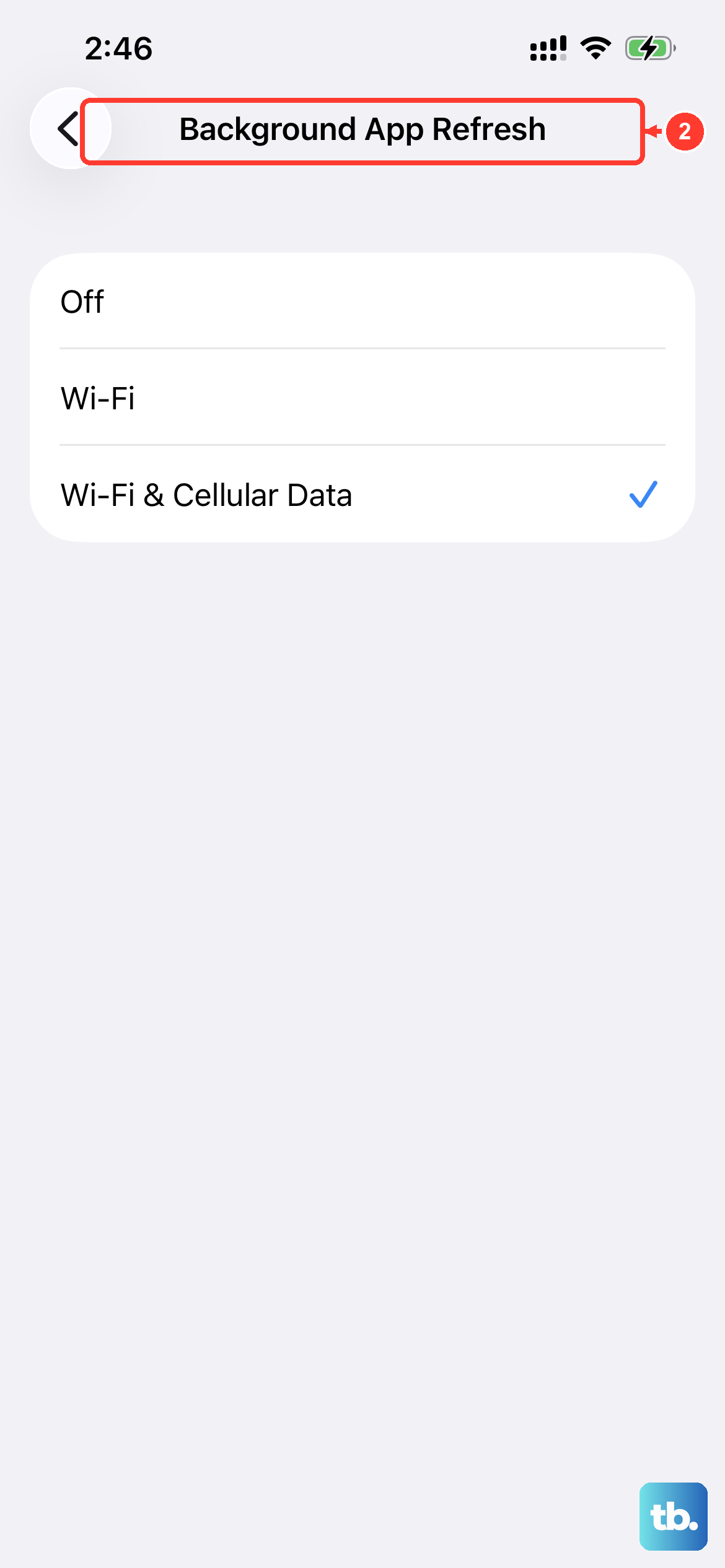
Apps refreshing in the background can use battery power. You can limit this globally or for specific apps. Navigate to Settings > General > Background App Refresh.
You can turn this off entirely, set it to "Wi-Fi" only, or scroll down and disable it for individual apps you know don't need live updates. Social media and email apps are typical offenders here.
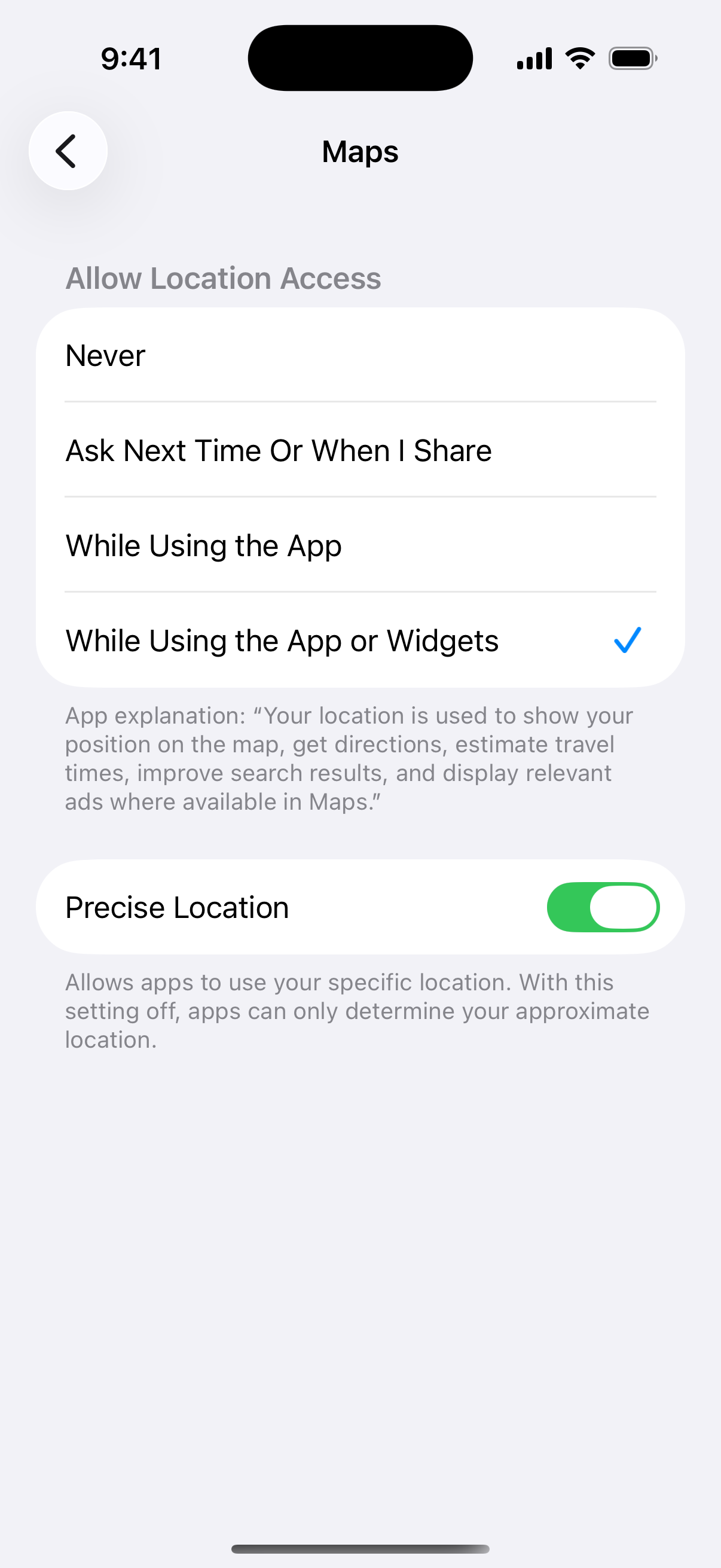
Also, check location permissions. Go to Settings > Privacy & Security > Location Services. Review the list and for any non-essential app, tap it and select "Never" or "While Using the App" instead of "Always."
Optimize Display and Always-On Settings
The iPhone 16 Pro's advanced display is beautiful but can use significant power. First, consider lowering the brightness manually or ensuring Auto-Brightness is on in Settings > Accessibility > Display & Text Size.
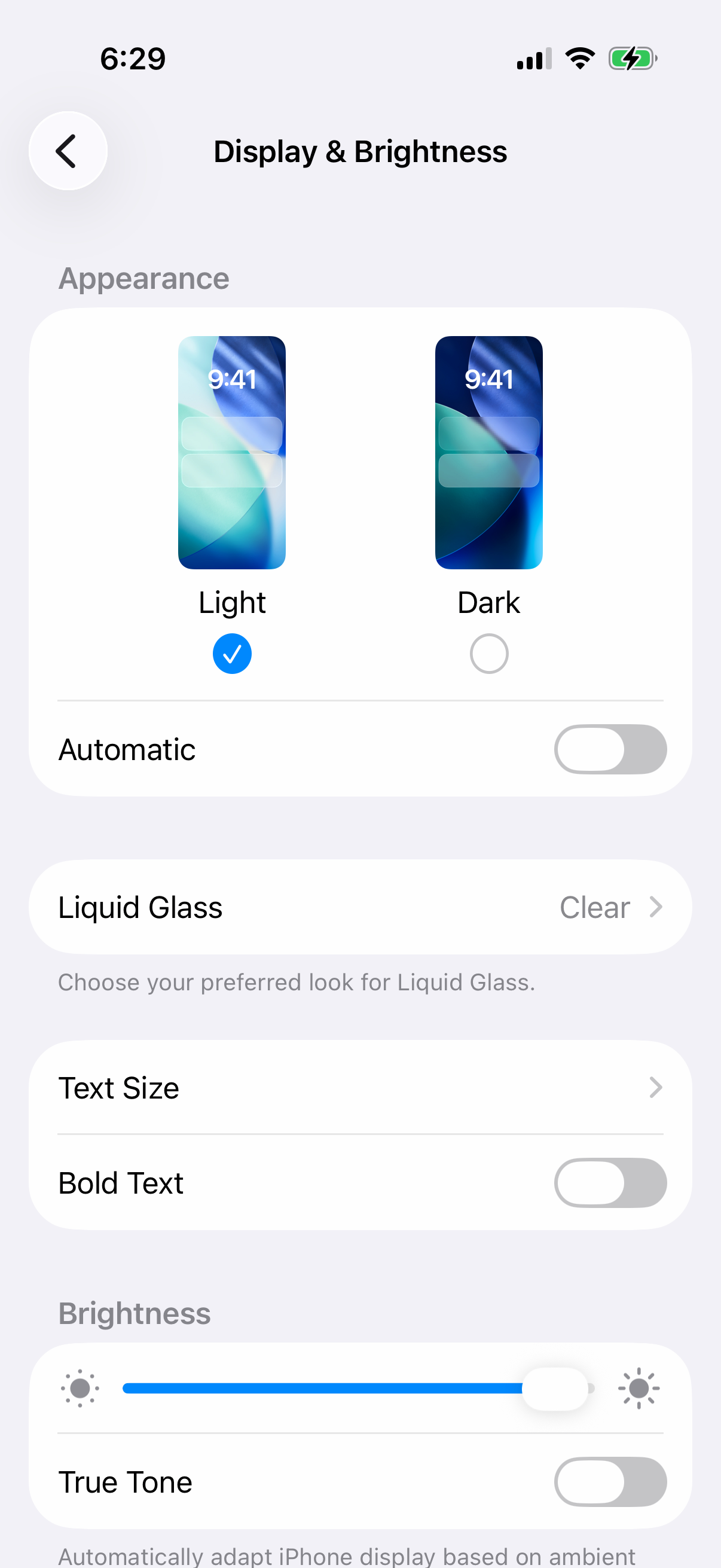
Reduce the Auto-Lock timer. Go to Settings > Display & Brightness > Auto-Lock and choose a shorter interval like 30 seconds or 1 minute. If you use Always-On Display, you can customize it in Settings > Display & Brightness > Always On Display to hide your wallpaper or notifications to save power.
Enable Dark Mode, as it saves power on the OLED screen, especially at higher brightness levels. You can find it in Settings > Display & Brightness and select "Dark." You can also set it to a schedule.
Review Connectivity Features
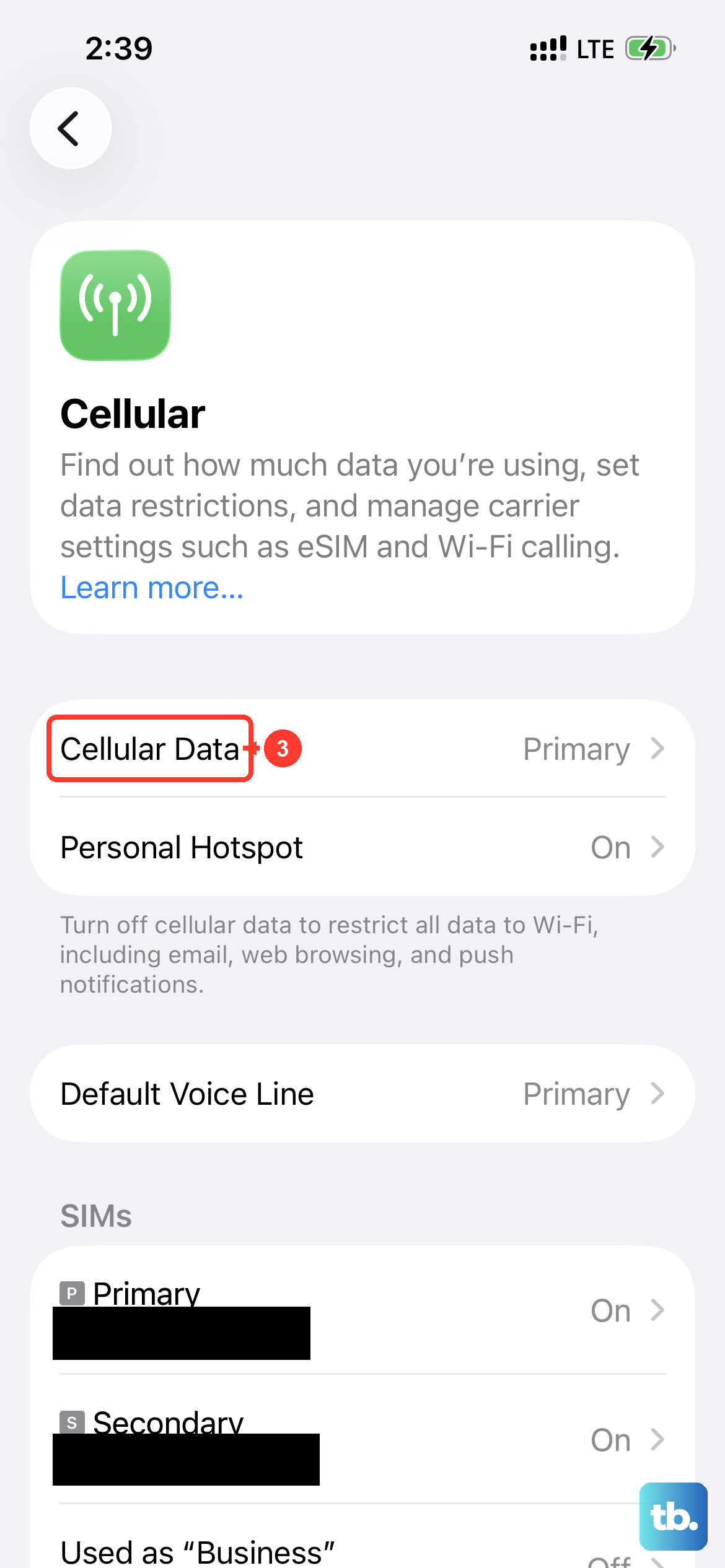
Wireless radios constantly searching for a signal use battery. If you're in an area with poor cellular service, your phone works harder, so try switching to Wi-Fi calling or Airplane Mode if you have no signal.
The Bluetooth and Wi-Fi buttons in Control Center only disconnect them. To turn them fully off when needed, use Settings > Bluetooth or Settings > Wi-Fi. Also, review which apps have permission to use your cellular data in Settings > Cellular.
Check for Problematic Apps and Widgets
Return to App and System Activity in Battery settings. Background activity can include music playback or location tracking, so check what the app is doing and reduce its use if needed. Try force-closing the app, checking for an update in the App Store, or deleting and reinstalling it.
Each widget on your Home Screen or Lock Screen updates periodically. Remove any you don't actively need by long-pressing and selecting "Remove Widget." Live Activities, while useful, also consume extra power if left running indefinitely.
Configure Mail and Notifications
If you use the Mail app, how it fetches messages matters. Go to Settings > Apps > Mail and tap Fetch New Data. If you don't see it there, look under Mail Accounts. Turning "Push" off is a big saver.
You can then set individual accounts to "Fetch" at intervals like every 30 minutes or hourly, instead of having new data arrive instantly. Also, review your notification settings in Settings > Notifications and disable unnecessary previews or sounds for less important apps.
Use Low Power Mode and Reset Settings
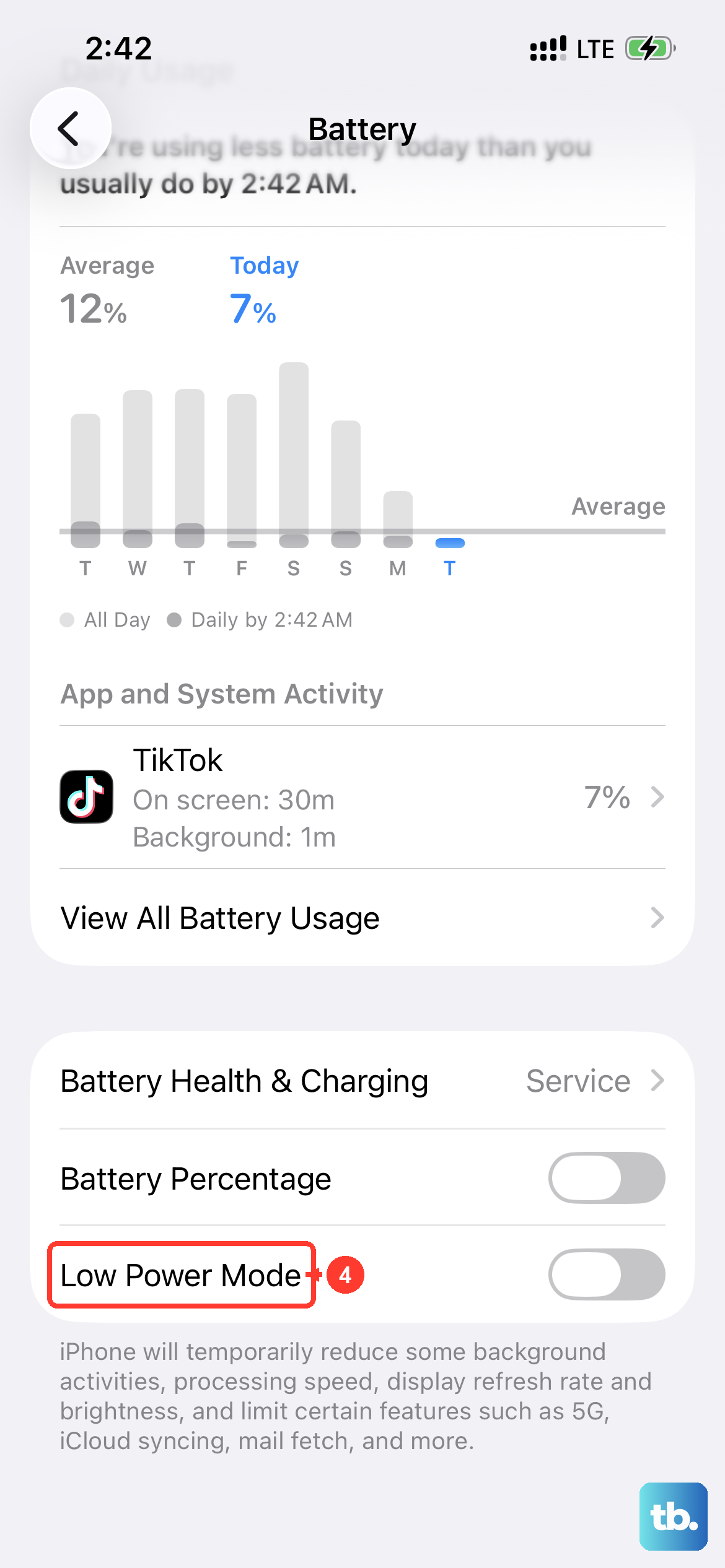
Low Power Mode is a quick fix that reduces background activity and visual effects. You can turn it on manually in Settings > Battery > Power Mode or from Control Center by tapping the battery icon. It's perfect for when you need to stretch your battery until you can get to a charger.
If the drain persists and you've tried everything, a software reset can help. Go to Settings > General > Transfer or Reset iPhone > Reset. Choose "Reset All Settings." This won't erase your data, but it resets settings and removes Wi-Fi passwords, Apple Pay cards and device pairings. Afterward, rejoin Wi-Fi, re-pair Bluetooth devices and your Apple Watch, and set up Face ID again.
Force Restart and Check Charging Gear
Sometimes, a simple force restart clears up a temporary software hang causing battery drain. On the iPhone 16 Pro, quickly press and release the Volume Up button, then quickly press and release the Volume Down button. Finally, press and hold the Side button until you see the Apple logo appear.
While not a fix for drain, using the right charger ensures your phone charges efficiently when it's time. For the fastest wired charging, use a USB-C cable and power adapter that supports USB Power Delivery. For wireless, a certified MagSafe or Qi2 charger will provide the best experience.