
Your iPhone 16 can feel warm during charging, setup, updates, or demanding tasks. If a temperature warning appears, turn it off, move it somewhere cooler away from direct sunlight, and let it cool down. If there's no warning and the phone is unresponsive, try a force restart.
Press and quickly release the Volume Up button, then press and quickly release the Volume Down button. Finally, press and hold the Side button until you see the Apple logo appear on the screen. This doesn't erase any data.
Remove the Case and Check Your Environment
Take your iPhone 16 out of its case, especially if it's a thick or insulating one. Cases, while protective, can trap heat against the phone's body and prevent it from dissipating properly. Let the phone sit on a cool, hard surface for a few minutes to see if the temperature starts to drop.
Also, consider where you're using the phone. Leaving it in direct sunlight, like on a car dashboard or by a sunny window, can cause it to get too hot. The same goes for using it in a hot car or while it's tucked under a blanket. Move it to a cooler, shaded spot immediately.
Stop Intensive Tasks and Close Apps
If you're in the middle of a graphically intense game, recording a long 4K video, or using augmented reality apps, these activities make the processor work very hard. Pause what you're doing and close the app by swiping it away from the app switcher. Give the phone a few minutes to cool down before resuming.
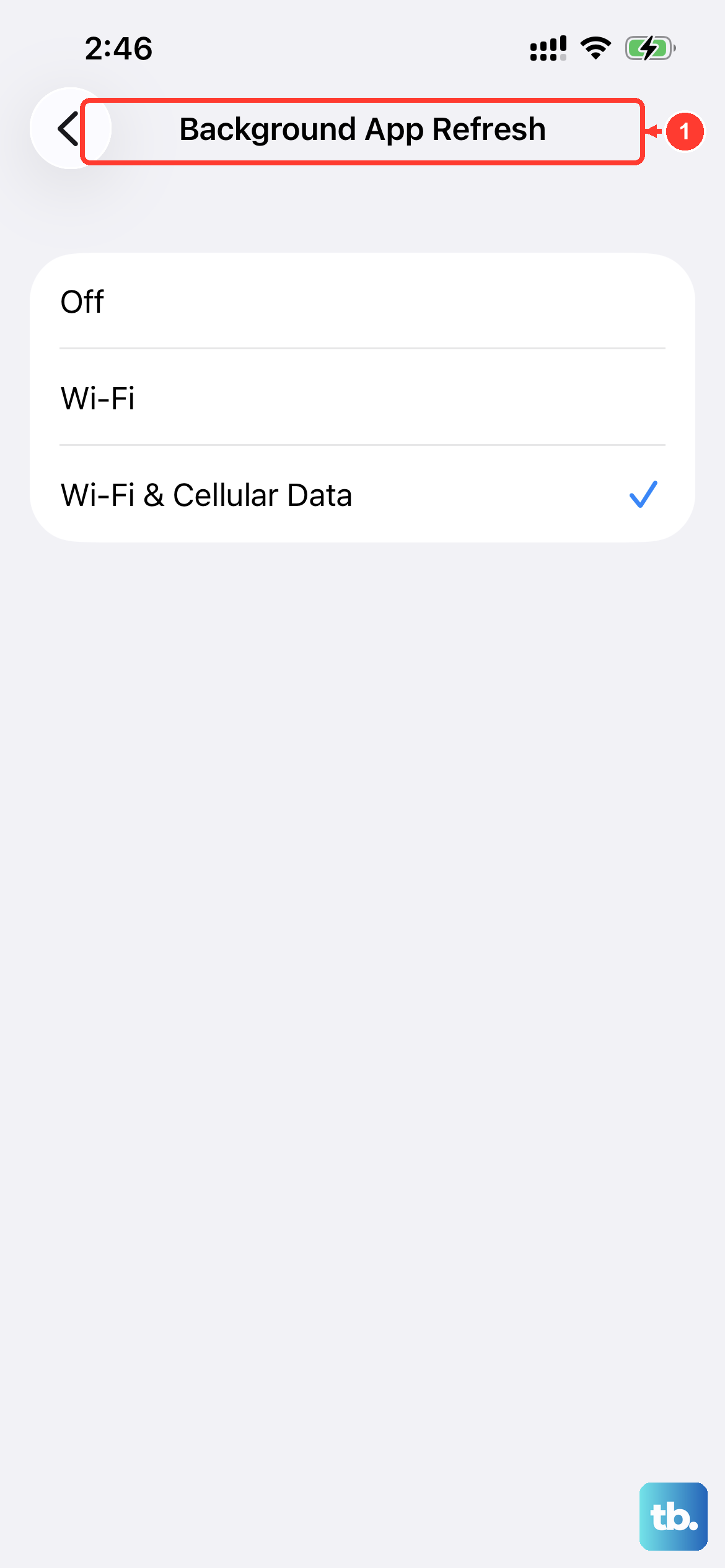
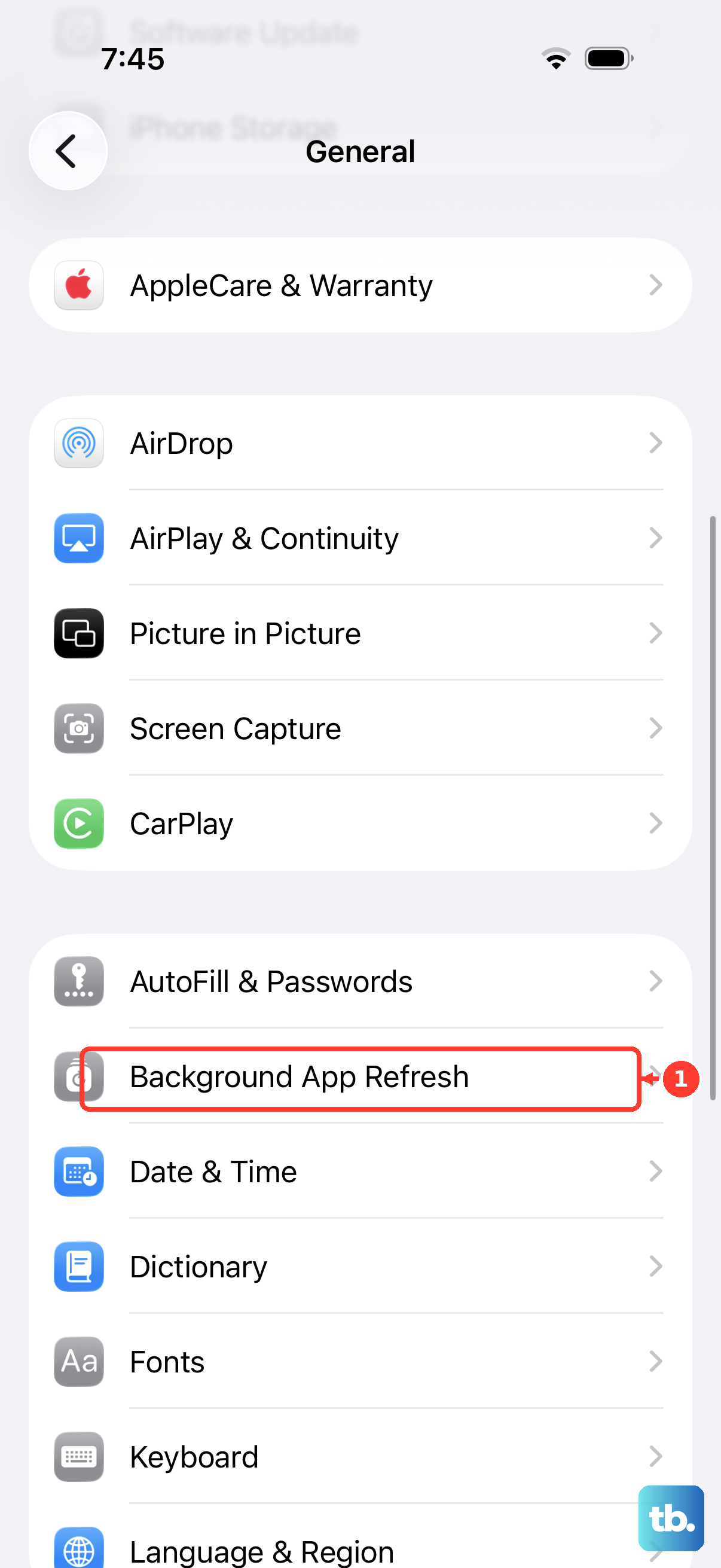
If an app isn't responding, open the app switcher. Swipe up from the bottom of the screen and pause in the middle to see your recently used apps. Swipe up on the unresponsive app to close it. Background app refresh for non-essential apps can also generate heat, which you can manage in Settings > General > Background App Refresh.
Check Your Charging Setup
Your iPhone can feel warm during wireless charging. If your phone is hot while charging, move it to a cooler place away from direct sunlight and lock the screen. Make sure you're using a compatible USB-C cable and power adapter if you switch to wired charging.
MagSafe chargers need precise alignment with the ring of magnets in the back of your iPhone 16. Check that the case isn't preventing the charger from sitting properly against the phone. Try charging without a case to see if that resolves the overheating issue. Also, avoid using the phone for demanding tasks while it's fast charging, as this combines two heat-generating activities.
Update to the Latest Version of iOS
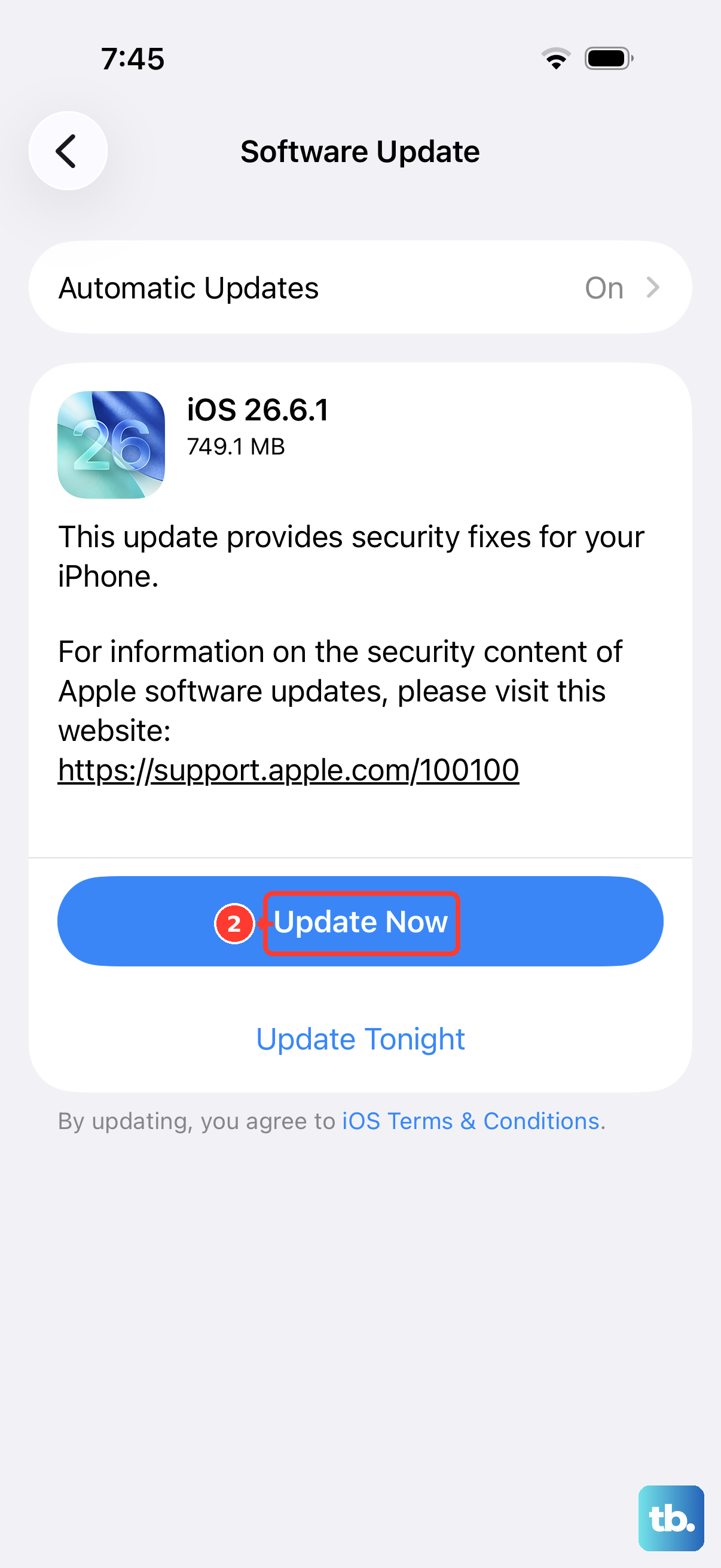
Software bugs can sometimes cause abnormal processor activity and overheating. Apple frequently releases iOS updates that include performance improvements and bug fixes. Go to Settings > General > Software Update to see if a newer version of iOS is available.
Install any available update, preferably while your phone is cool and connected to power. It's a good idea to do this over Wi-Fi. The phone may run a bit warm while completing an update, particularly a major release, and should cool when the process finishes.
Review Battery and Charging Settings
Head to Settings > Battery > Charging. You can choose a charge limit from 80% to 100% in 5% increments. Optimized Battery Charging is available when the limit is 100%. It reduces time spent fully charged by delaying charging past 80% in certain situations.
If you see Charging On Hold, move the phone somewhere cooler and lock the screen. Charging resumes when it returns to normal temperature. You can also check Settings > Battery > Battery Health for Maximum Capacity and the status under Peak Performance Capability.
Reset All Settings
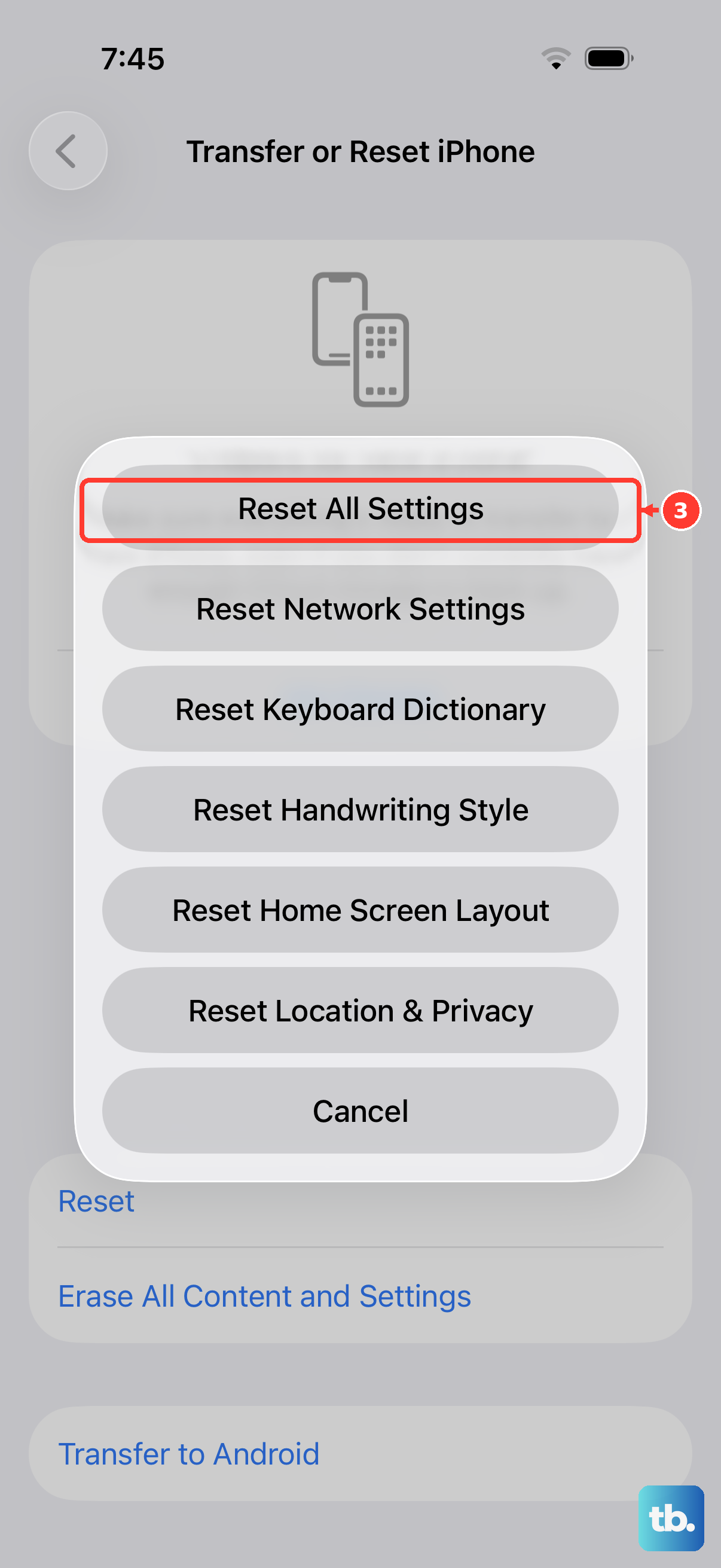
If the overheating persists and isn't linked to a specific app or activity, a misconfigured setting might be the cause. You can try resetting all settings. This won't delete your photos, messages, or apps, but it will revert all system settings (like Wi-Fi passwords, wallpaper, and privacy permissions) back to their defaults.
Go to Settings > General > Transfer or Reset iPhone > Reset, and then choose "Reset All Settings." Your phone will restart. Afterward, you'll need to reconfigure things like Face ID and notifications, rejoin Wi-Fi, and re-pair Bluetooth devices and any Apple Watch.
Check for Physical Blockages
It's worth inspecting the USB-C port. Shine a light into the port to see if any lint or debris has become compacted at the bottom. This can interfere with a proper cable connection.
If you see lint or debris, use a soft, dry brush gently around the port opening. Avoid getting moisture into the port, and don't use compressed air. If debris remains lodged inside or the cable won't connect properly, have the port checked rather than probing it with a tool.
Identify a Problematic App
Sometimes, a single app is the source of the trouble. Go to Settings > Battery. Check App and System Activity for today's battery use, or tap View All Battery Usage to see the last eight days. Look for any app showing a high percentage of battery use that doesn't match how much you actually used it.
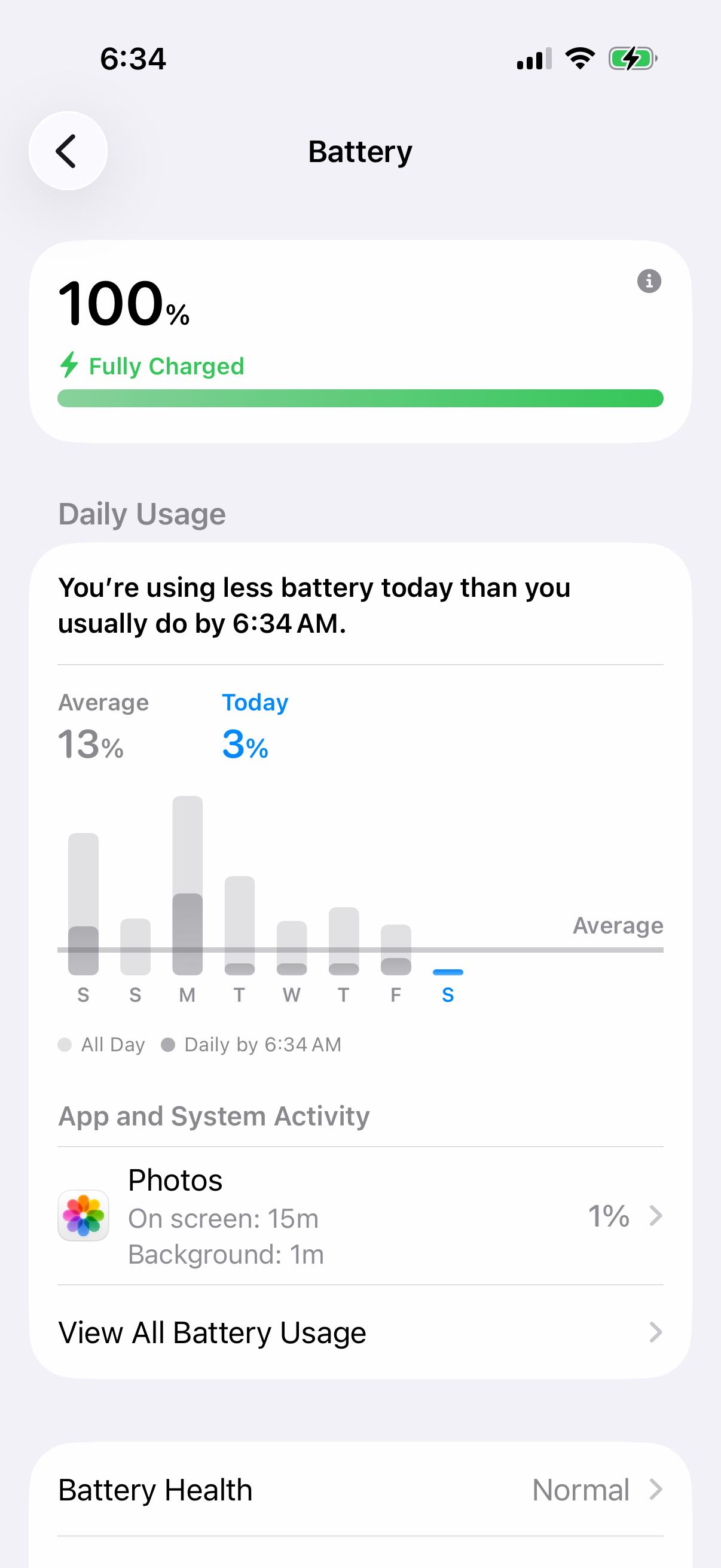
Unexpectedly high battery use can help you identify an app to check. Try force-closing that specific app, or check for an update in the App Store. If no update is available and the problem continues, you might consider deleting and reinstalling the app.