
Seeing "No Service" or "Searching..." in the status bar of your iPhone 16 is a real headache. It means your phone can't find a cellular network for calls, texts, or mobile data. This can happen for a bunch of reasons, from simple software hiccups to an issue with your carrier account or eSIM.
Start with a restart. A simple restart of your iPhone 16 can help with temporary software glitches affecting cellular service. Just press and hold the side button and either volume button, then slide to power off. Wait about 30 seconds, then turn it back on.
Check for a Carrier Service Outage
Before you spend time troubleshooting your phone, make sure the problem isn't with your carrier's network. Service outages can happen during network maintenance. Check for an outage first to save time.
You can quickly check by visiting your carrier's website or their support account on social media. Another easy way is to use a different device on the same network, if you have one, or ask a family member or neighbor with the same carrier if their service is working.
Toggle Airplane Mode
Turning Airplane Mode on and off can help your iPhone reconnect to the cellular network. Try this when your carrier has coverage in your area but your phone still shows "No Service" or "Searching."
You can do this from Control Center by tapping the airplane icon, or go to Settings > Airplane Mode. Turn it on, wait 15 seconds, then turn it off. Watch the status bar to see if the signal bars or "5G"/"LTE" indicator reappears.
Check Your Cellular Line
Check that the cellular line you want to use is turned on, especially if you have two lines set up. Open Settings > Cellular and tap the cellular line you'd like to check.
If the line is off, tap Turn On This Line, then check the status bar to see whether service returns. If your cellular line isn't listed at all, contact your carrier to set up an eSIM. Have your account details ready so they can check that the line is active and set up with the right data plan.
If your iPhone 16 has a SIM tray (models sold outside the US support nano-SIM and eSIM), remove the SIM card and put it back in. If the SIM card is damaged or doesn't fit the tray, ask your carrier for a new one.
Update Your Carrier Settings
Carrier settings are small files that tell your iPhone how to connect to your specific provider's network. Apple and carriers release updates for these periodically, and having an outdated version can cause "No Service" errors.
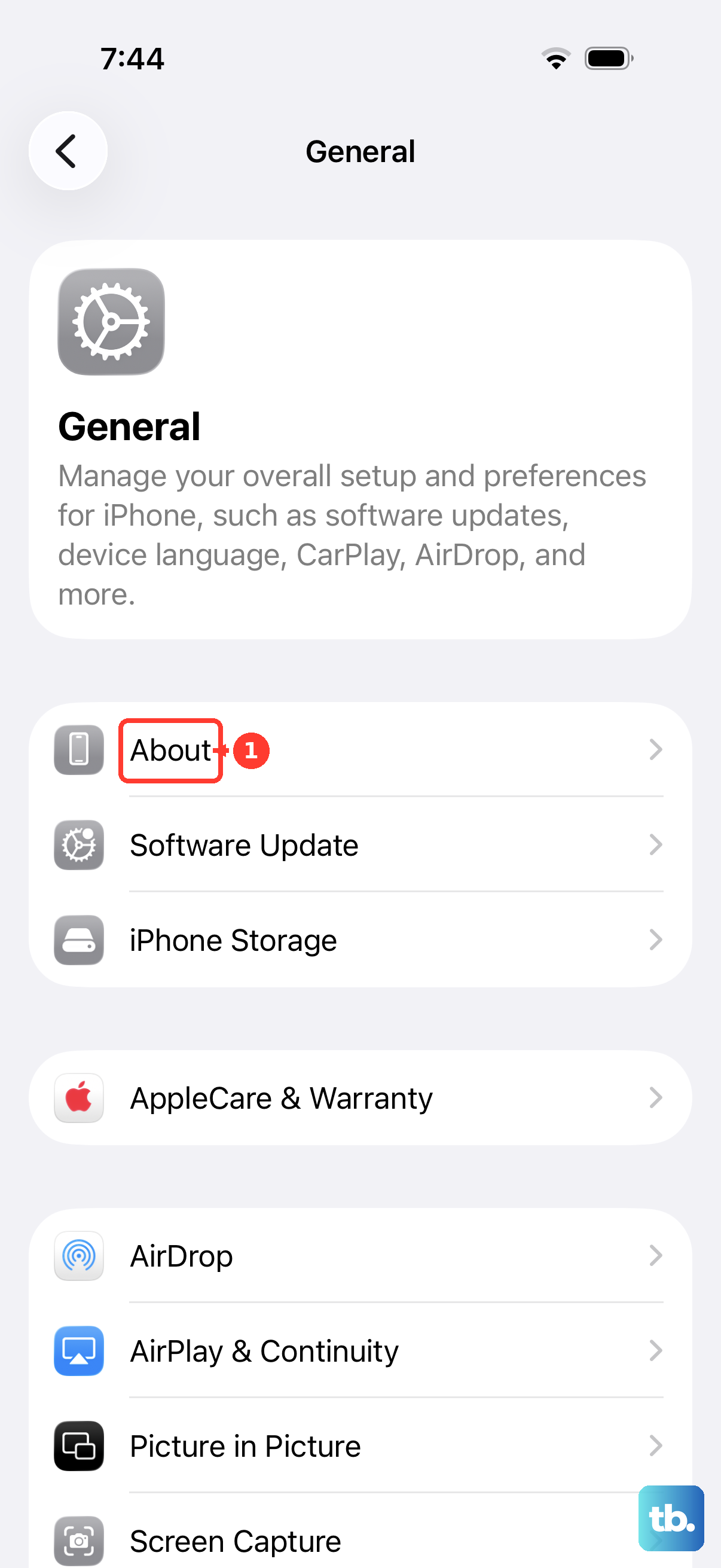
To check, connect your iPhone to Wi-Fi, then go to Settings > General > About. If an update is available, an option to update your carrier settings will appear. Installing these updates doesn't affect your personal data.
Update to the Latest iOS Version
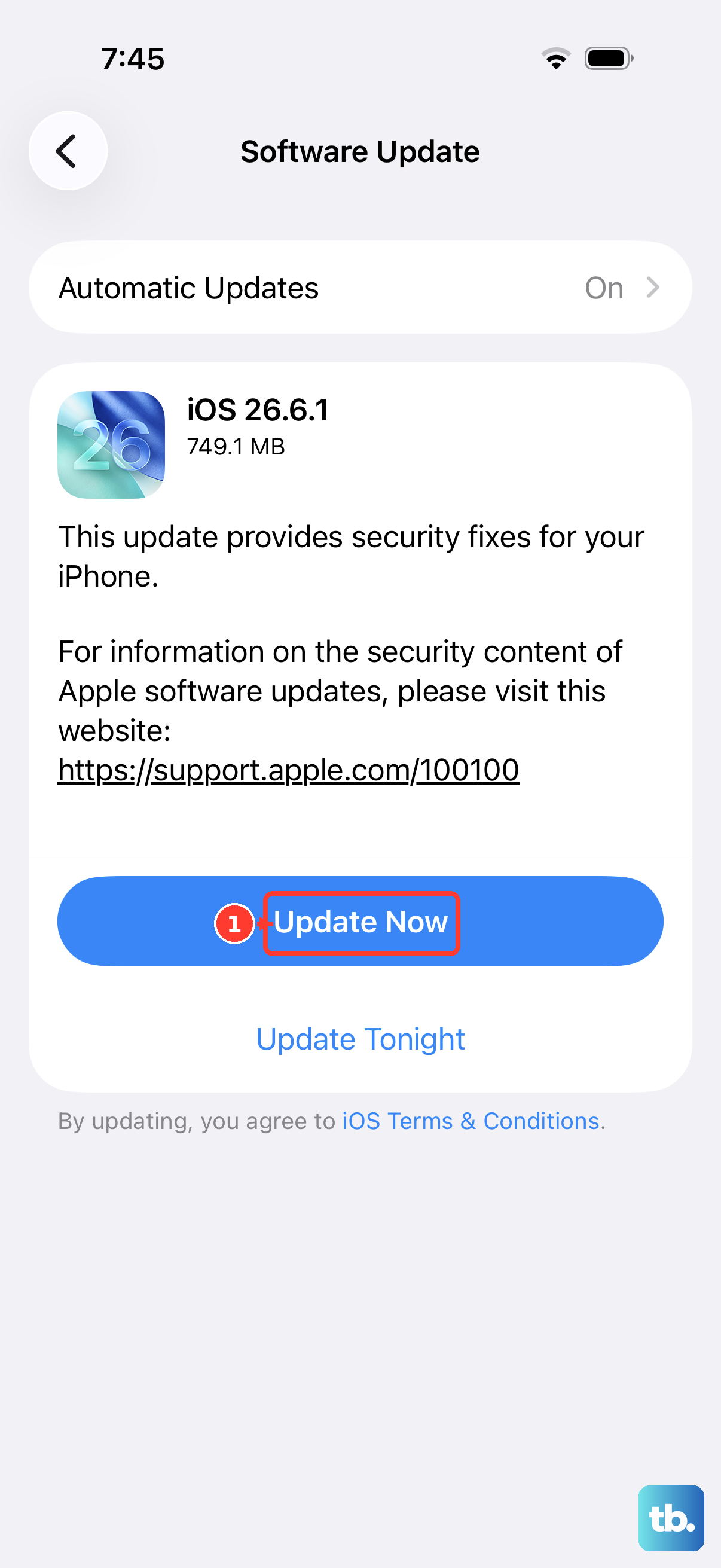
If you're running an older version of iOS, update to the latest version as part of troubleshooting your cellular connection. Back up your iPhone before you start, and keep it connected to power and Wi-Fi during the update.
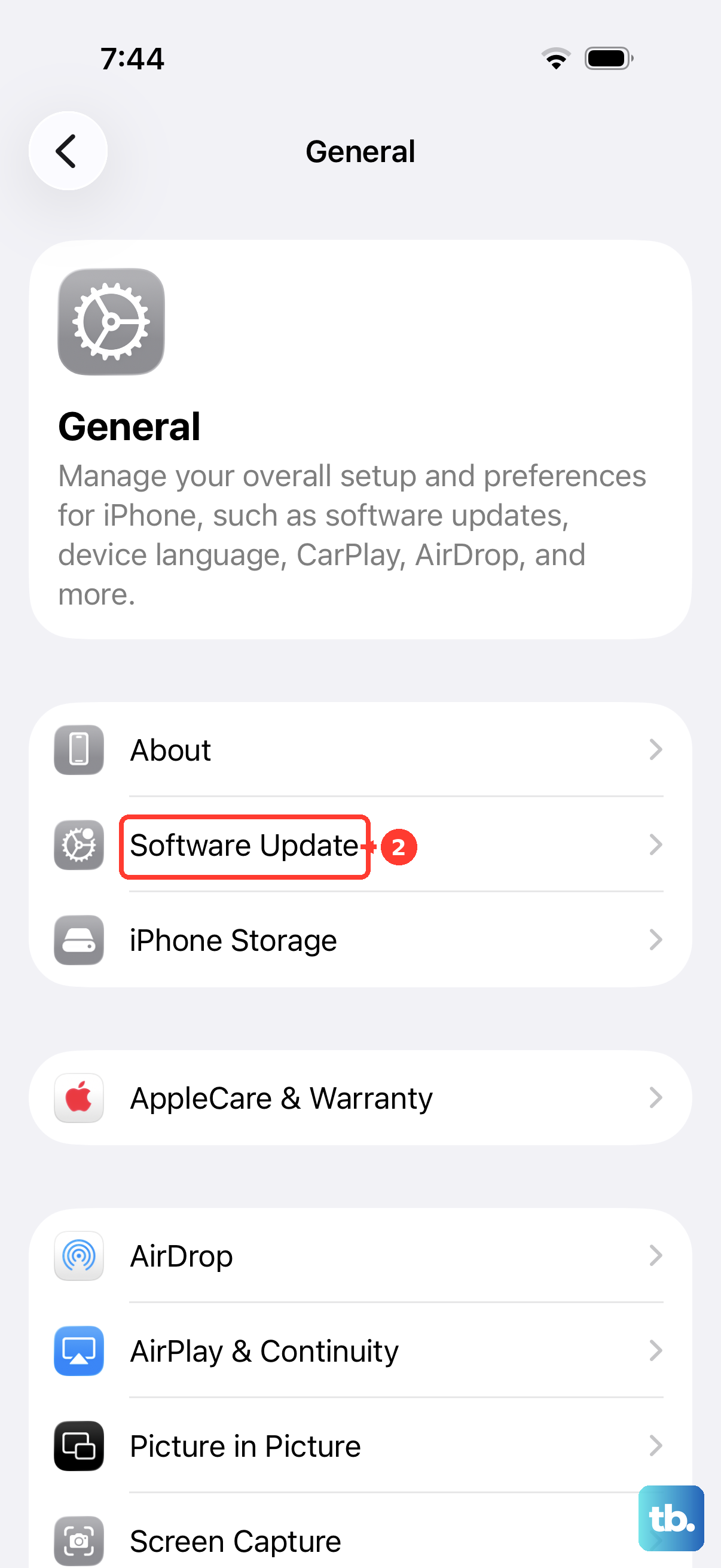
Go to Settings > General > Software Update. If an update is available, tap "Download and Install." Make sure your iPhone 16 is connected to Wi-Fi and plugged into a charger. If the update won't download, try another Wi-Fi network or update with a computer.
Reset Your Network Settings
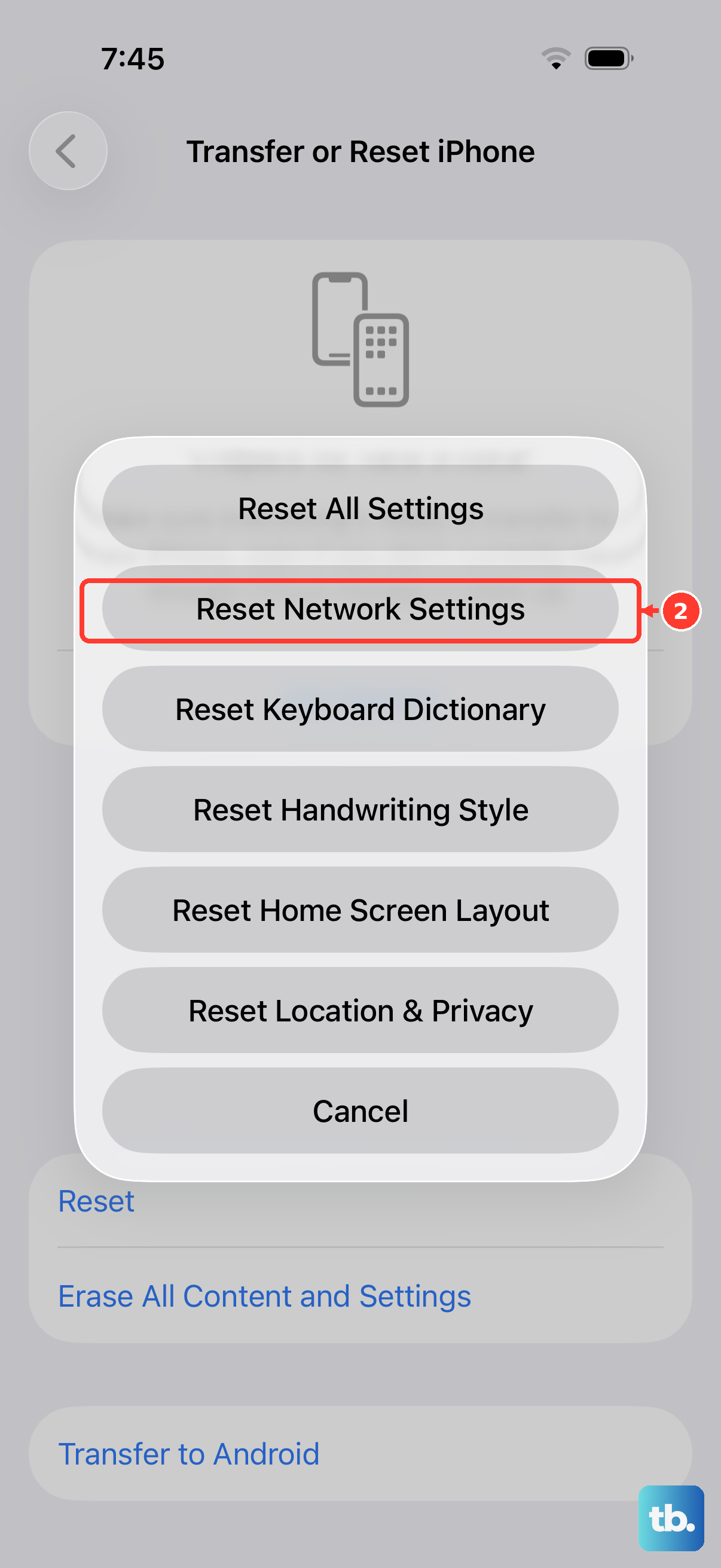
Try the other checks in this article before resetting network settings. This step erases saved Wi-Fi networks and passwords, cellular settings, and VPN and APN settings, including home, work and school network configurations. Make sure you have the details needed to reconnect afterward.
To do this, open Settings > General > Transfer or Reset iPhone. Tap "Reset" at the bottom, then choose "Reset Network Settings." You'll need to enter your passcode and confirm. Your iPhone will restart, and you'll have to reconnect to Wi-Fi networks afterward.
Manually Select Your Network Carrier
If Network Selection is available for your cellular line, you can try selecting your carrier manually. This lets you choose from the available networks. If your carrier isn't listed or the connection fails, return to automatic network selection.
Navigate to Settings > Cellular > Network Selection. Turn off "Automatic." Your phone will search for available networks for a moment. When the list appears, select your carrier's name from the list. If it doesn't connect, wait a minute and turn "Automatic" back on.
Check for an eSIM Issue
If your eSIM line is turned on but you still have no service, contact your carrier's support. Ask them to verify that your account is active and in good standing, and that your iPhone is set up with the right data plan.
Have them check that your device isn't blocked or barred from receiving cellular service. If you bought your iPhone outside the country or region where you're using it, ask whether local rules require IMEI registration. Your carrier can check your account and help set up an eSIM if your line is missing.
Perform a Force Restart
If your iPhone isn't responding, try a force restart. This uses a different button sequence from a normal shutdown. For the iPhone 16, follow the steps below.
Press and quickly release the Volume Up button. Press and quickly release the Volume Down button. Then, press and hold the Side button. Continue holding until you see the Apple logo appear, then release. This won't delete any data.
If you've moved through all these steps and your iPhone 16 still shows "No Service," contact your carrier to check your account and network. You can also use the latest Apple Support app to run additional diagnostics. If your carrier confirms there are no account or network issues and a hardware problem is suspected, your iPhone may need service.