When your headphones stop working with your iPhone 16, it can feel like a sudden audio blackout. Whether you're using the USB-C port for wired buds or connecting to AirPods over Bluetooth, the fixes are usually straightforward. I'd start by checking a few simple things first.
It helps to confirm what actually works before changing settings. Run a headphone test, note which channels and frequencies play correctly, and match the result against the steps below.
Restart Your iPhone 16
Restart the iPhone normally first. Press and hold either volume button and the Side button until the power-off slider appears, drag the slider, wait about 30 seconds, then press and hold the Side button until the Apple logo appears. Use the Volume Up, Volume Down, Side button sequence only if the iPhone is frozen or will not turn off normally.
Check the Physical Connection
For wired headphones, make sure the USB-C plug is fully inserted into the port. A loose connection is a common culprit. If you're using Bluetooth headphones, ensure they're charged and in pairing mode. It's always a good idea to test the headphones with another device to rule out a hardware failure on their end.
Check the USB-C Port and Adapter
For wired headphones, make sure the USB-C adapter is firmly connected and inspect the adapter, headphone cable, connector, remote, and earbuds for visible damage or debris. Do not insert a toothpick or other object into the USB-C connector; if the adapter still will not seat normally, contact Apple Support or an authorized technician.
Verify the Audio Output
Sometimes audio is playing through another destination. Open Control Center and tap the AirPlay or Playback Destination button in the Now Playing controls, then choose your headphones or AirPods. If they appear in the list, select them, play audio, and make sure the iPhone volume is turned up.
Forget and Re-Pair Your Bluetooth Headphones
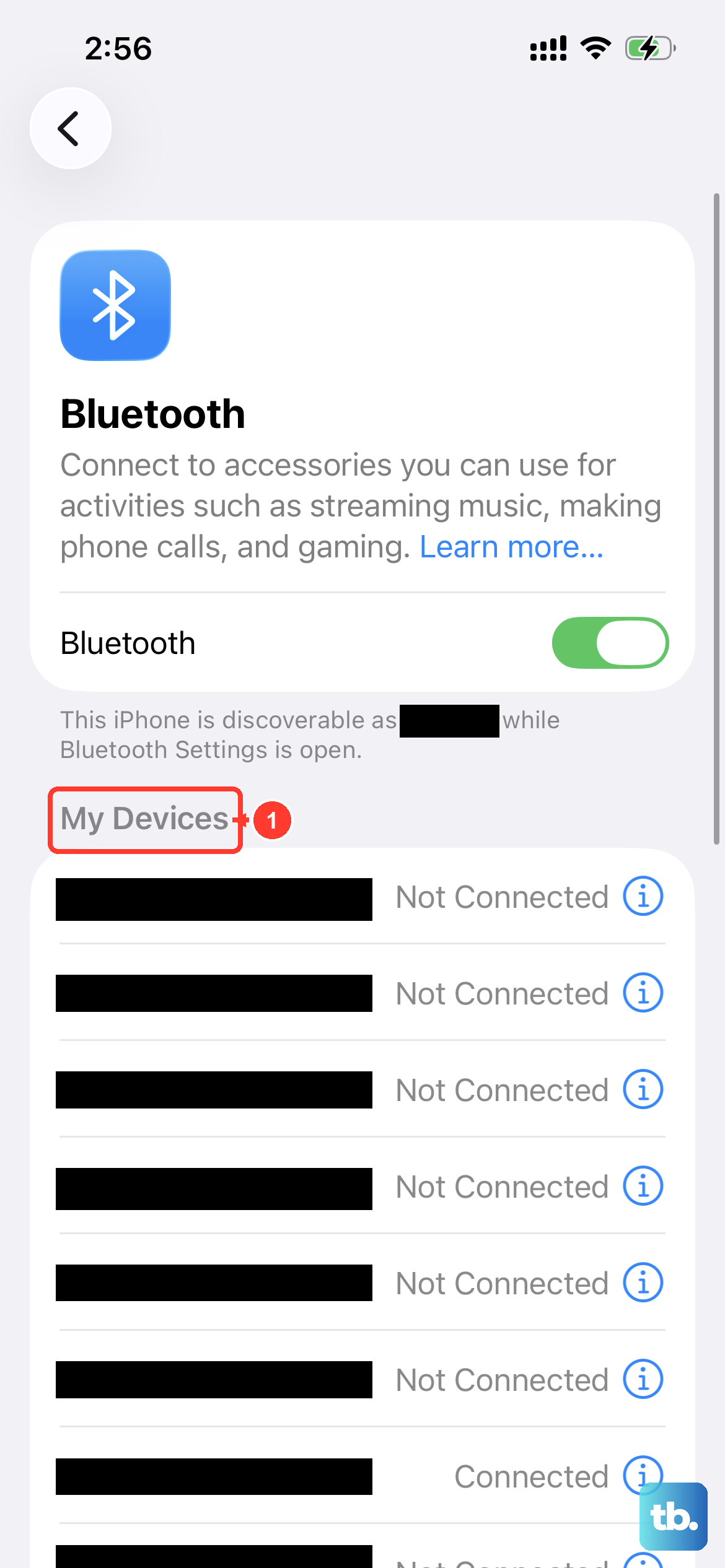
If your wireless headphones were previously connected but still will not connect or play correctly, unpair them and pair them again. Go to Settings > Bluetooth, tap the info icon next to your headphones, tap Forget This Device, then confirm. Put the headphones back in pairing or discovery mode and connect them again from Bluetooth.
Update to the Latest iOS
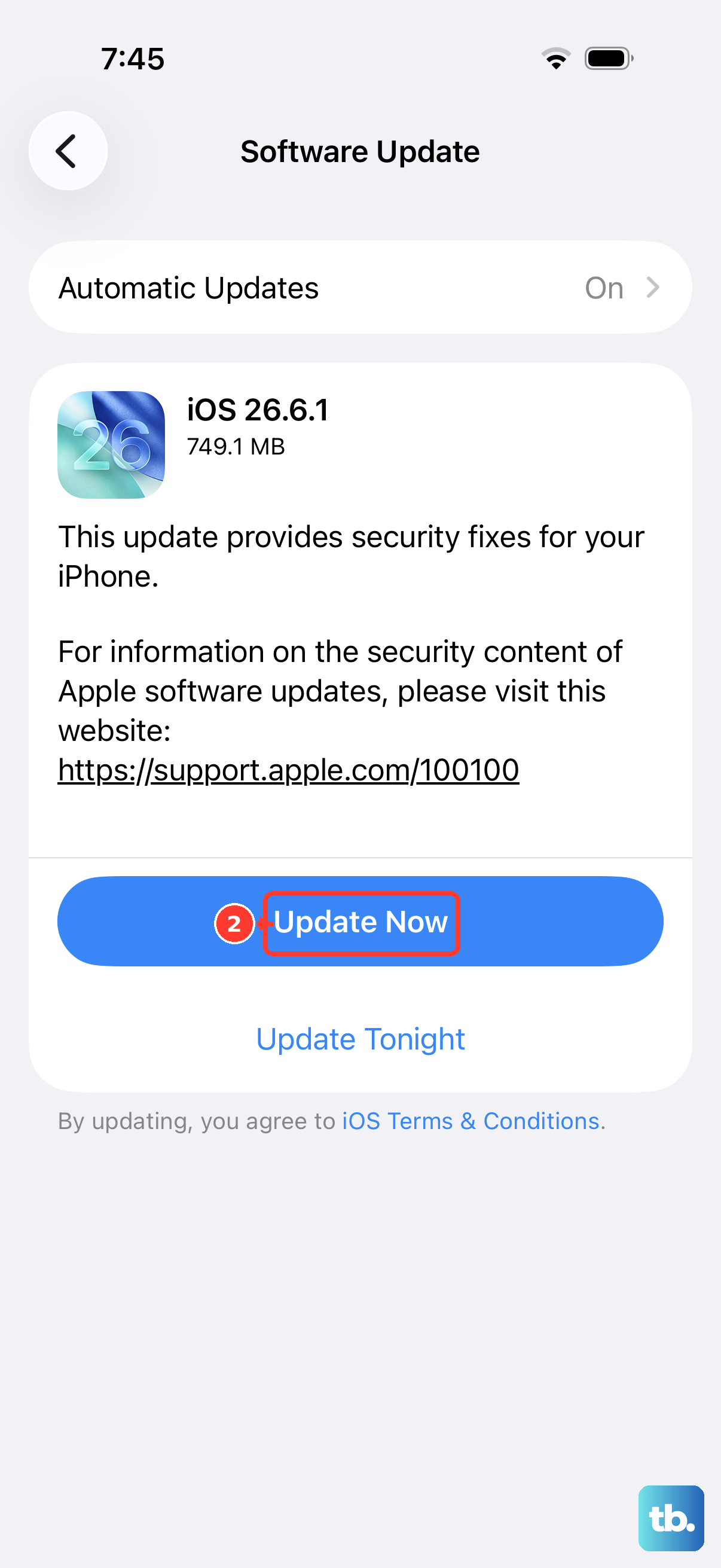
Audio and Bluetooth issues are frequently addressed in software updates. Head to Settings > General > Software Update to check for and install any available updates for iOS 26. This is particularly important for ensuring compatibility with newer headphone models and firmware.
Check Headphone Safety
Press the Volume Up button while your headphones are connected. Then go to Settings > Sounds & Haptics > Headphone Safety and check Reduce Loud Audio. If it is on and set low, drag the slider higher for testing; iPhone lowers headphone audio above the selected decibel level.
Reset All Settings
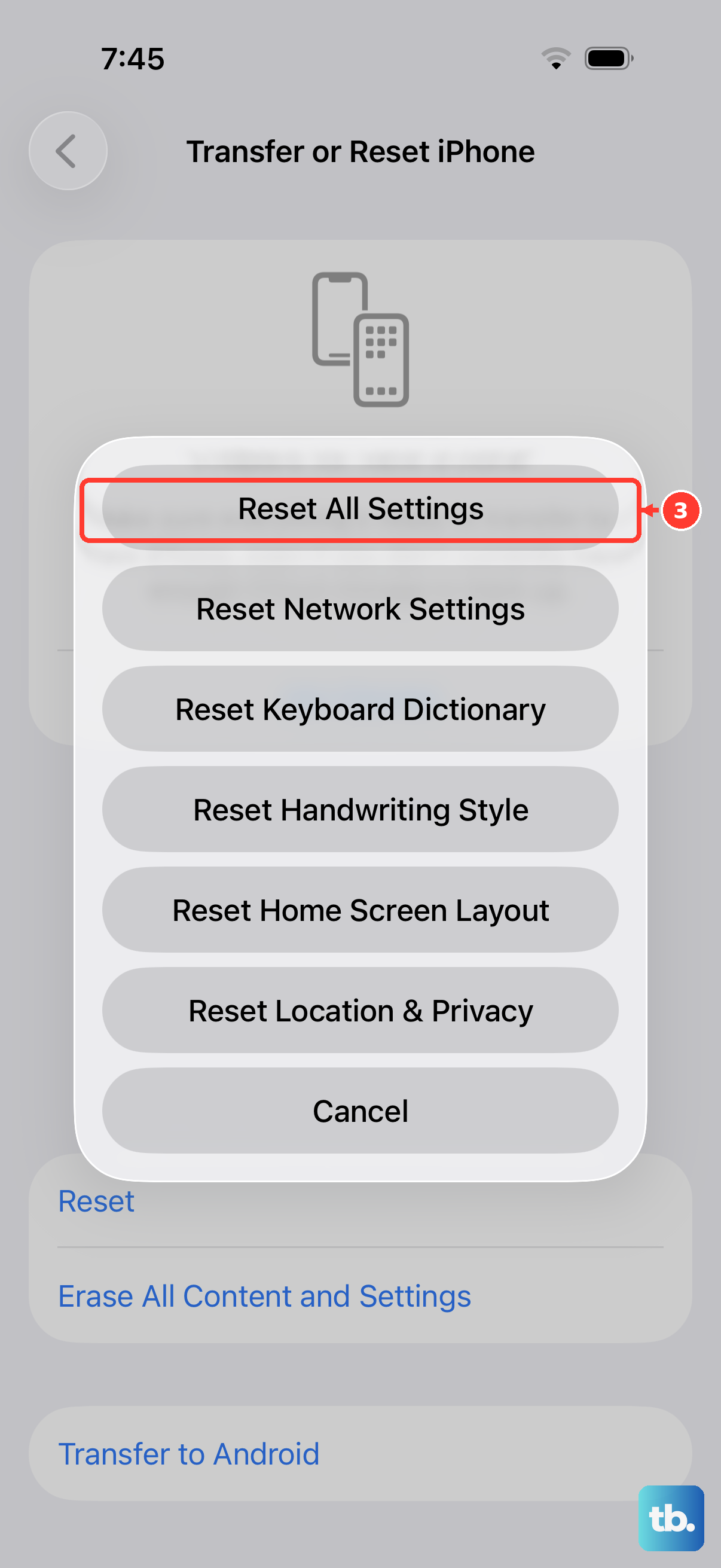
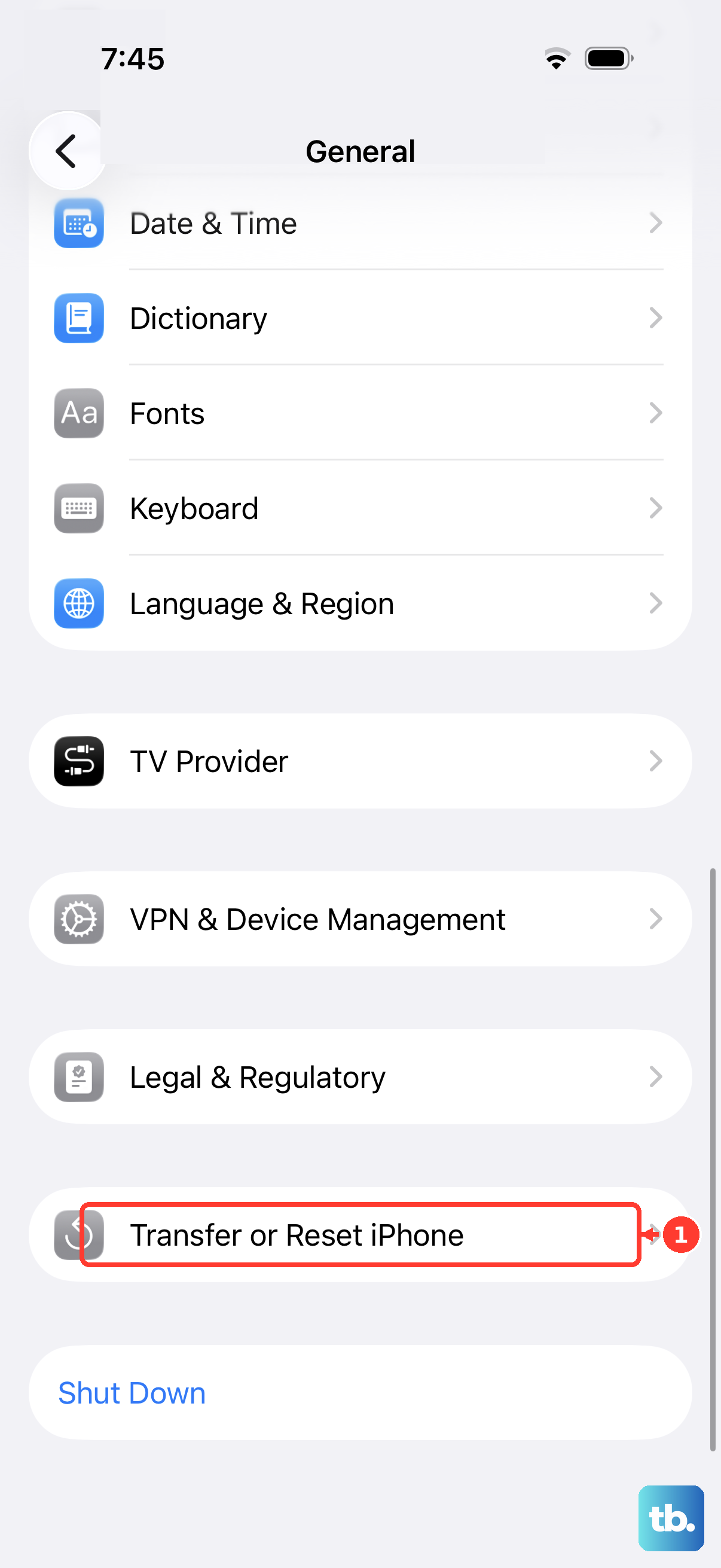
For persistent Bluetooth, Wi-Fi, or other system issues, Reset All Settings is a last resort after a restart and simpler headphone checks. Go to Settings > General > Transfer or Reset iPhone > Reset > Reset All Settings. This does not delete photos, messages, apps, documents, or other media, but it removes or resets settings to defaults, including network settings, keyboard dictionary, location settings, privacy settings, and Apple Pay cards. You will need to reconfigure affected preferences afterward.