
If your iPhone 16's GPS is acting up, you're in the right place. A spotty location can throw off everything from your morning commute to finding a new restaurant. The good news is that most GPS problems on the iPhone 16 are software-related and can be fixed with a few quick steps.
I'd start with the simplest solutions first. They often clear up the issue in under a minute.
Restart Your iPhone 16
A quick restart is the most reliable first step. It clears out any temporary software glitches that might be confusing the GPS chip. Just press and hold the side button and either volume button, then slide to power off.
Wait about 30 seconds after the screen goes black, then press the side button again to turn it back on. Once it boots up, open Maps to see if your location is more accurate.
Check Your Location Services Settings
Sometimes, the fix is as simple as making sure an app has permission to see your location. Head to Settings > Privacy & Security > Location Services.
First, ensure the main Location Services toggle at the top is green and on. Then, scroll down and tap on the app giving you trouble, like Maps or Google Maps. Make sure its setting is "While Using the App" or "Always," depending on what you prefer.
Toggle Airplane Mode On and Off
This trick resets all your iPhone's wireless radios at once, including the one for GPS. Swipe down from the top-right corner to open Control Center and tap the airplane icon.
Wait for about 15 seconds, then tap it again to turn Airplane Mode off. Your iPhone will reconnect to cellular, Wi-Fi, and Bluetooth, which can help the GPS get a fresh, accurate lock.
Update Your Apps and iOS
Outdated software is a common culprit. A bug in an old version of Maps or in iOS 26 itself could be messing with location data. First, check for app updates by opening the App Store and tapping your profile icon in the top right.
For the system, go to Settings > General > Software Update. If an update is available, install it. It's a good idea to plug your phone in during this process.
Reset Your Network Settings
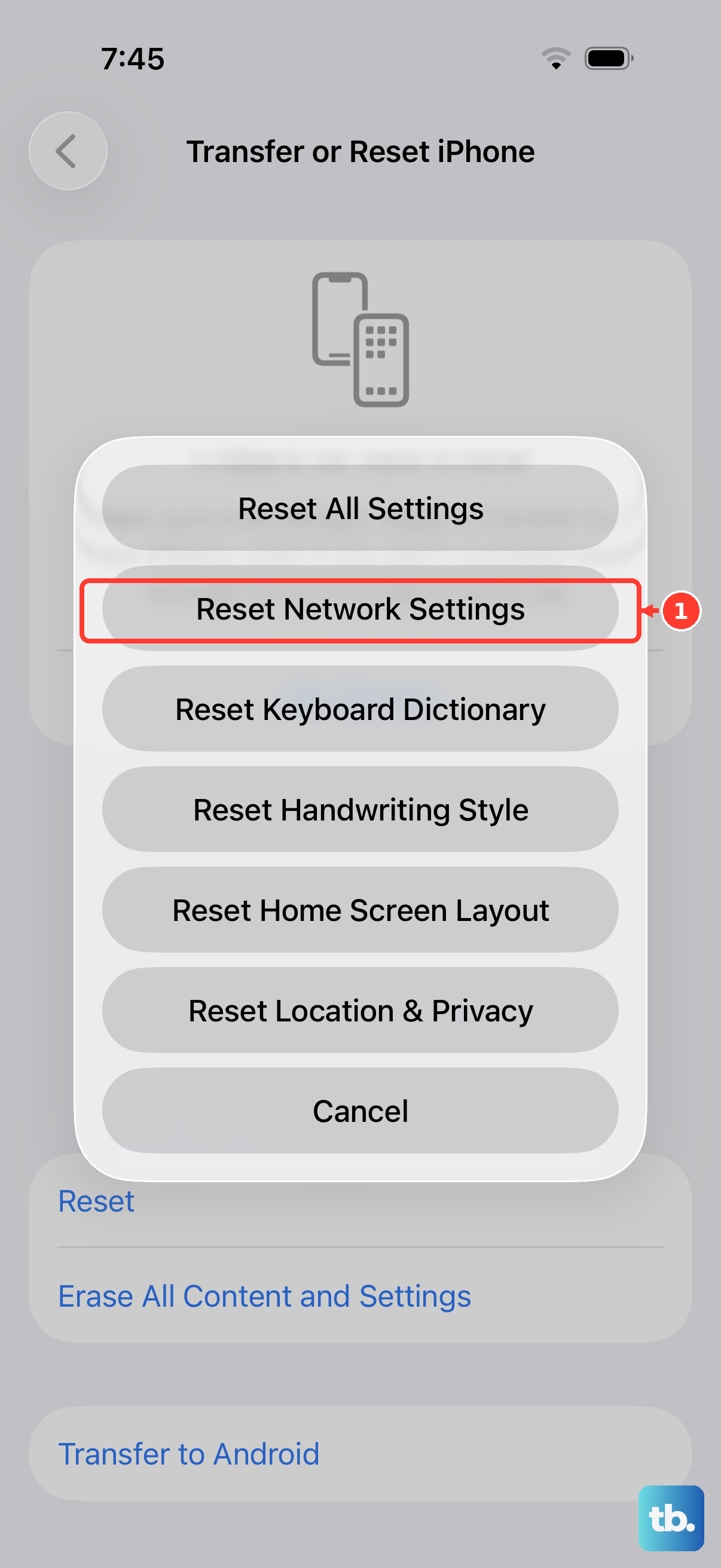
This is a bit more involved but can fix deeper connection issues that affect location services. Go to Settings > General > Transfer or Reset iPhone > Reset.
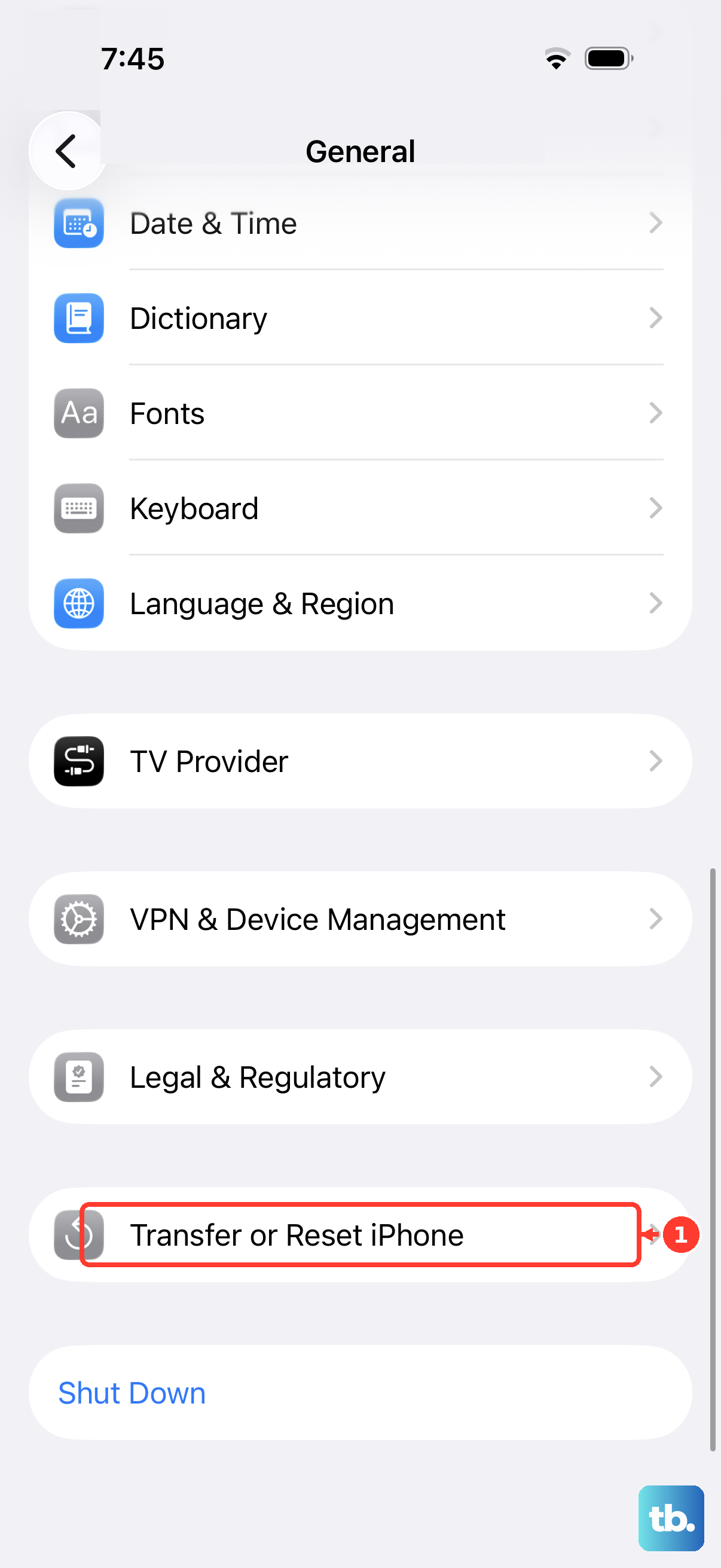
Tap "Reset Network Settings." You'll need to enter your passcode. This will erase all saved Wi-Fi networks and passwords, Bluetooth pairings, and VPN settings, so you'll have to reconnect to your Wi-Fi afterward.
Check for a Software Glitch with a Force Restart
If a normal restart didn't help, a force restart can clear more stubborn software hiccups. On the iPhone 16, quickly press and release the Volume Up button, then quickly press and release the Volume Down button.
Immediately after, press and hold the Side button. Keep holding it until you see the Apple logo appear, then let go. This doesn't erase any data, it just gives the system a harder reset.
Review Your Date & Time Settings
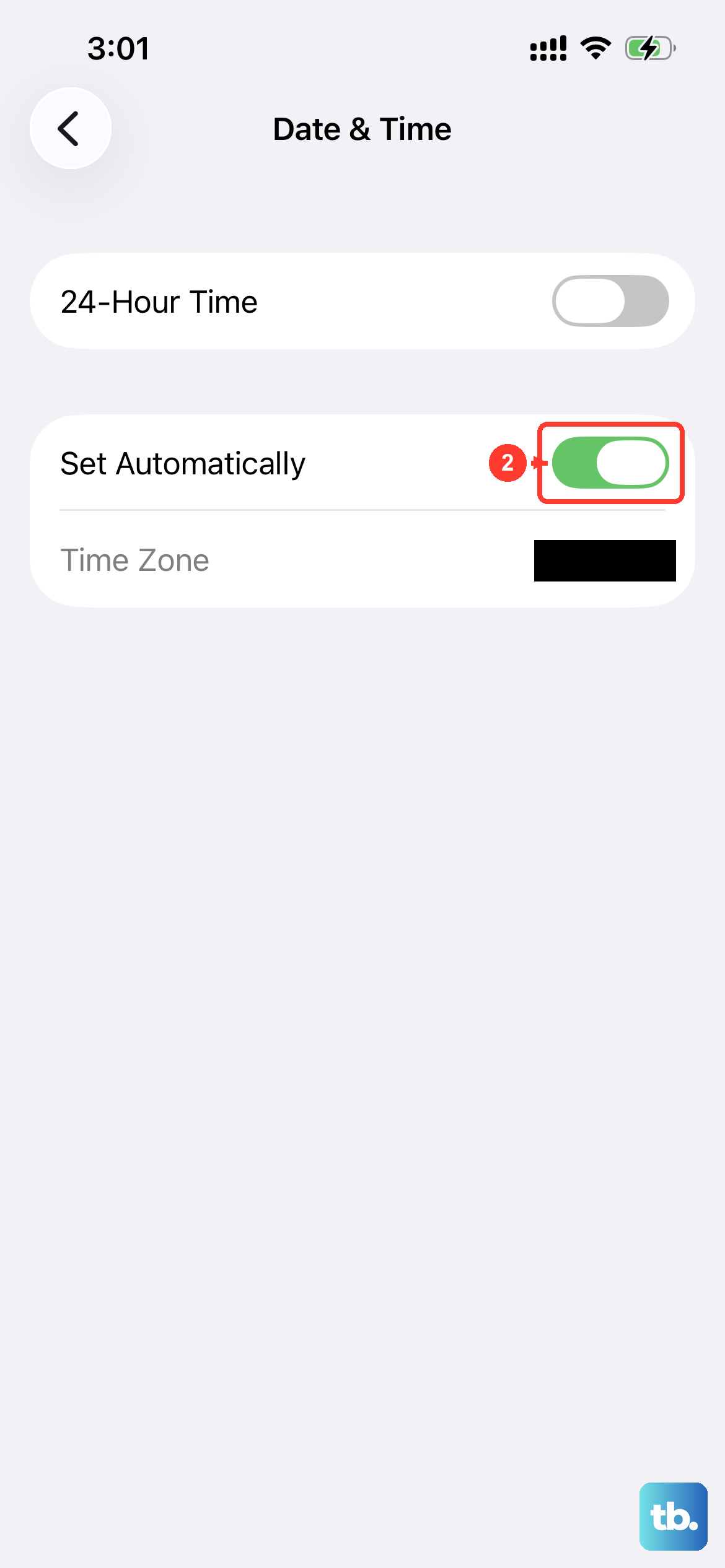
Your iPhone's GPS uses incredibly precise timing data from satellites. If your phone's own clock is wrong, it can throw everything off. Open Settings > General > Date & Time.
Make sure "Set Automatically" is turned on. This allows your iPhone to set the time based on your network and location, keeping everything in sync for accurate GPS calculations.
Test GPS in a Different App
To figure out if the problem is with one specific app or the system itself, try using a different navigation tool. If Google Maps is failing, try Apple Maps or a fitness app that uses GPS.
If all apps show the same wrong location or "Searching for GPS..." message, the issue is system-wide. If only one app is broken, the problem is likely with that app's data or settings.
Clear the App's Location Data
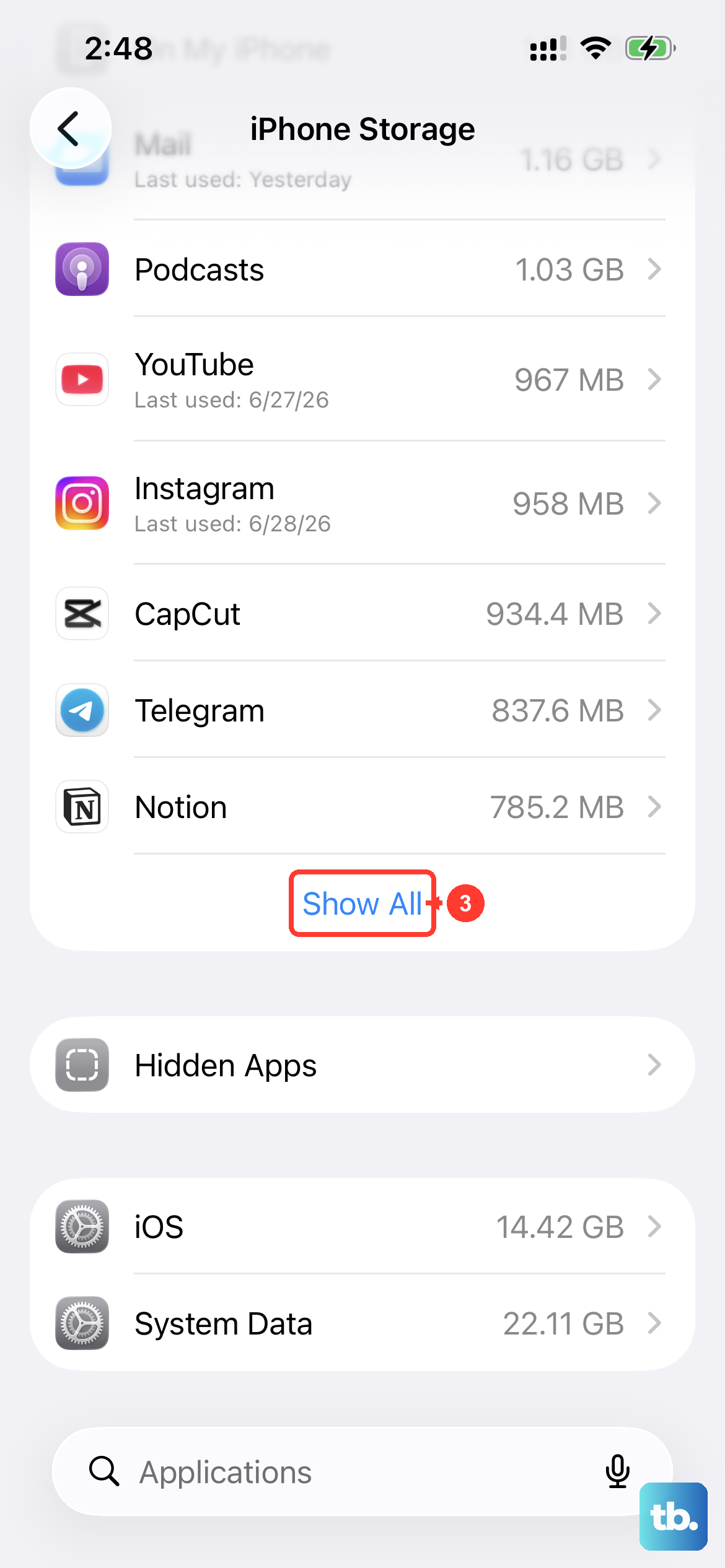
If a single app like Google Maps is the problem, its stored location data might be corrupted. You can reset this without deleting the whole app. Go to Settings > General > iPhone Storage.
Scroll down, find the app, and tap on it. You'll see an option for "Offload App" and "Delete App." Instead, try force-quitting the app first by swiping it away in the app switcher. If that doesn't work, you may need to delete and reinstall it to get a clean slate.
Consider Your Physical Environment
GPS signals are line-of-sight and can be blocked by physical objects. If you're indoors, in a dense urban area with tall buildings, or under heavy tree cover, your accuracy will suffer.
Try moving to an open area with a clear view of the sky. Also, some very thick or metal phone cases can interfere with the GPS antenna. Try removing your case briefly to see if your location lock improves.
Check for a System Issue in Safe Mode
While iOS doesn't have a traditional "Safe Mode," you can check for a problematic app by restarting your phone and not opening any third-party apps. After a restart, only use Apple's built-in Maps app.
If the GPS works perfectly in Apple Maps right after a restart, but fails later after you've used other apps, one of those third-party apps might be causing a conflict in the background.
If you've tried all these steps and your iPhone 16 still can't get a reliable GPS fix, the issue could be less common. Make sure you don't have a VPN active, as some can route location data through servers in other cities. Also, double-check that "Precise Location" is enabled for your navigation apps in the Location Services menu, as this gives them the most accurate GPS data available.