
A frozen iPhone 16 screen, stuck on an app or the lock screen, can be incredibly frustrating. The touchscreen becomes completely unresponsive, and even the buttons might seem dead. In almost every case, this is a temporary software hiccup that you can resolve yourself without losing any photos or messages.
Force Restart Your iPhone 16
This should be your first move. The button sequence for the iPhone 16 is quick and easy. Press and release the Volume Up button, then press and release the Volume Down button. Finally, press and hold the Side button and don't let go until you see the Apple logo appear on the screen. I'd hold it for a solid 20 seconds even if the screen stays black at first. This forces a clean reboot and fixes the vast majority of freezes.
Give It a Moment and Some Power
If your iPhone 16 feels warm, it might be working hard in the background on a task like processing photos or finishing an update. Let it sit for five or ten minutes before you try a force restart. It's also a good idea to plug it into a charger. A battery that's critically low can cause the system to become unresponsive, and it might just need a few minutes of charging to wake back up properly.
Close the Problem App
If the rest of your phone works but one app is frozen, you can force it to close. Swipe up from the very bottom of the screen and pause in the middle to bring up the App Switcher. Find the frozen app's preview and swipe it all the way up to close it. Reopen the app from your Home Screen. If the same app keeps freezing, check the App Store for an update or try deleting and reinstalling it.
Update to the Latest iOS
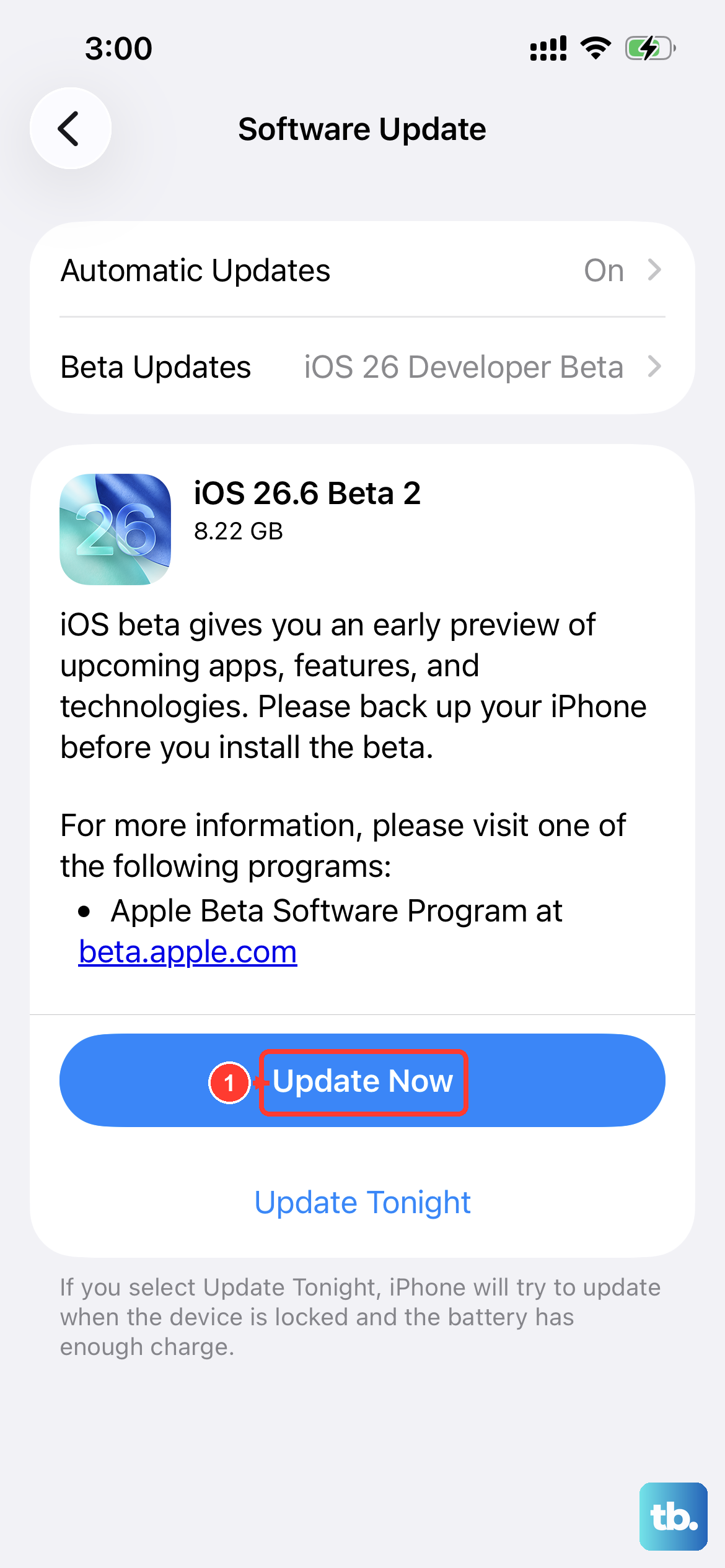
Software bugs in older versions of iOS 26 can definitely cause stability issues. Once your phone is responsive again, head to Settings > General > Software Update. Install any available update. If your phone freezes during the update process itself, you'll need to use a computer to update or restore it, which we'll cover in a moment.
Free Up iPhone Storage Space
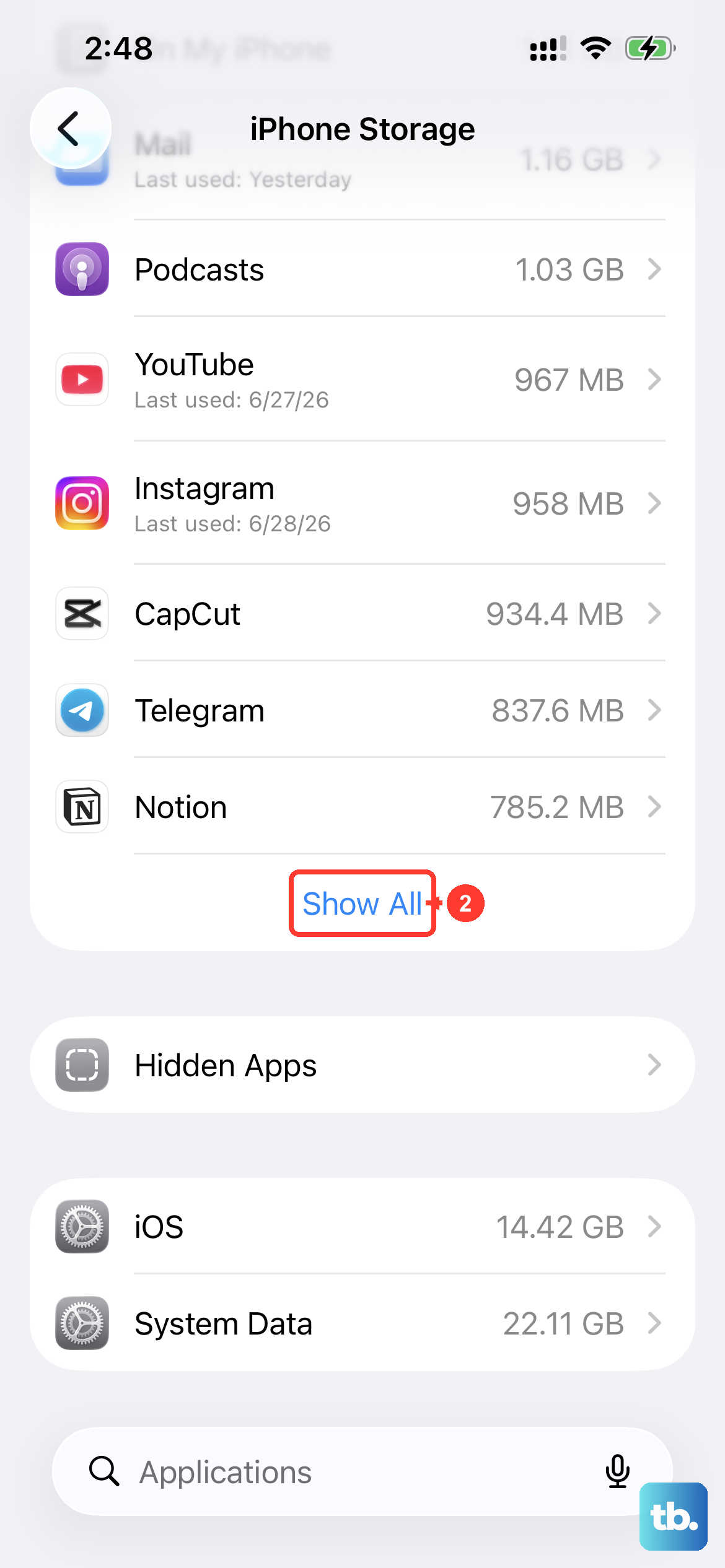
When your iPhone 16's storage is completely full, the system has no room to create temporary files it needs to operate, which can lead to freezing. Go to Settings > General > iPhone Storage to see what's taking up space. Offloading unused apps or clearing out old message threads and photos can free up the necessary room. Aim to keep at least 5GB free for smooth operation.
Reset All Settings
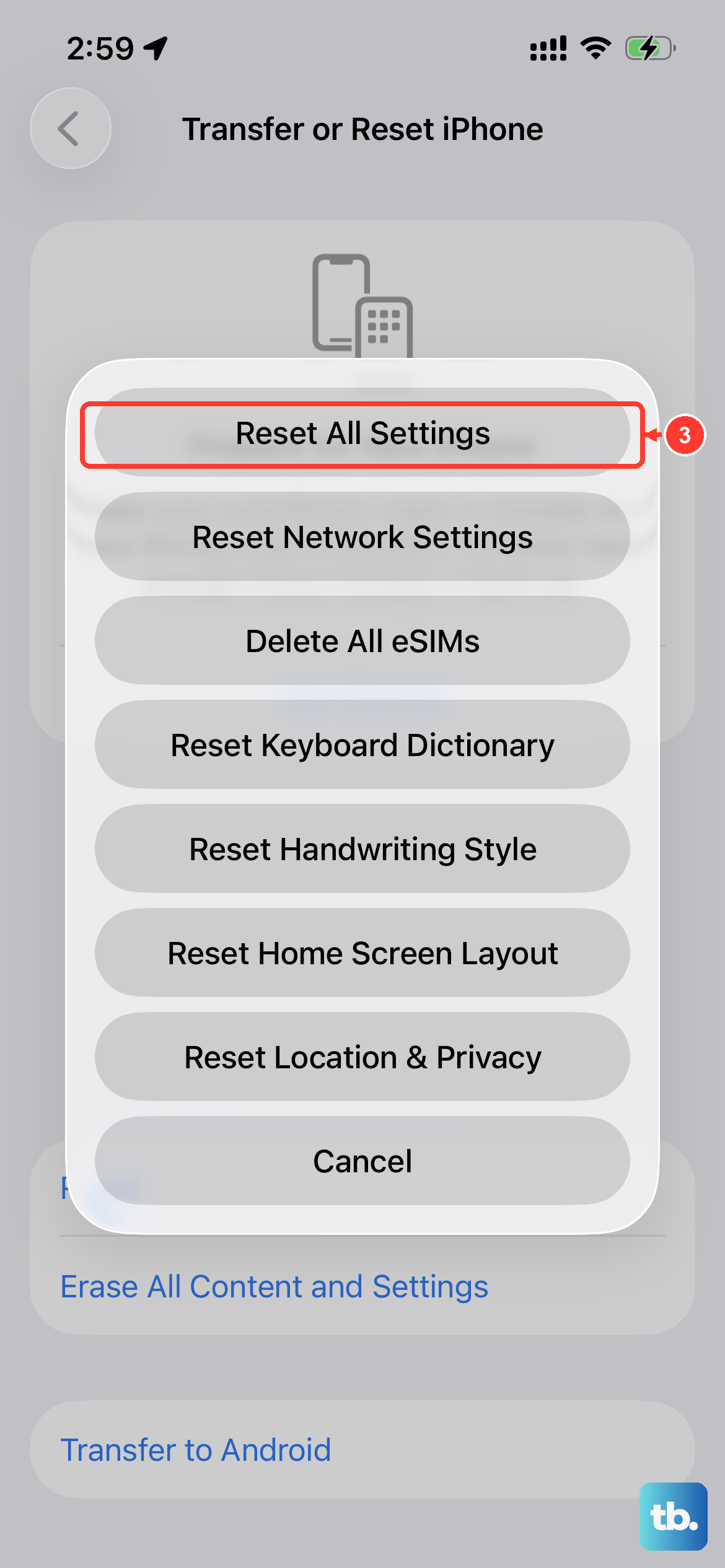
For recurring freezes that a simple restart doesn't solve, a settings reset can help. This won't erase your personal data like photos or contacts. Navigate to Settings > General > Transfer or Reset iPhone > Reset > Reset All Settings. This returns all your system preferences to their defaults, which can clear out any corrupted settings causing the instability.
Restore Using a Mac or PC
If the force restart does nothing and the screen remains black or stuck, you'll need to connect to a computer. Use a USB-C cable to connect your iPhone 16 to a Mac or PC. On a Mac with macOS Catalina or later, open Finder. On a PC or older Mac, open iTunes.
You'll need to put the phone into Recovery Mode. Quickly press and release the Volume Up button, then the Volume Down button, then immediately press and hold the Side button. Keep holding it until you see the recovery mode screen on your iPhone. In Finder or iTunes, choose Update first. This will reinstall iOS without erasing your data. If the update fails, you may need to choose Restore, which will erase the phone and install a fresh copy of iOS.
Let an Overheated Phone Cool Down
Your iPhone 16 is designed to throttle performance or even freeze if its internal temperature gets too high, as a safety measure. If the back of the phone feels hot, take it out of its case and move it away from direct sunlight. Let it cool down for at least 15-20 minutes before attempting to turn it on or charge it. Charging a hot phone will only make the overheating worse.
Check for Physical or Environmental Issues
While rare, a hardware problem can cause freezing. Consider if the phone has suffered any recent drops or liquid exposure. Also, if you're using a very thick case, especially with MagSafe accessories, try removing it. A poor connection or interference can sometimes cause system instability. I've seen alignment issues with third-party MagSafe cases cause odd behavior.











