
If your iPhone 16's battery is draining faster than it should, the first place to look is the built-in battery health tool. Head to Settings > Battery > Battery Health. This screen shows your battery's maximum capacity as a percentage.
Maximum Capacity shows how much charge your battery can hold compared with when it was new. Also check Peak Performance Capability for the message "Your battery is currently supporting normal peak performance." Review battery usage next to see what is using power.
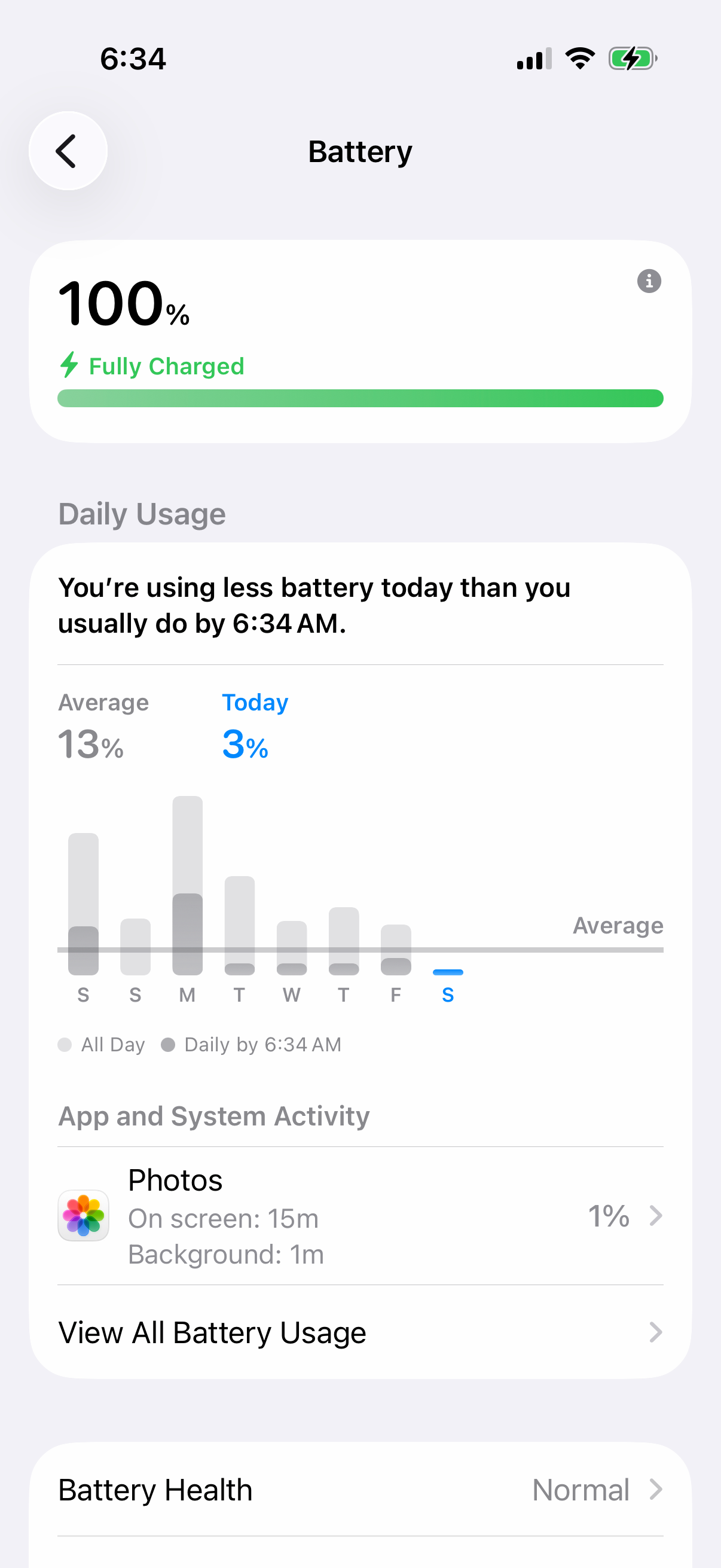
Tap back to the main Battery menu and check Daily Usage, which compares today's battery use with the last seven days. App and System Activity lists the apps using the most battery today. Tap View All Battery Usage to see the last eight days and check for Background Activity.
Update iOS and Your Apps
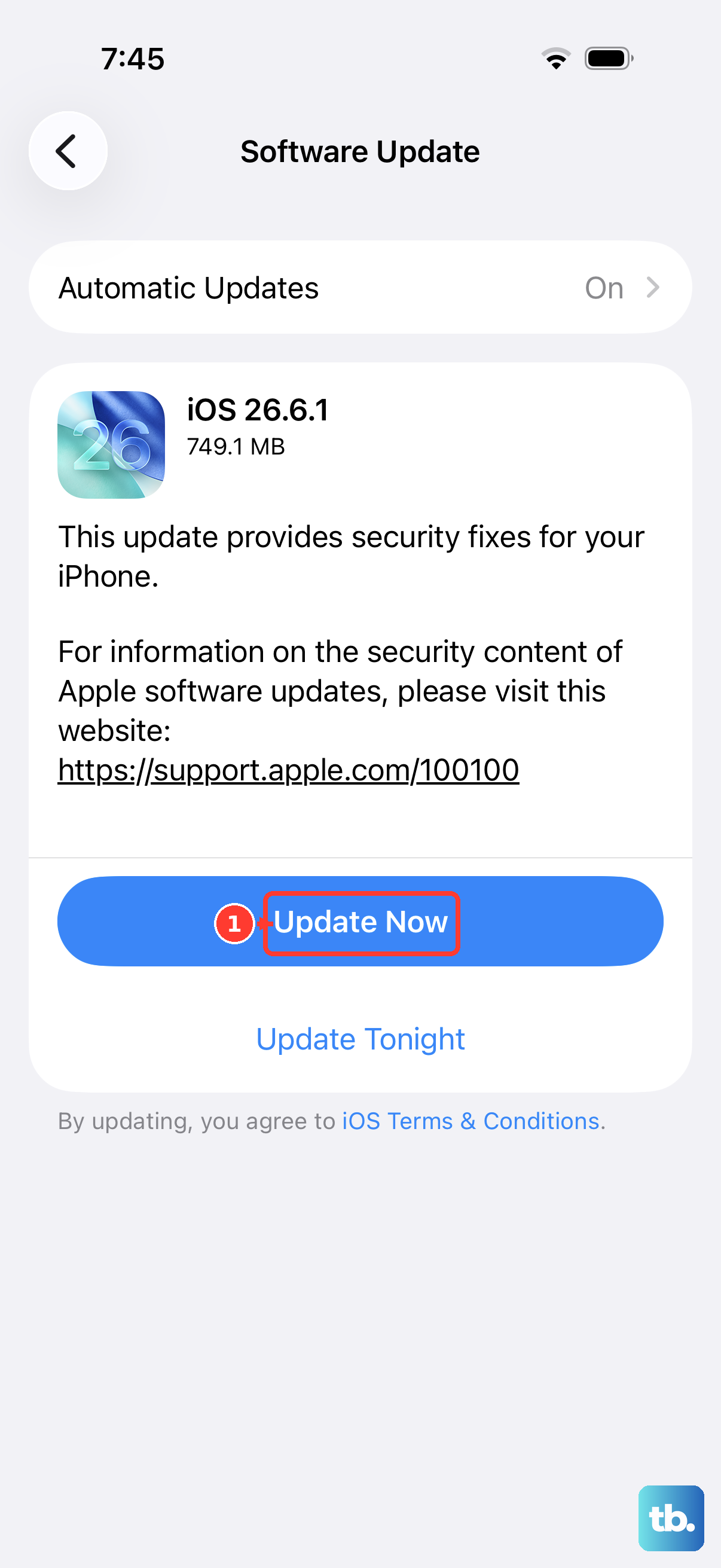
Start by checking for an update. Go to Settings > General > Software Update. If you're not on the latest version of iOS, tap Download and Install if an update is available. Back up your iPhone first, then connect it to power and Wi-Fi.
Next, check for app updates. Open the App Store, tap the My Account button (your photo) at the top, then tap App Updates and Update All. Outdated apps can have bugs that cause excessive battery use, so updating everything here is a good habit.
If battery life decreased after an iOS update, wait a few days and check again. Open Settings and tap Battery to look for Ongoing iOS Update, which means update tasks are still finishing in the background.
Manage Background Activity and Location
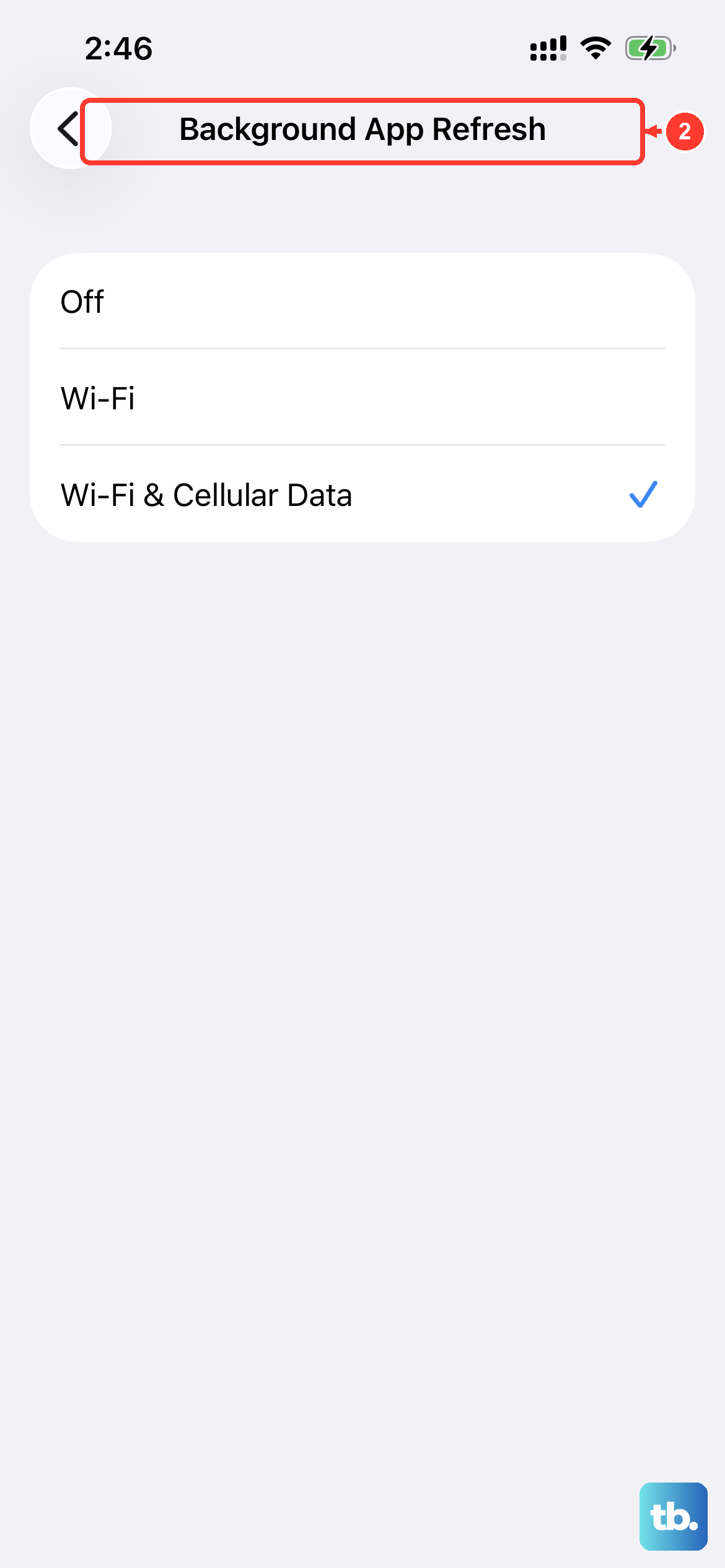
Your iPhone 16 is smart, but sometimes it works too hard when you don't need it to. A major culprit is Background App Refresh. Go to Settings > General > Background App Refresh.
You can turn this off entirely, set it to Wi-Fi only, or just disable it for specific apps like social media or games that don't need to update in the background. This reduces background refresh activity when you're not actively using them.
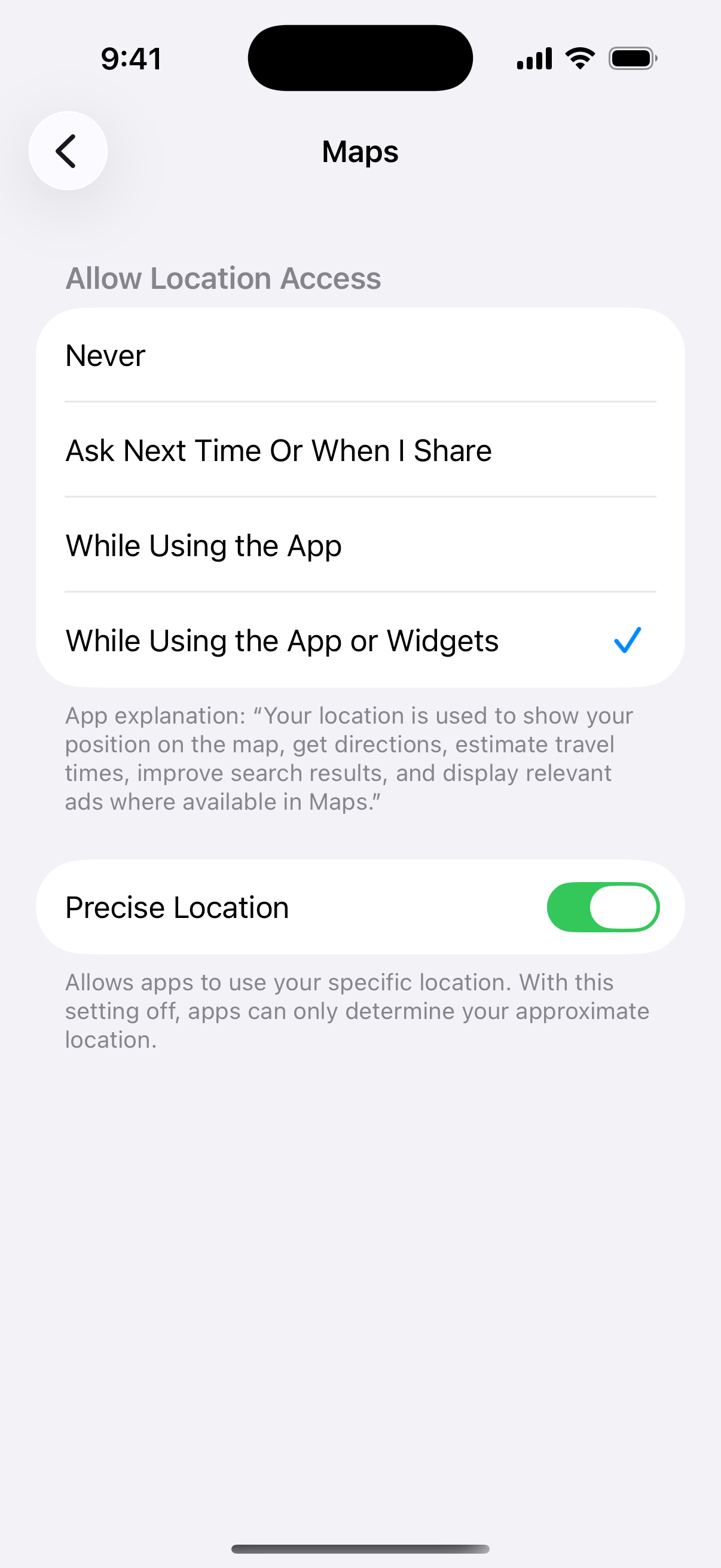
Location Services are another big drain. Navigate to Settings > Privacy & Security > Location Services. Review the list and set apps to "While Using" or "Never" instead of "Always" unless it's absolutely necessary, like for a maps app.
Also, check the System Services at the bottom of that list. You can often turn off things like "iPhone Analytics" and "Location-Based Apple Ads" without affecting how your phone works.
Optimize Display and Motion Settings
High screen brightness uses a lot of battery power. A quick win is to reduce the Auto-Lock time. Go to Settings > Display & Brightness > Auto-Lock and set it to 30 seconds or 1 minute.
If you have an iPhone 16 Pro with the ProMotion display, consider limiting the display to 60 frames per second. You can find this in Settings > Accessibility > Motion > Limit Frame Rate.
Also in the Motion settings, turning on Reduce Motion minimizes background animations and can save a little power. Using Dark Mode full-time, especially on the OLED screens, makes a noticeable difference at higher brightness levels too.
Review Connectivity Features
Review the features you use. If you don't use "Hey Siri" often, you can turn off voice activation in Settings > Siri > Requests.
Think about your wireless connections. If you're in an area with poor cellular signal, your phone works harder to maintain a connection, which drains the battery faster. Switching to Wi-Fi or even enabling Airplane Mode in those situations can help.
For email, change how often it fetches new messages. Go to Settings > Apps > Mail and tap Fetch New Data. If you don't see it there, look under Mail Accounts. Turning Push off and setting Fetch to "Hourly" or "Manually" prevents constant background checks.
Check for a Software Glitch
If battery drain seems random, try a force restart. On the iPhone 16, you press and quickly release the Volume Up button, press and quickly release the Volume Down button, then press and hold the Side button until you see the Apple logo appear.
This doesn't erase any data. It's a good step when the drain isn't tied to a specific app you can identify.
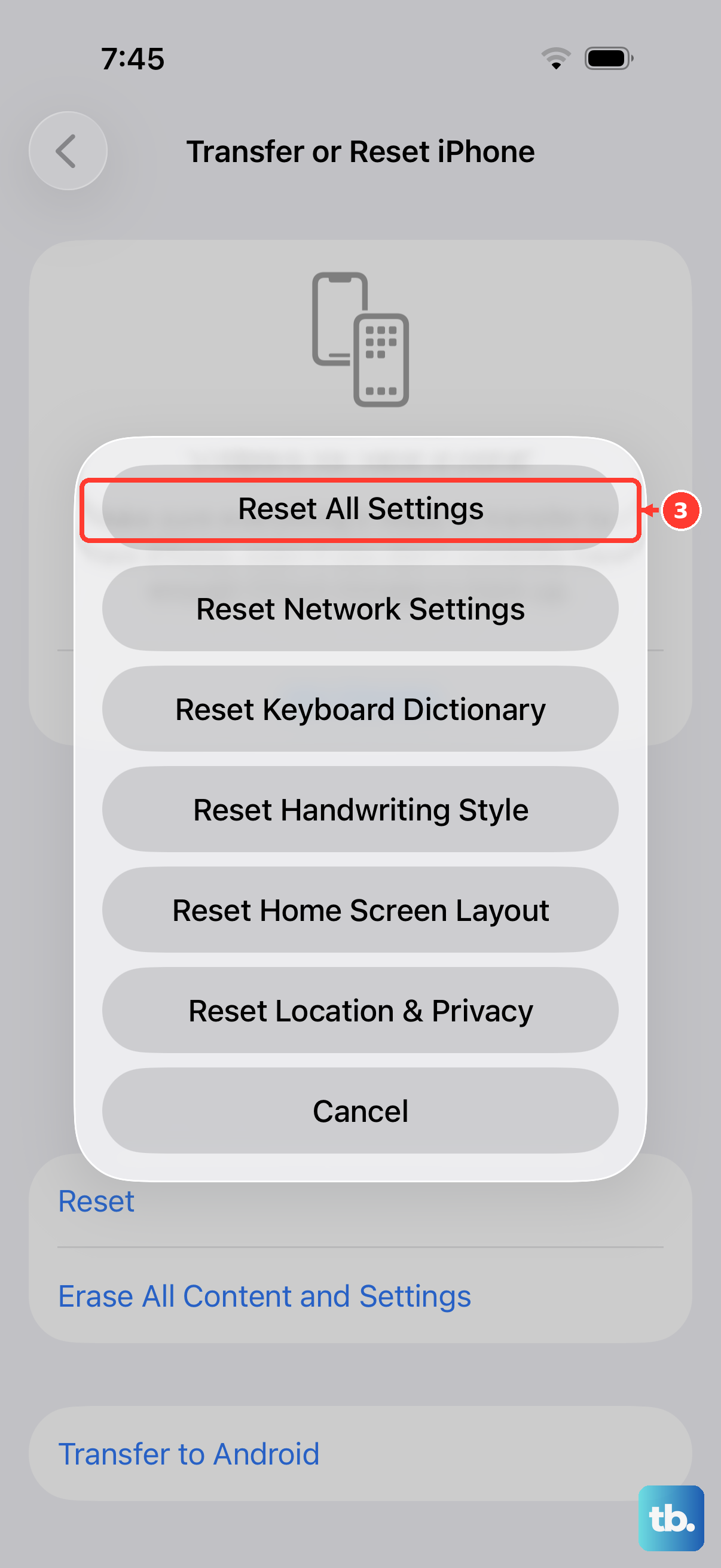
If the problem persists and you can't pinpoint an app, a more thorough step is to reset all settings. Go to Settings > General > Transfer or Reset iPhone > Reset and choose "Reset All Settings."
This resets settings including Wi-Fi connections, wallpaper, and display settings, but it won't touch your photos, messages, or apps. It also removes Apple Pay cards and pairings. Afterward, rejoin Wi-Fi, re-pair Bluetooth devices and Apple Watch, and set up Face ID again.
Enable Low Power Mode and Charging Limits
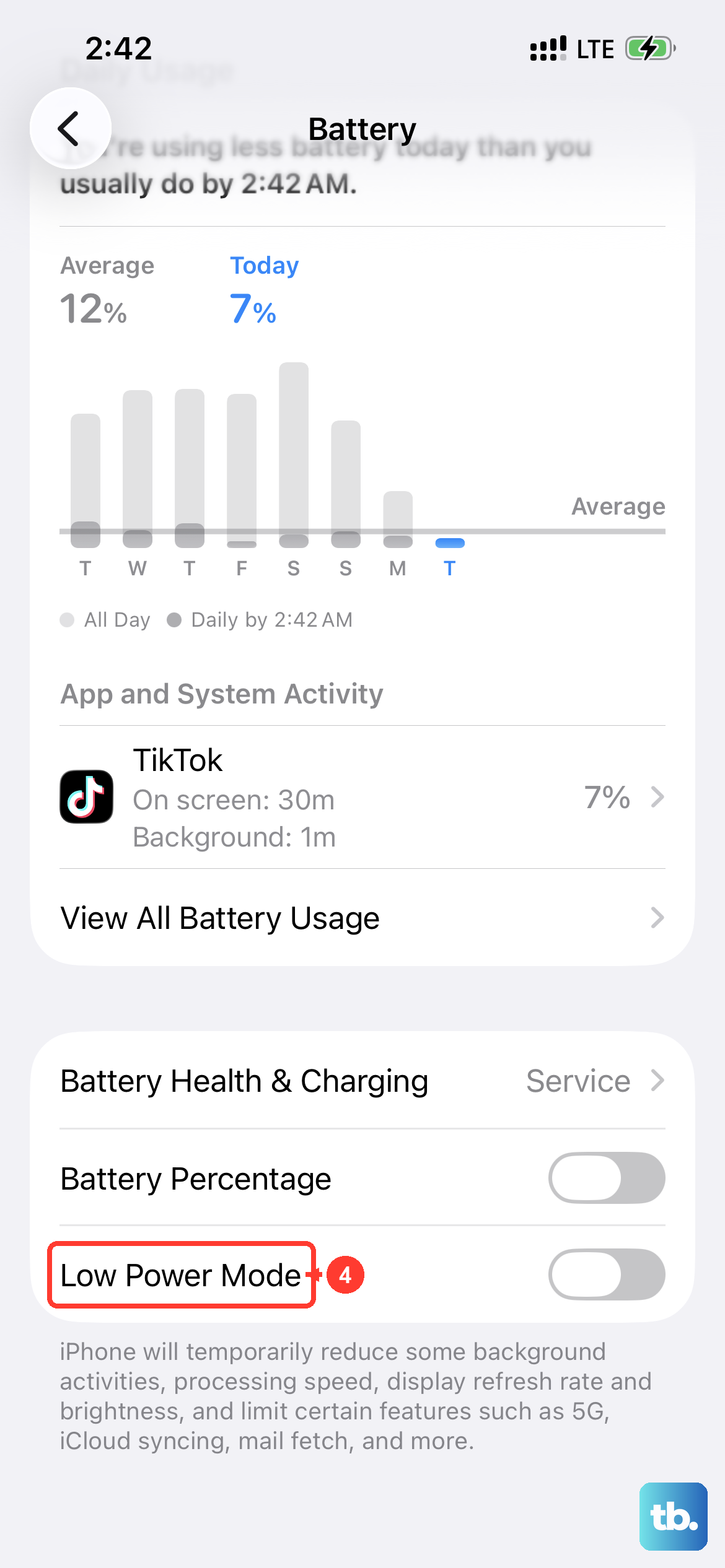
When you know you'll be away from a charger for a long time, Low Power Mode is your best friend. You can turn it on manually in Settings > Battery > Power Mode, or use the battery icon in Control Center. It temporarily reduces background activity and visual effects.
For long-term battery health, look at the charging optimization settings. In Settings > Battery > Charging, you can choose a charge limit from 80% to 100% in 5% steps. A lower limit reduces the charge available between top-ups, so choose one that suits your daily use.
If your phone stops charging at 80%, check your charge limit. You can select 100% if you need a full charge; Optimized Battery Charging is available with that limit. Using a MagSafe charger? Just make sure you align the magnets properly, as a misalignment can cause inefficient charging and heat.