
When your iPhone 16 apps keep closing unexpectedly, it usually means the app has run into a problem it can't handle. This can be a temporary software hiccup or something that needs a bit more attention. The quickest thing to try is a simple restart of your phone, which clears out the phone's memory and stops any misbehaving background processes.
To restart your iPhone 16, press and hold the side button along with either volume button, then slide the power off slider. Wait about 30 seconds, then press and hold the side button again until you see the Apple logo. If the app is still crashing after that, you'll want to move on to some more specific fixes.
Update the Problem App
App developers release updates all the time to squash bugs and improve compatibility, especially with a new iOS like version 26. An outdated app is a very common reason for sudden crashes. Open the App Store and tap your profile icon in the top right corner.
Scroll down to see if there are any pending updates. If the app that's crashing is listed, tap "Update" next to it. If you see "Open" instead, the app is already on the latest version available from the developer.
Check for an iOS Update
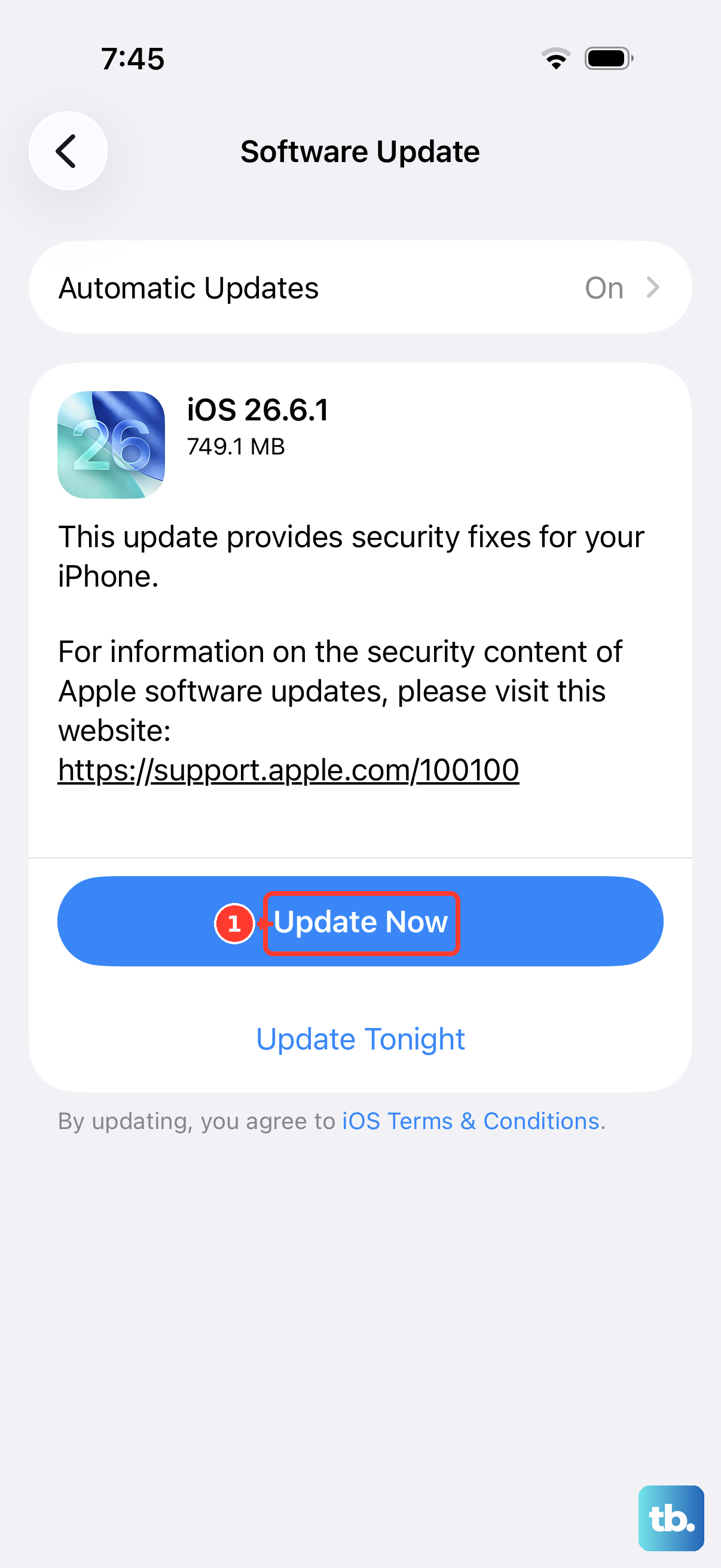
Sometimes, the issue isn't with the app itself but with the operating system. Apple frequently releases iOS updates that include important stability patches. It's a good idea to make sure your iPhone 16 is running the latest version of iOS 26.
Go to Settings > General > Software Update. Your phone will check for any available updates. If one is there, I'd recommend installing it, as it often resolves widespread app compatibility issues that pop up.
Force Quit and Reopen the App
If an app is frozen or acting up, force quitting it gives it a completely fresh start. This is different from just switching away from it. Swipe up from the bottom of the screen and pause in the middle to enter the app switcher.
Find the app's preview window and swipe it all the way up and off the top of the screen. This closes it entirely. Wait a moment, then tap the app's icon on your Home Screen to relaunch it. This clears the app from your phone's active memory.
Offload and Reinstall the App
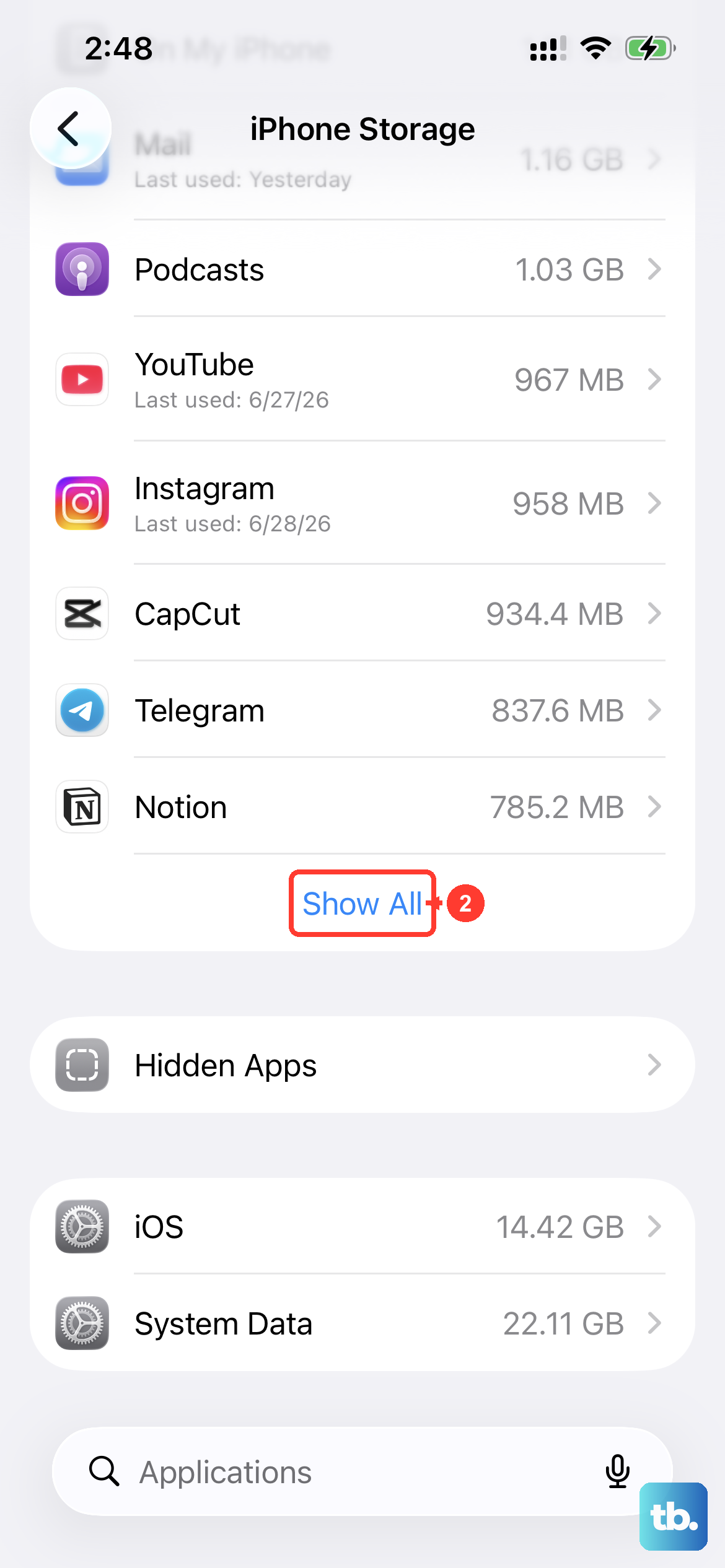
This is a handy feature that removes the app but keeps all its documents and data on your phone. It's a great middle step before a full delete. Go to Settings > General > iPhone Storage.
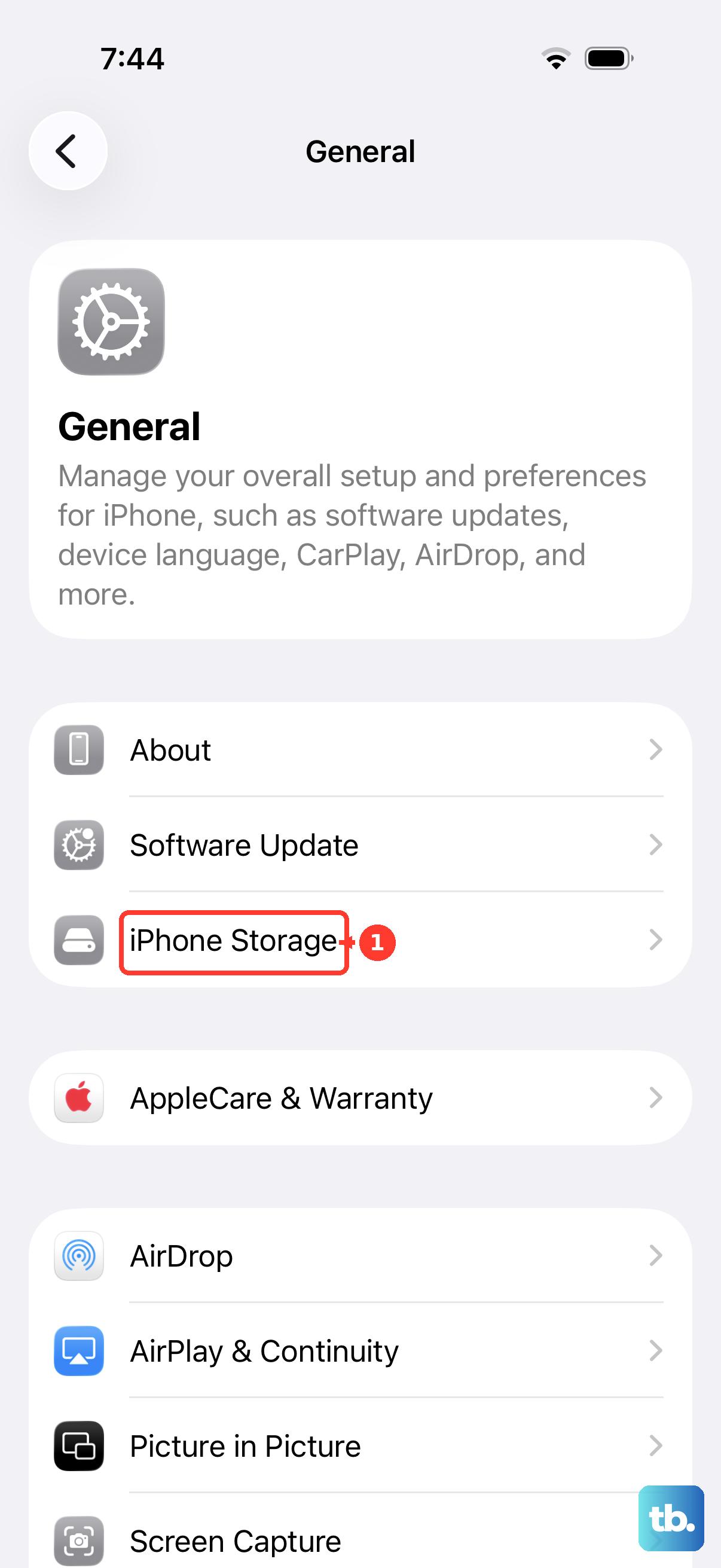
Find the problematic app in the list and tap on it. You'll see an option for "Offload App." Tap that, then confirm. The app icon will turn gray with a cloud symbol. Tap the icon to re-download it from the App Store, which reinstalls a fresh copy while keeping your data.
Check Your Available Storage
Your iPhone 16 needs free space to operate smoothly. When storage is critically low, apps can crash because they can't create the temporary files they need to run. Head back to Settings > General > iPhone Storage.
Look at the top of the screen to see how much space you have left. If you're below 1GB, that's likely contributing to the problem. You can review the recommendations here to delete unused apps, clear message attachments, or enable iCloud Photos to free up space quickly.
Reset All Settings
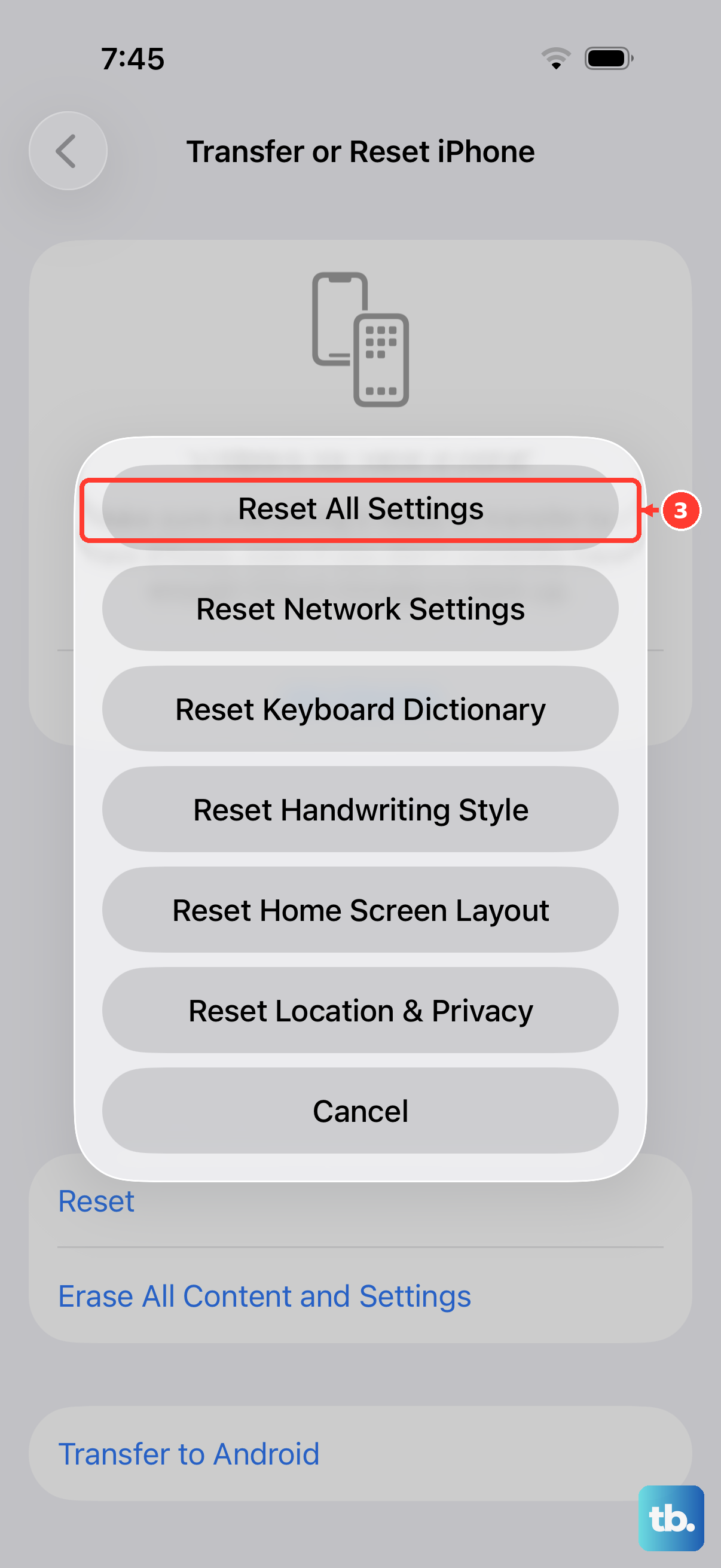
This is a more involved step, but it won't delete your personal data like photos or messages. It resets all your system settings, like Wi-Fi passwords, wallpaper, and privacy permissions, back to their defaults. This can fix crashes caused by a corrupted system preference.
Go to Settings > General > Transfer or Reset iPhone. Tap "Reset" and then choose "Reset All Settings." You'll need to enter your passcode. After the phone restarts, you'll have to reconnect to Wi-Fi and re-customize some settings, but your apps and data will be intact.