
So your iPhone 15 won't charge. You plug it in and nothing happens, or maybe it just sits stubbornly at 80%. The iPhone 15 uses USB-C instead of Lightning, so checking the cable and power adapter is a useful starting point. Many charging problems can be resolved at home, though some need service.
Whether you're dealing with a dead battery, a confusing software setting, or a port full of pocket lint, try the following checks. Test charging again after each step to see whether the problem is resolved.
Force Restart Your iPhone 15
Start by checking your cable, adapter, and outlet, then let your iPhone charge for half an hour. If it still won't power on or only shows a battery icon, try a force restart. Keep it connected to the charger during this check.
For the iPhone 15, the process is quick. Press and quickly release the Volume Up button, then press and quickly release the Volume Down button. Finally, press and hold the Side button until you see the Apple logo appear on the screen.
After the force restart, let your iPhone charge for another half hour. If it still won't power on or charge, it might need service.
Clean the USB-C Charging Port Thoroughly
Lint, dust, and debris from your pockets or bag can collect in the USB-C port. Over time, this buildup can prevent your cable from making a proper connection. Check the port if the cable won't fit firmly or charging is intermittent.
First, power off your iPhone. Grab a bright light and look directly into the USB-C port. If you see lint packed in the bottom, it may be preventing a firm cable connection.
Use a soft, dry brush to gently remove loose debris from the port. Avoid scraping inside with a toothpick, flosser pick, or metal tool. Don't use compressed air, and keep moisture out of the opening. Then firmly reconnect your charging cable.
Check Your Cable and Power Source
Since the iPhone 15 uses USB-C, you can use compatible cables from Apple or other manufacturers. But not all cables are created equal. Start by trying a different cable that complies with the USB-C standard, and don't use cables or adapters with visible damage.
Also, test a different wall adapter and a different power outlet. Plug directly into a wall socket instead of a power strip. If you have a thick case, especially a MagSafe case with a magnet ring, try removing it as it can sometimes interfere with a proper cable connection.
If your phone charges with a different setup, the original cable, adapter, or outlet may be the problem. Replace any damaged cable or adapter.
Verify the 80% Charge Limit Setting
The iPhone 15 lets you choose a charge limit from 80% to 100% in 5% steps. If your phone stops charging at 80%, check this setting. Optimized Battery Charging or a battery that's too warm can also pause charging above 80%.
Go to Settings > Battery > Charging. Check your charge limit. If it's set to 80%, your phone is working as intended when it stops charging around that level to help reduce battery wear.
Choose 100% if you need a full battery for a long day. Optimized Battery Charging is available when the limit is 100%, so charging may still pause at 80% until closer to when you normally use your phone.
Wait for a Completely Drained Battery
If your iPhone 15's battery is fully depleted, it won't show any sign of life immediately when you plug it in. This is normal behavior. Connect it to a wall charger using a good cable and adapter, then leave it alone for at least 30 minutes.
A dedicated wall charger may charge faster than a computer USB port. After half an hour, if your phone still won't power on or only shows a battery icon, try a force restart while it remains plugged in. Then let it charge for another half hour.
Test with MagSafe or Qi2 Wireless Charging
Your iPhone 15 supports both MagSafe and the newer Qi2 standard for wireless charging. If wired charging isn't working, try placing it on a wireless charger. This helps diagnose whether the problem is the USB-C port or something else.
For the best results with MagSafe, make sure the charger's magnets snap into alignment. The iPhone 15 supports MagSafe and Qi2 charging at up to 15W. To get up to 15W with a MagSafe Charger, use a 20W or higher USB-C power adapter. Disconnect wired accessories for faster wireless charging, and limit gaming or video streaming while it charges.
If your phone gets too warm, it may slow down or pause charging to protect the battery. Move your iPhone and charger to a cooler place. If wireless charging works but wired charging doesn't, check the cable, adapter, and port before arranging service.
Update to the Latest Version of iOS
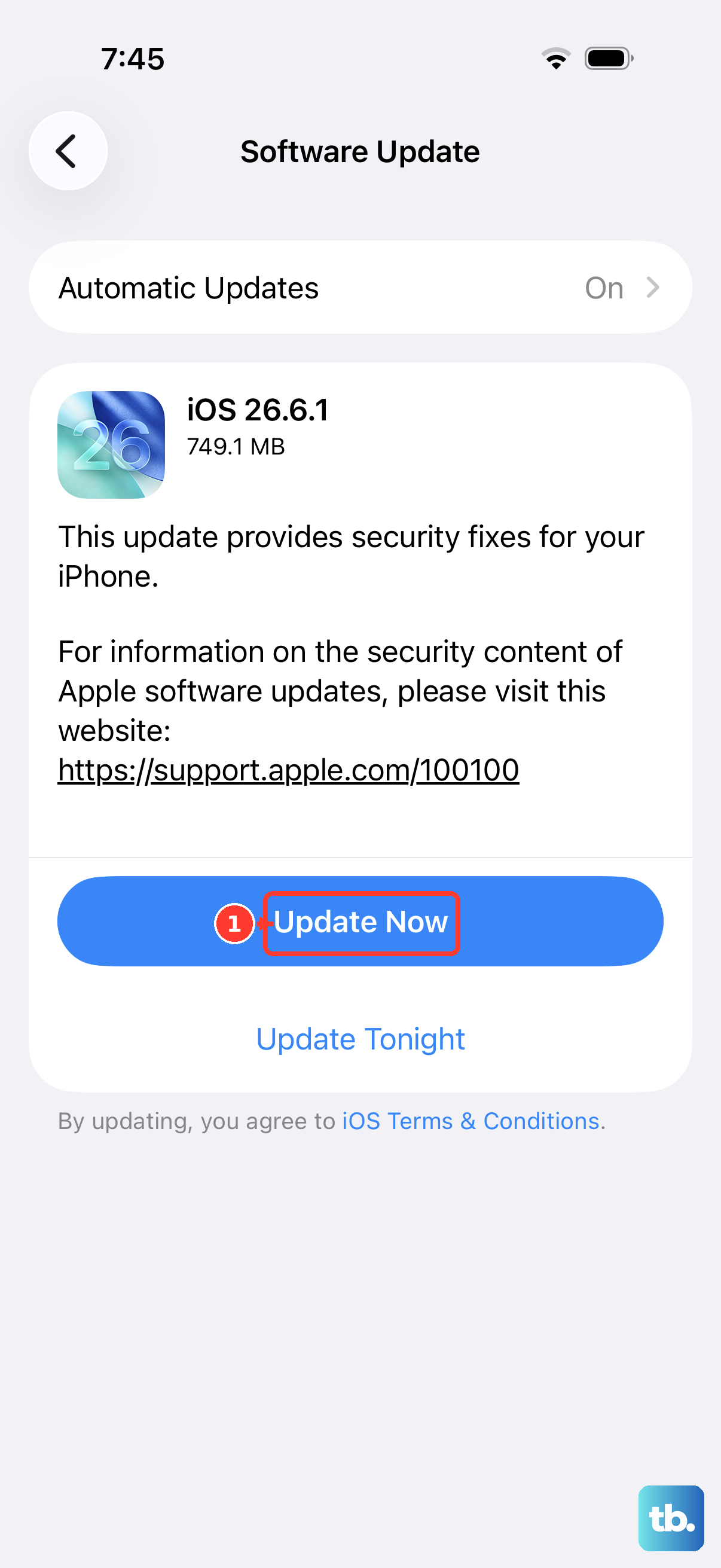
Apple frequently releases iOS updates that fix bugs, including ones related to power management and charging. If you're running an older version of iOS, updating could resolve your issue.
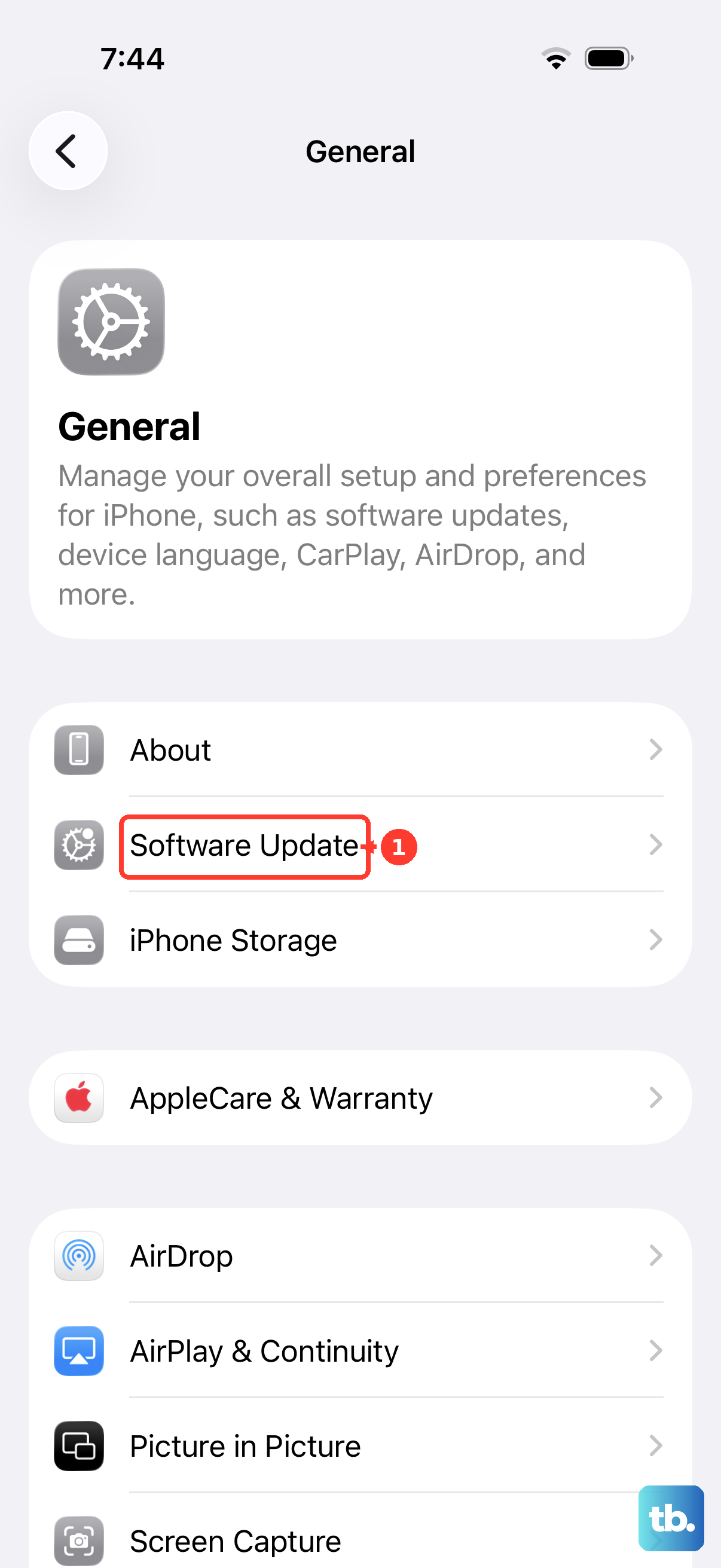
Go to Settings > General > Software Update. If an update is available, tap Download and Install. Back up your phone first, then keep it connected to power and Wi-Fi during the process.
If your iPhone turns on but won't install an update, try updating via a computer. Connect it to a Mac or PC with a USB-C cable and use Finder on a current Mac, or the Apple Devices app or iTunes on Windows, to check for updates.
Charge with the Phone Powered Off
Using demanding apps while charging can reduce charging speed. Stop gaming or streaming video, and lock the screen while your iPhone charges. If you want to turn your iPhone 15 completely off, press and hold the Side and Volume Up buttons, then slide to power down.
Plug in your charger and leave the phone unused while it charges. If charging is on hold because the phone is too hot or cold, move it to a cooler or warmer place as needed. Charging resumes when the battery returns to its normal temperature range.
Restore Your iPhone Using a Computer
If your iPhone still won't power on or charge after these checks, it may need service. Recovery mode is an option if it stays on the Apple logo, isn't recognized by your computer, or shows the "Connect to computer" screen. A restore erases all data, so make sure you have a recent backup.
Connect your iPhone 15 to a computer and open Finder (on Mac) or the Apple Devices app (on PC). Put the phone into Recovery Mode by pressing and quickly releasing the Volume Up button, then pressing and quickly releasing the Volume Down button, then pressing and holding the Side button until the "Connect to computer" screen appears.
On your computer, choose "Update" first if you haven't tried it. If you need to choose "Restore", it reinstalls iOS and erases your data. After it finishes, set up your phone and test charging again. If recovery mode can't update or restore it, or charging still fails, arrange service.