
Seeing "No Service" or "Searching..." in the corner of your iPhone 15 is a real headache. It cuts you off from calls, texts, and mobile data, and it can happen for a bunch of reasons. The good news is a few simple checks can help you get connected again.
Start with a simple restart of your iPhone 15. Press and hold the side button and either volume button, slide to power off, wait 30 seconds, then press the side button again to turn it back on. After it restarts, check whether cellular service returns.
Check Your Physical SIM or eSIM Status
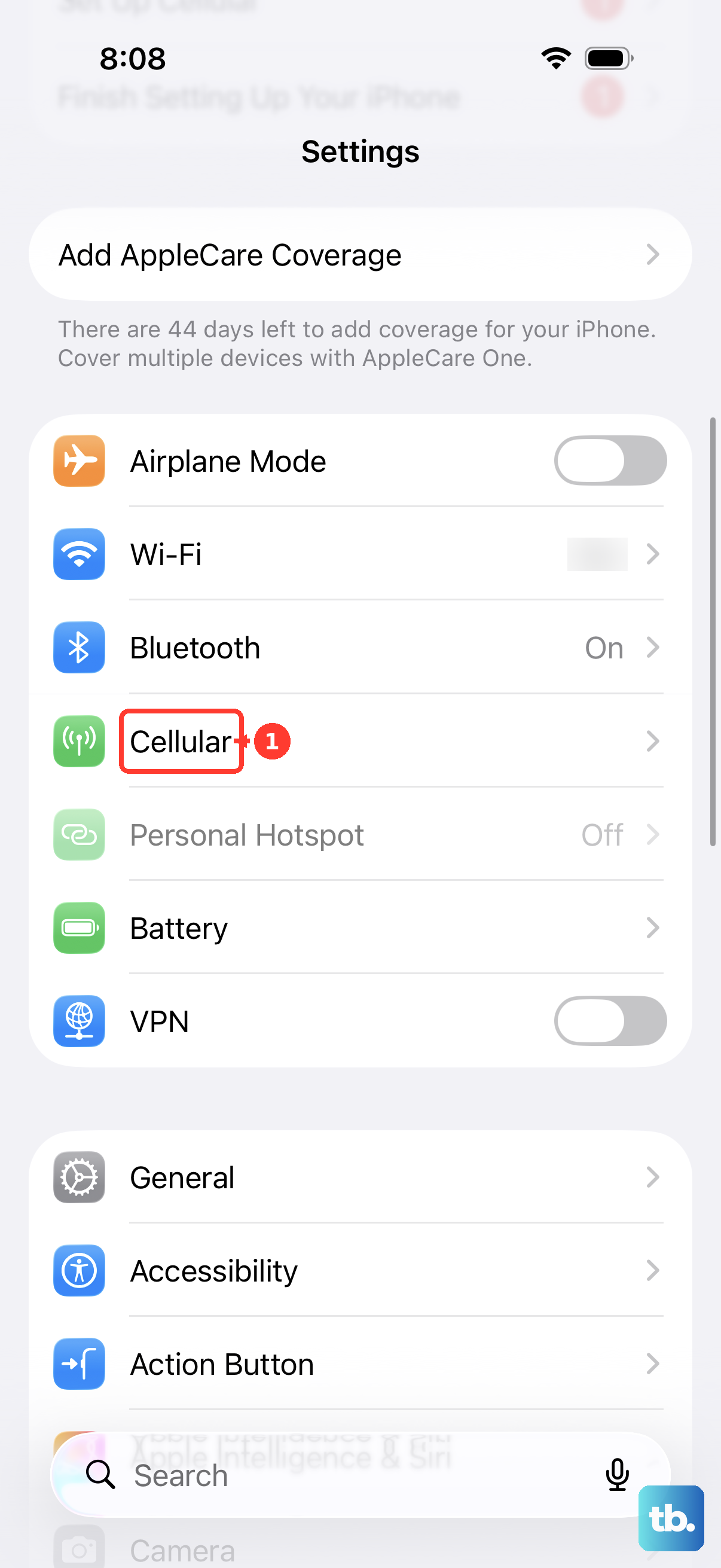
If your iPhone 15 has a SIM tray, pop it open on the left side with the ejector tool. Models purchased in the U.S. use eSIM instead. Take the SIM out, give the gold contacts a gentle wipe with a soft cloth, and reseat it firmly. For an eSIM, go into Settings > Cellular, tap your line, and tap Turn On This Line if it's off. If your line isn't listed, contact your carrier to set up your eSIM.
It's also worth checking if your cellular plan is active. A quick call to your carrier can confirm there's no outage in your area or an issue with your account. Ask them to check that your device isn't blocked from cellular service and has the right data plan.
Toggle Airplane Mode and Cellular Data
This is the digital equivalent of taking a deep breath for your phone. Swipe down from the top-right corner to open Control Center and tap the airplane icon to turn Airplane Mode on. Wait at least 15 seconds, then tap it again to turn it off. This may help your iPhone reconnect if your cellular network is available.
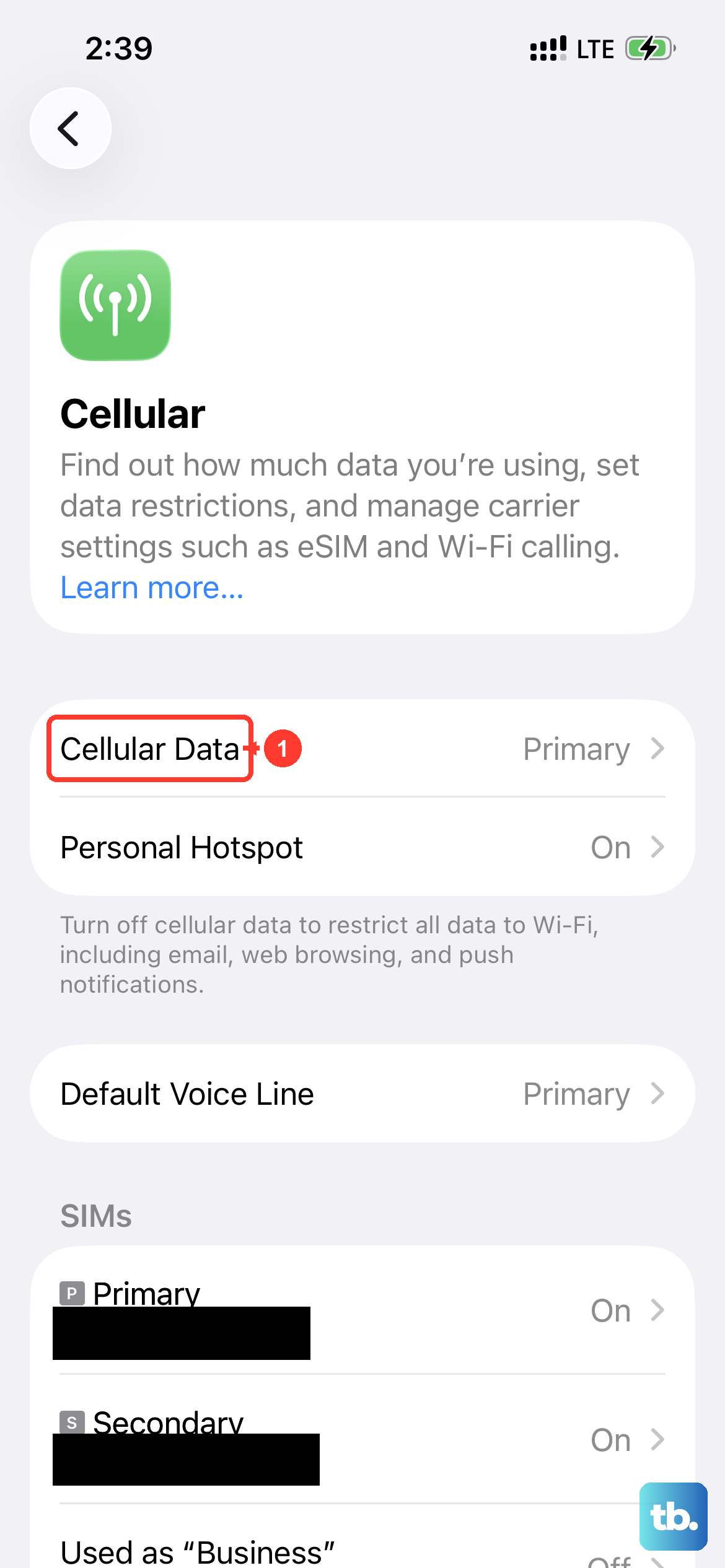
While you're in Control Center, also make sure the cellular data icon is green. If it's not, tap it to enable mobile data. You can also go to Settings > Cellular and ensure Cellular Data is switched on.
Update Your Carrier Settings and iOS
Apple and your carrier periodically release small updates that improve network connectivity. To check for a carrier settings update, connect to Wi-Fi and go to Settings > General > About. If an update is available, follow the prompt to install it.
Next, check for a full iOS update. Head to Settings > General > Software Update. Installing the latest version of iOS can resolve bugs that might be causing your signal problems. Make sure your phone is connected to Wi-Fi and has enough battery before you start the update.
Reset Your Network Settings
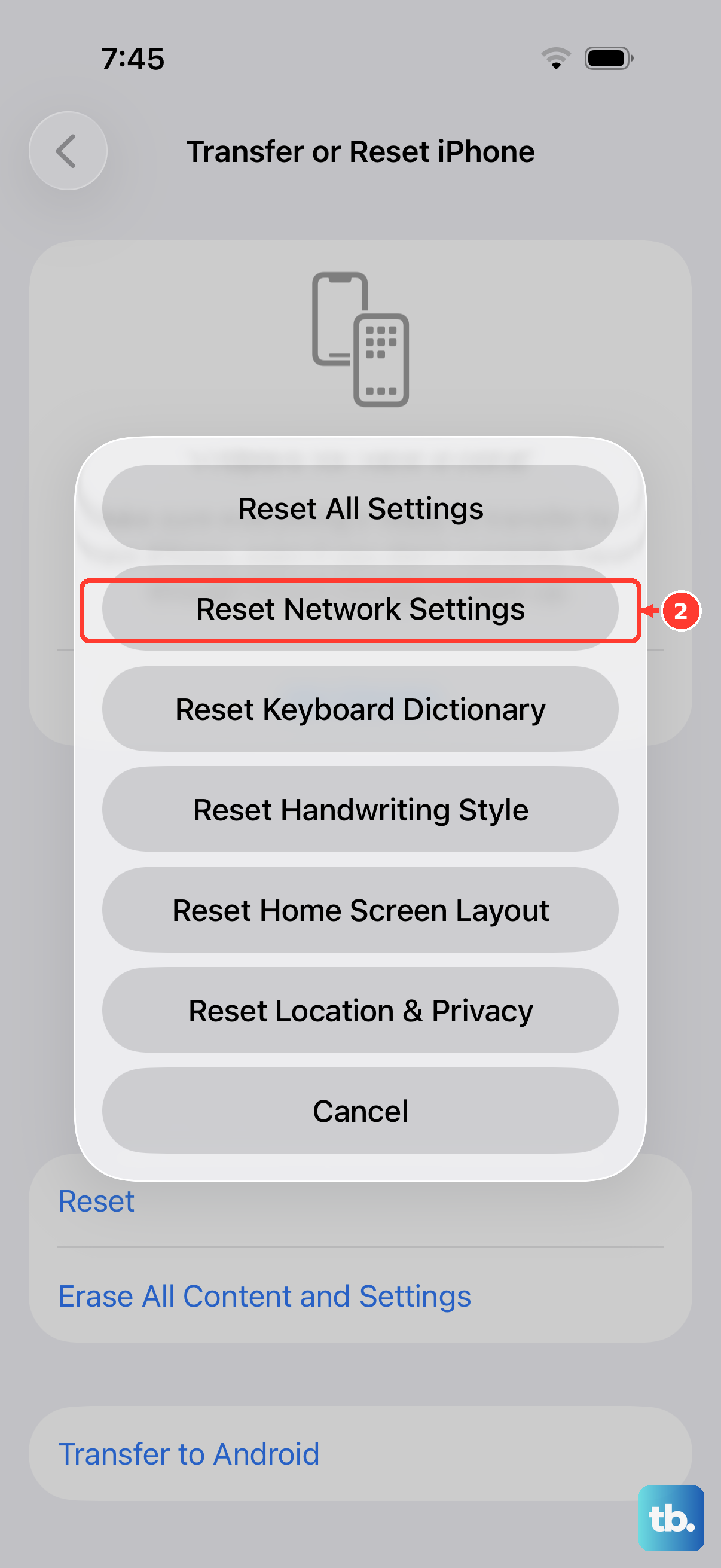
Use this stronger step only if the other fixes fail. It will erase saved Wi-Fi networks and passwords, cellular settings, and VPN and APN settings, but it won't touch your personal data like photos or messages.
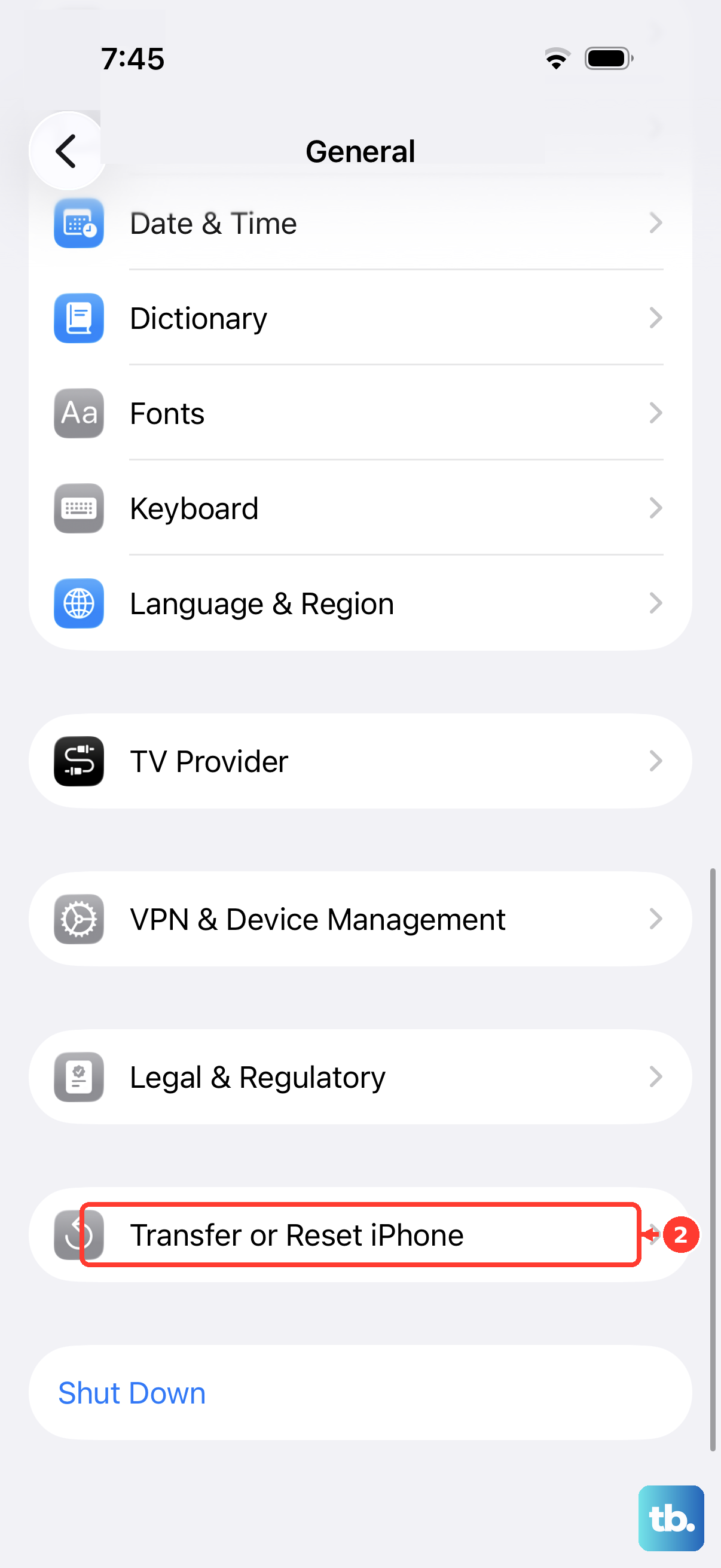
To do it, open Settings > General > Transfer or Reset iPhone. Tap Reset and then choose Reset Network Settings. Enter your passcode when asked and confirm. Your iPhone will restart, and you'll need to reconnect to Wi-Fi networks afterward.
Manually Select Your Network Operator
If automatic network selection isn't connecting, try selecting your carrier manually. Go to Settings > Cellular. Tap Network Selection and turn off Automatic.
Your phone will search for available networks. After a moment, a list will appear. Select your carrier's name from the list. If it doesn't connect, wait a minute, then turn Automatic back on. If you still have no service, contact your carrier to check coverage and outages.
Check for a VPN or Content Blocker Interference
Third-party apps that manage your connection, like VPNs or certain ad blockers, can sometimes interfere with internet access while your iPhone is connected to a cellular network. Try turning off any active VPN in its app or in Settings > General > VPN & Device Management.
If you use a content blocker with Safari, you can temporarily disable it by going to Settings > Apps > Safari > Extensions and toggling it off. Check whether websites load with the blocker disabled. If they do, the blocker may be affecting browsing.
Review Your Cellular Data Options and APN
Incorrect data settings can prevent a proper connection. Go to Settings > Cellular > Cellular Data Options, or select your line first if you use Dual SIM. Under Voice & Data, 5G Auto switches to LTE when 5G offers no noticeably better experience, while LTE uses only LTE. If you're in a poor signal area, try LTE only.
For certain carriers, especially MVNOs, you might need to configure the Access Point Name (APN). This is usually automatic. If your carrier allows it, you can view APN settings in Settings > Cellular > Cellular Data Network, but don't edit them unless your carrier tells you to.
Perform a Force Restart
A force restart is different from a normal shutdown and is useful if your iPhone is unresponsive. On the iPhone 15, you press and quickly release the Volume Up button, then press and quickly release the Volume Down button. Finally, press and hold the Side button until you see the Apple logo appear, then let go.
This doesn't erase any data. It just gives the entire system a fresh boot. It's a useful step if your phone is acting sluggish or unresponsive along with having no service.
Consider Your Location and Case
Signal problems can be very location-specific. Concrete buildings, basements, and remote areas are common dead zones. Try moving near a window or stepping outside. If you get service there, weak coverage at your original location may be the cause.
Also, while rare, some metal or heavily shielded cases can interfere with antenna reception. Try taking your iPhone 15 out of its case for a few minutes and see if your signal bars improve. Compare reception in the same spot with and without the case.