
Seeing your iPhone 14 stuck on the Apple logo is a stressful moment. The screen just freezes there, sometimes with a progress bar that never finishes. This boot loop usually happens after a software update gets interrupted or if some system files become corrupted. The good news is, you can almost always get it working again.
Give It Time to Finish
Before you panic, plug your iPhone 14 into a charger and just wait. A major iOS update, especially to a version like iOS 26, can take a long time to finalize. If you see a progress bar, the phone is still working. I'd give it a solid 20 minutes before trying anything else.
Force Restart Your iPhone 14
If the logo is completely frozen, a force restart is the first thing to try. It's a simple process that clears the phone's temporary memory and reboots it. Quickly press and release the Volume Up button, then quickly press and release the Volume Down button. Finally, press and hold the Side button until you see the Apple logo appear again.
This often breaks the boot loop immediately. If it works, your phone should start up normally. If it just goes right back to the frozen logo, you'll need to move on to the next step.
Enter Recovery Mode
When a force restart doesn't work, recovery mode is your next tool. You'll need a computer with the latest version of Finder (on a Mac) or iTunes (on a Windows PC). Connect your iPhone 14 to the computer using a Lightning cable.
Now, perform the force restart button sequence again, but don't let go of the Side button. Keep holding it even after you see the Apple logo. You'll see the screen change to show a cable pointing to a computer icon. This is recovery mode.
Your computer will pop up a message with two choices: Update or Restore. Always choose Update first. This reinstalls iOS 26 over your existing software without touching your personal data. It takes about 15-20 minutes.
Try a Different Cable and Port
If your computer doesn't recognize the iPhone when you try recovery mode, the cable is the most likely culprit. Lightning ports are notorious for collecting pocket lint, which can prevent a good connection. First, gently clean out the port on your phone with a wooden toothpick.
Then, try a different Apple-certified Lightning cable and plug it into a different USB port on your computer. A damaged or third-party cable can easily cause communication failures during this critical process.
Use DFU Mode for a Deep Restore
If the Update option in recovery mode fails, you can try a deeper reset called DFU (Device Firmware Update) mode. Connect your iPhone 14 to the computer. Quickly press Volume Up, then Volume Down, then hold the Side button for 10 seconds.
After 10 seconds, while still holding the Side button, also press and hold the Volume Down button for 5 seconds. Then, release the Side button but keep holding the Volume Down button for another 10 seconds. If done correctly, the screen will stay completely black.
Your computer should detect a device in recovery mode. This process will force a full firmware restore, which erases everything on the phone. It's the most thorough software fix available.
Free Up Storage Space
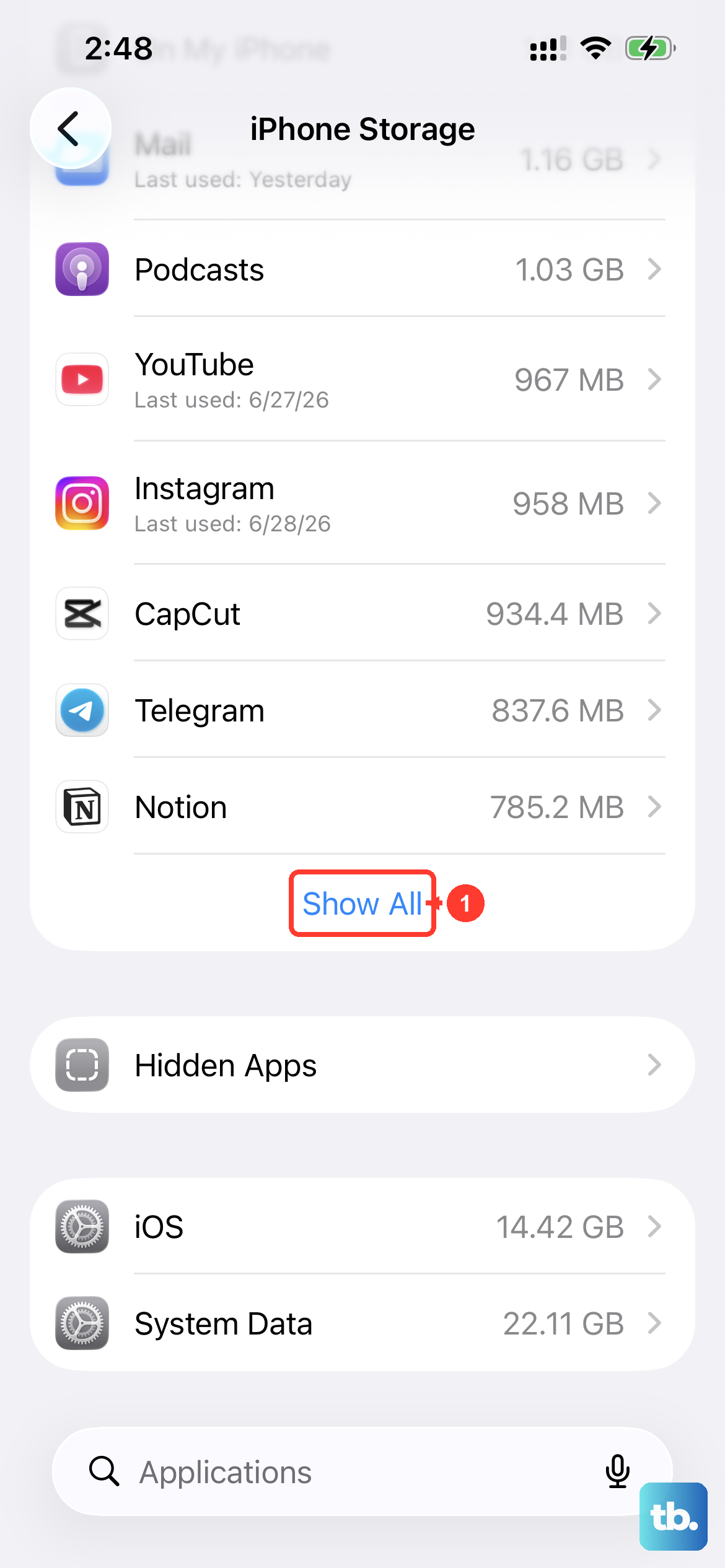
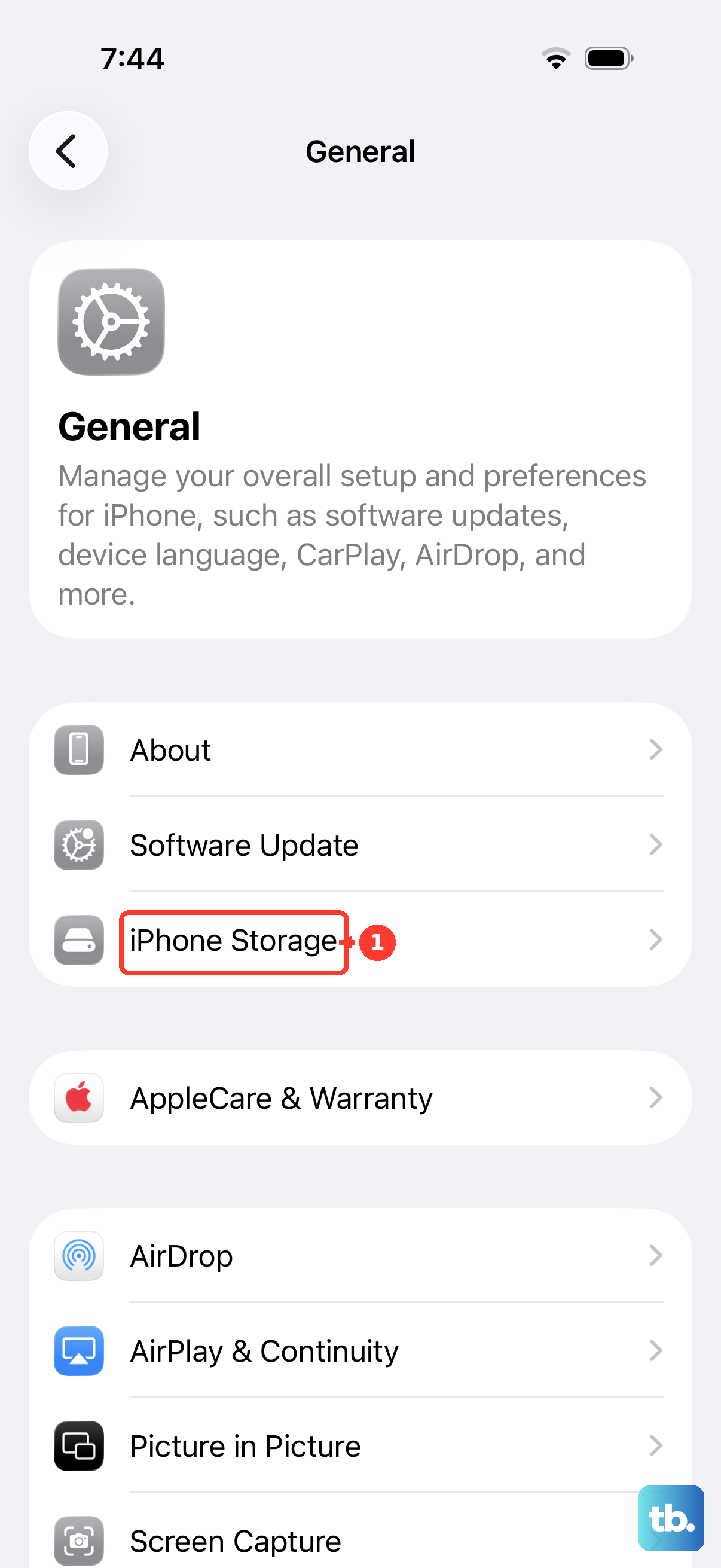
One common trigger for a stuck logo is attempting a software update when the phone is almost full. The installation runs out of space and crashes. If you get your phone booting again after a force restart, immediately check your storage in Settings > General > iPhone Storage.
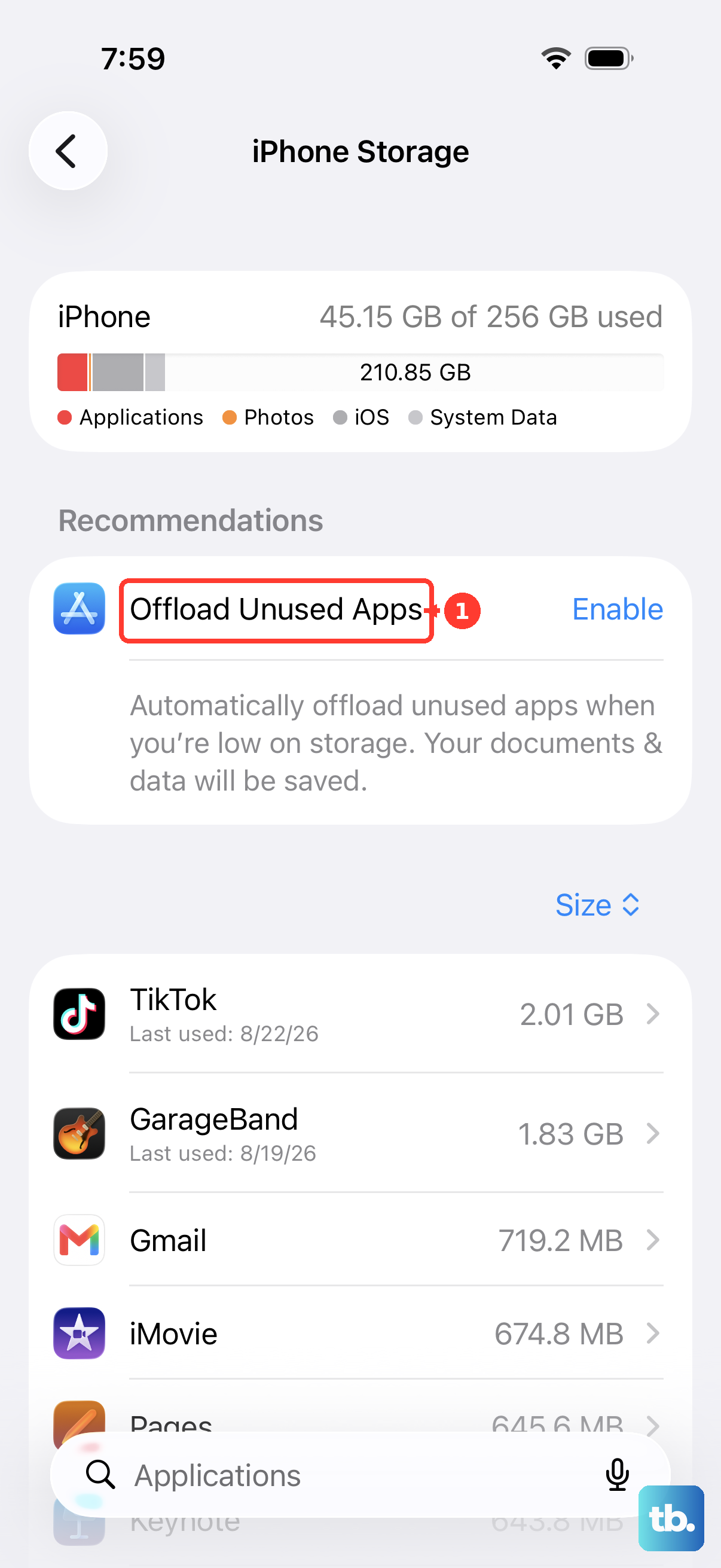
You should aim to have at least 5-6 GB free before trying an update again. Delete old messages, offload unused apps, or move photos to iCloud to make room.
Restore Your Data from a Backup
If you had to choose the Restore option in recovery or DFU mode, your iPhone 14 will be wiped clean. After it restarts, you'll go through the setup process. When you get to the Apps & Data screen, choose Restore from iCloud Backup or Restore from Mac or PC to get your data back.
This is why regular iCloud or computer backups are so important. They turn a potential disaster into a minor inconvenience where you just lose a bit of time while your data reloads.