


If your iPhone 14 battery is draining faster than it used to, check the battery health first. Head to Settings > Battery > Battery Health & Charging. Look at the "Maximum Capacity" percentage and the message under "Peak Performance Capability." If you see "Your battery is currently supporting normal peak performance," the battery is working normally.
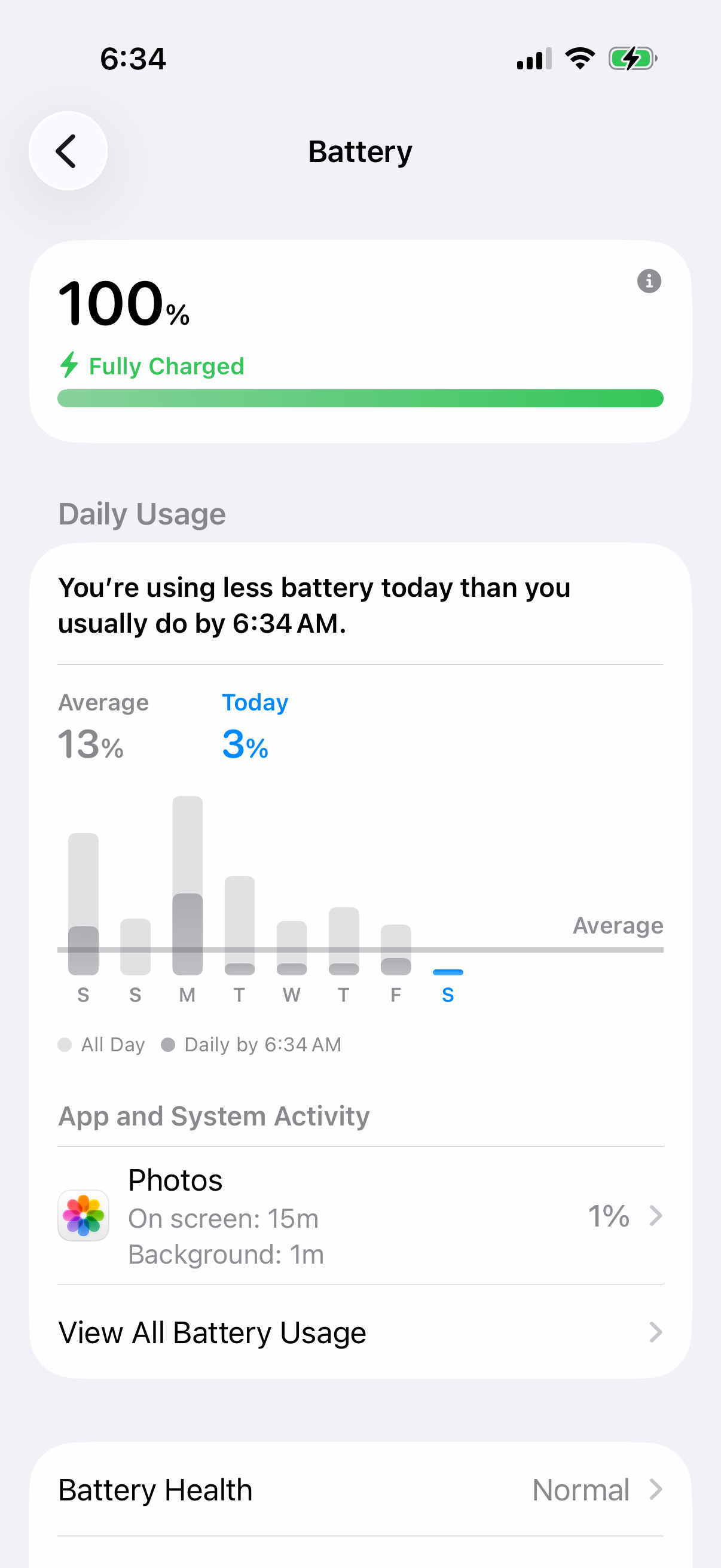
Return to Settings > Battery and check the Daily Usage chart. Below it, App and System Activity Usage shows which apps used the most battery today. Tap "View All Battery Usage" to see the last eight days. If a social media or game app has unusually high background activity, it may be contributing to the drain.
Update Your Software
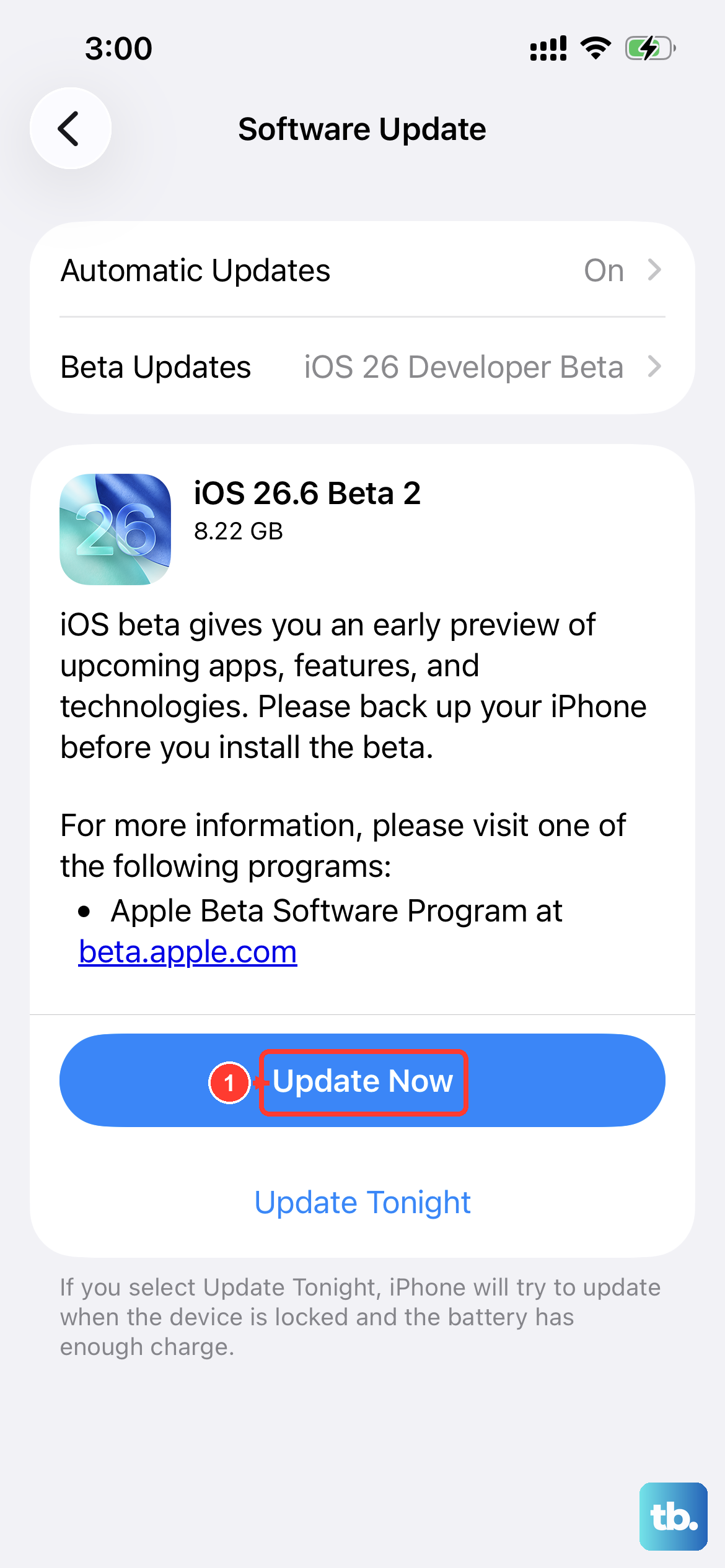
This is a simple but critical step. Software problems can contribute to battery drain. If battery life drops after an update, wait a few days and check again. Update tasks can continue in the background, and Settings > Battery may show an "Ongoing iOS Update" Insight while they finish.
Go to Settings > General > Software Update. If an update is available, install it. Back up your phone before updating, and make sure it's plugged in and connected to Wi-Fi first. Keep it connected to power while the update installs.
Manage Location Services
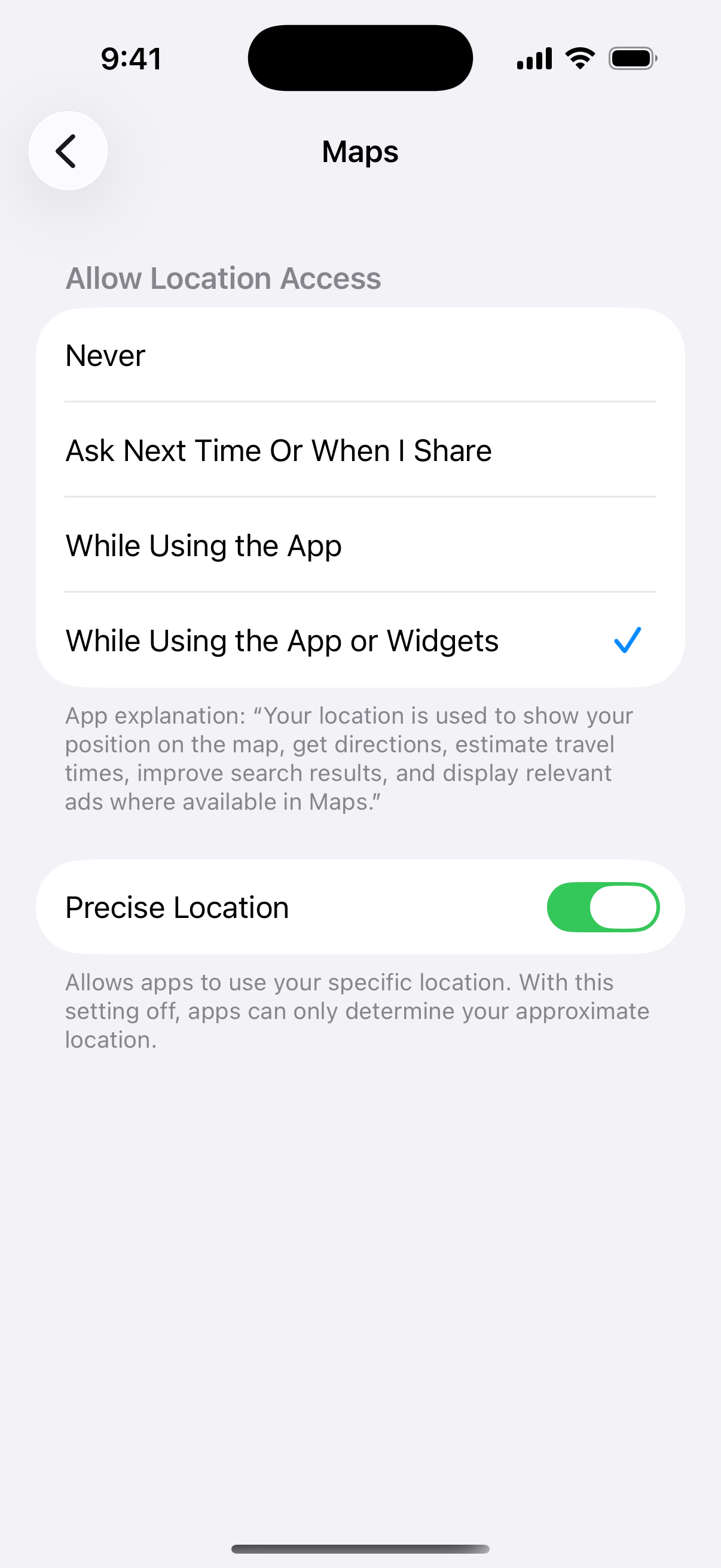
Apps constantly checking your location in the background are a major drain. You don't need to turn it off completely, just rein it in. Go to Settings > Privacy & Security > Location Services.
Scroll through the list and tap on apps that don't genuinely need to know where you are. For many, you can change the setting from "Always" to "While Using the App" or even "Never." Pay special attention to social media and weather apps here.
Control Background App Refresh
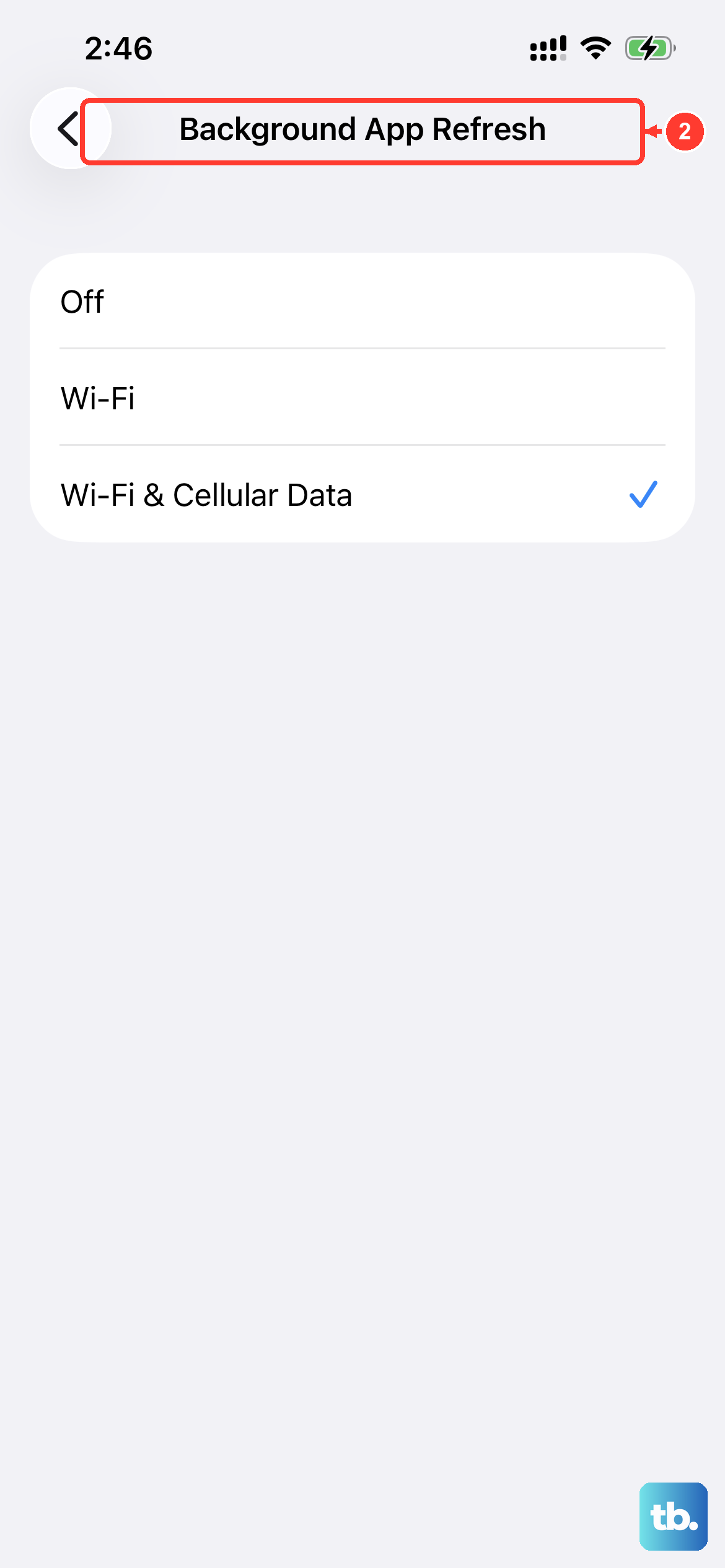
This feature lets apps update their content in the background. Turning it off for non-essential apps can save a significant amount of power. Navigate to Settings > General > Background App Refresh.
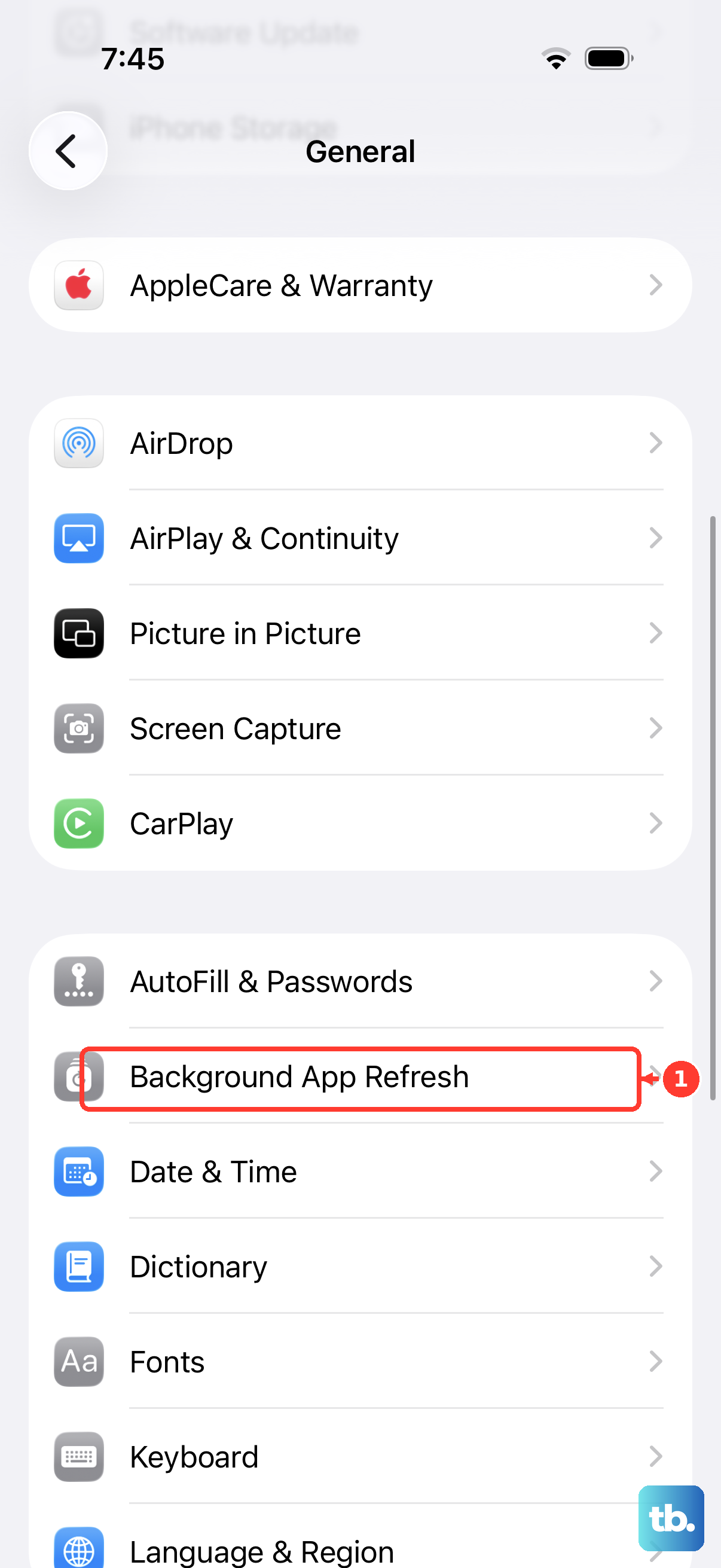
You can turn it off entirely, set it to "Wi-Fi" only, or go through the list and toggle it off for apps you don't need updating constantly, like games or shopping apps. Your messages and email will still come through.
Adjust Display and Motion Settings
Your screen can use a lot of battery power. A few tweaks here add up. First, lower the brightness manually or ensure Auto-Brightness is on in Settings > Accessibility > Display & Text Size.
Next, reduce the Auto-Lock time. Go to Settings > Display & Brightness > Auto-Lock and set it to 30 seconds or 1 minute. Also, consider enabling Dark Mode from the Control Center or in Settings, as it saves power on the iPhone 14's OLED screen.
Finally, you can reduce some animations. Go to Settings > Accessibility > Motion and turn on "Reduce Motion." This turns off the parallax effect on icons.
Review and Remove Problematic Apps
Go back to the App and System Activity Usage list in Settings > Battery. If you see an app with unusually high background activity, try force-closing it. Swipe up from the bottom and hold, then swipe the app's preview up.
If the problem continues, check the App Store for an update for that app. Developers sometimes release fixes for battery bugs. As a last resort, delete the app and reinstall it, or find an alternative.
Check Your Connectivity Settings
When you're in an area with poor cellular signal, your iPhone 14 works harder to find a connection, which drains the battery fast. If you have Wi-Fi available, use it. You can also temporarily turn on Airplane Mode in very low-signal areas.
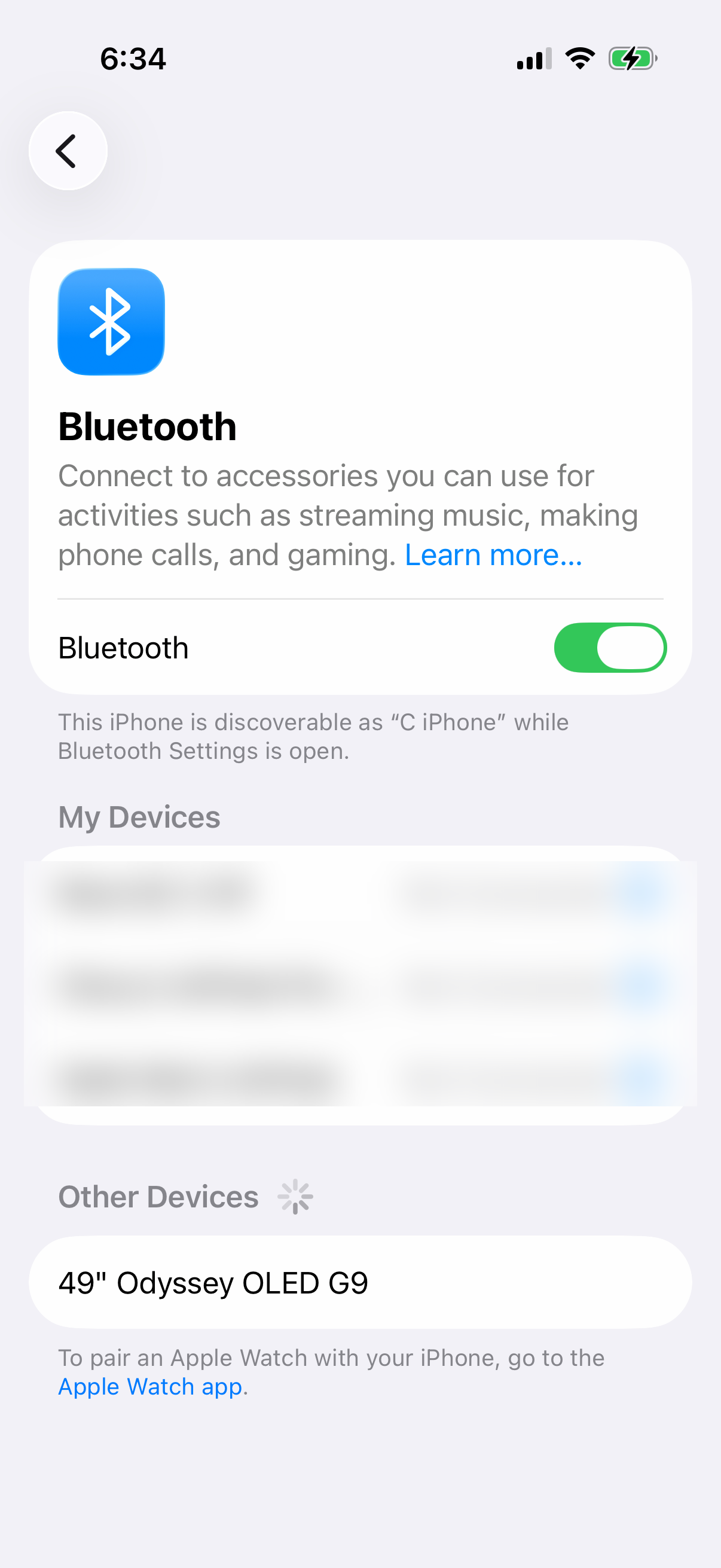
The Bluetooth and Wi-Fi buttons in Control Center only disconnect connections; they don't turn the radios off. To turn them off fully, use Settings > Bluetooth or Settings > Wi-Fi. Keep Wi-Fi on when you can connect to a strong network, since Wi-Fi uses less battery power than cellular.
Inspect Your Charging Hardware
If your phone isn't charging properly, check the charging hardware too. The iPhone 14 uses a Lightning port, which can collect pocket lint. For lint in the port, use a soft, dry brush and avoid getting moisture in the opening.
Also, make sure you're using a capable charger. For fast wired charging, use a 20W or higher USB-C power adapter and an Apple-certified USB-C to Lightning cable. The iPhone 14 supports MagSafe wireless charging up to 15W. Avoid cheap, uncertified chargers and cables.
Reset All Settings
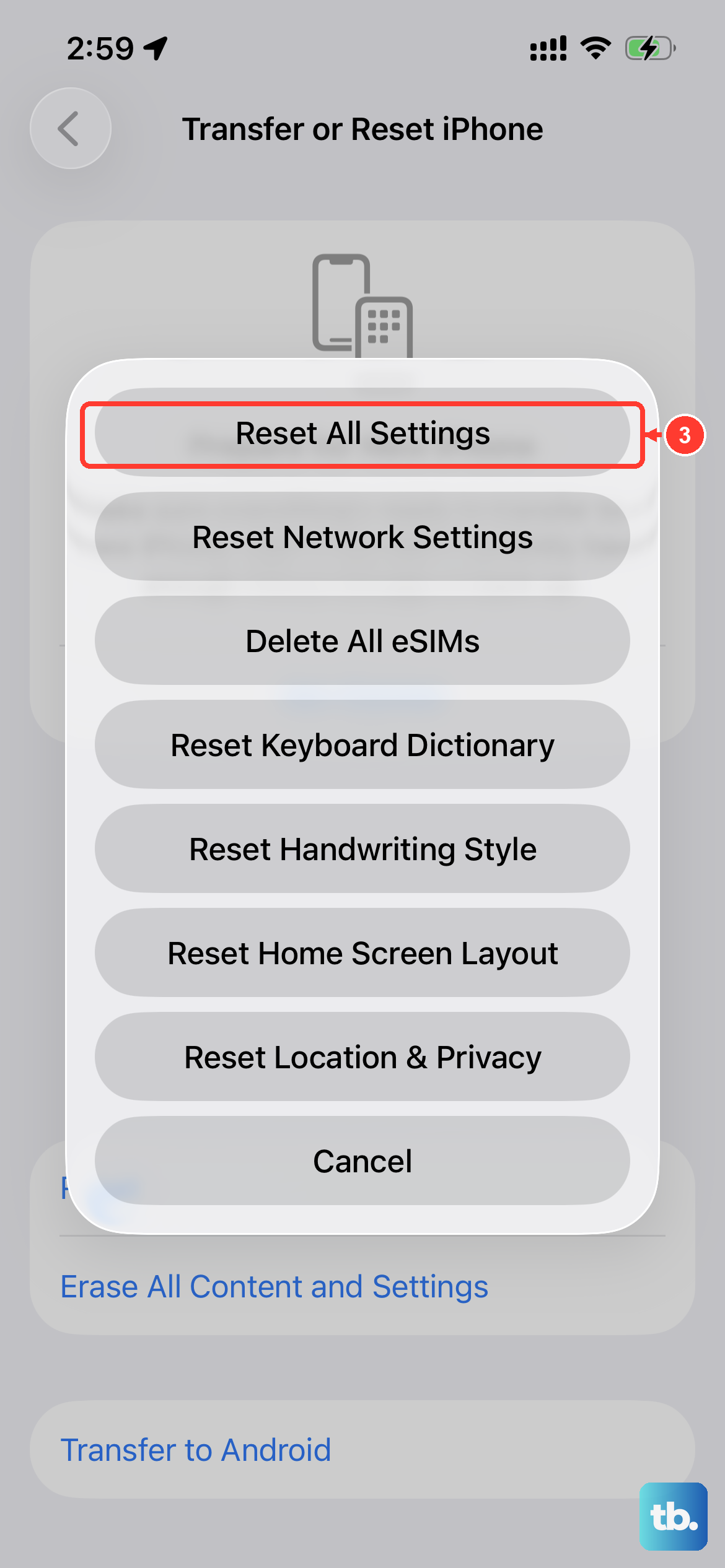
If you've tried everything and the drain started suddenly, a misconfigured setting might be to blame. This reset won't delete your photos or apps, but it will erase all your preferences for Wi-Fi, wallpaper, and notifications.
Go to Settings > General > Transfer or Reset iPhone > Reset. Then, tap "Reset All Settings." Your phone will restart. You'll need to reconnect to Wi-Fi, re-pair Bluetooth devices and your Apple Watch, and set up Face ID again. Apple Pay cards are also removed.
Perform a Force Restart
This is different from a normal restart and can clear temporary software hangs. Quickly press and release the Volume Up button, then quickly press and release the Volume Down button. Finally, press and hold the Side button until you see the Apple logo appear, then let go.
Consider Your Battery's Age
The iPhone 14 launched in 2022. If you've used it heavily since then, the battery's chemical age might simply be catching up. Batteries are consumable parts. If your Maximum Capacity is below 80% and the phone is struggling to last half a day, it might be time for a replacement.
You can get this service from Apple or an authorized provider. Ask about the repair timeframe when arranging service. Replacing a worn battery can improve how long an older iPhone 14 lasts between charges.