
If your iPhone 13 screen stays dark when you get a new message or app alert, you're missing out on important updates. This is a common hiccup that's usually easy to fix. Let's start with the quickest solution that often does the trick.
First, try a force restart. This clears out temporary software glitches that can freeze the notification system. On your iPhone 13, quickly press and release the Volume Up button, then quickly press and release the Volume Down button. Finally, press and hold the Side button until you see the Apple logo appear, then let go.
Give your phone a minute to reboot and then test it by having someone send you a text. If you see the notification pop up, you're all set. If the screen is still staying silent, we'll move on to some more specific checks.
Check Your Focus Modes
Focus modes in iOS 18 are powerful for managing distractions, but they can sometimes be too good at their job. If you have a Focus like Do Not Disturb, Sleep, or a custom one enabled, it might be silently blocking notifications.
Swipe down from the top-right corner of your screen to open Control Center. Look at the Focus tile, if it shows anything other than a moon with a line through it, a Focus is active. Tap it to turn it off completely. You can also long-press the tile to see which apps are allowed to notify you during that Focus.
I'd also check your Focus settings. Go to Settings > Focus. Tap on each Focus (like Sleep or Work) and make sure the "Share Across Devices" option is turned off if you don't want it syncing from your iPad or Mac and potentially activating unexpectedly.
Review Notification Settings for the Problem App
Sometimes, the issue is specific to one app, like Messages or Gmail. iOS lets you control notifications on a per-app basis, and a setting might have gotten changed.
Open Settings > Notifications. Scroll down and find the app that's not alerting you. Tap on it. First, make sure "Allow Notifications" at the very top is toggled on. Then, check the "Lock Screen," "Notification Center," and "Banners" styles. I usually enable all three for critical apps.
Also, look at the "Sounds" and "Badges" options below. If sounds are off, you won't hear anything. If badges are off, you won't see the little red number on the app icon, which is another key notification cue.
Disable and Re-enable Notifications for the App
If the settings look right but it's still not working, try resetting them. Go back to Settings > Notifications, tap the problematic app, and toggle "Allow Notifications" off. Wait a few seconds, then toggle it back on.
This forces the app to re-register its notification permissions with the system. It's a simple refresh that can clear up communication errors between the app and iOS. After you flip the switch back on, open the app and trigger a test notification if you can.
Check Do Not Disturb and Bedtime Schedules
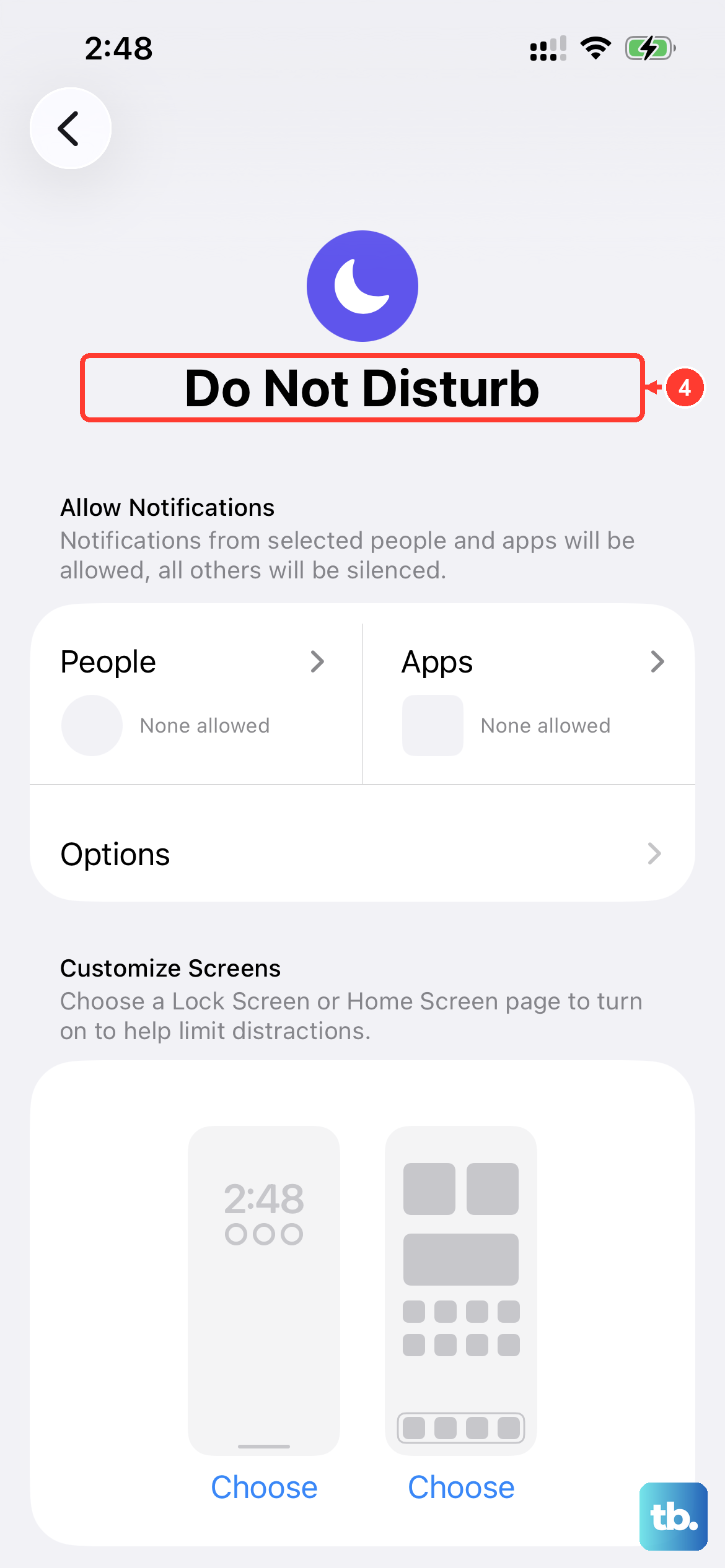
Beyond manual Focus modes, there are automatic schedules that can interfere. Go to Settings > Focus > Do Not Disturb. Look under the "Set a Schedule" section. Make sure there isn't a schedule set for times when you're expecting notifications.
Also, check the Bedtime schedule in the Health app, as this can enable Sleep Focus automatically. Open the Health app, tap your profile picture in the top right, then tap Sleep > Full Schedule & Options. Review your schedule there.
Update iOS to the Latest Version
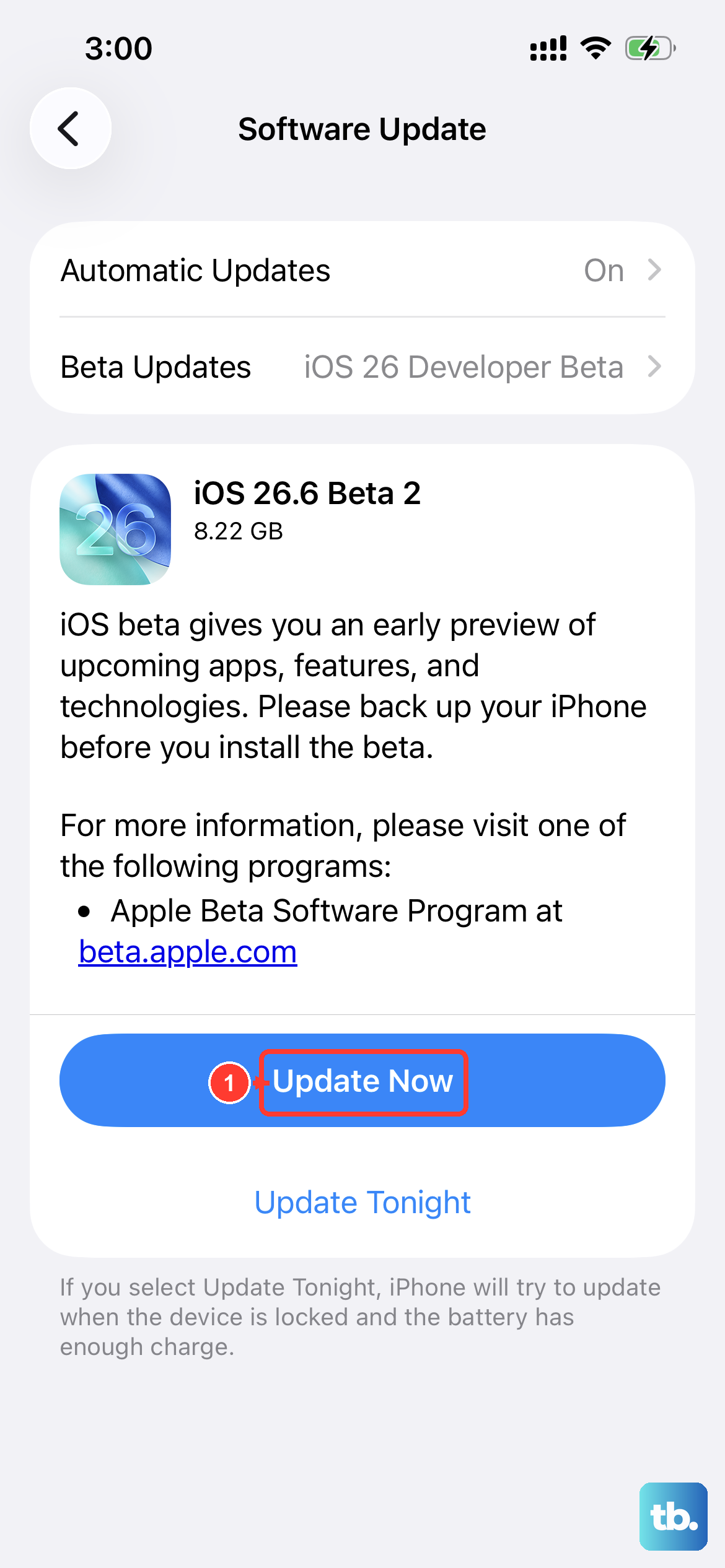
Software bugs can cause notification delivery to fail. Apple frequently releases updates with fixes for these kinds of issues. Since you're on iOS 18, make sure you have the latest minor update installed.
Connect your iPhone 13 to Wi-Fi and plug it into power using a reliable Lightning cable. Go to Settings > General > Software Update. If an update is available, tap "Download and Install." Keeping your phone updated is one of the best ways to ensure stability, especially for a 2021 model running the latest OS.
Reset All Settings
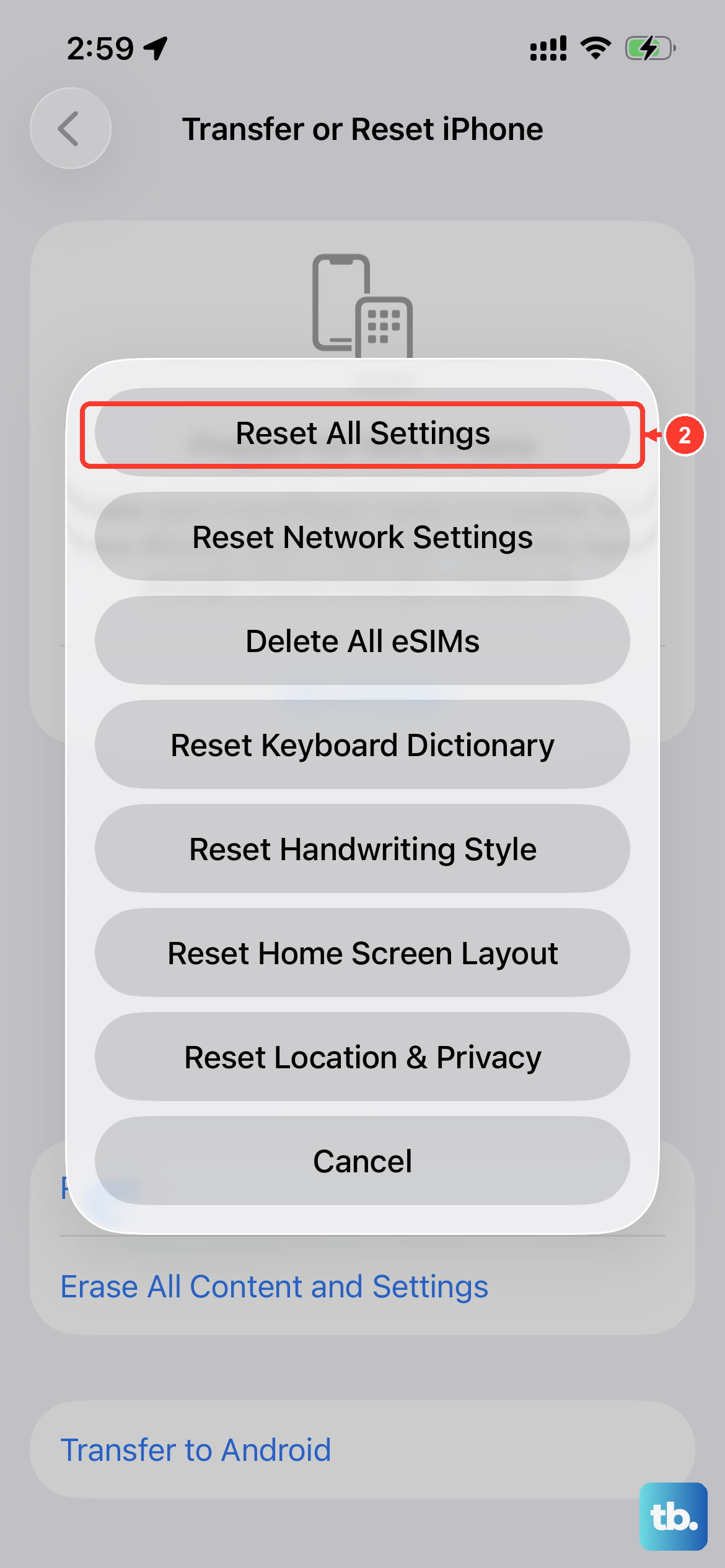
This is a more comprehensive step if the problem seems system-wide. Resetting all settings will revert your Wi-Fi passwords, wallpaper, and privacy preferences back to default, but it won't delete any of your personal data, photos, or apps.
It's a reliable way to clear out any corrupted configuration files. To do it, go to Settings > General > Transfer or Reset iPhone. Tap "Reset" at the bottom, then choose "Reset All Settings." You'll need to enter your passcode and confirm. Your phone will restart, and you'll need to re-join Wi-Fi networks and adjust some preferences, but it often resolves persistent notification glitches.
Check for App-Specific Notification Issues
Some apps, especially email clients like Gmail or Outlook, have their own internal notification settings that override the system. If you're missing emails, open the Gmail app, tap the menu icon in the top left, go to Settings > your account, and make sure "Notifications" are set to "All."
For other apps, check within their own settings menu for a notifications or alerts section. Sometimes an app update can change these defaults, so it's worth a quick look.
Ensure Your iPhone 13 Isn't in Low Power Mode
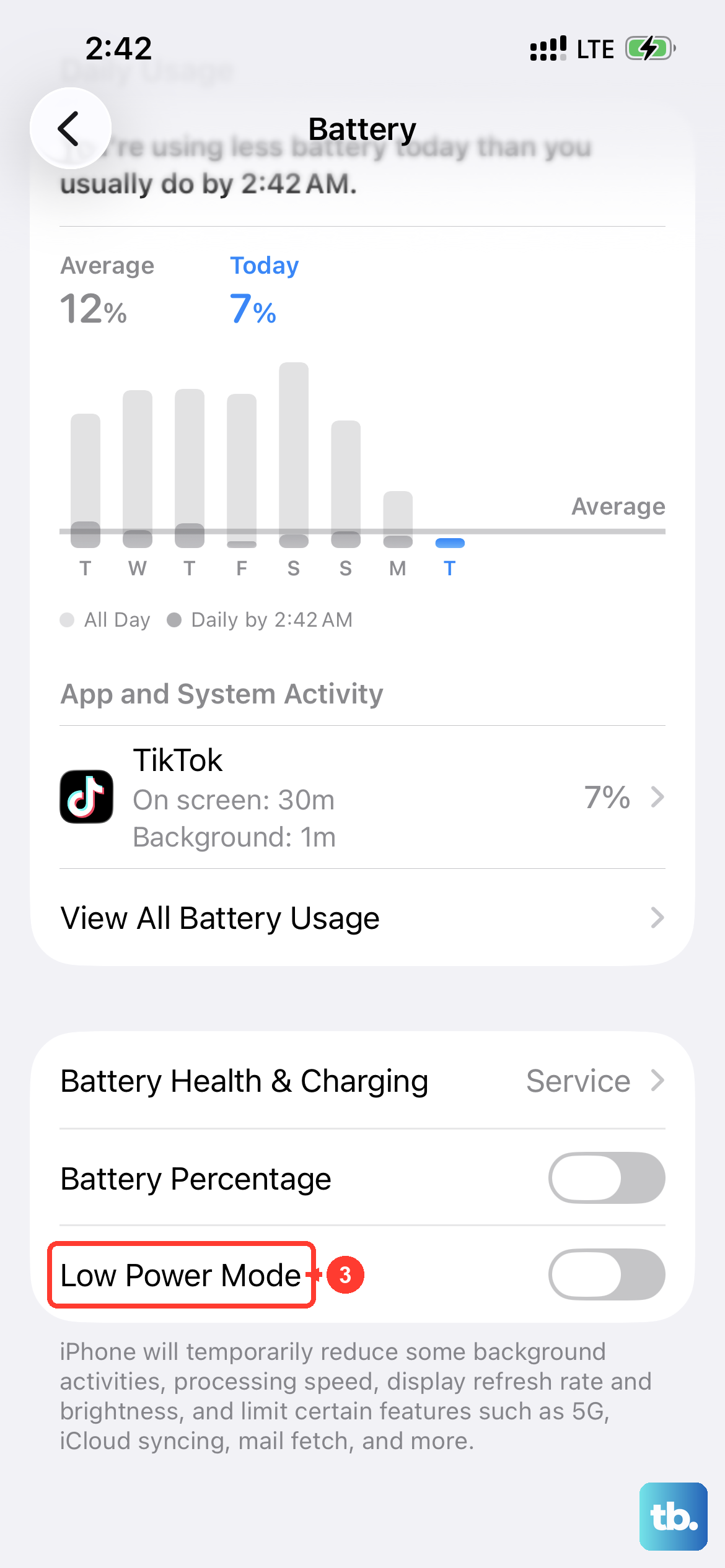
Low Power Mode is great for extending battery life, which can be helpful if your iPhone 13's battery health is degraded after a few years. However, it can reduce background activity, which sometimes includes fetching new notifications promptly.
You can check if it's on in Control Center (the battery icon will be yellow) or in Settings > Battery. Turn it off and see if your notifications start coming through immediately again. If your battery health is below 80%, consider this a temporary workaround while you think about a battery replacement.
Review Screen Time and Communication Limits
A less common culprit is Screen Time. Go to Settings > Screen Time. Tap "See All Activity" and look at the "Notifications" section to see if any apps are being restricted. Then, go back and tap "Communication Limits."
Make sure the settings here aren't limiting who can notify you. This feature is designed for parental controls but can sometimes be activated accidentally, silencing alerts from certain contacts.
Sign Out and Back Into Your Apple ID
Since iCloud syncs notification settings across devices, a glitch with your Apple ID can sometimes be the cause. Go to Settings > [your name] at the top. Scroll all the way down and tap "Sign Out." You'll be asked to keep a copy of your keychain and data on the iPhone, you can choose to keep them.
After your phone restarts, sign back in with your Apple ID and password. This refreshes your connection to Apple's servers and can re-sync notification preferences correctly.