
If your iPhone 13 is starting to feel sluggish, you're not imagining it. Even with its A15 chip, a few years of use can lead to slowdowns. The good news is you can usually get that snappy feel back with a few simple checks.
Start with a quick restart. It's the simplest fix and clears out temporary glitches. Press and hold the side button and either volume button until the power-off slider appears, then drag the slider. Wait about 30 seconds, then press and hold the side button until you see the Apple logo.
If the phone is completely unresponsive, force restart it instead. Press and quickly release the volume up button, press and quickly release the volume down button, then press and hold the side button until the Apple logo appears (this can take longer than 10 seconds).
Check Your Battery Health
This is a big one for the iPhone 13, especially if you've had it since its 2021 release. As a battery chemically ages, iOS manages performance to prevent unexpected shutdowns, and you may notice longer app launch times or lower frame rates.
Go to Settings > Battery > Battery Health & Charging and look at the Maximum Capacity percentage. Apple says iPhone 14 and earlier batteries are designed to keep 80 percent of their original capacity at 500 complete charge cycles. If yours has dropped below 80 percent, or you see a message that your battery's health is significantly degraded, a battery replacement is the most effective fix.
Free Up Storage Space
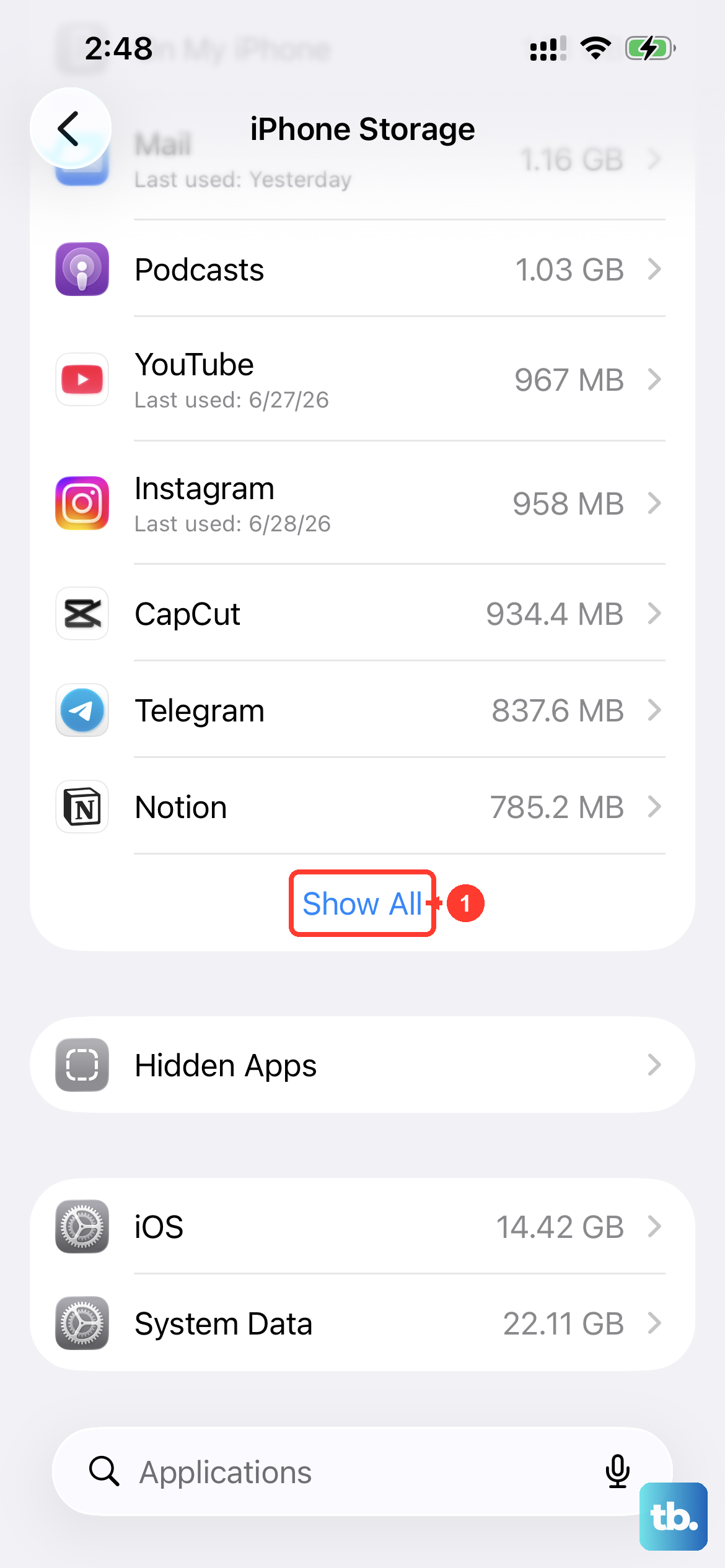
When storage is nearly full, your iPhone 13 has to work much harder to manage files, which slows everything down. Go to Settings > General > iPhone Storage.
You'll see recommendations and a list of apps with their storage use. Tap Show All to see every suggestion, including Offload Unused Apps, which removes apps you rarely use but keeps their documents. Also delete old message threads with lots of photos and clear the Recently Deleted album in Photos. Try to leave a buffer of free space rather than running the phone right up to its limit.
Update to the Latest iOS
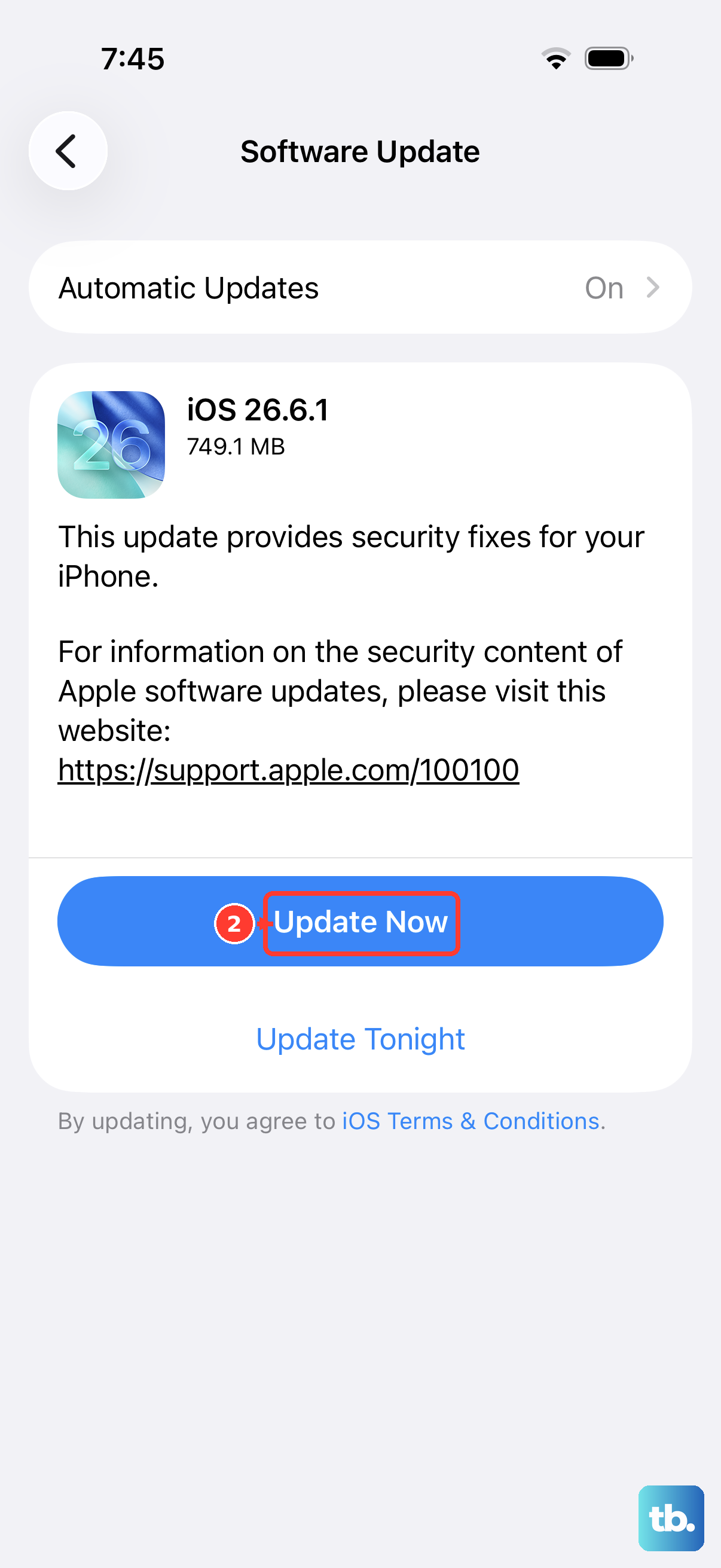
Running an old version of iOS can leave performance bugs in place that newer updates fix. The whole iPhone 13 lineup (iPhone 13 mini, 13, 13 Pro and 13 Pro Max) supports iOS 27, so make sure you're current.
Go to Settings > General > Software Update. If an update is available, connect to Wi-Fi, plug your phone into power and tap Update Now. Apple Intelligence features aren't available on the iPhone 13, but you still get the performance fixes and other improvements.
Manage Background App Refresh
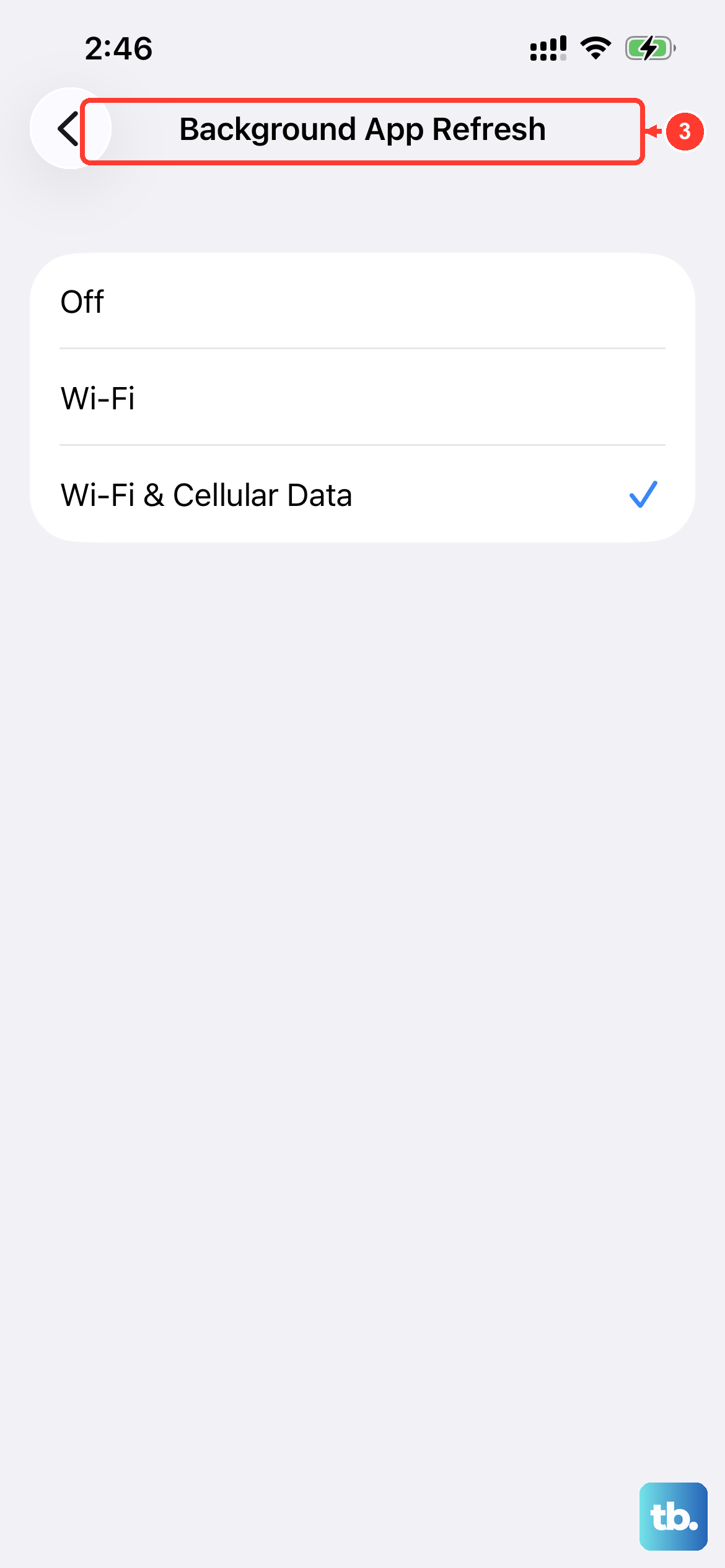
Background App Refresh lets suspended apps check for new content, which uses processor time and memory. You don't need every app doing this all the time.
Go to Settings > General > Background App Refresh. Tap Background App Refresh again to turn it off completely or limit it to Wi-Fi, or use the switches in the app list to turn it off only for apps that don't need live updates (like games or streaming apps you only use actively).
Close Apps the Right Way
You don't need to keep closing all your apps. Closing them doesn't improve overall performance, because recently used apps only use resources when they're active or doing specific background tasks. However, if one app is frozen or misbehaving, force-closing it can help.
Swipe up from the bottom of the screen and pause in the middle to open the app switcher. Swipe through the cards, swipe up on the problem app's preview to close it, then reopen it fresh.
Reduce Motion and Visual Effects
Toning down some of the flashier visual effects can make navigation feel quicker. Go to Settings > Accessibility > Motion and turn on Reduce Motion. This replaces zoom and slide transitions with simpler dissolve effects and turns off the parallax wallpaper effect.
You can also go to Settings > Accessibility > Display & Text Size and turn on Reduce Transparency, which replaces transparent and blurred backgrounds with solid colors.
Clear Safari's Website Data
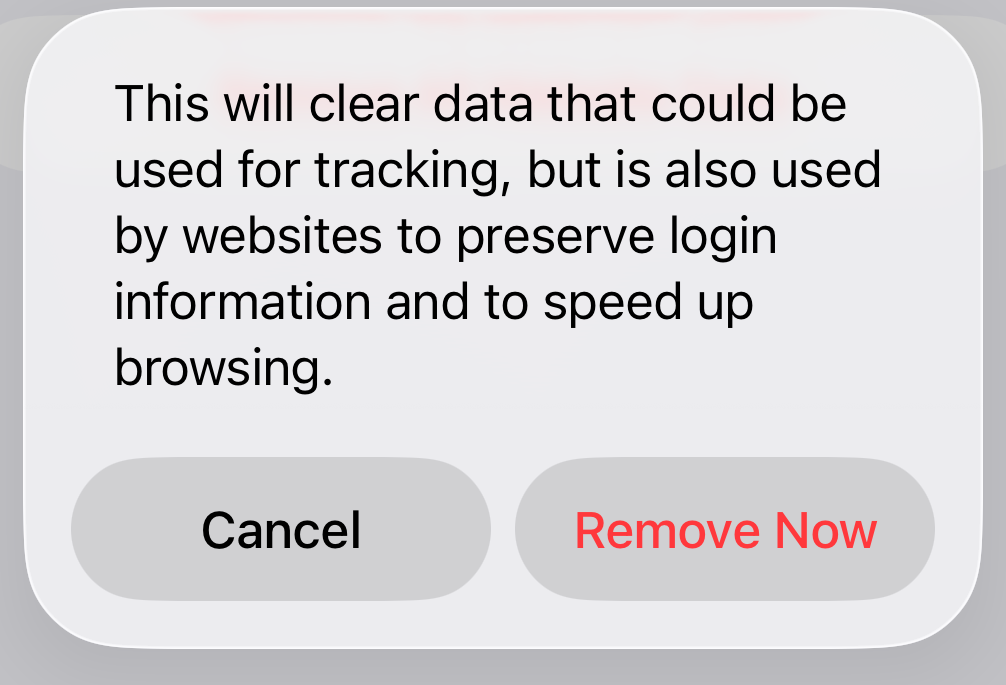
Over time, Safari stores a lot of website data, which can slow down browsing. Clearing it gives your browser a fresh start.
Go to Settings > Apps > Safari and tap Clear History and Website Data. Pick a timeframe, then tap Clear History to confirm. This removes history, cache and cookies, so you'll need to sign back in to websites, but your AutoFill information stays.
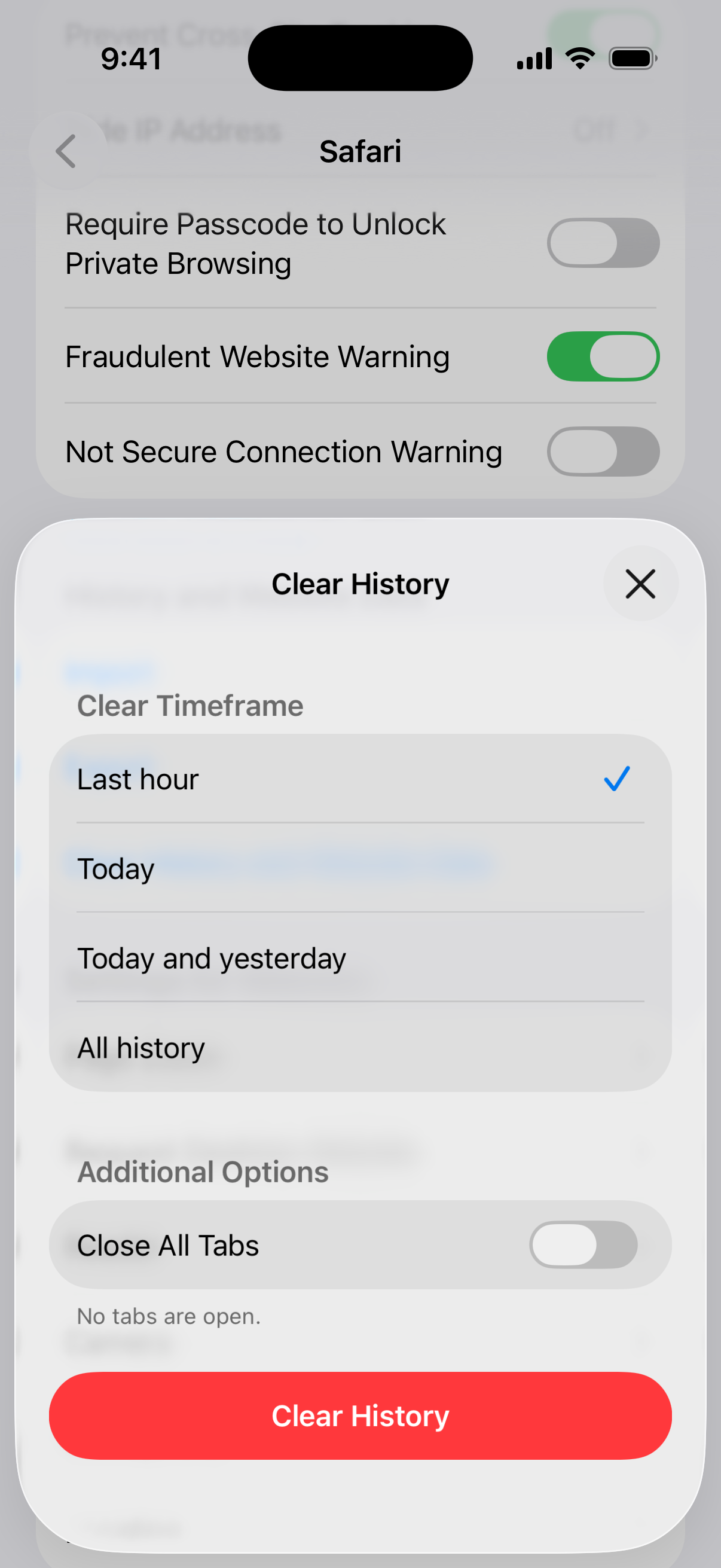
To keep your history and remove only stored site data, go to Settings > Apps > Safari > Advanced > Website Data and tap Remove All Website Data.
Make Sure Low Power Mode Is Off
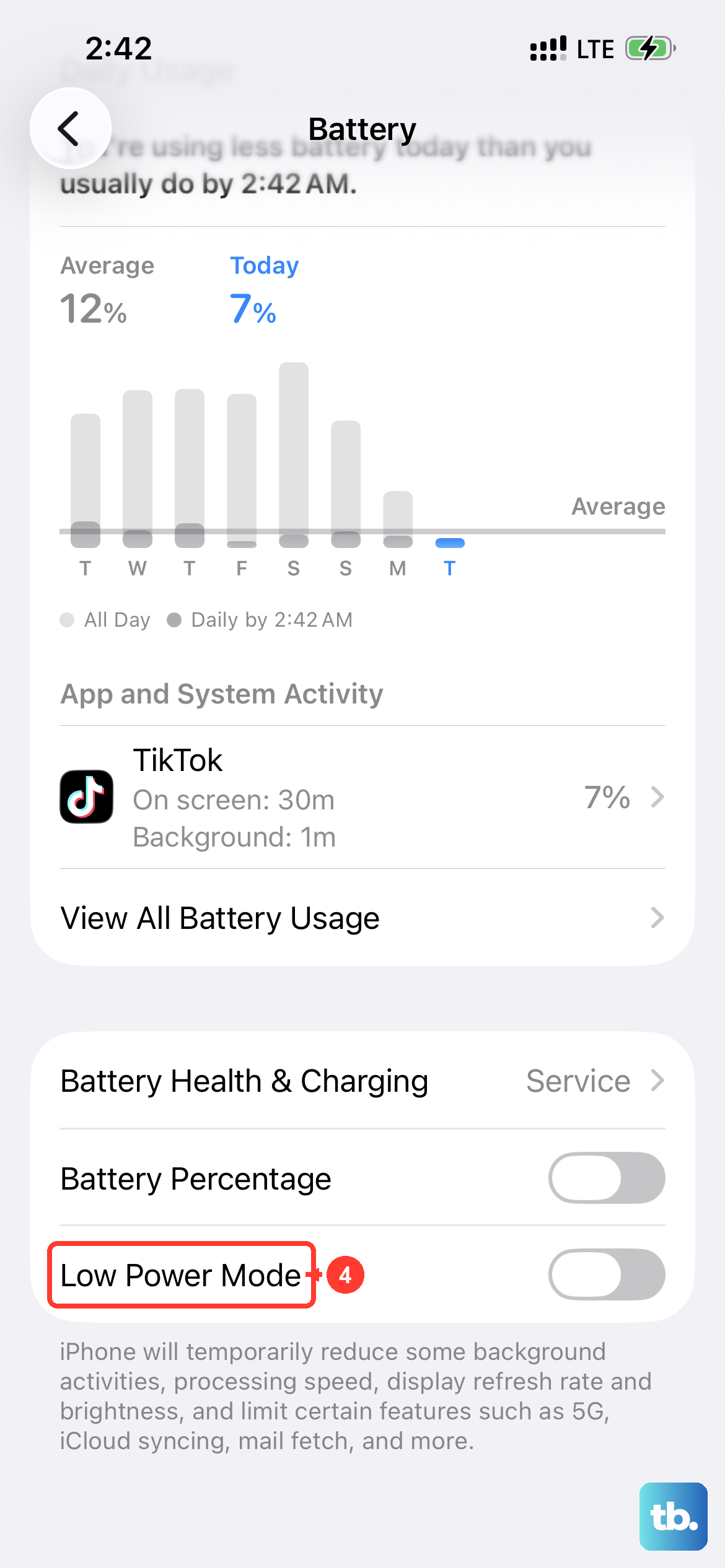
Low Power Mode is built to stretch battery life, and it does that partly by slowing the phone down. The description under its switch in Settings says iPhone will temporarily reduce some background activities, processing speed, display refresh rate and brightness. It also pauses iCloud Photos, turns off automatic downloads and email fetch, and sets Auto-Lock to 30 seconds.
If the battery icon in the status bar is yellow, Low Power Mode is on. On the iPhone 13, turn it off in Settings > Battery > Low Power Mode, or tap the battery button in Control Center. It also turns off on its own once you charge to 80 percent or higher, so save it for days when battery life matters more than speed.
Reset All Settings
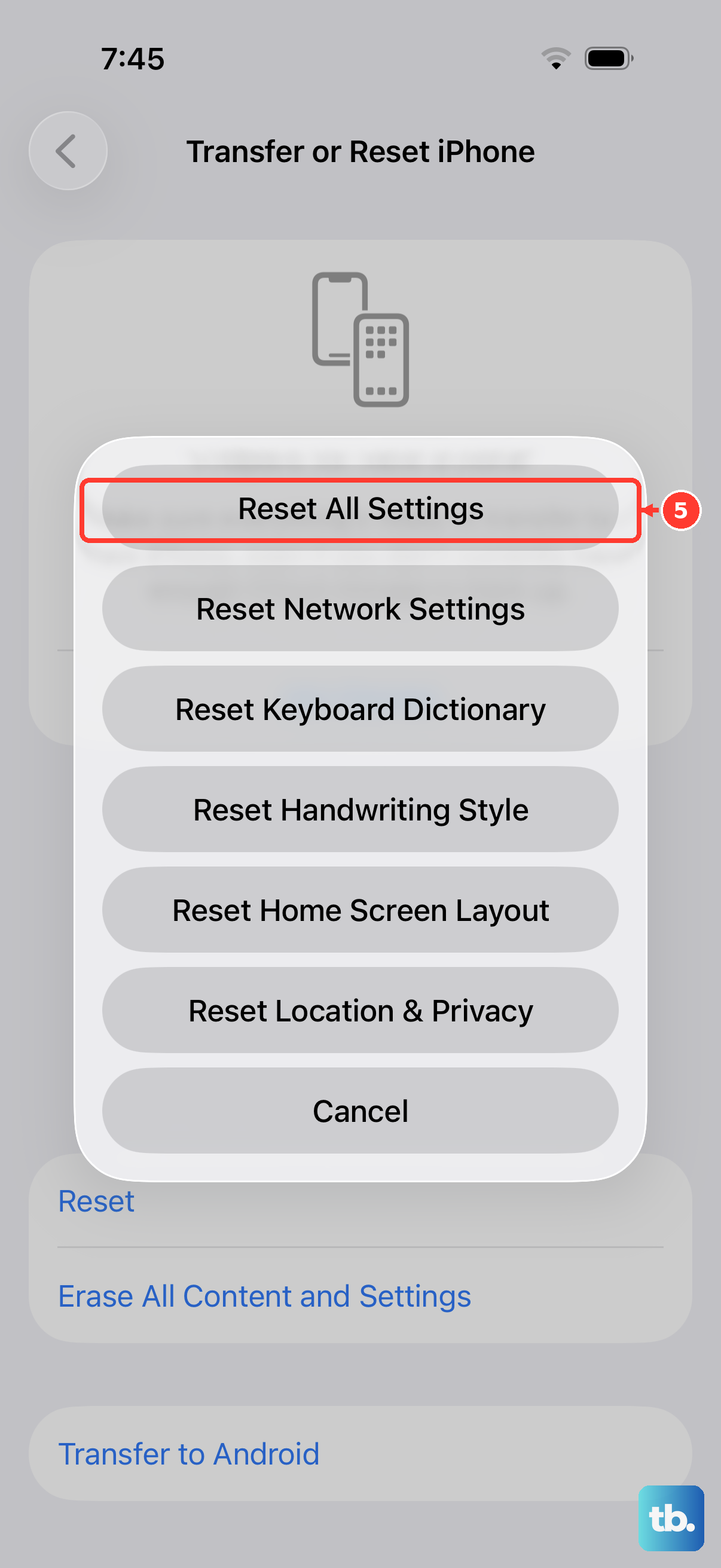
If you've tried everything else and the phone is still slow, this is a strong next step. It won't delete your photos, messages, apps or documents, but it resets all system settings to their defaults.
That includes Wi-Fi networks and passwords, Bluetooth and Apple Watch pairings, Face ID, wallpaper and Home Screen layout, privacy and location settings, Apple Pay cards and the keyboard dictionary. Go to Settings > General > Transfer or Reset iPhone, tap Reset, choose Reset All Settings and enter your passcode. Don't tap Erase All Content and Settings, which removes everything. After the reboot you'll need to set your preferences up again, but this can clear out settings conflicts that cause problems.