
If your iPhone 13 camera shows a black screen, start with a force restart. This can clear temporary software glitches that can freeze the camera app. Press and quickly release the Volume Up button, then press and quickly release the Volume Down button. Finally, press and hold the Side button until you see the Apple logo appear.
Key Points
- Restart the Camera App: Force quit the app and relaunch it to clear a temporary hang.
- Check for Lens Obstructions: A case or screen protector can block the camera lenses.
- Update iOS: Install the latest version of iOS, then test the camera again.
- Reset All Settings: This can fix deeper software conflicts without erasing your data.
- Check for Physical Damage: Impact or moisture can cause internal camera failure.
- Test in Another App: See if the black screen is isolated to the Camera app or system-wide.
Give your phone a moment to reboot completely, then open the Camera app again to see if the viewfinder is working.
Sometimes the camera app itself gets stuck. Swipe up from the bottom of the screen and pause in the middle to enter the app switcher. Find the Camera app preview and swipe it up and off the top of the screen to close it completely. Then tap the Camera icon on your Home Screen to relaunch it.
Check for Lens Obstructions and Clean the Camera
Take a close look at the camera module on the back of your iPhone 13. A bulky phone case or a poorly aligned screen protector can sometimes cover and block the lenses. I'd recommend removing the case entirely and checking if the camera works without it.
Fingerprints and smudges can also cause hazy or dark images. Use a clean, dry microfiber cloth to gently wipe both the wide and ultra-wide camera lenses. Avoid using any harsh chemicals or abrasive materials that could scratch the lens coating.
Update Your iPhone 13 to the Latest iOS
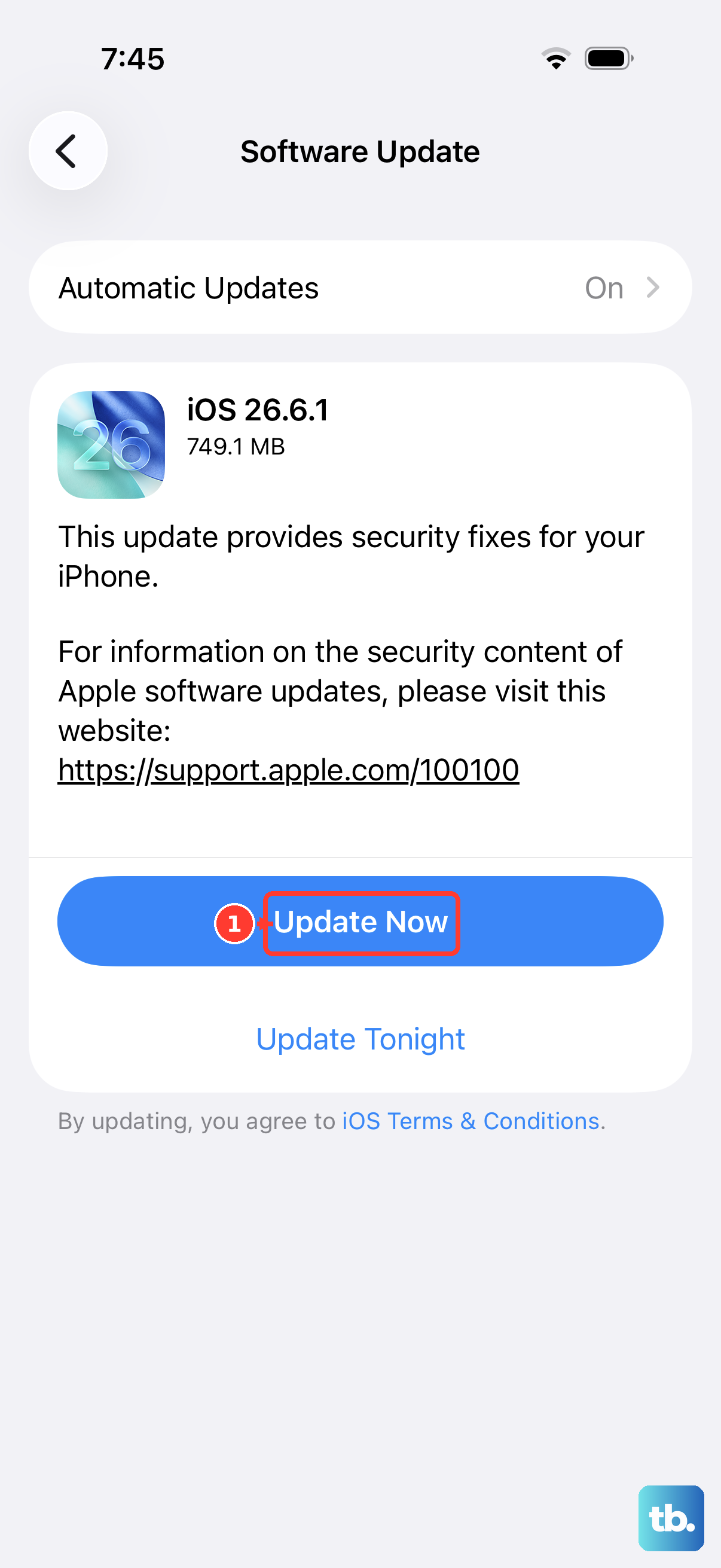
Updating iOS can help resolve camera problems. Go to Settings > General > Software Update. If an update is available, tap Download and Install. Make sure your phone is connected to Wi-Fi and has at least 50% battery, or is plugged into a charger.
It's a good idea to back up your iPhone before updating, just in case. After the update installs and your phone restarts, test the camera immediately to see if the black screen is resolved.
Free Up Storage Space on Your Device
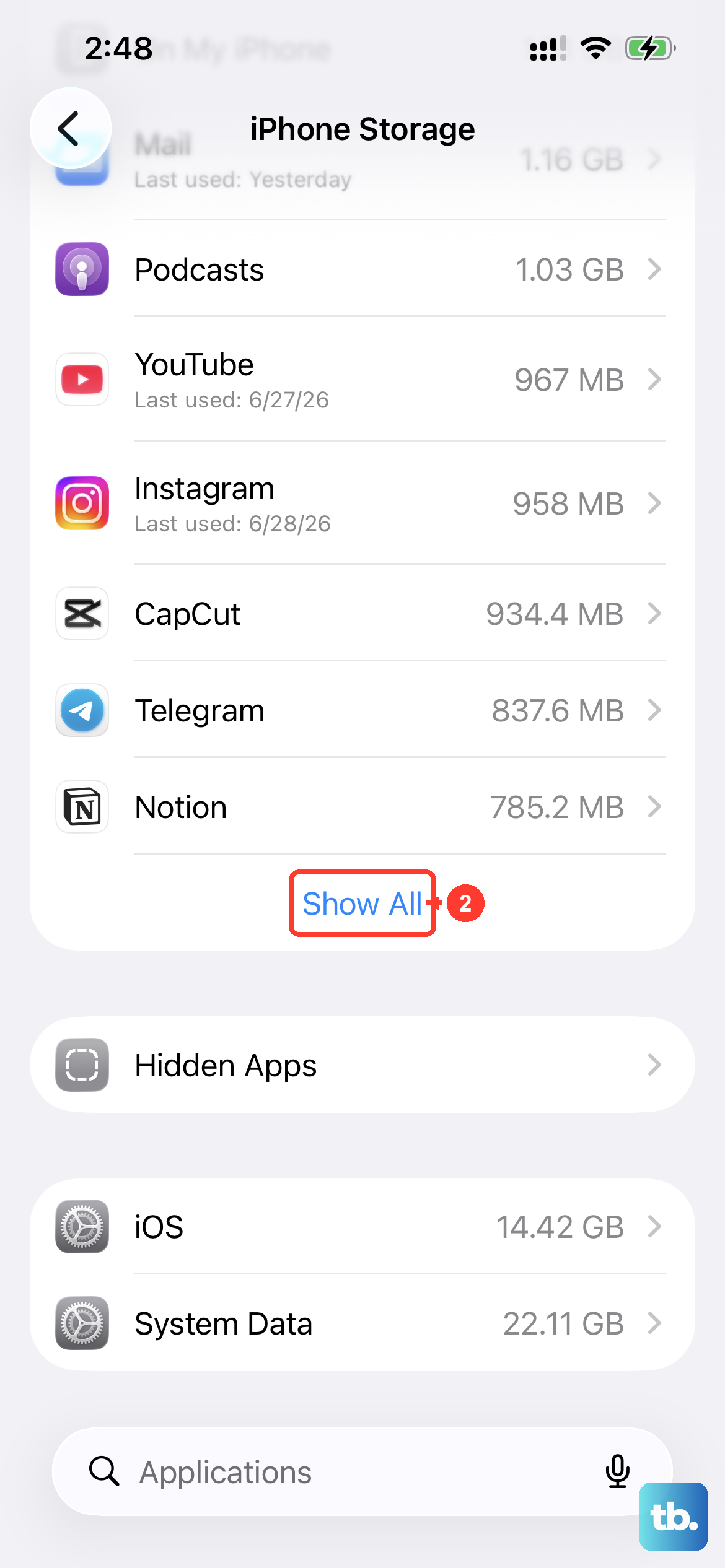
The Camera app needs free space to process images and video. If your iPhone 13 shows a Storage Almost Full alert, free up space before testing the camera again. Go to Settings > General > iPhone Storage to see how much space you have left.
If you're critically low, consider offloading unused apps, deleting old videos, or moving photos to iCloud. Try to clear at least a few gigabytes of space, then restart your phone and check the camera again.
Reset All Settings on Your iPhone
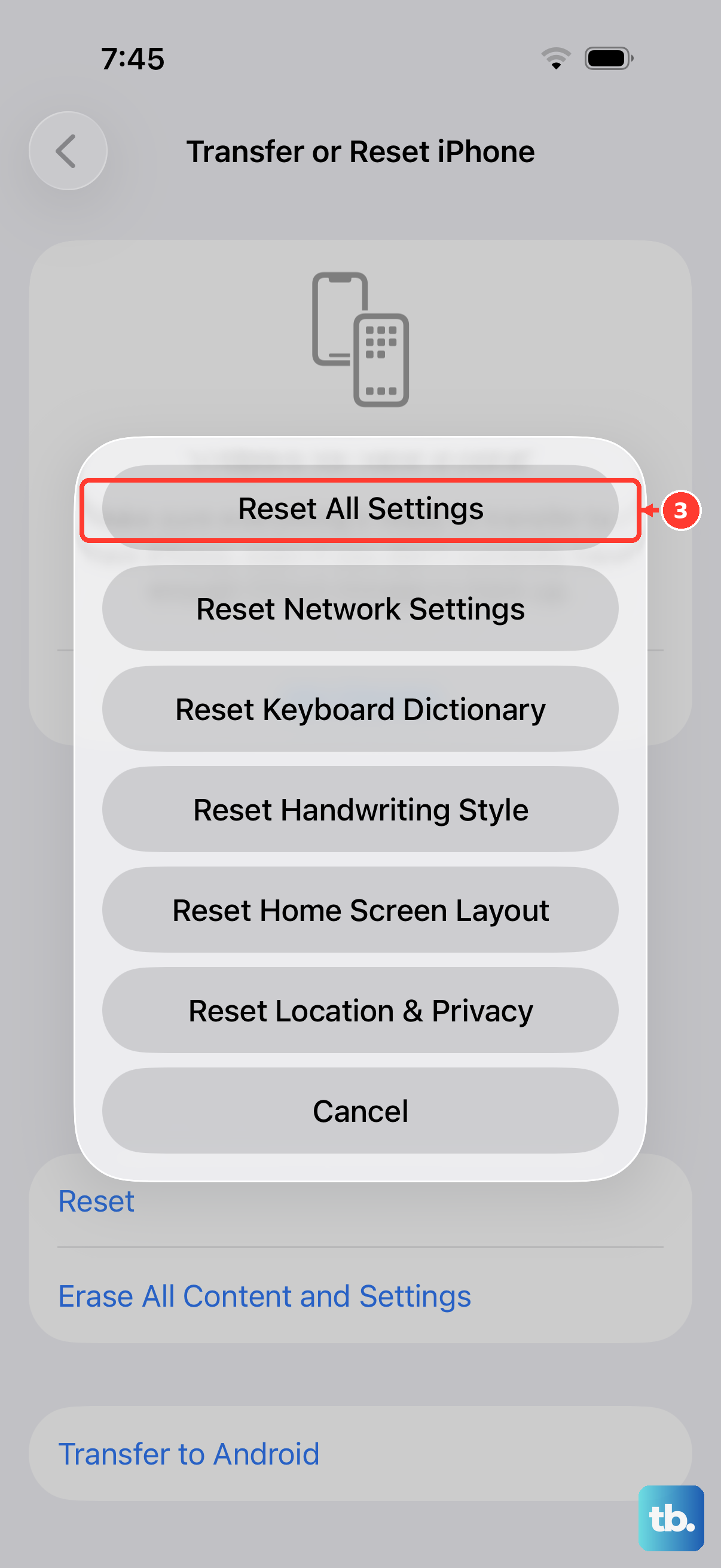
This is a more thorough step that resets network settings, display brightness, privacy permissions, and keyboard dictionaries back to their defaults. It won't delete your photos, messages, or apps, but you will need to re-enter Wi-Fi passwords and reconfigure some preferences. To do it, go to Settings > General > Transfer or Reset iPhone > Reset > Reset All Settings.
Enter your passcode when prompted and confirm. Your phone will restart. Once it's back on, open the Camera app to test it.
Check for Physical or Liquid Damage
If your iPhone 13 has been dropped recently or exposed to moisture, physical damage could be the cause. Look closely at the camera lenses for any cracks or chips. Damage to the lens can affect image quality.
Check the Liquid Contact Indicator (LCI) inside the SIM card tray slot. You can use a paperclip to gently eject the tray. If the indicator is red, it means liquid has been detected, which could have damaged the camera circuitry. In my experience, physical damage like this typically requires a professional repair at an Apple Store or authorized service provider.
Test the Camera in a Different App
Open an app like Instagram, Snapchat, or FaceTime and try to use the camera within that app. If the camera works fine in third-party apps but not in the native Camera app, the problem is likely software-related to the app itself. The Camera app is a protected built-in app, so it can't be offloaded or reinstalled and doesn't show an Offload App option in iPhone Storage.
Instead, if third-party apps work but the native Camera app doesn't, force restart your iPhone, make sure iOS is up to date, and try Reset All Settings. If the black screen persists, contact Apple Support or an authorized service provider.
Test the Flash and Check Low Power Mode
Remove any case, film, or accessory that could block the camera or flash or place a magnet near the camera. Swipe down from the top-right corner to open Control Center, then tap the Flashlight button to test the LED flash. If the flash works only sometimes, open Camera and tap the flash button to choose a different setting.
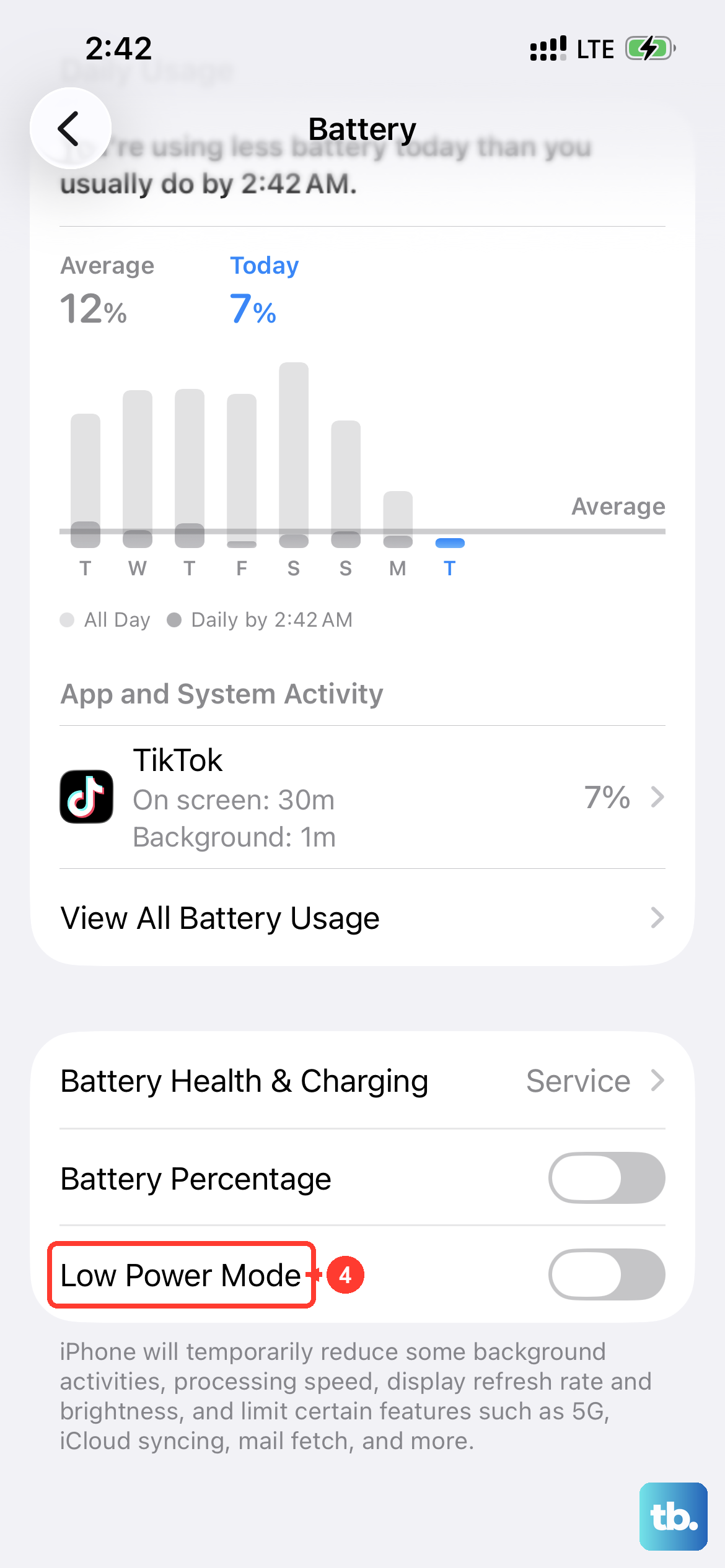
Check that Low Power Mode is off under Settings > Battery, as it limits background activity such as Background App Refresh and iCloud Photos syncing. Then test the camera again by taking a photo. Tap the rotate button to check whether the front camera, rear camera, or both are affected.
Perform a Factory Reset (Last Resort)
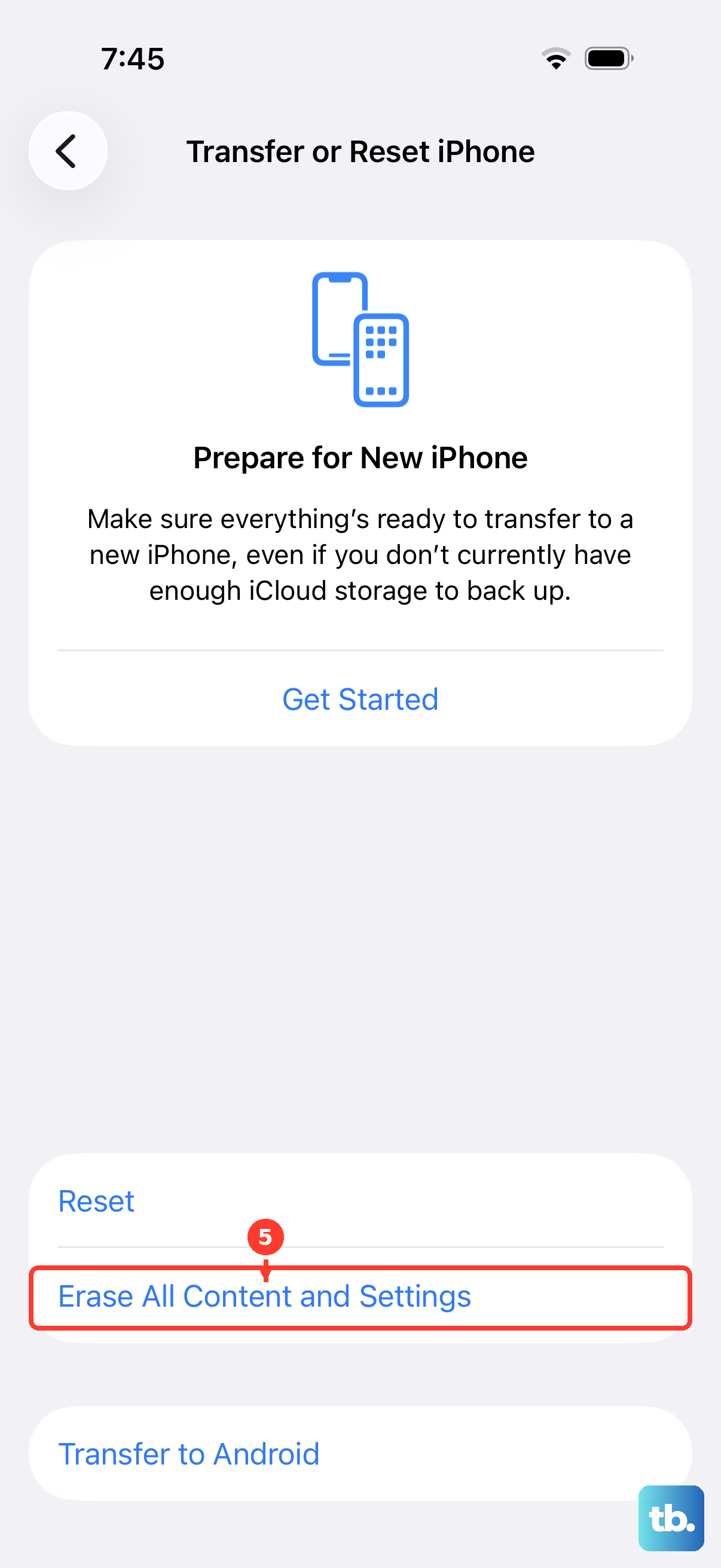
This will erase all content and settings from your iPhone 13, returning it to a like-new state. It may help with a persistent software issue. Before you do this, it is absolutely critical to ensure you have a recent backup in iCloud or on your computer.
To reset, go to Settings > General > Transfer or Reset iPhone > Erase All Content and Settings. Follow the prompts. After the reset is complete, set up your phone as new initially, don't restore from the backup yet. Test the camera immediately. If it works, your previous software configuration may have contributed to the problem.