
If your iPad videos are stuttering, freezing, or dropping frames, it can ruin the experience. This is a common issue that pops up for a few different reasons, but I've found most cases are pretty straightforward to fix.
Free Up Storage Space
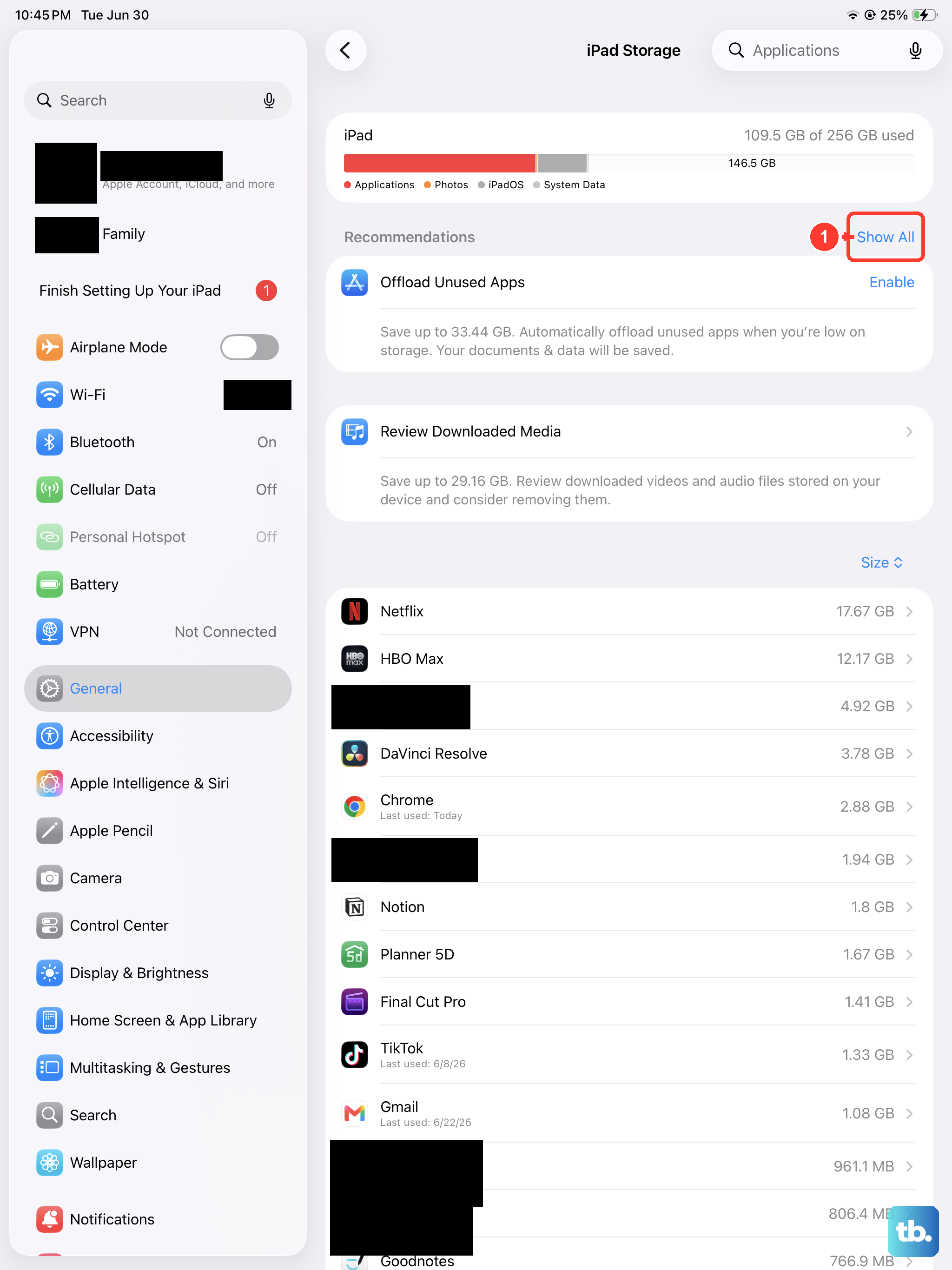
When your iPad's storage is nearly full, performance can slow down. Head to Settings > General > iPad Storage to see how much space you have left and review the storage-saving recommendations.
Keep at least 1 GB of free space to help avoid slowdowns. You can offload unused apps, delete old downloads, or move photos and videos to iCloud. Giving your iPad some breathing room can make a big difference.
Check Your Internet Connection for Streaming
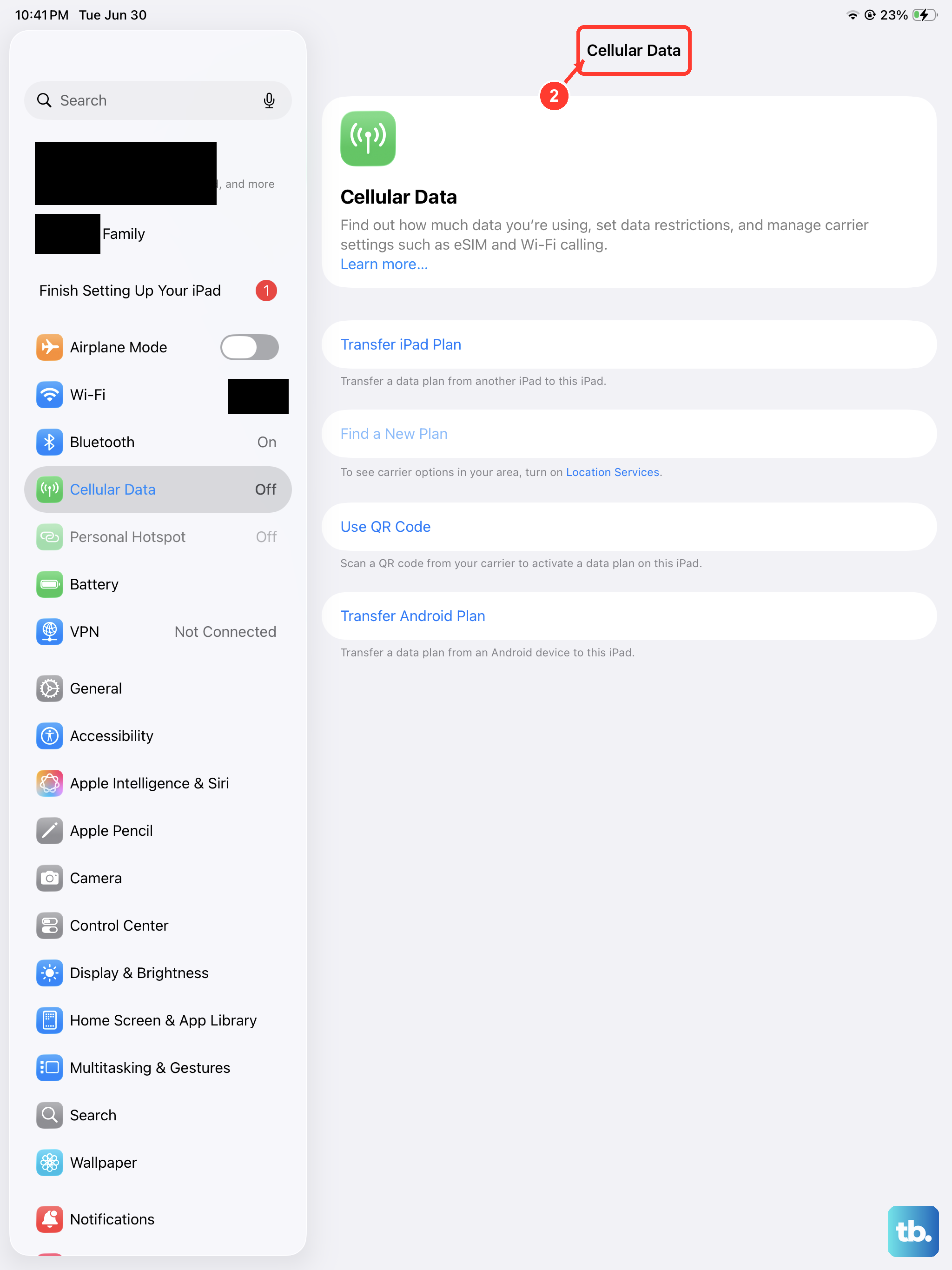
For videos on YouTube, Netflix, or other streaming apps, a weak connection is the usual suspect. The video might buffer constantly or play in low quality. Try running a speed test or switching between Wi-Fi and cellular data if your iPad supports it.
Sometimes, simply restarting your Wi-Fi router and modem can resolve minor connection issues. If the stuttering only happens on one app or website, the problem might be with their servers, not your iPad.
Update iPadOS and Your Apps
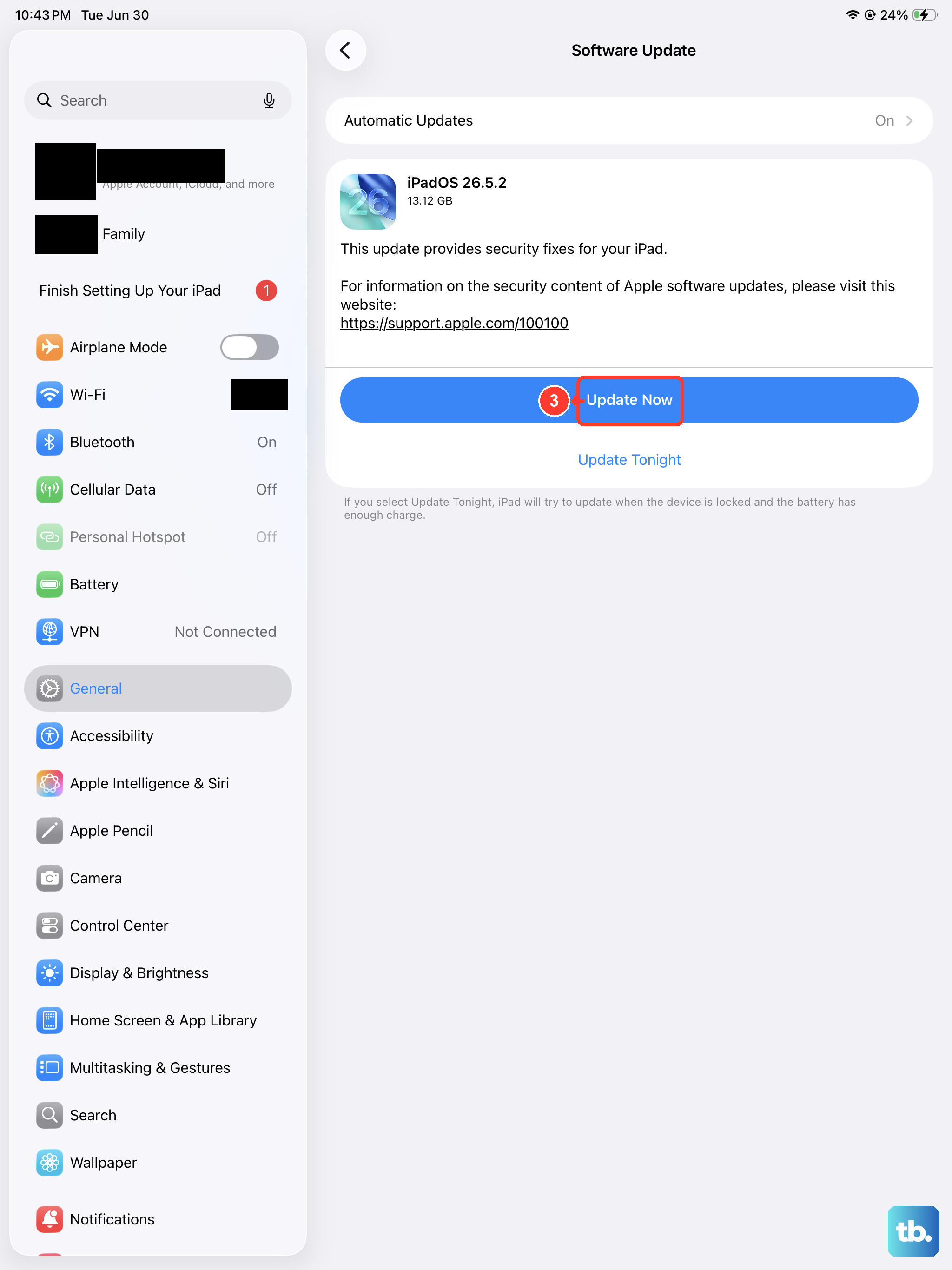
An outdated system can have bugs that affect video decoding and playback. Software updates can include bug fixes and security updates. Go to Settings > General > Software Update to check for and install any available iPadOS updates.
Don't forget the apps themselves. Open the App Store, tap your profile icon, then tap App Updates and Update All, especially if updates are available for video apps like YouTube, Prime Video, or VLC.
Force Close and Reopen the App
If the video app stops responding, try closing and reopening it. To fully close it, swipe up from the bottom of the screen (or double-click the Home button on older iPads) to enter the app switcher. Then, swipe the video app's preview up and off the top of the screen to close it.
Wait a moment, then tap the app icon again to relaunch it. Avoid repeatedly force closing apps that are responding normally, since reopening them requires their data to reload and can slow down your iPad.
Restart Your iPad
Try restarting your iPad. Go to Settings > General > Shut Down, then drag the slider. Once it turns off, press and hold the top button until the Apple logo appears.
If your iPad isn't responding and you can't restart it normally, force restart it. Without a Home button, quickly press and release the volume button nearest the top button, then the one farthest from it, then hold the top button until the Apple logo appears. With a Home button, hold the Home and top buttons together until the Apple logo appears, then release both.
Disable Background App Refresh
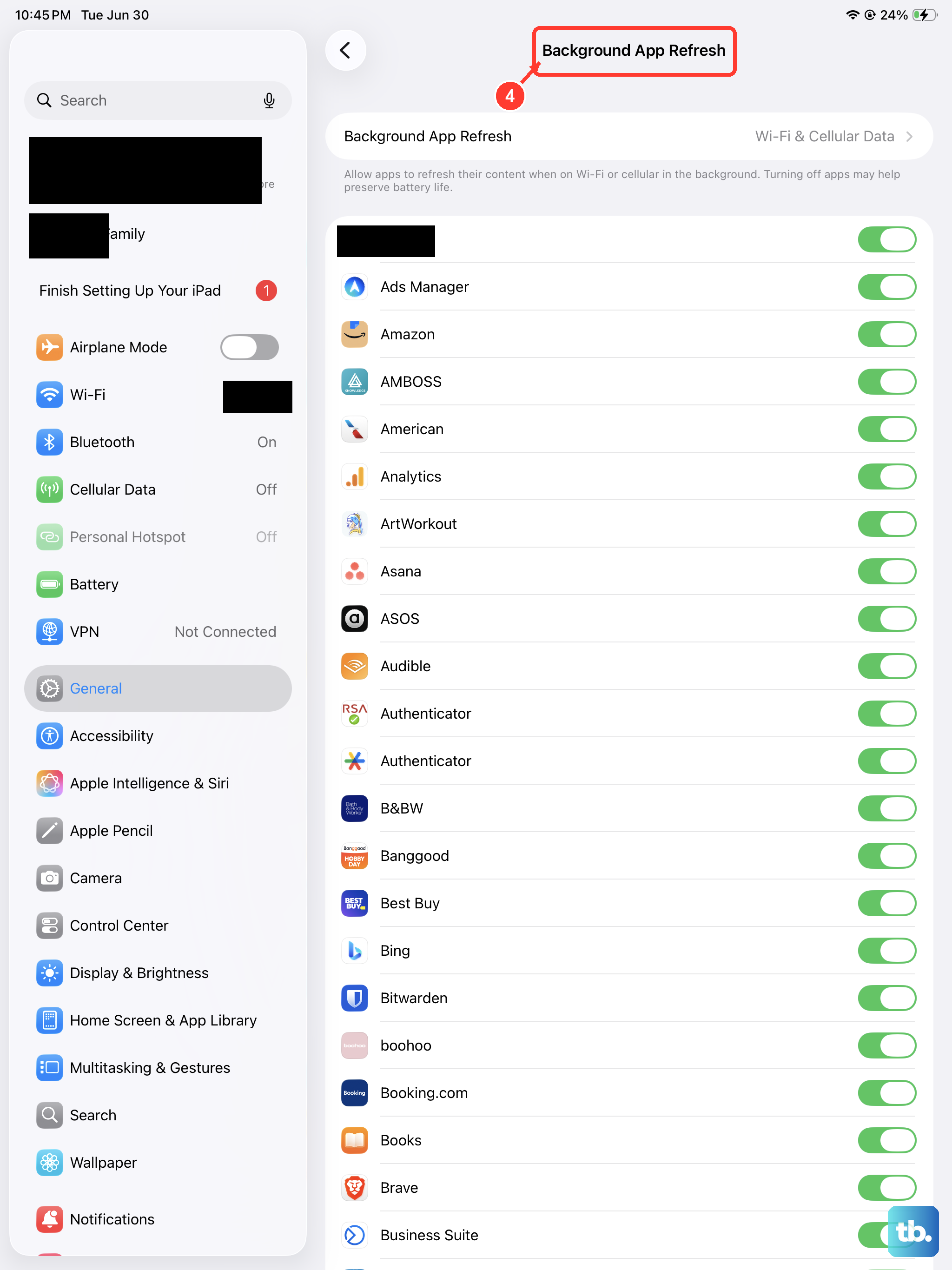
If too many apps are updating in the background, they can steal system resources needed for smooth video playback. You can turn this off globally or just for non-essential apps.
Go to Settings > General > Background App Refresh. Tap Background App Refresh again and choose Off to disable it, or Wi-Fi to allow refresh only on Wi-Fi.
Check for Overheating
An iPad can run slower if it gets too hot or too cold. If your device is hot, take it out of direct sunlight, remove any case, and pause playback while it cools down. Move it somewhere with a more moderate temperature before trying again.
Playing graphically intense games or streaming 4K HDR video for long periods, especially while charging, can push the temperature up. Pausing for a bit usually fixes it.
Reset All Settings
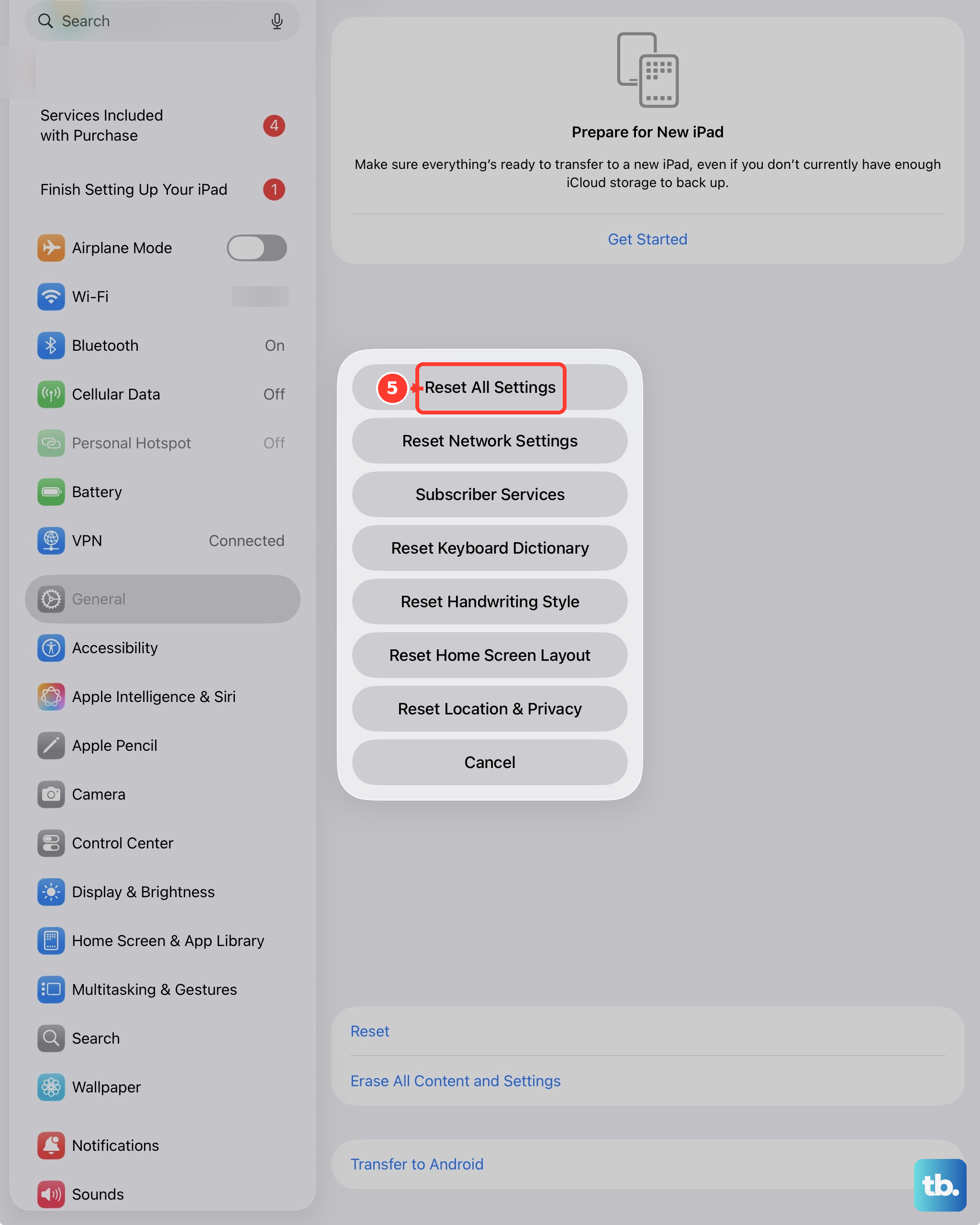
This is a stronger step that resets network, display, and privacy settings to their defaults without deleting your personal data. Back up your iPad first so you can restore your previous settings if the reset doesn't help.
Go to Settings > General > Transfer or Reset iPad > Reset > Reset All Settings. You'll need to re-enter Wi-Fi passwords and reconfigure some preferences, but your photos, apps, and documents will be safe.
Try a Different Video Source or App
To rule out a problem with a specific file or service, try playing a video from a different source. If a YouTube video stutters, try one from the TV app or a video saved in your Photos library.
If the problem is only in one app, like Safari or Netflix, the issue is likely with that app or its data. You can try deleting and reinstalling the problematic app to give it a fresh start.
Check the Video File Itself
For videos you've downloaded or transferred, the file might be corrupted or in a format your iPad struggles with. Try playing a different video file to see if the problem persists. The native Files and Photos apps support common formats like MP4, MOV, and H.264.
If you're trying to play a very high-resolution file (like 8K) or a niche format, your iPad might not have the hardware decoder for it. Converting the file to a standard format on a computer first can often solve this.