
Running out of space on your iPad can bring everything to a halt, stopping you from downloading new apps, saving documents, or installing iPadOS updates. You can often reclaim several gigabytes without losing anything important. Here's how to find what's filling your storage and clear out the clutter.
Check Your iPad Storage Breakdown
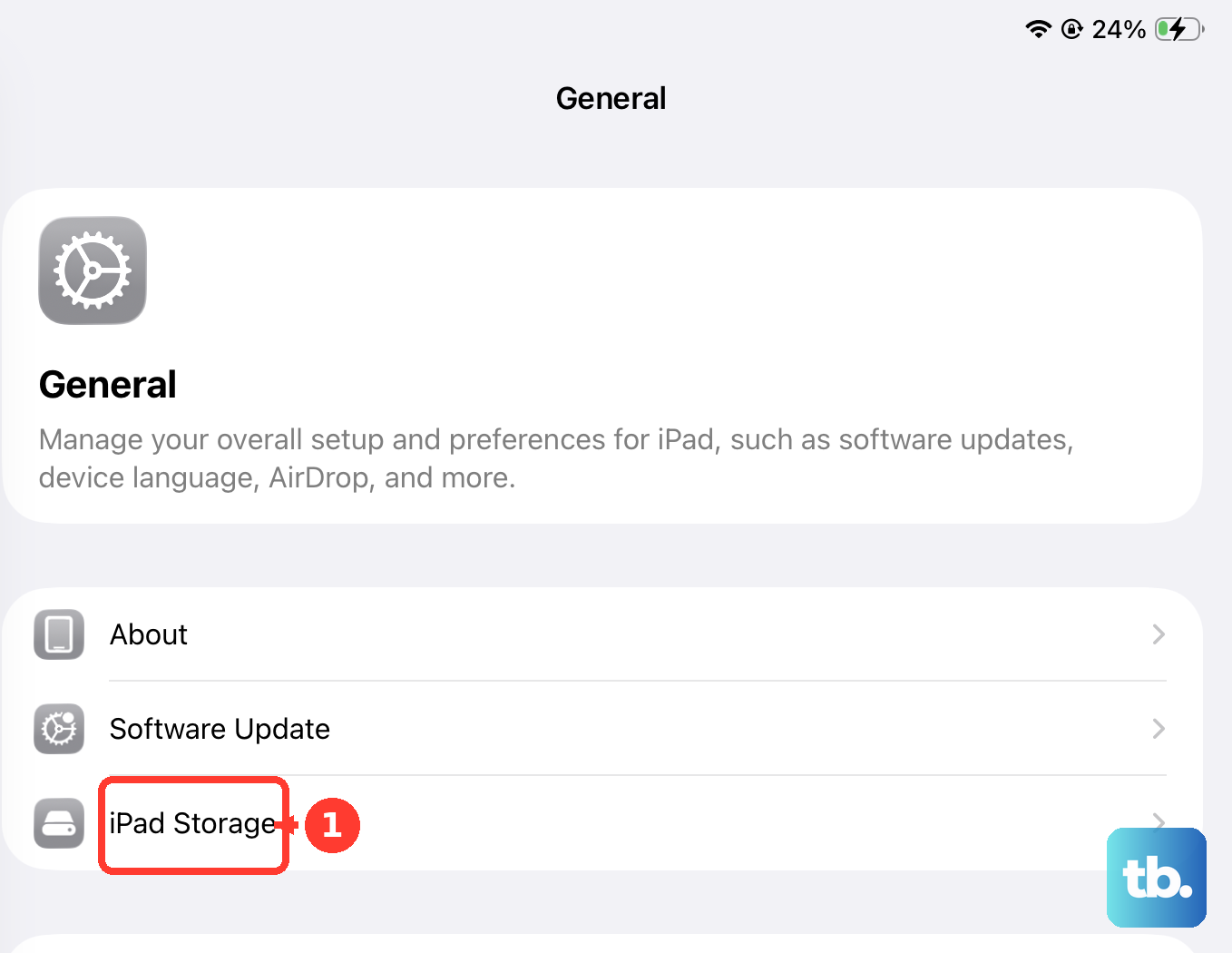
Go to Settings > General > iPad Storage. This screen shows recommendations at the top and a list of apps below, sorted from largest to smallest. Give it a moment to finish calculating sizes.
Photos, streaming apps and games usually sit near the top of the list, which tells you where to start. Tap any app's name to see how much space the app itself uses and how much its documents and data use.
Offload Apps You Don't Use
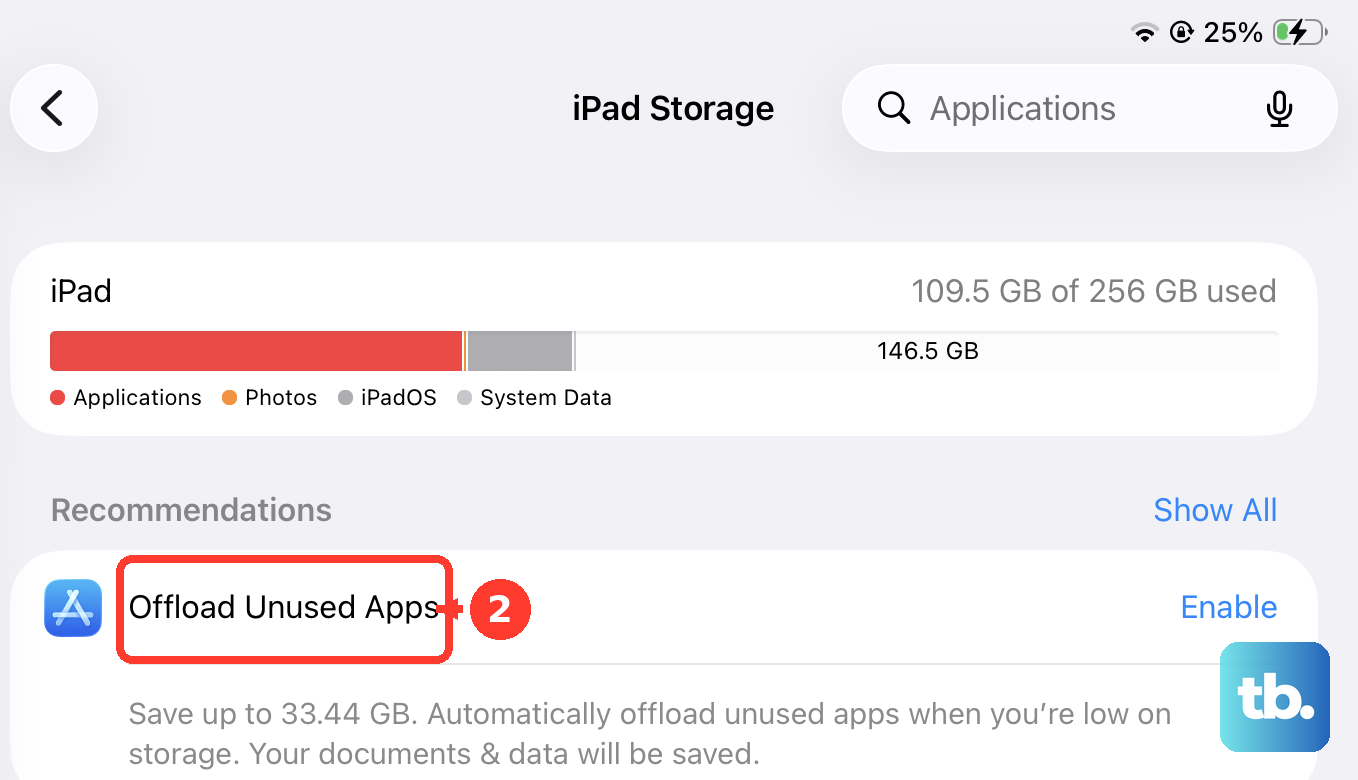
On the same iPad Storage screen, look for the Offload Unused Apps recommendation. Turning it on lets iPadOS remove apps you haven't used in a while while keeping their documents and data. The app icon stays on your Home Screen, and tapping it downloads the app again.
You can also offload a single app. Tap its name in the list, then tap Offload App. If you want the app and its data gone completely, tap Delete App instead.
Tackle Your Photo and Video Library
Photos and videos are usually the biggest space users. If you use iCloud Photos, go to Settings, tap your name, tap iCloud, then tap Photos. In iPadOS 27, tap iPad Storage and make sure Optimize iPad Storage is on. In iPadOS 26 or earlier, choose Optimize iPad Storage directly on the Photos screen.
With this setting on, full-resolution originals stay in iCloud and your iPad keeps smaller, storage-saving versions. Next, open the Photos app and delete old screenshots, blurry shots and duplicate videos.
Deleted items stay in the Recently Deleted album for 30 days, still using space. To empty it, open Photos, tap Recently Deleted under Utilities, tap View Album and unlock with Face ID or Touch ID, then tap Select and delete the items. Anything you delete from this album can't be recovered.
Clear Out Message Attachments
Years of conversations full of photos, videos and GIFs can quietly take up many gigabytes. Go to Settings > General > iPad Storage, then tap Messages to review large attachments by type and delete the ones you don't need.
For automatic cleanup, go to Settings > Apps > Messages > Keep Messages and choose 1 Year or 30 Days. Conversations and their attachments older than that are then removed automatically. Deleted messages sit in the Messages Recently Deleted folder for 30 days, so empty it from the Filter button in the conversation list if you need the space right away. If you use Messages in iCloud, deletions also apply to your other devices.
Delete and Reinstall Large Apps
Apps like Netflix, Spotify, Procreate or games can build up large caches and documents. In your iPad Storage list, look for apps where Documents & Data is much larger than App Size.
For these, deleting the app and reinstalling it from the App Store is often the fastest fix. You'll need to sign back in, and any downloads or local files stored only in that app will be gone, but so will the temporary cached files.
Review Downloaded Media Files
Streaming apps store content locally for offline use. Open apps like Netflix, Apple TV, Spotify or Apple Podcasts and check your downloads. Delete movies you've watched, podcast episodes you've finished, or playlists you no longer need offline.
Many music apps also offer a storage or downloads section in their own settings where you can remove all downloads at once. For books, open Apple Books and remove downloaded titles you've finished.
Clear Safari Website Data
Safari stores website data, caches and browsing history to load pages faster, and this can grow over time. Go to Settings > Apps > Safari, tap Clear History and Website Data, choose a timeframe, then tap Clear History. This also removes cookies but doesn't change your AutoFill information.
To keep your history, go to Settings > Apps > Safari > Advanced > Website Data instead. You can remove data for specific sites or tap Remove All Website Data.
Check for System Data Issues
At the bottom of Settings > General > iPad Storage, you'll see System Data. This includes non-removable items such as Siri voices, fonts, dictionaries, logs, caches, the Spotlight index, and system data like Keychain. The operating system itself is listed separately as iPadOS. To free up space, iPadOS removes cached and temporary files on its own when storage runs low.
If System Data looks unusually large, restart your iPad and check again after a few minutes. Also make sure you're on the latest iPadOS version in Settings > General > Software Update.
Manage Files and Local Downloads
Open the Files app and check your Downloads folder and the On My iPad section for large PDFs, videos or project files you've saved and forgotten about.
If you use iCloud Drive, Google Drive or OneDrive, check those locations in Files too. Make sure you haven't downloaded entire folders for offline access that you no longer need.