
Your iPad Pro M5 isn’t ringing for incoming FaceTime calls or forwarded iPhone calls. The screen lights up, the notification shows up, but you hear nothing. That’s a real problem when you’re expecting an important call. Here’s how to fix it quickly.
First, check the physical mute button (if your iPad has one)
iPad Pro M5 models don’t have a dedicated mute switch like older iPads. The Side switch that used to mute audio was removed years ago. So if you’re toggling a nonexistent button, that’s not your issue.
Instead, go directly to Control Center. Swipe down from the top-right corner and look for the bell icon. If it’s crossed out, your iPad is in silent mode, tap it to enable sound again.
Turn off Do Not Disturb and Focus modes
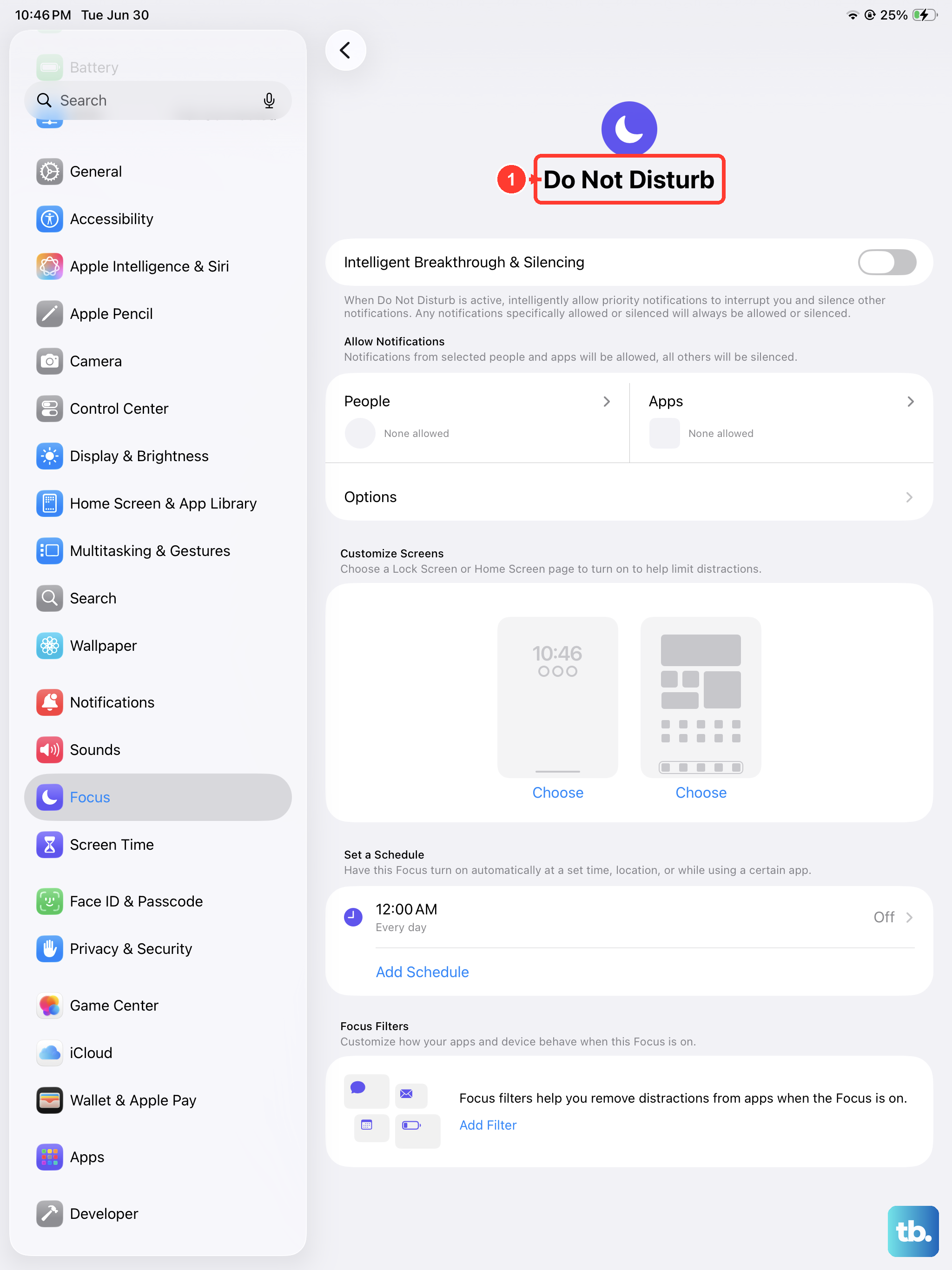
These are the most common culprits. When Do Not Disturb or any Focus profile is active, incoming calls and notifications come through silently. You see them but never hear them.
Open Control Center and check for the moon icon. If it’s highlighted, tap it to disable Do Not Disturb. Also check Settings > Focus and make sure no profile is currently on. If you use scheduled Focus (like Sleep or Work), check that the schedule isn’t active right now.
Make sure the ringer volume is turned up
Your iPad Pro M5 does have a separate ringer volume control. Press the volume up button on the side while on the Home screen to increase it. Or go to Settings > Sounds and slide the Ringer and Alerts slider up.
I’ve seen people accidentally lower this to zero and then wonder why they can’t hear anything. Make sure it’s at least halfway up for testing.
Check that your ringtone is set to something audible
Go to Settings > Sounds > Ringtone. If you accidentally selected a silent or very quiet tone, calls won’t make a sound. Pick a standard tone like “Opening” or “Marimba” and test again.
Disconnect Bluetooth devices
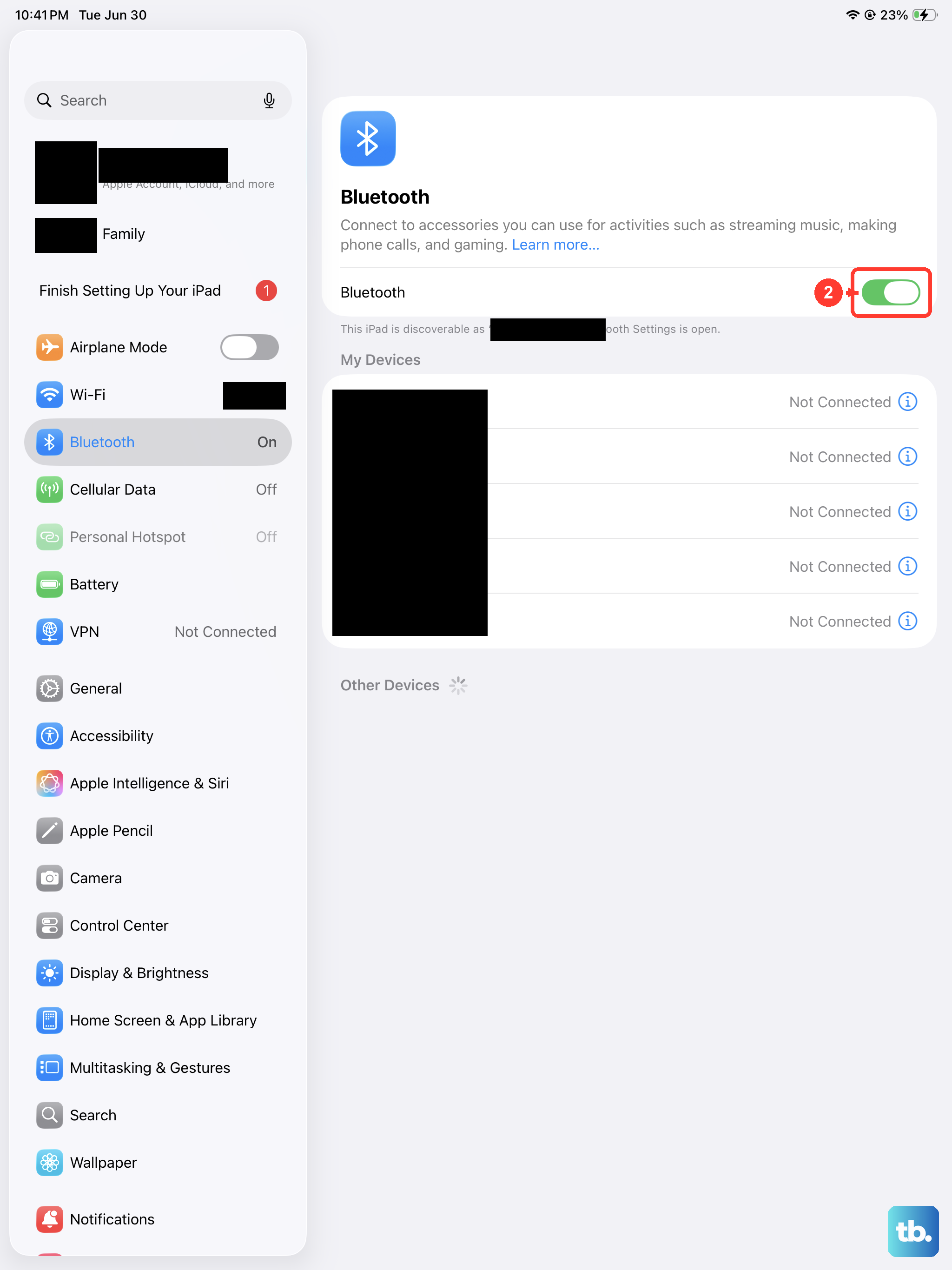
Your iPad might be routing call audio to a connected Bluetooth speaker, headphones, or even your Apple Watch. Go to Settings > Bluetooth and turn Bluetooth off temporarily. Then try receiving a call, if it rings through the iPad’s speakers, you know the issue was a Bluetooth priority conflict.
Check if “Silence Unknown Callers” is on
iPad has a setting that silences calls from people not in your contacts. Go to Settings > Apps > FaceTime or Settings > Apps > Phone (if you have an iPad with cellular). Look for “Silence Unknown Callers” and make sure it’s turned off. If it’s enabled, calls from unknown numbers go straight to voicemail without ringing.
Verify call forwarding isn’t redirecting everything away
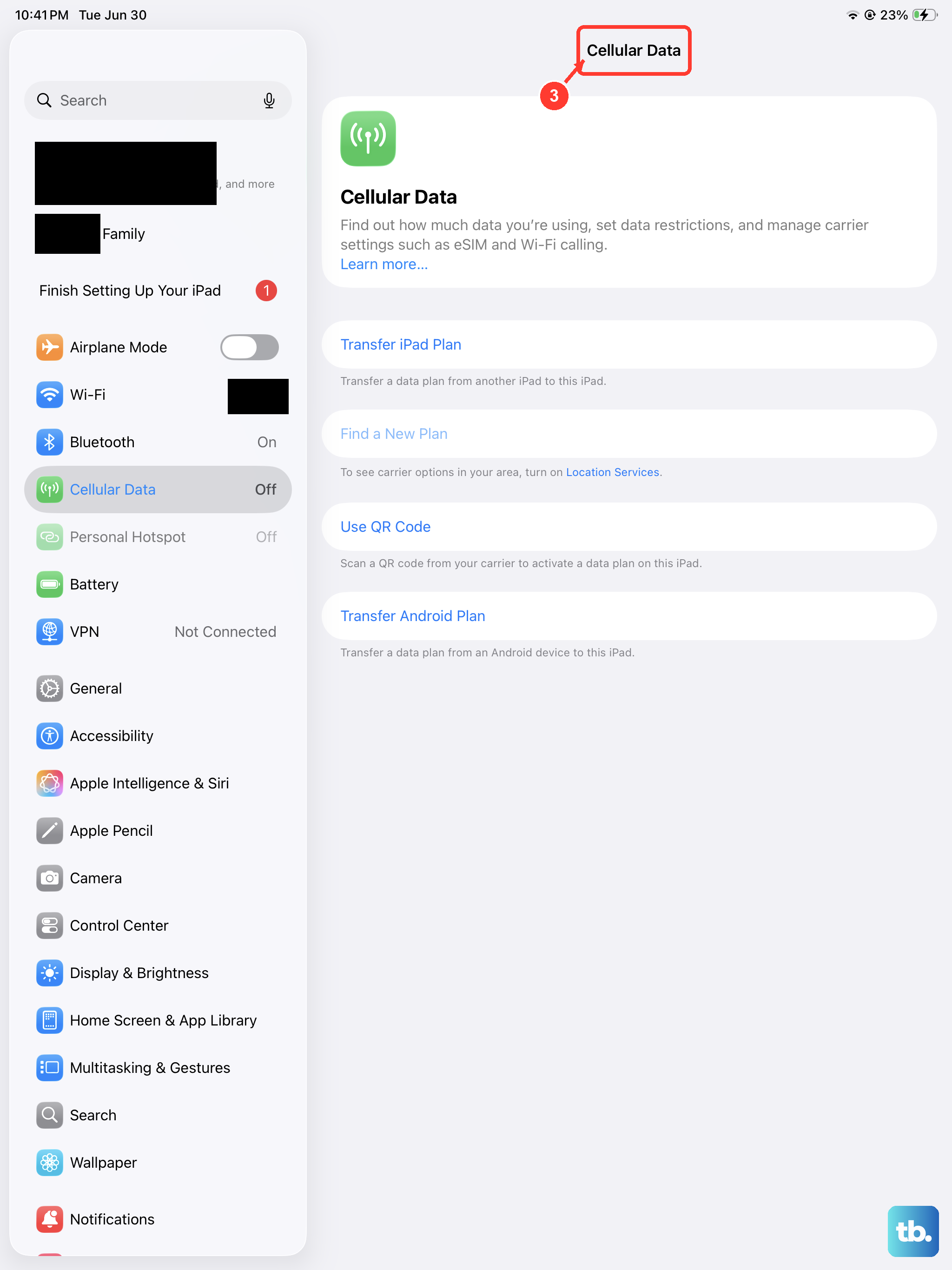
This only applies to iPad models with a cellular data plan. Go to Settings > Apps > Phone > Call Forwarding and confirm it’s turned off. If forwarding is on, incoming calls might be sent to another number before they ever reach your iPad.
Restart your iPad Pro M5
A quick restart clears temporary glitches that can kill the ringing behavior. Hold the Top button until you see the power-off slider, then slide to turn off. Wait 30 seconds and press the Top button again to turn it back on.
Force restart if the iPad is unresponsive
If your iPad Pro M5 isn’t responding normally, do a force restart. Press and release the Volume Up button, then press and release the Volume Down button, then press and hold the Top button until the Apple logo appears. This won’t erase any data.
Update to the latest iPadOS
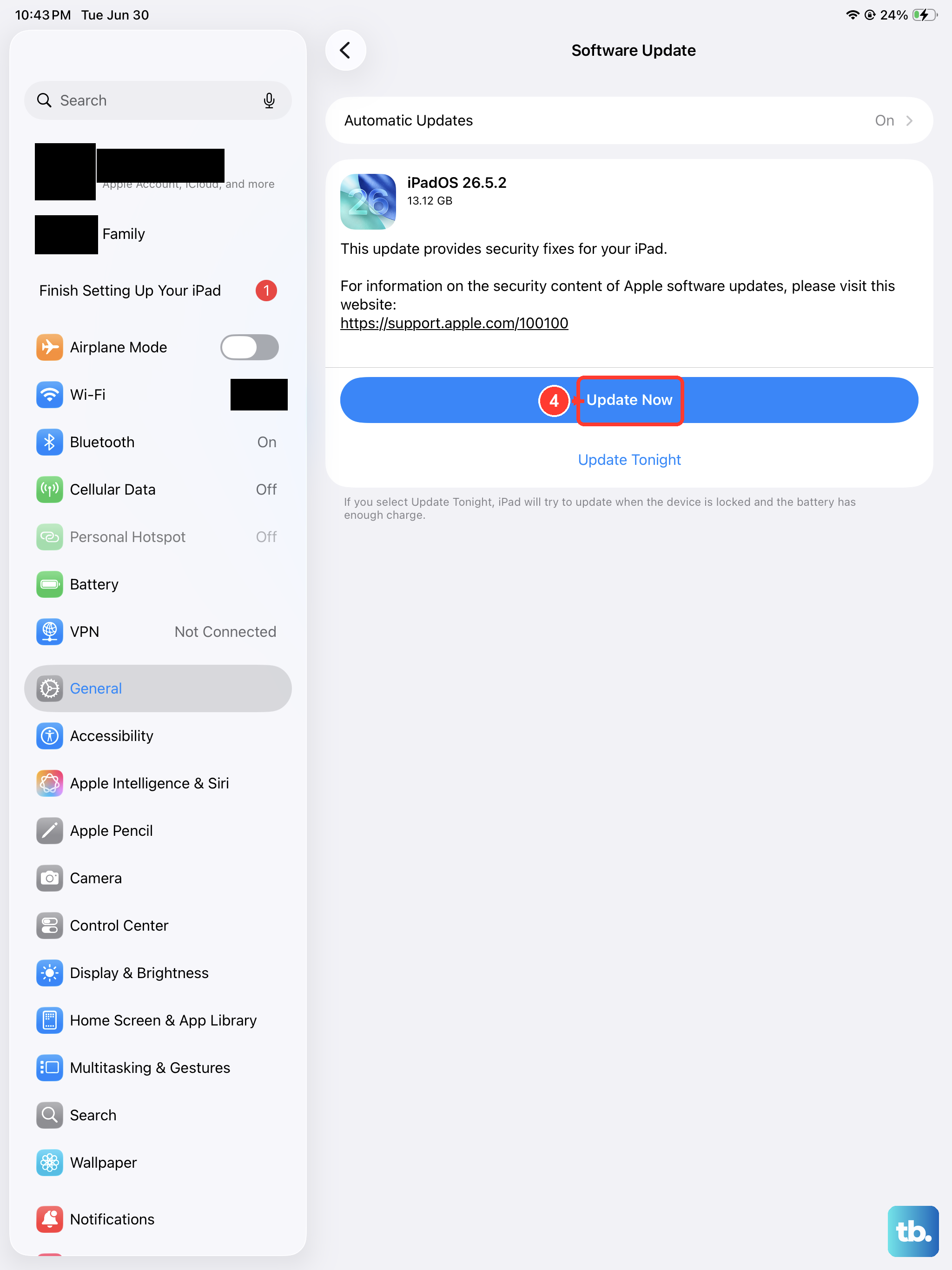
Software bugs can cause sound-related issues. Go to Settings > General > Software Update and install any available update. iPadOS 18.3, 18.4, or later might include fixes for audio routing or Focus mode bugs.
Reset all settings
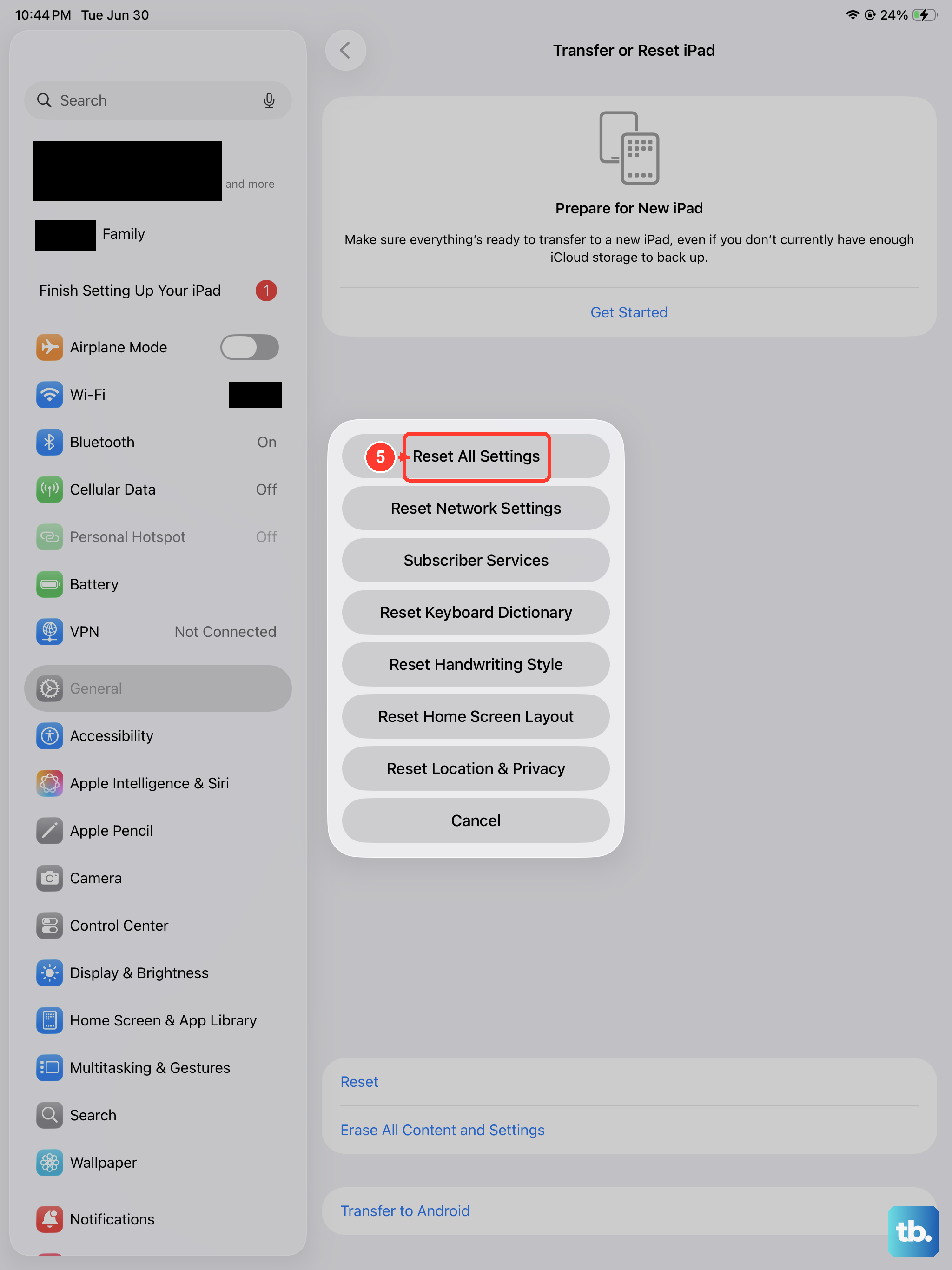
This doesn’t delete your data, but it does reset preferences like ringtone, volume, and Focus configurations. Go to Settings > General > Transfer or Reset iPad > Reset > Reset All Settings. You’ll need to re-enter your passcode and set up Wi-Fi again, but it often resolves stubborn audio issues.
Check your FaceTime settings for call handling
Go to Settings > Apps > FaceTime. Make sure “FaceTime Calls” is turned on. Under “Allow Calls From,” confirm it isn’t set to “No One” or only a specific group. If it’s set to “Contacts Only,” callers not in your contacts won’t ring through.
Verify that your iPhone call forwarding is configured correctly
If you rely on iPhone Cellular Calls (Continuity feature), the issue might be on your iPhone, not the iPad. On your iPhone, go to Settings > Apps > Phone > Calls on Other Devices and make sure your iPad Pro M5 is enabled. Then check that Wi-Fi Calling is on and connected to the same Apple ID.
Reset network settings (for Wi-Fi or cellular call issues)
If calls from apps like FaceTime or WhatsApp don’t ring, network settings might be corrupted. Go to Settings > General > Transfer or Reset iPad > Reset > Reset Network Settings. This clears saved Wi-Fi passwords and VPN configurations, so you’ll need to re-enter them.
Try these fixes in order, starting with the simplest. Most of the time, it’s a Focus mode or volume issue that takes seconds to fix.