
Seeing your iPad Pro (M4) frozen on the Apple logo is a stressful moment. The screen is on, but nothing else happens, leaving you stuck in a boot loop. This typically stems from a software update that got interrupted or a corrupted system file. The good news is, you can almost always get it working again yourself.
Give It Time to Finish
Before you take any action, just wait. This is especially true if you just installed an iPadOS 26 update. The system might be performing final optimizations in the background, which can keep the logo on screen for longer than you'd expect. If you see a progress bar, it's definitely still working. Plug it into power using a 30W or higher USB-C PD charger and leave it alone for a solid 20 minutes.
Perform a Force Restart
If the logo is completely static with no progress bar after that waiting period, a force restart is your first real fix. On the iPad Pro (M4), you press and quickly release the Volume Up button, then quickly press and release the Volume Down button. Immediately after, press and hold the Power button until you see the Apple logo appear again. This interrupts the faulty boot cycle and often gets you right back to your home screen.
Enter Recovery Mode
When a force restart just brings you back to the same stuck logo, you need to use recovery mode. Grab a known-good, Apple-certified USB-C cable and connect your iPad to a Mac or a Windows PC with iTunes installed. On the iPad, quickly press and release Volume Up, then Volume Down, then immediately press and hold the Power button.
Keep holding the Power button even after you see the Apple logo. Wait until the recovery mode screen appears, which shows a cable pointing to a computer icon. Your connected computer will then pop up a message giving you two choices: Update or Restore. You should always choose Update first. This reinstalls iPadOS without touching your personal data.
Try DFU Mode as a Last Resort
DFU, or Device Firmware Update, mode is the deepest restore you can do. It's more involved than recovery mode. First, connect your iPad to the computer with the USB-C cable. Quickly press Volume Up, then Volume Down. Now, press and hold the Power button for 10 seconds.
After 10 seconds, without letting go of the Power button, also press and hold the Volume Down button. Keep holding both for 5 seconds. Then, release only the Power button, but continue holding the Volume Down button for another 10 seconds. If done correctly, the screen will remain completely black. Your computer will detect a device in recovery and prompt you to restore it, which will erase everything.
Ensure You Have Enough Storage
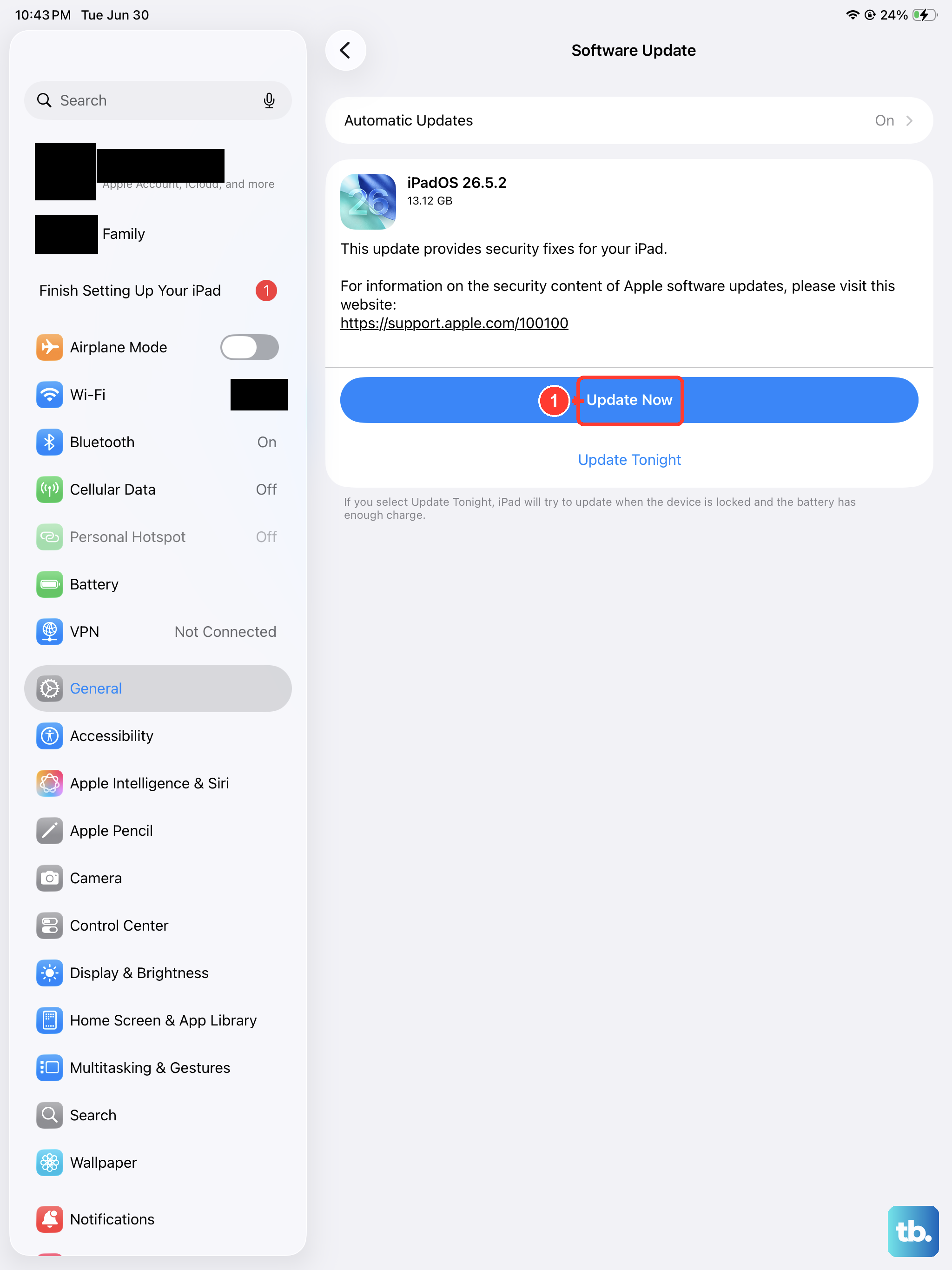
A common trigger for this issue is attempting a software update without enough free space. If you get your iPad working again after a force restart, immediately check your storage in Settings > General > iPad Storage. I'd recommend freeing up at least 10-15 GB before trying to update again to give the process plenty of room to work.
Check Your Connection to the Computer
If your computer isn't recognizing the iPad to enter recovery or DFU mode, the cable is the usual suspect. Try a different USB-C cable, preferably the one that came with your iPad Pro. Also, try plugging into a different USB port on your computer, directly into the computer itself instead of a hub.
Restore Your Data from a Backup
If the only way out was to choose "Restore," which erases the iPad, you can get your data back. After the restore is complete and the iPad restarts, you'll go through the setup process. When prompted, select Restore from iCloud Backup or Restore from Mac to retrieve your apps, settings, and files from your most recent backup.