
When the volume buttons on your iPad Pro (M4) stop responding, it feels like you've lost a basic function. You press the rocker, but nothing happens, no volume change, no haptic feedback. The good news is that this is often a temporary glitch you can fix yourself without a trip to the Apple Store.
I'd start with the simplest solutions first. They work for most people dealing with unresponsive buttons.
Remove Your iPad Case
Take off your case or folio keyboard. A case that's slightly misaligned or has worn padding can physically block the button's movement. This is especially common with thicker protective cases or third-party accessories that don't have precise cutouts.
With the case off, press the volume buttons a few times to see if they click normally. Sometimes, that's all it takes.
Perform a Force Restart
A force restart clears out minor software bugs that can cause hardware controls to freeze. This won't delete any of your apps or data.
For the iPad Pro (M4), here's the sequence: quickly press and release the Volume Up button, then quickly press and release the Volume Down button. Finally, press and hold the Power button (on the top edge) until you see the Apple logo appear on screen.
Hold the power button through the "slide to power off" prompt. You'll know it's working when the screen goes black and the logo appears.
Check for Software Updates
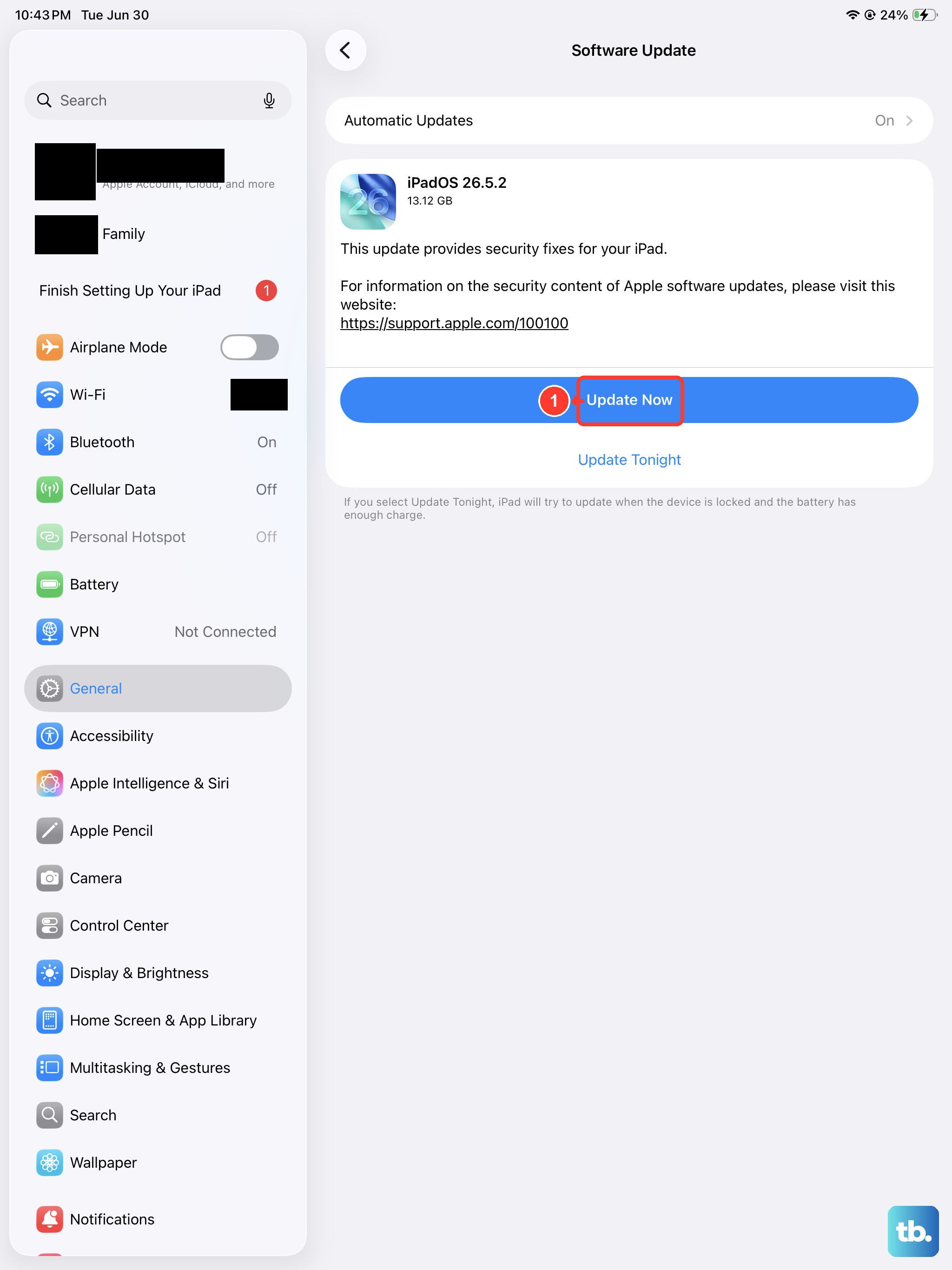
Since this is a new device running iPadOS 26, early software bugs can sometimes affect hardware controls. Apple typically releases patches for these kinds of issues quickly.
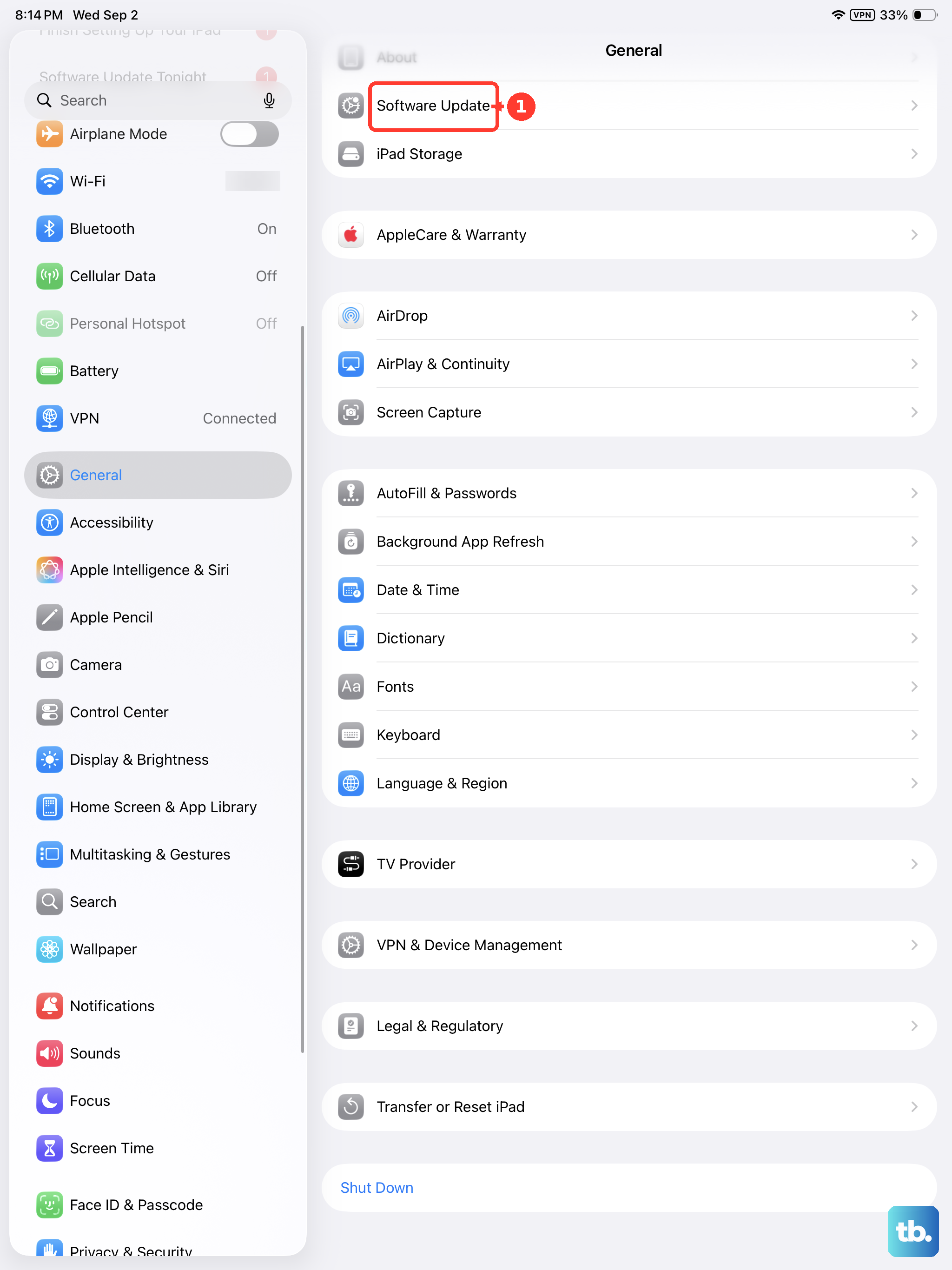
Go to Settings > General > Software Update. If an update is available, plug your iPad into power using a certified USB-C cable and connect to Wi-Fi to install it. A simple update has resolved button issues for many users.
Clean the Volume Button Area
Dust, lint, or pocket debris can easily get lodged around the buttons on a tablet. This is a leading cause of buttons feeling mushy or unresponsive.
Turn off your iPad first. Then, use a can of compressed air to gently blow around the button seam. For any sticky residue, lightly dampen a cotton swab with isopropyl alcohol (90% or higher) and carefully clean around the button, avoiding pushing moisture inside.
Let it dry completely for a minute before turning your iPad back on.
Test the Buttons in Different Apps
Open the Music app, the TV app, or a video on YouTube. Try adjusting the volume while media is playing. If the buttons work here but not in a specific app like a game, then the problem is likely with that app's settings, not your iPad's hardware.
You can also try using the volume slider in Control Center (swipe down from the top-right corner) as a workaround while you troubleshoot.
Toggle the Mute Switch and Check Settings
The iPad Pro has a physical mute switch (or a software mute toggle in Control Center, depending on your configuration). If your iPad is muted, the volume buttons won't make any sound, which can be mistaken for them not working.
Flip the mute switch off or ensure the mute icon isn't highlighted in Control Center. Also, go to Settings > Sounds and make sure the "Change with Buttons" option is enabled. If it's off, your physical buttons won't control media volume.
Enable AssistiveTouch for Virtual Buttons
Enabling AssistiveTouch does two things. It gives you a temporary software-based workaround, and using the virtual buttons can sometimes "wake up" the physical ones.
Go to Settings > Accessibility > Touch > AssistiveTouch and turn it on. A grey circle will appear on your screen.
Tap it, go to Device, then tap Volume Up or Volume Down a few times. After using the virtual controls, try your physical buttons again.
Reset All Settings
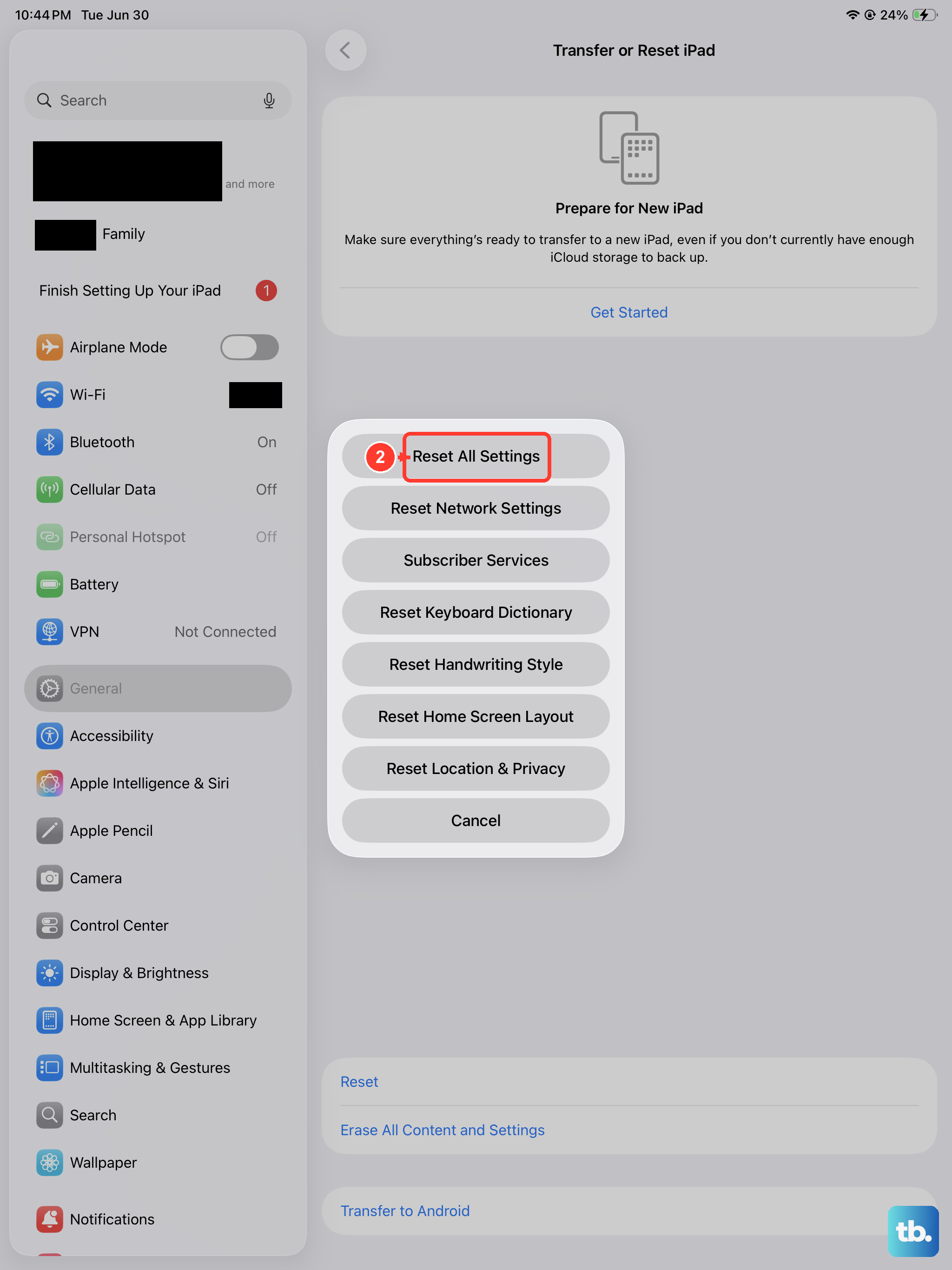
This is a more involved step, but it can fix deeper software conflicts without erasing your personal data. Your wallpaper, saved passwords, and home screen layout will be reset, but your photos, apps, and documents will remain.
Go to Settings > General > Transfer or Reset iPad > Reset. Then, tap Reset All Settings. Your iPad will restart. After it boots up, test the volume buttons immediately.
Check for Physical Damage or Sticking
Inspect the volume rocker closely. Does it look bent or dented? Does it press down with a normal, crisp click, or does it feel stuck or spongy?
Press each side of the rocker (up and down) rapidly about 20-30 times. This can help loosen any minor internal debris or free a slightly stuck mechanism. Listen for the distinct clicking sound with each press.
Restore Your iPad via a Computer
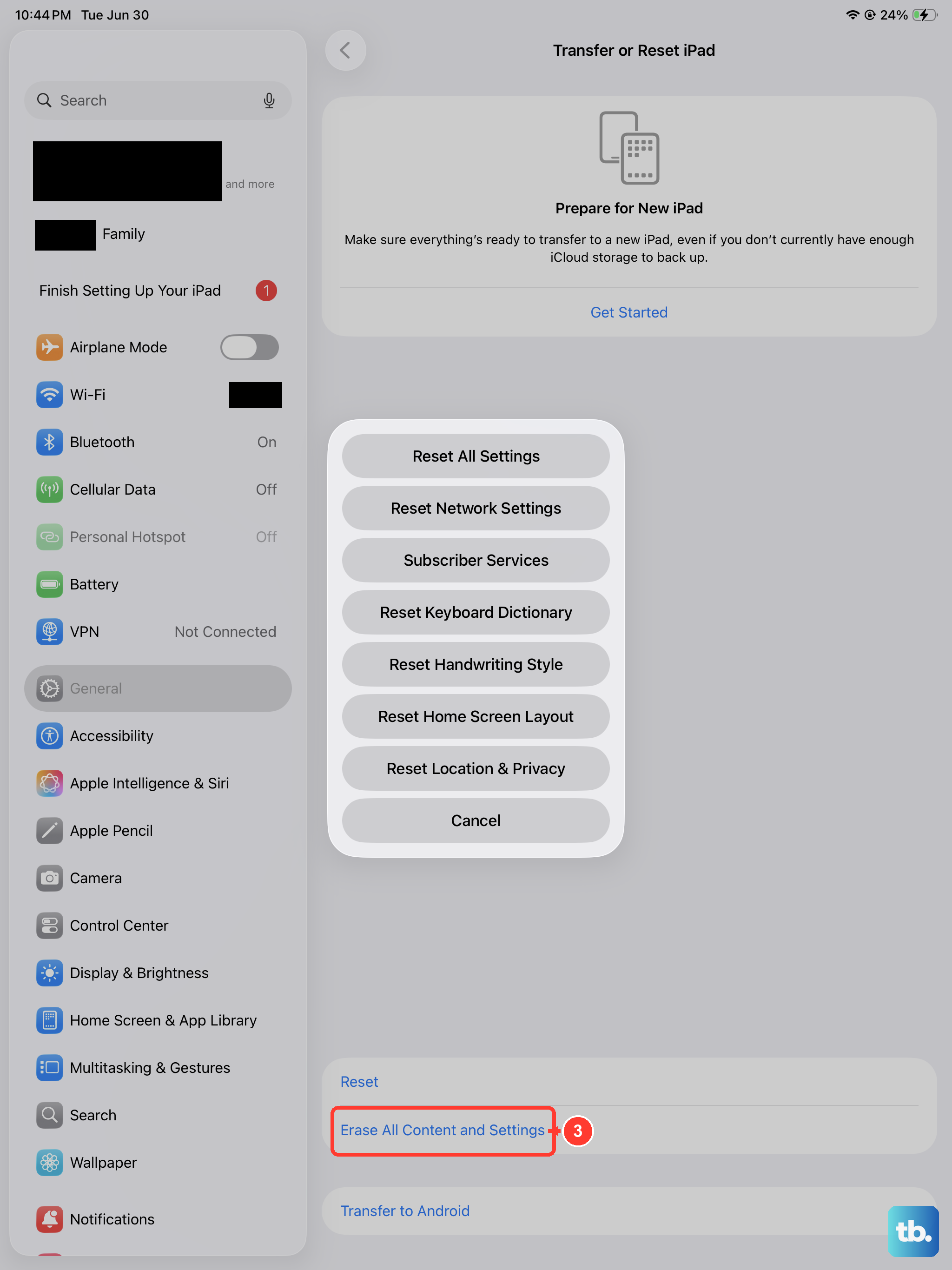
If you've tried everything else, a full restore is the final software step. This will erase all content and settings, so make sure you have a recent backup in iCloud or on your computer.
Connect your iPad Pro to a Mac or PC using a USB-C cable. On a Mac with macOS or a PC with iTunes, find your device and select the option to "Restore" it. This installs a clean, fresh copy of iPadOS. After the restore is complete, you can set it up as new or from your backup and test the buttons.