
When your iPad Pro (M4) starts restarting on its own, it's more than just an annoyance. It can interrupt your work, close your apps, and make the device feel unreliable. This is often a software hiccup, but there are several straightforward steps you can take to get it back to normal.
Before you dive into any fixes that might erase data, it's a smart move to ensure you have a recent backup. You can use iCloud or connect your iPad to a Mac or PC and back it up through Finder or iTunes.
Perform a Force Restart
This is almost always the first thing I'd try. A force restart clears the iPad's memory and can stop a minor software glitch that's causing the loop. For the iPad Pro (M4), the process is quick.
Press and quickly release the Volume Up button. Then, press and quickly release the Volume Down button. Finally, press and hold the Power button (on the top edge) until you see the Apple logo appear on the screen. You can then release the button and let the iPad boot up normally.
Check for App Updates and Conflicts
An outdated or buggy app is a very common cause of random restarts. Start by making sure all your apps are up to date. Open the App Store, tap your profile icon in the top corner, and scroll down to see pending updates. Tap "Update All" if available.
If the restarts started after you installed a specific app, that app might be the culprit. Try closing all your apps by swiping up from the bottom of the screen and swiping up on each app preview. Then, see if the problem persists without opening the suspect app.
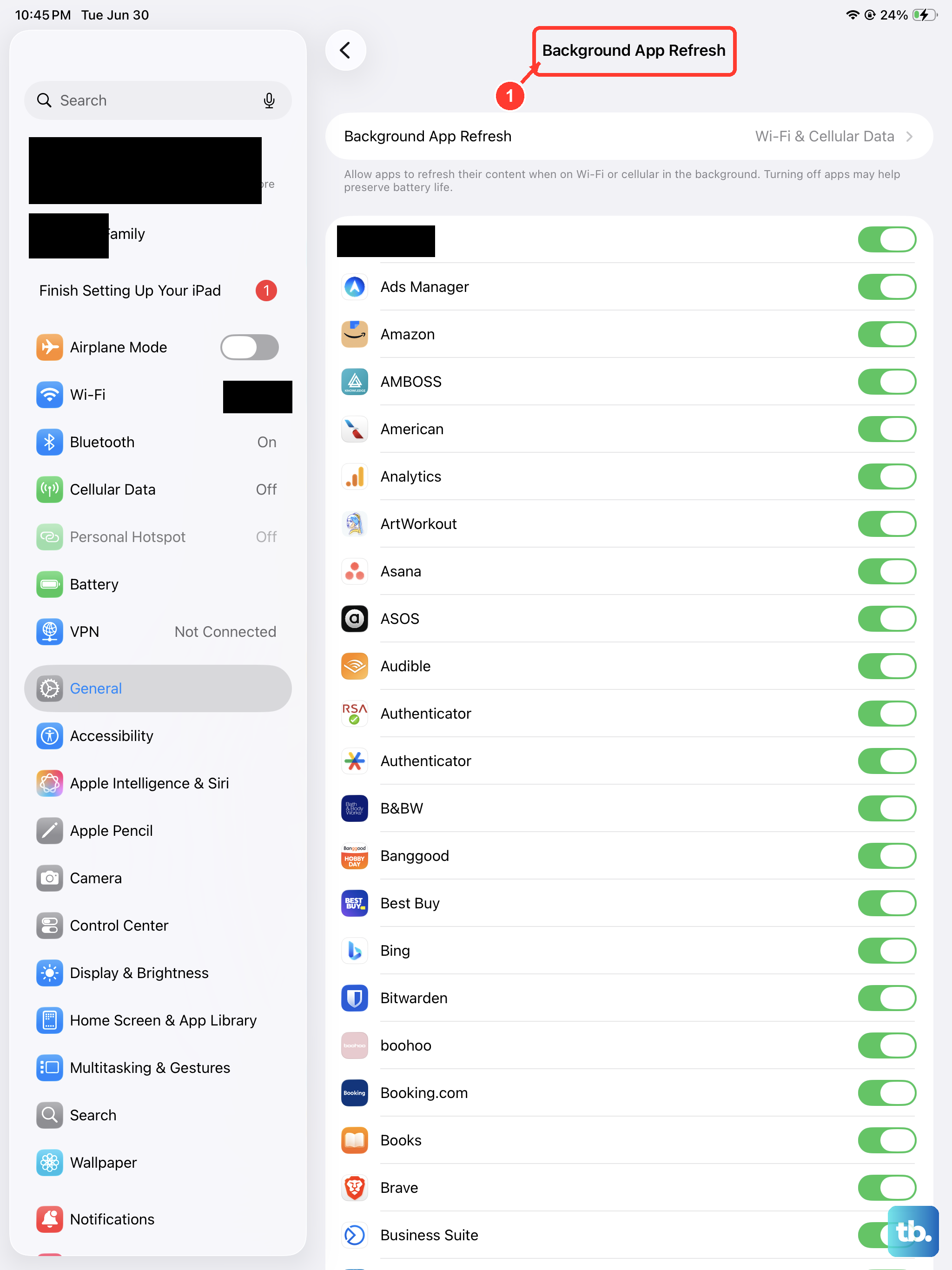
For a more thorough check, you can temporarily disable Background App Refresh for all apps. Go to Settings > General > Background App Refresh and toggle it off. This stops apps from working in the background, which can sometimes stabilize the system.
Install the Latest iPadOS Update
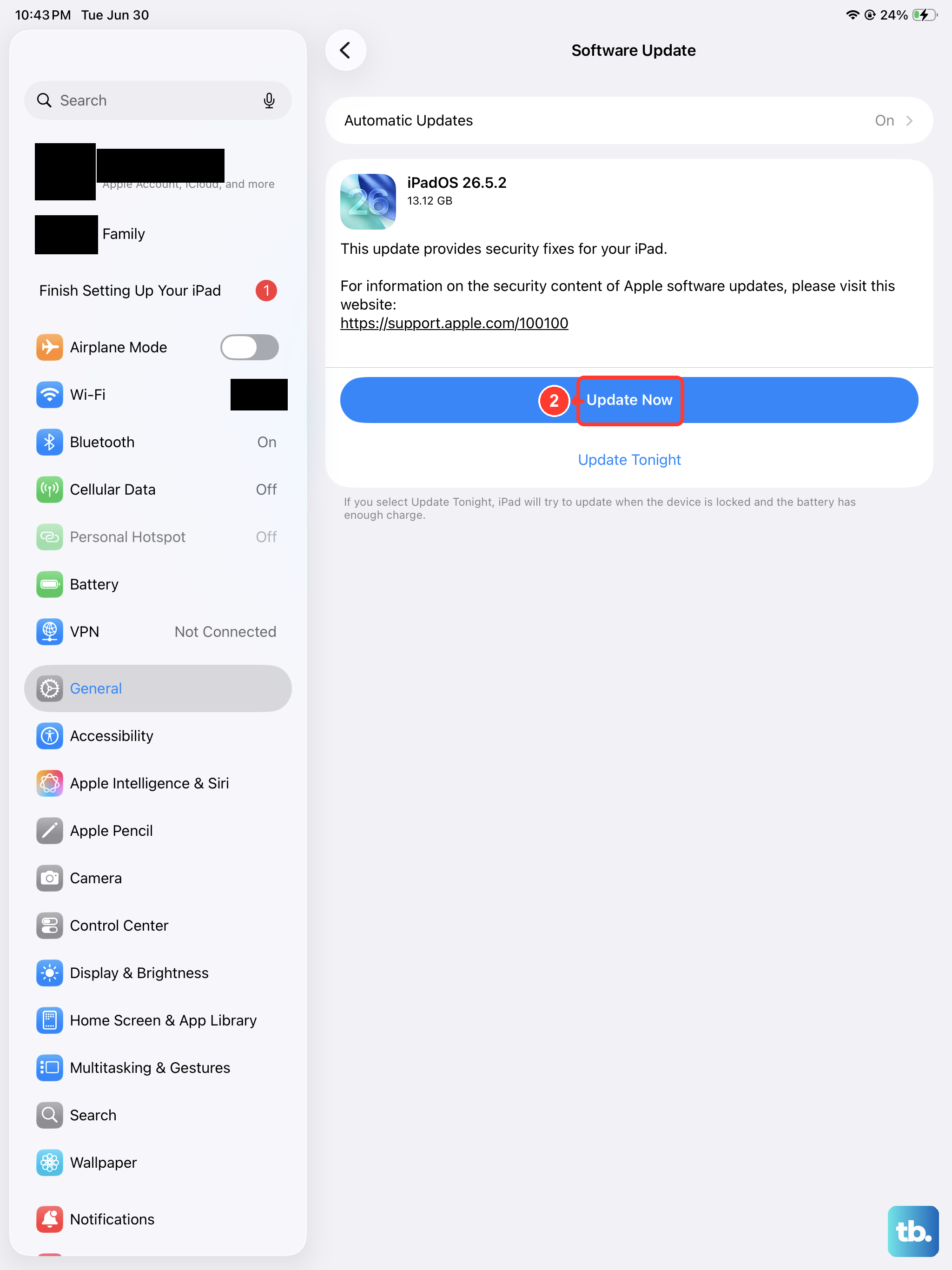
Apple frequently releases iPadOS updates that include bug fixes for issues just like this. An update could contain a patch specifically for a problem causing your model to restart.
Go to Settings > General > Software Update. If an update is available, tap "Download and Install." Make sure your iPad is connected to power and Wi-Fi during this process, as it can take a little while.
Review iPad Analytics Data
Your iPad keeps detailed logs of every crash and system panic, which can point directly to the problem. You can access these logs to see if a specific app or process is named.
Navigate to Settings > Privacy & Security > Analytics & Improvements > Analytics Data. Look through the list for entries that start with "panic-full" or that include the name of an app you suspect. These logs are technical, but seeing the same app name repeatedly can be a clear clue.
Free Up Storage Space
When your iPad's storage is critically full, the operating system can struggle to function properly, leading to instability and crashes. It's a good idea to check your available space.
Head to Settings > General > iPad Storage. This screen will show you a breakdown of what's using space and may offer recommendations like offloading unused apps (which removes the app but keeps its documents and data) or reviewing large attachments.
Reset All Settings
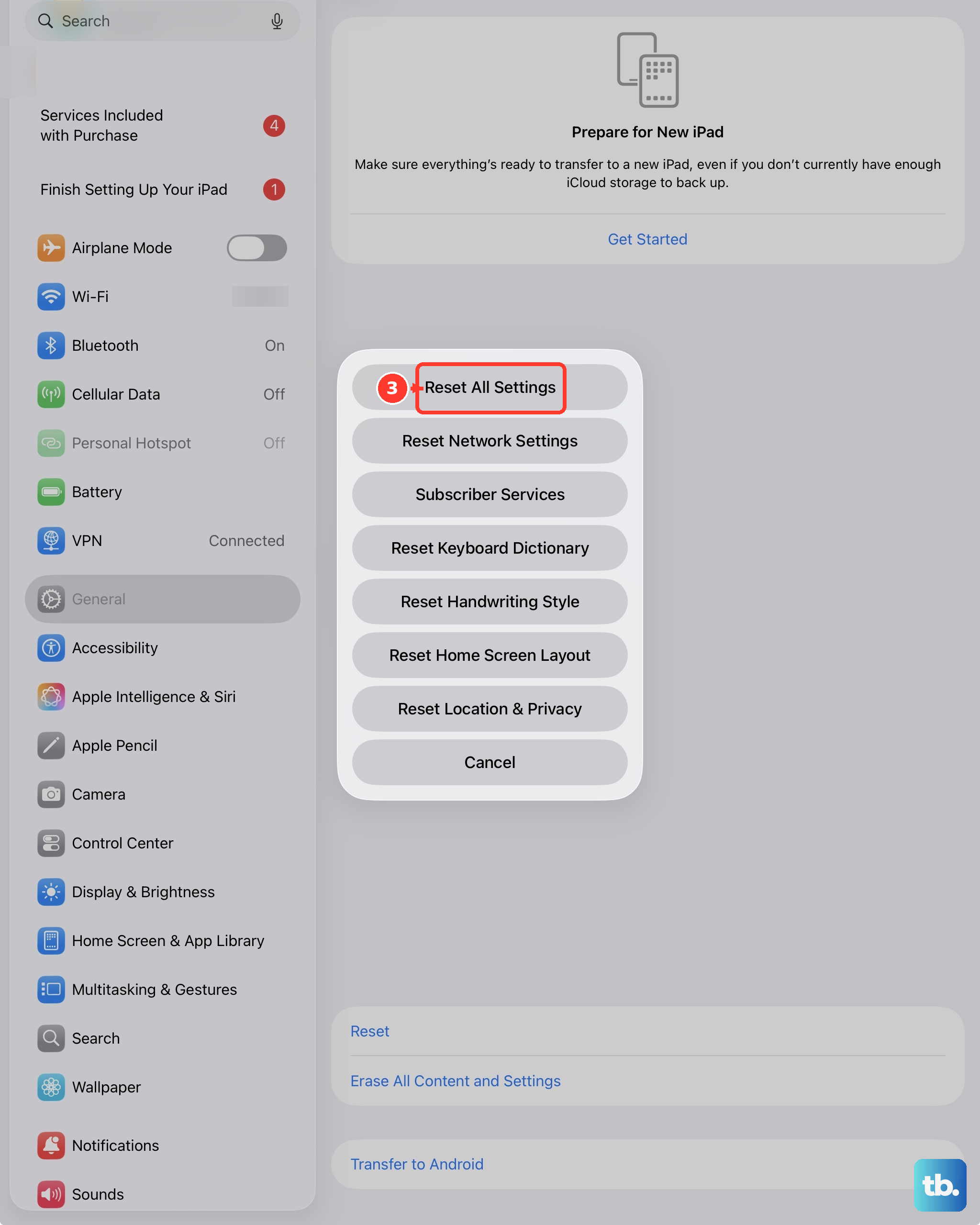
If the issue continues, the next step is to reset all your iPad's settings to their factory defaults. This won't delete your personal data like photos, messages, or apps, but it will erase all your preferences.
You'll need to re-enter Wi-Fi passwords, reconfigure notifications, and set up your wallpaper again. To do this, go to Settings > General > Transfer or Reset iPad > Reset. Then, choose "Reset All Settings" and enter your passcode to confirm.
Restore via Recovery Mode
For persistent restart loops that won't stop, restoring your iPad using Recovery Mode is a powerful solution. This process will reinstall iPadOS on your device. You have the option to restore from a backup afterward, or set it up as new.
First, connect your iPad Pro to a computer using a USB-C cable and open Finder (on a Mac with macOS Catalina or later) or iTunes (on a PC or older Mac). Then, perform the force restart sequence: press and release Volume Up, press and release Volume Down, then press and hold the Power button.
Keep holding the Power button even after the Apple logo appears. Continue holding until you see the Recovery Mode screen, which shows a cable pointing to a computer icon. Your computer will then detect the iPad and give you the option to "Update" or "Restore." Choosing "Restore" will install a fresh copy of iPadOS.
Erase All Content and Settings
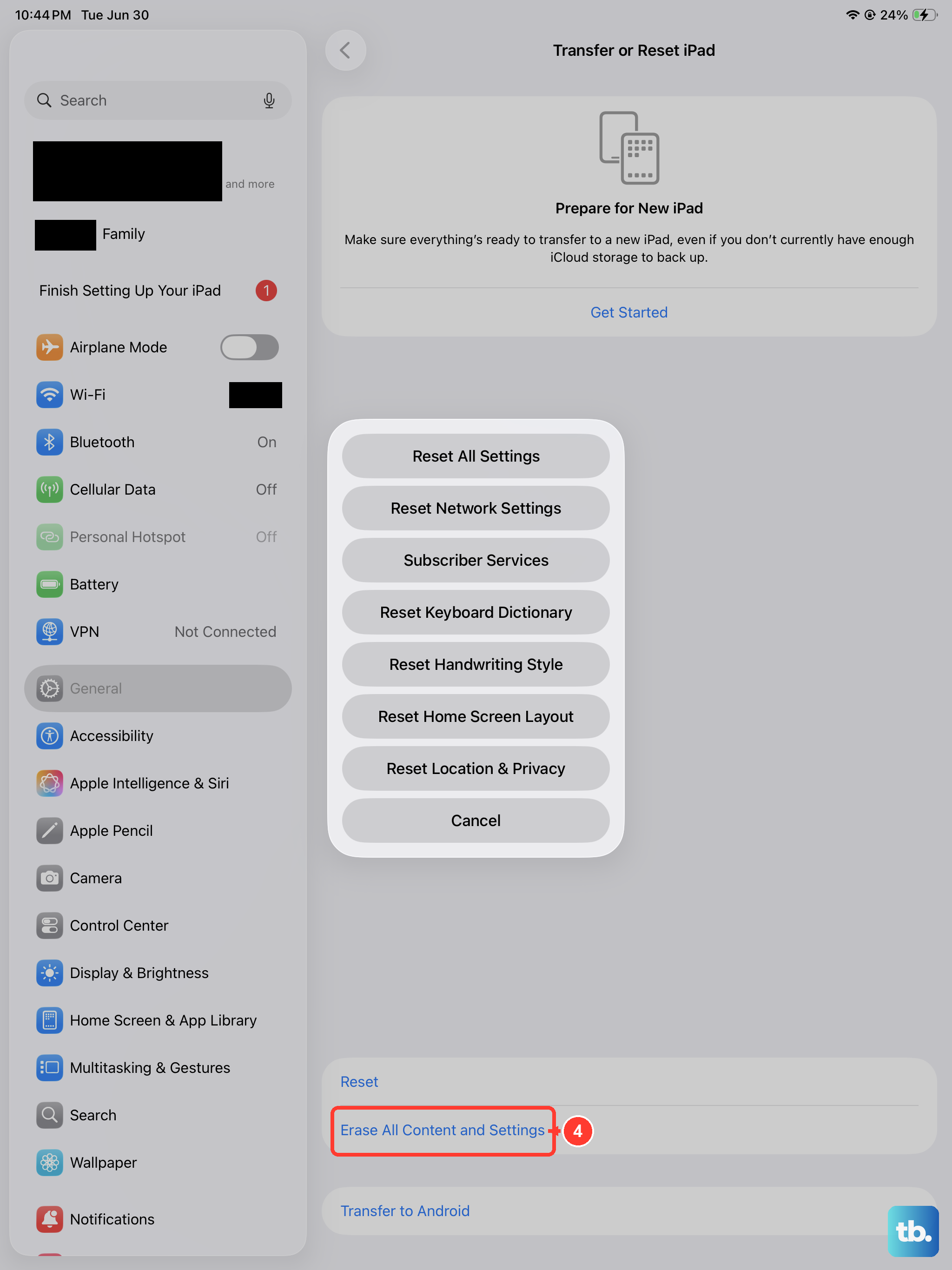
If you've tried everything else and the random restarts remain, a full factory reset is the final software step. This will completely wipe your iPad, returning it to the state it was in when you first took it out of the box. Please ensure you have a backup before proceeding.
Go to Settings > General > Transfer or Reset iPad > Erase All Content and Settings. Enter your passcode and Apple ID password to confirm. The iPad will erase itself and restart, presenting the initial "Hello" setup screen.