
Seeing "No SIM" or "Invalid SIM" on your iPad can stop you from getting online when you're away from Wi-Fi. It's a common hiccup that's usually easy to fix, whether you have a physical SIM or an eSIM.
Let's start with the simplest solutions that often get your cellular connection back in a minute or two.
Restart Your iPad
A quick restart clears out temporary software glitches that can cause the SIM to go unrecognized. The method depends on your iPad model.
For iPads without a Home button, press and quickly release the Volume Up button, then the Volume Down button. Finally, press and hold the Top button until you see the Apple logo appear.
If your iPad has a Home button, just press and hold both the Home button and the Top button together until the screen goes black and the Apple logo shows up.
Toggle Airplane Mode
Switching Airplane mode on and off forces your iPad's cellular radio to reset. Swipe down from the top-right corner to open Control Center and tap the airplane icon.
Wait about ten seconds, then tap it again to turn Airplane mode off. Check the status bar in the top-left corner to see if the cellular signal returns.
Check for a Carrier Settings Update
Sometimes your cellular carrier pushes small updates that help your iPad connect properly. You'll need to be connected to Wi-Fi to check for this.
Go to Settings > General > About. If an update is available, a prompt will appear on this screen. Just follow the instructions to install it.
Inspect and Reseat the Physical SIM Card
If you use a physical nano-SIM, it might have gotten loose or the contacts could be dirty. First, power your iPad off completely.
Locate the SIM tray on the side of your iPad and use the SIM eject tool (or a small paperclip) to pop it open. Carefully remove the SIM card and take a look at the gold contacts.
If you see any dust or smudges, gently wipe them with a soft, dry cloth. Blow any dust out of the SIM tray itself, then reinsert the card, making sure it's seated correctly. Power your iPad back on.
Re-enter Your SIM PIN
If you have a PIN set for your SIM card and you've entered it wrong too many times, the card will lock. You'll need your PUK (Personal Unblocking Key) code from your carrier to unlock it.
After restarting your iPad, you should see a prompt to enter the PUK. You can usually find this code in your carrier's online account portal or by contacting their support.
Update iPadOS
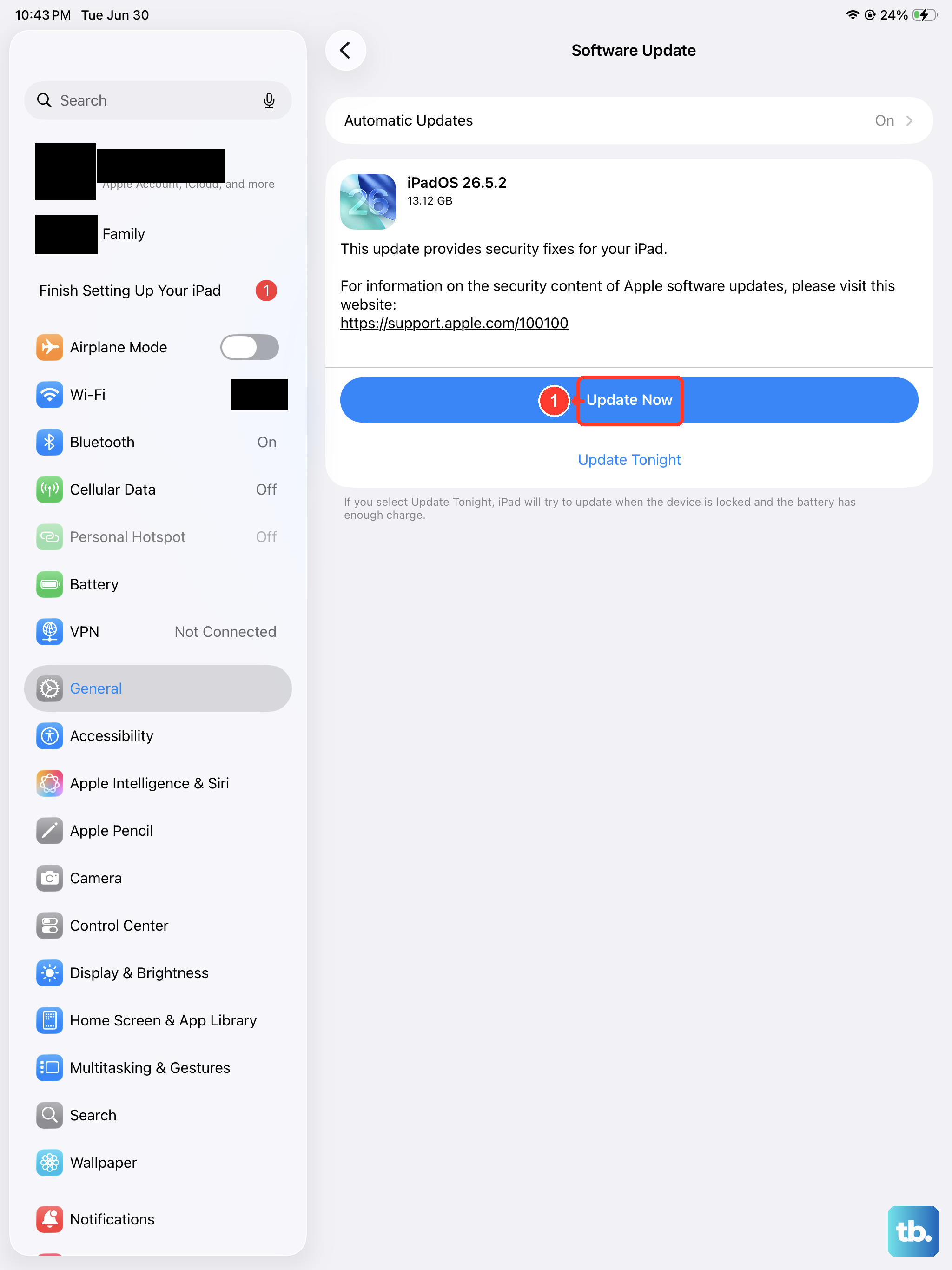
A bug in the system software can sometimes interfere with cellular connectivity. Installing the latest version of iPadOS often patches these issues.
Head to Settings > General > Software Update. If an update is listed, tap "Download and Install." I'd recommend doing this over Wi-Fi and making sure your iPad is plugged in.
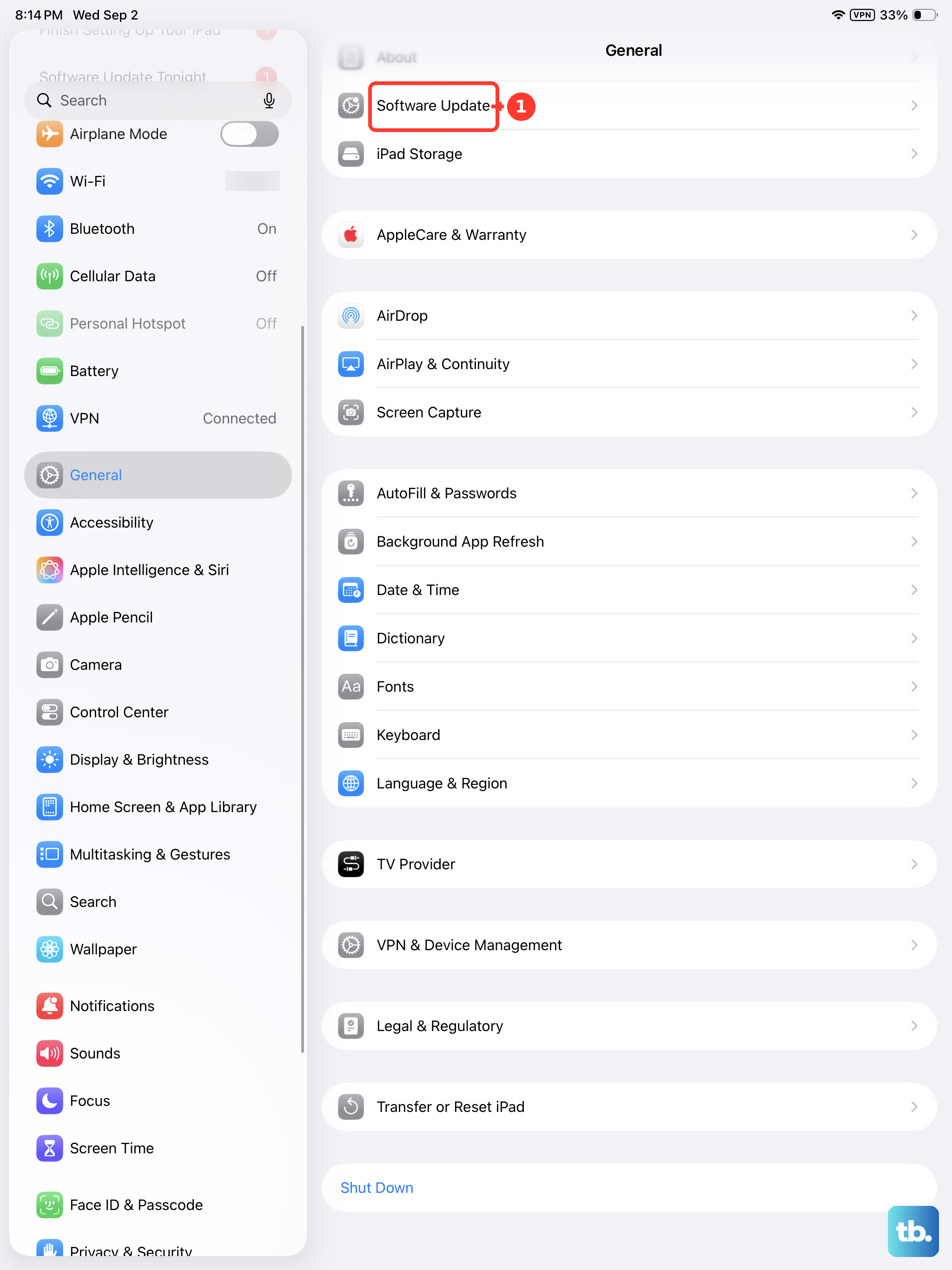
Reset Your Network Settings
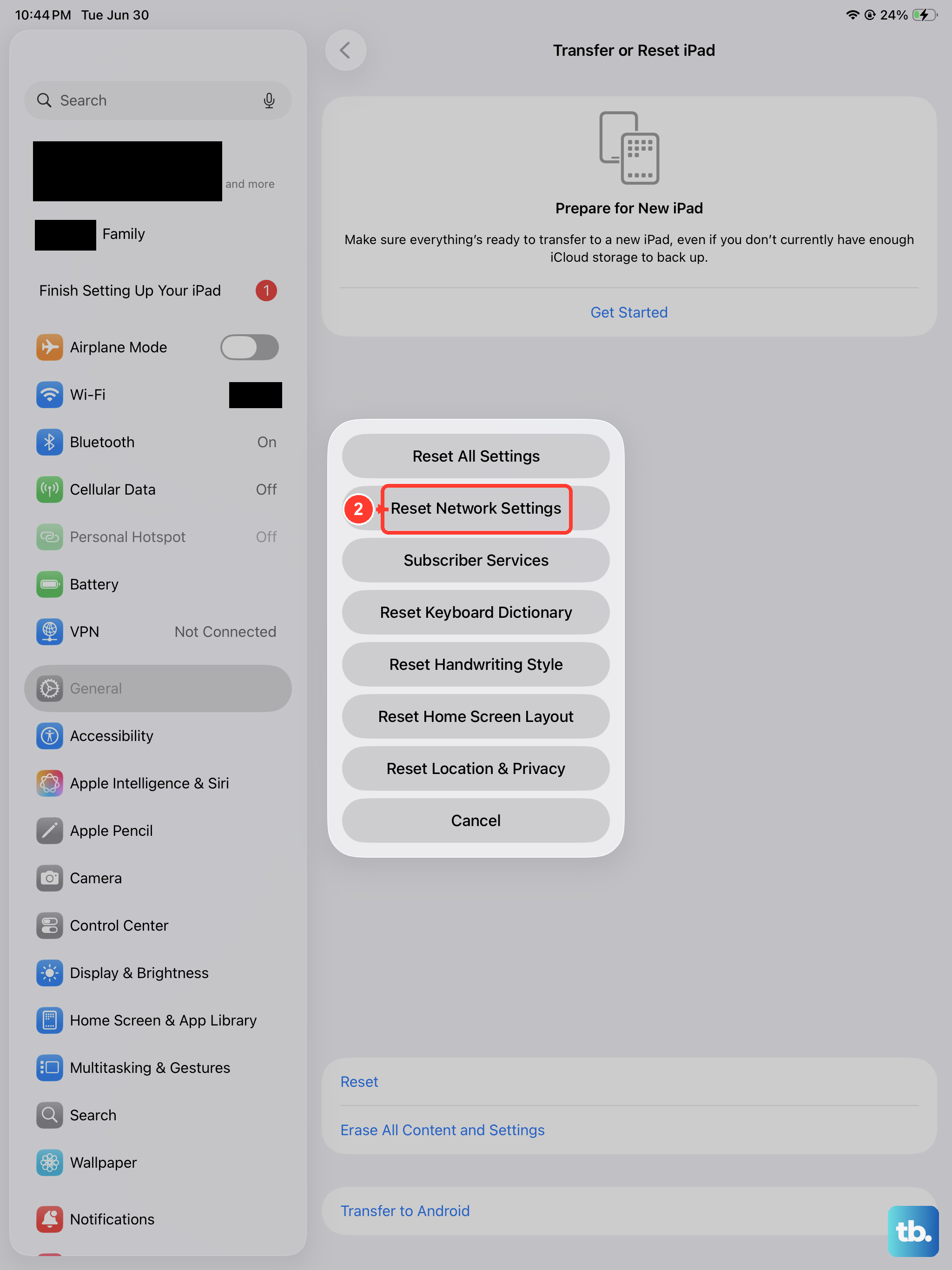
This clears all your saved Wi-Fi passwords, VPN settings, and cellular network configurations. It's a strong step for persistent issues, but it won't delete your personal data or apps.
Go to Settings > General > Transfer or Reset iPad. Tap Reset and then choose Reset Network Settings. You'll need to enter your passcode and confirm the reset.
After your iPad restarts, you'll have to reconnect to Wi-Fi networks and re-enter any APN settings if your carrier requires them.
Check for Manual Carrier Selection
Your iPad usually picks the best network automatically, but sometimes manual selection can help. Go to Settings > Cellular > Network Selection.
Turn off "Automatic." After a moment, a list of available networks will appear. Select your carrier's name from the list. If it connects, you can turn "Automatic" back on later.
Try Your SIM in Another Device
This is the best way to figure out if the problem is with your iPad or the SIM card itself. If you have another unlocked iPad or cellular device, power it off and insert your SIM.
If the other device also shows "No SIM," then the SIM card itself is likely the issue. You'll need to contact your carrier for a replacement. If it works fine in another device, the problem is specific to your iPad.
Reset All Settings
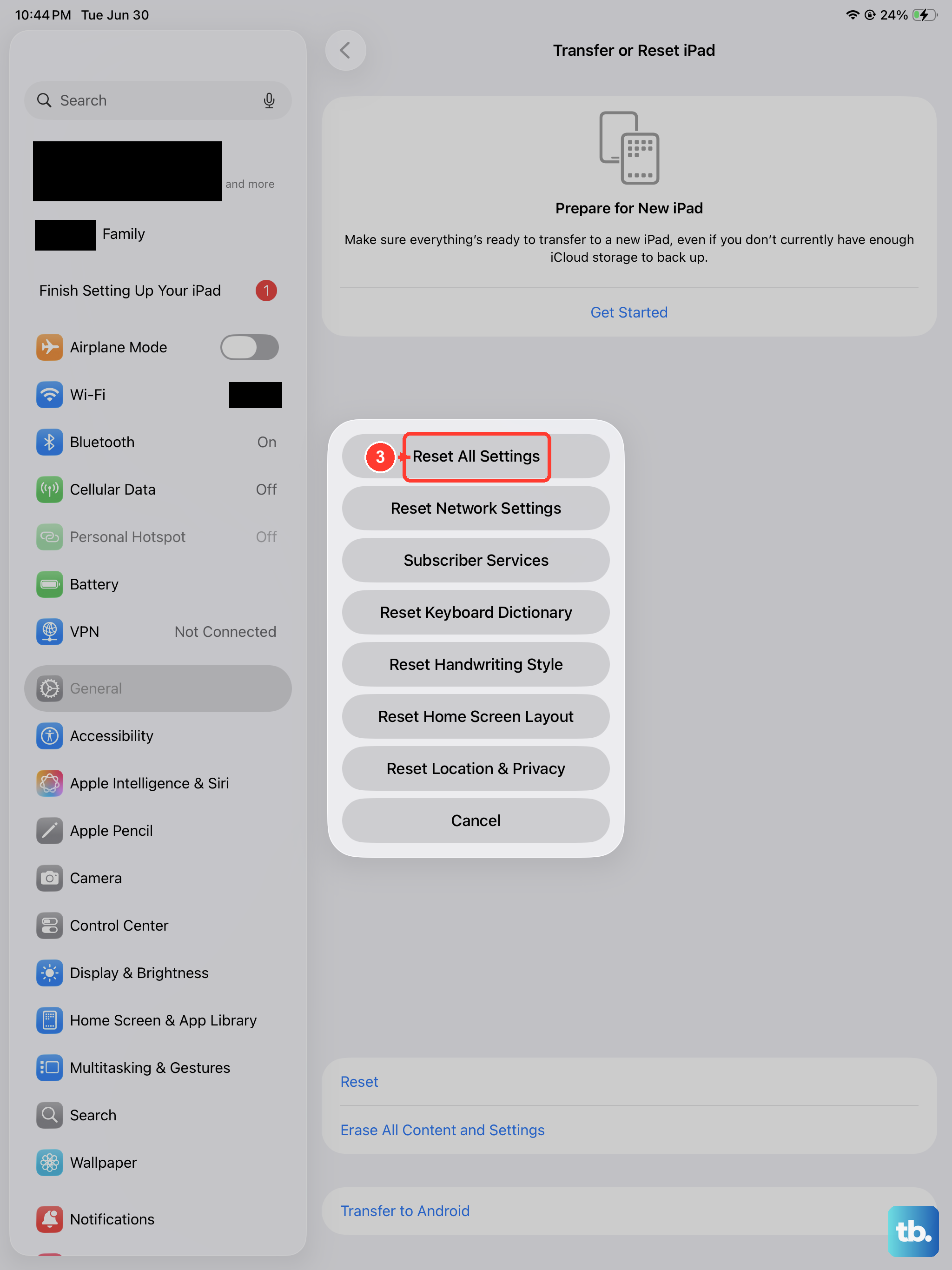
If you're still seeing the error, this more comprehensive reset can help. It returns all settings, including display, sound, and privacy, back to their defaults without erasing your content.
Navigate to Settings > General > Transfer or Reset iPad. Tap Reset and then select Reset All Settings. Confirm your passcode and the process.
This is a safe step before considering anything more drastic, as it won't touch your photos, messages, or apps.