
You're trying to browse on your iPad mini and nothing's loading, just that spinning wheel mocking you from the corner of the screen. Wi-Fi problems on the iPad mini (7th generation) are frustrating, but they're almost always something you can fix yourself without a trip to the store. Let's get you back online.
Toggle Wi-Fi and Restart Your iPad
Start with the simplest fix. Swipe down from the top-right corner to open Control Center and tap the Wi-Fi icon to turn it off. Wait about ten seconds, then tap it again to turn it back on. This forces your iPad to drop the connection and search for networks fresh, which clears up a lot of temporary glitches.
If that doesn't do it, restart the iPad. Press and quickly release the Volume Up button, then quickly press and release the Volume Down button. Finally, press and hold the Top button until you see the Apple logo appear. This is the standard force restart for the iPad mini and it's a great first step for any weird behavior.
Forget This Network and Rejoin
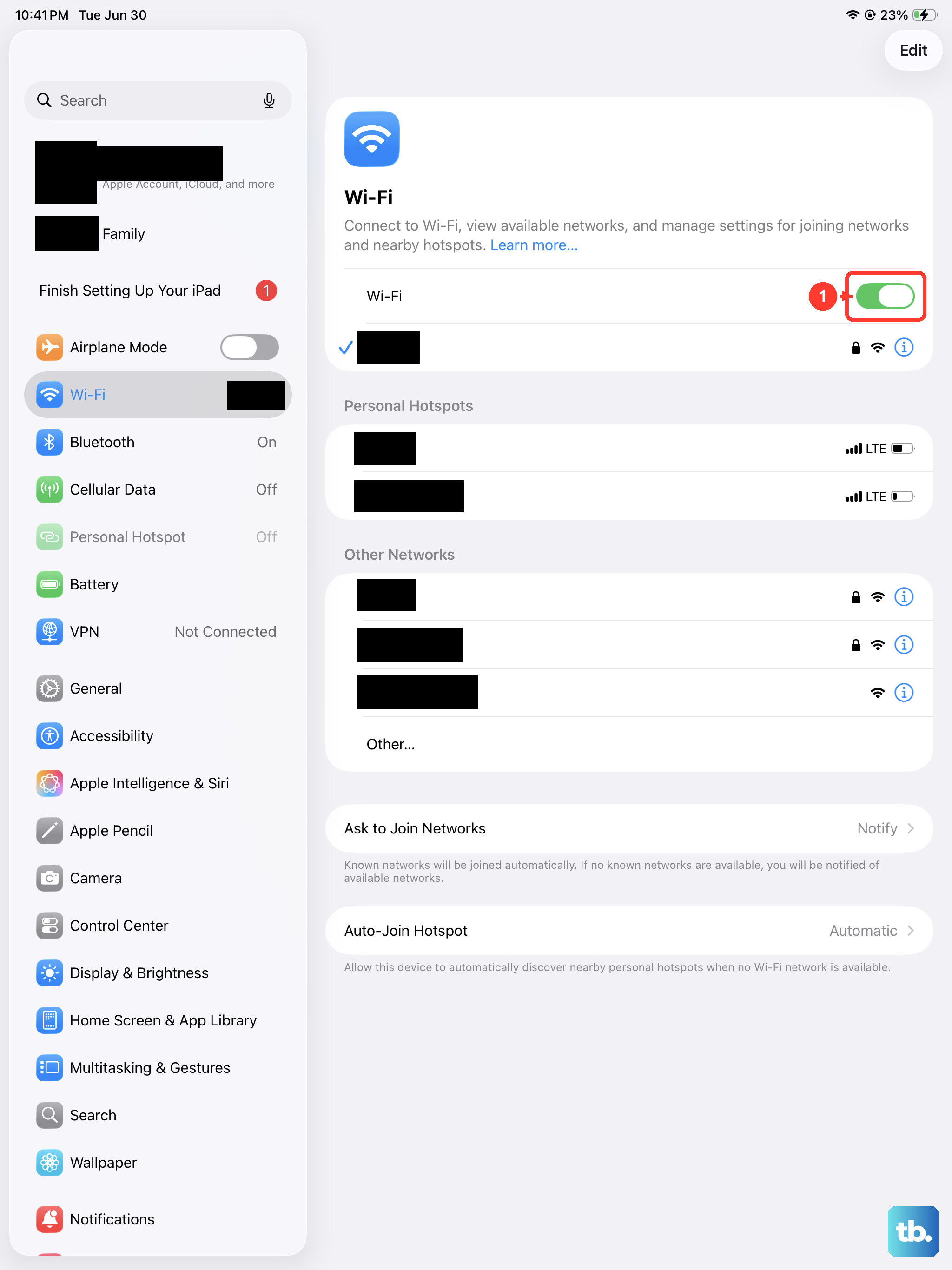
Your iPad might be holding onto corrupted settings for your home network. Go to the Settings app, tap Wi-Fi, then tap the info button (the blue "i" in a circle) next to your network's name. Tap "Forget This Network" at the top, then confirm. Now, just select your network from the list again and re-enter the password.
I'd do this anytime you get a new router or change your Wi-Fi password. Your iPad will keep trying the old credentials and fail silently, so forgetting the network forces a clean start.
Check for iPadOS Updates
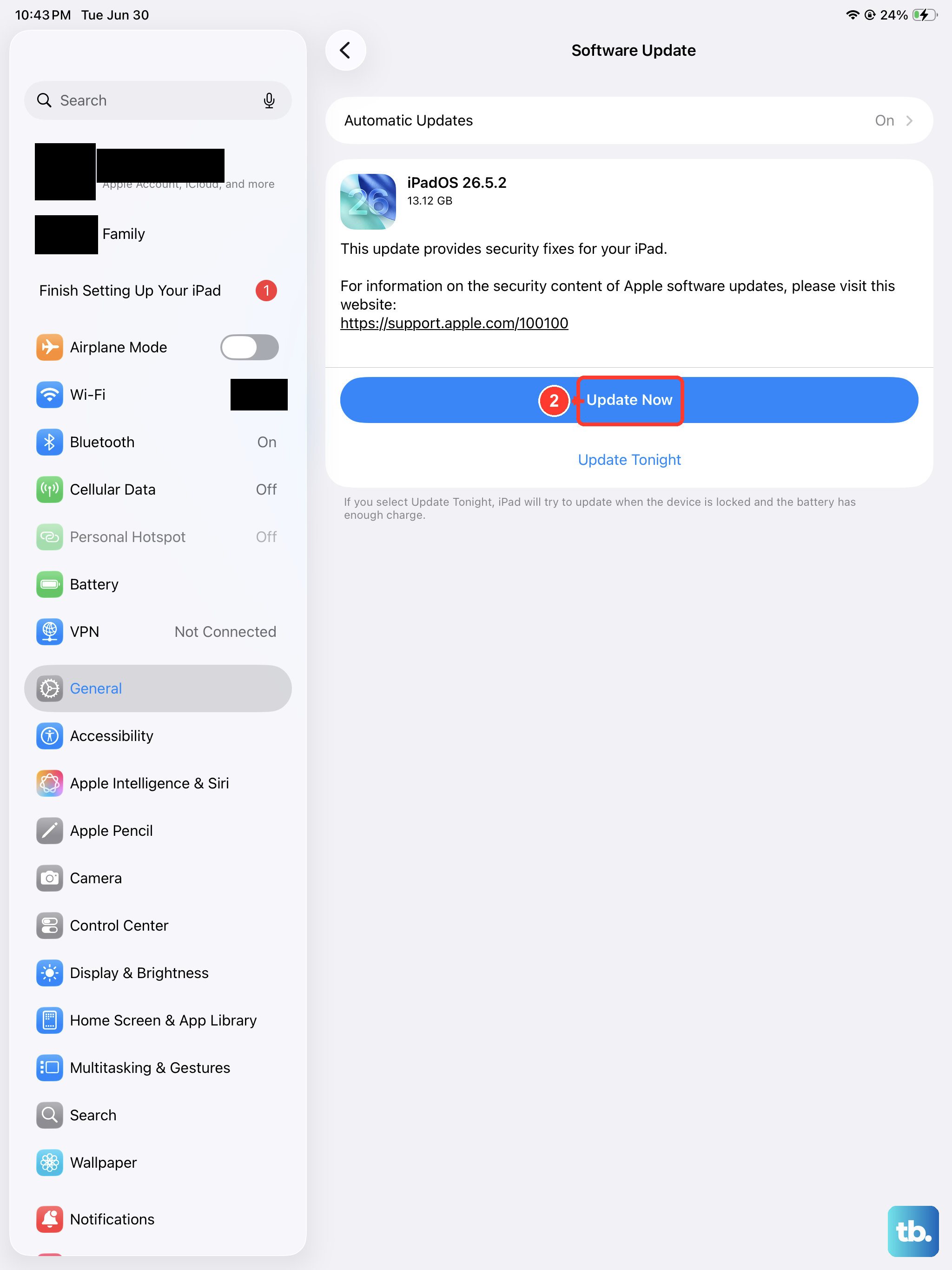
Apple is constantly pushing out updates for iPadOS 26 that fix bugs, including ones related to Wi-Fi and network stability. Open Settings, go to General, then tap Software Update. If there's an update waiting, install it. It's a good habit to keep your iPad mini updated, as these patches often address connectivity issues reported by other users.
Toggle Airplane Mode
This is a classic trick that resets all the wireless radios at once. Open Control Center and tap the airplane icon to turn Airplane Mode on. Wait for about 15 seconds, this gives everything time to fully power down, then tap the icon again to turn it off. Your iPad will re-enable Wi-Fi and search for networks, which often solves stubborn connection problems.
Restart Your Router and Modem
Before you spend more time troubleshooting the iPad, rule out the source. The problem might be with your home network, not your tablet. Unplug your router and modem from power. Wait a full minute before plugging them back in. This clears the router's memory and can resolve conflicts that prevent devices from connecting.
If other devices in your home are also struggling to get online, the router is almost certainly the culprit. While you're at it, check if your router has a firmware update available through its admin settings, as outdated firmware can cause compatibility issues.
Reset Your Network Settings
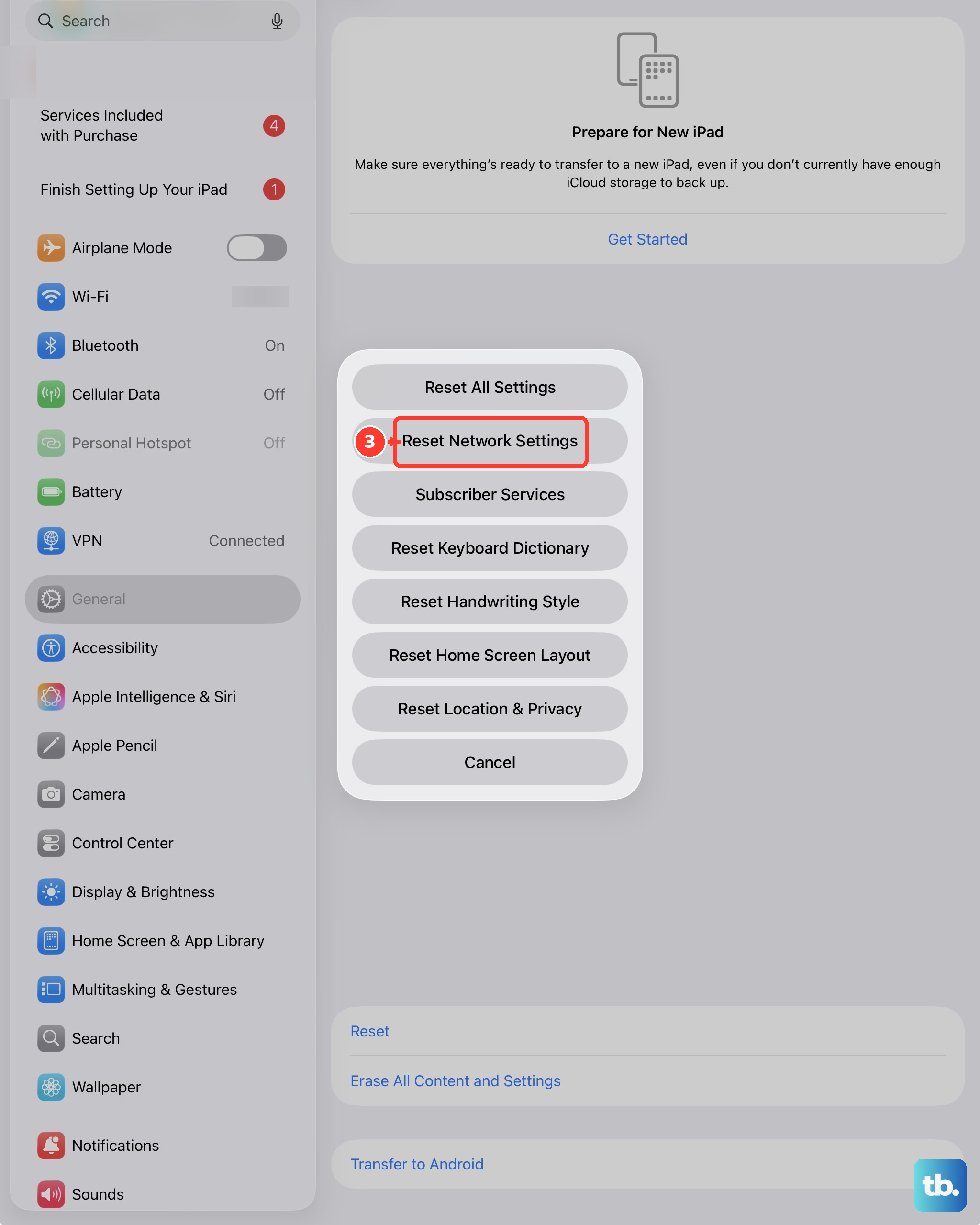
This is a more thorough step that wipes all network-related data from your iPad. Go to Settings, then General, then tap Transfer or Reset iPad. Tap Reset at the bottom, and choose "Reset Network Settings." You'll need to enter your passcode to confirm.
This will erase all saved Wi-Fi networks, passwords, Bluetooth pairings, and VPN settings. You'll have to reconnect to your Wi-Fi and re-pair any accessories afterward, but it's very effective for clearing deep-seated network glitches.
Check for VPN or Content Blocker Interference
If you use a VPN app or a Safari content blocker, try disabling it. These apps work by routing or filtering your traffic, and a misconfiguration can block all network access. Go to Settings, tap on the VPN section if it's there, and turn it off. For content blockers, go to Settings, then Safari, then Extensions, and toggle them off to test.
Disable Private Wi-Fi Address
iPadOS has a privacy feature that gives your iPad a unique, random MAC address for each Wi-Fi network. Sometimes, this can confuse routers, especially older ones. For your home network, you can turn it off. Go to Settings, tap Wi-Fi, then tap the info button next to your network. Toggle off "Private Wi-Fi Address." Your iPad will forget the network, so you'll need to rejoin it.
Only do this on networks you trust, like your home or office. It's a good troubleshooting step to see if the privacy feature is causing the handshake to fail.
Check Date and Time Settings
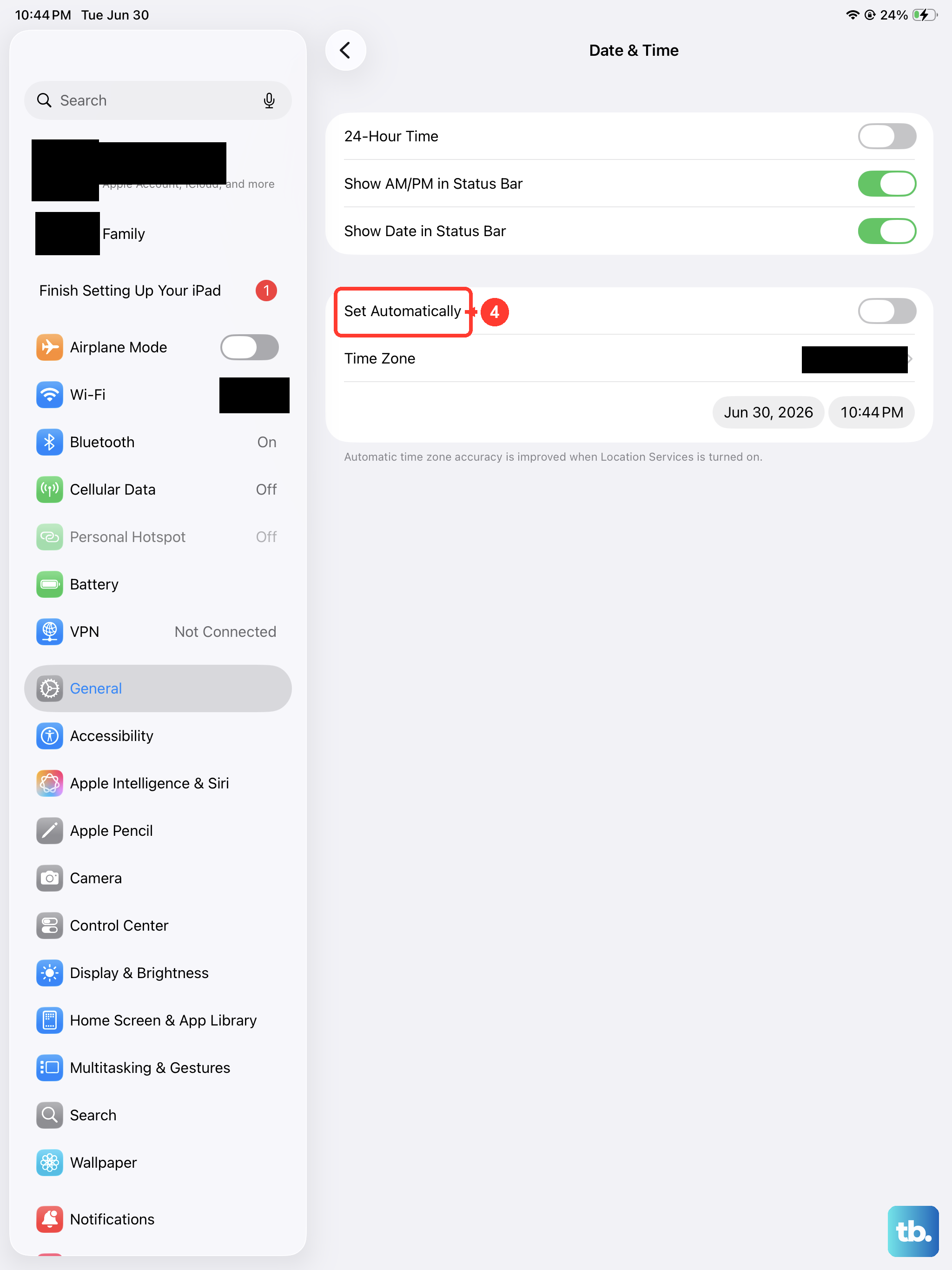
This seems unrelated, but it's critical for network security. If your iPad's date and time are incorrect, it can fail to authenticate with secure Wi-Fi networks because the security certificates appear invalid. Go to Settings, then General, then Date & Time. Make sure "Set Automatically" is turned on.
Try a Different Network
To rule out a hardware problem with your iPad's Wi-Fi antenna, try connecting to a completely different network. Take your iPad mini to a coffee shop, a friend's house, or even try using a personal hotspot from your phone. If it connects without issue elsewhere, the problem is isolated to your home network setup.
If your iPad can't connect to any Wi-Fi network, anywhere, then it's more likely there's an issue with the iPad itself.