
Press and quickly release the volume up button, then press and quickly release the volume down button. Immediately after, press and hold the top button. Keep holding it until you see the Apple logo appear, then let go. This force restart is the single most effective fix for an unresponsive iPad mini screen and works in most situations.
Before trying the fixes, map the problem with a touch screen tester in your browser. Dragging a finger across the grid reveals exactly which areas of the screen respond and which do not.
Charge Your iPad mini Properly
Plug your iPad into an official Apple 20W or 30W USB-C charger with a known-good cable. Let it charge for at least an hour, even if the screen is black. A completely drained battery can make the device appear dead and unresponsive.
I'd recommend using the charger that came with your iPad mini. While other USB-C chargers work, the official one ensures it's getting the correct power delivery. Check the charging port for any lint or debris, as a blocked port can prevent charging entirely.
Update iPadOS
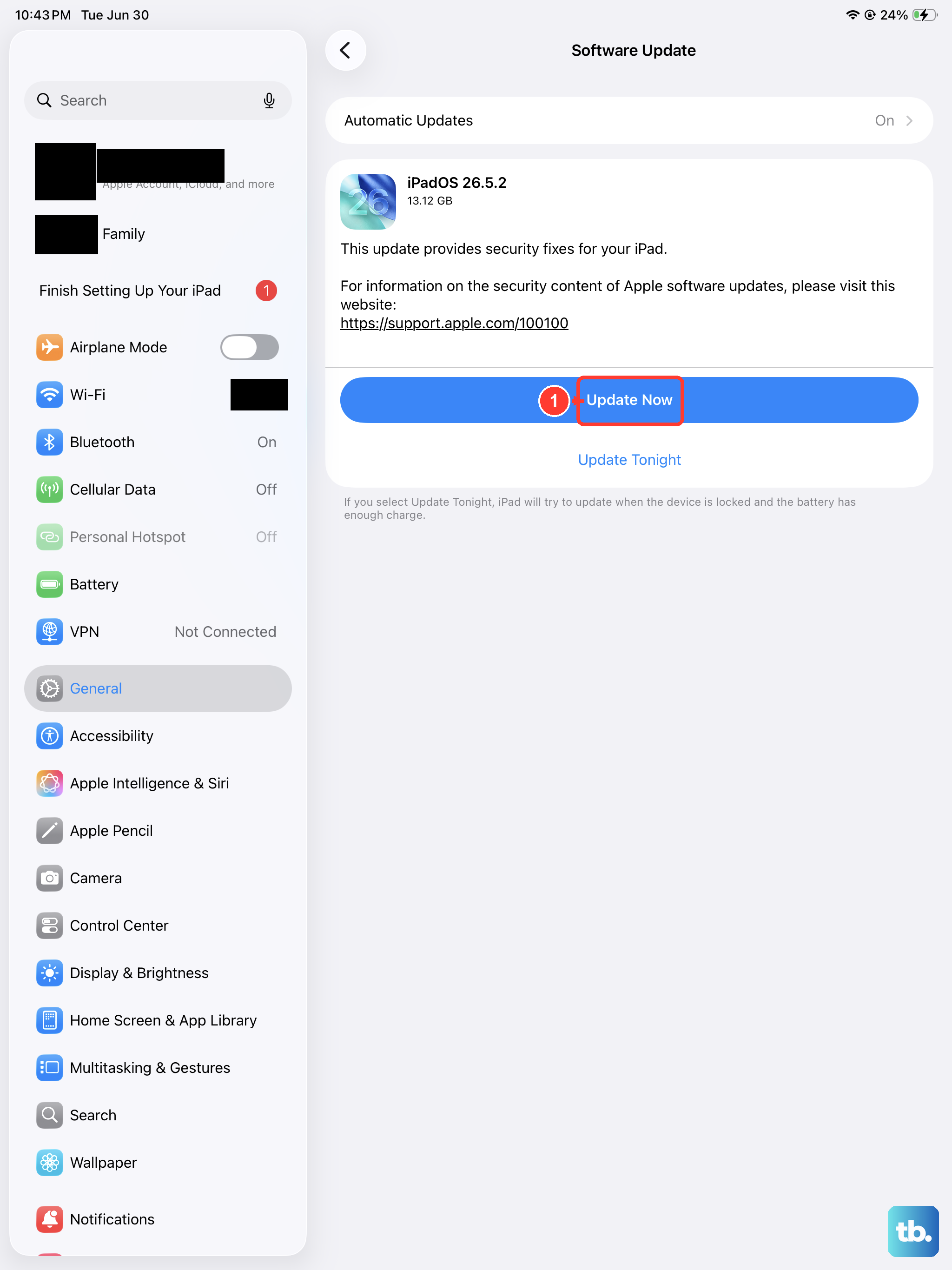
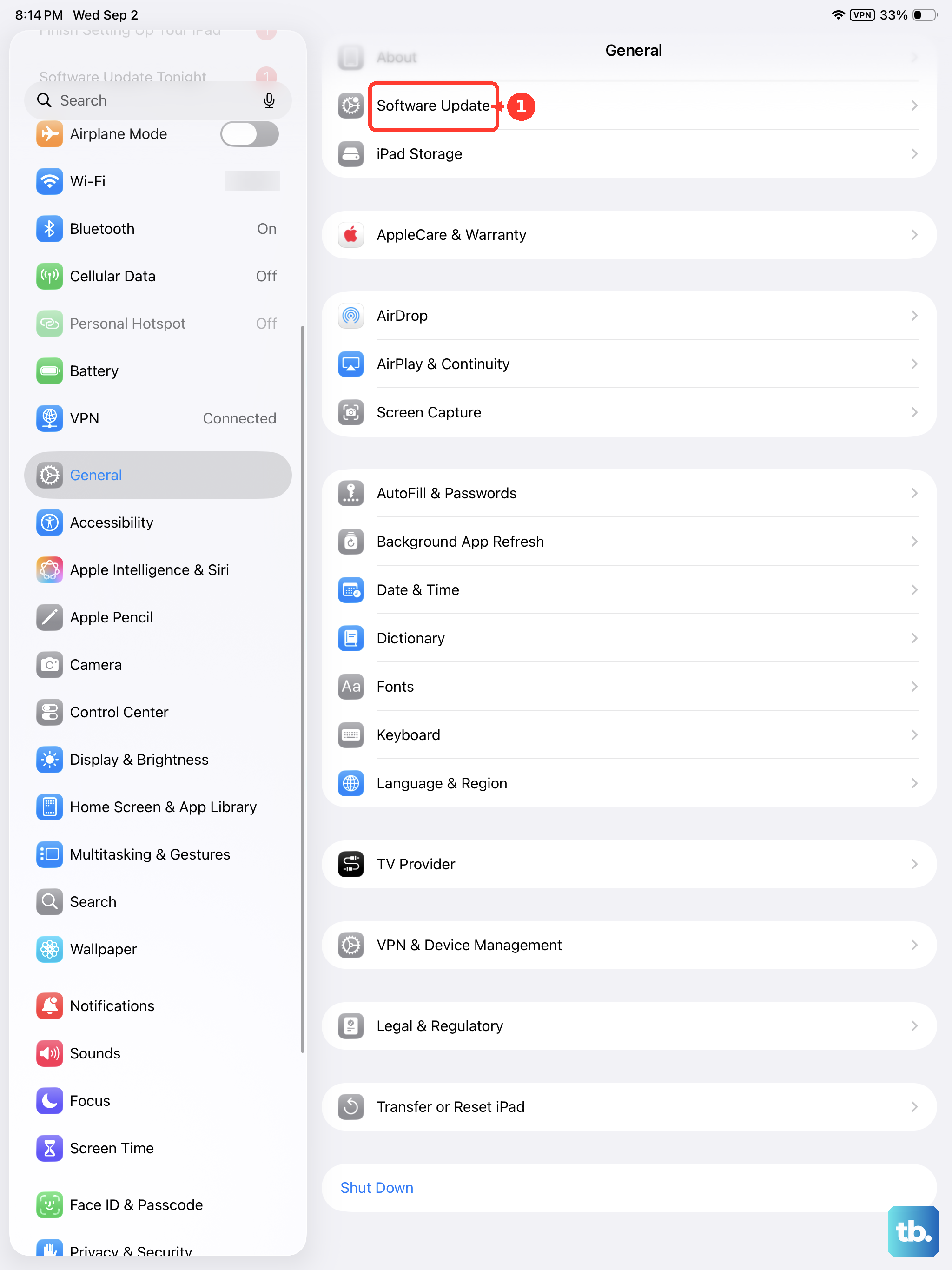
If the screen works just enough to navigate, install any pending software updates. Go to Settings > General > Software Update. Software bugs in iPadOS 26 can sometimes cause touchscreen glitches, and Apple regularly releases patches for these issues.
Make sure your iPad is connected to Wi-Fi and has at least 50% battery or is plugged in before starting the update. The process takes about 10 to 15 minutes and will restart your device, which often clears up temporary software hiccups on its own.
Check for a Stuck Button or Case Interference
Remove your iPad from any case or folio cover. Sometimes a case can put pressure on the screen edges or buttons, confusing the touch sensors. Inspect the volume buttons and top button to make sure they aren't physically stuck in a pressed position.
Clean the screen with a soft, slightly damp, lint-free cloth. Dirt, oil, or moisture on the display can interfere with touch sensitivity. Dry it thoroughly before trying to use it again.
Reset All Settings
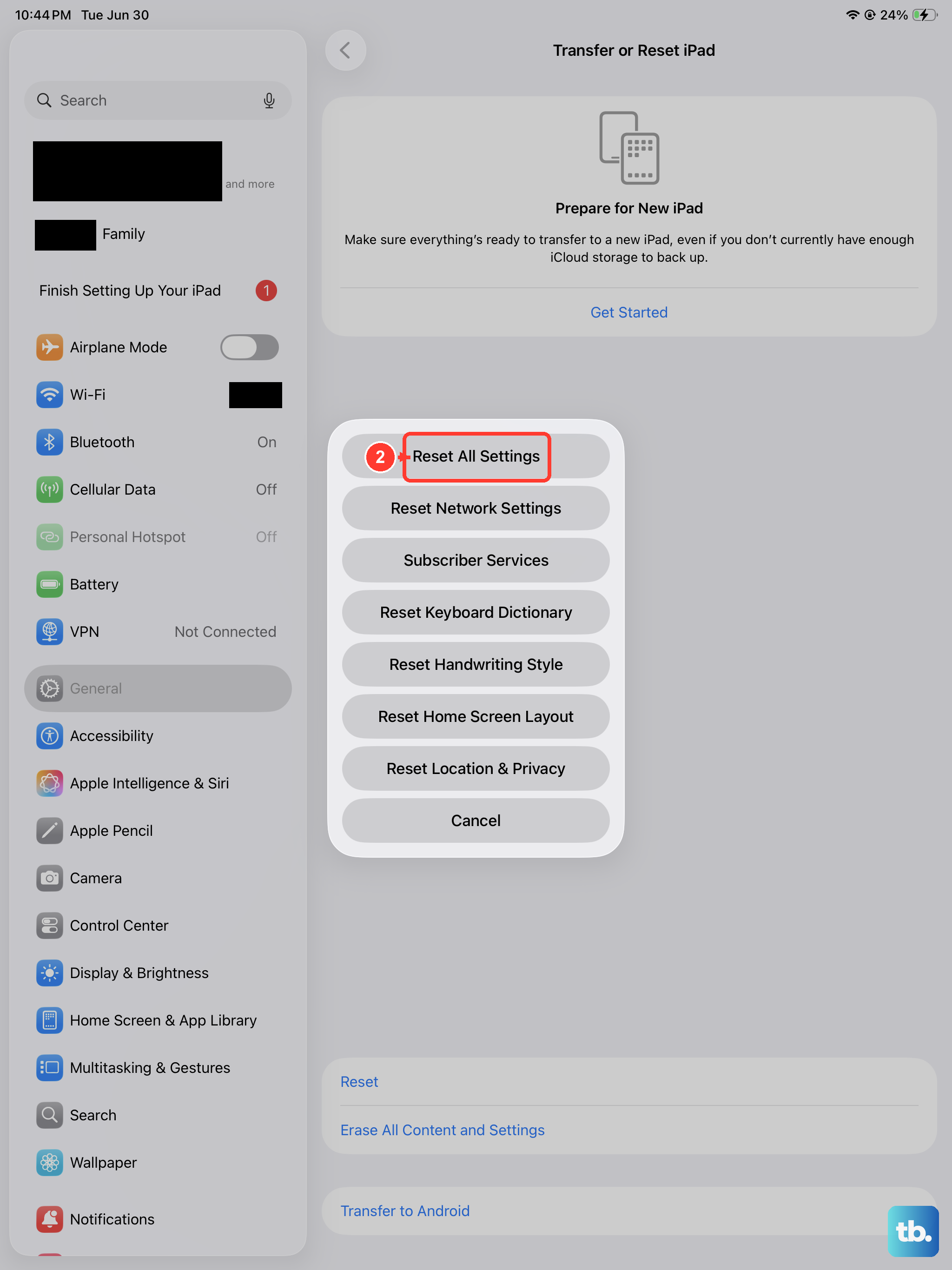
This resets preferences like wallpaper and network settings but won't delete your data. If you can get to the Settings app, go to Settings > General > Transfer or Reset iPad > Reset > Reset All Settings.
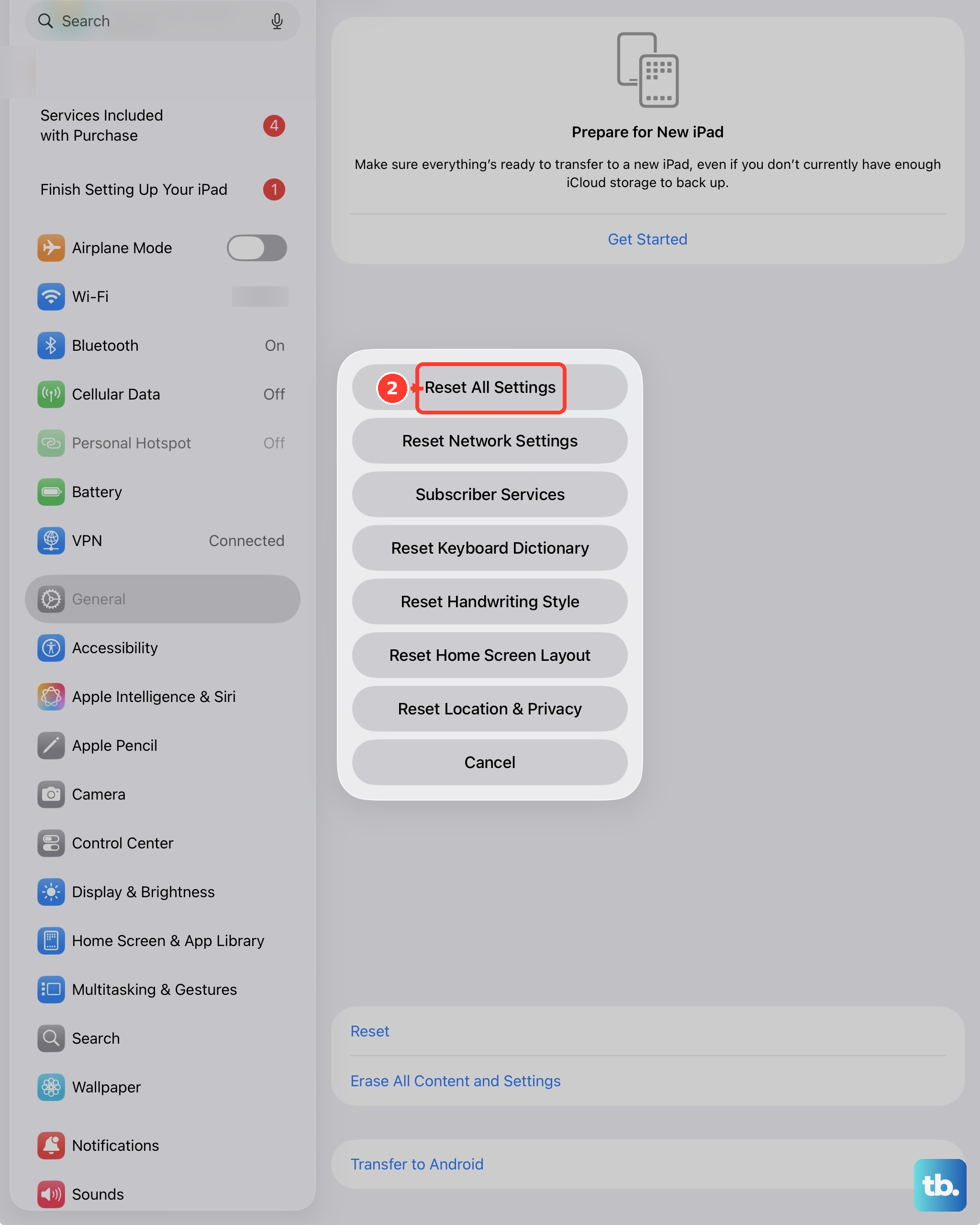
You'll need to enter your passcode to confirm. This can fix issues caused by a corrupted system preference file that might be affecting the display driver. Your apps and personal files will remain untouched.
Put the iPad Into and Out of DFU Mode
This is a deeper system restore that can address more serious software corruption. Connect your iPad to a Mac or PC with a cable. Quickly press and release the volume up button, then the volume down button, then press and hold the top button for about 10 seconds.
After 10 seconds, keep holding the top button but also press and hold the volume down button for 5 seconds. Then, release the top button but keep holding the volume down button for another 10 seconds. Your screen should stay black if done correctly.
On your computer, you should get a prompt to restore the iPad. Choose to update (not restore) first, as this reinstalls iPadOS without erasing your data. This process can take around 15 minutes.
Check the Display for Physical Damage
Look very closely at the screen under good light. Even a tiny, hairline crack you can barely see can disrupt the digitizer layer responsible for touch. Gently press around the edges of the screen to see if any area responds when others don't.
If you see any discoloration, flickering, or visible cracks, the issue is likely physical. In my experience, display uniformity issues were noted in some early production models, which could manifest as touch dead zones.
Restore Your iPad Using a Computer
This is a last resort as it erases all content and settings. Connect your iPad to a computer and open Finder (on Mac) or iTunes (on Windows). Perform the force restart steps while it's connected to enter recovery mode.
When you see the recovery mode screen on your computer, choose "Restore." This will download and install a fresh copy of iPadOS. After it finishes, you can set up the iPad as new or restore from a backup you made earlier.