
If your iPad mini (7th generation) is refusing to pair with your AirPods, keyboard, or car stereo, it can be incredibly frustrating. Bluetooth issues on iPadOS 26 are usually software hiccups that you can resolve yourself. Let's walk through the most effective fixes, starting with the simplest ones you should try right now.
Before anything else, make sure both your iPad and the accessory have enough charge. A low battery can sometimes interfere with the pairing process. Also, double-check that the Bluetooth device is actually in pairing mode, which is often indicated by a flashing light. Keep them close together, ideally within a few feet, to rule out any distance issues.
Toggle Bluetooth and Restart
Start by swiping down from the top-right corner to open Control Center and tap the Bluetooth icon to turn it off. Wait about ten seconds, then tap it again to turn it back on. This simple refresh can clear up a temporary glitch. If that doesn't work, the next step is to restart both devices.
For your iPad mini, perform a standard restart by holding the top button and either volume button, then sliding to power off. Turn your Bluetooth accessory off and on as well. Once everything is powered back up, attempt to pair them again. I've found this combination solves the problem more often than not.
Forget the Device and Try Again
If the device shows as paired but won't connect, or if you're seeing a failed pairing message, you need to start fresh. Go to Settings > Bluetooth on your iPad. Find the problematic device in your list and tap the info (i) icon next to it. Then, tap Forget This Device and confirm.
This completely removes the old pairing profile. Now, put your Bluetooth accessory back into discovery mode. With your iPad's Bluetooth still on, it should reappear in the list of available devices. Tap its name to initiate a brand new pairing. This clears out any corrupted connection data that was causing the handshake to fail.
Update Your iPad Software
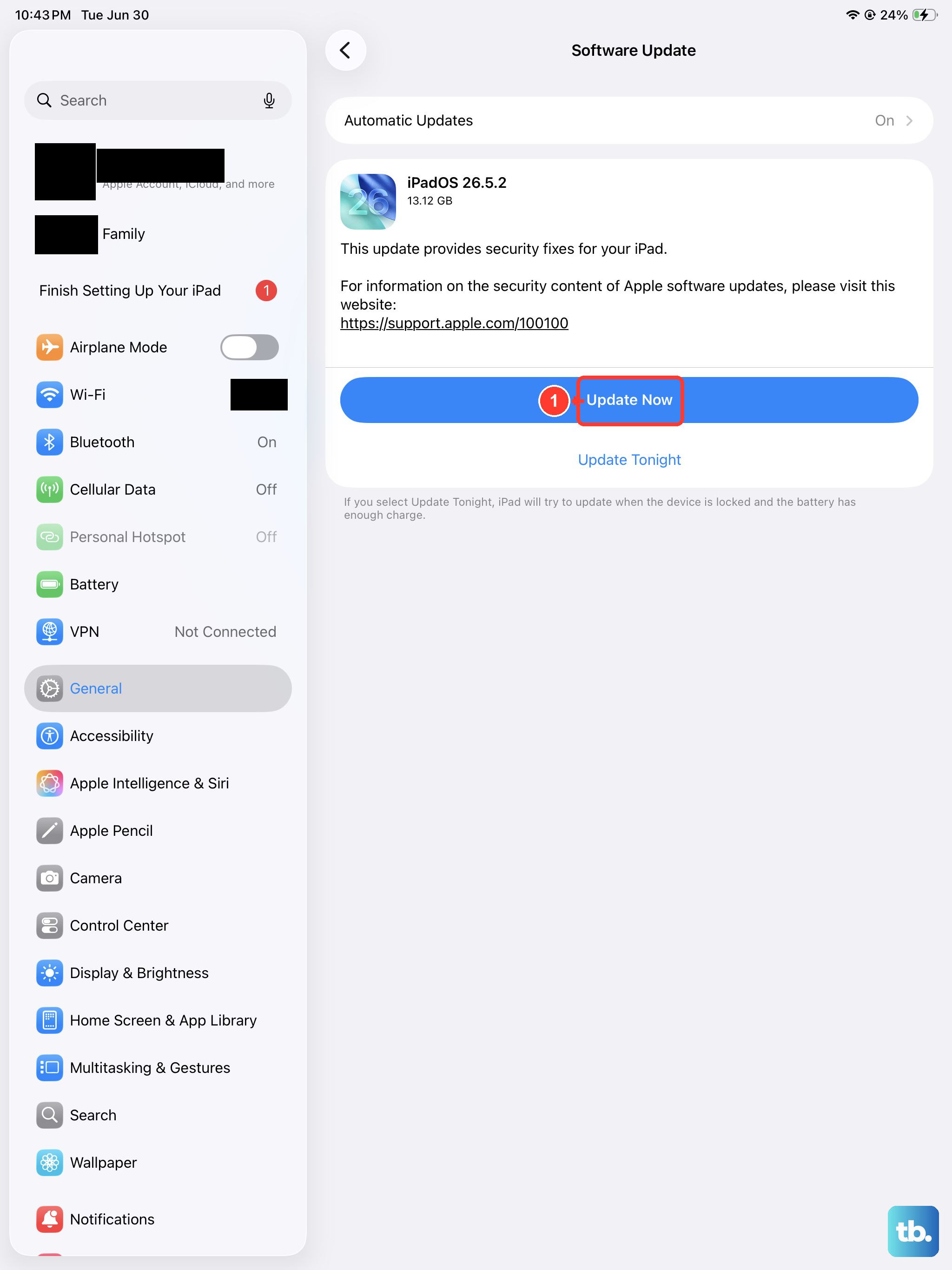
Running outdated software is a common cause of Bluetooth headaches, especially with new accessories. Apple frequently releases iPadOS updates that include bug fixes for connectivity. To check, open Settings > General > Software Update.
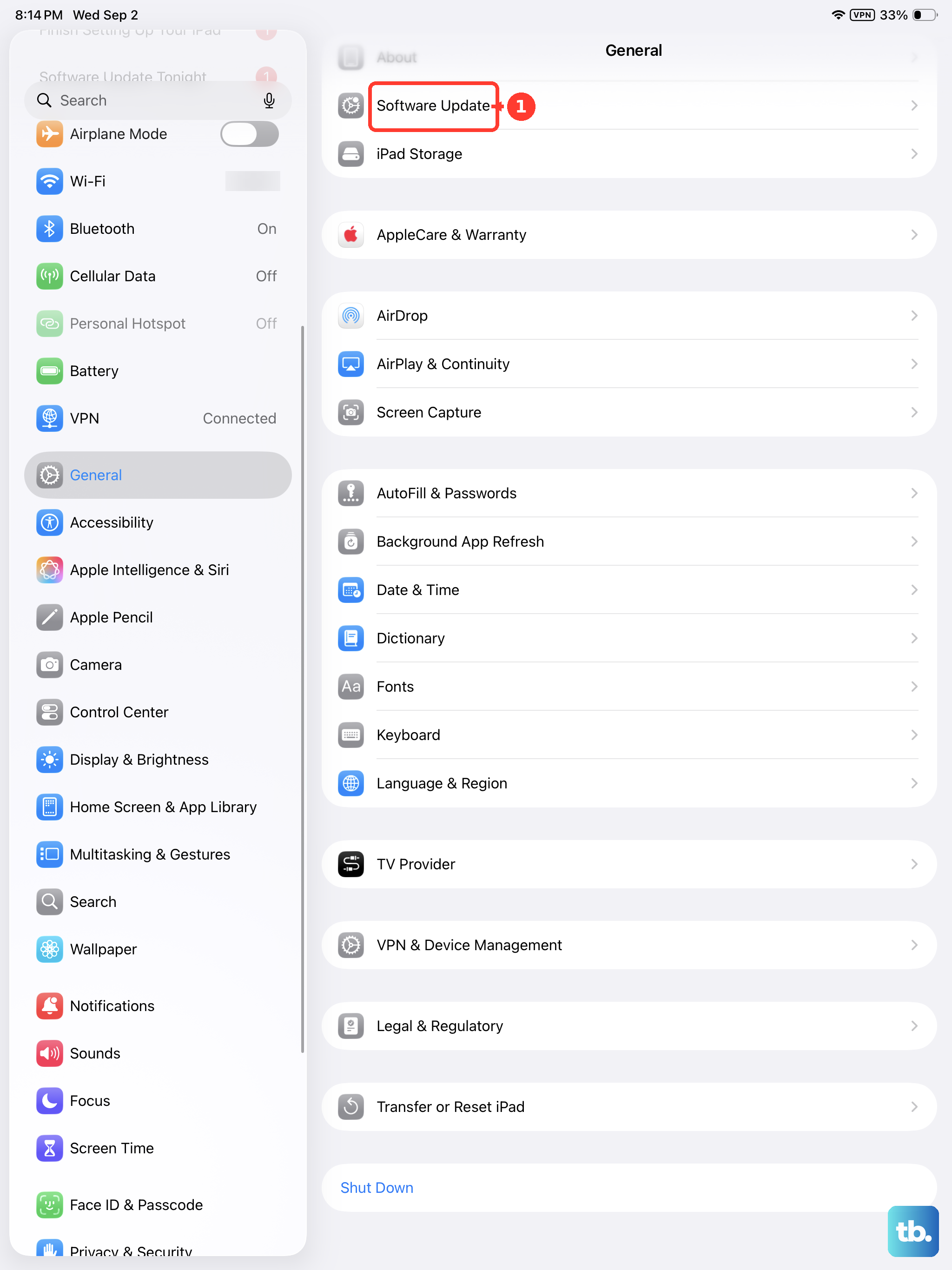
If an update is available, I'd recommend installing it while your iPad is connected to power and Wi-Fi. After the update completes and your iPad restarts, try the pairing process again. It's also a good idea to check if your Bluetooth accessory itself has a firmware update through its dedicated app, if one exists.
Reset Your Network Settings
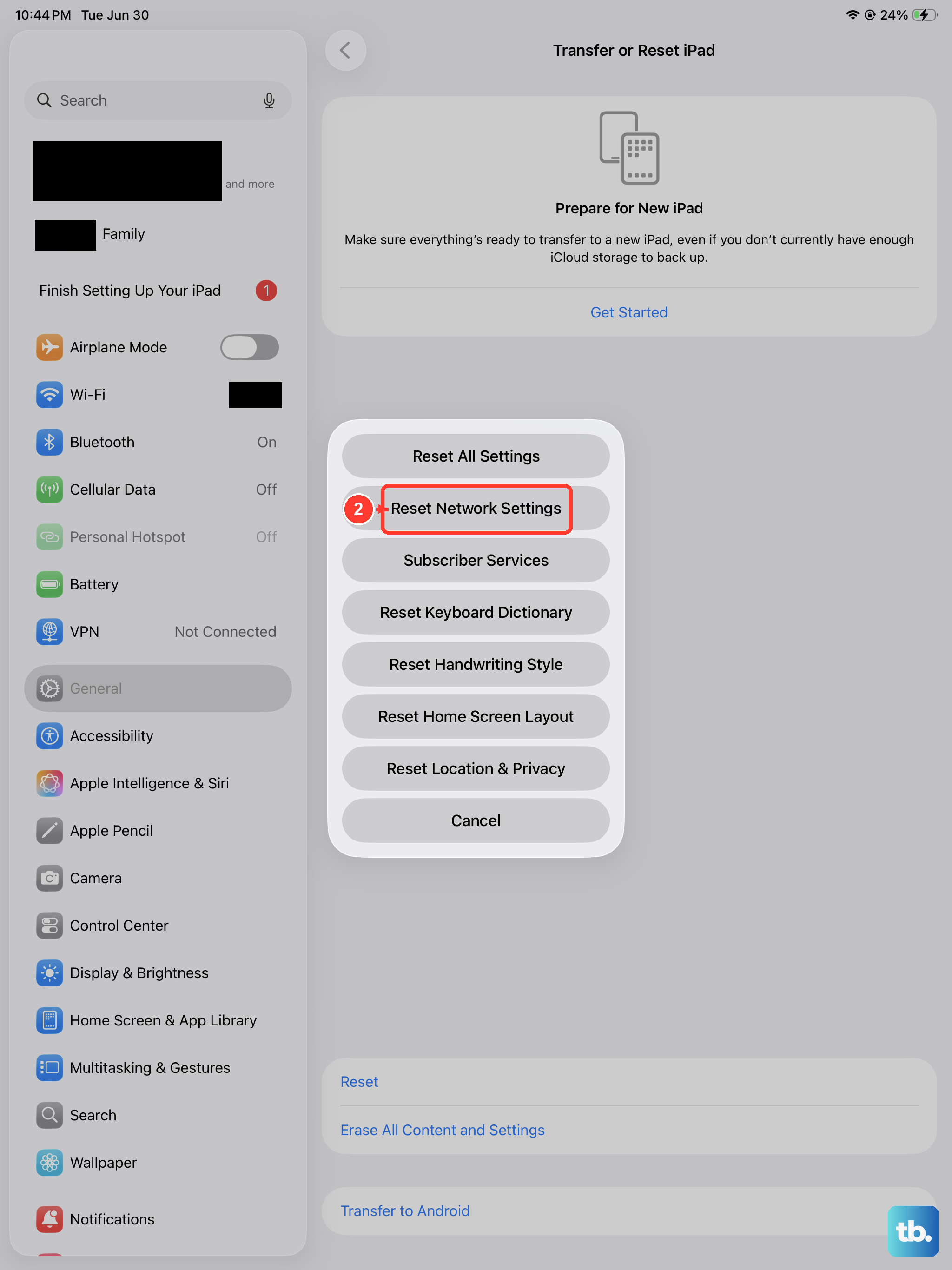
This is a more thorough step that resets all network-related configurations on your iPad, including Wi-Fi passwords, VPN settings, and of course, Bluetooth pairings. It won't delete your personal data like photos or apps. Go to Settings > General > Transfer or Reset iPad.
Tap Reset and then select Reset Network Settings. You'll need to enter your passcode to confirm. Your iPad will restart, and you'll have to rejoin your Wi-Fi networks and re-pair all Bluetooth devices from scratch. This often resolves persistent, deeper-seated connection issues.
Check for Interference and Accessibility Settings
Wireless interference can sometimes be the culprit. Try moving away from other electronics like routers, microwaves, or USB 3.0 hubs. Also, some accessibility features can interfere with Bluetooth. It's worth going to Settings > Accessibility and temporarily turning off features like Switch Control or VoiceOver to see if pairing succeeds.
If you use a case, especially a thick or metal one, try removing it temporarily. Some cases can slightly block the Bluetooth antenna, which is located within the iPad's frame. A quick test without the case can tell you if that's a contributing factor.
Force Restart Your iPad Mini
A force restart is different from a normal shutdown and can clear more stubborn system caches. For the 7th generation iPad mini, quickly press and release the Volume Up button, then quickly press and release the Volume Down button. Finally, press and hold the Top button until you see the Apple logo appear, then release.
This doesn't erase any data, it just gives the system a clean reboot. After the iPad starts back up, go directly to Bluetooth settings and try pairing again. This is a reliable step before considering any more significant resets.
Review App Permissions and Background Activity
Although less common on iPadOS than Android, a misbehaving app could potentially interfere with Bluetooth. Think about any apps you recently installed around the time the problem started. You can try restarting your iPad in a clean state by turning it off, then turning it back on and immediately trying to pair before opening any other apps.
If you suspect a specific app, you can check its permissions in Settings > Privacy & Security > Bluetooth. This shows you which apps have requested Bluetooth access. You could deny access to non-essential apps as a test.
Reset All Settings
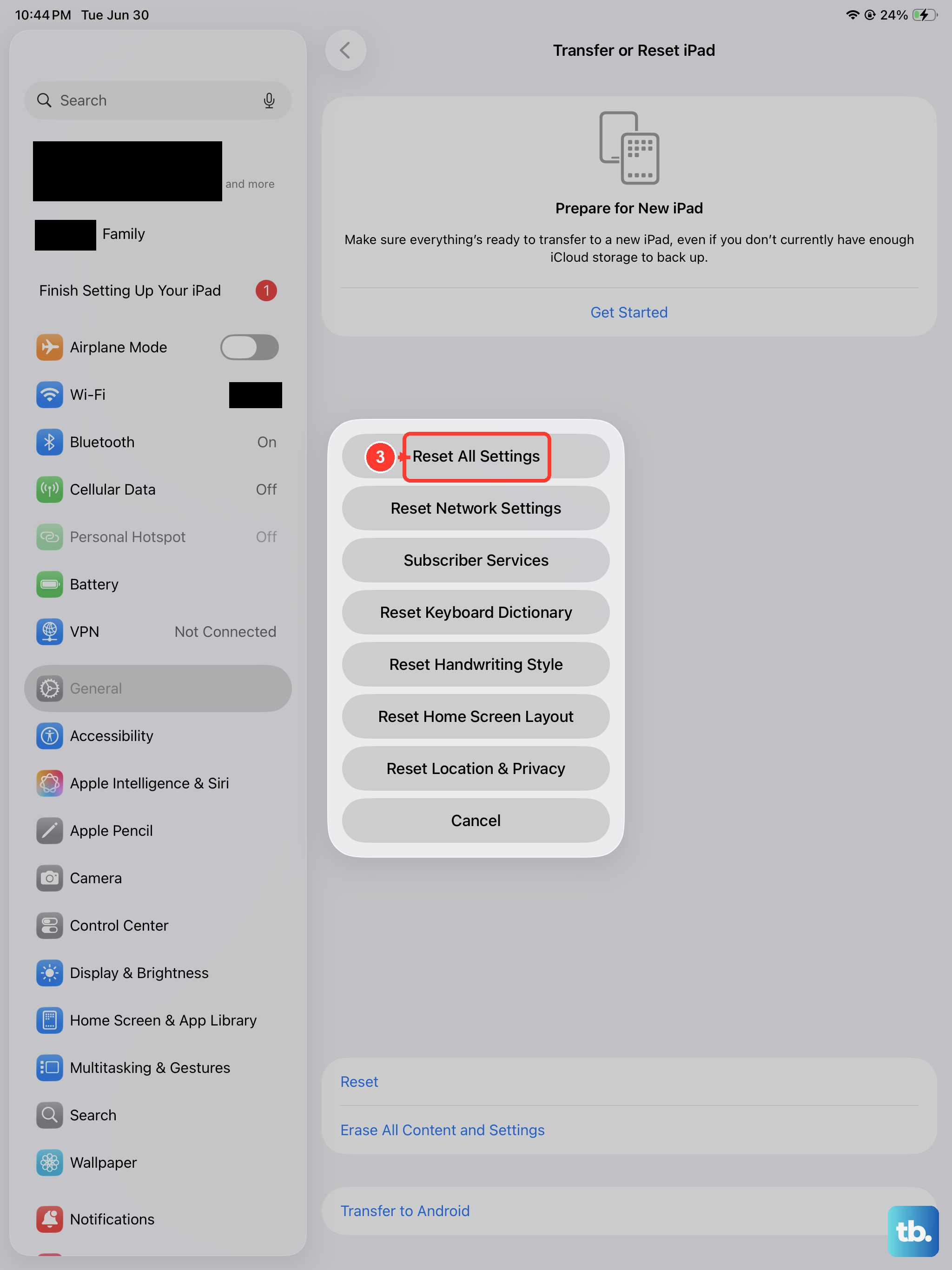
This is more comprehensive than resetting just network settings. It will revert all your preferences, like display brightness, home screen layout, and privacy settings, back to their defaults without erasing your content. Navigate to Settings > General > Transfer or Reset iPad > Reset > Reset All Settings.
You'll need to enter your passcode. After the reset, your iPad will restart. You'll have to set up your Wi-Fi, wallpaper, and notifications again, but your data remains safe. This can eliminate any system-wide configuration error affecting Bluetooth.
Pair with a Different Device
To rule out a hardware problem with your iPad's Bluetooth radio, try pairing it with a different Bluetooth accessory that you know works. If your iPad pairs successfully with another set of headphones or a speaker, then the issue is likely with the original accessory or its compatibility.
Conversely, try pairing the problematic accessory with another phone or tablet. If it also fails to connect to other devices, you've confirmed the accessory itself is the problem. This troubleshooting step clearly points you toward where the actual fault lies.