
When your iPad's GPS stops working, it can leave you stranded without navigation or prevent location-based apps from functioning properly. This is especially frustrating if you rely on your iPad for travel or outdoor activities. The good news is most GPS problems on iPad are software-related and can be fixed without a trip to the store.
Start With These Quick Fixes
I'd start with these three steps, as they resolve the majority of temporary glitches. First, make sure Location Services are actually turned on. Go to Settings > Privacy & Security > Location Services and make sure it is on; if it already is, toggle it off, wait a moment, then turn it back on to refresh it.
Next, give your iPad a quick restart. For iPads without a Home button, press and release the Volume Up button, press and release the Volume Down button, then press and hold the Top button until you see the Apple logo. For iPads with a Home button, just press and hold the Home and Top buttons together until the Apple logo appears.
Finally, check if you're in an area with a clear view of the sky. GPS signals are weak and can be blocked by buildings, heavy tree cover, or even using the device indoors near windows. Step outside or near a large window and try again.
Check Your Location Privacy Settings
Sometimes the issue isn't with the GPS hardware, but with the permissions you've granted. Open the Settings app and go to Privacy & Security > Location Services. First, ensure the main Location Services switch at the top is green and turned on.
Scroll down to see the list of apps. Tap on the app you're having trouble with, like Maps or Google Maps. Make sure the setting is not set to "Never." For best results with navigation apps, select "While Using the App" or "Always." Also, ensure "Precise Location" is enabled for that app, which allows it to use the full GPS accuracy.
Update Your iPad and Apps
Outdated software is a common culprit for GPS and connectivity bugs. Apple frequently releases iPadOS updates that fix these kinds of issues. Go to Settings > General > Software Update to see if an update is available. If one is, plug your iPad into power and connect to Wi-Fi to install it.
You should also check for updates to your navigation apps. Open the App Store, tap your profile icon in the top right, and scroll down to see pending updates. Update apps like Apple Maps, Google Maps, or Waze. An app update can often resolve specific GPS bugs that appeared after an iPadOS update.
Reset Your Network and Location Settings
This is a stronger step that can clear corrupted configuration data without erasing your personal files. Go to Settings > General > Transfer or Reset iPad. Then, tap Reset.
You'll see several options. Tap Reset Location & Privacy. You'll need to enter your passcode to confirm. This will reset all your location permissions to factory defaults, so apps will ask for permission again the next time you use them. If a Wi-Fi or cellular data conflict is affecting location accuracy, use the separate Reset Network Settings option instead, which erases your saved Wi-Fi networks and cellular settings.
Check for Physical or Case Interference
This is an easy one to overlook. If you're using a thick folio case, a keyboard case like the Magic Keyboard, or a rugged protective case, try removing it. Some cases, especially those with metal elements or magnets, can potentially interfere with the iPad's internal GPS antenna.
Also, be mindful of your environment. Using your iPad in a moving vehicle, especially if it's placed low on the dashboard, can hinder signal acquisition. Metal roofs, underground parking garages, and dense urban areas with tall buildings (the "urban canyon" effect) are all challenging for GPS. For testing, find an open outdoor space.
Test With a Different App
To figure out if the problem is with a specific app or the system itself, try using a different navigation app. If Apple Maps isn't getting a lock, open Google Maps or vice versa. You can also use the Compass app that comes pre-installed on your iPad.
Open the Compass app and see if it can find your location and point north correctly. If the Compass app also fails or shows "Location Not Available," the issue is almost certainly with your iPad's system settings or hardware. If the Compass works but your navigation app doesn't, the problem is isolated to that single app.
Disable Low Power Mode
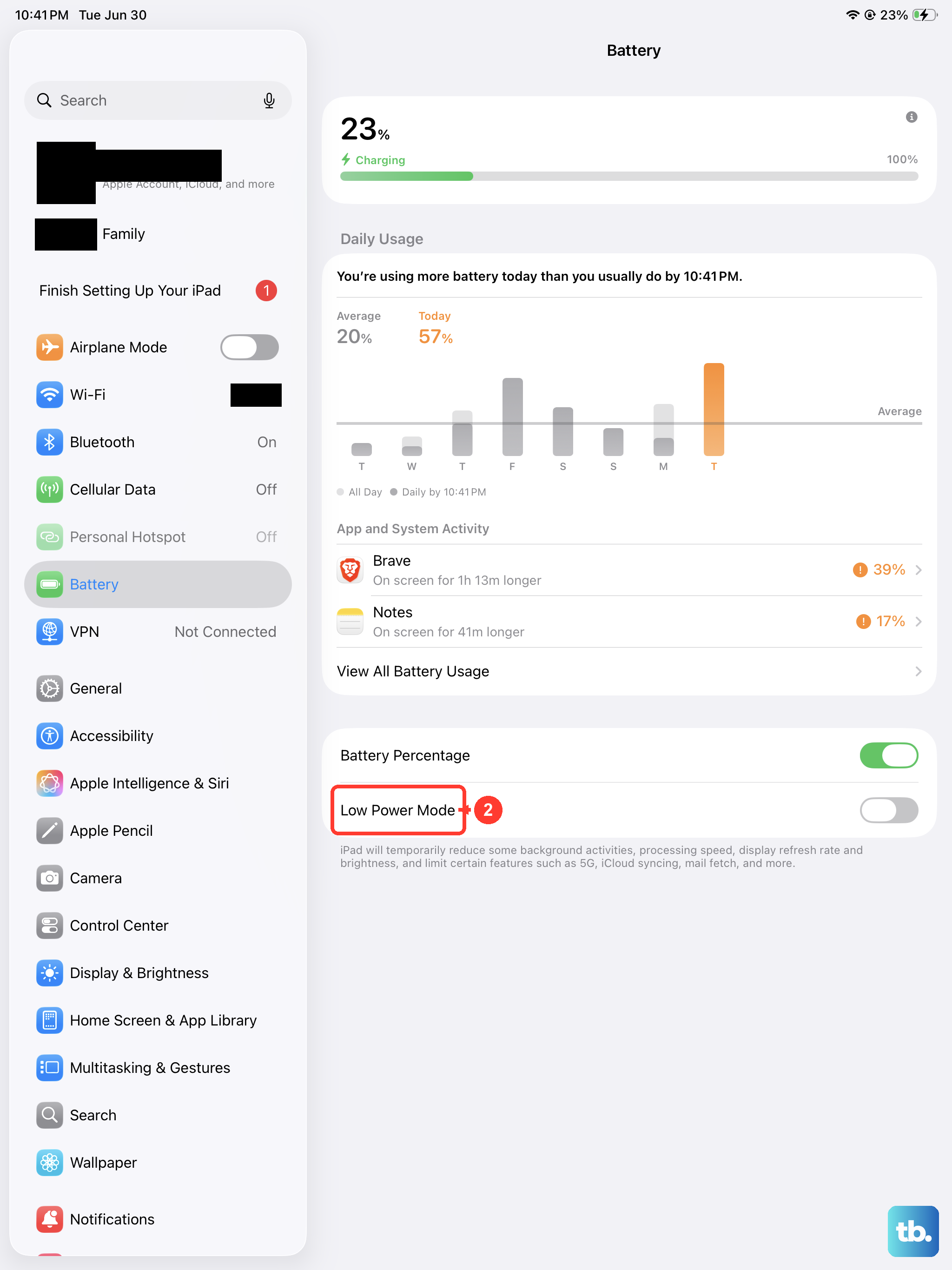
If your iPad's battery is low, Low Power Mode might have activated automatically. This mode conserves battery by reducing background activity, which can include limiting how often apps fetch your GPS location. You can check by going to Settings > Battery.
If Low Power Mode is on, turn it off. Also, make sure your iPad has a decent charge. A very low battery can cause all sorts of system functions, including GPS, to behave unpredictably. Plug it in with a proper charger and try again.
Check Your Date & Time Settings
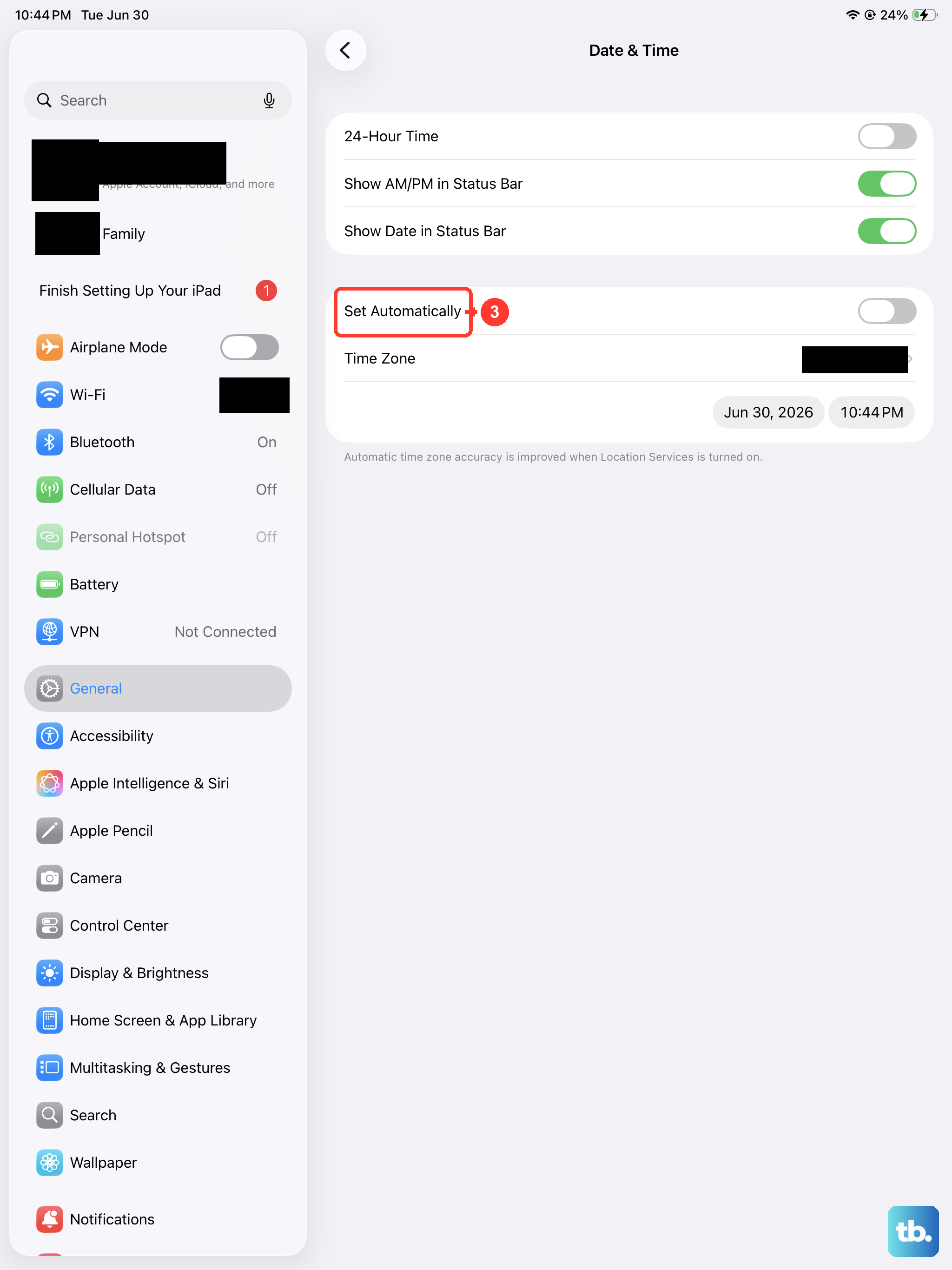
This sounds odd, but GPS relies on incredibly precise timing data from satellites. If your iPad's internal clock is wrong, it can throw off the entire location calculation. Go to Settings > General > Date & Time.
Make sure "Set Automatically" is turned on. This allows your iPad to set the correct time based on your network location. If it's off, turn it on. If it's already on, try turning it off and then immediately back on again to force a refresh.
Review Cellular Data Settings (Cellular Models)
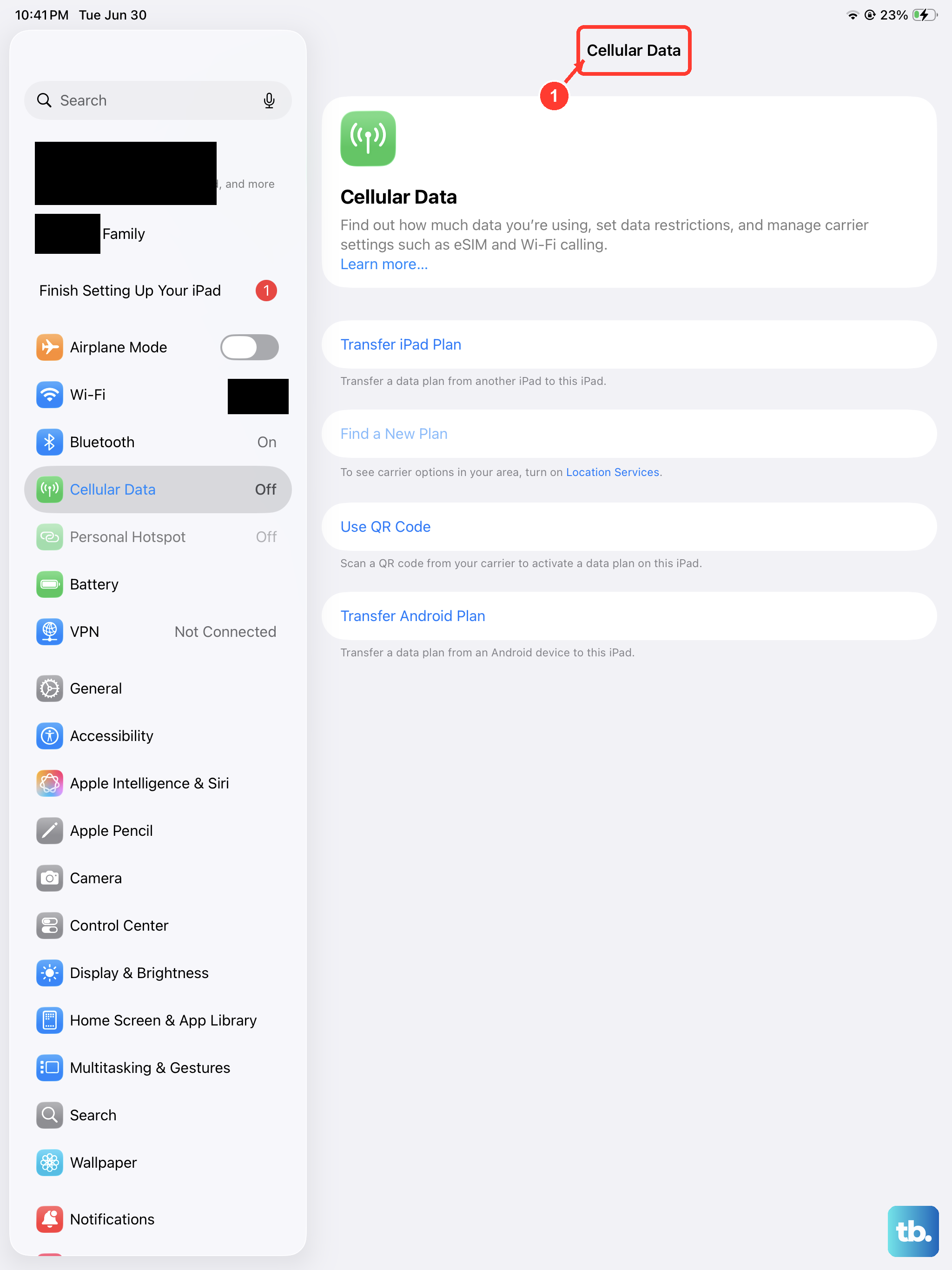
If you have a cellular iPad model, it uses Assisted GPS (A-GPS). This means it uses cellular and Wi-Fi data to help get a faster, initial location lock. Go to Settings > Cellular Data (or Mobile Data).
Ensure Cellular Data is enabled. Also, scroll down and check that the specific app you're using (e.g., Maps) has permission to use cellular data. If you're relying solely on Wi-Fi for location, try turning Wi-Fi off and on again in Control Center to reset the connection.
Consider a Full Backup and Restore
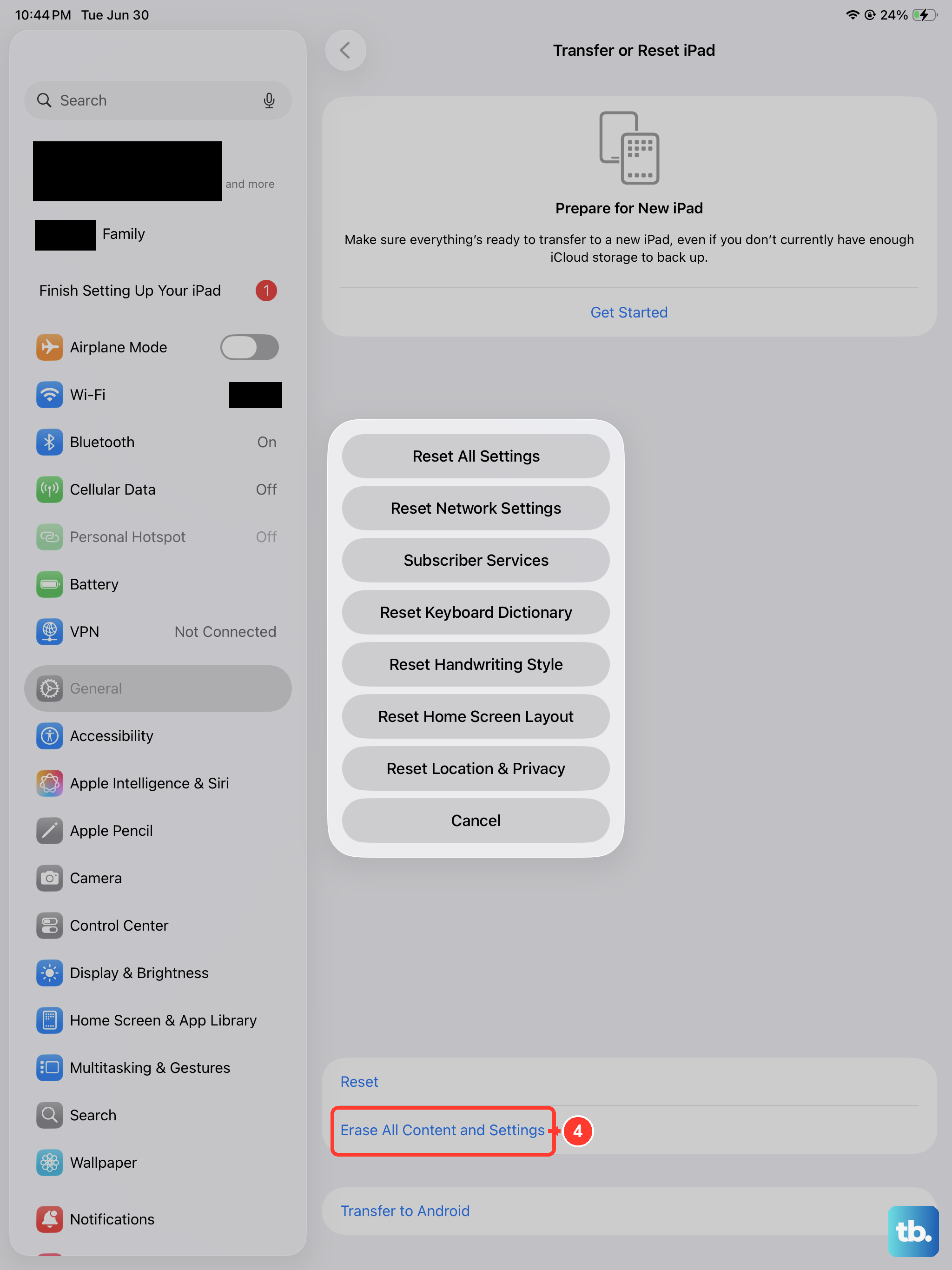
If you've tried everything else and your iPad's GPS is still completely non-functional, a deeper software issue might be at play. The most thorough fix is to back up your iPad, erase it, and set it up again. This is a last resort.
First, make a complete backup via iCloud or your computer. Then, go to Settings > General > Transfer or Reset iPad > Erase All Content and Settings. After the iPad restarts as new, test the GPS immediately using the Compass app before restoring your data. If it works now, you can restore from your backup. If it still doesn't work after a full erase, the issue is likely with the physical GPS hardware.