
If your iPad is plugged in but the battery percentage barely moves, you're likely dealing with a fast charging issue. The larger battery in an iPad needs more power than an iPhone, so using the wrong gear can turn what should be a quick top-up into an all-day affair.
Use a Powerful Enough Charger
This is the most common culprit. Your iPad needs a USB-C Power Delivery (PD) adapter rated for 20W or higher. The tiny 5W or 12W iPhone chargers will technically work, but they charge an iPad at a glacial pace. Check the small print on your adapter's plug for its wattage rating. For the fastest results, I'd recommend using at least a 20W or 30W USB-C PD adapter.
Ensure You're Using a USB-C to USB-C Cable
Fast charging requires a cable with a USB-C connector on both ends. If you're using an older USB-A to USB-C cable, you're limited to much slower charging speeds no matter how powerful your adapter is. Always use the cable that came with your iPad or a high-quality, MFi-certified USB-C cable.
Disconnect Power-Hungry Accessories
If you have a USB-C hub, external drive, or display connected to your iPad, try unplugging it while you charge. These accessories draw power from the iPad's port, which can significantly slow down or even prevent charging. The same goes for some keyboard cases; charging without the case attached can sometimes resolve speed issues.
Let Your iPad Rest While Charging
Using your iPad for demanding tasks like gaming or video editing while it's plugged in generates heat. To protect the battery, iPadOS will automatically throttle the charging speed if the device gets too warm. For the quickest charge, let it sit idle or put it in Airplane Mode.
Check for and Remove Any Case
A thick or insulating case can trap heat during charging, which triggers the same thermal protection that slows things down. If your iPad feels warm to the touch near the back, try taking it out of its case while it charges. This simple step often makes a noticeable difference.
Clean the USB-C Port
Lint and pocket debris can easily get packed into the USB-C port, preventing the cable from making a full connection. Gently clean the port using a dry, soft-bristled brush or a wooden toothpick. Avoid using metal objects that could damage the contacts. A clean port is essential for full power delivery.
Restart Your iPad
A simple restart can clear out temporary software glitches that might be interfering with the charging system. For iPads without a Home button, quickly press and release the Volume button closest to the Top button, then the volume button farthest from the Top button, then press and hold the Top button until you see the Apple logo. For iPads with a Home button, just press and hold the Home and Top buttons together until the logo appears.
Update iPadOS
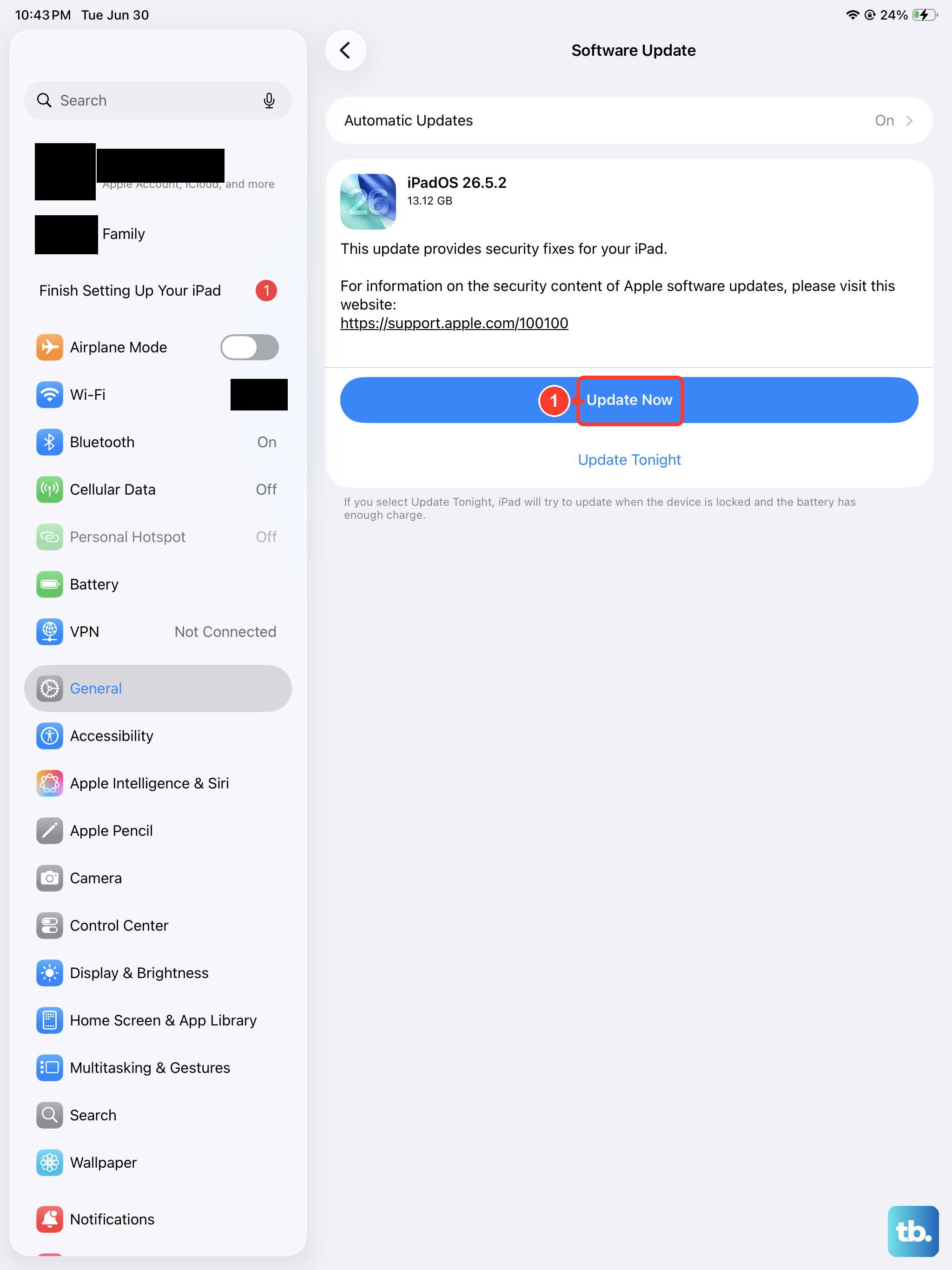
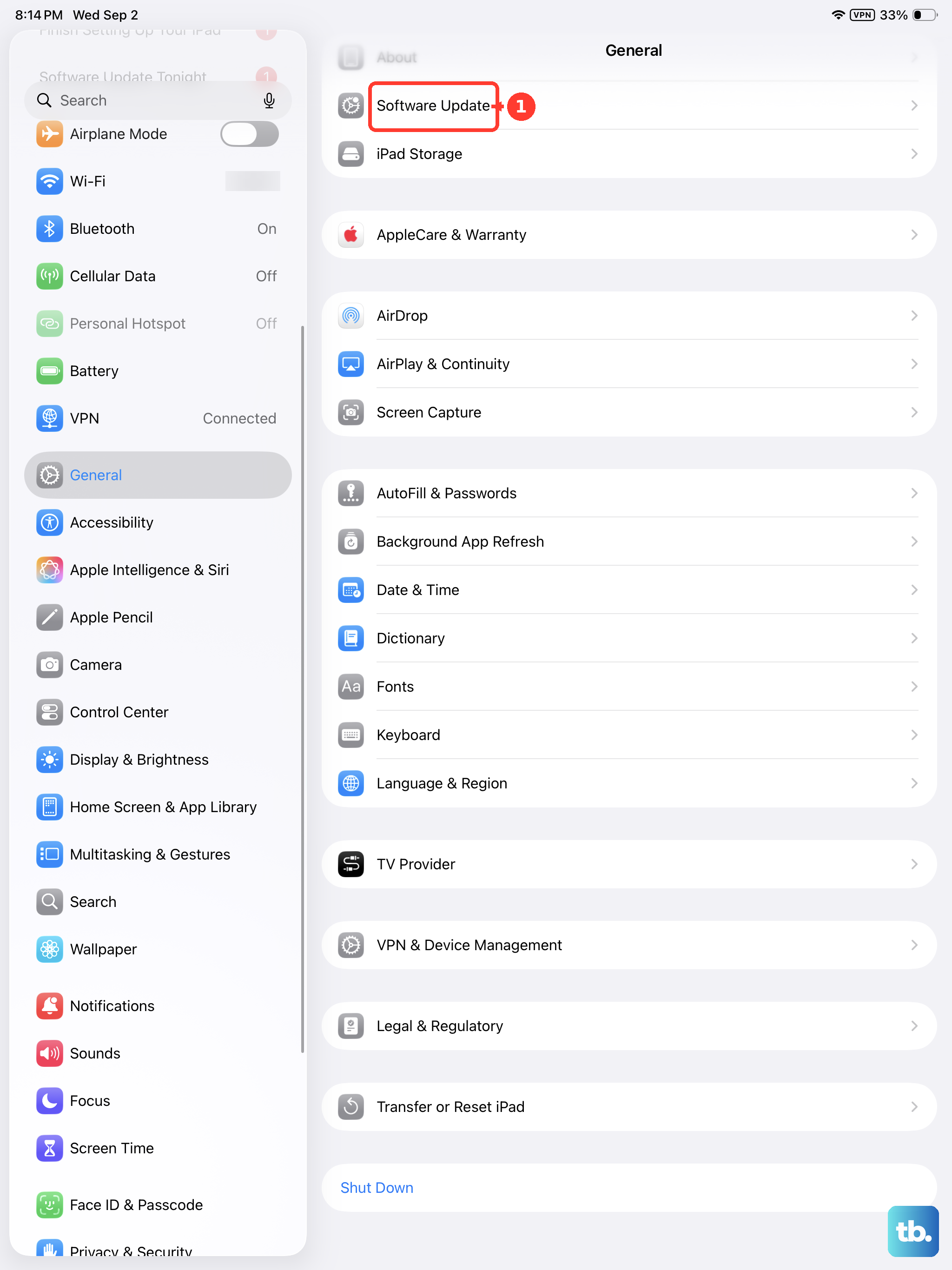
Head to Settings > General > Software Update. Apple sometimes releases updates that include fixes for power management and charging detection bugs. Making sure you're on the latest version of iPadOS ensures your device has the most current and optimized charging algorithms.
Test with a Different Cable and Adapter
Cables wear out over time, especially at the connectors where they bend. The easiest way to rule out faulty hardware is to test with a different, known-good USB-C PD charger and cable. If your iPad starts fast charging with the new set, you've found the problem.
Temporarily Disable Optimized Battery Charging
Go to Settings > Battery > Battery Health & Charging > Optimized Battery Charging. This smart feature learns your routine and slows charging past 80% to preserve battery health. If you need a full charge as fast as possible right now, you can turn it off temporarily. Just remember to turn it back on later for long-term battery care.