
When your iPad suddenly stops sending or receiving emails, it can throw a wrench in your whole workflow. Whether you're trying to send an important document or waiting for a critical message, these issues need a quick fix. The good news is that most email problems on iPad have straightforward solutions you can try right now.
Before we jump into the specific fixes, let's cover a few universal checks. First, make sure your iPad is connected to the internet, either through Wi-Fi or cellular data if your model supports it. Next, it's worth a quick check on your email provider's status page or social media to see if there's a widespread outage. Finally, double-check that you're using the correct email address and password.
Check Your Mail Fetch and Push Settings
Your iPad's mail settings control how and when it checks for new messages. If these aren't set up correctly, emails might not arrive automatically. Head to Settings > Apps > Mail and tap Fetch New Data. If you don't see it there, look under Mail Accounts.
Here, you'll see a list of your accounts. If "Push" is available for an account (common with iCloud or Exchange), make sure it's turned on. Push lets supported accounts deliver new messages without waiting for a fetch schedule. If Push isn't an option, your iPad will use "Fetch."
Below your accounts, you can set a global fetch schedule. "Automatically" is the default, and it fetches new data in the background only when your iPad is charging and connected to Wi-Fi. Choose a timed schedule to fetch more often outside those conditions.
Restart the Mail App
A quick restart of the Mail app can clear out temporary glitches that might be causing the problem. If your iPad has a Home button, double-press it to bring up the app switcher. For newer models without a Home button, swipe up from the bottom of the screen and pause in the middle.
Find the Mail app preview in the carousel and swipe it all the way up and off the top of the screen to close it. Wait a few seconds, then tap the Mail icon on your Home Screen to reopen it. This often resolves minor hiccups.
Toggle Airplane Mode
Try toggling Airplane Mode if your iPad is having connection trouble. Swipe down from the top-right corner of the screen to open Control Center. Tap the airplane icon to turn it on, then tap it again to turn it off.
After disabling Airplane Mode, make sure your iPad is connected to the internet through Wi-Fi or, on a Wi-Fi + Cellular model, cellular data. Open your email provider's website to check whether you can access your account, then try Mail again.
Switch Between Wi-Fi and Cellular Data
Sometimes the problem is isolated to one type of network. If you're on Wi-Fi, try turning it off to force the iPad to use cellular data (on cellular models). Go to Settings > Wi-Fi and toggle it off.
Check if your email works now. If you were on cellular data and having issues, do the reverse: connect to a known, reliable Wi-Fi network. This test helps you pinpoint whether the issue is with a specific network or your email setup in general.
Verify Your Email Account Credentials
Passwords can expire, or you might have recently changed them on another device without updating your iPad. A good test is to try logging into your email account through a web browser on your iPad, like Safari.
If you can't log in on the web, you'll need to reset your password with your email provider (like Gmail, Outlook, or Yahoo). Once you have the new password, you must update it on your iPad. Go to Settings > Apps > Mail > Mail Accounts, tap the problematic account, and follow any prompts to sign in again.
Check Background App Refresh and Mail Fetch Settings
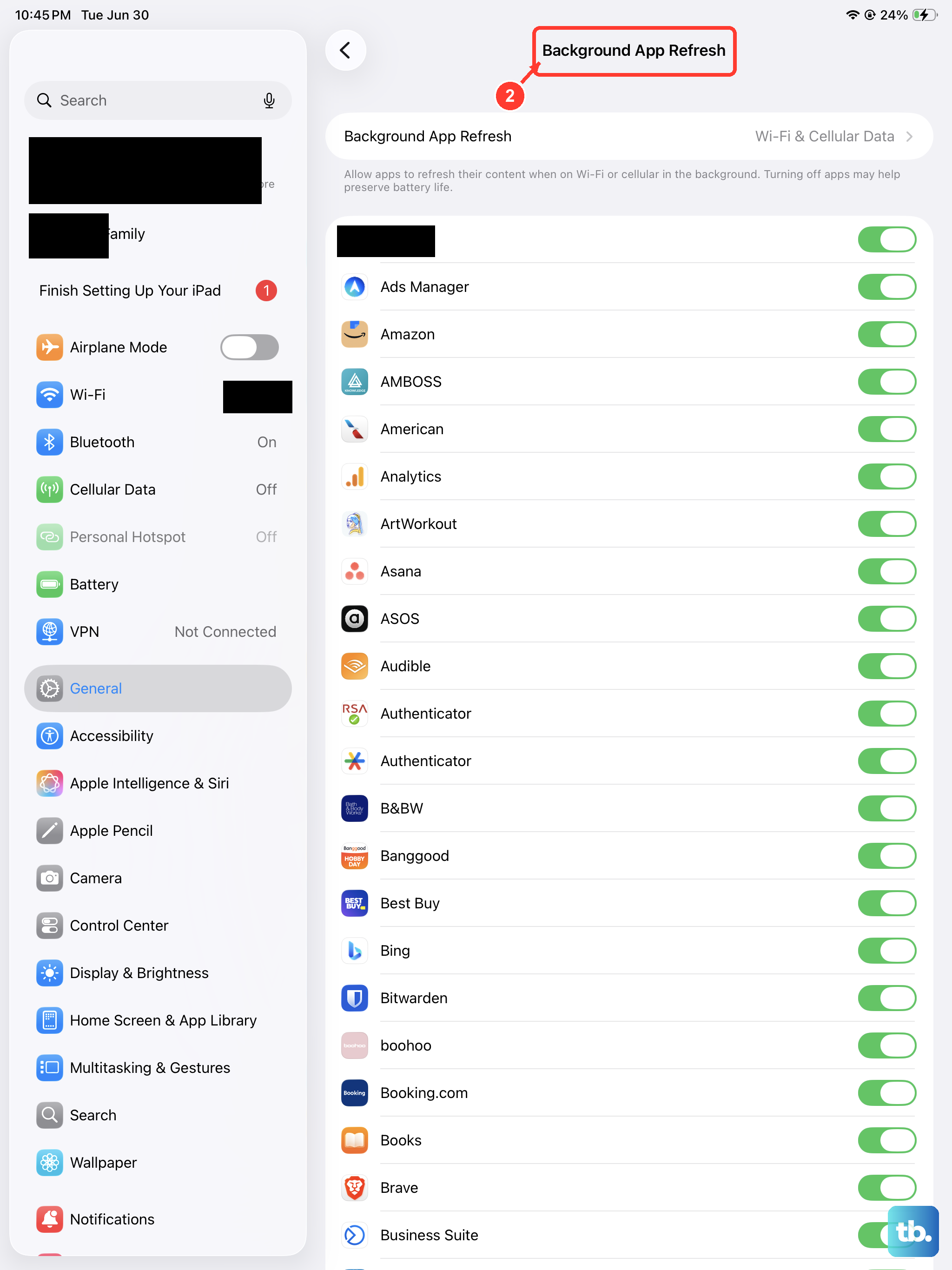
Background App Refresh lets supported apps update content when you're not actively using them. To check it, go to Settings > General > Background App Refresh. For background email checks in Mail, adjust Fetch New Data instead.
Go to Settings > Apps > Mail and tap Fetch New Data, looking under Mail Accounts if needed. Choose a timed fetch schedule if you want Mail to check in the background when your iPad isn't both charging and connected to Wi-Fi.
Check for Cellular Data Restrictions
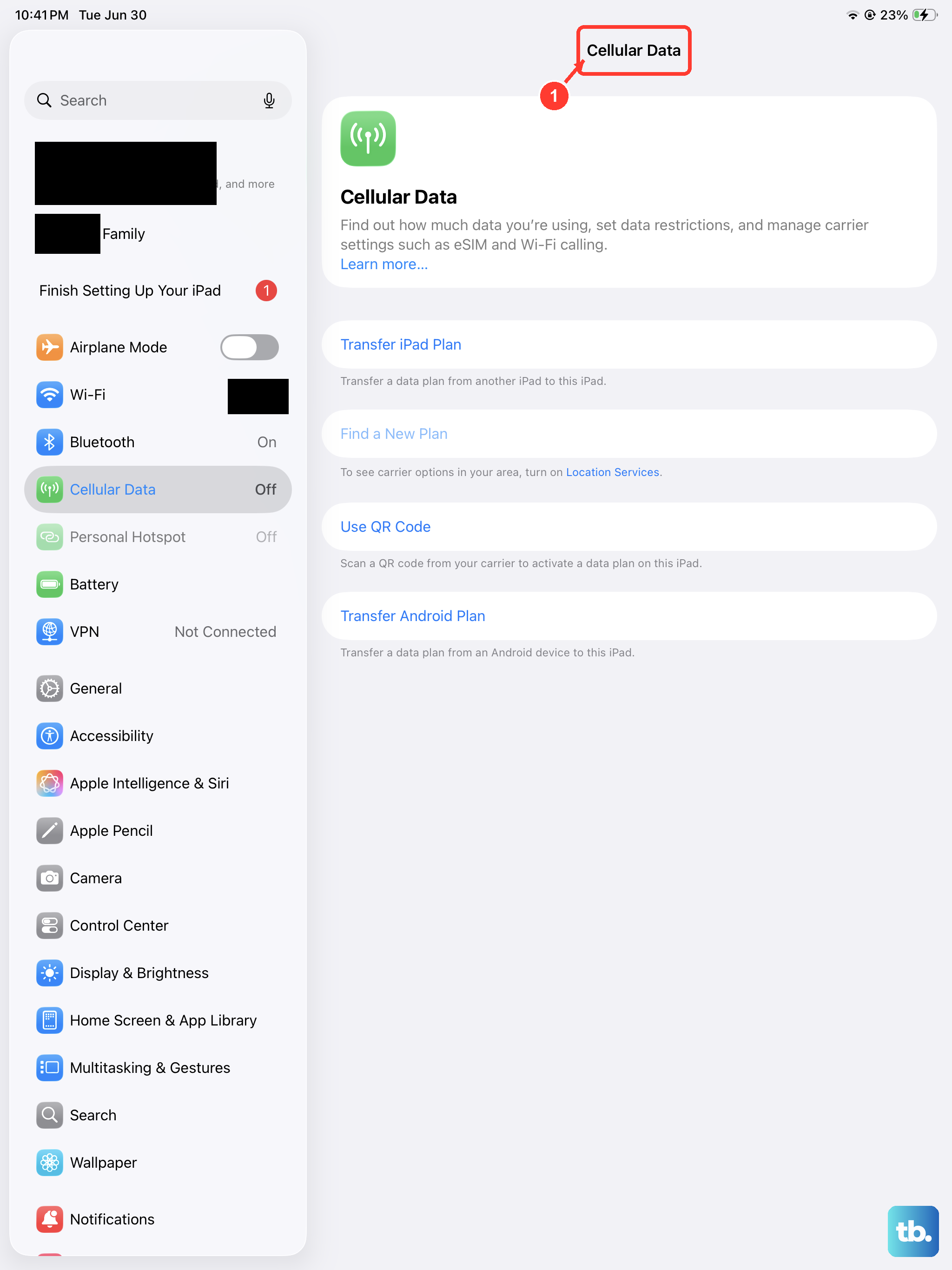
On a Wi-Fi + Cellular iPad, if you're trying to send or receive mail while away from Wi-Fi, you need to ensure cellular data is enabled for the Mail app. Go to Settings > Cellular Data (or just "Mobile Data" in some regions).
Scroll down through the list of apps until you find "Mail." Make sure the switch next to it is turned on. If it was off, your iPad was blocking the Mail app from using your cellular connection to transfer email data.
Set Date and Time Automatically
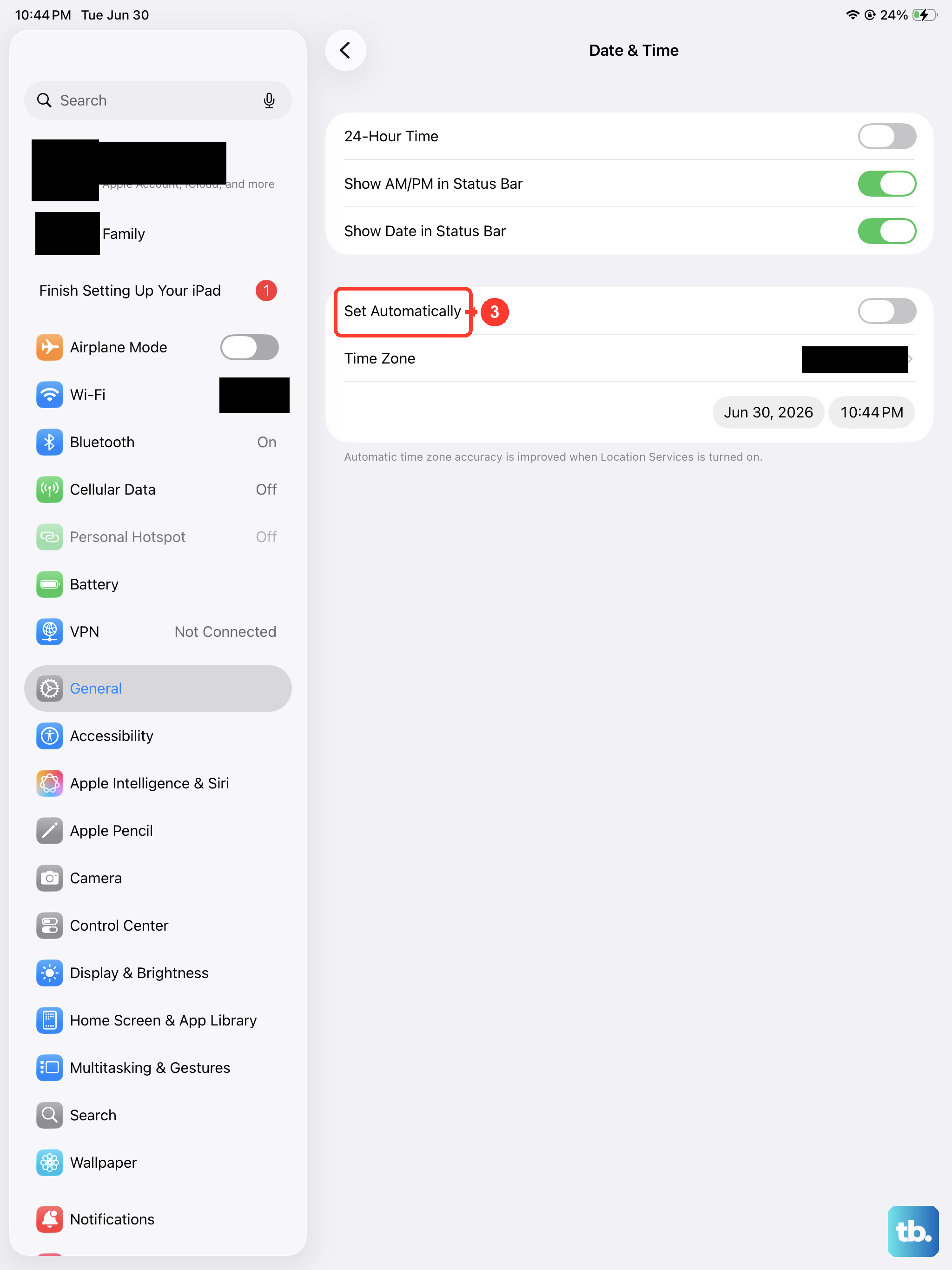
Incorrect date and time settings can cause all sorts of syncing and security certificate errors, preventing email from working. Your iPad needs to know the correct time to communicate properly with email servers.
Go to Settings > General > Date & Time. Make sure the "Set Automatically" option is turned on. This allows your iPad to get the correct time from the network, ensuring everything stays in sync.
Disable VPN or Proxy Connections
If you're using a VPN app or have a proxy configured, it might be interfering with the connection to your email server. Some email providers block traffic from known VPN IP addresses for security reasons.
Try temporarily disabling your VPN. If you're using the built-in VPN settings, go to Settings > General > VPN & Device Management and toggle the VPN off. Check if your email starts working. If it does, you may need to adjust your VPN settings or pause it when using email.
Update Your Email App and iPadOS
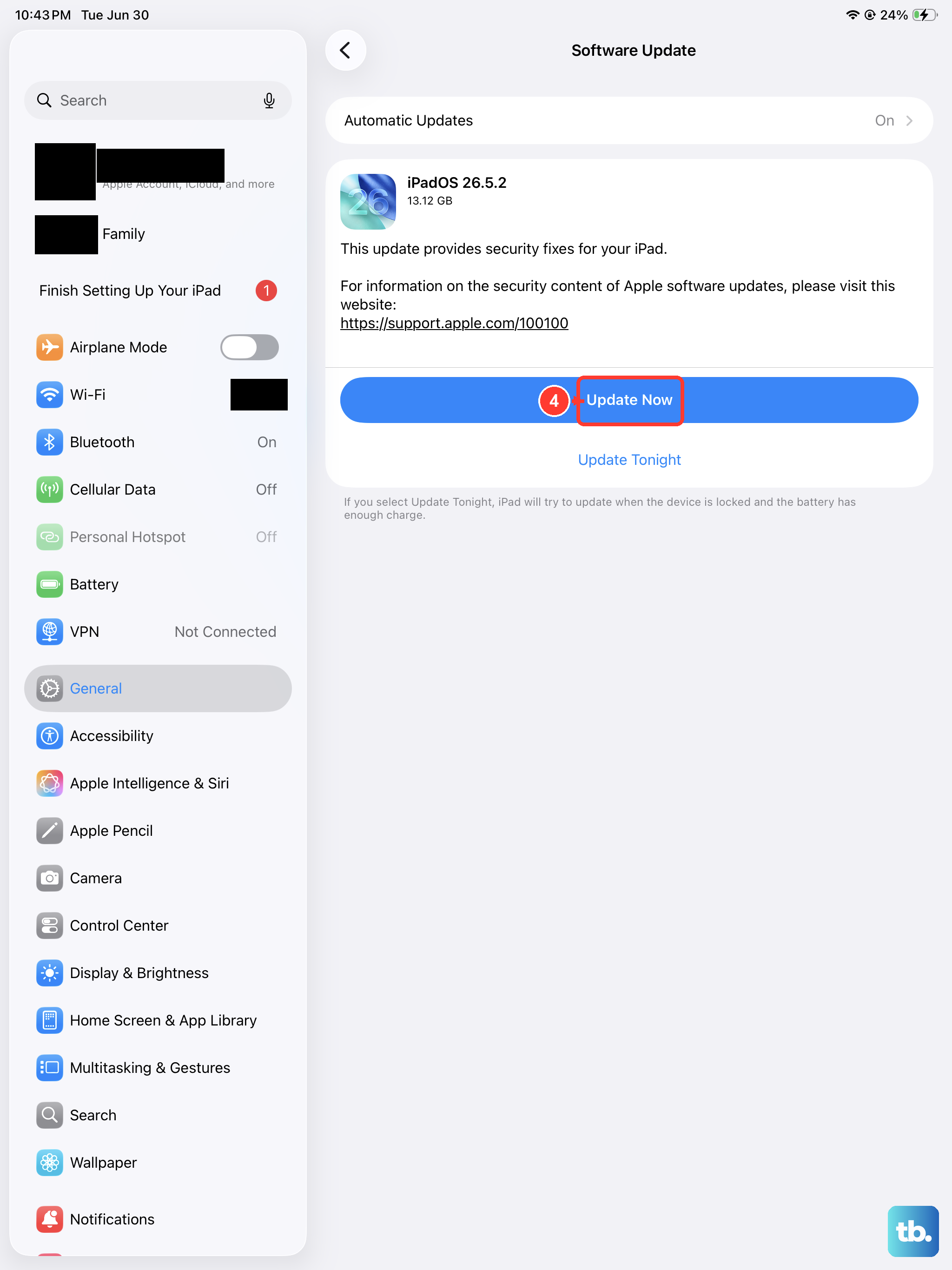
If you're using a third-party app like Outlook or Gmail, make sure it's updated. Open the App Store, tap your profile icon at the top, then tap App Updates and Update next to your email app. More importantly, check for a system update.
Go to Settings > General > Software Update. iPadOS updates can include bug fixes. Installing the latest version can resolve problems introduced by older software.
Delete and Re-add Your Email Account
Before removing the account, sign in to your provider's website on a computer and make sure your email is there or saved elsewhere. Previously downloaded emails may be removed from your iPad. Go to Settings > Apps > Mail > Mail Accounts, tap the account, then tap "Sign Out" or "Delete Account." This removes it from your iPad without canceling the email account.
After removing it, go back to the Mail Accounts page and tap "Add Account." Enter your email address and follow the prompts to sign in and finish setup. Adding the account again can help resolve persistent sending or receiving errors.
Check Your Mail Notification Settings
If emails are arriving but you're not getting alerts, the issue is with notifications, not the mail service itself. Go to Settings > Notifications > Mail.
First, make sure "Allow Notifications" is turned on. Adjust your Alerts, Sounds, and Badges to your preference. To check account-specific options, tap "Customize Notifications," then select the email account you're missing alerts from.
Force Restart Your iPad
If your iPad isn't responding and you can't turn it off and on, try a force restart. The steps depend on your iPad model. For iPads without a Home button, quickly press and release the volume button nearest to the top button, then the volume button farthest from it. Press and hold the top button, then release it when the Apple logo appears.
For iPads with a Home button, press and hold both the Home button and the Top button until the Apple logo appears. This reboot doesn't erase any data, but it can resolve underlying system issues affecting the Mail app.
Reset All Network Settings
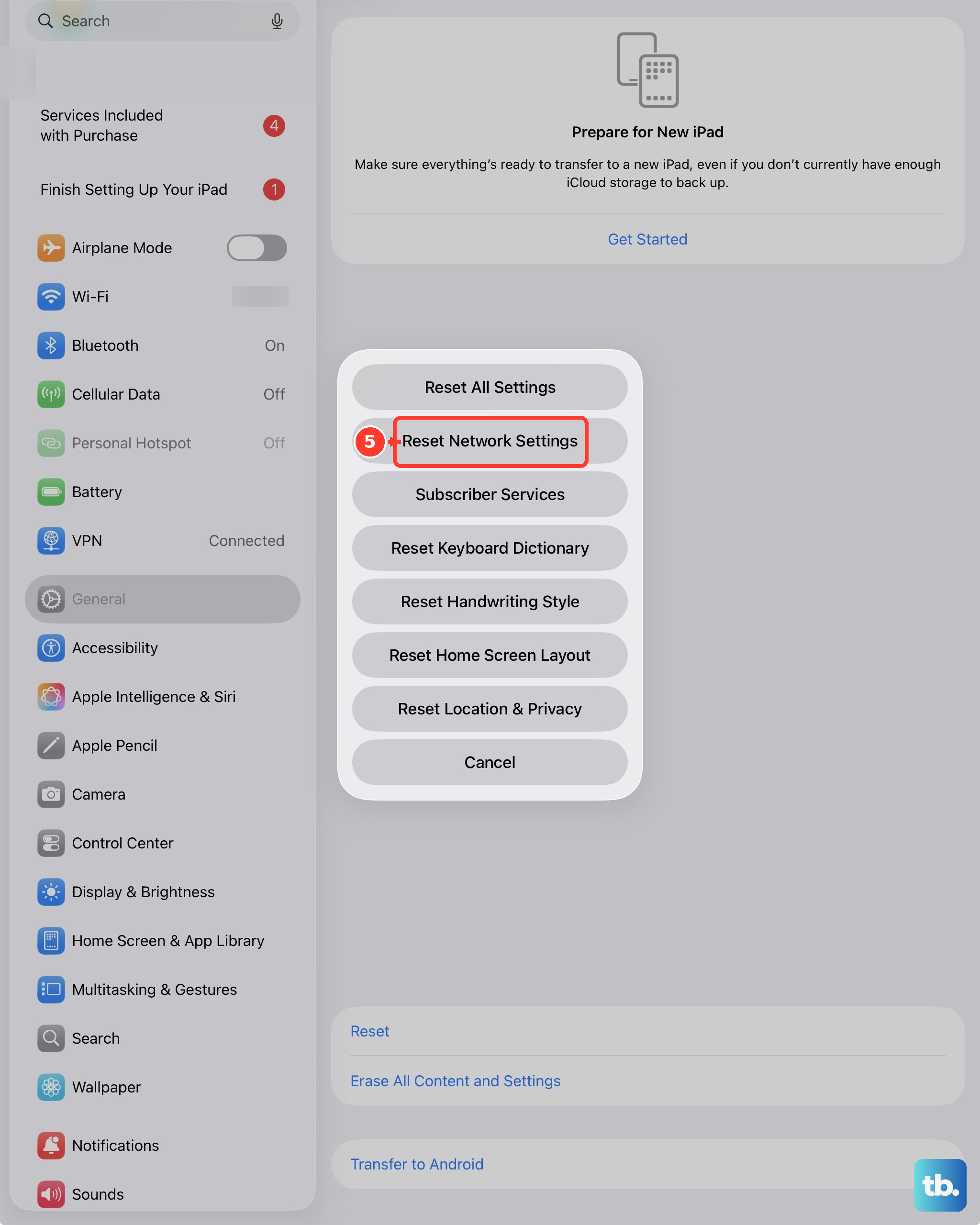
If you've tried everything and the problem seems tied to connectivity, resetting network settings can be a last resort before more drastic measures. This removes saved Wi-Fi networks and passwords, along with VPN settings that weren't installed by a configuration profile or device management. On Wi-Fi + Cellular models, cellular data roaming may also be turned off.
Go to Settings > General > Transfer or Reset iPad > Reset. Choose "Reset Network Settings." You'll need to re-join your Wi-Fi networks afterward, but this can fix deep-seated network configuration conflicts that are blocking email.