
If your iPad's camera is black, frozen, or the app keeps crashing, start with a simple restart. For iPads without a Home button, press and hold the top button and either volume button until the power-off slider appears, drag the slider to turn the iPad off, then press and hold the top button until you see the Apple logo. For iPads with a Home button, press and hold the top button until the power-off slider appears, drag it to turn off, then press and hold the top button until the Apple logo appears. I've found this clears up most temporary software glitches that cause camera problems.
If you are unsure whether the camera or the app is at fault, run a quick webcam test first. Seeing a live preview means the hardware and driver are doing their job.
Key Points
- Force Quit and Relaunch the Camera App: Swipe up from the bottom of the screen and swipe the Camera app away.
- Check for iPadOS Updates: Software bugs are a common cause, and updates often include camera fixes.
- Free Up Storage Space: A completely full iPad can prevent the camera from saving new photos or videos.
- Reset All Settings: This can fix deeper software conflicts without erasing your personal data.
- Check for Physical Damage or Obstructions: A cracked lens or a poorly fitted case can block the camera.
- Test in a Different App: Try using the camera in FaceTime or Zoom to isolate the problem.
Give your iPad a minute to fully reboot, then open the Camera app again to see if it's working.
Force Quit and Relaunch the Camera App
Sometimes the Camera app itself gets stuck. To force quit it, swipe up from the bottom of the screen and pause in the middle to enter the app switcher. Find the Camera app preview and swipe it all the way up and off the top of the screen to close it. Wait a few seconds, then tap the Camera icon on your Home Screen to reopen it.
This is a quick fix that takes about ten seconds. If the camera was just frozen, this should get it working again right away.
Check for iPadOS Updates
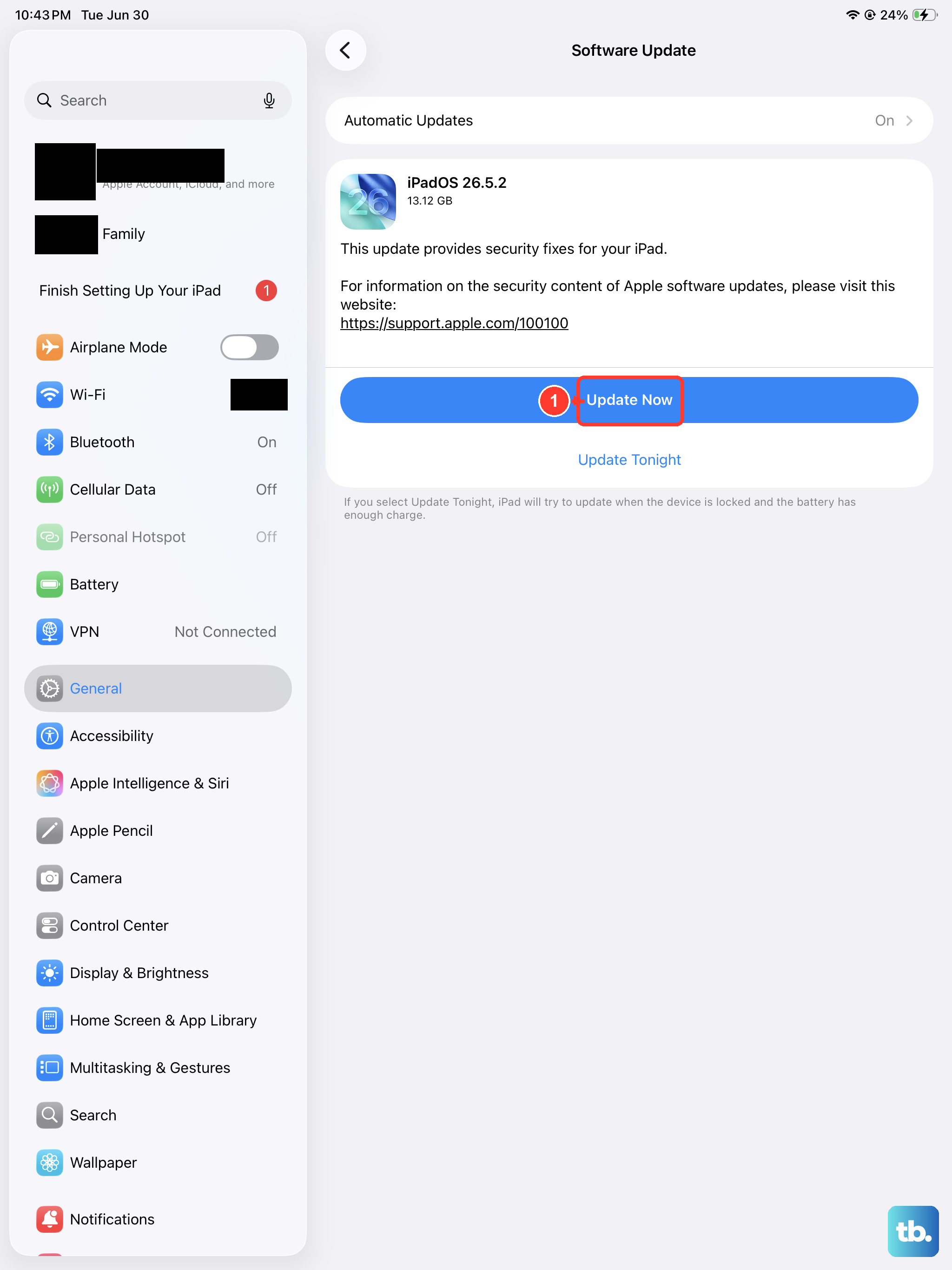
Apple frequently releases updates that fix bugs, including camera issues. Go to Settings > General > Software Update. If an update is available, tap Download and Install. Make sure your iPad is connected to Wi-Fi and has at least 50% battery, or keep it plugged in during the update.
After the update installs, your iPad will restart. Test the camera again. Many users on iPadOS 26 have reported camera stability improvements after installing the latest point updates.
Free Up Storage Space
Your iPad needs free space to process and save photos and videos. If your storage is completely full, the camera may not work at all. Go to Settings > General > iPad Storage to see how much space you have left.
If you're critically low, you'll need to delete some items. Start by offloading large videos or unused apps. You can also enable iCloud Photos to store your full-resolution library in the cloud while keeping smaller versions on your iPad. Once you have at least a few gigabytes free, try the camera again.
Reset All Settings
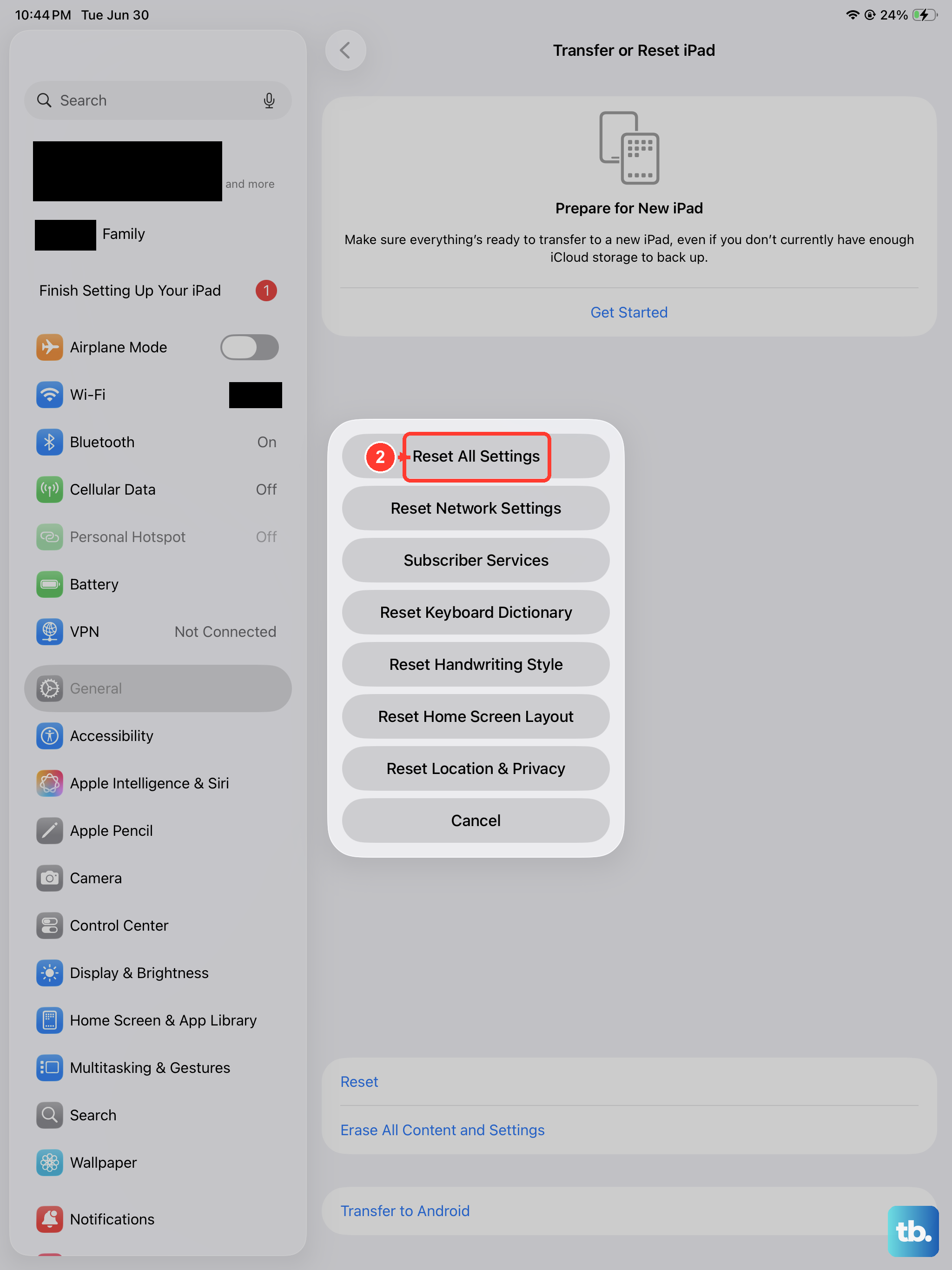
This is a more thorough step that resets your network settings, wallpaper, and privacy permissions back to default, but it won't delete your photos, apps, or documents. It can fix weird software conflicts that a simple restart can't. Go to Settings > General > Transfer or Reset iPad > Reset > Reset All Settings.
You'll need to enter your passcode to confirm. After the reset, your iPad will restart. You'll have to reconnect to Wi-Fi networks and re-customize some settings, but it often resolves persistent camera failures.
Check for Physical Damage or Obstructions
Take a close look at the camera lens on the back of your iPad. Look for any cracks, deep scratches, or debris. Even a small crack over the lens can ruin image quality. Also, check if your iPad case is properly aligned. A poorly designed or damaged case can partially block the camera's field of view.
Try removing the case entirely and test the camera. Clean the lens gently with a soft, dry microfiber cloth. Don't use any liquids or compressed air directly on the lens, as you could push moisture inside the camera module.
Test in a Different App
Open another app that uses the camera, like FaceTime, Zoom, or even the Notes app (to scan a document). If the camera works fine in these other apps, then the problem is isolated to the native Camera app. You can try deleting and reinstalling the Camera app, though this requires a specific process since it's a system app.
If the camera doesn't work in *any* app, then the issue is system-wide. This points more toward a software setting conflict or, less commonly, a hardware problem.
Check Camera Permissions and Restrictions
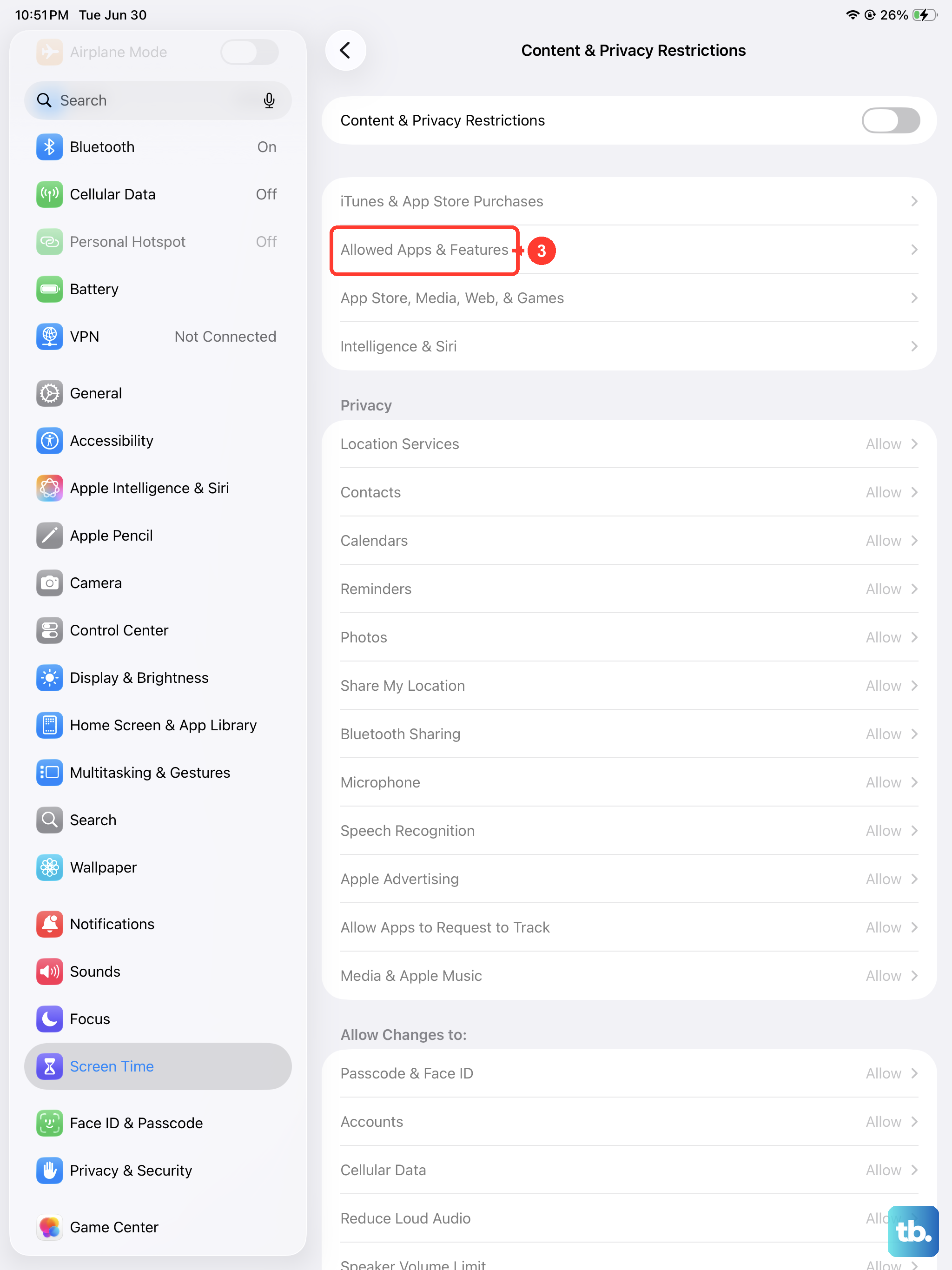
It's possible the Camera app's access was accidentally revoked. Go to Settings > Privacy & Security > Camera. This screen lists the third-party apps that have requested camera access, so make sure any app you want to use is switched on (green). The built-in Camera app isn't listed here because it doesn't need permission, so if it's blocked, check the Screen Time restrictions below.
Also, check Screen Time restrictions if you use them. Go to Settings > Screen Time > Content & Privacy Restrictions > Allowed Apps. Ensure that Camera is not restricted here. If it was, turning it back on should restore access immediately.
Perform a Forced Restart (Hard Reset)
This is different from a normal restart and can clear more stubborn system errors. For iPads without a Home button, quickly press and release the Volume Up button, then quickly press and release the Volume Down button. Finally, press and hold the Top button until the device restarts and you see the Apple logo. For iPads with a Home button, press and hold both the Home and Top buttons until you see the Apple logo.
This doesn't erase any data. It's like cutting the power and is a reliable way to clear temporary system hangs that might be affecting the camera hardware.
Consider a Factory Reset (Last Resort)
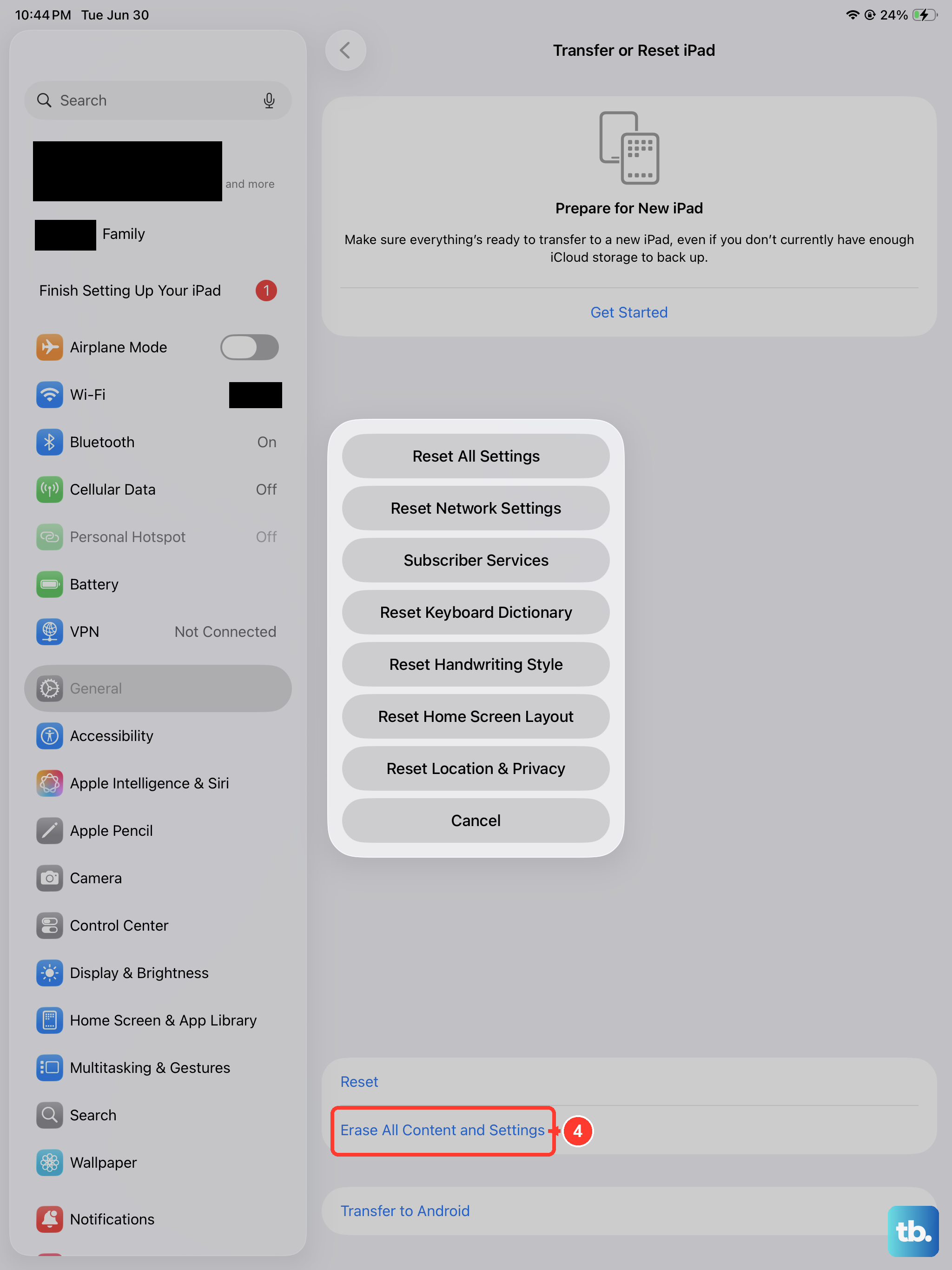
If nothing else has worked, you can try erasing your iPad and setting it up as new. This will delete all your data and apps, so you must have a recent backup in iCloud or on your computer first. Go to Settings > General > Transfer or Reset iPad > Erase All Content and Settings.
After the erase is complete, set up the iPad but choose "Set Up as New iPad" instead of restoring from a backup. Test the camera immediately. If it works now, the problem was likely corrupted software data in your previous setup. If the camera still fails on a completely fresh iPadOS install, the issue is almost certainly hardware-related.











