
Seeing a call fail on your iPad can be confusing, especially since you might not use it for calls as often as your phone. This usually happens because an iPad cannot place calls over its own cellular network at all. Instead, an iPad relays calls through a nearby iPhone (Calls on Other Devices), places them with FaceTime, or uses carrier Wi-Fi Calling, so failures typically trace back to Wi-Fi, your iPhone connection, or a setting that got changed. Weak signals, software quirks, or a setting that got changed are the typical culprits.
Here are the most effective ways to get your iPad calls working again, starting with the quickest fix you can try right now.
Toggle Airplane Mode
The fastest way to reset your cellular connection is to use Airplane Mode. This clears out any temporary network glitches that might be preventing calls from going through.
On your iPad, swipe down from the top-right corner to open Control Center. Tap the airplane icon to turn Airplane Mode on, wait about 10 seconds, then tap it again to turn it off. Your iPad will reconnect to the cellular network fresh.
Check Your Cellular Signal
A weak Wi-Fi connection, or an iPhone that is turned off, out of range, or not on the same Wi-Fi network as your iPad, is the most common reason iPad calls fail. Because your iPad relays calls through your iPhone or places them over Wi-Fi with FaceTime, check that your iPhone is nearby and that both devices are on the same Wi-Fi network before anything else.
Sometimes, data can work on a weak signal where a voice call can't. If you're in a known low-coverage area, this is likely the issue.
Restart Your iPad
A simple restart can clear up minor software hiccups that affect calling. The method depends on your iPad model.
For iPads without a Home button, quickly press and release the Volume Up button, then the Volume Down button. Immediately press and hold the Top button until you see the Apple logo appear.
For iPads with a Home button, just press and hold both the Home button and the Top button until the Apple logo shows up.
Check Focus and Do Not Disturb
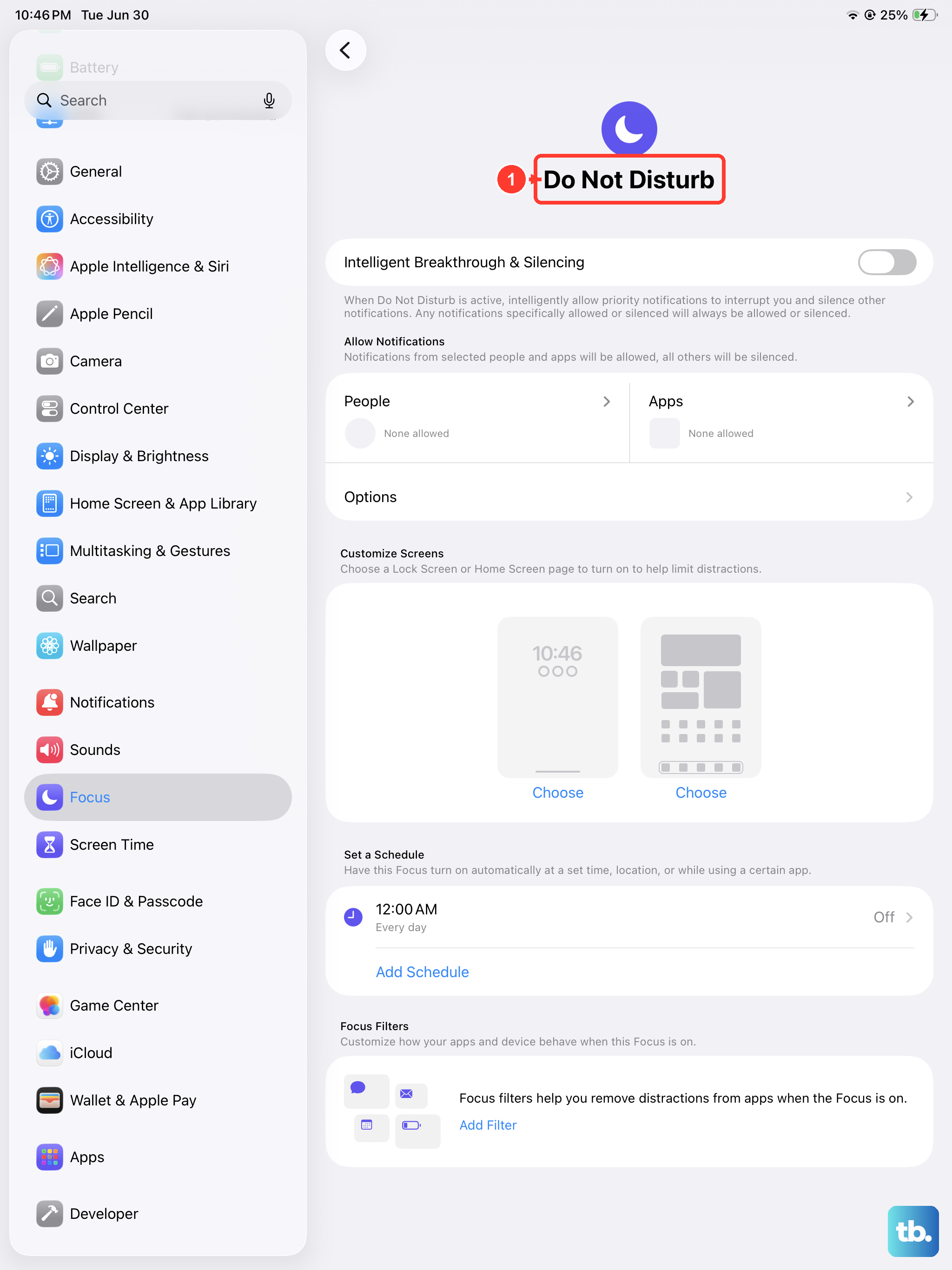
If you're missing incoming calls, a Focus mode might be silencing them. Swipe down from the top-right to open Control Center and look for an active Focus icon, like a crescent moon for Do Not Disturb.
Tap the active Focus icon to turn it off. You can also go to Settings > Focus to see which modes are enabled and adjust their settings to allow calls from your contacts.
Verify Your Cellular Data is On
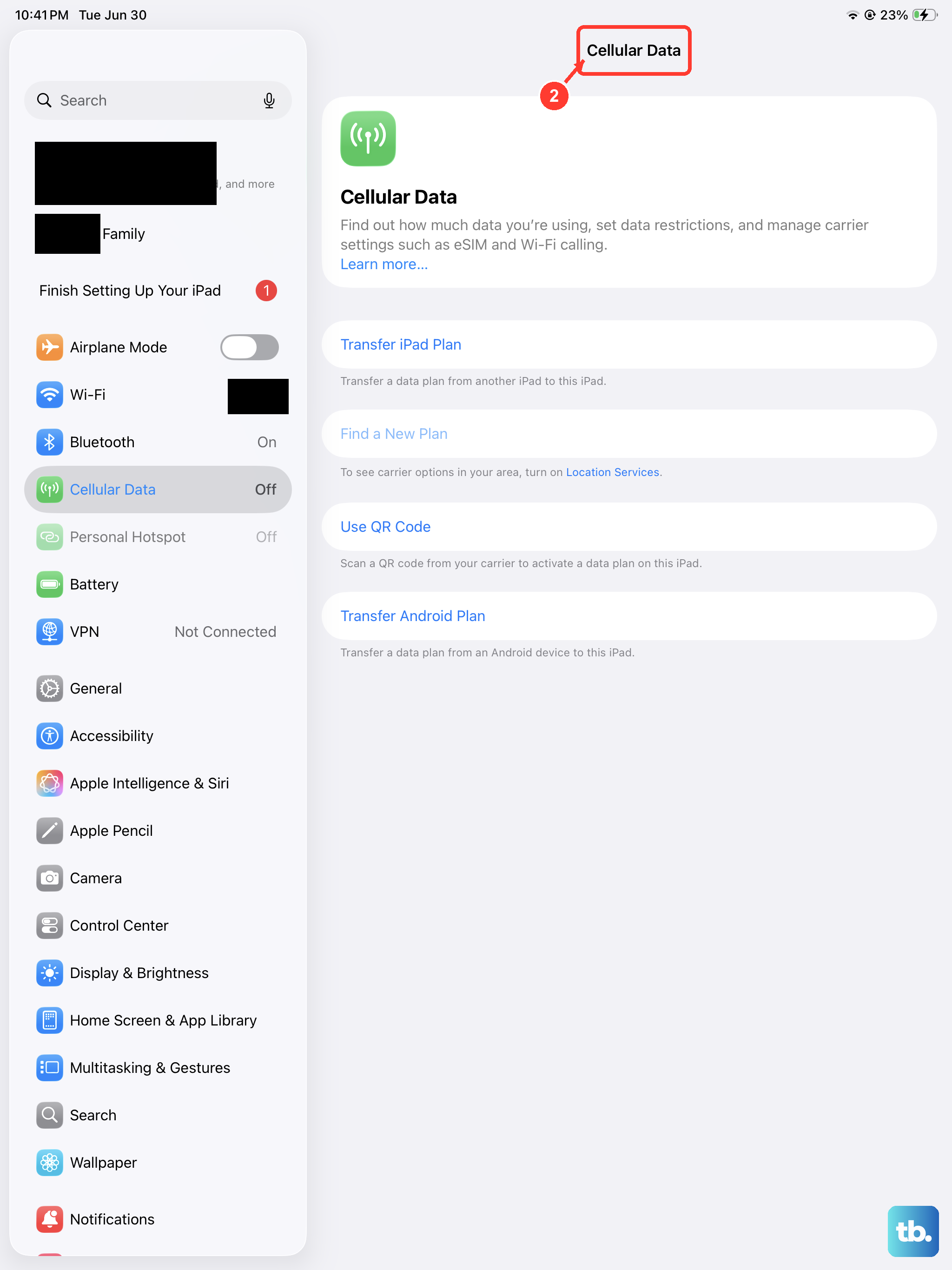
Even for voice calls, it's good to ensure your cellular data is enabled. Open Settings > Cellular Data and make sure the Cellular Data switch is turned on.
If you're traveling, you might also need to enable data roaming. In the Cellular Data settings, tap Cellular Data Options and then turn on Data Roaming. Just be aware of potential charges from your carrier.
Update Carrier Settings
Your carrier occasionally sends small updates that improve network connectivity. These can help fix calling issues.
Make sure your iPad is connected to Wi-Fi. Then, go to Settings > General > About. If a carrier update is available, a pop-up message will appear asking you to update. Just follow the prompt.
Check for a Software Update
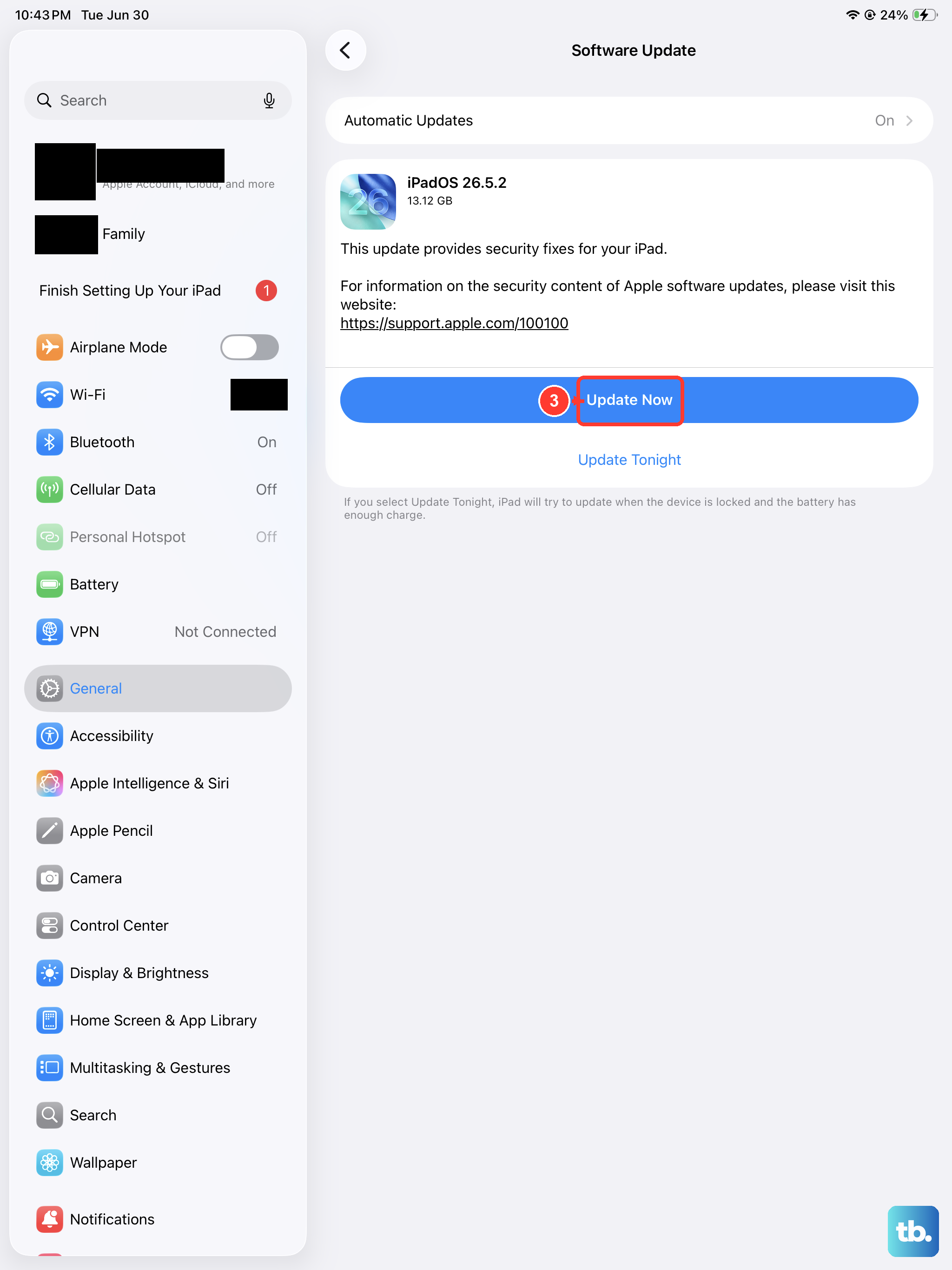
A bug in iPadOS could be interfering with cellular functions. Apple releases updates that often include fixes for these kinds of problems.
Plug your iPad in or make sure it has plenty of battery, then connect to Wi-Fi. Go to Settings > General > Software Update. If an update is available, download and install it.
Reset Your Network Settings
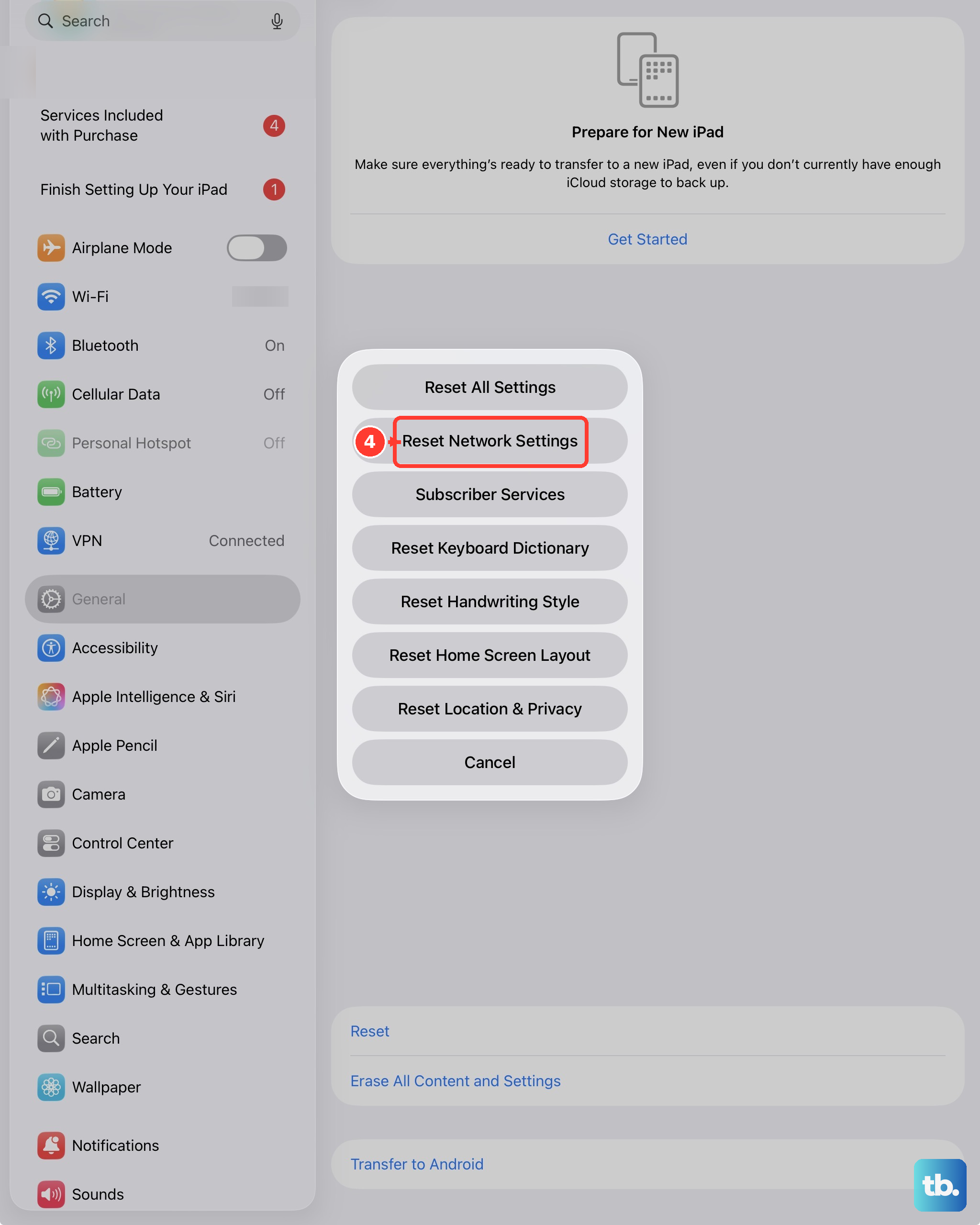
This is a more thorough step that clears all saved Wi-Fi passwords, cellular settings, and VPN configurations. It won't delete your personal data, but you will need to re-join Wi-Fi networks afterward.
To do this, go to Settings > General > Transfer or Reset iPad. Tap Reset, then choose Reset Network Settings. Enter your passcode when prompted to confirm.
Reinsert Your SIM Card
A SIM card that's slightly loose or has dirty contacts can cause connection problems. You'll need a SIM eject tool or a small paperclip.
Find the SIM tray on your iPad (the location varies by model) and gently insert the tool into the small hole to eject the tray. Take the SIM card out, gently wipe the gold contacts with a soft, dry cloth, and then reinsert it. Push the tray back in until it clicks.
Contact Your Cellular Carrier
If you've tried everything else, the problem might be on your carrier's end. There could be a network outage in your area, an issue with your account, or the SIM card itself could be faulty.
Call your carrier's customer support. They can check for outages, reprovision your line on their network, or send you a replacement SIM card if needed.