
Your iPad Air M3's volume buttons not working can be maddening. You press the Volume Up or Volume Down and nothing happens on screen. Fortunately, most cases of stuck volume controls on the iPad Air M3 are caused by software hiccups or physical blockages rather than permanent hardware failure. The fixes below will get your buttons clicking again.
Start with the simplest solution first and work your way up.
1. Remove the Case
Take off any case or cover. Sometimes the case lips or stiff edges can press against the volume buttons or prevent them from fully moving. This is especially common with thicker protective cases or ones that don't fit your iPad Air M3 perfectly. Once the case is off, test the buttons again.
2. Force Restart the iPad Air M3
A force restart clears temporary software glitches that can cause volume buttons to stop responding. It doesn't delete any of your data or settings.
Press and quickly release the Volume Up button, then press and quickly release the Volume Down button. Then press and hold the Top button (the one on the top edge) until you see the Apple logo. Release the button and let the iPad restart normally.
This specific sequence is designed for the iPad Air M3 and other iPads without a Home button. If you did it right, you'll see the Apple logo after about 10 seconds of holding the Top button.
3. Check the Volume Button Setting
iPadOS has a setting that decides whether the physical volume buttons adjust ringer sounds or just media volume. If it's turned off, the buttons won't change the ringer or alert volume.
Open Settings > Sounds and make sure Change with Buttons is toggled on. While you're there, you can also adjust the ringer volume using the slider to confirm the buttons themselves are functional.
4. Use On-Screen Volume Controls
While you troubleshoot the physical buttons, you can still adjust volume using the screen. Swipe down from the top-right corner to open Control Center and drag the volume slider. Or go to Settings > Sounds and use the ringer and media sliders. This helps you determine if the issue is specific to the buttons or a broader audio problem.
5. Clean the Volume Buttons
Dust and pocket lint often find their way into the small gaps around the volume buttons. Over time this debris can jam the switches. Use a can of compressed air to blow around the button edges. For sticky buildup, lightly dampen a cotton swab with isopropyl alcohol (90% or higher) and gently rub around the button seams. Be careful not to push liquid into the device.
6. Press the Buttons Several Times
Rapidly press each volume button eight or ten times in quick succession. This can help dislodge anything that's temporarily stuck under the button. You're looking for a clear click and feel each time. If they start responding, keep pressing until the action feels normal again.
7. Try Volume in Different Apps
Test the volume buttons while in Music, a video, a game, and even during a phone call (if you use FaceTime or a cellular model). If the buttons work in some situations but not others, the issue might be tied to a specific app or audio routing setting rather than the hardware.
8. Enable AssistiveTouch
AssistiveTouch gives you a virtual on-screen button that can control volume and perform many other actions. It can also reset the link between the physical buttons and the software.
Go to Settings > Accessibility > Touch > AssistiveTouch and turn it on. Tap the floating icon, then choose Device > Volume Up or Volume Down. Use these virtual buttons a few times, then try the physical buttons again. Sometimes the software that handles button input gets refreshed by this method.
9. Update iPadOS
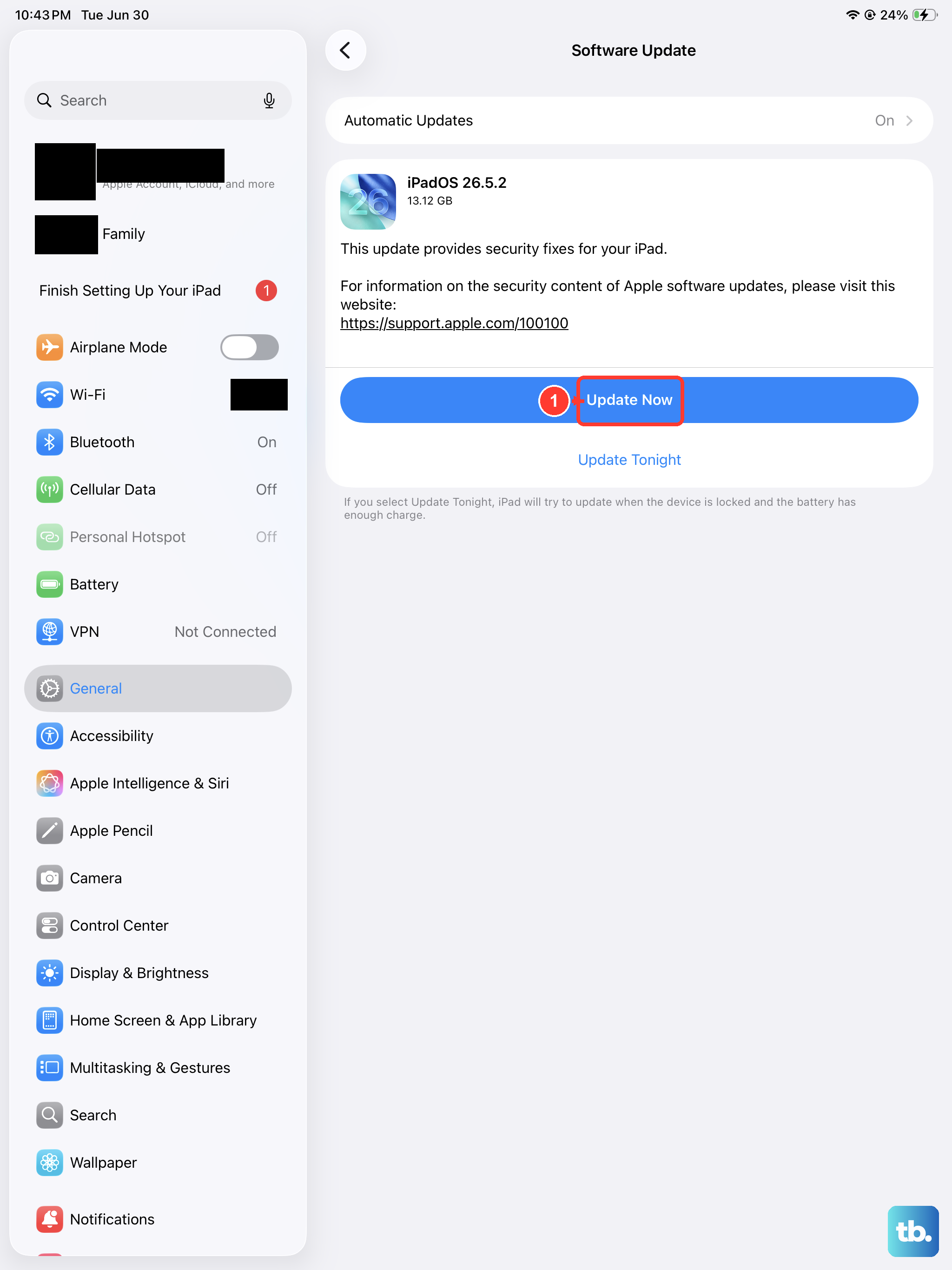
iPadOS 18 occasionally gets bug fixes for input issues. Make sure you're running the latest version.
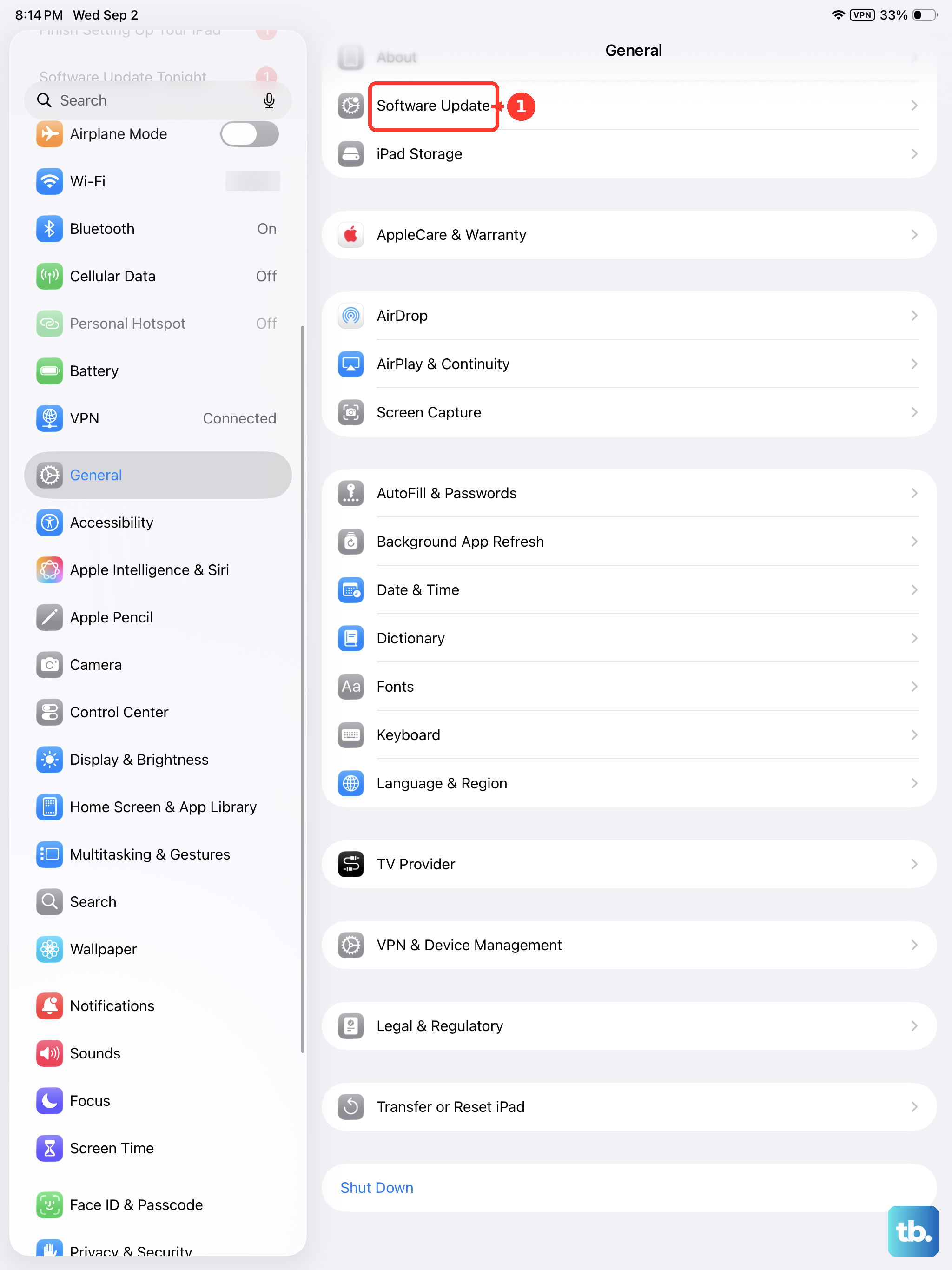
Go to Settings > General > Software Update. If an update is available, download and install it while your iPad is plugged into power and connected to Wi-Fi. A software update can fix known glitches that cause volume buttons to become unresponsive.
10. Factory Reset the iPad Air M3
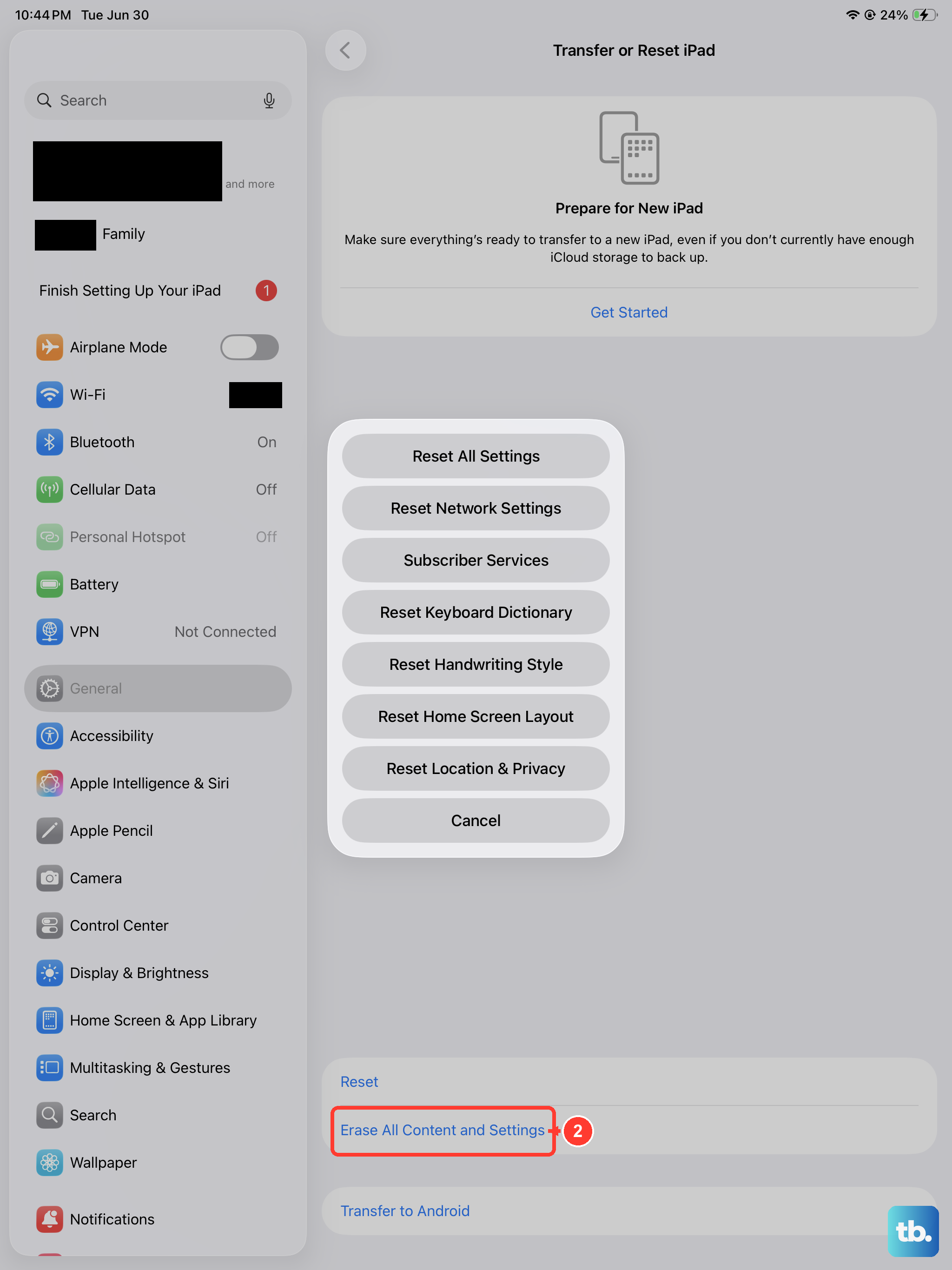
If none of the above works, a full factory reset may resolve deep software corruption affecting the volume controls. This erases all your data, so back up your iPad first using iCloud or a computer.
Go to Settings > General > Transfer or Reset iPad > Erase All Content and Settings. You can also restore using a computer with Finder or iTunes by putting the iPad into recovery mode and clicking Restore.
After the reset, set up your iPad as new and test the volume buttons before restoring from a backup. If they still don't work, the issue is likely hardware-related and you'll need to contact Apple Support for service.
Most volume button issues on the iPad Air M3 are software-related and fixable with these steps. Start with the case removal and force restart, those two alone resolve the majority of cases.