
MMS messages on the iPad Air M3 are handled through iMessage, which uses your cellular connection or an iPhone’s SMS relay. When a photo or video won’t download, it’s usually a network or settings issue. Let’s walk through the most effective fixes.
Start with a Force Restart
A force restart clears out temporary glitches without erasing any data. On the iPad Air M3, press and quickly release Volume Up, then Volume Down, then press and hold the Top button until the Apple logo appears. Let go as soon as you see the logo. This is the quickest fix to try first.
Check Your iMessage Settings
Open Settings > Apps > Messages and make sure iMessage is toggled on. If it’s already on and you’re still having trouble, tap Send & Receive and confirm your Apple ID and phone number are selected. Sometimes iMessage gets stuck during activation turning it off, waiting 30 seconds, then turning it back on can help.
Turn On MMS Messaging
Even with iMessage active, the iPad needs a separate MMS setting enabled for SMS multimedia. Go to Settings > Apps > Messages and scroll down to MMS Messaging. Make sure the toggle is green. This setting is required for downloading pictures and videos sent from non-Apple devices.
Make Sure Cellular Data Is Active
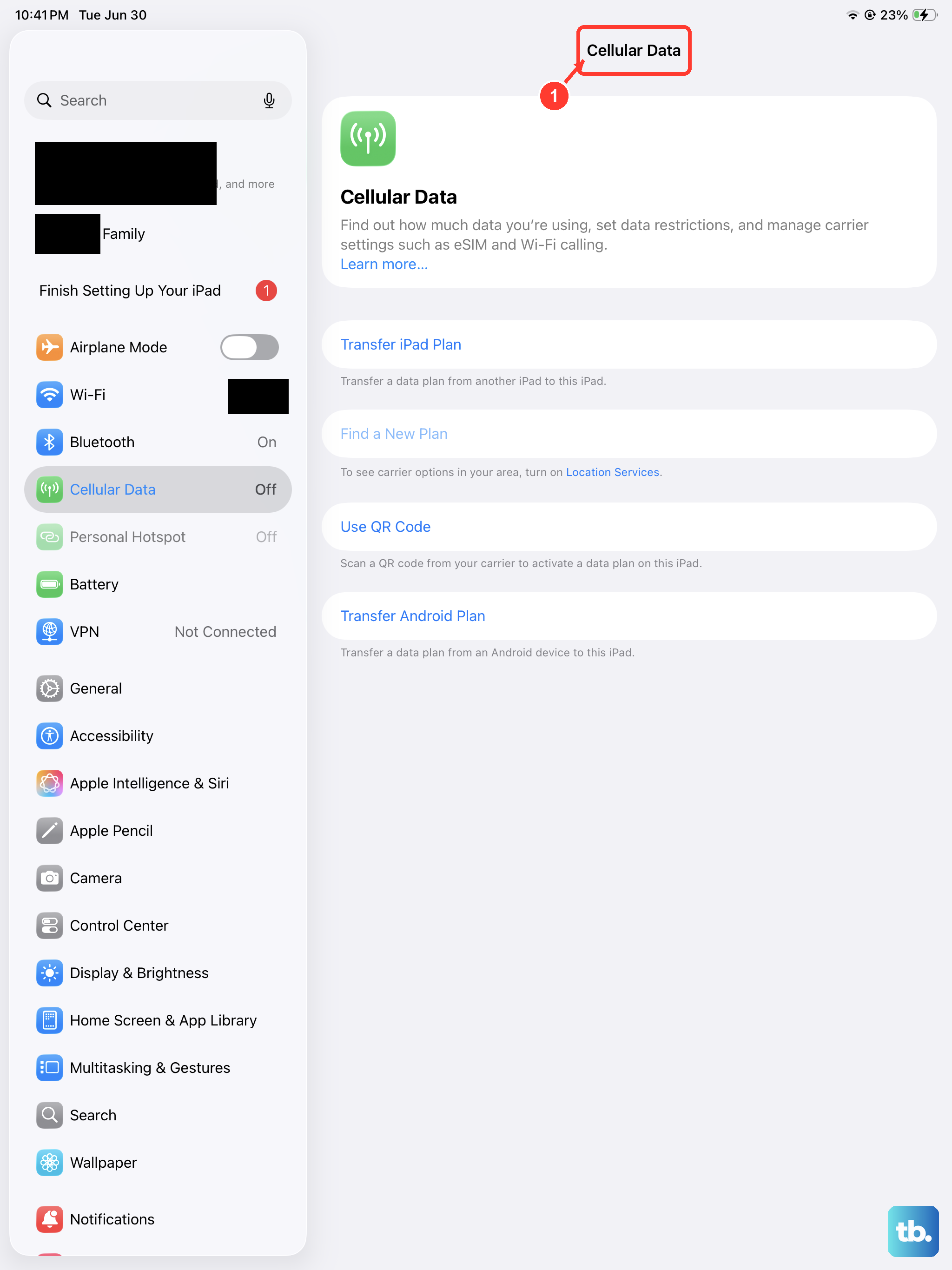
MMS requires a cellular data connection. On a cellular iPad Air M3, go to Settings > Cellular Data and verify that Cellular Data is turned on. If you see a message that says “No Service,” try toggling Airplane Mode on and off. For iPads without cellular, MMS only works if you have an iPhone set up for SMS relay (Continuity) make sure that feature is enabled on both devices under Settings > Apps > Messages > Text Message Forwarding.
Reset Network Settings
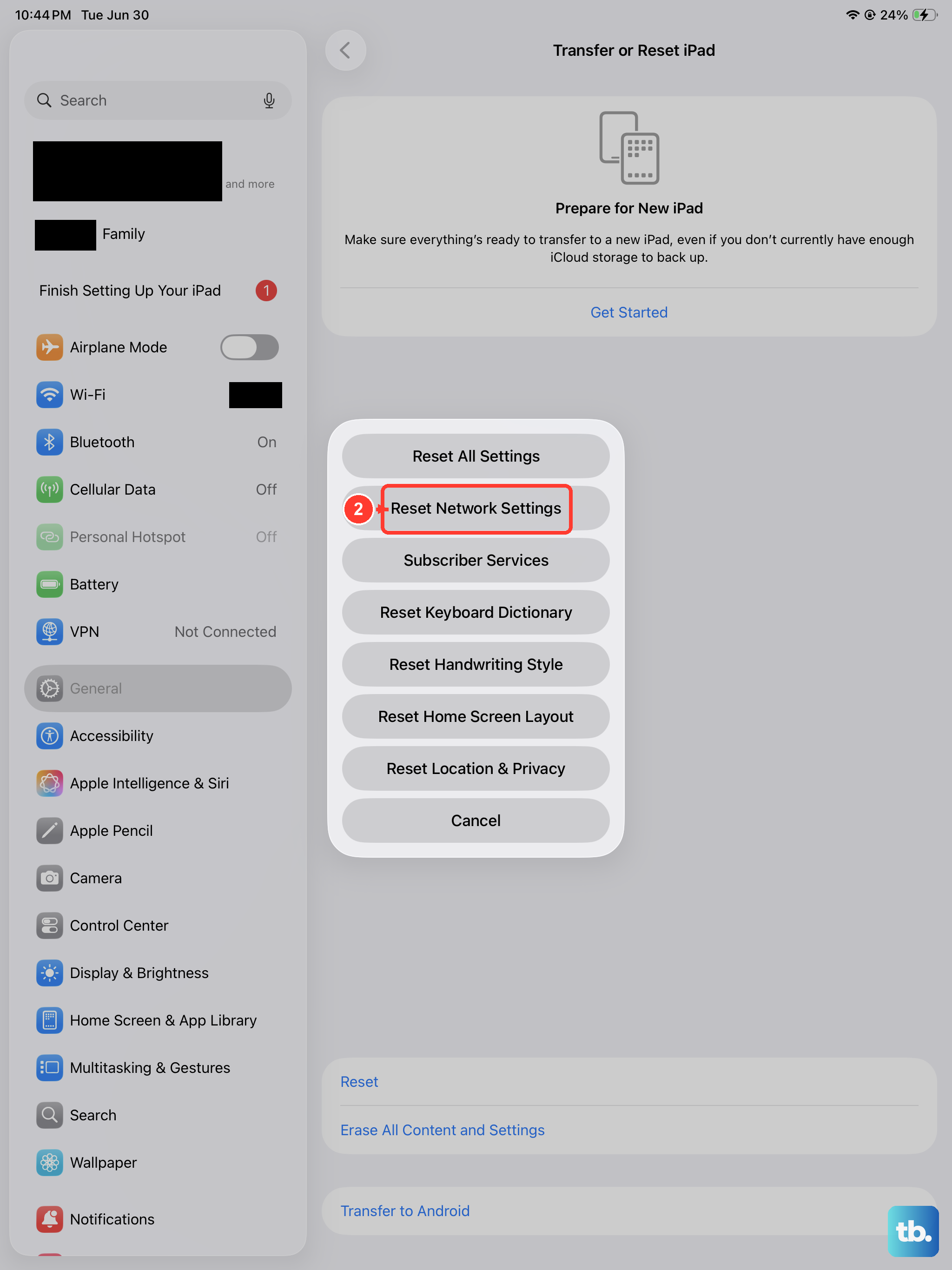
If the network gets confused, a network settings reset can fix stubborn issues without wiping your data. Go to Settings > General > Transfer or Reset iPad > Reset > Reset Network Settings. You’ll need to re‑enter Wi‑Fi passwords afterward, but your iMessage and MMS settings will remain intact.
Update to the Latest iPadOS
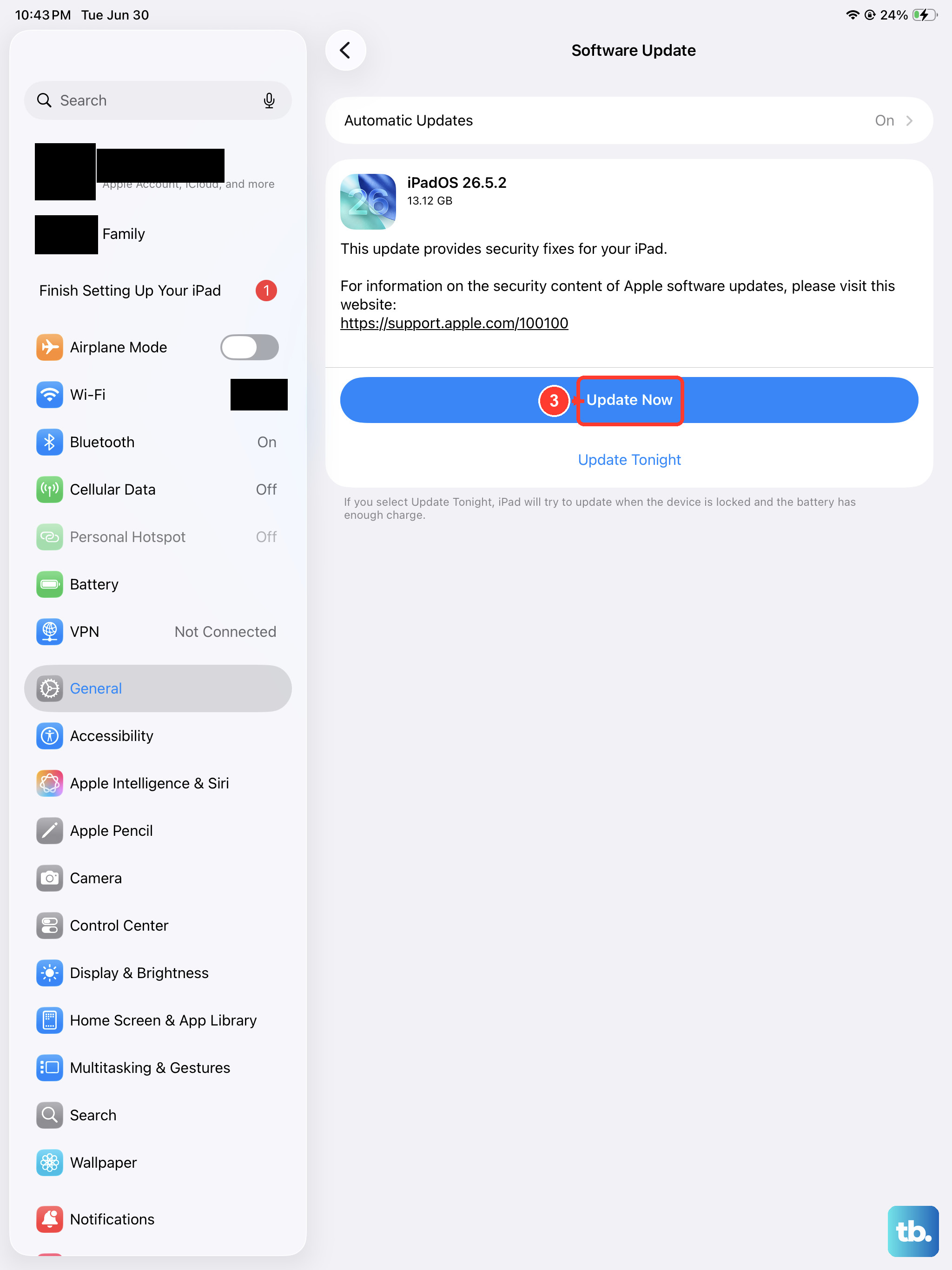
Apple frequently releases updates that fix iMessage and MMS bugs. Open Settings > General > Software Update. If an update is available, download and install it. The iPad Air M3 ships with iPadOS 18, and keeping it current resolves many connectivity issues.
Check Carrier Settings
Your carrier occasionally pushes updates that affect MMS performance. Go to Settings > General > About. If a carrier settings update is available, a pop‑up will appear. Tap Update and then wait for the iPad to apply it. No manual download needed.
Free Up Storage Space
If your iPad’s storage is nearly full, it can’t download new MMS files. Go to Settings > General > iPad Storage. If the bar is in the red, delete old messages, photos, or unused apps. You can also enable Optimize iPad Storage under Photos to free up space automatically.
Turn iMessage Off and Back On
This refreshes the activation process. Go to Settings > Apps > Messages and flip the iMessage switch off. Wait 10 seconds, then turn it back on. If prompted, re‑enter your Apple ID password. This step can resolve authentication hiccups that block MMS downloads.
Check Date & Time Settings
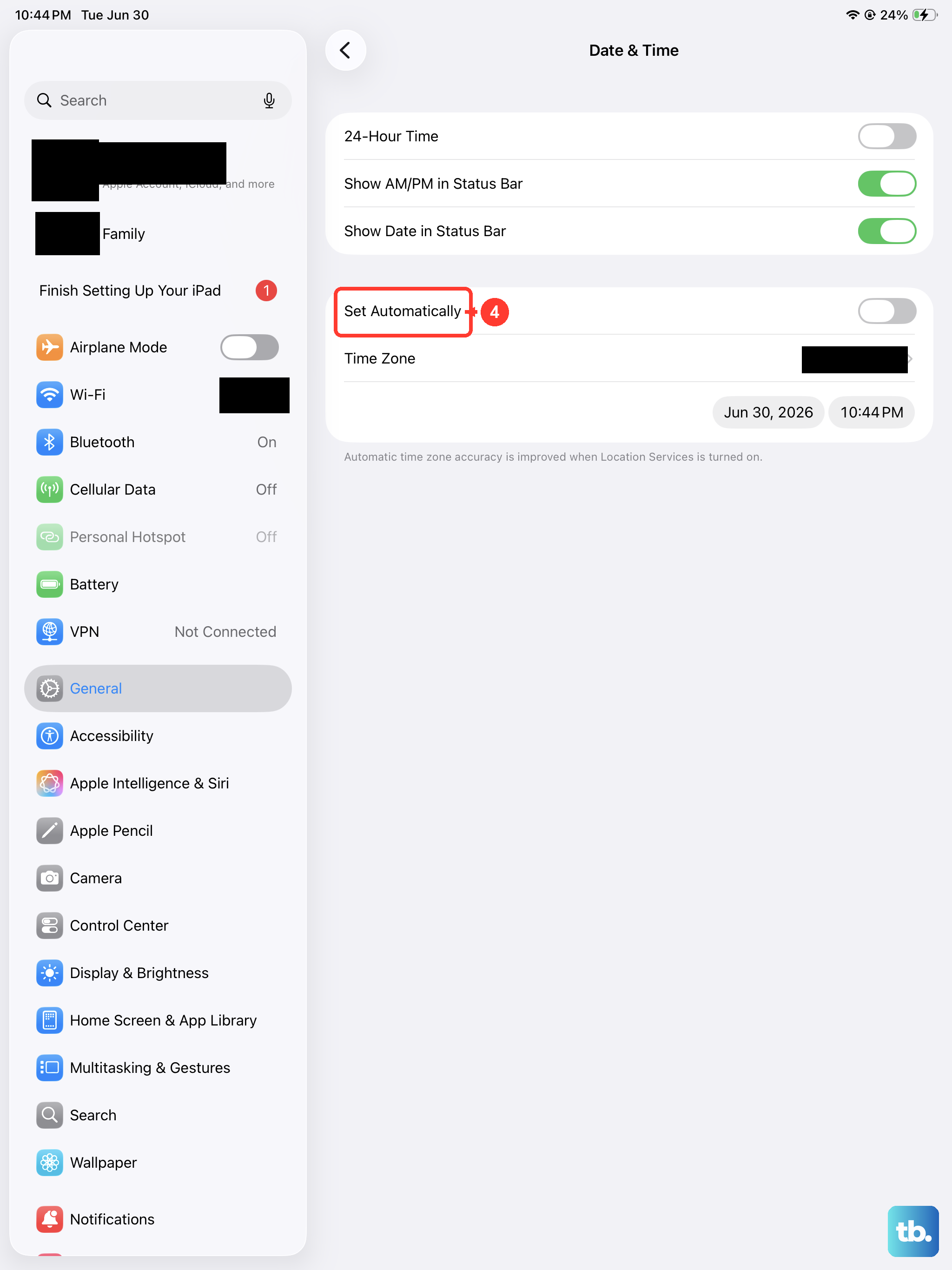
Incorrect date and time can break iMessage activation. Go to Settings > General > Date & Time and make sure Set Automatically is enabled. If it’s already on but the time is wrong, try turning it off, setting the correct time manually, then toggling automatic back on.
Erase All Content and Settings (Last Resort)
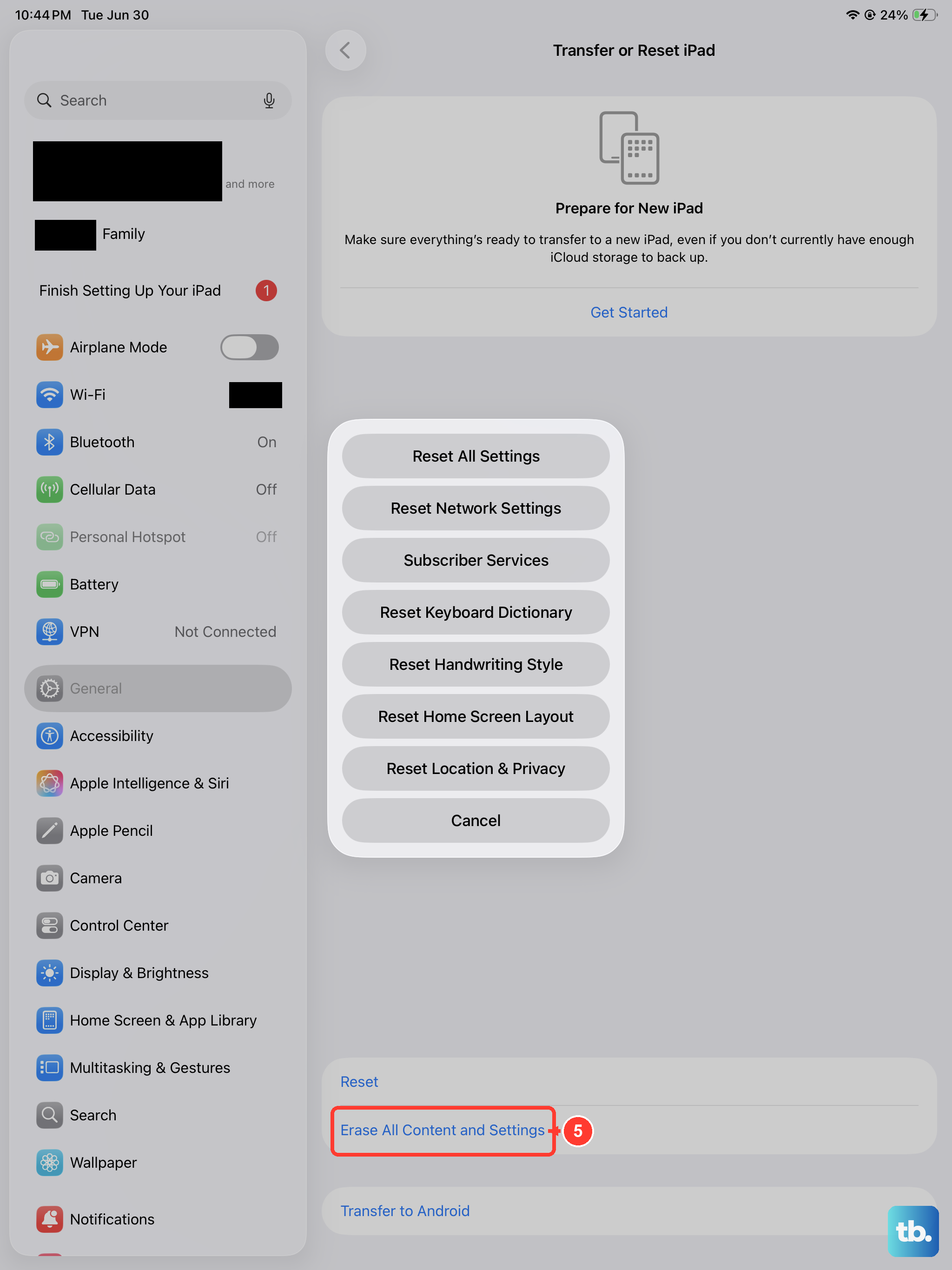
If none of the above works, a full erase can clear deep‑seated configuration issues. This will delete all data, so back up to iCloud or a computer first. Go to Settings > General > Transfer or Reset iPad > Erase All Content and Settings. After the iPad restarts, set it up as new and test MMS before restoring from backup. If it works, restore your data slowly to identify what caused the problem.